
Ищете способ создавать push-уведомления по нажатию кнопки и собирать подписчиков на push-уведомления?
Мы понимаем. Иногда гораздо удобнее иметь некоторую гибкость в способах привлечения подписчиков.
Не волнуйтесь. Мы позаботились об этом.
В этой статье мы пошагово покажем вам, как создавать собственные push-уведомления по нажатию кнопки.
Готовы? Давайте начнем.
Как создавать push-уведомления по нажатию кнопки в WordPress
Прежде чем создавать push-уведомления по нажатию кнопки в WordPress, вам нужно создать целевую страницу для сбора подписчиков на push-уведомления. Мы настоятельно рекомендуем использовать SeedProd для создания ваших целевых страниц.

SeedProd — это лучший конструктор целевых страниц для WordPress. Он идеально подходит для бизнеса, блогеров и владельцев веб-сайтов, которые хотят создавать высококонверсионные целевые страницы без каких-либо навыков разработки.
С SeedProd вы получаете готовые шаблоны для высококонверсионных целевых страниц, которые вы можете мгновенно опубликовать. Это включает шаблоны для:
- Продающие страницы
- Страницы «Скоро открытие»
- Страницы 404
- Страницы обслуживания
- Страницы захвата
- Страницы благодарности
- Страницы вебинаров
- Страницы видео
И многое другое!
Шаг № 1: Установите и активируйте SeedProd
Сначала вам нужно будет приобрести плагин SeedProd Pro и активировать его. Если вы не знаете, как это сделать, ознакомьтесь с этой статьей о том, как установить плагин WordPress. Затем перейдите в раздел SeedProd » Настройки на панели управления WordPress и активируйте Pro-версию:

Далее перейдите в раздел SeedProd » Страницы для обзора панели управления целевыми страницами SeedProd. Здесь вы можете увидеть различные типы целевых страниц, которые вы можете создать с помощью SeedProd:

Имейте в виду, что это все специальные страницы с готовым функционалом и шаблонами дизайна. Для целевой страницы вам НЕ следует использовать НИ ОДНУ из этих специальных целевых страниц. Вместо этого вы будете создавать пользовательскую целевую страницу.
Прокрутите дальше вниз и нажмите кнопку Добавить новую целевую страницу , чтобы начать:

Шаг №2: Создайте новую целевую страницу для push-уведомлений по нажатию кнопки
После нажатия кнопки Добавить новую целевую страницу вы увидите библиотеку шаблонов целевых страниц SeedProd. Это профессионально разработанные шаблоны целевых страниц, которые полностью адаптивны.
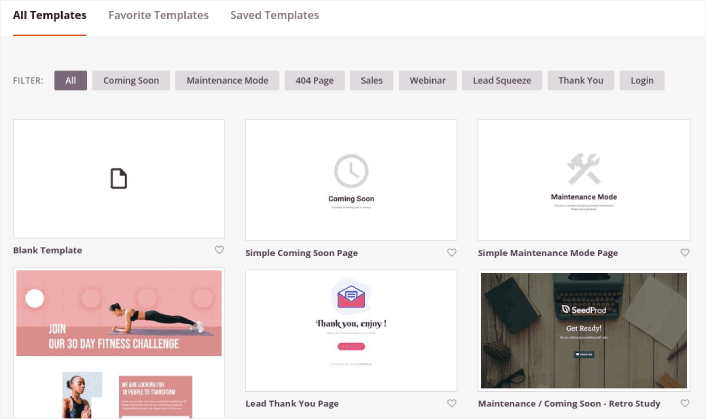
Далее вы можете выбрать один из этих шаблонов, чтобы начать.
Помните, что шаблон — это всего лишь отправная точка. Вы можете настроить все на странице позже. Пока что найдите шаблон, который, по вашему мнению, подойдет. Когда откроется страница шаблонов, вы можете нажать Squeeze Page , чтобы отфильтровать список:
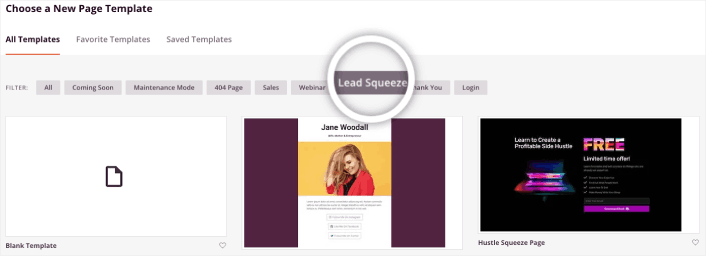
Для этого руководства мы выберем Инвестиционную страницу захвата.
Целевая страница (squeeze page) имеет только одну цель. Она заключается в том, чтобы «выжать» из вас ровно столько, сколько нужно, чтобы получить ваш адрес электронной почты. Знаете кого-нибудь в сфере инвестиций и личных финансов? Да, они точно умеют «выжимать»!
Перейдите и нажмите на нее сейчас.
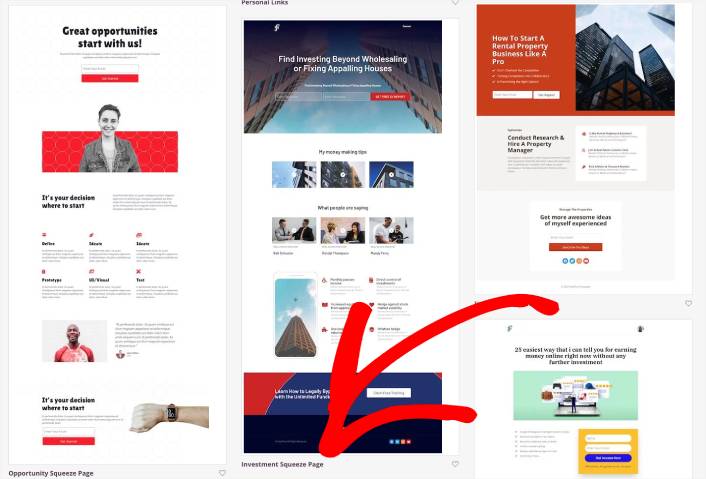
Далее мы будем настраивать целевую страницу.
Шаг № 3: Настройка дизайна вашей целевой страницы
Визуальный конструктор SeedProd позволяет настраивать вашу целевую страницу с помощью блоков контента, которые можно перетаскивать.
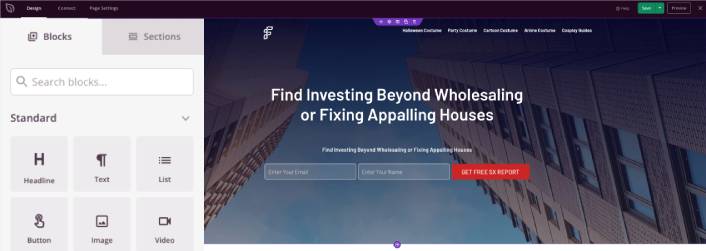
Вы можете создать полностью настраиваемый заголовок для вашей целевой страницы за считанные минуты. Вы даже можете добавлять пользовательские элементы, чтобы убедить и конвертировать ваш трафик. Например, вы можете создать видеомодуль и встроить видео с YouTube, чтобы убедить ваших посетителей купить ваш продукт или услугу.
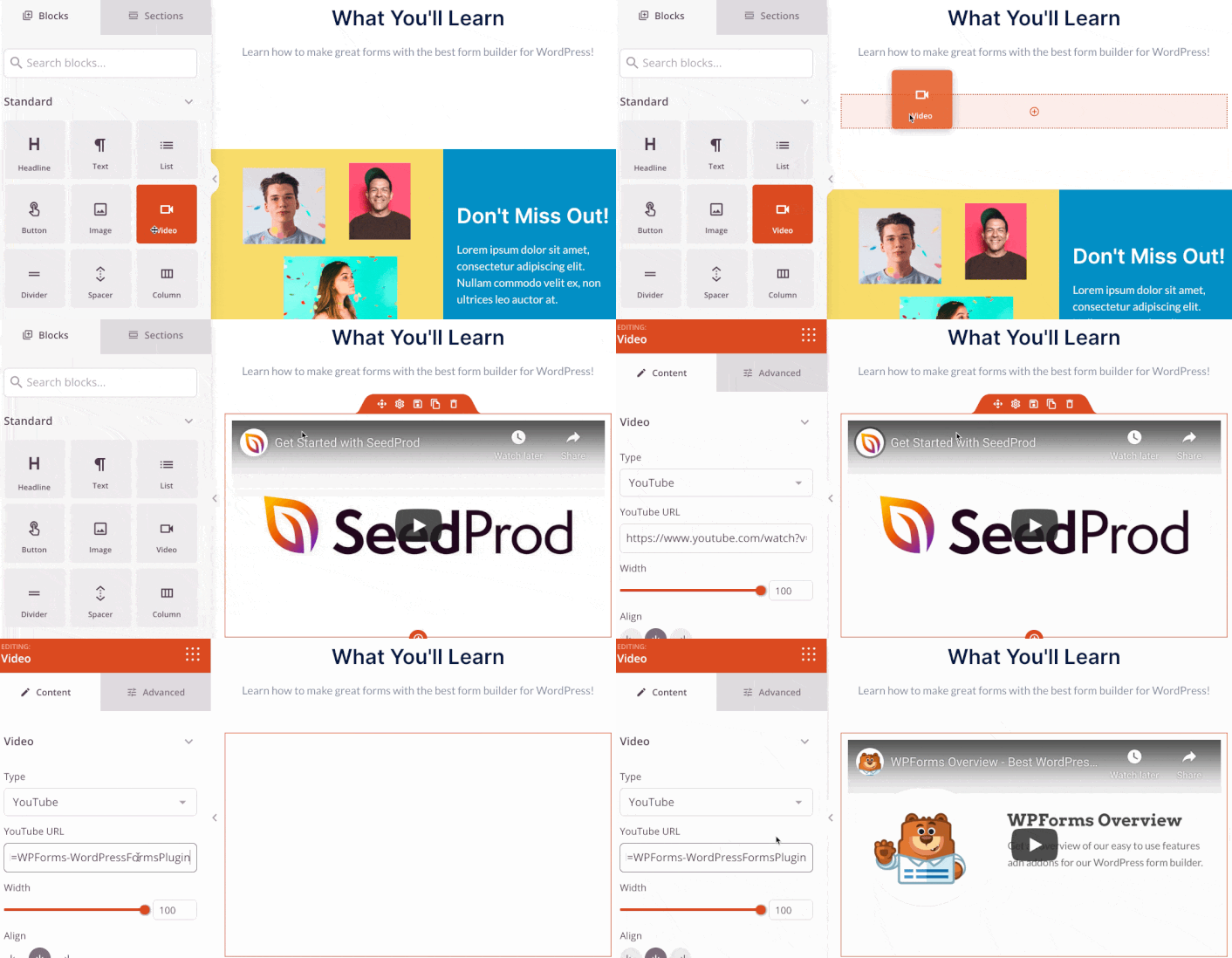
Также очень легко добавить раздел с кратким описанием вашего продукта или услуги. Перейдите на вкладку Разделы в визуальном конструкторе, и в разделе Hero вы найдете несколько готовых шаблонов, которые можно импортировать одним щелчком мыши.
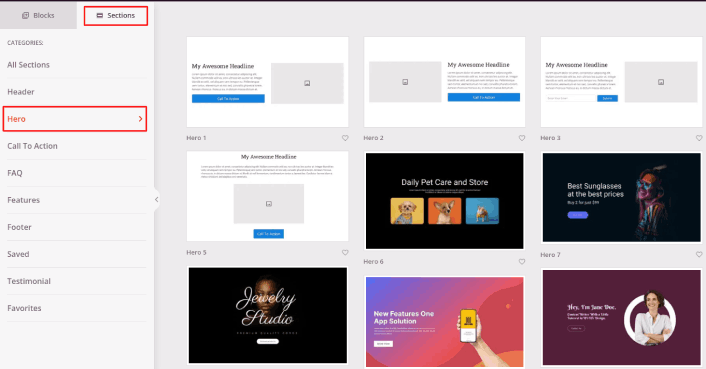
Выберите тот, который вам нравится.
Не беспокойтесь о цветах или контенте. Вы можете отредактировать все это. Вам следует искать макет, который хорошо сочетается с вашим шаблоном.
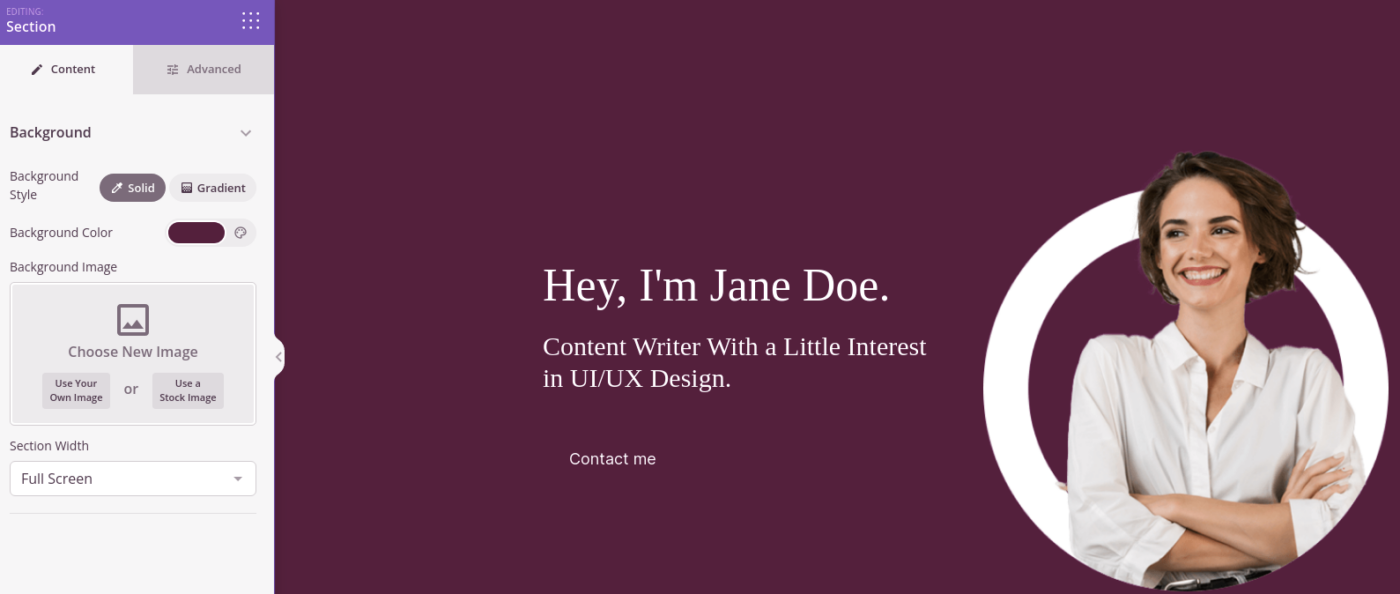
Вы можете настроить раздел hero так же, как мы делали ранее, выбрав другое изображение и изменив заголовок и описание. Пока вы этим занимаетесь, добавьте кнопку призыва к действию, которая побудит посетителей купить у вас.
Далее, на вкладке Разделы выберите заголовок Отзывы и выберите понравившийся дизайн. И вот так просто у вас появится раздел отзывов на вашей целевой странице.
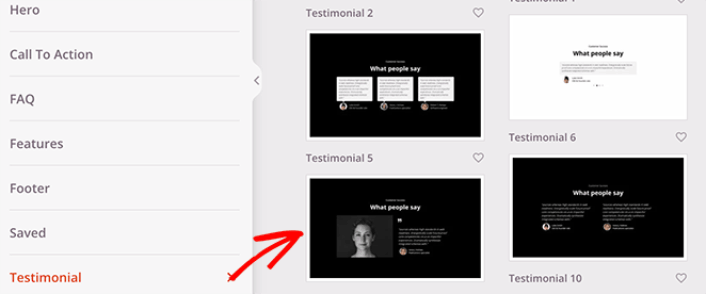
Это так просто!
Шаг №4: Добавьте push-уведомления по нажатию кнопки на вашу целевую страницу
Вы также можете добавить кнопку «Нажми, чтобы подписаться» для сбора подписчиков push-уведомлений. Push-уведомления — отличный способ увеличить повторный трафик, повысить вовлеченность и даже продавать официальные товары, если они у вас есть.
В SeedProd просто перетащите модуль «Пользовательский HTML» из боковой панели.
Мы разместили кнопку подписки непосредственно под формой подписки по электронной почте в первой части.
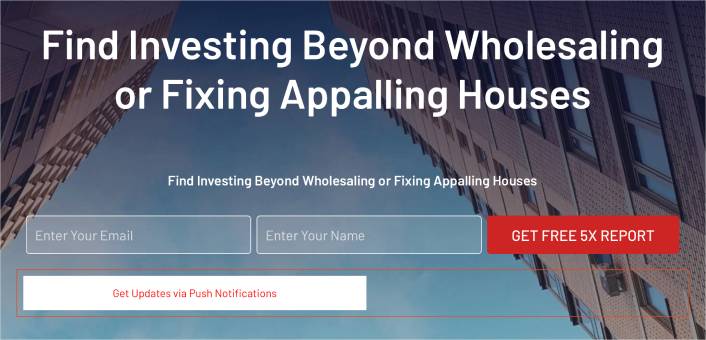
Но вы можете вставить кнопку в любое место.
Для этой части вам понадобится некоторый опыт работы с HTML и CSS. Или вы можете скопировать этот код и вставить его в свой блок Custom HTML:
<button onclick="subscribeOnClickButton()" style="border: none; padding-left: 5%; padding-right:5%; text-align: center; display: inline-block; color: blue;">Get Updates via Push Notifications</button>Это стандартная кнопка в HTML с минимальным оформлением. Единственная интересная деталь — это функция onclick в коде. По сути, это означает, что ваши посетители могут нажать на кнопку, чтобы подписаться на что-то. Теперь нам нужно добавить кнопке дополнительный код, чтобы ваши посетители могли подписаться на push-уведомления.
Перейдите на главную страницу PushEngage и нажмите кнопку Начать:

PushEngage — это плагин для push-уведомлений № 1 в мире.
Push-уведомления помогают вам автоматически увеличивать трафик вашего сайта и вовлеченность. И если вы управляете интернет-магазином, PushEngage также помогает вам увеличить продажи, помогая создавать автоматические push-уведомления для электронной коммерции.
Вы можете начать бесплатно, но если вы серьезно относитесь к развитию своего бизнеса, вам следует приобрести платный план. Кроме того, прежде чем покупать какую-либо службу push-уведомлений, ознакомьтесь с этим руководством по стоимости push-уведомлений.
Вот краткий обзор того, что вы получаете с PushEngage:
- Высококонверсионные автоматизированные кампании
- Несколько опций таргетинга и планирования кампаний
- Отслеживание целей и расширенная аналитика
- Интеллектуальным A/B-тестированием
- Шаблоны кампаний push-уведомлений
- Мощные опции сегментации
- Выделенный менеджер по успеху
Вы увидите, что PushEngage — это, без сомнения, лучший выбор, если вы хотите увеличить трафик, вовлеченность и продажи для своего бизнеса. И если у вас ограничен бюджет, вы всегда можете немного проявить креативность с вашими push-уведомлениями.
ПРИМЕЧАНИЕ: Если у вас сайт на WordPress, вам следует установить и активировать плагин PushEngage для WordPress.
Затем выберите бесплатный план, чтобы попробовать PushEngage, или выберите платный план, если вы серьезно относитесь к развитию своего бизнеса. Платные планы включают больше опций для кампаний и возможность создавать еще большие списки подписчиков.
В вашей панели управления PushEngage перейдите в раздел Настройки сайта » Детали сайта и нажмите кнопку Нажмите здесь для инструкций по настройке. В разделе Любой сайт вы получите код установки:

ВНИМАНИЕ: Вам нужно скопировать код, который вы получите из вашей панели управления. Код уникален для каждого пользователя PushEngage. Вы не сможете скопировать код из изображения и собирать подписчиков push-уведомлений.
Как только у вас появится код в панели управления PushEngage, добавьте этот фрагмент кода в свой код:
<script> window._peq = window._peq || [];</script> <script>
function subscribeOnClickButton(){
window._peq.push(['subscribe',{}.pe,function(res){
if(res.statuscode==1)
{
// Code to return response
console.log(res);
}
}]);
}
</script>
Ваш итоговый код должен выглядеть примерно так:
<script src="https://clientcdn.pushengage.com/core/02a6e92667ae2279fcba8932356c1d93.js" async></script>
<script> window._peq = window._peq || [];</script> <script>
function subscribeOnClickButton(){
window._peq.push(['subscribe',{}.pe,function(res){
if(res.statuscode==1)
{
// Code to return response
console.log(res);
}
}]);
}
</script>
Вы захотите добавить этот код в блок HTML на вашей целевой странице после кода для кнопки. Это должно выглядеть примерно так:

Не стесняйтесь настраивать стили кнопки по своему усмотрению. Когда вы закончите настройку целевой страницы, нажмите кнопку «Сохранить».
Шаг № 4: Настройка параметров страницы
После того, как вы закончите дизайн вашей целевой страницы, нажмите вкладку «Подключить» в верхней части конструктора страниц и выберите вашего поставщика услуг email-маркетинга для сбора лидов на вашем сайте.

Затем нажмите на вкладку Настройки страницы в верхней части экрана.

Здесь вы можете добавить SEO-плагин и плагин Google Analytics на вашу целевую страницу. Вы даже можете настроить пользовательские коды отслеживания, такие как пиксель Facebook или пиксель Pinterest, для отслеживания эффективности рекламы.
Шаг №5: Опубликуйте вашу целевую страницу в WordPress
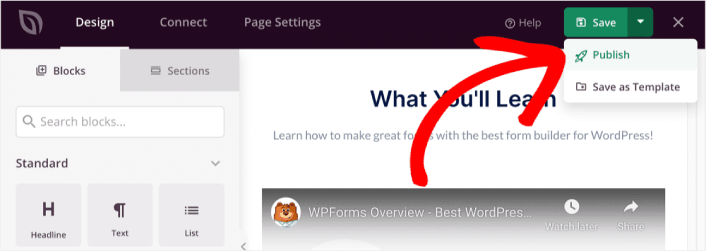
Теперь давайте опубликуем ваш дизайн. Для этого нажмите на стрелку раскрывающегося списка рядом с кнопкой сохранения и нажмите Опубликовать.
Затем вы можете нажать кнопку Посмотреть страницу вживую, чтобы увидеть, как она выглядит.
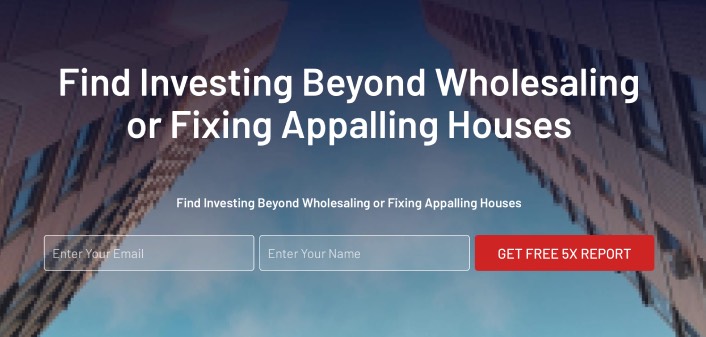
Поздравляем! Вы только что опубликовали свою первую целевую страницу.
Что делать после добавления push-уведомлений по нажатию кнопки на ваш сайт
Теперь, когда ваша целевая страница активна, пришло время поработать над трафиком, вовлеченностью и продажами. Вам следует попробовать использовать push-уведомления на вашем сайте. Push-уведомления — отличный маркетинговый инструмент, который поможет вам развивать ваш бизнес.
Посмотрите на эти эпические ресурсы, и вы поймете, что мы имеем в виду:
- 7 умных стратегий для повышения вовлеченности клиентов
- Эффективны ли push-уведомления? 7 статистических данных + 3 совета экспертов
- Как настроить push-уведомления о брошенной корзине (простое руководство)
Мы рекомендуем использовать PushEngage для создания ваших кампаний push-уведомлений. PushEngage — это программное обеспечение для push-уведомлений №1 в мире. Так что, если вы еще этого не сделали, начните использовать PushEngage сегодня!


