Ищете способ добавить push-уведомления в AMP-версию вашего сайта? Добавление AMP push-уведомлений может быть немного сложным. Но мы поможем вам сделать это легко.
AMP или Accelerated Mobile Pages — это, по сути, мобильная версия вашего сайта. Поэтому, если вы не настраиваете веб-push на своем AMP-сайте, вы потеряете множество подписчиков, поскольку большая часть вашей аудитории будет использовать мобильные устройства для посещения вашего сайта.
В этой статье мы будем использовать PushEngage для установки AMP push-уведомлений, потому что это намного проще, чем делать это вручную.
Давайте начнем.
Как установить AMP push-уведомления
Установка AMP push-уведомлений — это очень быстрый и простой процесс. Просто следуйте этим шагам, и к концу этой статьи вы сможете отправлять push-кампании с вашего сайта, как эта:

Выглядит неплохо, не так ли? Давайте приступим.
Шаг № 1: Настройте свою учетную запись PushEngage
Перейдите на главную страницу PushEngage и нажмите кнопку Начать работу:

Вы можете выбрать бесплатный план, чтобы попробовать PushEngage, или выбрать платный план, если вы серьезно относитесь к развитию своего бизнеса. Платные планы предлагают больше опций для кампаний и возможность создавать еще большие списки подписчиков.
После регистрации в вашей учетной записи PushEngage перейдите в вашу панель управления PushEngage и выберите Настройки сайта » Сведения о сайте:

Здесь вы можете установить свой логотип, название сайта и URL сайта. Очень важно разобраться с этими настройками прямо сейчас, чтобы вы могли протестировать всю свою конфигурацию позже.
Шаг № 2: Получите код установки AMP push-уведомлений
Чтобы установить веб-push на вашем AMP-сайте, вам понадобится код установки. На экране Настройки сайта прокрутите вниз и нажмите кнопку Нажмите здесь для инструкций по настройке:

Перейдите на вкладку AMP, чтобы получить настройки установки.
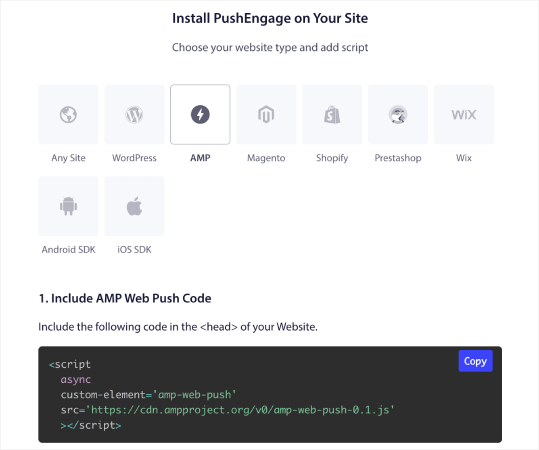
Скопируйте этот код. Вам нужно будет вставить этот код в <head> вашего сайта. Если у вас сайт WordPress с AMP-версией, самый простой способ сделать это — использовать плагин Insert Headers and Footers. Это бесплатный плагин, куда вы можете вставить код установки AMP, не заходя в фактический HTML вашего сайта:
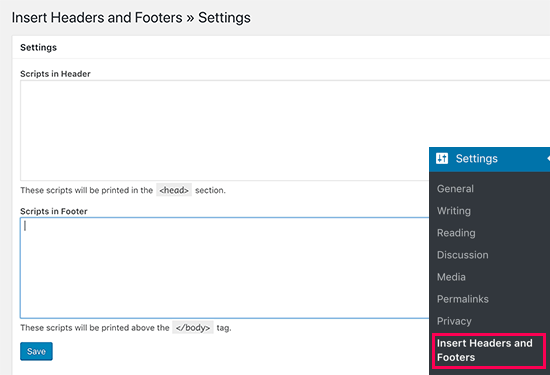
Шаг № 3: Установите Service Worker на вашем AMP-сайте
Далее, скачайте пакет файлов, который включает service worker.
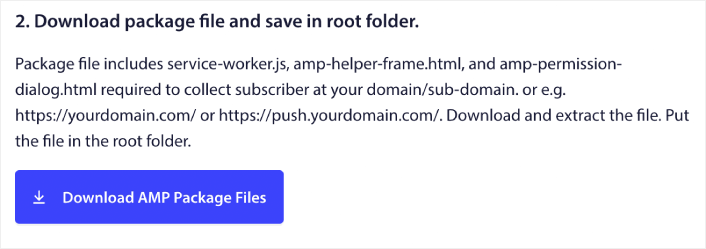
К ним относятся:
- service-worker.js
- amp-helper-frame.html
- amp-permission-dialog.html
Распакуйте пакет и поместите эти файлы в корневую папку вашего сервера. Эта часть очень важна. Если вы пропустите этот шаг, ваш сайт не сможет собирать push-подписчиков.
Совет: Если вы не уверены, что такое корневая папка и как загружать туда файлы, ознакомьтесь с этой статьей о структуре файлов и каталогов WordPress. Это очень простое руководство для начинающих, которое даст вам много информации о том, как работает WordPress.
Шаг № 4: Добавьте AMP push HTML-код на ваш сайт
Далее, добавьте HTML-код, чтобы включить кнопку подписки по клику и кнопку для отписки от push-кампаний.
Этот код включает загруженный файл service worker и позволяет вашему сайту отображать кнопки подписки и отписки. Чтобы собирать подписчиков, вы должны предоставить посетителям простой способ подписаться на ваши push-кампании. Кнопка отписки даст вашим активным подписчикам возможность отказаться, если они больше не заинтересованы в вашем контенте. Оба варианта довольно важны.
Добавьте кнопку «Подписаться на обновления», где вы хотите, чтобы она отображалась на вашем сайте:
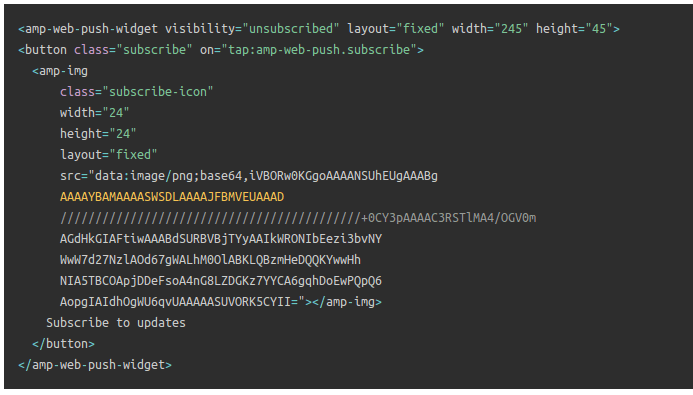
И добавьте кнопку «Отписаться от обновлений»:
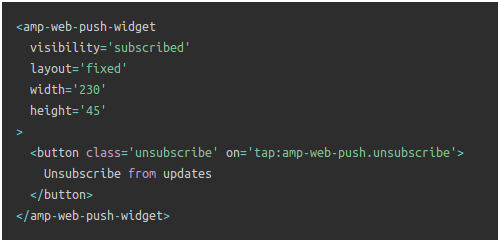
Кнопка «Отписаться» будет представлять собой простую кнопку «нажмите, чтобы отписаться». Вы получаете гораздо больше возможностей настройки для не-AMP-версии вашего сайта как на мобильных, так и на настольных устройствах. Поэтому мы рекомендуем добавить AMP CSS в ваш раздел <body>.
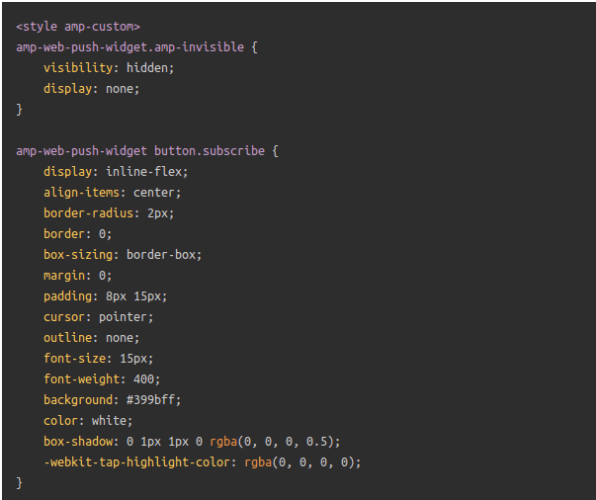
Этот фрагмент кода предназначен для настройки внешнего вида кнопок «Подписаться» и «Отписаться». Если вы хотите поэкспериментировать с этими стилями, пожалуйста. Просто убедитесь, что вы не изменяете теги AMP HTML, которые стилизует код.
И это все. Вы закончили.
Шаг № 5: Настройка Opt-In PushEngage
Теперь вернитесь в свою панель управления PushEngage. Перейдите в раздел Дизайн » Модальные окна всплывающих окон и выберите форму подписки по вашему выбору:
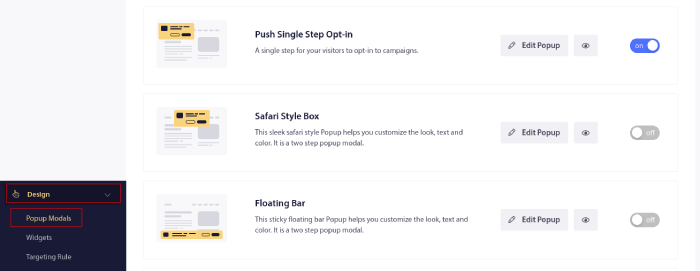
Идея здесь состоит в том, чтобы дать вашим посетителям вескую причину подписаться. Если вам нужна помощь с этим, ознакомьтесь с нашей статьей о том, как создать пользовательский запрос на подписку на push-уведомления.
А если вам нужны шаблоны для начала, ознакомьтесь с этой статьей о высококонверсионных формах подписки на push-уведомления.
БОНУСНЫЙ Шаг: Создайте приветственную кампанию
После завершения настройки формы подписки ваш сайт сможет собирать подписчиков.
Но как вы узнаете, работают ли ваши push-кампании должным образом?
Мы рекомендуем вам создать приветственное push-уведомление, чтобы проверить, прошла ли настройка гладко. Приветственное уведомление — это веб-push-уведомление, которое вы отправляете новому подписчику, чтобы подтвердить его подписку и поприветствовать его.
Перейдите в панель управления PushEngage и выберите Campaign » Drip Autoresponders, затем нажмите Create New Drip Autoresponder:

Затем назовите свою кампанию (мы предлагаем что-то вроде "Welcome Drip"), а в разделе Content выберите опцию "Send notification immediately after user subscribes“):

На этом этапе вы можете нажать на стрелку рядом с уведомлением, чтобы отредактировать его содержимое. Если у вас есть план Premium или Enterprise с PushEngage, вы сможете добавить более одного уведомления для создания последовательности автоматических приветственных сообщений. Просто нажмите Add New Notification и отредактируйте содержимое.
Когда закончите, нажмите Drip Settings и выберите опцию отправки вашей приветственной кампании всем подписчикам:

Затем прокрутите вниз, чтобы установить собственные UTM-параметры для отслеживания push-кампаний:

И когда закончите, прокрутите обратно вверх и нажмите кнопку Activate Autoresponder:

И это все!
Вы успешно настроили AMP веб-push-уведомления на вашем веб-сайте. Пришло время вернуться на вашу панель управления PushEngage и начать создавать свои push-кампании.
Что делать после добавления AMP push-уведомлений на ваш сайт
На этом всё, друзья!
Если вы новичок в push-кампаниях, вам следует пройти полный процесс тестирования push-уведомлений, прежде чем вы начнете работу. Это поможет вам устранить распространенные проблемы до того, как ваши посетители увидят их и начнут жаловаться на сломанный пользовательский интерфейс.
Вам также стоит ознакомиться с некоторыми автоматизированными кампаниями push-уведомлений, такими как:
Мы рекомендуем вам связаться с нашими менеджерами по работе с клиентами, если вы застряли с чем-либо из этого. Мы будем рады помочь вам с любой проблемой.
И если вы еще этого не сделали, попробуйте PushEngage. PushEngage — это сервис push-уведомлений №1 в мире. Так что, если вы серьезно относитесь к развитию своего бизнеса, PushEngage — правильный выбор для вас.


Спасибо за эти советы и информацию. Очень легко понять.
хорошее объяснение