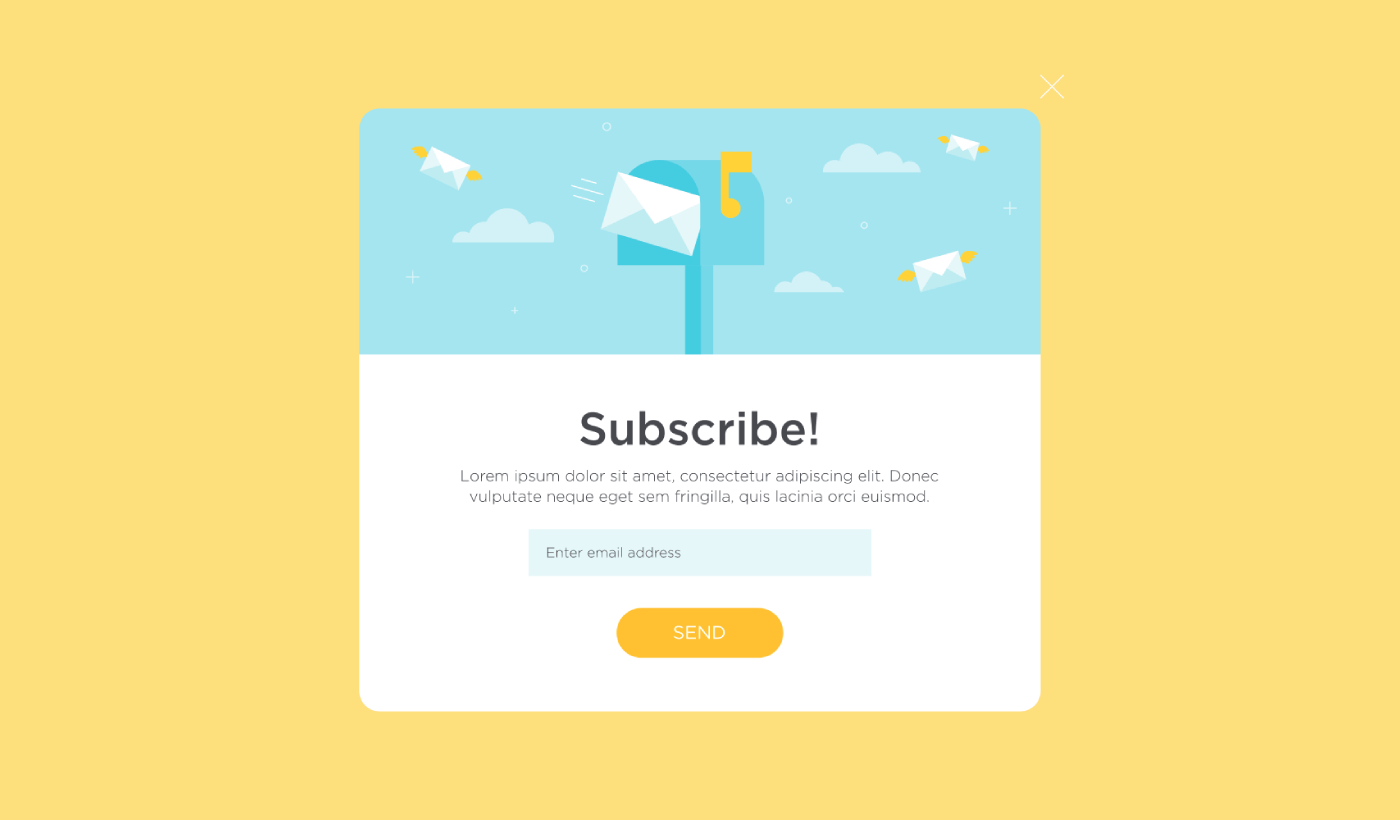
Ищете способ создать всплывающее окно в стиле лайтбокс для вашего сайта?
Всплывающее окно в стиле лайтбокс может быть невероятно эффективным для сбора лидов. Они разработаны для убеждения и конверсии.
Но создавать его с нуля — настоящая головная боль. Во-первых, вам нужно знать достаточно HTML, CSS и Javascript, чтобы создать всплывающее окно вместе с правилами триггера для его отображения. Затем вам придется вручную интегрировать его с вашим поставщиком услуг электронной почты. И, наконец, вам придется иметь дело с любыми проблемами конфиденциальности и безопасности.
Хорошие новости: есть гораздо более простой способ.
В этой статье мы покажем вам, как запустить всплывающее окно в стиле лайтбокс без программирования менее чем за 10 минут.
Давайте начнем.
Что такое всплывающее окно в стиле лайтбокс?
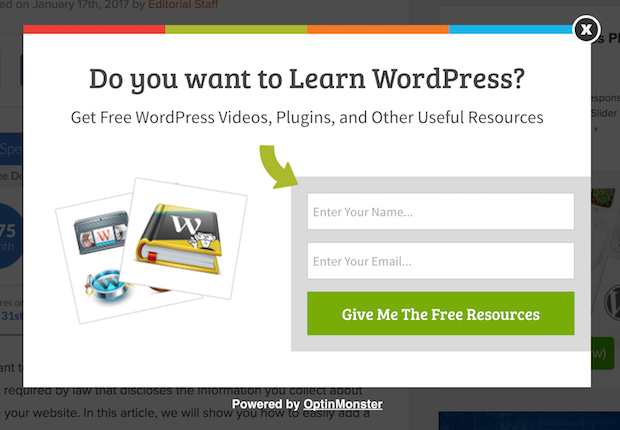
Всплывающее окно в стиле лайтбокс — это форма подписки, которая появляется с кинематографическим эффектом. Когда появляется лайтбокс, он размывает остальную часть сайта на заднем плане. Таким образом, все ваше внимание сосредоточено на всплывающем окне.
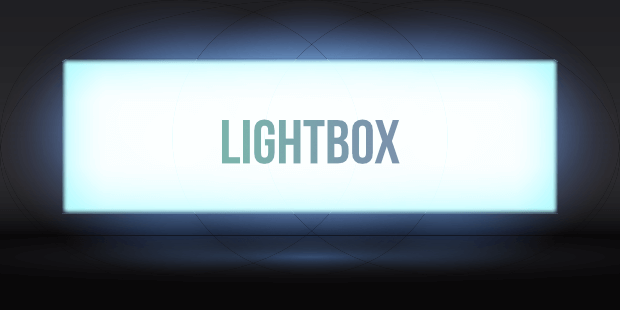
Изначально концепция лайтбоксов пришла из наружной рекламы:
А затем некоторые разработчики подумали, что это действительно классный эффект, и создали JavaScript-библиотеку для воссоздания того же эффекта на веб-ресурсах. Позже появилась идея использования всплывающих окон в стиле лайтбокс.
Почему всплывающие окна в стиле лайтбокс работают
Всплывающие окна в стиле лайтбокс собирают больше адресов электронной почты, чем традиционная форма подписки.
Но почему они работают?
Давайте быстро рассмотрим основные причины, по которым всплывающие окна в стиле лайтбокс работают так хорошо.
#1. Всплывающие окна в стиле лайтбокс содержат четкий призыв к действию
Большинство людей считают, что давать своим клиентам много вариантов — это здорово.
Но это не совсем так.
Если вы стремитесь к прямым конверсиям, вам нужен один четкий призыв к действию, на котором ваша аудитория сможет сосредоточиться. Таким образом, вы устраняете все отвлекающие факторы из сознания пользователя. А всплывающие окна в стиле лайтбокс отлично справляются с выделением вашего основного предложения и привлечением внимания людей к вашему призыву к действию.
Так что, естественно, коэффициенты конверсии довольно высоки.
#2. Всплывающие окна в стиле лайтбокс невозможно игнорировать
Всплывающие окна в стиле лайтбокс занимают весь экран и размывают все остальное. Поэтому их практически невозможно игнорировать.
Это особенно верно, если они анимированы:
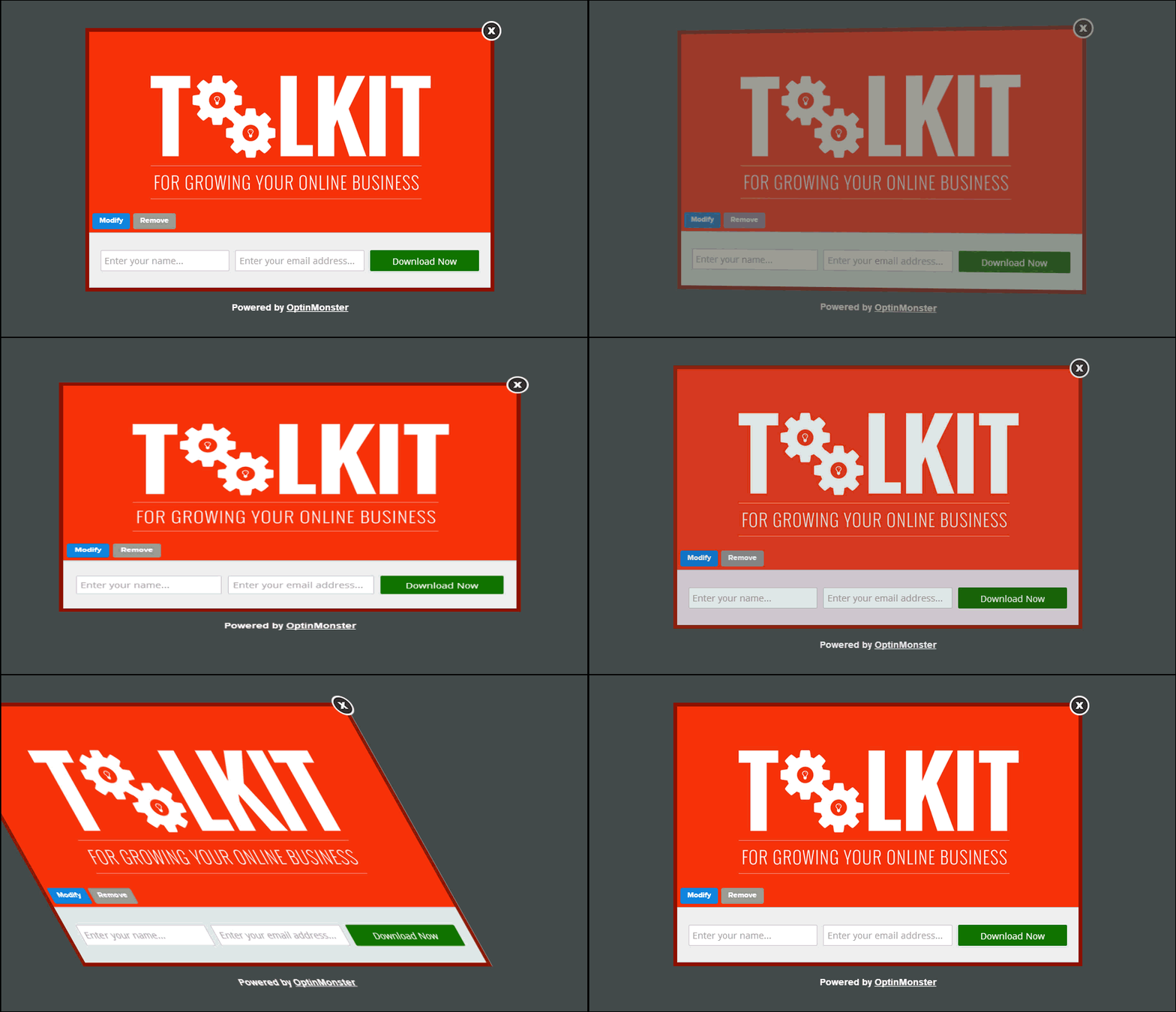
Конечно, вы должны убедиться, что ваши всплывающие окна не навязчивы. И вы можете сделать это, настроив время срабатывания различных всплывающих окон на вашем сайте. Пока ваша аудитория не раздражается из-за прерывания, вы можете очень легко убедить и конвертировать их.
#3. Всплывающие окна в стиле лайтбокс имеют персонализированные триггеры
Вы не должны показывать одно и то же предложение всем посетителям вашего сайта. Если вы управляете интернет-магазином, вам понадобятся совершенно разные предложения для новых и вернувшихся клиентов.
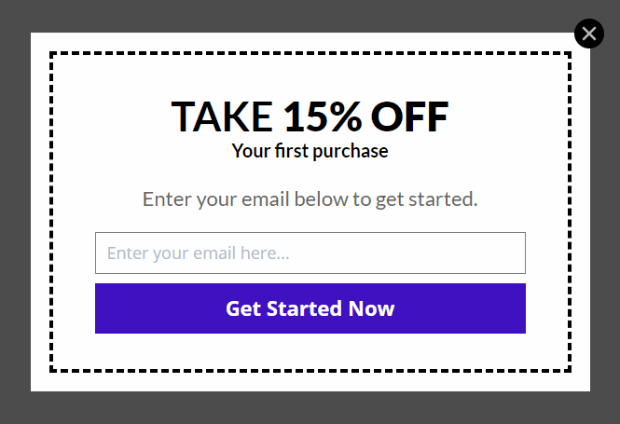
Для нового клиента вы можете запустить приветственную кампанию:
Но для вернувшегося клиента вы можете захотеть отправить им другое предложение:
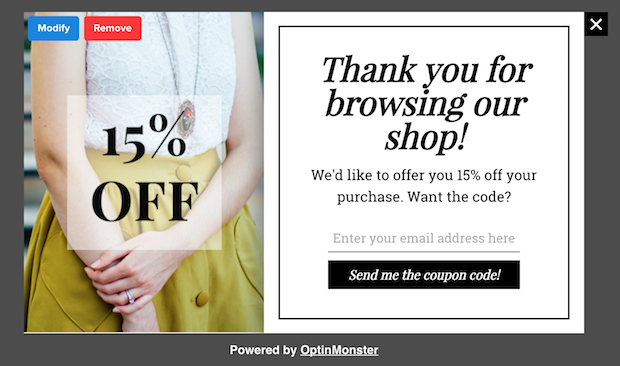
Обратите внимание, что суммы скидок для обоих предложений точно такие же. Но способ представления предложения кардинально отличается. И это очень важно, потому что всплывающие окна в стиле лайтбокс созданы для театральных эффектов. Так что более персонализированный подход, безусловно, даст вам гораздо лучшие результаты.
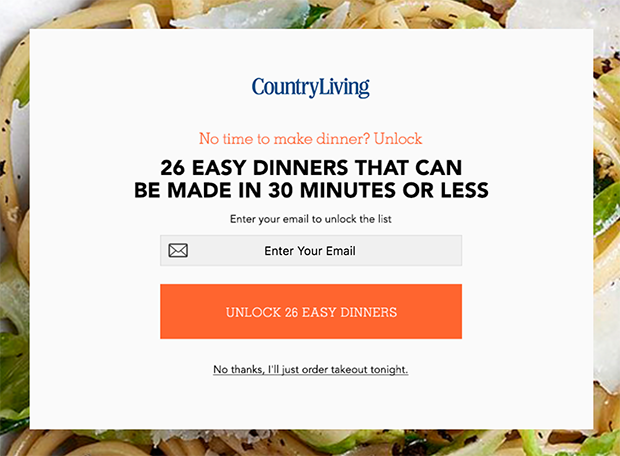
Вы даже можете персонализировать предложение на основе предпочтений пользователя в контенте. Если он читает статью о рецептах ужина, имеет смысл показать ему предложение, связанное с рецептами ужина, а не предложение о машинах.
#4. Всплывающие окна Lightbox могут захватывать уходящих посетителей
Lightbox — это просто способ отображения вашего всплывающего окна. Поэтому ничто не мешает вам настраивать триггер в любом желаемом объеме. Мы рекомендуем создавать всплывающие окна lightbox с намерением выхода.
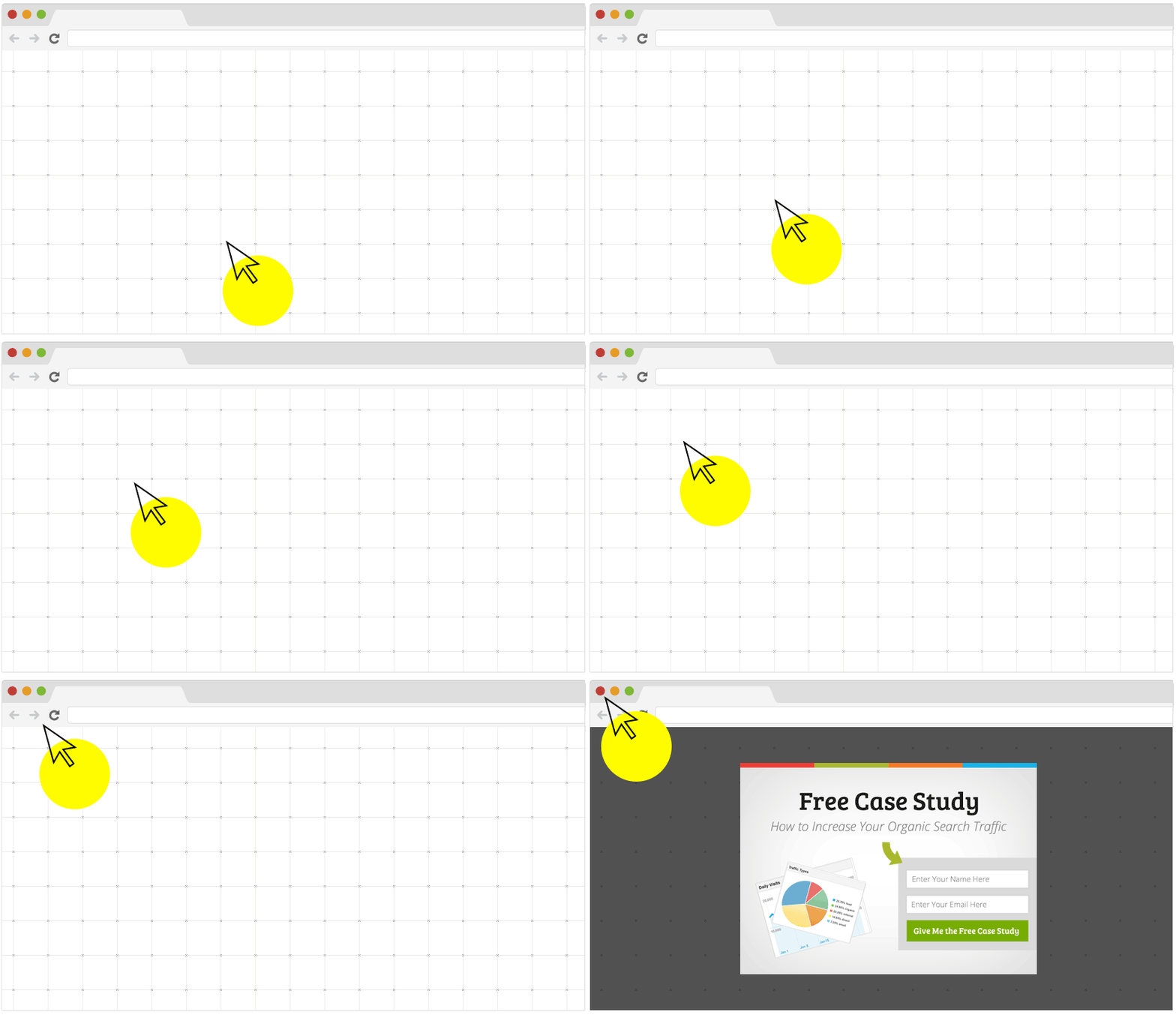
Всплывающие окна с намерением выхода срабатывают, когда ваши посетители пытаются покинуть ваш сайт. В результате вы удерживаете огромное количество посетителей, которые в противном случае покинули бы ваш сайт. Так что, если вы страдаете от ухода с сайта, вам определенно стоит создать всплывающее окно lightbox с намерением выхода.
Как создать всплывающее окно Lightbox
Теперь, когда вы понимаете, что такое всплывающее окно lightbox и почему вы захотите его создать, как его создать? Мы рекомендуем использовать OptinMonster для создания ваших всплывающих окон.
OptinMonster — это лучший набор инструментов для конверсии в мире, и мы сами им пользуемся. OptinMonster очень просто создавать мощные всплывающие окна, которые конвертируют. И вам никогда не придется использовать какой-либо код.
Мы даже написали полный обзор OptinMonster.
Вы можете ознакомиться с ним или начать свою кампанию прямо сейчас. Все, что вам нужно сделать, это зарегистрироваться в OptinMonster и следовать остальной части этой статьи.
Шаг №1: Создайте кампанию
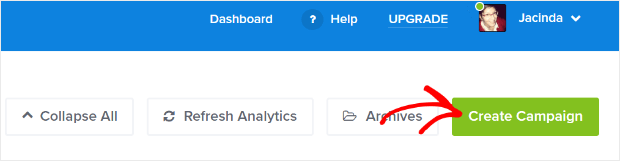
Перейдите на панель управления OptinMonster и нажмите кнопку Создать:
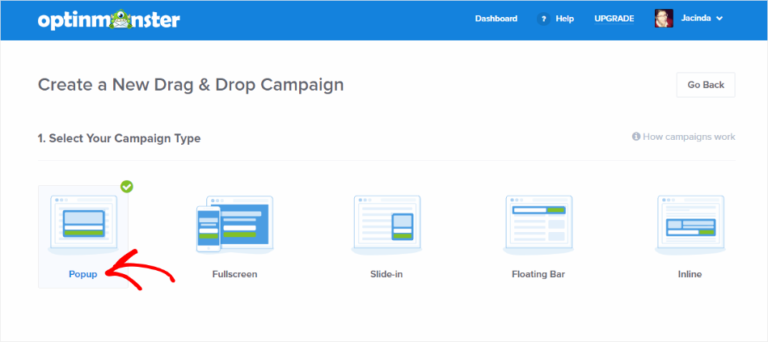
Выберите тип кампании Lightbox Popup :
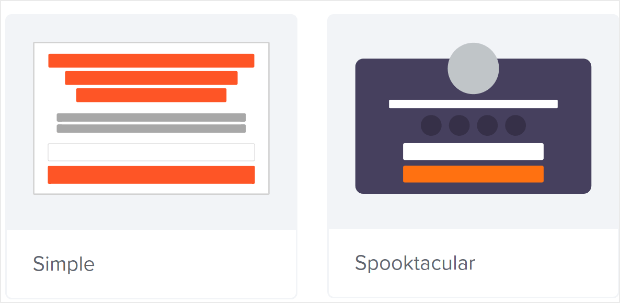
Затем выберите шаблон кампании. Вы можете выбрать любой шаблон, который вам нравится, но в этом руководстве мы будем использовать тип кампании Simple.
Теперь дайте вашей кампании имя. Помните, это имя кампании предназначено для вас, и вы, вероятно, создадите множество таких всплывающих окон с различными параметрами таргетинга. Поэтому дайте кампании осмысленное имя, иначе вы сильно запутаетесь позже.
Кроме того, в зависимости от вашего плана, вы также можете использовать OptinMonster на нескольких сайтах. Поэтому выберите веб-сайт, на котором вы хотите отображать свою кампанию.
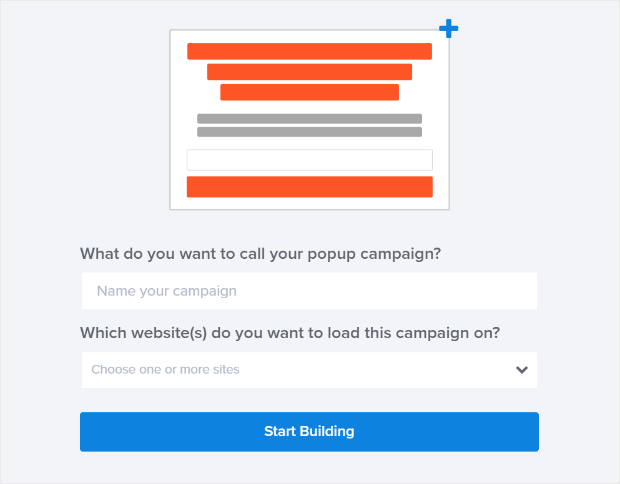
Нажмите Start Building , когда закончите.
Шаг №2: Отредактируйте ваше всплывающее окно Lightbox
С OptinMonster вы получите визуальный конструктор всплывающих окон с перетаскиванием. Как только вы закончите создание своей кампании, вы сможете редактировать даже мельчайшие детали вашего всплывающего окна. Начните с редактирования заголовка вашего всплывающего окна:
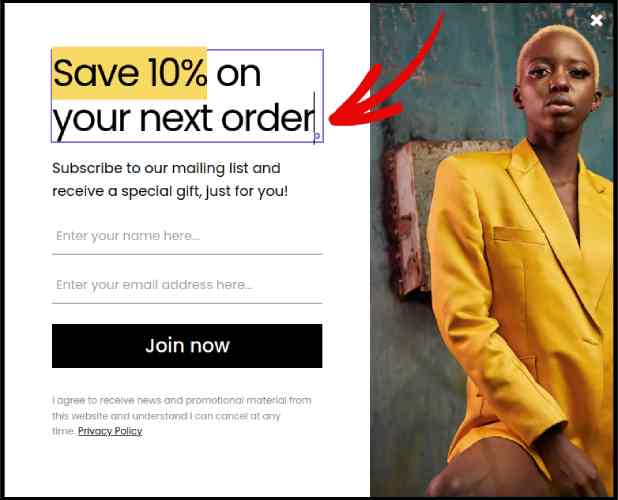
Самое удивительное здесь то, что вы просто нажимаете на любой текст, который хотите отредактировать, и меняете его прямо на месте. Нет необходимости заполнять форму или редактировать какой-либо HTML-код во всплывающем окне.
А затем настройте текст и внешний вид кнопки, чтобы создать четкий призыв к действию:
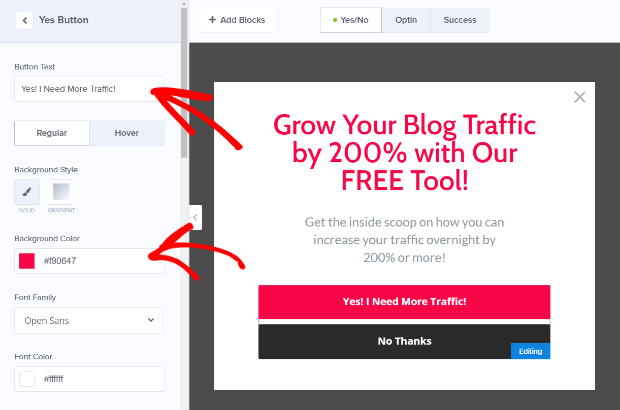
Когда вы будете довольны внешним видом вашего всплывающего окна, вы можете перейти к более расширенным настройкам.
Шаг №3: Установите правила отображения
Правила отображения предназначены для определения того, когда ваша кампания появляется на вашем сайте и кто ее видит.
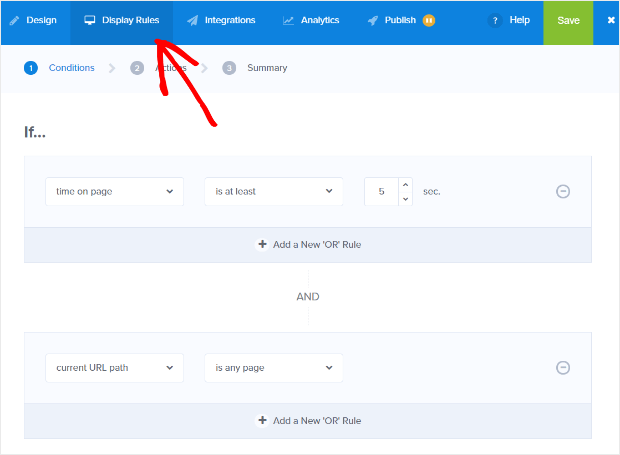
Наша рекомендация — изменить условие триггера на намерение выхода:
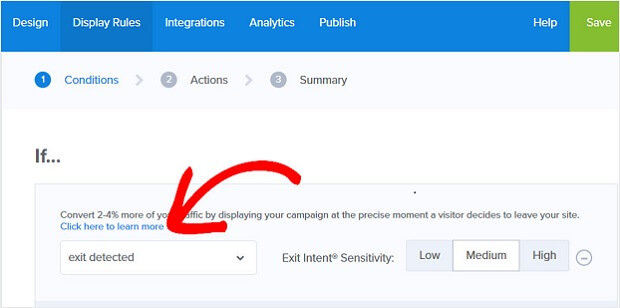
Нажмите Next Step , чтобы выбрать Action. Здесь мы рекомендуем установить Show the campaign view на Optin View, установить show with MonsterEffect на любую анимацию входа, которую вы хотите, и play sound effect на любой звуковой эффект для вашего всплывающего окна.
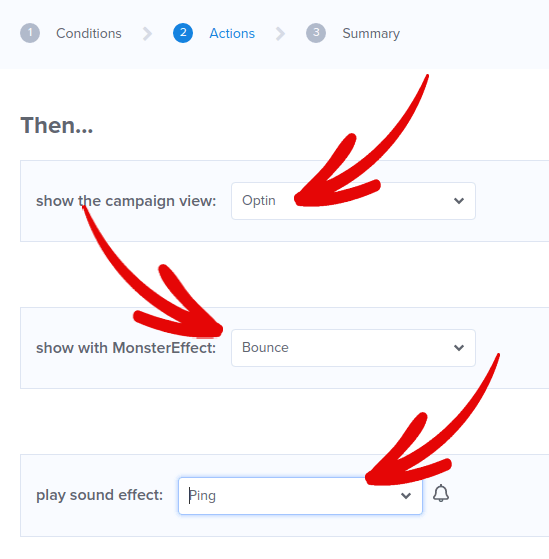
А затем нажмите кнопку Next Step. Вы можете увидеть полный объем ваших настроек на вкладке Summary.
Шаг №4: Настройте интеграцию с вашей электронной почтой
Следующий шаг — настройка интеграции электронной почты. Нажмите «Добавить новую интеграцию» на вкладке «Интеграции» и выберите поставщика услуг электронной почты:
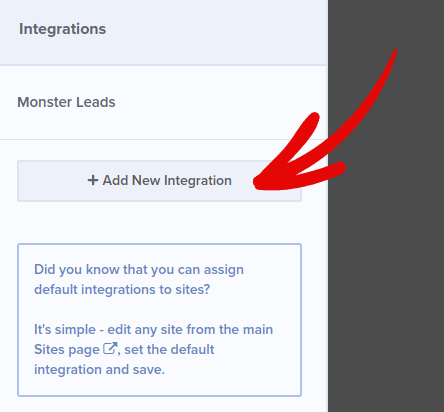
Мы рекомендуем использовать Drip для вашего email-маркетинга, если у вас еще нет поставщика услуг электронной почты.
Шаг № 5: Опубликуйте ваш лайтбокс-попап
Когда вы создаете новую кампанию, по умолчанию она приостановлена.
Перейдите на вкладку Опубликовать в верхнем меню, чтобы увидеть Параметры публикации. Затем установите статус Опубликовать и выберите платформу веб-сайта:
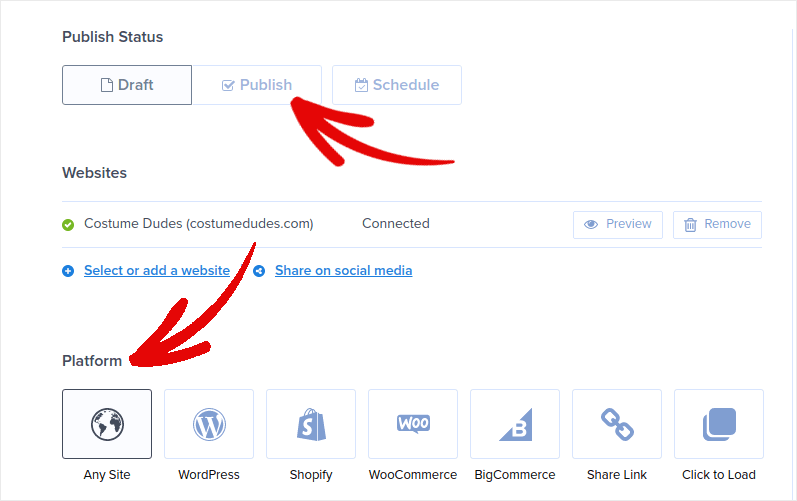
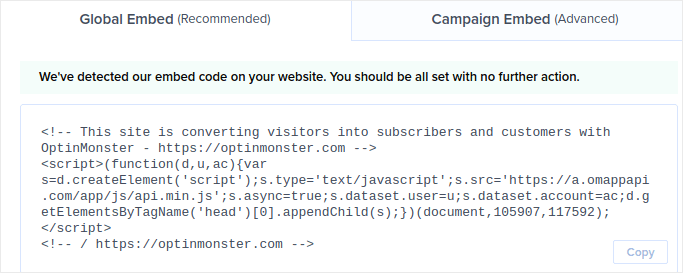
Если у вас сайт на WordPress, плагин OptinMonster автоматически выполнит остальную настройку. То же самое касается Shopify и BigCommerce. Для любого другого сайта нажмите Любой сайт и вставьте код вставки в раздел head вашего веб-сайта:
И вы закончили!
БОНУС: Собирайте подписчиков push-уведомлений из вашего попапа
Push-уведомления помогают автоматически увеличивать трафик вашего сайта и вовлеченность. Веб-push-уведомления — это эффективный способ вернуть пользователей, которые могли покинуть сеанс или уйти с сайта. Это помогает вовлекать пользователей повторно, уведомляя их о новом контенте, предложениях или событиях.
Push-уведомления также включают четкие и действенные сообщения, а также кнопки призыва к действию, побуждающие пользователей выполнять конкретные действия, такие как чтение статьи, завершение покупки или участие в мероприятии.
Вы можете настраивать push-уведомления в зависимости от предпочтений, поведения и интересов пользователей, чтобы сообщения были релевантными и ценными для каждого пользователя. Пользователи должны согласиться на получение веб-push-уведомлений. Это гарантирует, что сообщения не будут восприниматься как спам и что они отправляются с разрешения пользователей.
Самое интересное, что вы можете собирать подписчиков push-уведомлений из вашего email-попапа. Так что, если посетители вашего сайта не захотят предоставить свой email, вы все равно сможете получить их согласие на подписку с помощью веб-push-уведомлений.
Именно этим мы и займемся.
Шаг №1: Выберите службу push-уведомлений
Мы рекомендуем использовать PushEngage для отправки веб-push-уведомлений.

Вот краткий обзор того, что вы получаете с PushEngage:
- Высококонверсионные автоматизированные кампании
- Несколько вариантов таргетинга и опции планирования кампаний
- Отслеживание целей и расширенная аналитика
- Интеллектуальное A/B-тестирование
- Выделенный менеджер по успеху
Вы можете начать бесплатно, но если вы серьезно относитесь к развитию своего бизнеса, вам следует приобрести платный план. Кроме того, прежде чем покупать какую-либо службу push-уведомлений, ознакомьтесь с этим руководством по стоимости push-уведомлений.
А если у вас интернет-магазин, PushEngage также поможет вам увеличить продажи, создавая автоматические push-уведомления для электронной коммерции.
Вы увидите, что PushEngage — это, без сомнения, лучший выбор, если вы хотите увеличить трафик, вовлеченность и продажи для своего бизнеса. И если у вас ограничен бюджет, вы всегда можете немного проявить креативность с вашими push-уведомлениями.
Шаг № 2: Добавьте HTML-блок в ваш попап
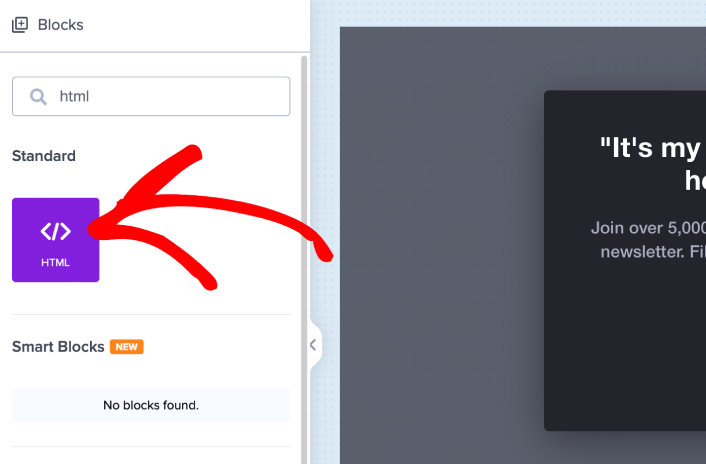
Сначала добавьте блок HTML в ваше всплывающее окно из боковой панели в OptinMonster.
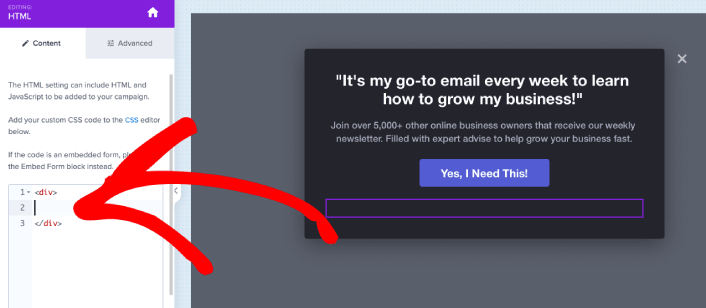
Здесь мы добавим код для сбора подписчиков push-уведомлений. Сначала вставьте следующий код, чтобы создать кликабельную кнопку:
<button onclick="subscribeOnClickButton()" style="border: none; width: 100%; padding-left: 15%; padding-right:15%; text-align: center; display: inline-block; color: white;">Get Updates via Push Notifications Instead</button>Вставьте код туда, где указано, что можно добавить HTML:
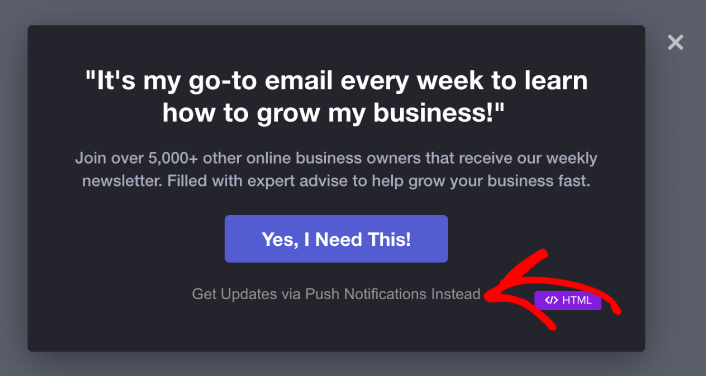
На этом этапе в вашем попапе должна появиться новая кнопка с надписью «Получать обновления через push-уведомления вместо этого» прямо под кнопкой подписки по электронной почте:
Конечно, вы можете поэкспериментировать со стилями, чтобы сделать его более привлекательным. Далее мы сделаем так, чтобы кнопка собирала подписчиков push-уведомлений при нажатии.
Шаг № 3: Получите код подписки от PushEngage
Перейдите на главную страницу PushEngage и нажмите кнопку Начать:

Затем выберите бесплатный план, чтобы попробовать PushEngage, или выберите платный план, если вы серьезно относитесь к развитию своего бизнеса. Платные планы включают больше опций для кампаний и возможность создавать еще большие списки подписчиков.
В вашей панели управления PushEngage перейдите в раздел Настройки сайта » Детали сайта и нажмите кнопку Нажмите здесь для инструкций по настройке. В разделе Любой сайт вы получите код установки:

ВНИМАНИЕ: Вам нужно скопировать код, который вы получите из вашей панели управления. Код уникален для каждого пользователя PushEngage. Вы не сможете скопировать код из изображения и собирать подписчиков push-уведомлений.
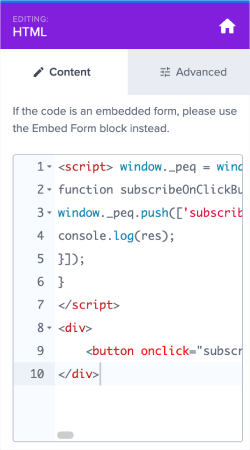
Когда у вас будет код в вашей панели управления PushEngage, возьмите второй скрипт и добавьте к нему дополнительный код. Ваш окончательный код должен выглядеть примерно так:
<script src="https://clientcdn.pushengage.com/core/02a6e92667ae2279fcba8932356c1d93.js" async></script>
<script> window._peq = window._peq || [];
function subscribeOnClickButton(){
window._peq.push(['subscribe',{}.pe,function(res){
console.log(res);
}]);
}
</script>
Шаг № 4: Добавьте ваш код подписки в HTML-блок в вашем попапе
Добавьте этот код в блок HTML в OptinMonster, и все готово!
Когда закончите, просто нажмите кнопки Сохранить и Опубликовать.
Если вы проверите свой веб-сайт, вы должны увидеть лайтбокс-попап, собирающий подписчиков как по электронной почте, так и по push-уведомлениям:
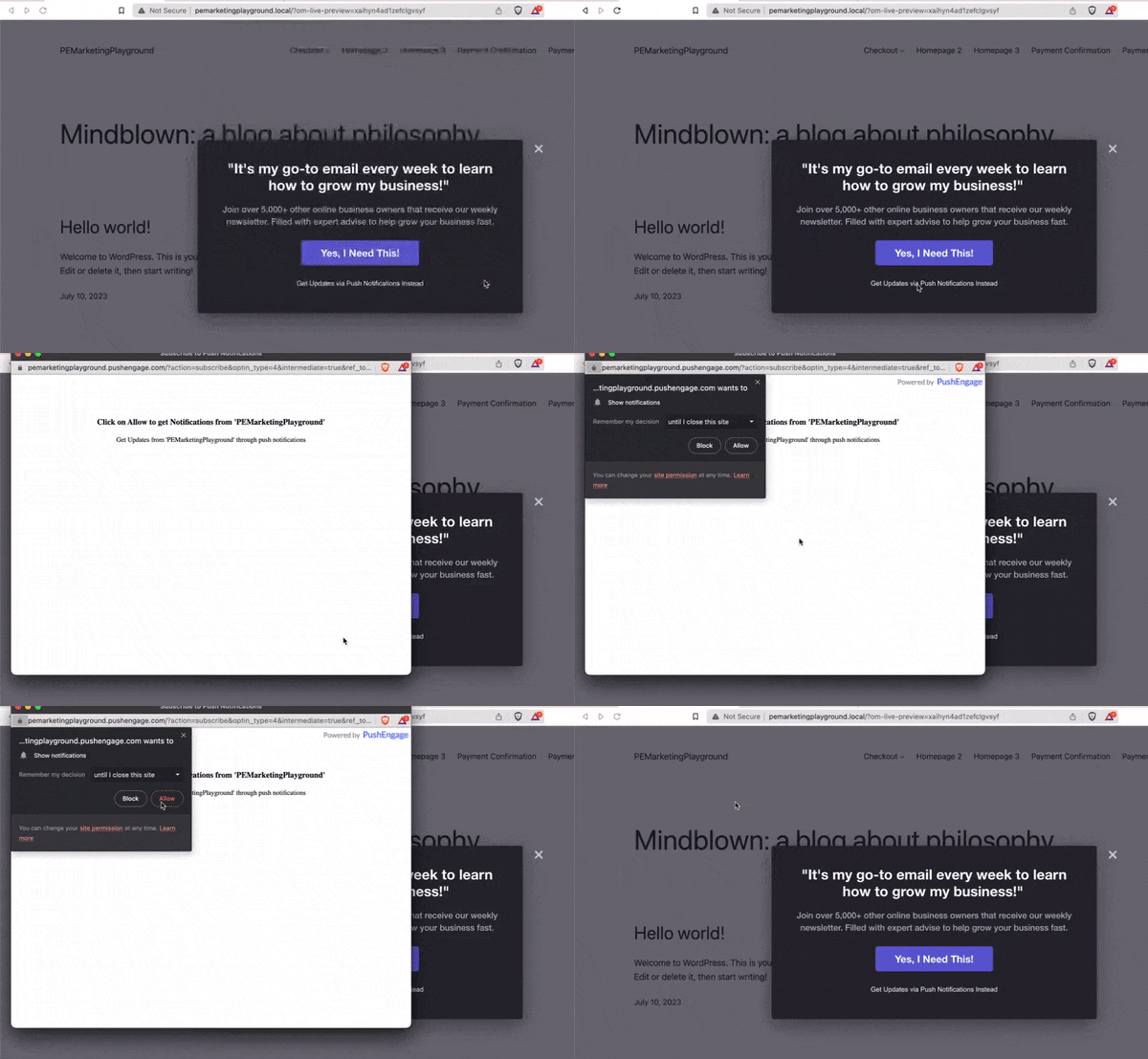
И вот так вы собираете push-подписчиков из своего попапа. Push-уведомления поставляются со своими собственными модальными окнами попапов. Но их довольно сложно настроить. Поэтому вы можете создавать красивые попапы с помощью OptinMonster, а затем использовать их в качестве попапов для push-уведомлений.
Что делать после создания лайтбокс-попапа
На этом всё, друзья!
Сообщите нам, помогла ли эта статья. Создание попапов на вашем сайте может помочь вам конвертировать трафик в подписчиков электронной почты и реальных бизнес-лидов. И мы настоятельно рекомендуем вам начать создавать лайтбокс-попапы прямо сейчас.
А если вы ищете доступный способ увеличить трафик, мы рекомендуем использовать push-уведомления. Push-уведомления помогут вам привлечь больше повторных посетителей и повысить вовлеченность на сайте. Вы также можете создавать автоматические кампании push-уведомлений, которые генерируют продажи.
Не убедились? Ознакомьтесь с этими ресурсами:
- 7 умных стратегий для повышения вовлеченности клиентов
- Эффективны ли push-уведомления? 7 статистических данных + 3 совета экспертов
- Как настроить push-уведомления о брошенной корзине (простое руководство)
Мы рекомендуем использовать PushEngage для создания ваших кампаний push-уведомлений. PushEngage — это программное обеспечение для push-уведомлений №1 в мире. Так что, если вы еще этого не сделали, начните использовать PushEngage сегодня!


