
WordPressのチェックアウトページを素早く簡単に作成する方法をお探しですか?
訪問者をリピートしてリードや有料顧客に変えるランディングページがあるとしましょう。しかし、訪問者が実際にあなたの製品やサービスを購入し、チェックアウトプロセスを完了できるようにする必要があります。
では、コーディングを学ぶ必要がありますか?チェックアウトページを作成するために高価なデザイナーが必要ですか?
幸いなことに、WordPressのチェックアウトページを作成する簡単な方法があります。この記事では、15分以内にチェックアウトページを立ち上げるお手伝いをします。
準備はいいですか?始めましょう。
WordPressチェックアウトページとは何ですか?なぜ気にする必要があるのですか?
チェックアウトページは、製品やサービスを購入することに興味のある訪問者を、有料顧客に変えるためのものです。
しかし、始める前に、チェックアウトページに非常に明確で具体的な目標を設定することを忘れないでください。多くのことができるからといって、すべてを1ページで行う必要はありません。多くの場合、訪問者にクリックするものが多すぎると、何もクリックしなくなります。
デフォルトでは、WooCommerceはすべてのeコマースサイトにチェックアウトページを作成します。始めたばかりの頃はそれで問題ありません。しかし、コンバージョン率を高めるためにチェックアウトページを最適化したい場合は、それが非常に困難になります。そして、カート放棄の問題があります。
それを克服する最善の方法は、カスタムWordPressチェックアウトページを作成することです。カスタムページを使用すると、以下を追加できます。
- 信頼を高めるための推薦の声とソーシャルプルーフ
- 収益を増やすための関連製品とサービス
- 購入者のためらいを減らすためのカスタムチェックアウトフォーム
- 追加の支払いオプション
- カスタムWooCommerceチェックアウトフィールド
WordPressでカスタムチェックアウトページを作成するメリットがわかったところで、次にその作成方法を学びましょう。
WordPressのチェックアウトページを作成する方法
何を作成すべきかわかったので、WordPressチェックアウトページを立ち上げる時間です。ランディングページを作成するには、SeedProdの使用を強くお勧めします。

SeedProdは最高のWordPressランディングページビルダーです。開発スキルなしでコンバージョン率の高いランディングページを構築したい企業、ブロガー、ウェブサイト所有者に最適です。
SeedProdを使用すると、すぐに公開できる、コンバージョン率の高いランディングページの事前構築済みテンプレートを入手できます。これには、次のテンプレートが含まれます:
- 販売ページ
- 近日公開ページ
- 404ページ
- メンテナンスページ
- スqueezeページ
- ログインページ
- ありがとうございますページ
- ウェビナーページ
- ビデオページ
そして、さらに多くの機能があります!
ステップ#1:SeedProdのインストールと有効化
まず、SeedProd Proプラグインを入手して有効化します。方法がわからない場合は、WordPressプラグインのインストール方法に関するこの記事をご覧ください。次に、WordPressダッシュボードのSeedProd » Settingsに移動して、Proバージョンを有効化します。

次に、SeedProdのランディングページダッシュボードの概要を確認するために、SeedProd » Pagesに移動します。ここで、SeedProdを使用して作成できるさまざまな種類のランディングページを確認できます。

これらはすべて、事前構築済みの機能とデザインテンプレートを備えた特別なページであることを覚えておいてください。セールランディングページの場合、これらの特別なランディングページは使用しないでください。代わりに、カスタムランディングページを作成します。
さらに下にスクロールして、新しいランディングページを追加ボタンをクリックして開始してください。

ステップ#2:新しいWordPressチェックアウトページを作成する
新しいランディングページを追加ボタンをクリックすると、SeedProdのランディングページテンプレートライブラリが表示されます。これらは、完全にレスポンシブな、専門的にデザインされたランディングページテンプレートです。
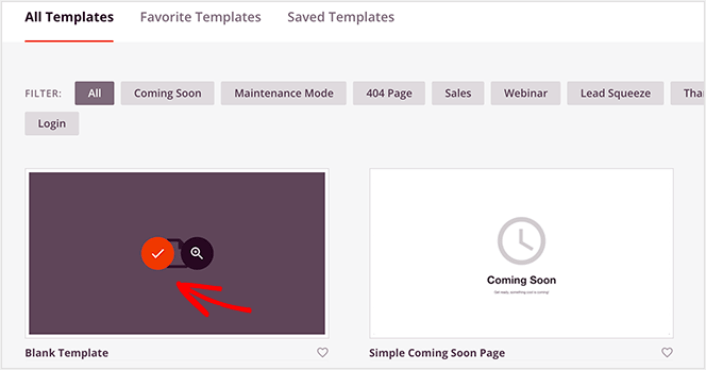
次に、これらのテンプレートのいずれかを選択して開始できます。テンプレートはあくまで出発点であることを忘れないでください。後でページに関するすべてをカスタマイズできます。今のところ、適合すると思われるテンプレートを見つけてください。このチュートリアルではブランクテンプレートを使用しますが、好きなテンプレートを選択できます。
ステップ#3:WordPressチェックアウトページのデザインをカスタマイズする
SeedProdのビジュアルビルダーを使用すると、ドラッグアンドドロップのコンテンツブロックを使用してランディングページをカスタマイズできます。
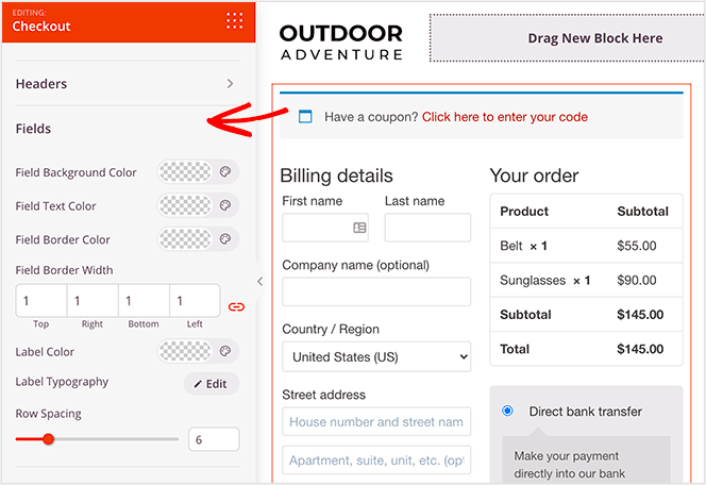
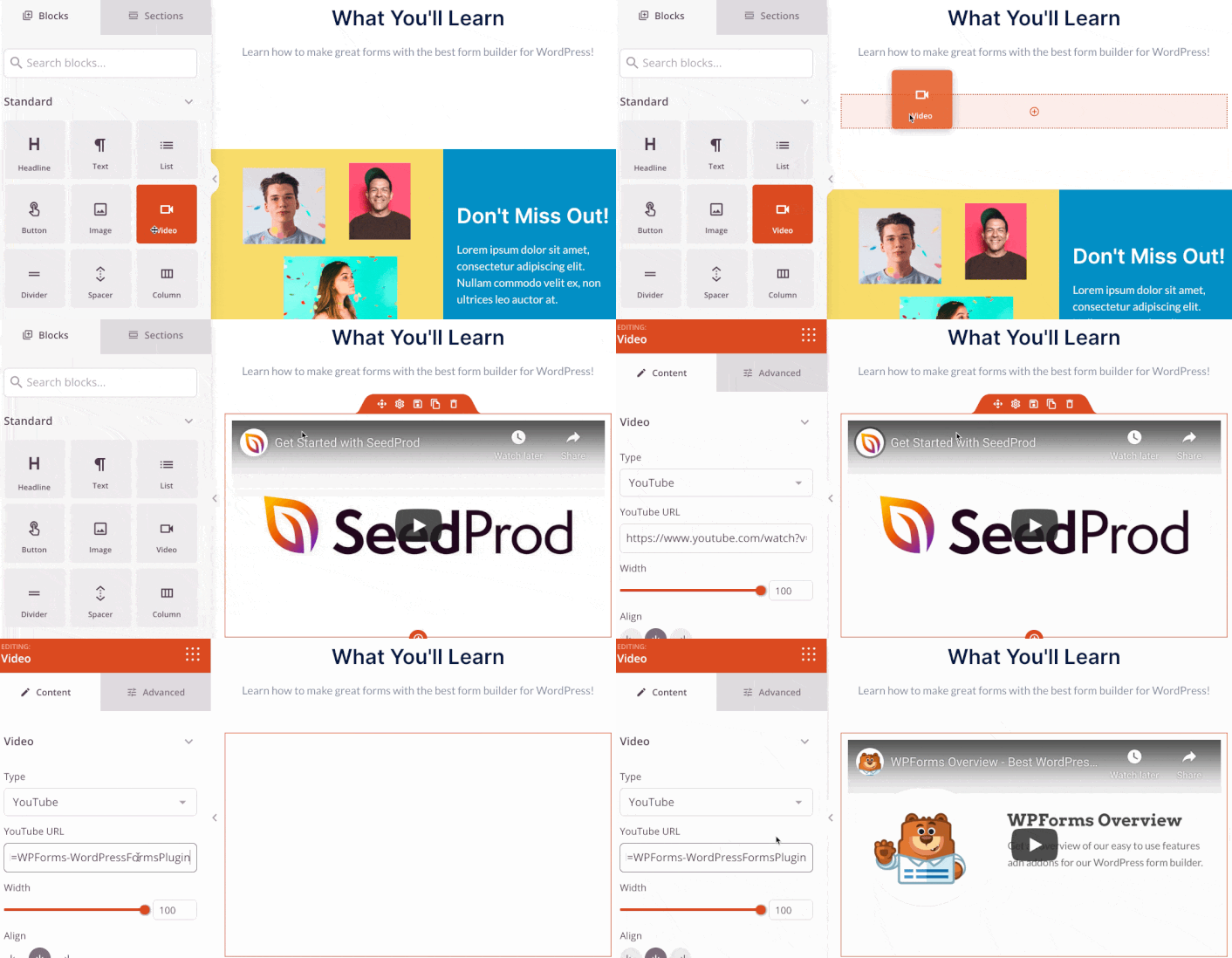
数分で感謝ページ用の完全にカスタマイズされたヘッダーを作成できます。カスタム要素を追加して、トラフィックを説得し、コンバージョンさせることさえ可能です。たとえば、ビデオモジュールを作成し、YouTubeビデオを埋め込んで、訪問者に製品やサービスを購入するように説得することができます。
製品やサービスを簡単に説明するセクションを追加することもできます。ビジュアルビルダーの「セクション」タブに移動し、「ヒーロー」セクションの下にある、ワンクリックでインポートできる既製のテンプレートをいくつか見つけてください。
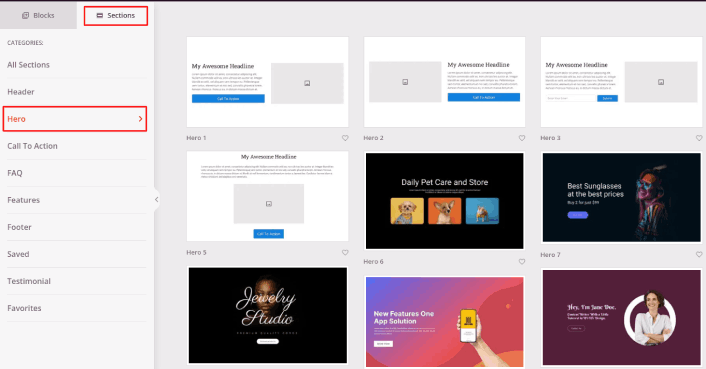
好きなものを選択してください。
色やコンテンツは気にしないでください。すべて編集できます。テンプレートによく合うレイアウトを探してください。
以前に行ったのと同じように、ヒーローセクションをカスタマイズできます。別の画像を選択し、見出しと説明を変更します。その際、訪問者に購入を促す行動喚起ボタンを追加してください。
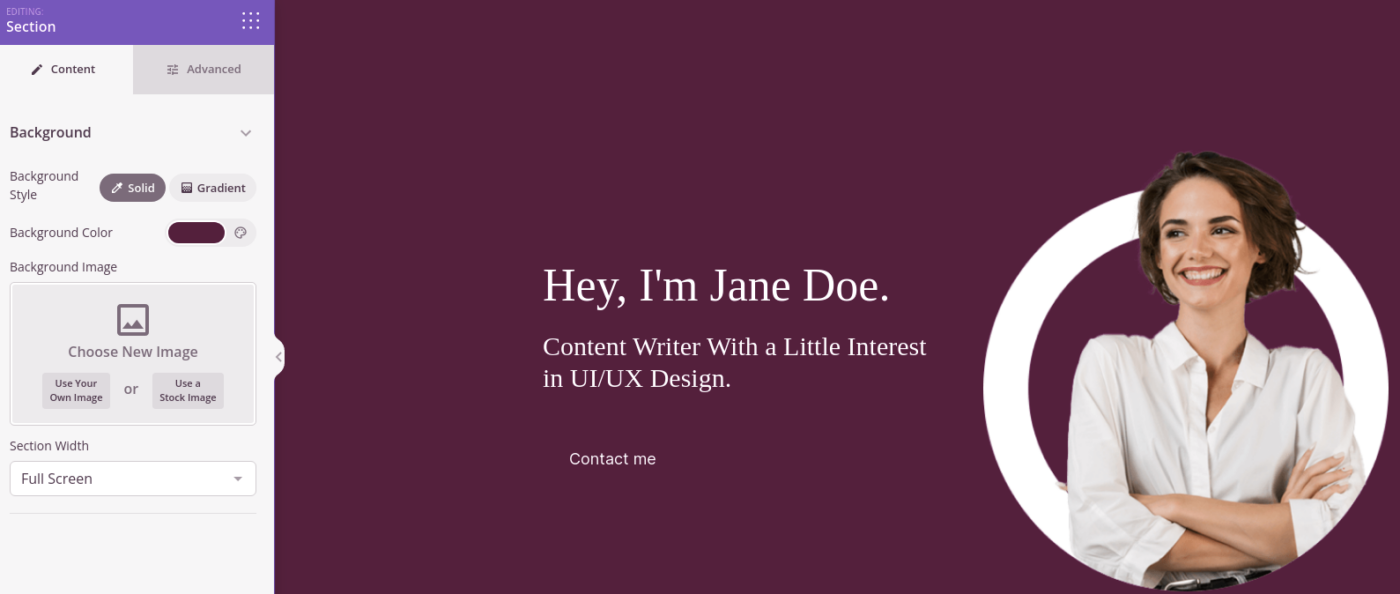
とても簡単です!感謝ページのカスタマイズが完了したら、保存ボタンをクリックしてください。人気商品を簡単に追加するには、WooCommerceセクションからベストセラー商品ブロックを選択し、ページにドラッグアンドドロップします。
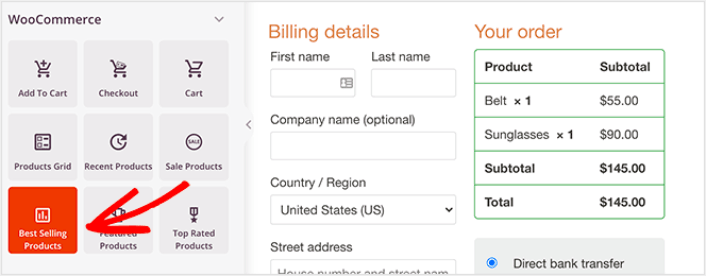
この時点で、見出しブロックをドラッグして「人気商品」のようなものに変更することをお勧めします。そうすれば、人々は何を見ているのかを正確に理解できます。
コンバージョン率を高めるために、お客様の声を追加することもできます。高度なブロックに移動し、お客様の声ブロックをチェックアウトページにドラッグアンドドロップするだけです。
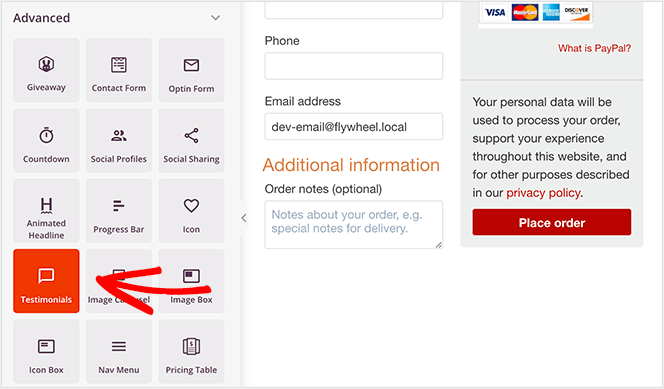
デフォルトのWooCommerceチェックアウトページの代わりに、オーディエンスに合わせて調整された、コンバージョン率の高いWordPressチェックアウトページが利用できるようになりました。
ステップ4:ページ設定の構成
お礼ページの設計が完了したら、ページビルダーの上部にある「接続」タブをクリックし、メールマーケティングプロバイダーを選択して、サイトでリードを収集します。
注意:このステップは、顧客に別のサービスを選択してもらいたい場合にのみ必要です。したがって、サービスのアップセルを試みている場合は、メールマーケティングサービスへの接続をスキップできます。

次に、画面上部にある「ページ設定」タブをクリックします。

ここで、お礼ページにSEOプラグインとGoogleアナリティクスプラグインを追加できます。FacebookピクセルやPinterestピクセルなどのカスタムトラッキングコードを設定して、広告パフォーマンスを追跡することもできます。
ステップ5:WordPressチェックアウトページを公開する
それでは、デザインを公開しましょう。これを行うには、保存ボタンの横にあるドロップダウン矢印をクリックし、「公開」をクリックします。
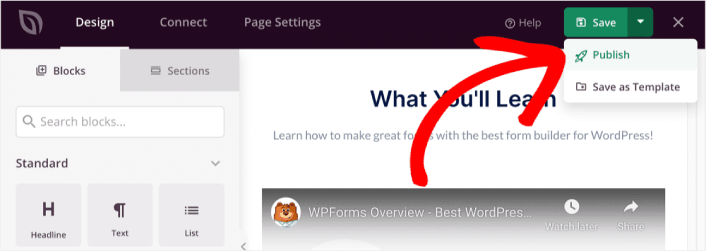
次に、新しいWordPressチェックアウトページをWooCommerceに割り当てます。これには、デフォルトのWooCommerce設定を変更し、新しいページのURLを追加することが含まれます。
この設定を行うには、WooCommerce »設定に移動し、高度なタブをクリックします。次に、チェックアウトページの見出しの隣で、作成したページを検索します。
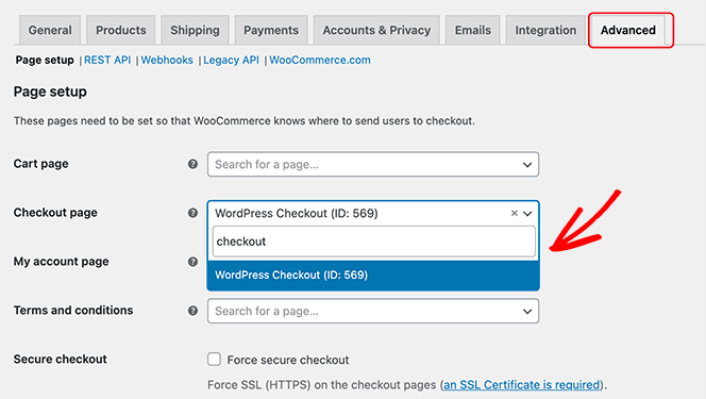
これで、訪問者が「チェックアウトに進む」をクリックすると、作成したばかりのコンバージョン率の高い新しいチェックアウト画面に移動します。
WordPressチェックアウトページを構築した後にやること
お礼ページが公開されたので、トラフィック、エンゲージメント、売上に着手する時です。サイトでプッシュ通知を使用してみてください。プッシュ通知は、ビジネスの成長に役立つ優れたマーケティングツールです。
これらの素晴らしいリソースをご覧ください。きっと意味がわかるはずです。
プッシュ通知キャンペーンを作成するためにPushEngageの使用をお勧めします。PushEngageは世界No.1のプッシュ通知ソフトウェアです。まだお済みでない場合は、 今すぐPushEngageを使い始めましょう!


