Googleアナリティクスでプッシュ通知をトラッキングする方法に関するリソースをお探しですか?
プッシュ通知の分析は少し圧倒されることがあります。まず、Googleアナリティクスで適切に追跡できるようにして、より良くレポートできるようにする必要があります。次に、数値が実際に何を意味し、正しい軌道に乗っているかどうかを理解する必要があります。
質問が多すぎ、インターネットはまともな答えのない質の低いリソースで溢れています。
心配いりません。この記事では、プッシュ通知の分析を正しく確認する方法を説明します。これらの質問すべてに対する答え、そしてそれ以上の答えを得ようとしています。
始めましょう。
プッシュ通知分析の種類
プッシュ通知の分析は、初めて見たときはかなり混乱する可能性があります。そのため、目標トラッキングや収益マッピングなどの高度なトピックに入る前に、さまざまな種類のプッシュ通知分析データとその解釈方法を理解しましょう。
キャンペーンのプッシュ通知分析
すべてのプッシュ通知キャンペーンまたは単一のブロードキャストには、独自の分析データがあります。確認すべきことは次のとおりです。
- クリック率(CTR): CTRは、プッシュ通知を見てクリックした人の割合です。
- 目標達成数: 目標達成数は、通知をクリックした後にあなたが望むアクションを実行した人の数です。
- 収益: 特にeコマースストアを運営している場合は、プッシュキャンペーンに収益目標を設定することを強くお勧めします。
確認できるその他の指標がいくつかあります。
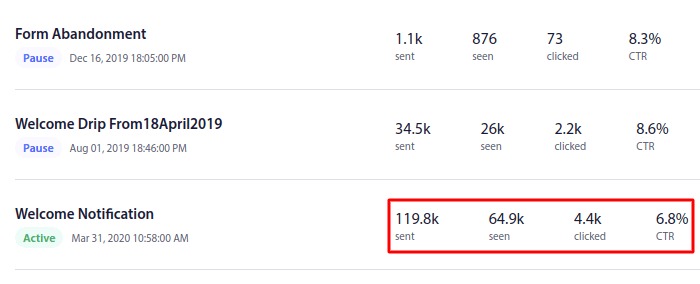
しかし、CTR、目標達成数、収益に焦点を当てているだけでも十分です。目標の作成については、すぐに詳しく説明します。読み続けてください。
プッシュ通知オプトイン分析
プッシュ通知のオプトインにも非常に具体的な分析があります。
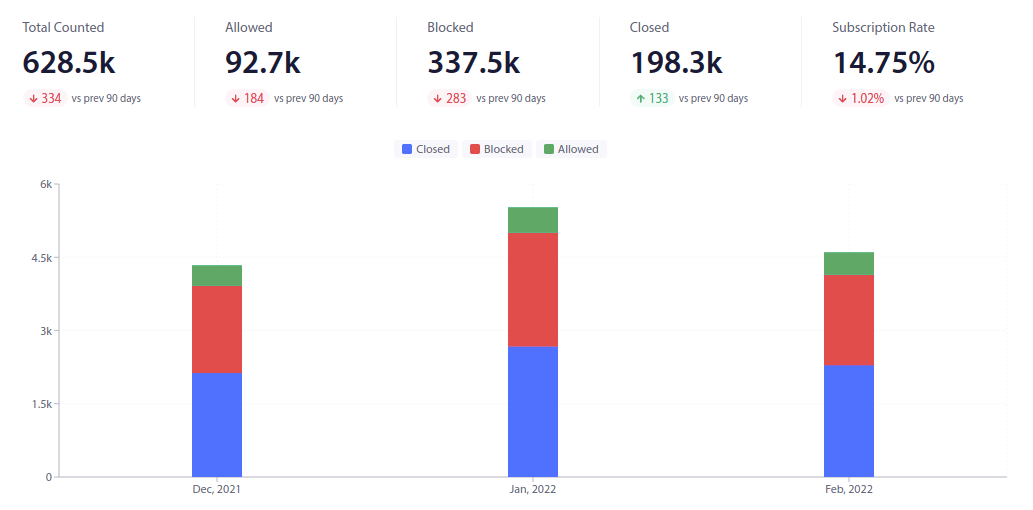
あなたが焦点を当てるべきは、購読率です。残りの数字は、完全に新規のスタートアップの場合は気を散らす可能性があります。
しかし、成長し始めると、人々がオプトインを何回見たか、ウェブ訪問者がオプトインを表示することを何回許可したか、ポップアップが何回ブロックされたかを明確に把握する必要があります。これらの数字を知ることは、プッシュ通知への支出が実際にどれほど効果的であるかを明確に把握するのに役立ちます。
プッシュ通知の目標トラッキング
目標トラッキングは、プッシュ通知サービスが提供できる最も強力な機能の1つです。目標トラッキングにより、キャンペーンの目標を作成できます。購読者があなたが望むアクションを実行するたびに、目標カウンターが自動的に成功を記録し、簡単なレポート作成を可能にします。
これをより簡単な言葉で説明しましょう。
目標追跡を使用すると、キャンペーンのROIを追跡できます。たとえば、サイトでの購入に対して収益目標を設定した場合、プッシュ通知による目標追跡は次のことを追跡できます。
- コンバージョンの数
- およびドル価値
プッシュ通知キャンペーンからのすべての販売に対して!
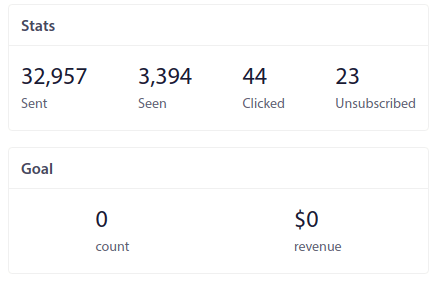
このレポートに基づいて、キャンペーンの投資収益率(ROI)を計算できます。
同様に、あなたの目標がサイトでのリードを増やすことである場合、フォーム放棄通知キャンペーンの目標トラッキングは、リードごとに値を割り当て、プッシュ通知から生成されたリードの数とそれらの価値を特定します。
同時に複数のトリガーキャンペーンを実行していて、どれが最も効果的かをテストしたい場合、目標トラッキングは明確な把握に役立ちます。
たとえば、ある「カート放棄」キャンペーンで追加割引のクーポンを、別のキャンペーンで送料無料のクーポンコードを持っているとします。両方のキャンペーンの収益メトリクスを確認することで、どちらがより効果的かがわかります。
これにより、どのキャンペーンがウェブサイトにとって最も効果的であるかが明確になります。
UTMパラメータを使用してプッシュ通知を追跡する方法
これまでに、プッシュ通知キャンペーン全体の一部のメトリクスを確認する方法を理解したことでしょう。しかし、それを効果的に報告するにはどうすればよいでしょうか?プッシュ通知ダッシュボードで目標追跡レポートを確認するのは素晴らしいことです。しかし、プッシュ通知のパフォーマンスを他のマーケティングチャネルと比較する必要があります。
GoogleアナリティクスでUTMパラメータを使用してプッシュ通知を追跡する方法を確認します。そして、それをPushEngageで行います。PushEngageは、世界で1位のプッシュ通知ソフトウェアです。PushEngageではプッシュ通知キャンペーンのパフォーマンスを追跡するのが非常に簡単で、UTMパラメータも使用できます。
ステップ1:PushEngageを使い始める
まだの場合は、PushEngageをサイトにインストールしてください。

ステップ2:プッシュブロードキャストを作成する
サインアップが完了したら、PushEngageダッシュボードに移動し、Campaign » Push Broadcastsにアクセスします。次に、Create New Push Broadcastをクリックします。

次の画面で、プッシュ通知を作成できるようになります。
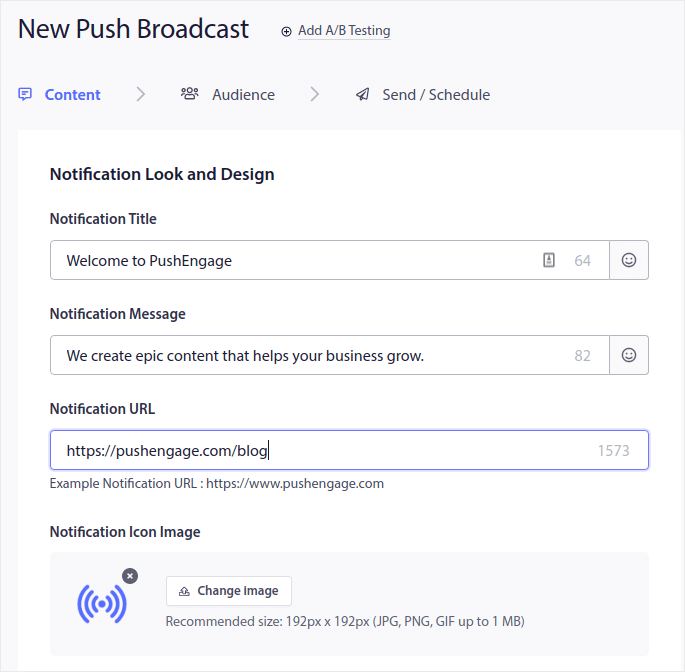
ステップ3:UTMパラメータを追加する
Contentタブの下にあるUTM Parametersというセクションまでスクロールダウンし、有効にします。

UTMパラメータのデフォルト値を使用することも、必要に応じて変更することもできます。たとえば、UTM CampaignおよびUTM Contentパラメータには、より説明的なタグを設定するでしょう。
これらのパラメータが何であるかわからない場合は、簡単な説明を以下に示します。
- UTM Source:トラフィックを送信したサイトを特定するのに役立ちます
- UTM Medium:使用されたリンクの種類を特定します
- UTM Campaign:特定の製品またはキャンペーンプロモーションを指定します
- UTM Terms:コンテンツの検索語を特定するのに役立ちます
- UTM Content:ユーザーがクリックしてサイトにリダイレクトされたものを追跡するのに役立ちます
UTMパラメータが詳細であるほど、プッシュ通知をより多く追跡できます。
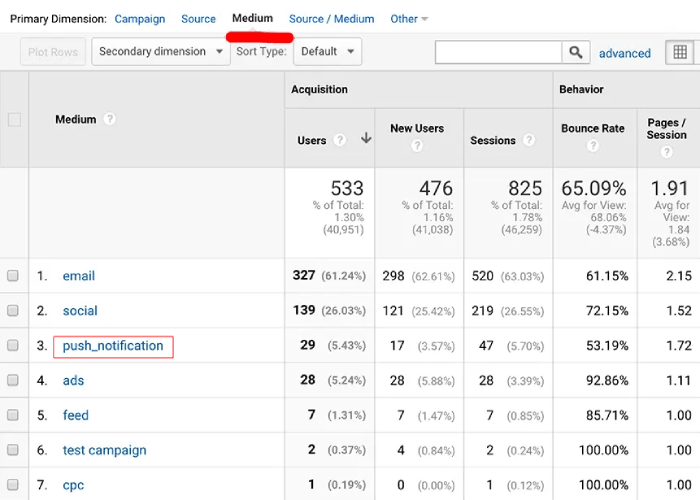
Googleアナリティクスでプッシュ通知のパフォーマンスを確認したい場合は、このUTM追跡の初心者ガイドを参照してください。
プロのヒント:UTMパラメータはプッシュブロードキャスト専用ではありません。自動プッシュ通知キャンペーンに移動して、自動キャンペーンの各通知にUTMパラメータを設定することもできます。
プッシュ通知のコンバージョン目標を設定する方法
プッシュ通知の目標追跡を設定することが非常に重要である理由についてはすでに説明しましたが、実際にどのように行うのでしょうか?
ステップ1:目標追跡設定を構成する
PushEngageダッシュボードに移動し、Analytics » Goal Trackingにアクセスしてください。
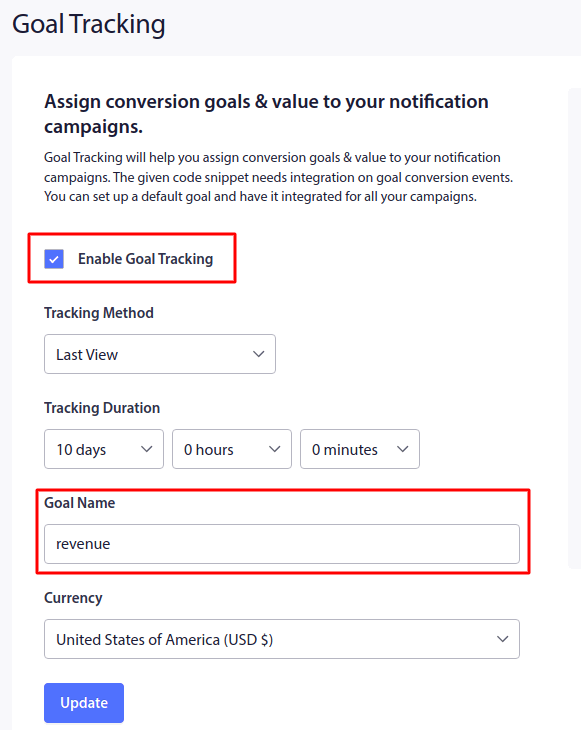
まずEnable Goal Trackingをクリックします。必要であれば、Tracking Methodを変更することもできます。ここでは2種類の帰属を使用できます。
- Last View:通知が受信した表示回数をカウントします。認知度向上やエンゲージメント向上キャンペーンに最適です。
- Last Click:プッシュ通知のクリック数と、サイトでのクリック数をカウントします。コンバージョンキャンペーンに最適です。
次に、必要であれば、目標をカウントするためのクッキーのカスタム追跡時間を設定できます。ただし、デフォルト値のままにしておくことをお勧めします。
PushEngageが提供するデフォルトの目標は収益目標です。通貨を変更したい場合は、好きな通貨に変更できます。デフォルトの通貨はUSDですが、ドロップダウンからお住まいの地域の通貨に変更できます。
目標追跡設定のカスタマイズが完了したら、Updateをクリックします。
ステップ#2: トラッキングコードの追加
次に、右側にあるトラッキングコードをコピーし、コンバージョンを追跡しているページのHTML <body>に貼り付けます。通常、これはサイトのチェックアウトページになります。やり方がわからない場合でも心配いりません。同じ画面で詳細な手順が表示されます。
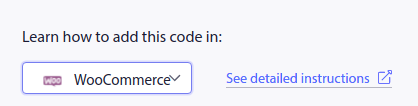
サイトの運営に使用しているCMSを選択し、See detailed instructionsをクリックしてください。
これで完了です!
次は何をしますか?
今回は以上です、皆さん!
プッシュ通知が初めての場合は、公開前に完全なプッシュ通知テストプロセスに従うべきです。これにより、訪問者が見て、壊れたユーザーエクスペリエンスについて不平を言う前に、一般的な問題をトラブルシューティングできます。
または、これらの素晴らしいリソースのいずれかをチェックして、プッシュ通知キャンペーンからさらに多くの価値を引き出すことができます。
まだ試していない場合は、PushEngageを試してみてください。PushEngageは、世界で1位のプッシュ通知サービスです。したがって、ビジネスの成長を真剣に考えているなら、PushEngageに投資すべきです。


