WhatsApp Cloud APIをPushEngageに接続すると、Shopifyのお客様に自動WhatsAppメッセージを送信できます。これには、カート回収リマインダー、注文ステータス通知、プロモーションキャンペーンなどが含まれます。このガイドでは、自動メッセージの側面、つまり実行できるキャンペーン、セットアップ方法、メッセージテンプレートの使用方法について説明します。
開始する前に
- WhatsApp Cloud APIがPushEngageに接続されました。接続されていない場合は、まずShopifyでのメッセージ送信を有効にするためのWhatsApp Cloud APIの設定を完了してください。
- WhatsApp自動メッセージは、Meta承認済みのメッセージテンプレートを使用します。Metaからのテンプレート承認には、数時間から数日かかる場合があります。
- PushEngageのWhatsAppメッセージ機能は、すべての有料Shopifyプランで利用可能です。
WhatsApp自動メッセージの仕組み
WhatsApp自動メッセージは、プッシュ通知とは異なる方法で機能します。2つの会話タイプがあります。
| タイプ | 説明 | コスト |
|---|---|---|
| ユーティリティ/トランザクション | 注文確認、発送更新、返金通知など、お客様が期待するメッセージ | Metaにより会話ごとに課金されます |
| マーケティング | カート回収、プロモーション、再エンゲージメントなど、お客様が開始するメッセージ | Metaにより会話ごとに課金されます |
PushEngageが配信とキャンペーン設定を処理します。Metaが会話課金とテンプレート承認を処理します。すべてのメッセージは、事前に承認されたテンプレートを使用する必要があります。
ステップ1: ShopifyでWhatsAppキャンペーンにアクセスする
- Shopify管理画面にログインします。
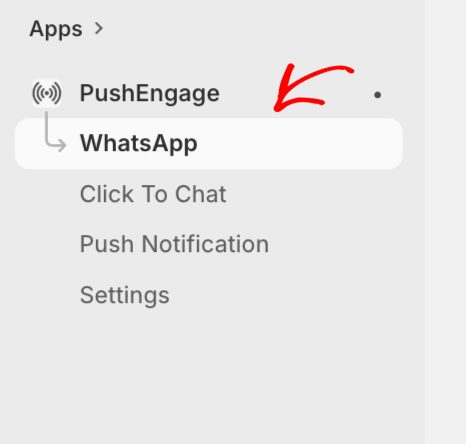
- アプリに移動し、PushEngageを開きます。
- PushEngage ShopifyアプリのサイドバーでWhatsAppに移動します。
ステップ2: メッセージテンプレートを作成または使用する
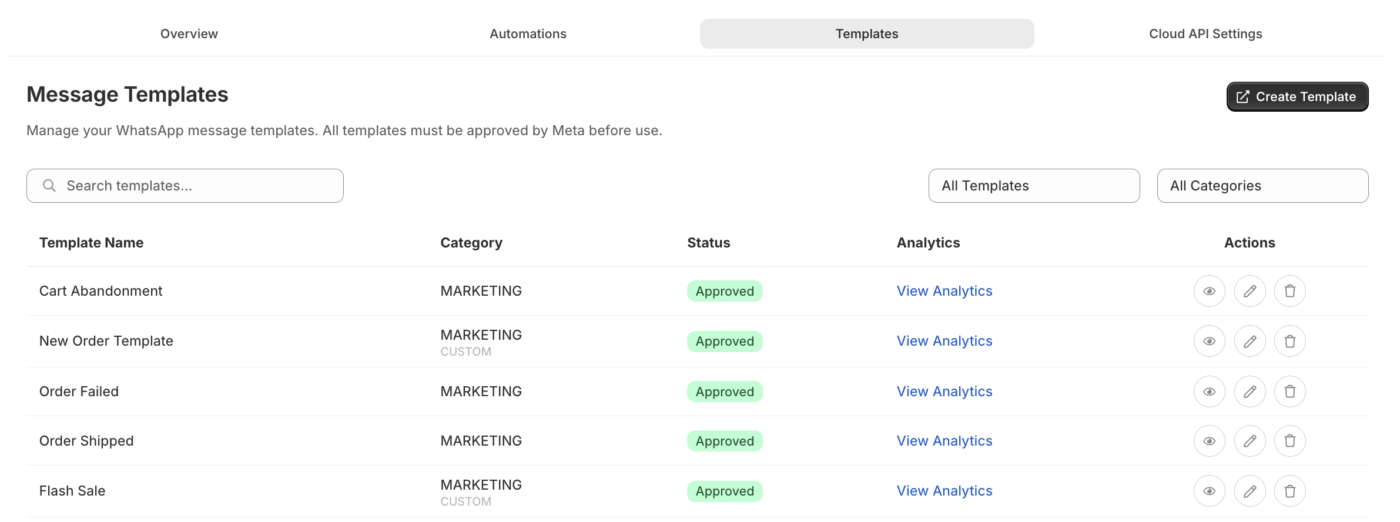
WhatsAppでは、すべての送信自動メッセージに事前に承認されたメッセージテンプレートが必要です。PushEngageは、一般的なShopifyユースケース向けの既製のテンプレートを提供しており、Metaに承認を申請できます。
- WhatsAppセクションで、メッセージテンプレートに移動します。
- 利用可能なテンプレートを参照するか、テンプレートを作成をクリックします。
- テンプレートのカテゴリを選択します: マーケティングまたはユーティリティ。
- テンプレート名、言語、本文テキスト、および任意の変数プレースホルダーを入力します。
- Metaの承認のために送信します。
Shopifyの一般的なテンプレート変数
| 変数 | 挿入される内容 |
|---|---|
{{1}} | お客様の名 |
{{2}} | 商品名または注文ID |
{{3}} | 注文合計 |
{{4}} | 追跡リンクまたはストアURL |
カートリカバリーのテンプレート例:
こんにちは {{1}}さん、カートに {{2}} を残しました。こちらから購入を完了してください:{{4}}
注文確認のテンプレート例:
こんにちは {{1}}さん、ご注文番号 #{{2}} が確認されました。合計金額:{{3}}。ご利用いただきありがとうございます!
ステップ3:WhatsAppによる自動カートリカバリーの設定
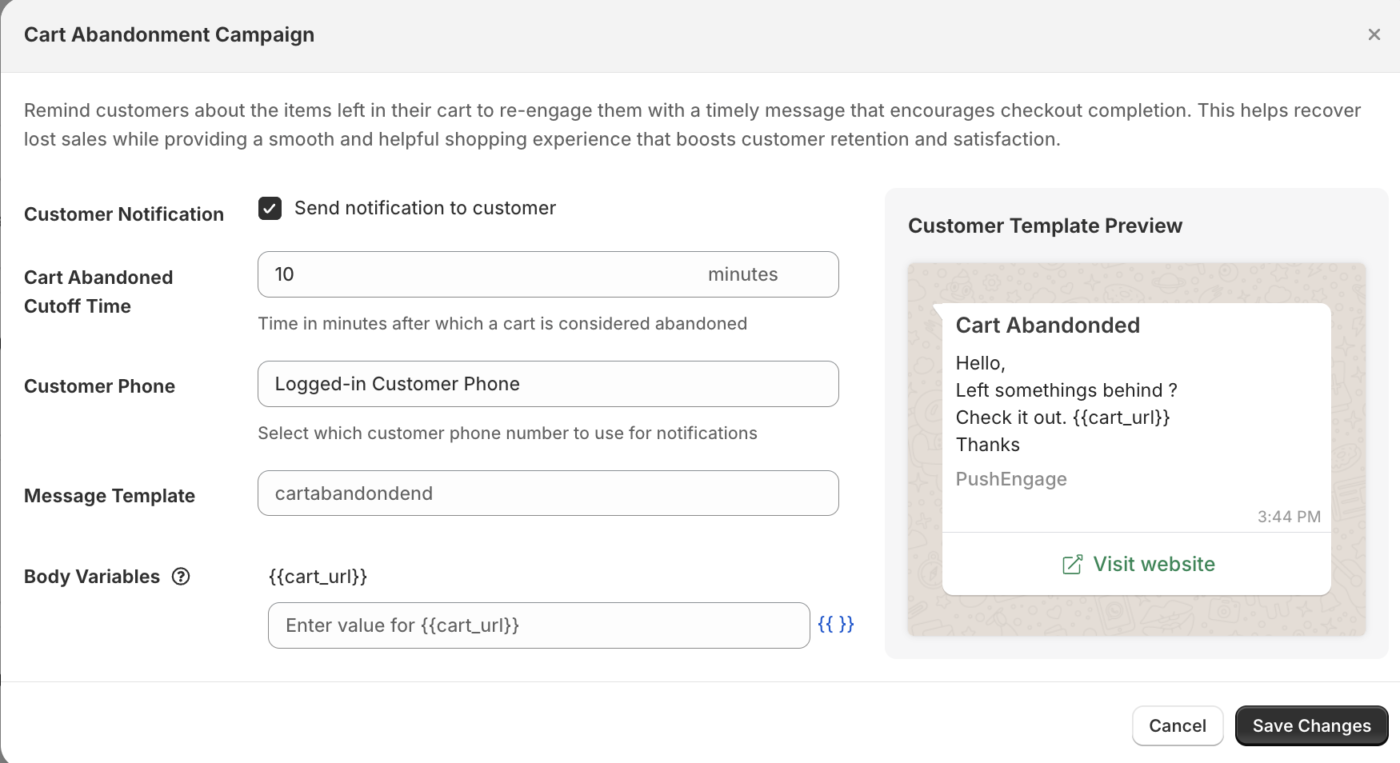
WhatsAppによるカートリカバリーは、WhatsAppメッセージングをオプトインしている場合に、カートを放棄した顧客にメッセージを送信します。
- WhatsAppセクションで、自動化に移動します。
- 使用したいカートリカバリーテンプレートを選択します。
- 遅延を設定します:メッセージが送信されるまでの放棄からの時間(例:1時間)。
- キャンペーンを有効にします。
注意: WhatsAppメッセージは、WhatsApp番号を提供し、メッセージ受信に同意した顧客にのみ送信できます。PushEngageは、利用可能な場合はShopify注文レコードから電話番号を使用します。
ステップ4:注文更新通知の設定
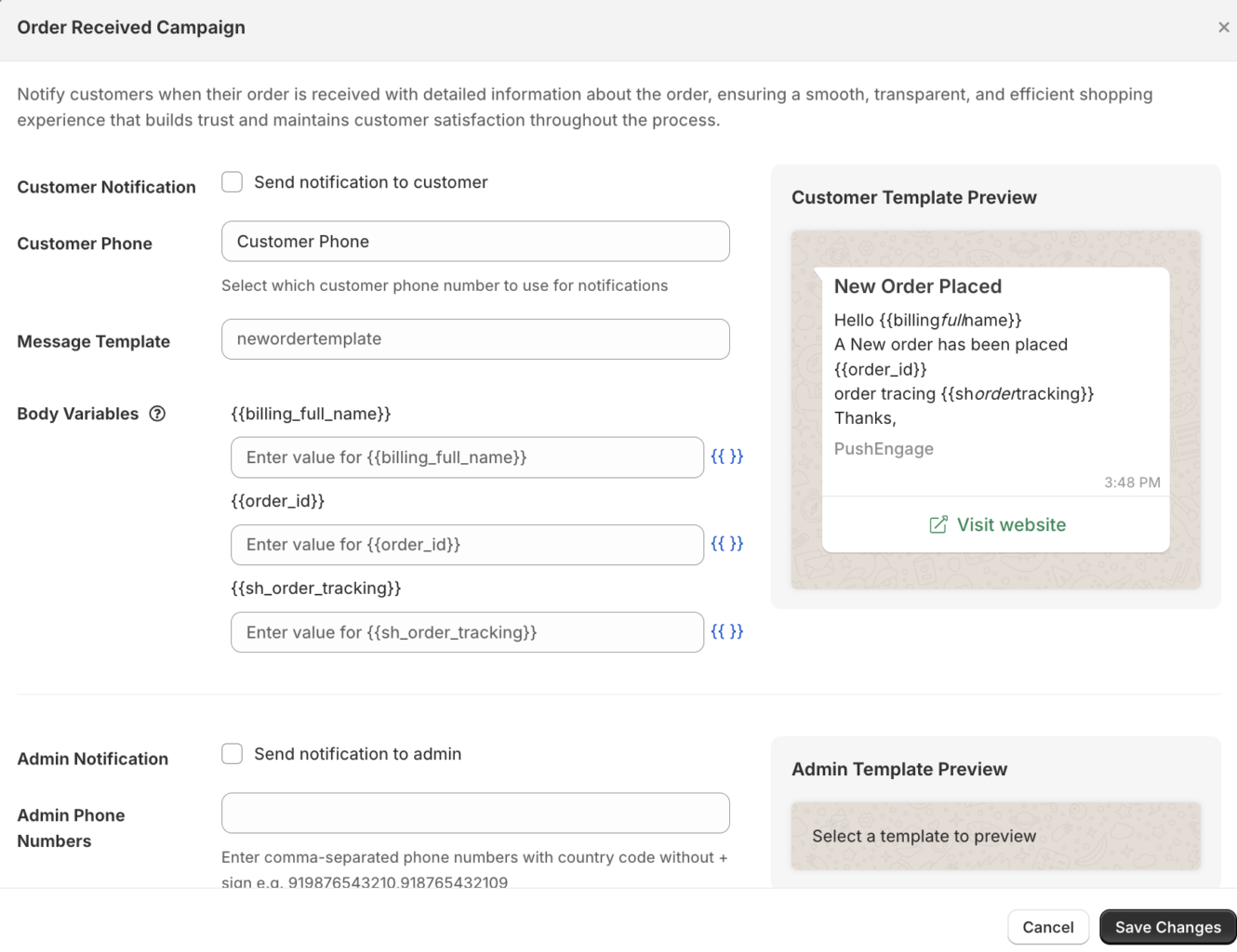
注文通知は、メールに頼ることなく、注文ライフサイクル全体を通じて顧客に情報を提供します。
- WhatsAppセクションで、注文通知に移動します。
- 送信したい通知タイプを有効にします:
| 通知 | トリガー |
|---|---|
| 注文確認済み | 新規注文が確定したとき |
| 注文発送済み | 注文が出荷済みとしてマークされたとき |
| 注文配達済み | 出荷ステータスが配達済みに更新されたとき |
| 返金発行済み | 返金が処理されたとき |
- 各通知について、使用する事前承認済みテンプレートを選択します。
- 保存をクリックします。
WhatsAppアナリティクスの表示
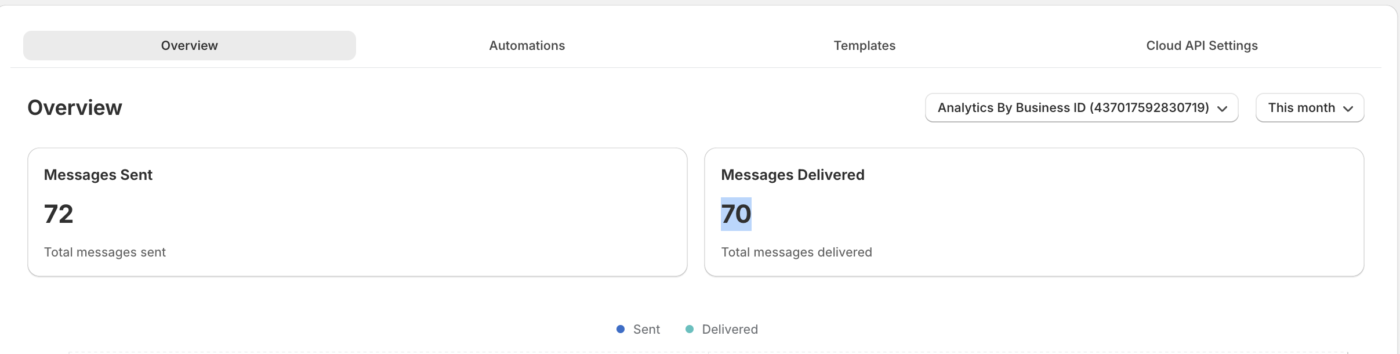
- PushEngage ShopifyアプリでWhatsApp » アナリティクスに移動します。
- 送信済み、配達済み、既読、返信済みメッセージを含む指標を確認します。
| 指標 | 意味 |
|---|---|
| 送信済み | 配信のためにキューに入れられたメッセージ |
| 配信済み | メッセージが顧客のWhatsAppに正常に配信されました |
| 開封済み | 顧客がメッセージを開きました(WhatsAppの開封確認が有効になっている必要があります) |
| 返信済み | 顧客が返信を送信しました |
よくある質問
顧客はWhatsAppメッセージを受信するためにオプトインする必要がありますか? はい。WhatsAppでは、マーケティングメッセージを受信するために顧客からの明示的な同意が必要です。トランザクションメッセージ(注文更新)は、チェックアウト時にMetaのユーティリティ会話ルールに基づいて番号を提供した顧客に送信される場合がありますが、MetaのWhatsAppビジネスポリシーに対して特定のユースケースを確認する必要があります。
Metaテンプレートの承認にはどのくらい時間がかかりますか? 通常、数時間から2営業日です。一部のテンプレートは、Metaのコンテンツガイドラインを満たしていない場合、修正が必要になることがあります。
WhatsAppメッセージは無料ですか? WhatsAppの会話は、メッセージごとではなく、会話ごとにMetaによって請求されます。毎月最初の1,000件のサービス会話は無料です。マーケティングおよびユーティリティ会話は、国によって異なるレートで請求されます。現在のレートについては、Metaの料金ページを確認してください。
同じイベントに対してWhatsAppとプッシュ通知を送信できますか? はい。PushEngageはマルチチャネルキャンペーンをサポートしています。同じ顧客に対して、WhatsAppのカート回収メッセージと並行して、カート放棄プッシュ通知シーケンスを実行できます。
問題が発生した場合は、ここをクリックしてお気軽にお問い合わせください。サポートチームがお手伝いします。