Looking for an easy way to add a WordPress popup contact form on your site?
A popup contact form makes it super easy for your site visitors to get in touch with you. The popup appears on the same page where visitors are so they don’t have to spend time trying to find the contact page. And you can set up a popup so that it gets triggered exactly when you want your visitors to see it.
The only problem is that it can be really difficult to create a contact form popup from scratch. If you try to solve your problem with a plugin, what plugin do you use? Do you use a popup plugin or a contact form plugin? Or do you have to use both?
And which of the 150+ plugins is suited for your business needs?
In this article, we answer these questions and show you step-by-step how to add a WordPress popup contact form to your site.
Plongeons dans le vif du sujet.
Before You Add Your WordPress Popup Contact Form
Let’s get something straight before we start creating a form.
There are MULTIPLE ways to create a WordPress popup contact form. Yes, you can do it using popup plugins and form plugins alike. But in this article, we’re assuming that you have zero coding experience. We’re also assuming that this is your first time adding a contact form of any kind to your WordPress site.
And that’s why we’re going to show you the easiest possible way to create and integrate a WordPress popup contact form like this one:
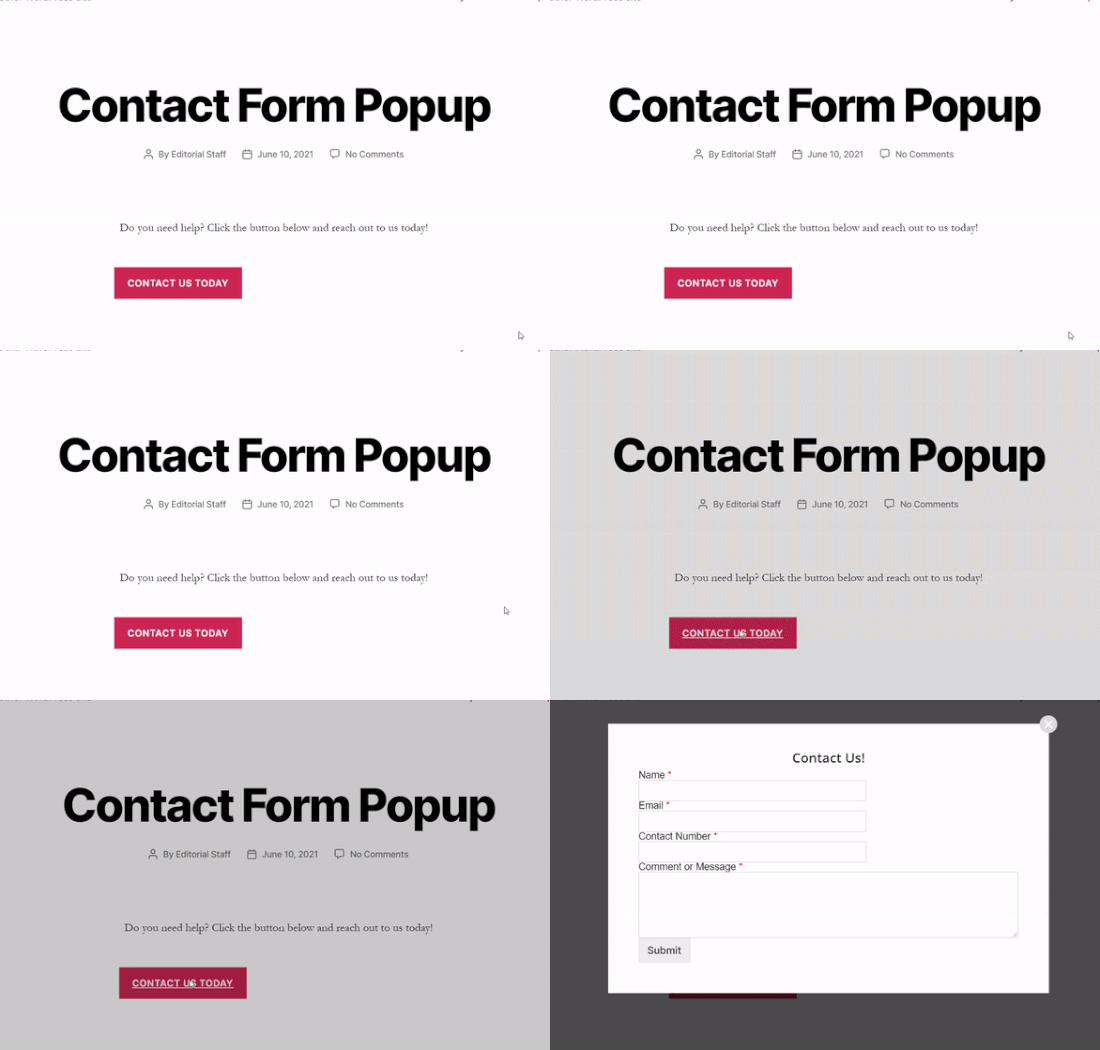
Our method combines a WordPress form plugin with a WordPress popup plugin.
Trust us when we say it: This approach will shave off HOURS of work for you.
So, we’re going to break up the entire process into two parts:
Sounds good? Now, we’re ready to start.
How To Create a WordPress Contact Form
First things first, you’ll need a contact form plugin to build a WordPress contact form.
Step #1: Select a WordPress Contact Form Plugin
We recommend using WPForms to create a WordPress contact form.
WPForms is the #1 WordPress form builder plugin with over 3 million users. You get a drag and drop form builder, which means that you can create WordPress forms with incredible features in a matter of minutes.
Step #2: Create a New Form
Once the plugin’s all set up, you want to create a new form by heading over to WPForms » Add New from your WordPress dashboard:

And select the Simple Form template:
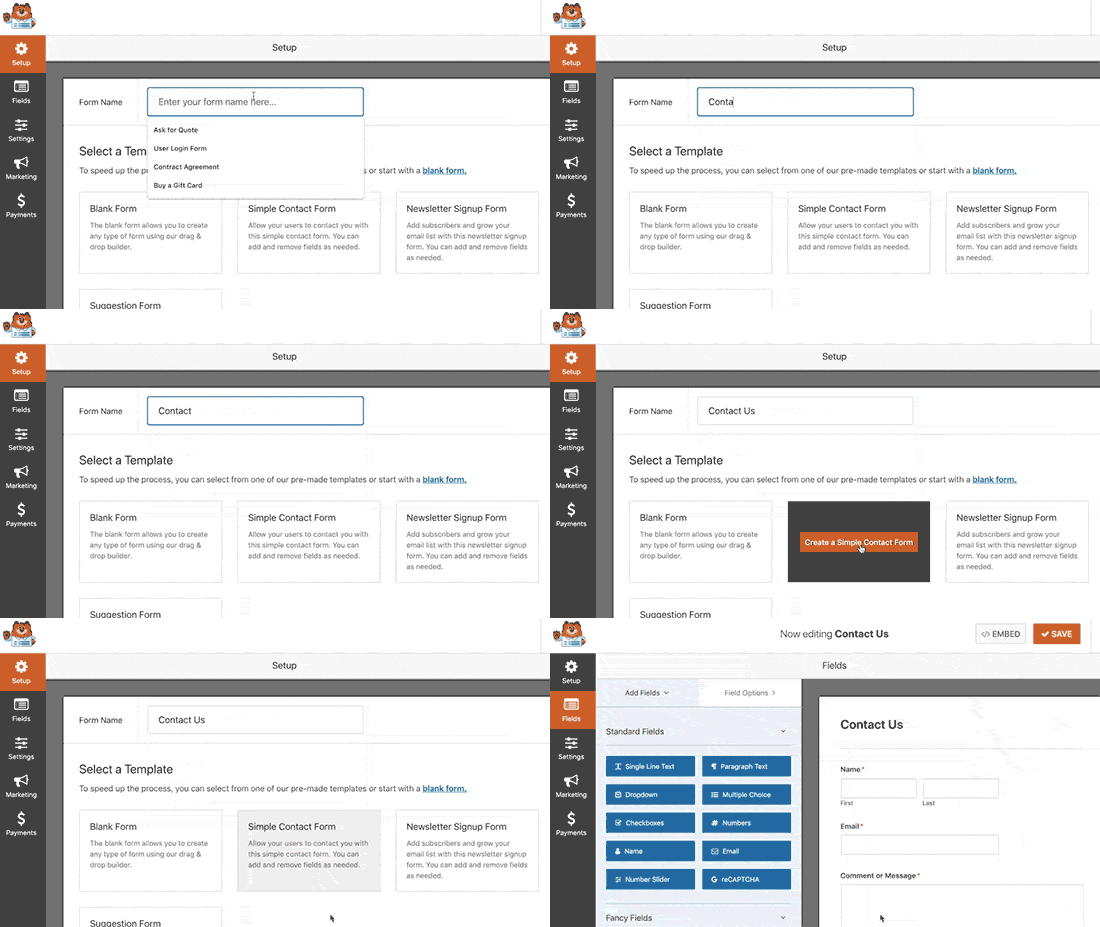
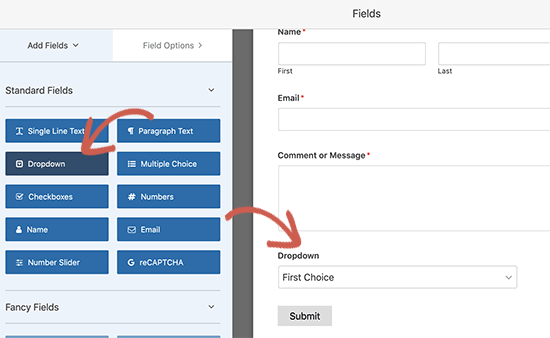
Customize the form using the drag-and-drop form builder:
Step #3: Get Your Contact Form Shortcode
Once you are done creating a contact form, make sure to click the Save button at the top right corner to save your changes. Then, click the Embed option in the top corner next to the Save button. When a new window pops up, select the use a shortcode option.
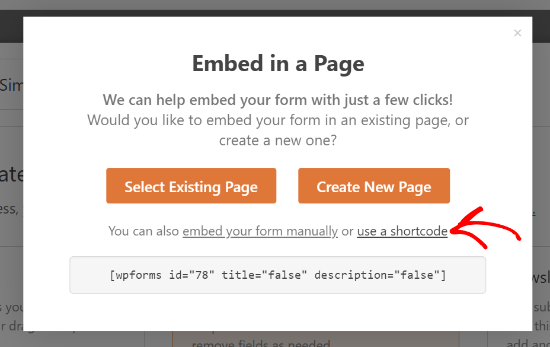
That’s it! You’re done. Next, we’re going to embed this form in a popup using the shortcode.
If this is your first time using WPForms, you should check out our tutorial on how to create a contact form in WordPress for more detailed instructions.
How To Embed Your Contact Form In a Popup
To create a contact form popup, you will need a WordPress popup plugin.
Step #1: Selecting a WordPress Popup Plugin
We recommend using OptinMonster to create instant popups for WordPress.
OptinMonster est la boîte à outils de conversion numéro 1 au monde et nous l'utilisons nous-mêmes. OptinMonster permet de créer très facilement des popups puissants qui convertissent. Et vous n'aurez jamais besoin d'écrire une seule ligne de code.
Step #2: Create a Popup Campaign
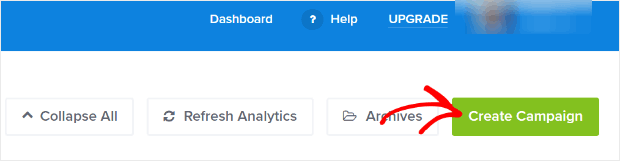
Go ahead and signup for OptinMonster. Then, in the OptinMonster dashboard, hit the Create Campaign button:
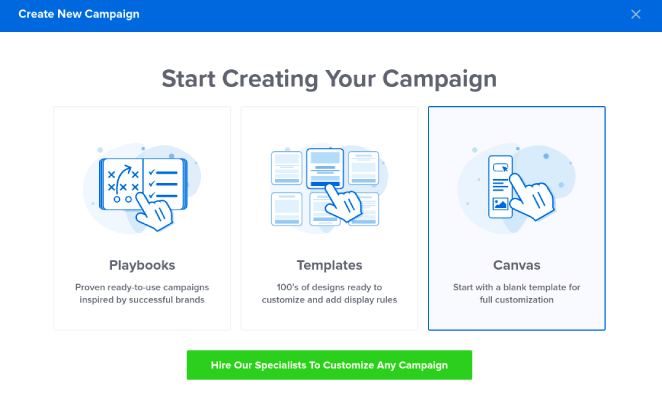
On the next screen, you will have to select a campaign type. You can choose to go for a proven template from the OptinMonster Playbooks or Templates, but we’re going to use the Canvas mode to create the popup:
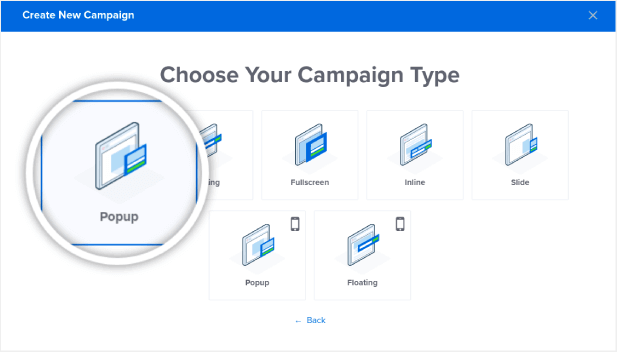
Then, select the Popup campaign type:
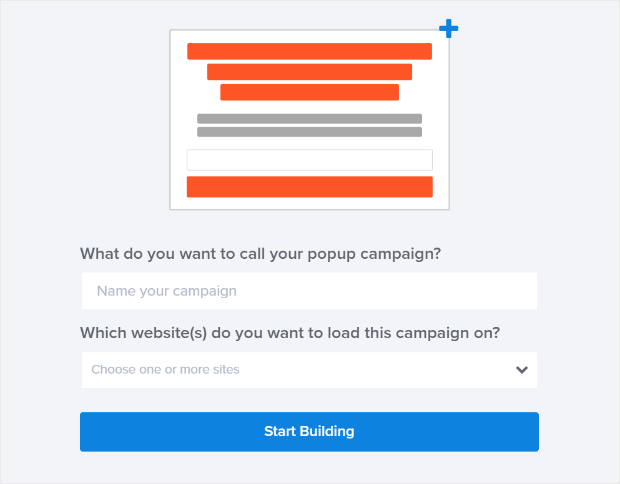
Then, name your campaign to get started:
Step #3: Adding The Shortcode To Your WordPress Popup Contact Form
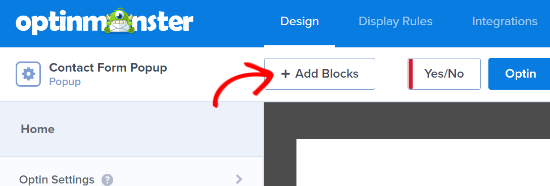
Using the drag and drop builder in OptinMonster, you can edit your popup template. To start, click the + Add Blocks button at the top:
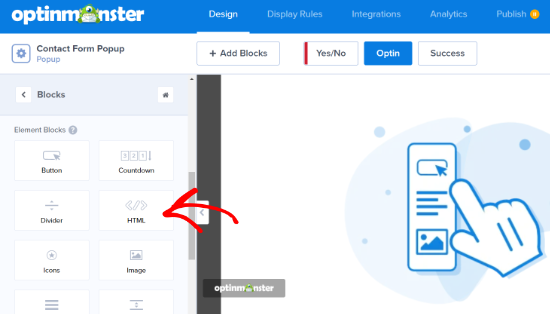
To add your shortcode, you’ll want to drag and drop the HTML design block into your design preview:
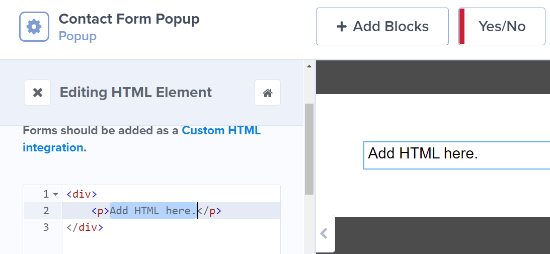
Enter the copied shortcode into your OptinMonster HTML block, where it says Add HTML here:
IMPORTANT: You won’t see the contact form in the preview. You’ll only see the shortcode in the preview. The shortcode is built for WordPress and not for OptinMonster’s dashboard. So, it’s perfectly normal if you see something like this:
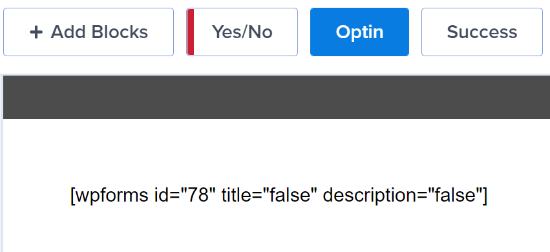
The form will work perfectly once you publish the popup on your site.
Step #4: Configure WordPress Popup Contact Form Display Rules
Next, you can go to the Display Rules tab at the top to choose when the popup should appear on your website:
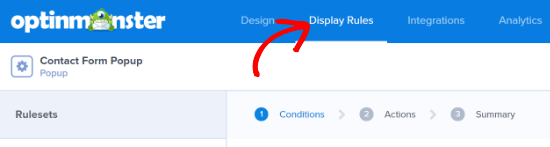
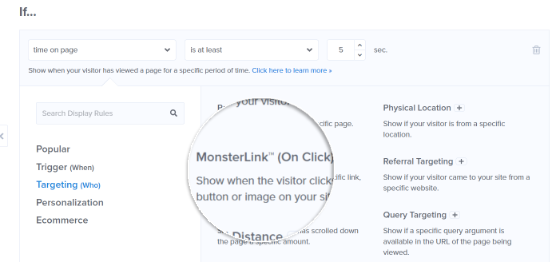
By default, OptinMonster will set the popup to be triggered when the time spent on the page is 5 seconds. Also, by default, the popup will appear on all pages. However, you can change the display rule settings and select different triggers and targeting options.
We recommend using MonsterLink (on-click targeting). This way, your popup will appear when a visitor clicks a link or a button:
After that, you can click the Copy MonsterLink Code button and add it to any text, image, or button on your website:
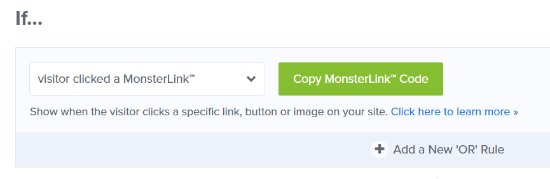
If you want to use a custom button on your site, you can just copy the URL in the MonsterLink code. Then, just paste the link into any button on WordPress.
Step #5: Publish Your WordPress Popup Contact Form
When you are happy with the appearance of your campaign, change the Publish Status from Draft to Publish:
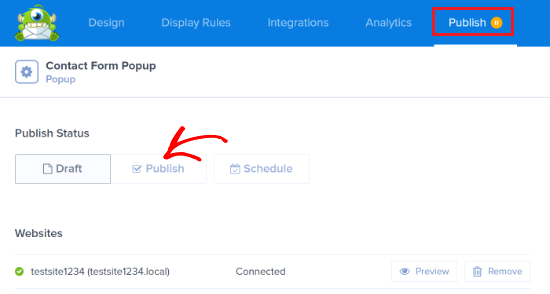
Et voilà !
If you followed every step along the way, you should see this contact form popup on your site:
Et ensuite ?
C'est tout pour cette fois, les amis !
Let us know if this article helped. Creating popups on your site can help you convert your traffic into email subscribers and genuine business leads. And we highly recommend that you create a WordPress popup contact form right away.
Next, you’ll want to send more traffic to your site so that the popup can work its magic.
Et si vous recherchez un moyen abordable de développer votre trafic, nous vous recommandons d'utiliser les notifications push. Les notifications push peuvent vous aider à générer plus de trafic de retour et d'engagement sur le site. Vous pouvez également créer des campagnes de notifications push automatisées qui génèrent des ventes.
Pas convaincu ? Consultez ces ressources :
- 7 stratégies intelligentes pour stimuler l'engagement client
- Les notifications push sont-elles efficaces ? 7 statistiques + 3 conseils d'experts
- Comment configurer des notifications push pour paniers abandonnés (Tutoriel facile)
- Comment ajouter un plugin WordPress de notifications Web à votre site
Nous vous recommandons d'utiliser PushEngage pour créer vos campagnes de notifications push. PushEngage est le logiciel de notifications push n° 1 au monde. Donc, si ce n'est pas déjà fait, commencez dès aujourd'hui avec PushEngage !


