
Do you want to embed YouTube videos in your WordPress blog posts?
Videos help to increase the time your users spend on your website, and some visitors may even prefer to watch a video than reading written text. But uploading them directly to your site is a bad idea. If your video goes viral, it will crash your server. So, a better way is to upload your video to YouTube and then embedding them in your WordPress site.
The biggest worry that most bloggers have is that they may have to code in HTML to embed videos. But WordPress actually makes it super easy to embed videos from video hosting sites like YouTube, Vimeo, Facebook, Twitter, and many others.
In this article, we’re going to show you step-by-step how to embed YouTube videos in WordPress.
Plongeons dans le vif du sujet.
Method #1: How to Directly Embed a Single Video in WordPress
WordPress comes with an amazing feature called auto-embed. With Gutenberg, you can directly fetch a video on any page in your site.
All you have to do is copy and paste the URL of the video directly in the content area:
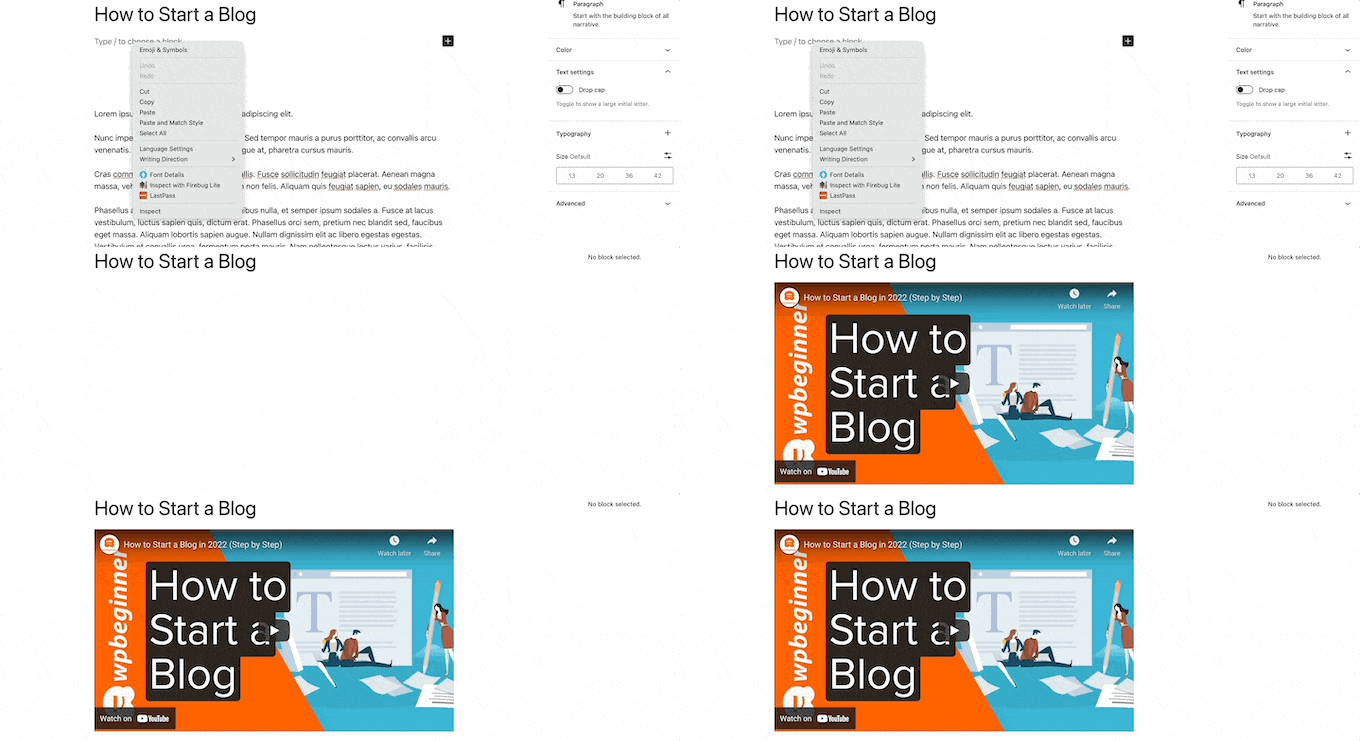
And WordPress will automatically fetch the YouTube video and embed it in your content.
Method #2: How to Embed Videos in WordPress Sidebar Widgets
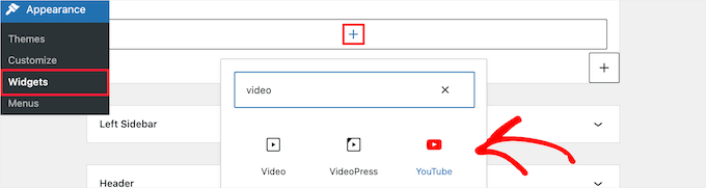
Go to Appearance » Widgets in your WordPress admin area and then click the Plus add block icon. And search for Video in the search bar:
Then, all you have to do is click the ‘Update’ button, and the video widget will go live on your website:
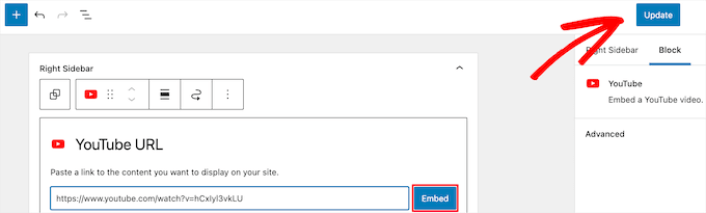
The size of the video will scale automatically based on the size of your widget area.
Method #3: Using WordPress Video Embed Plugins to Embed Videos
You can use WordPress video embed plugins to embed a YouTube video on your site. A plugin can help you automatically embed all of your YouTube channel videos in a customizable gallery format.
We recommend using Smash Balloon to embed your WordPress videos.

Smash Balloon est un plugin WordPress simple qui vous permet d'afficher vos flux de médias sociaux sur votre site sans utiliser aucun code. L'affichage de vos flux sociaux sur votre site est un excellent moyen de convertir votre trafic web en abonnés sur les médias sociaux et de les maintenir engagés pendant longtemps.
La meilleure chose à propos de Smash Balloon est qu'il n'y a aucun codage impliqué. Tout ce que vous avez à faire est d'installer le plugin, puis de connecter vos pages de médias sociaux à votre site.
Vous pouvez utiliser Smash Balloon pour :
- Use your hashtag feeds on your site as social proof
- Dsiplay interactive Twitter feeds to boost website engagement
- Embed your YouTube videos on your site to grow your YouTube subscribers
- Ajoutez des avis authentiques de votre page d'entreprise Facebook sur votre site pour augmenter les conversions
Et bien plus encore !
Check out our review of Smash Balloon or just get started. First thing you need to do is install the YouTube Feed Pro plugin. For more details, see our step by step guide on how to install a WordPress plugin.
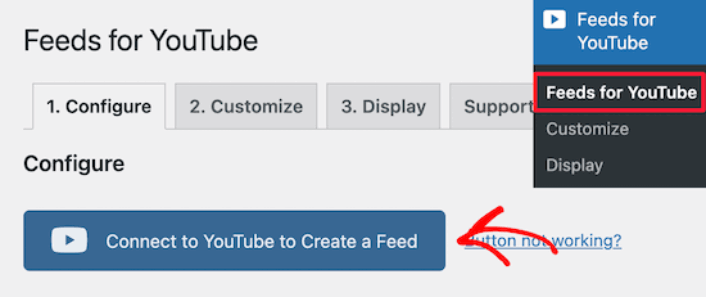
Go to Feeds for YouTube » Feeds for YouTube and then click the Connect to YouTube to Create a Feed button:
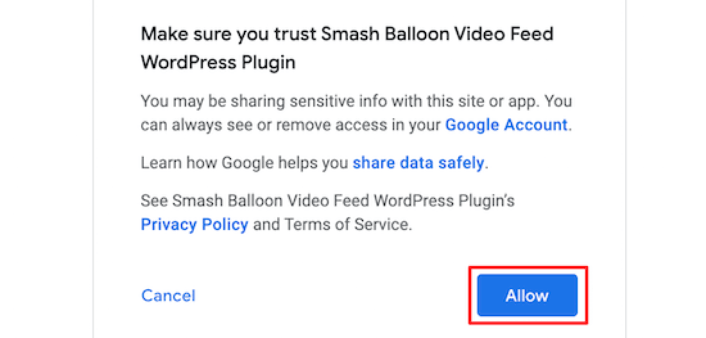
You’ll see a prompt to login using Google. Go ahead connect the right Google account to Smash Balloon. Then, click on Allow:
Then, click on the Customize tab:
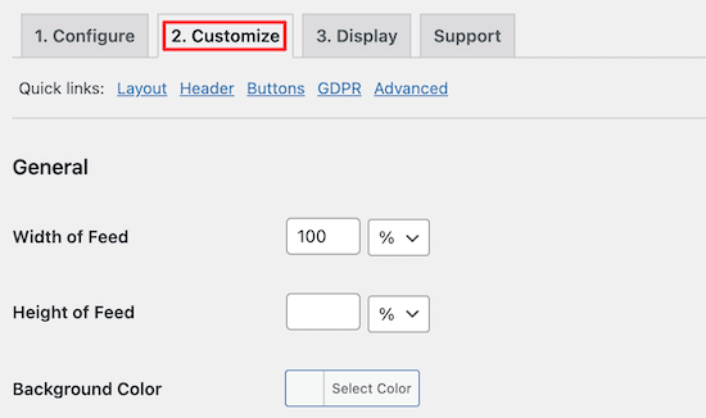
Here, you can customize the look and feel for your YouTube embed without a single line of code. You can embed multiple videos at a time, create a gallery, and even select a layout to display your videos.
Once you’re done, you can embed a customized YouTube feed on your WordPress site instantly using the YouTube Feeds block for Gutenberg Editor:
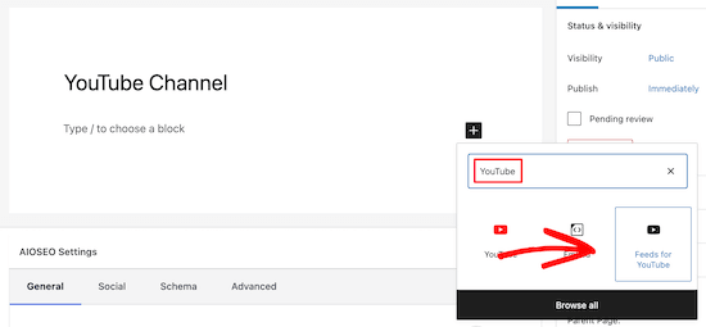
This will automatically add your YouTube feed to your page. Finally, click the Publish or Update button to make your page live.
What to do After You Embed a YouTube Video in WordPress
That’s all for this one, folks! By now, you’ve managed to embed a YouTube video in WordPress. You should also check out how to embed Instagram photos in WordPress. And how to set up a viral giveaway to supercharge your social media following.
After that, all that’s left is generating traffic to your site so that your contact forms can get to work. A simple way to do that is to start using push notifications. Sending push notifications is a great way to generate repeat traffic for your site. If that’s something you’re interested in, you should check out these articles as well:
- Coût des notifications push : Est-ce vraiment gratuit ? (Analyse des prix)
- Comment obtenir plus de trafic vers votre blog WordPress (9 méthodes faciles)
- Comment augmenter votre taux d'opt-in pour les notifications push Web (7 méthodes)
- Comment ajouter un plugin WordPress de notifications Web à votre site
Nous vous recommandons d'utiliser PushEngage pour envoyer vos notifications push. PushEngage est le logiciel de notification push n°1 au monde. Donc, si ce n'est pas déjà fait, commencez dès aujourd'hui avec PushEngage.


