
Looking for a quick and easy tutorial on how to add a tweet button to WordPress?
Click-to-tweet buttons make it easy for website visitors to share your content on Twitter. That way, you can reach your target audience with content designed to generate interest, leads, and potential customers.
In this article, we’re going to show you how to add a tweet button to WordPress step-by-step in 2 different ways.
Plongeons dans le vif du sujet.
Why Add a Tweet Button to WordPress?
Twitter marketing is one of the most effective ways to bring your target audience to your website. Twitter is home to over 217 million active users. So, by adding a tweet button to your WordPress site, you can get your blog readers to share your content on Twitter. That in turn brings in more website traffic to your content.
An effective way to reach people who don’t follow you on Twitter is to add a Tweet button to your website.
When users visit your website, a tweet button will encourage them to share your content on their personal Twitter timelines. As a result, their followers will see your content and can then like, comment, and retweet it to their followers.
How to Add a Tweet Button in WordPress
Now that you know why Twitter buttons can benefit your business let’s look at how to add one to your WordPress site. There are several ways to add a click-to-tweet box or button to your website; however, some are much easier than others.
Add a WordPress Tweet Button Using a WordPress Landing Page Builder
You can use a WordPress landing page builder to directly add a WordPress tweet button. We recommend using SeedProd to create your landing pages in WordPress.

SeedProd is a visual landing page builder that helps you create landing pages that convert really well. It’s a page builder with super powerful features that work with any WordPress theme.
Also, it’s not like a child theme that only extends the theme defaults with some additional styling. SeedProd gives you a full-scale drag-and-drop page builder where you can create custom pages no matter what your theme styles are.
Les fonctionnalités populaires incluent :
- Pre-built conversion-focused landing page templates
- Easy design customization options
- Global design settings such as brand palette and brand fonts
- Advanced page blocks to integrate powerful marketing software directly into your landing page
- WooCommerce blocks to customize all eCommerce pages in your conversion funnel
- One-click deployment for coming soon pages, Maintenance mode, login page, and 404 page
- Custom page rules to limit access to your landing pages
- Intégrations de marketing par e-mail
- Instant domain mapping to launch landing pages on any domain you feel like
And more! SeedProd is the #1 WordPress landing page builder in the market.
If you’re looking for ways to grow or scale your business, you should definitely invest in one of the premium plans for SeedProd. For the money, you get a lot of features that can help you launch a professional, conversion-optimized site very quickly.
Go ahead and install and activate the SeedProd WordPress plugin.

Then, edit any page or post using the SeedProd editor:

From the blocks in the left, you can drag and drop a Tweet button WordPress block anywhere on your content:
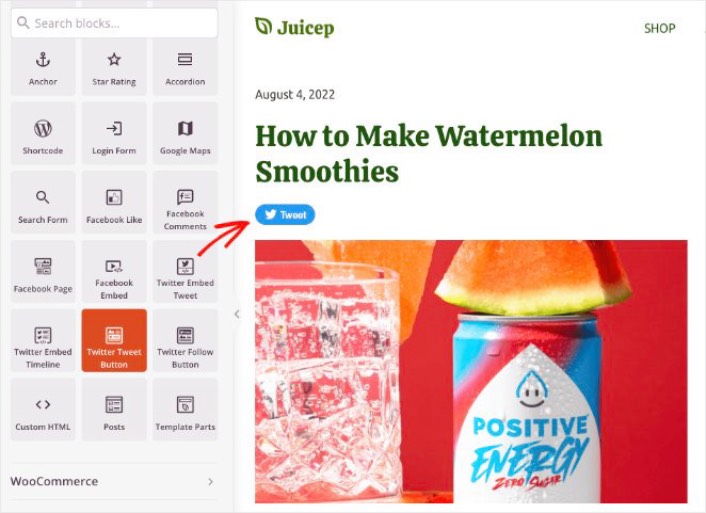
And you’re done! It’s that simple. If you followed along step by step, you can see a tweet button in your WordPress site like this one:

Add a Tweet Button to WordPress Manually
You can add a tweet button to WordPress manually. To get started, go to the Twitter Publish tool website and choose the Twitter Buttons embed type.

Next, a window will pop up asking you to choose a button type:
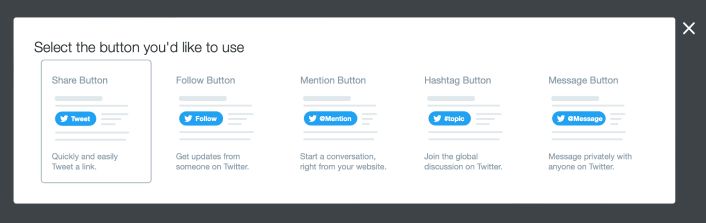
After clicking your button type, you get an embed code to create a Tweet button in WordPress:
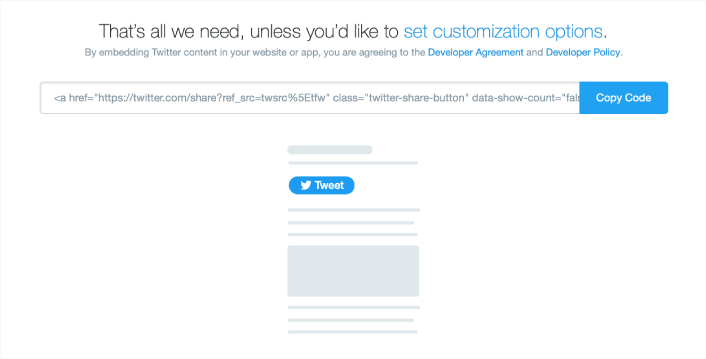
Click the button to copy the embed code, then head back to your WordPress site. You can add a Custom HTML block in your WordPress site and simply paste the tweet button code.
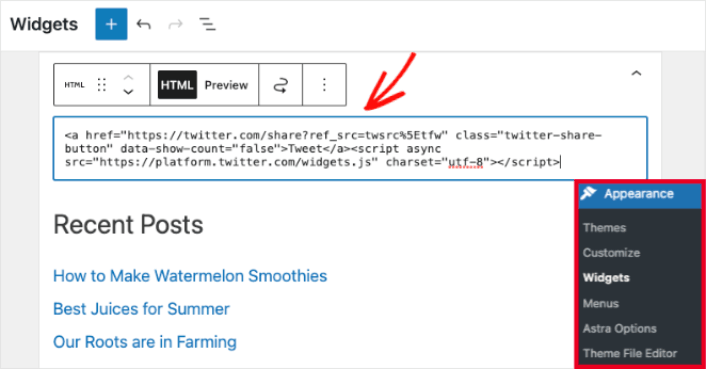
If you add the code in your sidebar widgets, it should look something like this:

And again, it’s that simple.
What to do After You Add a Tweet Button in WordPress
C'est tout pour cette fois, les amis !
Vous devriez également consulter comment intégrer des photos Instagram dans WordPress. Et si vous cherchez à augmenter le nombre de vos abonnés sur les réseaux sociaux, vous devriez organiser un concours viral.
Après cela, il ne vous reste plus qu'à générer du trafic vers votre site afin d'obtenir plus de prospects et de ventes. Une façon simple de le faire est de commencer à utiliser les notifications push. L'envoi de notifications push est un excellent moyen de générer du trafic répété vers votre site. Si cela vous intéresse, vous devriez également consulter ces articles :
- Coût des notifications push : Est-ce vraiment gratuit ? (Analyse des prix)
- Comment obtenir plus de trafic vers votre blog WordPress (9 méthodes faciles)
- Comment augmenter votre taux d'opt-in pour les notifications push Web (7 méthodes)
- Comment ajouter un plugin WordPress de notifications Web à votre site
Nous vous recommandons d'utiliser PushEngage pour envoyer vos notifications push. PushEngage est le logiciel de notification push n°1 au monde. Donc, si ce n'est pas déjà fait, commencez dès aujourd'hui avec PushEngage.


