Looking for a quick and easy way to create a podcast landing page?
Running a podcast is tough. It’s not just about creating content. You have to promote your content as much as possible right before every episode. And your business depends on how many people tune in for each episode.
Sure, you get some subscribers from podcast platforms such as Google Podcasts, Spotify, and Apple Podcasts. But your entire competition is also on the same platform as you are. So, when you promote your podcast, there’s a high chance that your fans may end up subscribing to someone else altogether.
Of course, a podcast landing page can help solve these issues. But how do you create one? Running your podcast takes so much time and effort as is. Do you really have time to build a website around your brand? Can you afford to pay a developer to do it for you?
Fortunately, there’s an easy way to create a podcast landing page. In this article, we’re going to help you launch your very podcast page in less than 15 minutes.
Êtes-vous prêt ? Plongeons.
What’s a Podcast Landing Page?
A podcast landing page is a fully customized web page that’s focused on giving your visitors a reason to subscribe. Unlike a podcast website, the landing page isn’t focused on talking about your show and different episodes. The only focus of a landing page is to drive conversions.
The cool bit about a podcast landing page is that you can customize it any way you want. You can include and control elements in your podcast landing page that you can’t really do with a podcast hosting page like Spotify.
Another alternative use of your podcast landing page is to convert your listeners into leads. Let’s say you have a podcast on business management that’s gaining some followers. You can create a landing page to promote your own course or even a consulting service.
Here’s the best part: You can convert your visitors into subscribers in SO many ways.
Depending on how much time you have and how much money you’re expecting to make from your subscribers, you could:
- Offer coupons and discounts
- Host a giveaway
- Create a free guide or checklist as a lead magnet
- Accept donations from fans
Et bien plus encore !
But before you get started, remember to have a very clear and specific goal for your landing page. Just because you can do a lot of things doesn’t mean that you should do them all on one page. More often than not, if you give your visitors too many things to click on, they won’t click on anything at all.
What do All Successful Podcast Landing Pages Have?
Now that you know what a podcast landing page is and why you should build one, it’s time to create a blueprint for your landing page. If you check out any successful landing pages, you’ll notice that they all have some very basic common elements:
- Headline: The headline is where you grab people’s attention and make them want to scroll down and learn more about you.
- Description: Just below the headline, you should have a description of what your viewers should expect from the rest of the page. This is a great place to convince readers to subscribe to your podcast as well.
- Latest episodes: Once people know what to expect from your brand, give them a taste of your show by listing your latest episodes. We recommend showcasing 3-5 episodes at most.
- Subscribe button: Follow up with a subscribe button so that your visitors can become podcast subscribers. This is known as the call to action (CTA) button. It’s how you nudge your visitors to take action on your page. Depending on your goal for the landing page, your CTA will vary.
- Social proof: A great way to give your readers a strong reason to subscribe is by offering social proof. Social proof simply tells your visitor that there are other people who are already taking the same action as you want them to take.
- Newsletter optin: Once you hit your visitors with the core offer, you can also ask them to become email subscribers. You can also ask them to become push notification subscribers using a click to subscribe button. It’s always best if you offer something valuable in exchange.
- Social sharing buttons: The more people talk about you on social media, the better chances you have of skyrocketing your subscribers. So, put up social sharing buttons on your landing page to encourage people to share it on social media.
Remember, these are only the most basic parts of any successful landing page. For your page, you can add a lot of other sections and create custom offers to increase your conversions.
How to Create a Podcast Landing Page in WordPress
Now that you know what to create, it’s time to launch your podcast landing page. For this tutorial, we highly recommend using SeedProd to create your landing pages.

SeedProd is the best WordPress landing page builder. It’s perfect for businesses, bloggers, and website owners looking to build high-converting landing pages without any development skills.
Avec SeedProd, vous obtenez des modèles prédéfinis pour des pages de destination à forte conversion que vous pouvez publier instantanément. Cela inclut des modèles pour :
- Pages de vente
- Pages "Bientôt disponible"
- Pages 404
- Pages de maintenance
- Pages de capture
- Pages de connexion
- Pages de remerciement
- Pages de webinaires
- Pages vidéo
Et bien plus encore !
Étape n°1 : Installer et activer SeedProd
Tout d'abord, vous voudrez obtenir le plugin SeedProd Pro et l'activer. Si vous n'êtes pas sûr de la procédure, consultez cet article sur comment installer un plugin WordPress. Ensuite, allez dans SeedProd » Paramètres sur votre tableau de bord WordPress et activez la version Pro :

Ensuite, rendez-vous sur SeedProd » Pages pour un aperçu du tableau de bord des pages de destination de SeedProd. C'est ici que vous pouvez voir les différents types de pages de destination que vous pouvez créer avec SeedProd :

Keep in mind that these are all special pages with pre-built functionality and design templates. For a podcast landing page, you don’t want to use ANY of these special landing pages. Instead, you’re going to create a custom landing page.
Scroll further down and click the Add New Landing Page button to get started:

Step #2: Create a New Landing Page
After clicking the Add New Landing Page button, you’ll see SeedProd’s library of landing page templates. These are professionally designed landing page templates that are completely responsive.
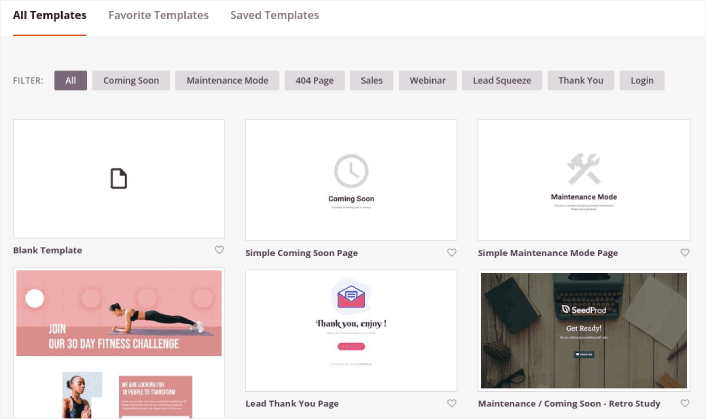
Next, you can select one of these templates to help you get started. Remember, the template is just a starting point. you can customize everything about the page later on. For now, find a template that you think will fit:
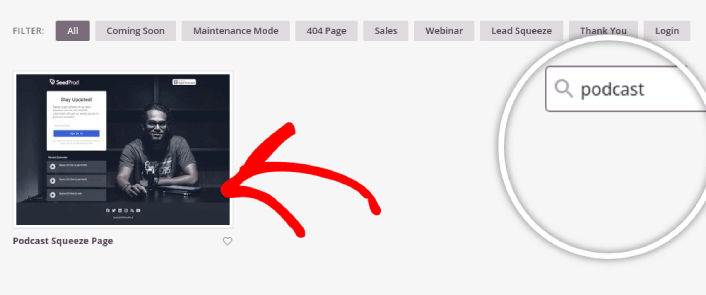
For this guide, we chose the Podcast Squeeze Page template.
Step #3: Customize Your Landing Page Design
SeedProd’s visual builder allows you to customize your landing page using drag-and-drop content blocks.
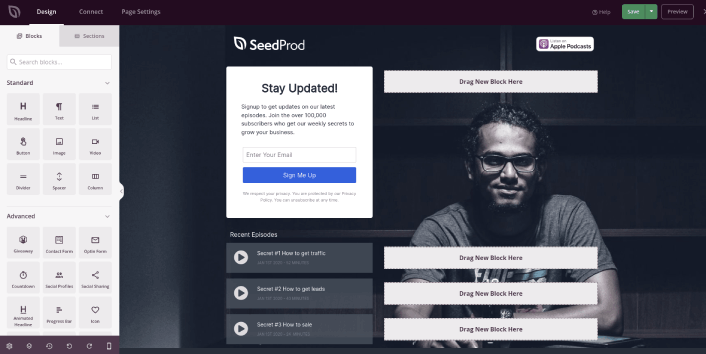
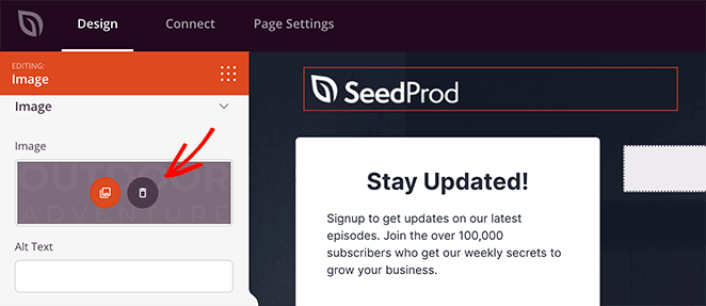
You can click the logo and replace the image with anything you like:
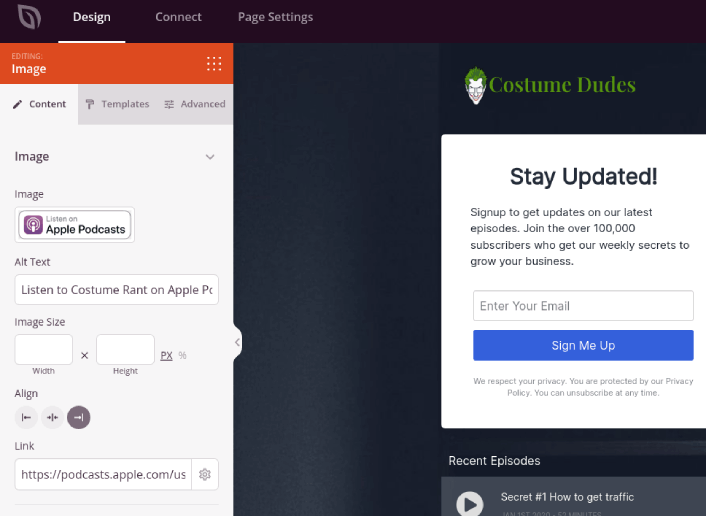
You can create a fully customized header for your landing page in a matter of minutes. For instance, click on the Listen on Apple Podcasts button and insert your podcast’s link:
It’s also super easy to add a section with a brief description of your podcast. Head over to the Sections tab in the visual builder and under the Hero section, you’ll find several pre-built templates that you can import with a single click.
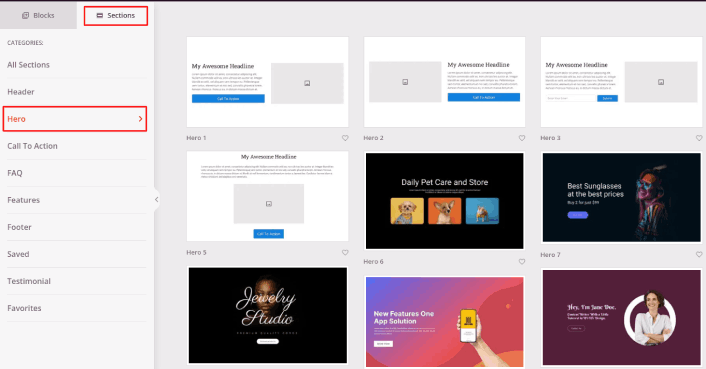
Go ahead and select one that you like. Don’t worry about the colors or the content. You can edit all of it. What you should look for is a layout that goes well with your template.
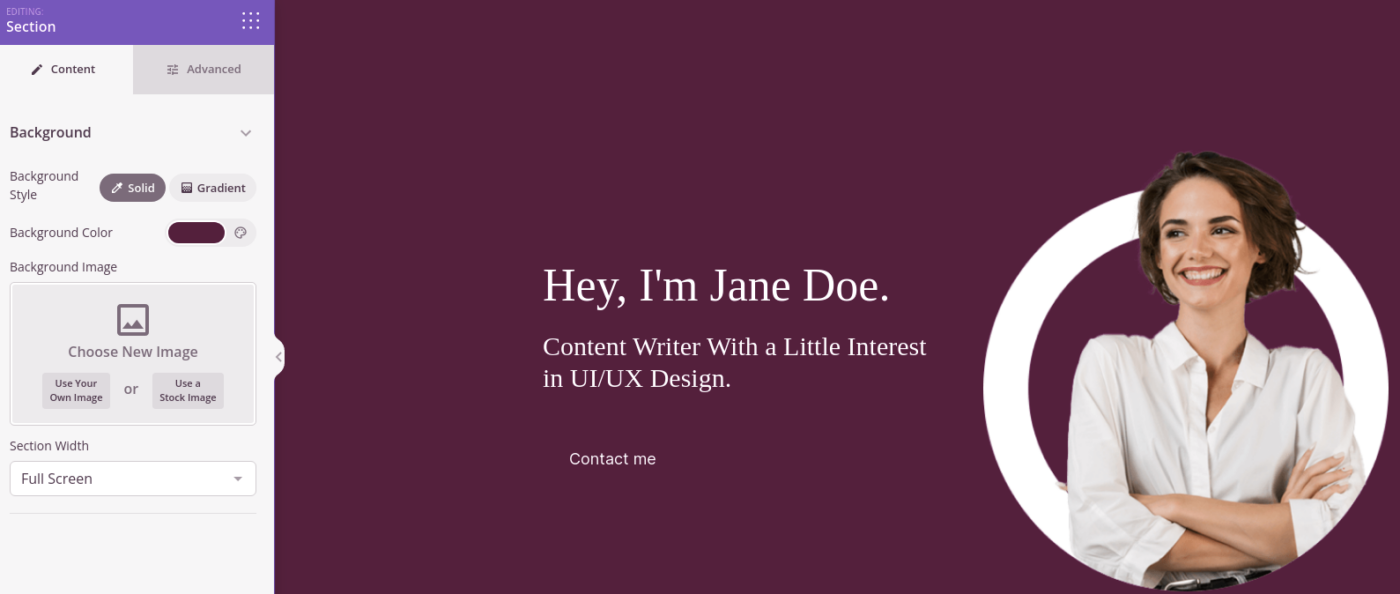
You can customize the hero section the same way we did earlier by choosing a different image and changing the headline and description. While you’re at it, add a call-to-action button that nudges viewers to subscribe to your podcast as well.
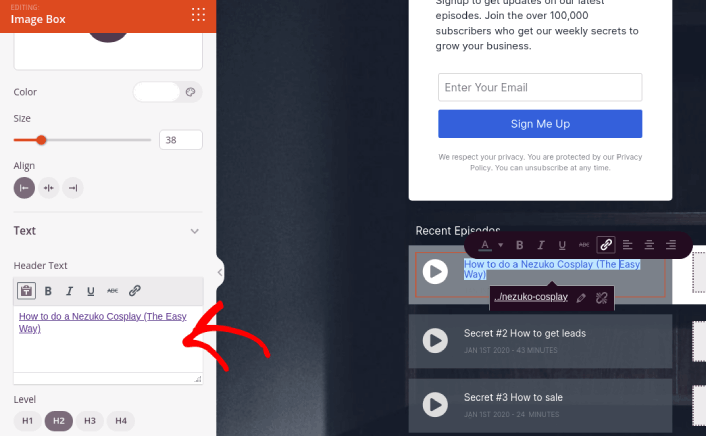
The template that we chose also has a pre-built block to showcase your latest episodes. So, all you have to do is edit the information and add episode URLs:
Next, from the Sections tab, select the Testimonial heading, and choose a design you like. And just like that, you have a testimonials section on your landing page.
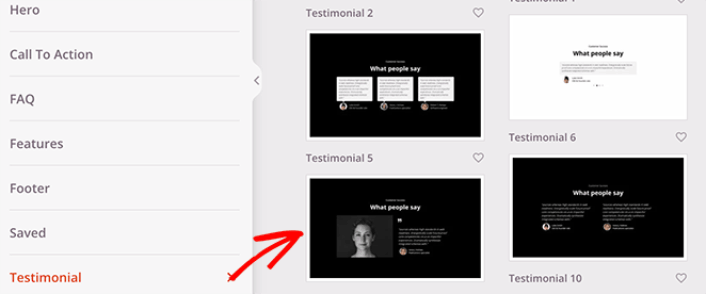
It’s so simple!
Step #4: Add a Click to Subscribe Button to Your Podcast Landing Page
You can also add a click to subscribe button to collect push notification subscribers. Push notifications are a great way to increase your repeat traffic, get more engagement and even sell official merch if you have some.
In SeedProd, just drag and drop the Custom HTML module from the sidebar.
We’ve put the subscribe button directly underneath the email signup form in the first fold.
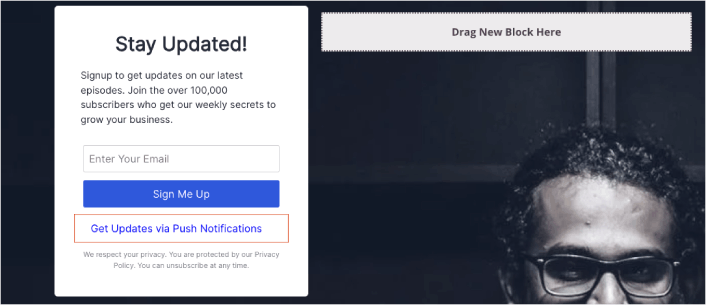
But you can insert the button anywhere you like.
For this part, you need some experience with HTML and CSS. Or, you can copy this code and paste it into your Custom HTML block:
<button onclick="subscribeOnClickButton()" style="border: none; padding-left: 5%; padding-right:5%; text-align: center; display: inline-block; color: blue;">Get Updates via Push Notifications</button>That’s a standard button in HTML with very little styling. The only fancy bit is the onclick function in the code. It basically means that your visitors can click on the button to subscribe to something. Now, we need to give the button some extra code to allow your visitors to subscribe to push notifications.
Rendez-vous sur la page d'accueil de PushEngage et cliquez sur le bouton Commencer :

Ensuite, vous devrez sélectionner le plan gratuit pour essayer PushEngage ou choisir un plan payant si vous êtes sérieux au sujet de la croissance de votre entreprise. Les plans payants offrent plus d'options de campagne et la possibilité de créer des listes d'abonnés encore plus grandes.
Dans votre tableau de bord PushEngage, allez dans Paramètres du site » Détails du site et cliquez sur le bouton Cliquez ici pour les instructions de configuration. Sous N'importe quel site, vous obtiendrez votre code d'installation :

ATTENTION : Vous devez copier le code que vous obtenez de votre tableau de bord. Le code est unique pour chaque utilisateur de PushEngage. Vous ne pourrez pas copier le code de l'image et collecter les abonnés aux notifications push.
Une fois que vous avez le code dans votre tableau de bord PushEngage, ajoutez cet extrait de code à votre code :
<script> window._peq = window._peq || [];</script> <script>
function subscribeOnClickButton(){
window._peq.push(['subscribe',{}.pe,function(res){
if(res.statuscode==1)
{
// Code to return response
console.log(res);
}
}]);
}
</script>
Votre code final devrait ressembler à ceci :
<script src="https://clientcdn.pushengage.com/core/02a6e92667ae2279fcba8932356c1d93.js" async></script>
<script> window._peq = window._peq || [];</script> <script>
function subscribeOnClickButton(){
window._peq.push(['subscribe',{}.pe,function(res){
if(res.statuscode==1)
{
// Code to return response
console.log(res);
}
}]);
}
</script>
You’ll want to add this code to the HTML block in your landing page after the code for the button. It should look something like this:
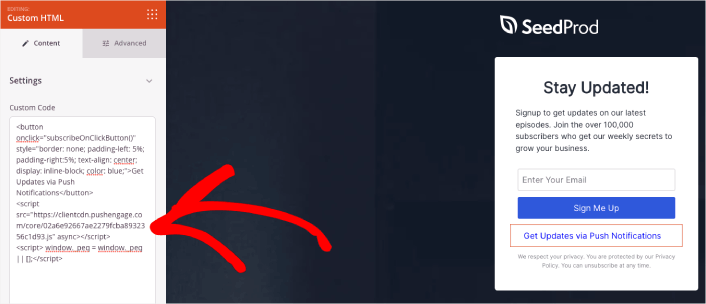
Feel free to customize the styles for the button any way you please. When you’re done customizing your podcast landing page, go ahead and hit the Save button.
Step #5: Configure Your Page Settings
After you’re done designing your podcast page, click the Connect tab at the top of your page builder, and select your email marketing provider to collect leads on your site.

Ensuite, cliquez sur l'onglet Paramètres de la page en haut de votre écran.

Ici, vous pouvez ajouter un plugin SEO et un plugin Google Analytics à votre page de destination. Vous pouvez même configurer des codes de suivi personnalisés tels qu'un pixel Facebook ou un pixel Pinterest pour suivre les performances des publicités.
Step #6: Publish Your Podcast Landing Page in WordPress
Now let’s go ahead and publish your design. To do this, click the dropdown arrow next to the Save button and click Publish.
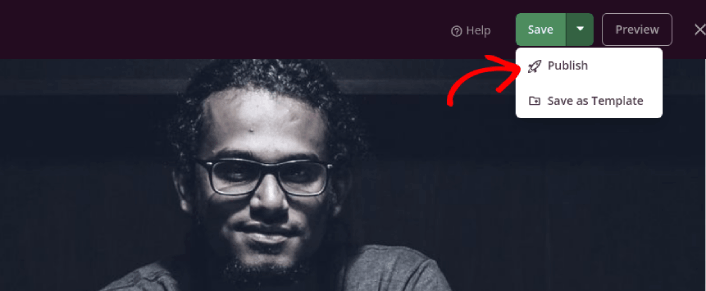
You can then click the See Live Page button to see how it looks.
Congratulations! You just published your very first podcast landing page.
What to do After You Build a Podcast Landing Page
Now that your podcast landing page is live, it’s time to work on your traffic, engagement, and sales. You should try using push notifications on your site. Push notifications are a great marketing tool that can help you grow your business.
Jetez un œil à ces ressources exceptionnelles et vous comprendrez ce que nous voulons dire :
- 7 stratégies intelligentes pour stimuler l'engagement client
- Les notifications push sont-elles efficaces ? 7 statistiques + 3 conseils d'experts
- Comment configurer des notifications push pour paniers abandonnés (Tutoriel facile)
Nous vous recommandons d'utiliser PushEngage pour créer vos campagnes de notifications push. PushEngage est le logiciel de notifications push n° 1 au monde. Donc, si ce n'est pas déjà fait, commencez dès aujourd'hui avec PushEngage !


