
Looking for a way to start passing on credit card fees to customers in WordPress?
If you’re using Stripe to process payments on your site, then you already know that Stripe charges 2.8% + $0.30 per transaction.
And it’s not just a Stripe thing. Every payment gateway charges some percentage in transaction fees. This means that the bigger your transaction, the more fees you’ll end up paying.
In this article, we’re going to go over passing on credit card fees to customers in WordPress. And we’ll do it without any coding at all using a simple, easy to use plugin.
Ça vous dit ? Plongeons.
Passing On Credit Card Fees to Customers
Before you start passing on credit card fees to customers, there’s something you should know. Passing on credit card fees in legal by Federal Law in the United States. However, different states have different legislation and not all of them allow you to pass on credit card fees to customers. So, make sure that you talk to a good lawyer before you start saving on credit card fees.
PushEngage est le plugin de notifications push n°1 au monde. Obtenez-le gratuitement !
Also, for this tutorial, we’re going to use one of the best Stripe plugins in the world. If you’re using a different solution, check if they allow fee recovery. If not, you’ll need to switch to WP Simple Pay.
Step #1: Install WP Simple Pay Pro
WP Simple Pay est exactement ce que son nom indique. Il simplifie les paiements en ligne sur votre site WordPress. Il est facile à utiliser, très fiable et ne nécessite aucun codage pour être configuré.
Le meilleur ? WP Simple Pay vous aide à vous concentrer sur la création et la vente de produits sans avoir à vous soucier d'accepter des paiements du monde entier.
Toutes les informations client et de paiement sont stockées sur votre compte Stripe, pas sur votre site Web WordPress. Par conséquent, le plugin n'alourdira pas votre site comme d'autres alternatives. WP Simple Pay offre le moyen le plus simple d'ajouter des paiements Stripe à votre site WordPress.
Et la configuration de WP Simple Pay est très simple.
Voici un aperçu rapide des principales fonctionnalités de WP Simple Pay Pro :
- Constructeur de formulaires de paiement
- Constructeur de pages de paiement Stripe Checkout
- Paiements à montant personnalisé
- Options d'abonnement personnalisées
- Réductions avec codes promo
- Méthodes de paiement alternatives
- Flux de confirmation de paiement personnalisé
And more! You can get a closer look at the features in our review of WP Simple Pay Pro. Or go ahead and install WP Simple Pay Pro. If you’re not sure how to install the plugin, check out this guide on how to install WordPress plugins.
Step #2: Connect Stripe to WordPress
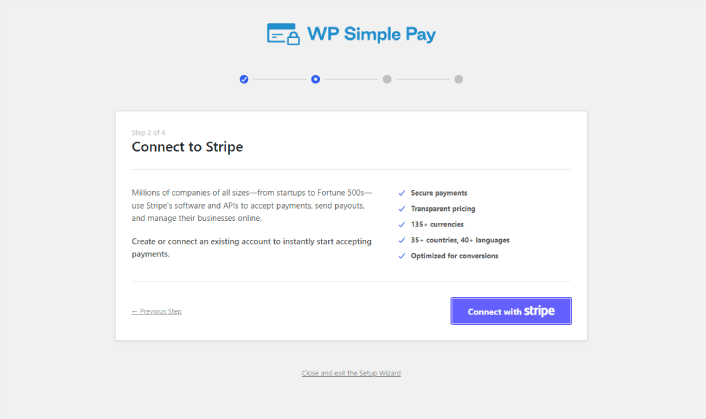
After you’ve installed and activated WP Simple Pay, you’ll need to connect your Stripe account to WordPress in order to begin accepting payments and configuring recovery fee options.
Simply click on the Connect with Stripe button in the setup wizard:
If you already have a Stripe account, all you need to do is go ahead and connect it to your site. And if you’re new to Stripe, you can click on the Create a new account button to get your Stripe account for free:
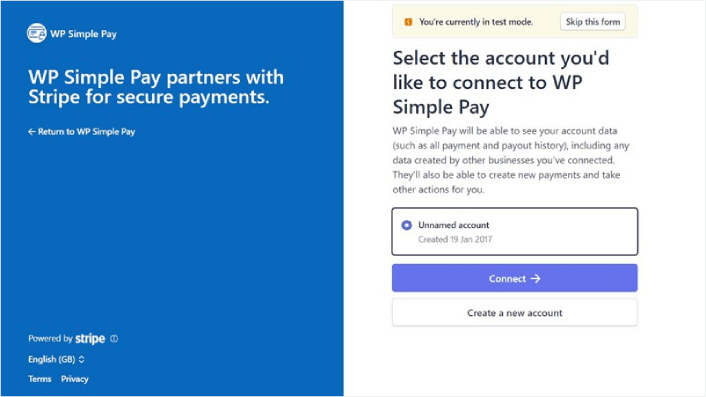
Once that’s done, you can set up your first payment form using WP Simple Pay.
Step #3: Create a Payment Form
To begin accepting payments on your site and passing on credit card fees to your customers, you’ll need to create a payment form. Click on the Create a Payment Form button on the success page.
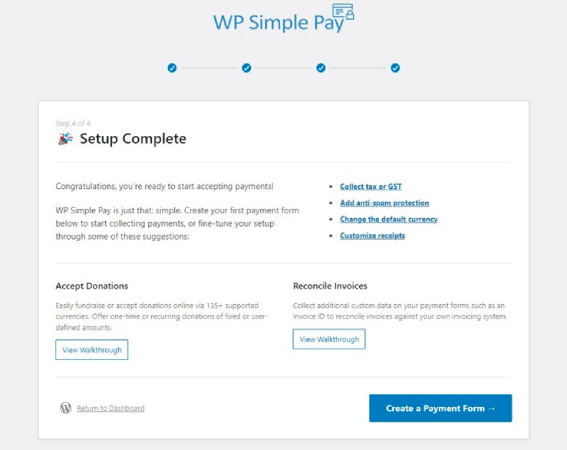
You can select from a whole library of templates for your payment form.
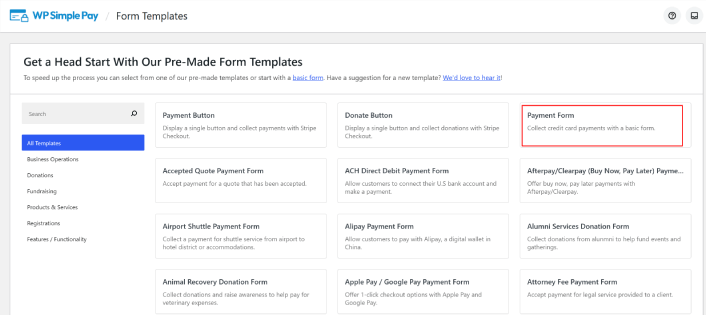
Just set up the payment form and you’re ready to accept payments.
Step #4: Configure the Form for Passing On Credit Card Fees to Customers
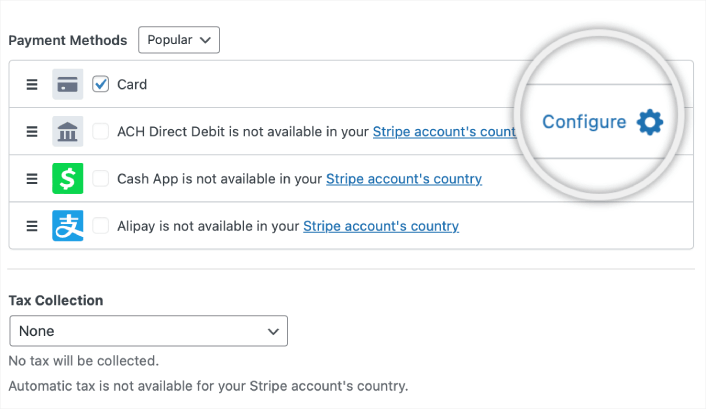
Head over to the Payment option on the left to customize the currency, amount, and also select between a one-time or subscription payment. Once that’s done, scroll down to Payment Methods. Here, you can see all the different payment methods that are available in your country and choose the ones you want to allow your users to use.
To add a recovery fee for credit cards, simply click on Configure.
A popup appears, allowing you to customize the Fee Recovery values.
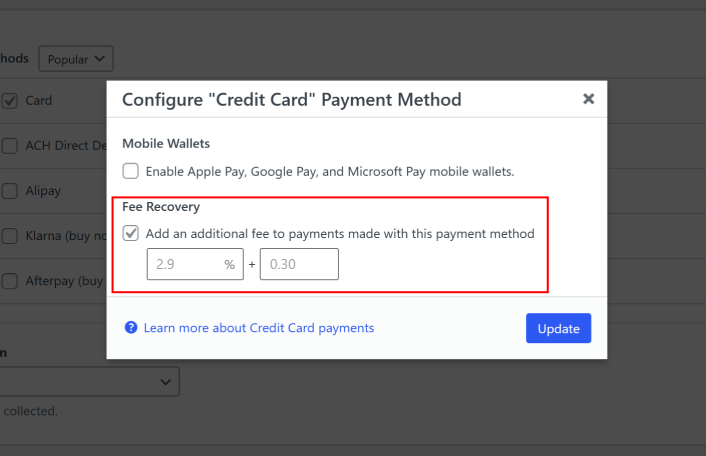
Et voilà.
Step #5: Add Your Payment Form to a Page
The final step to begin accepting payments with the Stripe processing fee covered by your customers is to embed the form on your site. Simply go to the page or post where you want your payment form and click on the + icon to add the WP Simple Pay block.
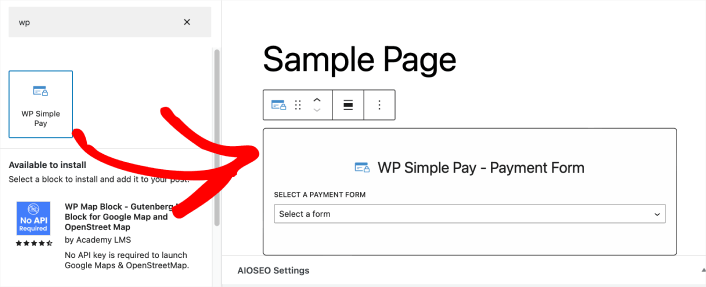
You can select your payment form from the dropdown list. And you’re done!
What to do After Passing On Credit Card Fees to Customers
Now that you can start passing on credit card fees to customers, you should see an increase in revenue. You need to make sure that this bump doesn’t become confusing for you when you’re tracking revenue for your site.
Si vous êtes prêt à accepter des paiements sur votre site, la prochaine chose sur laquelle vous devriez vous concentrer est d'apporter du trafic, de l'engagement et des ventes à votre site. Les notifications push sont un excellent moyen d'y parvenir.
Ici, consultez ces ressources exceptionnelles pour commencer immédiatement avec les notifications push :
- Comment configurer des notifications push pour paniers abandonnés (Tutoriel facile)
- Comment programmer les notifications push facilement [Guide de 5 min.]
- Comment créer des campagnes de notification de baisse de prix en moins de 10 minutes.
- Comment ajouter un plugin WordPress de notifications Web à votre site
PushEngage est le logiciel de notifications push n°1 au monde. Nous vous recommandons donc d'utiliser PushEngage pour créer vos notifications push et développer votre activité e-commerce.


