
Looking for a quick guide to add local business Schema in WordPress?
If you’re running a brick and mortar business and marketing on search engines to get more footfalls to your store, then local business Schema is going to be super helpful for you. But, how do you do it?
Isn’t Schema a lot of code snippets? Do you need to write code to add Schema to your site? Should you hire a developer?
The short answer is: No!
You can simply install a WordPress plugin to add local business Schema. And in this article, we’re going to show you how.
Commençons.
Step #1: Select a Local Business Schema WordPress Plugin
Before you can add local business Schema to your WordPress site, you need to pick a WordPress plugin. We recommend using All In One SEO.

All in One SEO (AIOSEO) est l'un des plugins SEO les plus acclamés dans la communauté WordPress. La version originale a été entièrement remaniée pour ajouter une tonne de nouvelles fonctionnalités et d'extensions. Donc, si vous avez utilisé AIOSEO dans le passé, vous devez revoir le plugin une fois de plus.
Non seulement AIOSEO dispose de fonctionnalités SEO suffisamment puissantes pour mettre en œuvre les dernières meilleures pratiques SEO, mais vous bénéficiez également de paramètres SEO avancés pour résoudre des problèmes SEO spécifiques dès le départ. Cela inclut :
- Modules SEO locaux pour les petites entreprises ayant une audience locale
- SEO WooCommerce pour les boutiques en ligne
- Un optimiseur SEO à l'intérieur de votre éditeur WordPress
- Smart Sitemaps pour un indexation instantanée sur les moteurs de recherche
- Un plugin Schema pour que votre contenu se classe dans les Rich Snippets
Et bien plus encore !
En bref : All in One SEO vous permet de configurer correctement le SEO WordPress sans jamais avoir à engager un expert. Et si les plus de 3 millions de clients d'All in One SEO sont à croire (nous y compris), AIOSEO est un logiciel d'optimisation pour les moteurs de recherche fantastique pour toutes les exigences SEO.
Il est parfait pour les blogueurs et les propriétaires de petites entreprises car il vous aide à gérer le SEO sans avoir à engager un professionnel.
Remember: You can only integrate the Google Search Console with All in One SEO. If you need more detailed website analytics, you should consider installing the MonsterInsights plugin to install Google Analytics to your WordPress site.
Step #2: Add Location Schema (Single Location Business)
Once you’ve installed AIOSEO, go to the AIOSEO menu » Local SEO. This will open a page where you can input your location and business information.
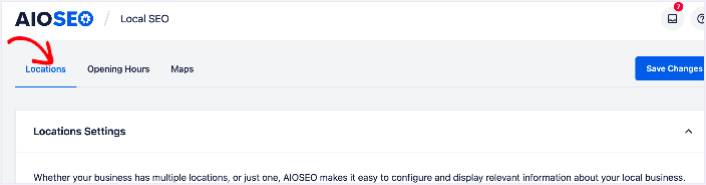
Next, you need to select whether your business is in one location or many.
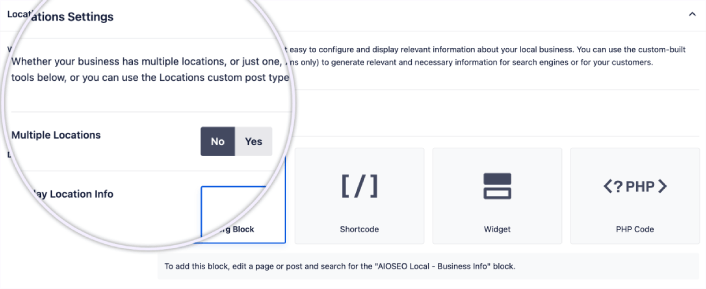
If yours is a single-location business, leave the Multiple Locations toggle set to No.
You can also choose whether you want your location information to be displayed as a:
- Gutenberg Block
- Shortcode
- Widget
- PHP code
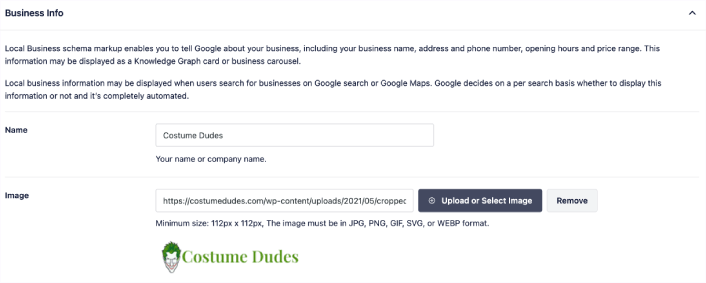
Then, add other business information like name, logo (image), business type, and address.
You can also add other information like a map of your location (more on this in a moment), contact information, VAT and Tax IDs, payment information, and the areas you serve.
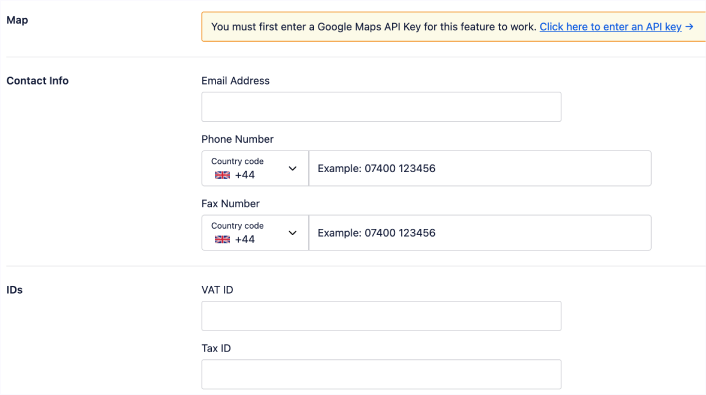
You can also add your payment info under Payment Info and showcase your store locations under Areas Served.
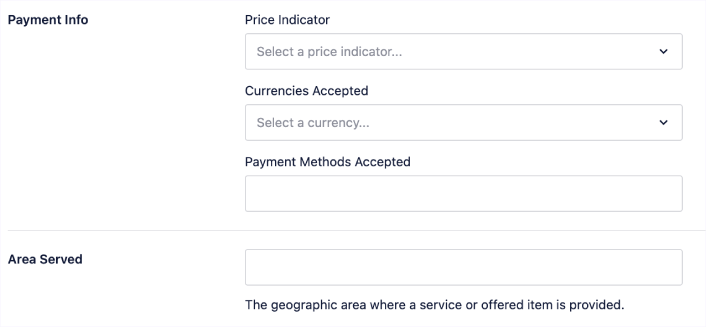
When you’re done, go ahead and hit the Save Changes button.
Step #3: Add Opening Hours
The next step to adding Local Business schema is to add your business hours. Go to the AIOSEO menu » Local SEO » Opening Hours. This will open a window where you can add your opening hours.
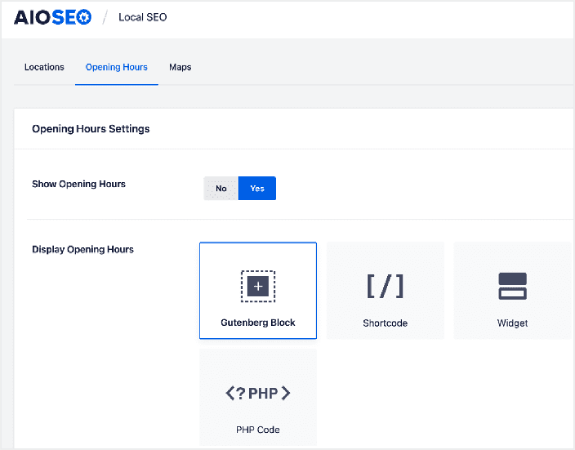
Set the Show Opening Hours toggle to Yes, and you can get options for displaying your opening hours.
If your business is open 24 hours, you can set the toggle to Open 24/7, and that’s it. You’ve added business hours to your Local Business schema.
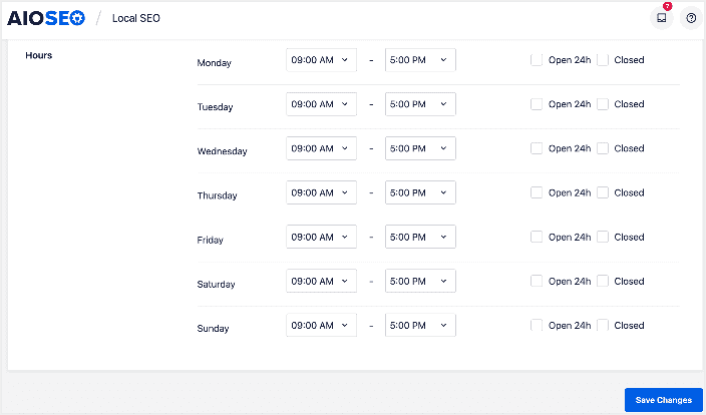
Once you’re done, click Save Changes, and your operating hours will be set.
Step #4: Add Google Maps
The final step to setting your Local Business schema is adding Google Maps, so you can visually display your location. To do that, go to the AIOSEO menu » Local SEO » Maps.
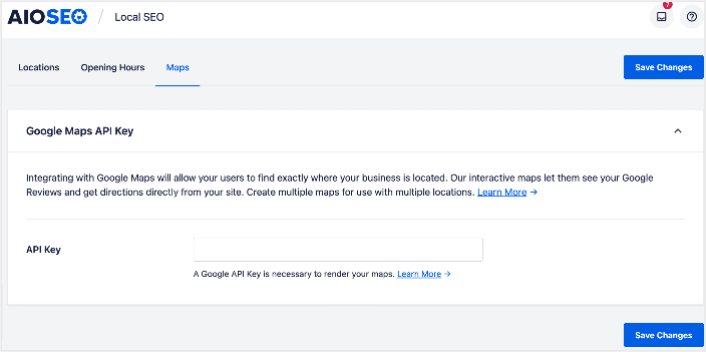
You’ll have to add a Google Maps API key in the API Key field for search engines to render your map.
Once done, click Save Changes.
And that’s it!
What to do After Adding Local Business Schema in WordPress
Adding local business schema is only one part of the puzzle. Our top recommendation is to use All in One SEO to optimize your website content. The right tools can help you with getting repeat traffic, engagement, and sales. For that, we recommend using push campaigns.
Les notifications push peuvent être un outil marketing puissant pour les entreprises en croissance. Pas convaincu ? Consultez ces ressources exceptionnelles :
- 7 stratégies intelligentes pour stimuler l'engagement client
- Les notifications push sont-elles efficaces ? 7 statistiques + 3 conseils d'experts
- Comment configurer des notifications push pour paniers abandonnés (Tutoriel facile)
Nous vous recommandons d'utiliser PushEngage pour créer vos campagnes de notifications push. PushEngage est le logiciel de notifications push n° 1 au monde. Donc, si ce n'est pas déjà fait, commencez dès aujourd'hui avec PushEngage !


