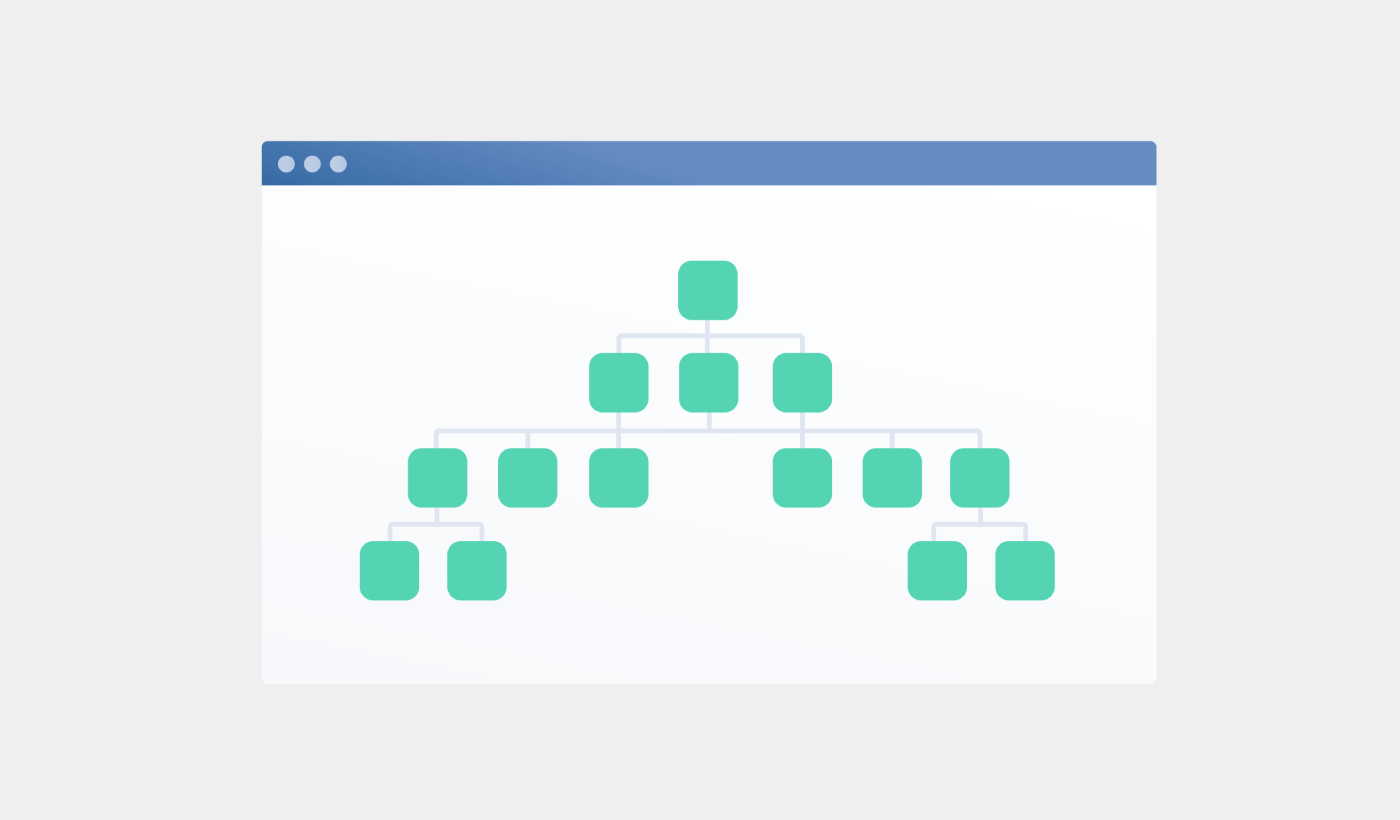
Looking for a detailed tutorial on how to create a sitemap for WordPress?
Sitemaps help search engines to crawl and index your website with ease. In simple terms, a sitemap is a list of all the links on your site. This includes pages, posts, categories, and even media files.
Having a sitemap on your site makes it easy for search engines to discover your site content. But how do you do it?
Simple answer: You can add a WordPress SEO title from any SEO plugin at all. In this article, we’ll show you how to create a sitemap for WordPress in less than a minute with zero coding.
Plongeons dans le vif du sujet.
What Is a Sitemap for WordPress?
A WordPress sitemap is an XML (extensible markup language) file that contains a list of all (or most of) the pages of your website.
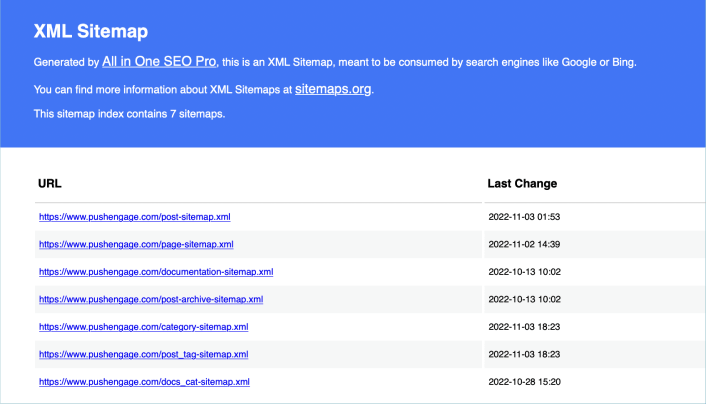
A sitemap tells Google, Bing, DuckDuckGo, and other search engines where your content is located, when was the page last updated, how important is the page for your website, and more information.
If you have no backlinks to your content, it’s difficult for search engines to find your content. Sitemaps get search engines started with indexing your content. And if you use a WordPress SEO plugin, you can easily create an XML sitemap for your WordPress site.
How to Create a Sitemap for WordPress
The simplest way to create a sitemap for WordPress is to use an SEO plugin. WordPress generates a basic sitemap on its own, but it includes anything that you might have no-indexed. There’s also no way to customize the default WordPress sitemap unless you know PHP code.
So, the default WordPress sitemap is usually full of errors. We recommend using AIOSEO as your WordPress SEO plugin.

All In One SEO is the best WordPress SEO plugin in the world.
Non seulement AIOSEO est suffisamment puissant pour mettre en œuvre les meilleures pratiques SEO actuelles, mais vous bénéficiez également d'options avancées pour résoudre des problèmes SEO spécifiques dès le départ. Cela comprend :
- Modules SEO locaux pour les petites entreprises ayant une audience locale
- SEO WooCommerce pour les boutiques en ligne
- Un optimiseur SEO à l'intérieur de votre éditeur WordPress
- Smart Sitemaps pour un indexation instantanée sur les moteurs de recherche
- Un plugin Schema pour que votre contenu se classe dans les Rich Snippets
And of course, you can add, edit, and optimize the WordPress title tag for any page or post on your site! Check out the features in more detail from our review of AIOSEO.
Step #1: Configure the All in One SEO Plugin
Après avoir téléchargé et installé le plugin, vous obtenez un Assistant de configuration :
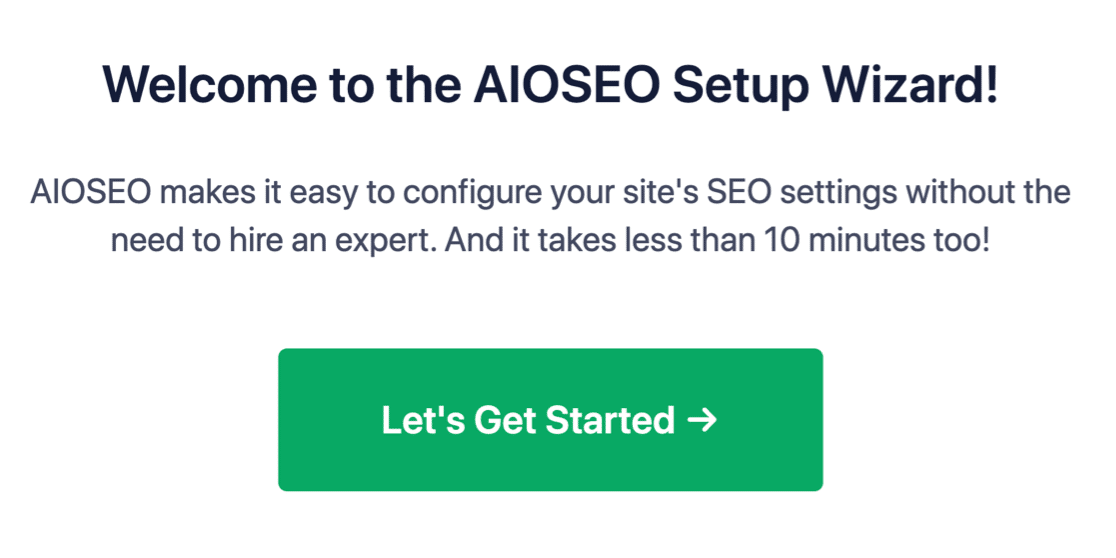
Et le processus de configuration prend moins de 10 minutes.
Mais que faire si vous migrez depuis un autre plugin SEO ? Chaque plugin gère les métadonnées différemment. Alors, devez-vous tout refaire à zéro ? Tous vos efforts précédents sont-ils vains ?
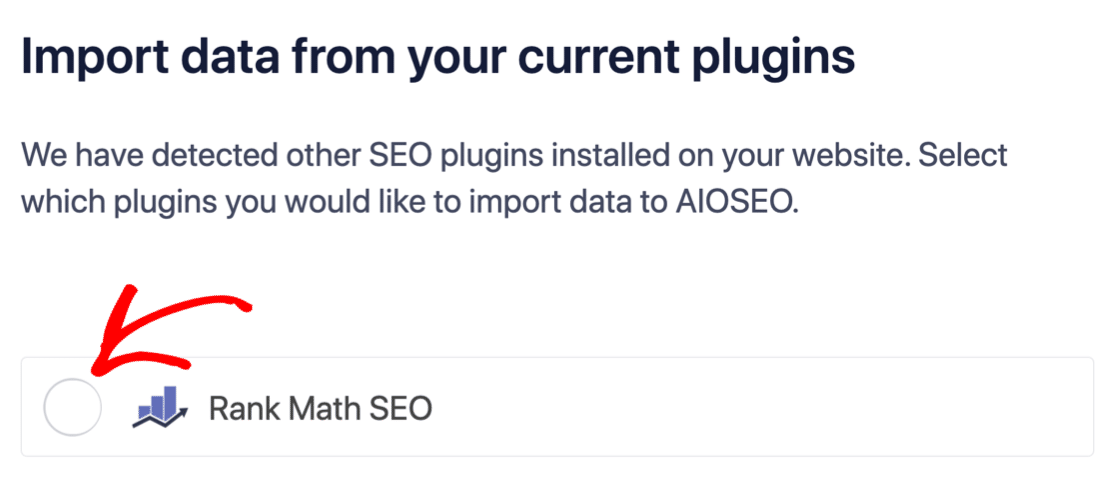
Non ! Si All in One SEO détecte un autre plugin SEO pendant l'Assistant de configuration, il vous proposera de copier les paramètres de base pour vous :
À la fin de la configuration, l'Assistant de configuration vous demandera également de désactiver votre ancien plugin SEO. Ainsi, il n'y aura pas de conflits de plugins ni d'erreurs :
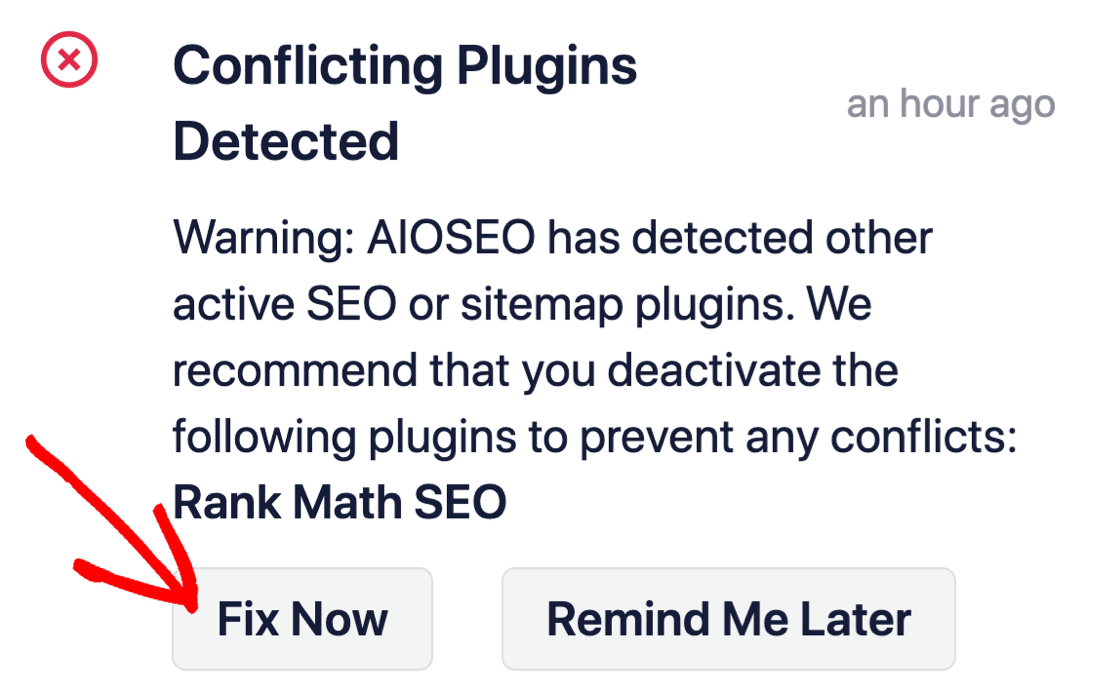
Cliquer sur Corriger maintenant ne supprimera pas les paramètres de votre ancien plugin SEO. Il désactive simplement le plugin pour éviter les conflits.
Step #2: View Enabled Sitemap in All in One SEO
The best part of the All in One SEO plugin is that the sitemap is enabled by default. So, all you have to do is install the plugin and you’re all set. But if you’re switching SEO plugins, you should double-check that the sitemap is enabled.
Go to All in One SEO » Sitemaps from your WordPress dashboard. Then, go to the Enable Sitemap option and check if the toggle button is set to enabled mode:
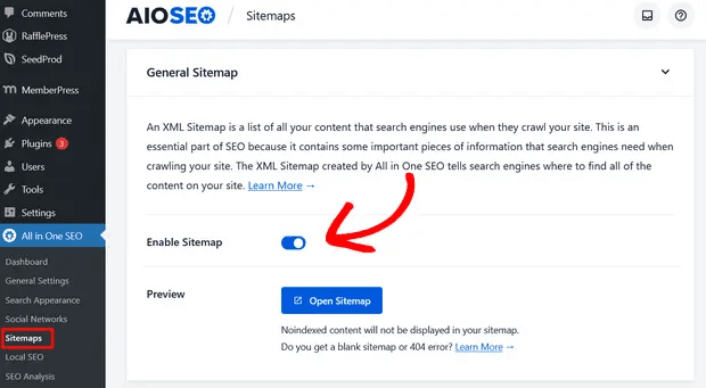
Et voilà !
Step #3: Verify Your Site’s Sitemap
After making sure the sitemap is enabled, you can verify your website’s sitemap. Just click on the Open Sitemap button:
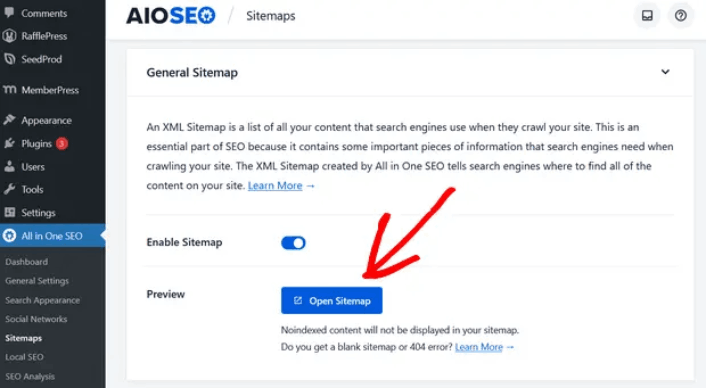
If everything goes well, you should see an XML sitemap like this one:
By default, All in One SEO will create sitemaps for your posts, pages, and categories. And if you have an online store like a eCommerce store or have any products listed, then it will set up a sitemap for them as well.
What to do Once You Know How to Create a Sitemap for WordPress
Now that you know how to create a sitemap for WordPress, it’s time to learn how to get even more traffic to your site. SEO is a great way to bring in fresh traffic to your site using just content. But you also need to bring in repeat traffic, website engagement, and sales.
That’s where push notifications can be super useful for your site.
If you’re not 100% convinced, you should check out these resources on how to effectively use push notifications:
- 7 stratégies intelligentes pour stimuler l'engagement client
- Les notifications push sont-elles efficaces ? 7 statistiques + 3 conseils d'experts
- Comment configurer des notifications push pour paniers abandonnés (Tutoriel facile)
- Comment ajouter un plugin WordPress de notifications Web à votre site
Nous vous recommandons d'utiliser PushEngage pour créer vos campagnes de notifications push. PushEngage est le logiciel de notifications push n° 1 au monde. Donc, si ce n'est pas déjà fait, commencez dès aujourd'hui avec PushEngage !


