
Are you looking for an easy way to embed Google Business reviews on your website?
If you’re running a small business with a store that needs foot traffic, your Google Business reviews are super important. Not only does Google Business bring in new leads for you, the Google rating for your store can help you convert customers more easily from your website as well.
But how do you add Google Business reviews to your WordPress site? Do you need to write custom code? Can you use a WordPress plugin? Are the plugins easy to use? What kind of features do you get with your Google Business reviews widget?
If you want to manually create a Google Business reviews widget, you’ll have to purchase access to the Google Places API. As a result, showing reviews on your website could get expensive. But there’s a way around it.
In this article, we’re going to answer all these questions and more. Let’s check out how to add Google Business reviews to your WordPress website the easy way.
Why Use a Google Business Reviews Plugin for WordPress?
You should use a plugin to add a Google Business reviews widget in WordPress. The trick is finding the right plugin for the job. You don’t want a poorly coded plugin slowing down your site. So, it’s best to use a professionally made plugin to add a Google Business review widget to your WordPress site.
PushEngage est le plugin de notifications push n°1 au monde. Obtenez-le gratuitement !
The best WordPress plugins are tested and optimized for speed. And it’s important to use a good plugin because your can embed a Tripadvisor widget in a landing page to act as social proof and get more conversions.
Of course, this doesn’t mean that you can’t embed a Google Business reviews widget in WordPress without a plugin. But it’s difficult to customize the look and feel of your feed without knowing HTML and CSS. You could also lose your embed code if you switch your WordPress theme. The same problem happens if you’re not using a child theme and your theme gets a major update.
It’s also really annoying to embed multiple feeds for different business locations in different posts and pages through code.
We recommend using Smash Balloon to insert a WordPress Google Business reviews widget to your site.

Smash Balloon is a simple WordPress plugin that allows you to display your social media feeds and reviews on your site without using any code at all.
You can use Smash Balloon to create custom social media feeds for your WordPress site in a few clicks. There’s no coding involved and no need to hire a developer. And you get to integrate Tripadvisor, Instagram, Facebook, Twitter, and YouTube feeds together or separately as you wish.
Signup for Smash Balloon is to use their Reviews Feed Pro to create a Google Business reviews widget for your site.

The best part? It’s incredibly easy to use.
Smash Balloon est configuré en à peine 5 minutes. Et il n'y a aucune courbe d'apprentissage.
Plus de 2 millions d'utilisateurs font confiance à Smash Balloon pour afficher leurs flux sociaux sur leurs sites Web. De plus, Smash Balloon a une note moyenne de 4,8 étoiles sur 5 sur WordPress.
Let’s check out how to create a Google Business reviews widget for your WordPress site using Smash Balloon.
How to Add a Google Business Reviews Widget in WordPress
Go ahead and install and activate the Reviews Pro plugin. If you’re not sure how to do it, check out this article on how to install a WordPress plugin. Then, follow the steps in this guide to set up and embed a Tripadvisor feed in WordPress.
Step #1: Create a Google Business Reviews Widget in WordPress
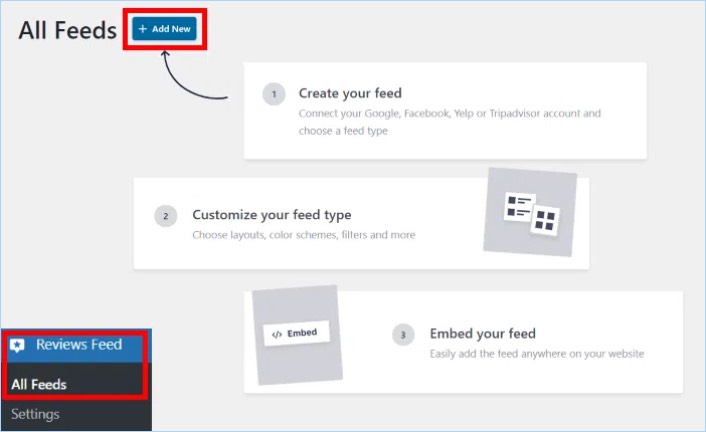
To get started, go to the Reviews Feed menu from your WordPress dashboard and click on the Add New button:
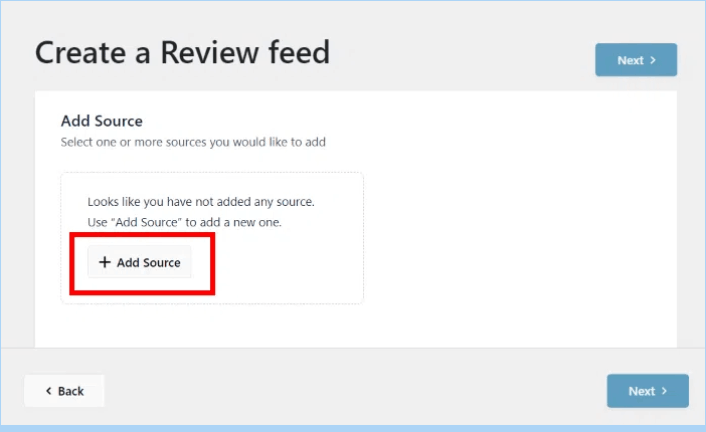
The next step is to add sources for your new reviews widget. You can simply connect this widget to your Google Business reviews. Click on the Add Source button here to get started.
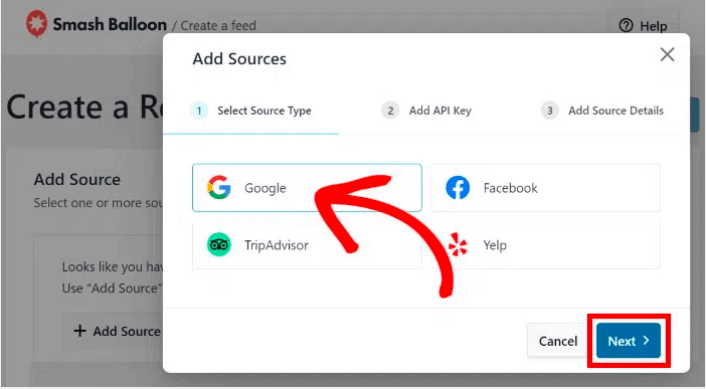
To continue, select the Google option on the popup and click on Next.
Step #2: Connect Your Widget to Google
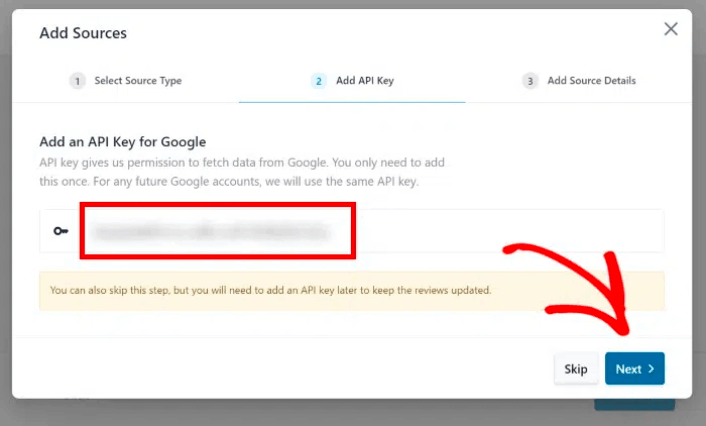
With the Reviews Pro plugin, you can connect to Google even without using an API key! In case you already have a Google Places API key, paste it into the popup and click on the Next button.
Or you can click on the Skip button to continue.
Next, select which business to show using your Google reviews widget by entering the Place ID of the Google Business page.
If you don’t know the Place ID to your business, you can simply create one yourself. Head over to the official Place ID generator and scroll down until you see a Google map.
Enter the name and location of a business in the search bar at the top.
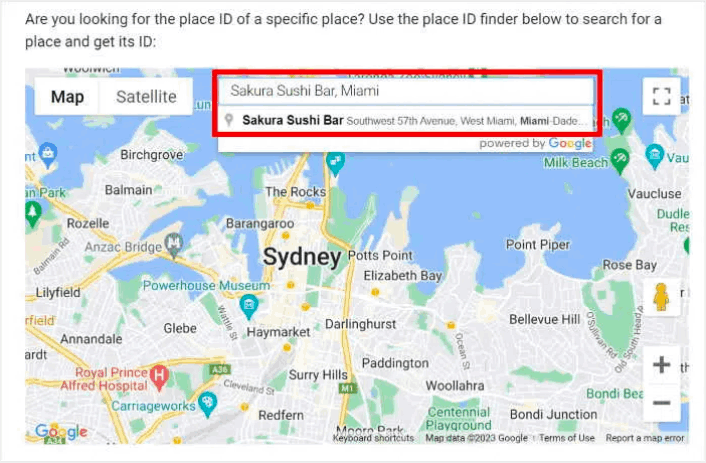
So, you want to showcase reviews from a particular business, right?
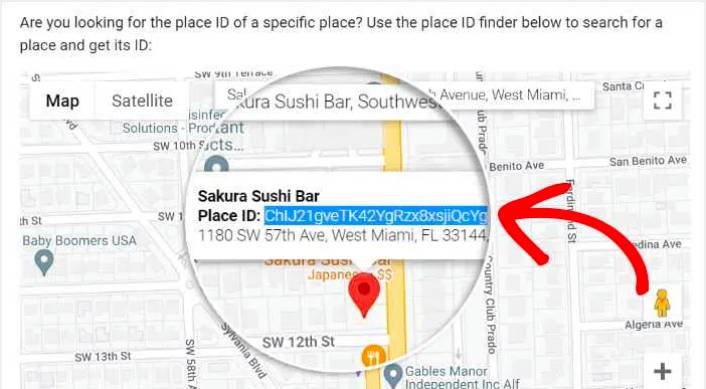
No worries, just pick the business you’re interested in from the dropdown list. After that, Google will display the Place ID for that specific business profile on the map. You’ll easily spot the Place ID field, and right beside it, you’ll find the code.
Just copy that code, and you’re good to go!
Then, go back to your site and paste the Place ID into your widget source.
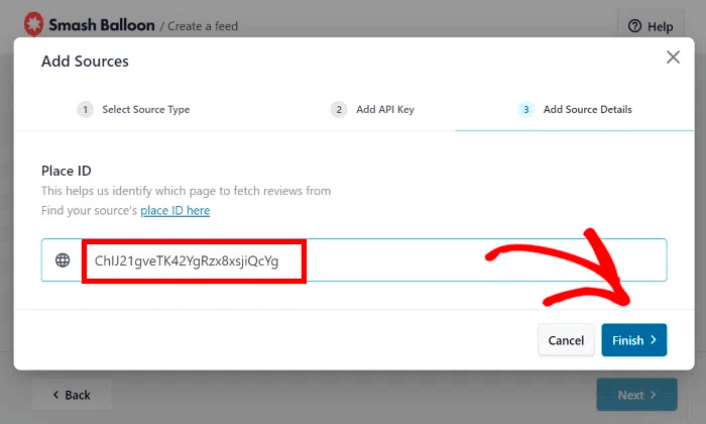
Exactly like that, you’ve successfully linked your new reviews widget to Google and integrated a source. From now on, you can use this source whenever you’re making new widgets with this plugin.
Finally, click on the Next button to confirm this source for your Google Business reviews widget.
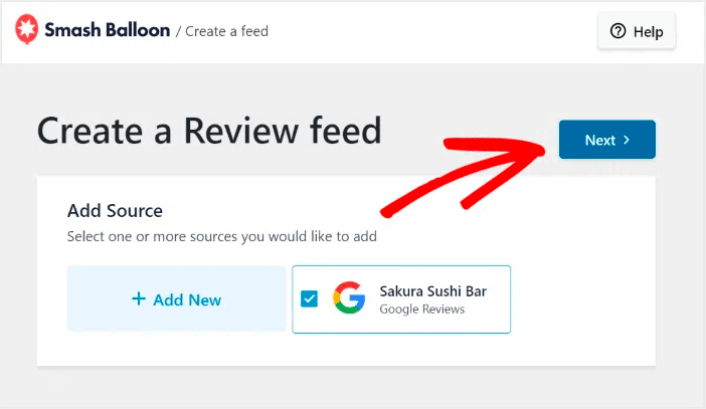
Your new Google Business reviews widget will now automatically copy your website’s design and look beautiful even without any custom code.
Step #3: Customize Your Google Business Reviews Widget
To customize your Google Business Reviews widgets, all you have to do is select a pre-designed template that comes with the plugin.
You have 7 templates with different designs that you can pick from:
- Default
- Simple cards
- Masonry
- Single review
- Showcase carousel
- Carousel
- Grid carousel
After selecting your widget template, click on the Next button.
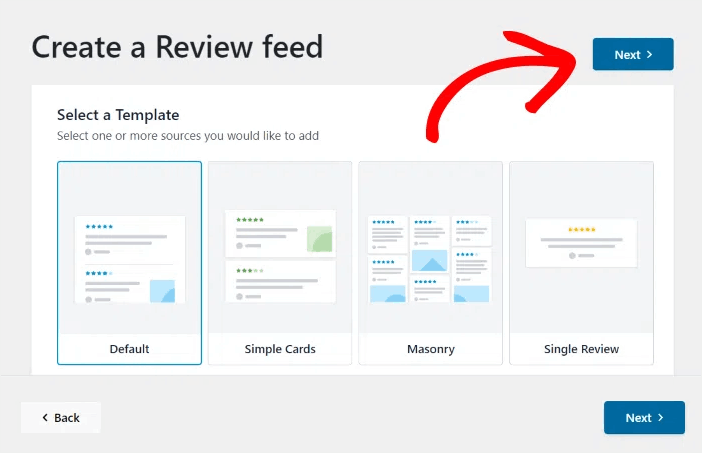
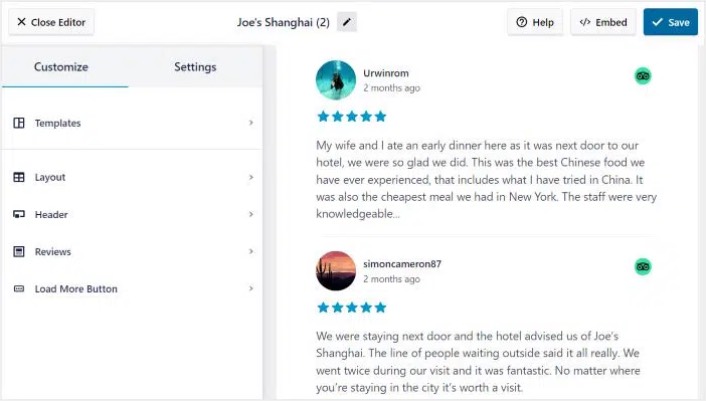
Whenever you make any changes, the live preview on the right will show you how your Google Business widget looks in real-time.
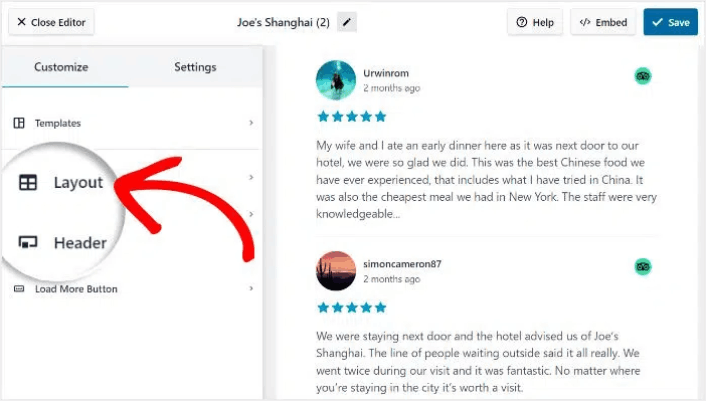
Click on the Feed Layout option on the left panel:
With Reviews Feed Pro, you can pick from 3 options: List, Masonry, and Carousel.
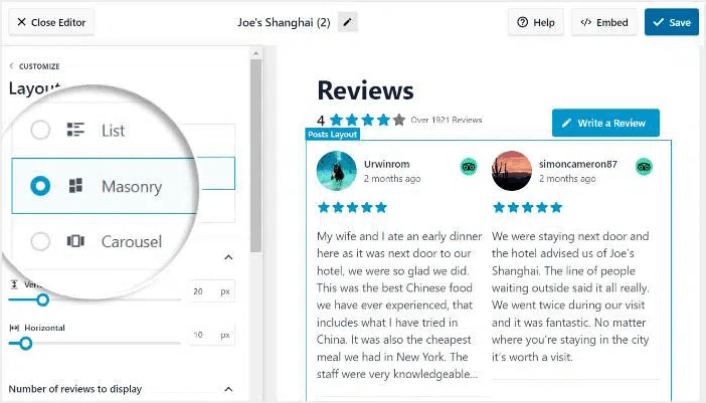
Play around with the different layouts until you find the right fit for your site. Click on the Save button to confirm your changes.
Step #4: Publish Your Google Business Reviews Widget in WordPress
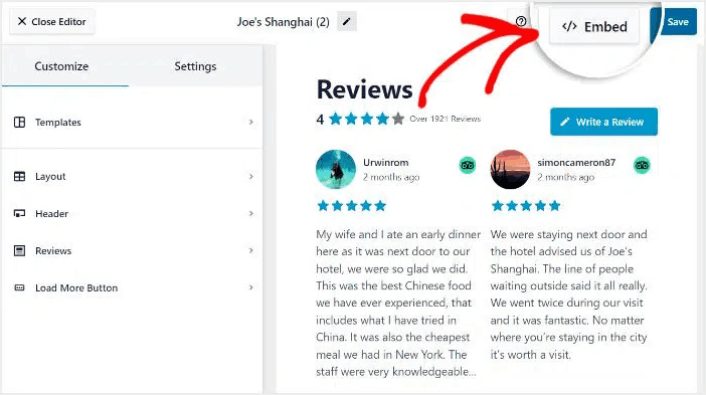
Click on the Embed button at the top to get started.
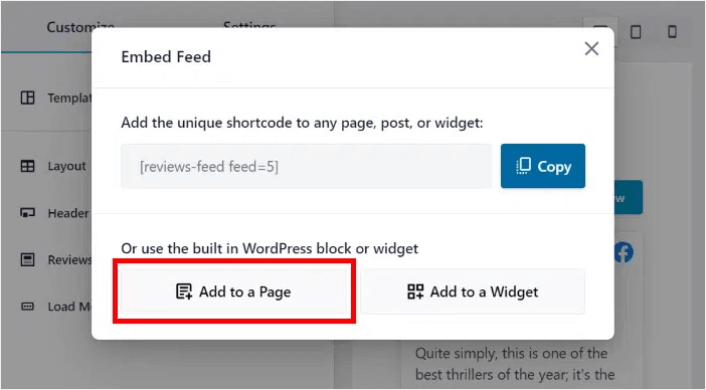
To embed it on a WordPress page, click on the Add to a Page button:
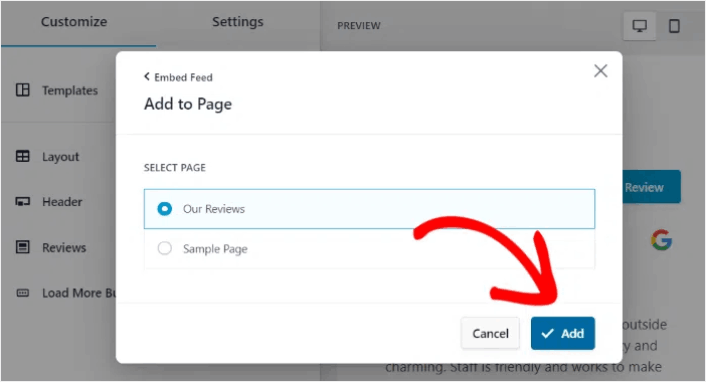
Just select the page where you want to embed the feed and click on the Add button:
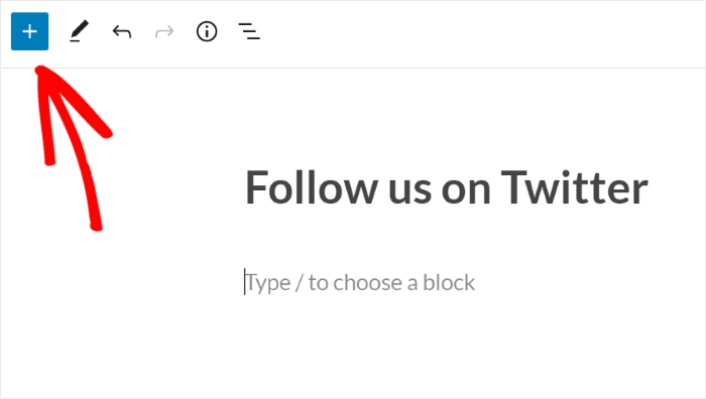
This will open the WordPress page in the block editor. Click the plus (+) icon to add a new WordPress block.
Click the Reviews Feed WordPress block to add it to your page:
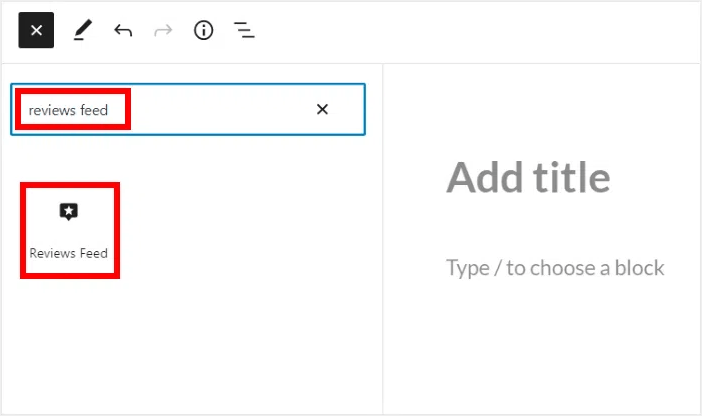
Finally, click on the Publish or Update button, and your Twitter feed will be published on your WordPress site like this:
Et c'est tout ! Vous avez terminé.
After You Embed Google Business Reviews On Your Website
That’s all for this one, folks! By now, you’ve managed to embed a Google Business reviews on your WordPress website. You should also check out how to embed Instagram photos in WordPress. And how to set up a viral giveaway to supercharge your social media following.
After that, all that’s left is generating traffic to your site so that your contact forms can get to work. A simple way to do that is to start using push notifications. Sending push notifications is a great way to generate repeat traffic for your site. If that’s something you’re interested in, you should check out these articles as well:
- Coût des notifications push : Est-ce vraiment gratuit ? (Analyse des prix)
- Comment ajouter un plugin WordPress de notifications Web à votre site
- Comment obtenir plus de trafic vers votre blog WordPress (9 méthodes faciles)
- Comment augmenter votre taux d'opt-in pour les notifications push Web (7 méthodes)
Nous vous recommandons d'utiliser PushEngage pour envoyer vos notifications push. PushEngage est le logiciel de notification push n°1 au monde. Donc, si ce n'est pas déjà fait, commencez dès aujourd'hui avec PushEngage.


