PushEngage includes four default push notifications that fire automatically based on WooCommerce order status changes. This guide covers how to enable and configure each one.
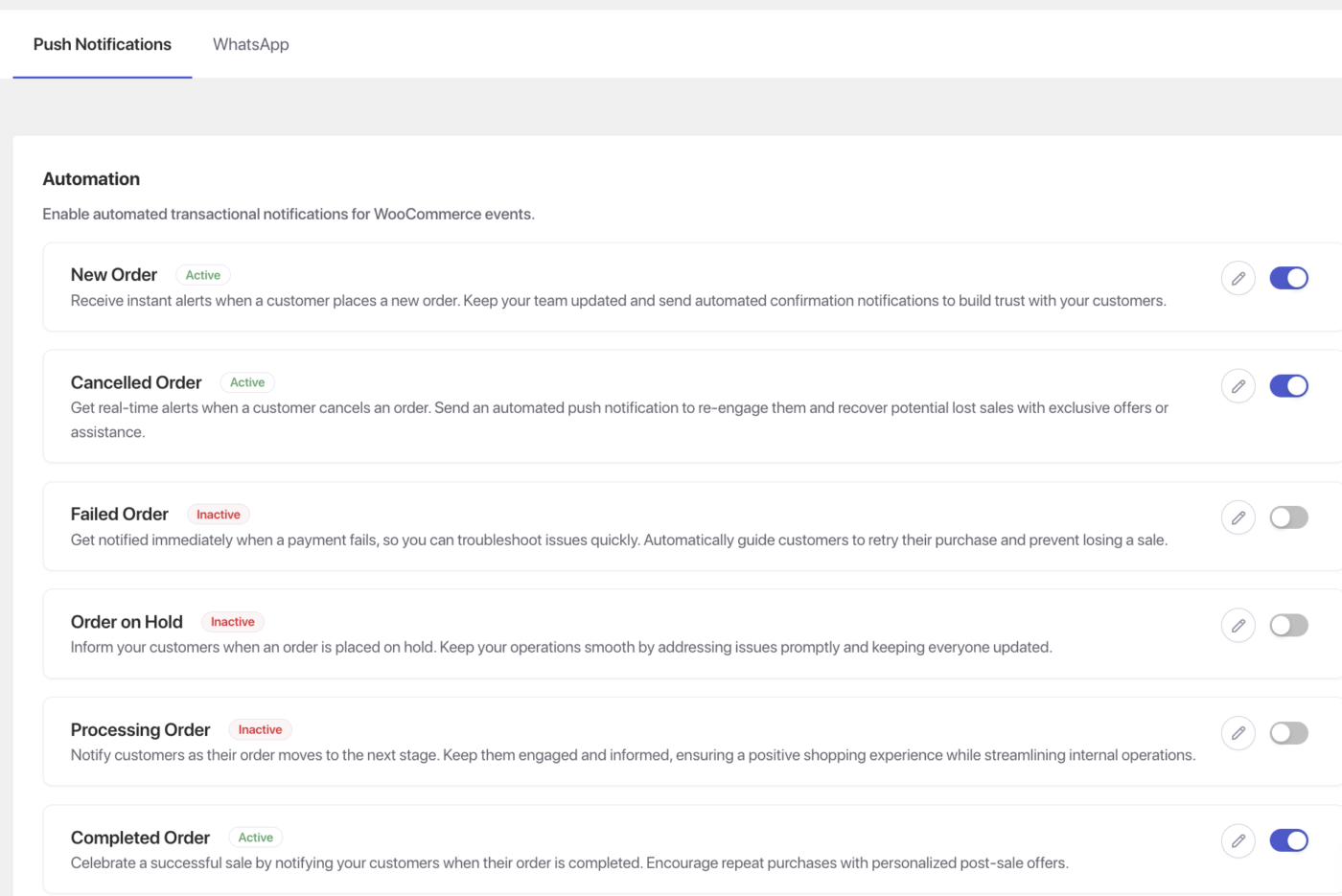
All four notifications are managed from the same location in your WordPress admin: WooCommerce » Settings » Push Notifications tab.
Before You Start
- PushEngage is installed and connected to your WooCommerce store. See How to Connect PushEngage with WooCommerce if you have not yet connected.
- Customers will only receive push notifications if they have opted in on your store.
- All four notifications in this guide are customer-facing. Admin notifications can be enabled separately from the same settings page.
Opening the Push Notifications Settings
All notifications in this guide are configured from the same location:
- In your WordPress admin dashboard, go to WooCommerce » Settings.
- Click the Push Notifications tab.

You will see a list of available notification types. Each one has a toggle to enable it, a recipient selector (Customers, Admins, or both), and a Manage button to open the notification editor.
For each notification below, the steps are:
- Toggle the notification on.
- Set the recipient to Customers.
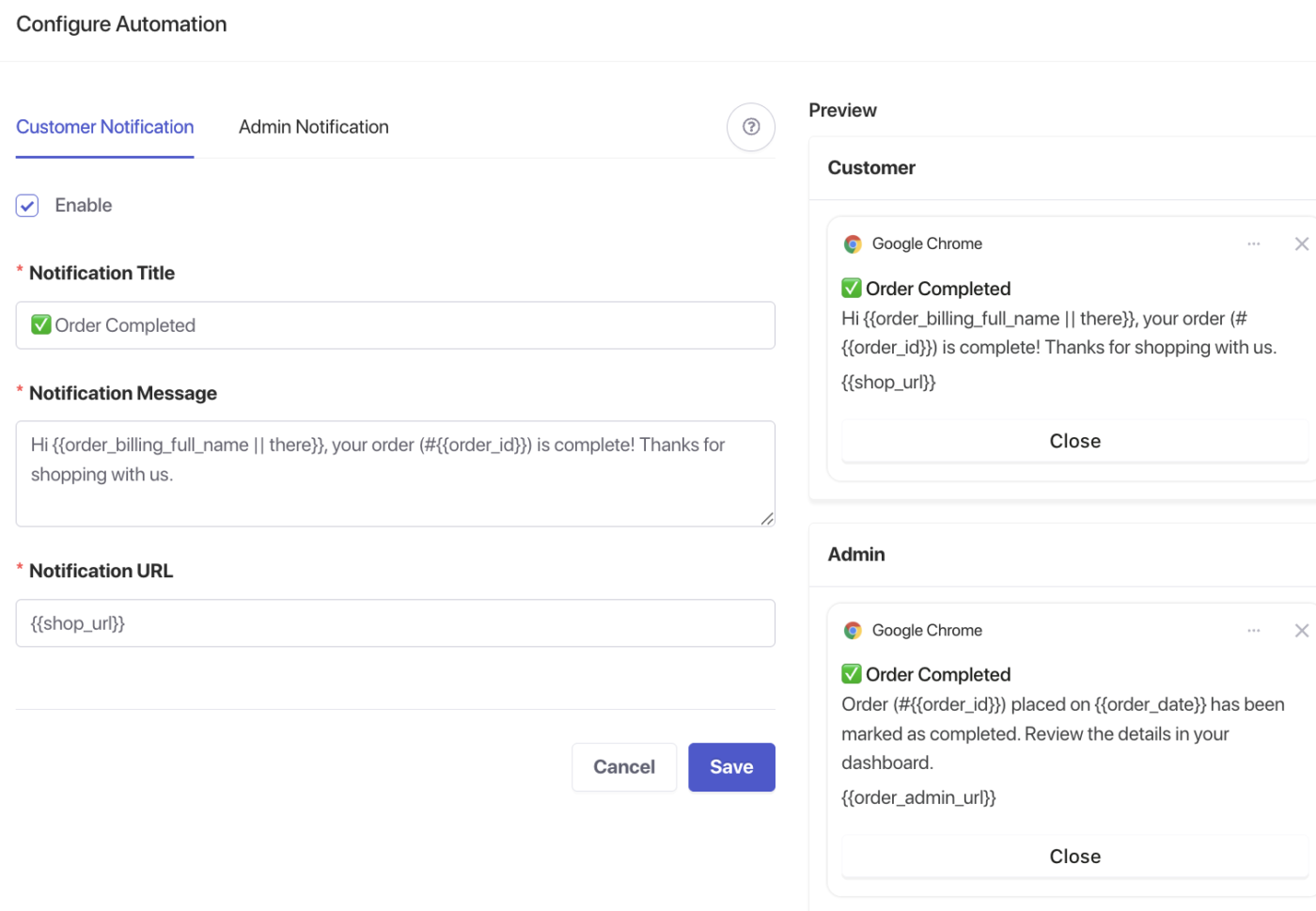
- Click Manage to open the editor.
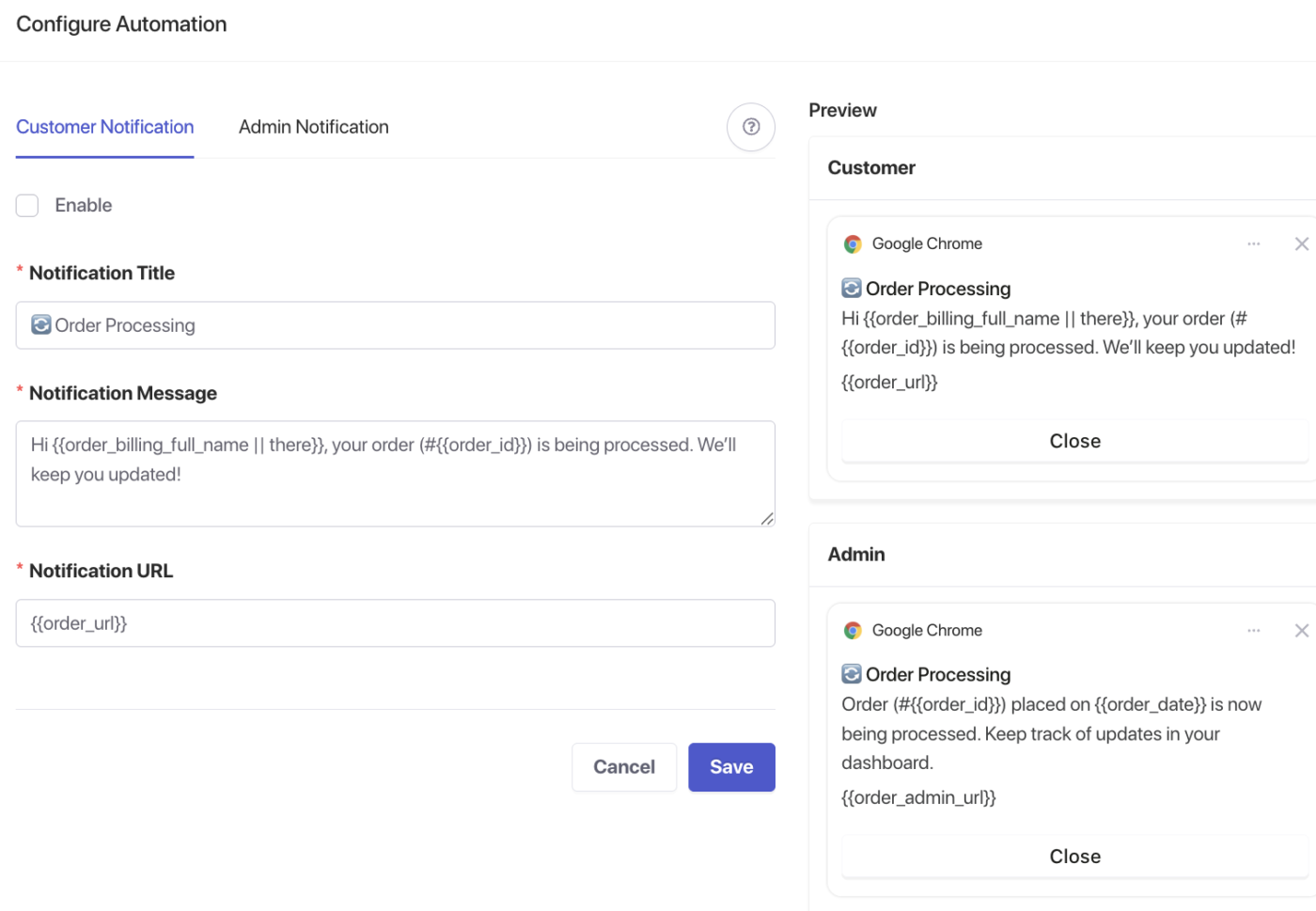
- Configure the title, message, and URL.
- Click Save Changes.
Available Variables
The following variables are available across all order notification editors:
| Variable | What it inserts |
|---|---|
{order_id} | The WooCommerce order number |
{order_date} | The date the order was placed |
Check the notification editor for any additional variables available in your configuration.
Order Received
Sends an immediate confirmation push when a customer completes checkout. The notification fires when the order status moves to Processing or On Hold – WooCommerce’s signal that the order was placed successfully.
This is the first touchpoint in your order communication sequence. It reassures customers that the order went through and sets expectations for what comes next.
Copy Options
| Option | Title | Message |
|---|---|---|
| 1 | Order Confirmed! | Your order #{order_id} was placed on {order_date}. Thank you for shopping with us! |
| 2 | Thanks for your order | We received your order #{order_id}. You will hear from us when it ships. |
| 3 | Your order is confirmed | Order #{order_id} is in. We are getting it ready for you. |
Recommended URL: Your store’s My Account » Orders page (e.g. https://yourstore.com/my-account/orders/)
Order Shipped
Sends a push notification when an order is marked as Completed in WooCommerce. The Completed status is WooCommerce’s standard signal that an order has been fulfilled and shipped.
No manual action is required after initial setup. Every time you mark an order as Completed – individually or in bulk – the notification fires automatically.
Copy Options
| Option | Title | Message |
|---|---|---|
| 1 | Your Order Has Shipped! | Order #{order_id} is on its way. Click to view your order details. |
| 2 | Great news – your order is on the way! | Order #{order_id} placed on {order_date} has been fulfilled. Check your order details. |
| 3 | Your order has been fulfilled | Head to your account to view shipping details for order #{order_id}. |
Recommended URL: Your store’s My Account » Orders page
Note on tracking numbers: PushEngage does not natively support shipment tracking numbers as a variable. If you use a shipment tracking plugin such as WooCommerce Shipment Tracking or AfterShip, direct customers to the My Account » Orders page where they can find tracking details after clicking through.
Order On Hold
Sends a push notification when an order status moves to On Hold. This is most relevant for stores that accept offline or delayed payment methods such as bank transfers, checks, or purchase orders, where payment confirmation is required before processing.
Only enable this notification if your store uses payment methods that generate On Hold orders. Stores that exclusively accept card payments (Stripe, PayPal, Square) typically skip the On Hold status entirely and move orders straight to Processing.
Common payment methods that generate On Hold orders:
- Direct Bank Transfer (BACS)
- Check payments
- Purchase orders
- Custom or manual payment gateways
Copy Options
| Option | Title | Message |
|---|---|---|
| 1 | Order #{order_id} Received – Awaiting Payment | We have your order. Once payment is confirmed, we will get it processed right away. |
| 2 | Your order is on hold | Order #{order_id} is pending payment verification. Check your order details for next steps. |
| 3 | Action needed for Order #{order_id} | Your order is on hold while we verify payment. View your order for payment instructions. |
Recommended URL: Your store’s My Account » Orders page
Tip: Write copy with a reassuring, informational tone. Customers using bank transfer or check payment methods expect a holding period – your notification should confirm the order is in the system, not alarm them.
Order Cancelled
Sends a push notification when an order status moves to Cancelled. This fires for all cancellations regardless of who initiated it – store admin, shop manager, or the customer themselves.
The notification keeps communication clear and gives customers a direct next step such as re-ordering, browsing the store, or contacting support.
Note: PushEngage sends this notification for every cancellation event. This includes customer-initiated cancellations, store-initiated cancellations, and orders automatically cancelled after a payment failure. If you need to suppress this notification for specific scenarios (such as fraud cancellations), contact PushEngage support for guidance.
Copy Options
| Option | Title | Message |
|---|---|---|
| 1 | Order #{order_id} Has Been Cancelled | Your order has been cancelled. Browse our store or contact us if you need help. |
| 2 | Your order was cancelled | Order #{order_id} is no longer active. Visit our store to place a new order anytime. |
| 3 | Order #{order_id} Cancelled – We’re Here to Help | Your order has been cancelled. Contact our support team if you have questions or would like to re-order. |
Recommended URL: Your store homepage or a dedicated customer service / contact page
Testing Your Notifications
After configuring any of the notifications above, test before going live:
- Subscribe to push notifications on your store using a test customer account.
- Trigger the relevant order status (place a test order, mark it Completed, cancel it, etc.).
- Confirm the push notification arrives on the subscribed device within a few seconds.
- Click the notification to verify it opens the correct URL.
If the notification does not appear, confirm the customer account is opted in to push notifications and the relevant notification is toggled on in WooCommerce » Settings » Push Notifications.
Frequently Asked Questions
Will every customer receive these notifications? Only customers who are subscribed to push notifications on your store will receive them. Customers who have not opted in will not be notified.
What is the difference between Order Received and Order Shipped? Order Received fires when the customer places an order (order status moves to Processing or On Hold). Order Shipped fires when you mark the order as Completed, indicating it has been fulfilled and sent. They serve different purposes and can both be active at the same time.
Should I enable Order Received and Order On Hold at the same time? It depends on your payment methods. If a customer places an order via bank transfer, the order goes On Hold – not Processing. In that case, enabling both could result in the customer receiving two notifications for the same order placement. Review which statuses your payment methods use and enable only the notifications that match your checkout flow.
Can I send these notifications to admins as well? Yes. Each notification in the Push Notifications tab has a recipient selector. You can enable both customer and admin notifications for the same event. Admin notifications are useful for order management and fulfillment workflows.
Can I include a reason for cancellation in the notification? PushEngage does not provide a native variable for the cancellation reason, and WooCommerce does not store a standardized cancellation reason by default. Use the message field to direct customers to contact support if they have questions, rather than attempting to insert a dynamic reason.
What if I use a custom order status for shipped orders? PushEngage’s Order Shipped notification triggers on WooCommerce’s default Completed status. If your store uses a custom status such as “Shipped” added by a plugin, that status will not trigger the notification unless it is mapped to Completed. Contact PushEngage support for guidance on custom order status configurations.
If you run into any issues, please feel free to contact us by clicking here. Our support team will be able to help you.