Notice: There is no legacy documentation available for this item, so you are seeing the current documentation.
Frequency capping controls how many push notifications a single subscriber can receive from your automated campaigns within a given time period. Notification duration settings control how long a push stays visible after it is delivered. Together, these settings prevent subscriber fatigue and keep your campaigns from feeling spammy.
This guide covers both settings and the recommended values for Shopify campaigns.
Before You Start
- PushEngage is installed on your Shopify store with at least one trigger campaign active (Cart Abandonment, Browse Abandonment, Price Drop, or Back-in-Stock).
- Frequency capping applies to Trigger Campaigns. Push Broadcasts and Drip Autoresponders have their own send schedules and are not subject to trigger-level frequency caps.
What Is Frequency Capping
When a Shopify subscriber abandons multiple carts, views several products, or qualifies for both a price drop and a restock alert in the same week, they can receive a high volume of automated notifications in a short window. Frequency capping sets a ceiling on how many trigger campaign notifications one subscriber receives per day or per week — regardless of how many qualifying events they trigger.
Setting Frequency Caps on Trigger Campaigns
Each trigger campaign has its own frequency cap settings.
- Log in to your PushEngage dashboard.
- Go to Campaigns » Trigger Campaigns.
- Open any trigger campaign and click Edit.
- Navigate to the Trigger Settings tab within the campaign editor.
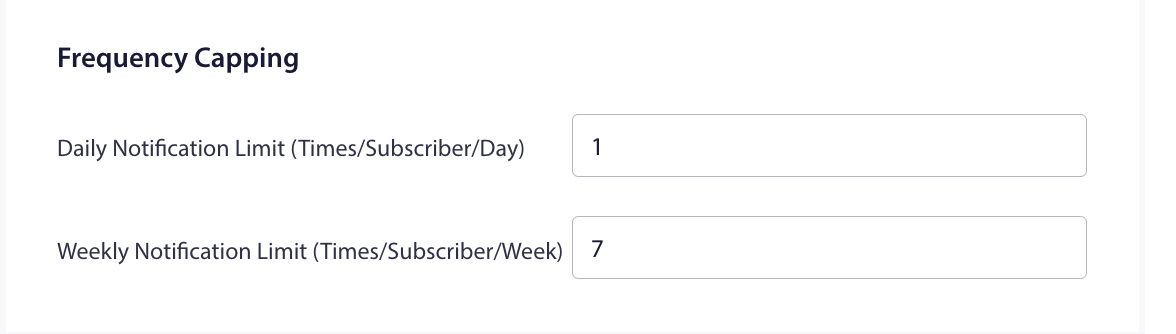
You will see two fields:
| Setting | Description |
|---|---|
| Daily limit | Maximum notifications sent to one subscriber per day from this campaign |
| Weekly limit | Maximum notifications sent to one subscriber per week from this campaign |
Recommended Settings by Campaign Type
| Campaign | Daily Limit | Weekly Limit | Rationale |
|---|---|---|---|
| Cart Abandonment | 2 | 6 | A 3-push sequence spread over 72 hours means a subscriber may receive 2 in a single day |
| Browse Abandonment | 1 | 5 | Lower intent than cart; keep it light to avoid irritation |
| Price Drop Alert | 1 | 3 | Subscriber opted in for this specific product; one notification per event is appropriate |
| Back-in-Stock Alert | 1 | 3 | Same as Price Drop — subscriber requested this alert specifically |
Notification Duration Settings
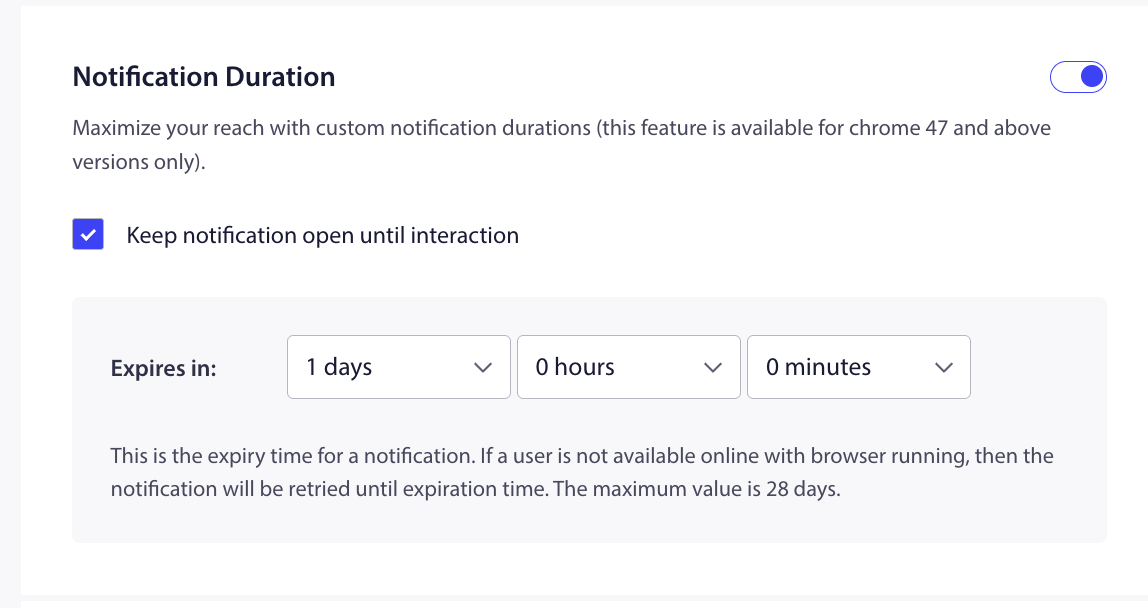
Notification duration controls how long a push notification stays active after it is delivered. If a subscriber does not act on it within the duration window, the notification expires and disappears from their notification center.
Where to Find Duration Settings
- Inside a trigger campaign editor, click on any notification in the sequence.
- Scroll to the Notification Duration section.
Duration Options
| Setting | What it does |
|---|---|
| Expiry time | Sets how many hours/days the notification stays visible. After this window, it disappears even if unread. |
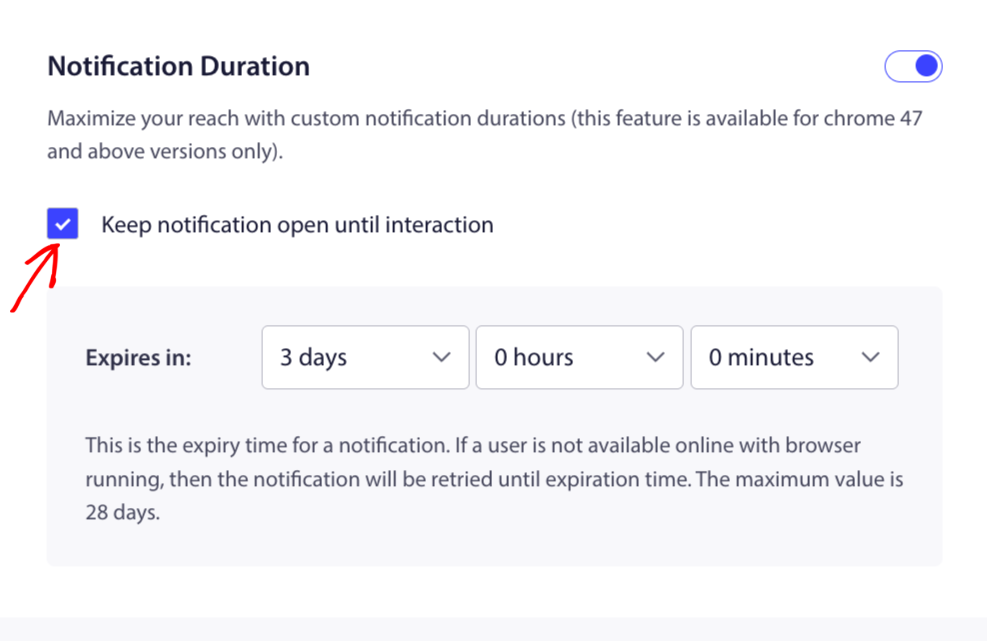
| Keep notification open until user interaction | The notification stays in the action center until the subscriber clicks or dismisses it manually. |
Recommended Duration Settings by Campaign
| Campaign | Expiry | Open Until Interaction |
|---|---|---|
| Cart Abandonment Push 1 | 24 hours (until Push 2 fires) | On |
| Cart Abandonment Push 2 | 48 hours (until Push 3 fires) | On |
| Cart Abandonment Push 3 | 72 hours | On |
| Browse Abandonment Push 1 | 24 hours | On |
| Price Drop Alert | 48 hours | On |
| Back-in-Stock Alert | 48 hours | On |
The logic: Set the expiry of each notification to match the delay before the next one fires. This prevents Push 1 and Push 2 from stacking in the subscriber’s notification center at the same time.
Global vs. Per-Campaign Frequency Capping
The frequency caps set inside a trigger campaign apply only to that campaign. If a subscriber qualifies for Cart Abandonment and Browse Abandonment simultaneously, each campaign applies its own cap independently.
To control the total volume of trigger notifications across all campaigns, keep the per-campaign limits conservative. A good combined target is no more than 3 trigger notifications per subscriber per day across all campaigns.
Frequently Asked Questions
Does frequency capping apply to Push Broadcasts? No. Push Broadcasts are one-off sends and are not subject to trigger campaign frequency caps. They go to whoever you target when you send them.
What happens when a subscriber hits the daily limit? PushEngage queues or skips the remaining notifications for that day, depending on the campaign configuration. The subscriber will not receive more than the cap allows.
Should I use the same frequency settings for all trigger campaigns? No. Campaigns where the subscriber explicitly opted in (Price Drop, Back-in-Stock) can have a lower cap since they are expected. Campaigns triggered by behavior (Cart Abandonment, Browse Abandonment) need tighter caps because they fire more frequently.
Does turning on “Open until interaction” affect deliverability? No. It only affects how long the notification stays visible in the subscriber’s notification center after delivery. It does not affect whether the notification is delivered.
Can I set frequency caps on Drip Autoresponders? Drip Autoresponders fire on a fixed schedule per subscriber (e.g., immediately, then after 1 day, then after 2 days). The sequence itself controls the frequency. There is no separate frequency cap setting for drips.
If you run into any issues, please feel free to contact us by clicking here. Our support team will be able to help you.


