
هل تبحث عن طريقة سريعة وسهلة لإنشاء صفحة دفع لـ ووردبريس؟
لنفترض أن لديك صفحة هبوط تحول الزوار إلى عملاء محتملين أو عملاء يدفعون بشكل متكرر. ولكن بعد ذلك، تحتاج إلى التأكد من أن زوارك يمكنهم بالفعل الدفع مقابل منتجك أو خدمتك وإكمال عملية الدفع بالفعل.
إذًا، هل تحتاج إلى تعلم كيفية البرمجة؟ هل تحتاج إلى مصمم باهظ الثمن لإنشاء صفحة دفع؟
لحسن الحظ، هناك طريقة سهلة لإنشاء صفحة دفع لـ ووردبريس. في هذه المقالة، سنساعدك على إطلاق صفحة دفع في أقل من 15 دقيقة.
هل أنت مستعد؟ دعنا نبدأ.
ما هي صفحة الدفع لـ ووردبريس ولماذا يجب أن تهتم بها؟
صفحة الدفع مخصصة لتحويل الزوار المهتمين بشراء منتج أو خدمة منك إلى عميل يدفع.
ولكن قبل أن تبدأ، تذكر أن يكون لديك هدف واضح ومحدد جدًا لصفحة الدفع الخاصة بك. مجرد أنك تستطيع فعل الكثير من الأشياء لا يعني أنه يجب عليك فعلها جميعًا في صفحة واحدة. في كثير من الأحيان، إذا أعطيت زوارك الكثير من الأشياء للنقر عليها، فلن ينقروا على أي شيء على الإطلاق.
بشكل افتراضي، يقوم WooCommerce بإنشاء صفحة دفع لكل موقع تجارة إلكترونية. وهذا جيد إذا كنت قد بدأت للتو. ولكن إذا كنت ترغب في تحسين صفحة الدفع الخاصة بك لمعدلات تحويل أعلى، فهذا صعب للغاية. ثم هناك مشاكل التخلي عن سلة التسوق.
أفضل طريقة لمكافحة ذلك هي إنشاء صفحة دفع مخصصة لـ ووردبريس. مع صفحة مخصصة، يمكنك إضافة:
- شهادات ودليل اجتماعي لزيادة الثقة
- منتجات وخدمات ذات صلة لزيادة الإيرادات
- نماذج دفع مخصصة لتقليل تردد المشتري
- خيارات دفع إضافية
- حقول دفع WooCommerce مخصصة
الآن بعد أن عرفت فوائد إنشاء صفحة دفع مخصصة في ووردبريس، دعنا ننتقل إلى معرفة كيفية القيام بذلك.
كيفية إنشاء صفحة دفع في ووردبريس
الآن بعد أن عرفت ما يجب إنشاؤه، حان الوقت لإطلاق صفحة الدفع الخاصة بك في ووردبريس. نوصي بشدة باستخدام SeedProd لإنشاء صفحات الهبوط الخاصة بك.

SeedProd هو أفضل منشئ صفحات هبوط لووردبريس. إنه مثالي للشركات والمدونين وأصحاب المواقع الذين يتطلعون إلى بناء صفحات هبوط عالية التحويل دون أي مهارات تطوير.
مع SeedPreed، تحصل على قوالب جاهزة لصفحات الهبوط عالية التحويل يمكنك نشرها على الفور. وهذا يشمل قوالب لـ:
- صفحات المبيعات
- صفحات قريباً
- صفحات 404
- صفحات الصيانة
- صفحات الضغط
- صفحات تسجيل الدخول
- صفحات الشكر
- صفحات الندوات عبر الإنترنت
- صفحات الفيديو
وغيرها الكثير!
الخطوة #1: تثبيت وتفعيل SeedProd
أولاً، ستحتاج إلى الحصول على إضافة SeedProd Pro وتفعيلها. إذا لم تكن متأكدًا من كيفية القيام بذلك، فراجع هذه المقالة حول كيفية تثبيت إضافة ووردبريس. بعد ذلك، انتقل إلى SeedProd » Settings في لوحة تحكم ووردبريس الخاصة بك وقم بتفعيل الإصدار الاحترافي:

بعد ذلك، انتقل إلى SeedProd » Pages للحصول على نظرة عامة على لوحة تحكم صفحات الهبوط في SeedProd. هذا هو المكان الذي يمكنك فيه رؤية الأنواع المختلفة من صفحات الهبوط التي يمكنك إنشاؤها باستخدام SeedProd:

ضع في اعتبارك أن هذه كلها صفحات خاصة ذات وظائف معدة مسبقًا وقوالب تصميم. بالنسبة لصفحة هبوط المبيعات، لا تريد استخدام أي من صفحات الهبوط الخاصة هذه. بدلاً من ذلك، ستقوم بإنشاء صفحة هبوط مخصصة.
مرر لأسفل وانقر على زر إضافة صفحة هبوط جديدة للبدء:

الخطوة #2: إنشاء صفحة دفع جديدة لـ ووردبريس
بعد النقر على زر إضافة صفحة هبوط جديدة، سترى مكتبة SeedProd لقوالب صفحات الهبوط. هذه قوالب صفحات هبوط مصممة باحترافية ومتجاوبة بالكامل.
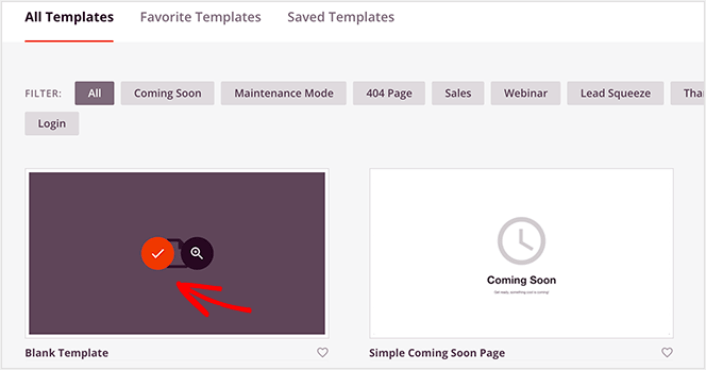
بعد ذلك، يمكنك تحديد أحد هذه القوالب لمساعدتك على البدء. تذكر، القالب هو مجرد نقطة انطلاق. يمكنك تخصيص كل شيء في الصفحة لاحقًا. في الوقت الحالي، ابحث عن قالب تعتقد أنه مناسب. نحن نستخدم القالب الفارغ لهذا البرنامج التعليمي، ولكن يمكنك تحديد أي قالب تريده.
الخطوة #3: تخصيص تصميم صفحة الدفع الخاصة بك في ووردبريس
يتيح لك منشئ SeedProd المرئي تخصيص صفحة الهبوط الخاصة بك باستخدام كتل محتوى بالسحب والإفلات.
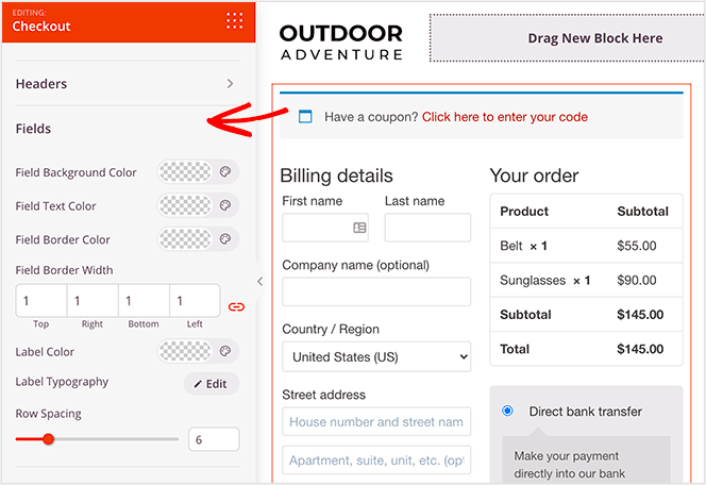
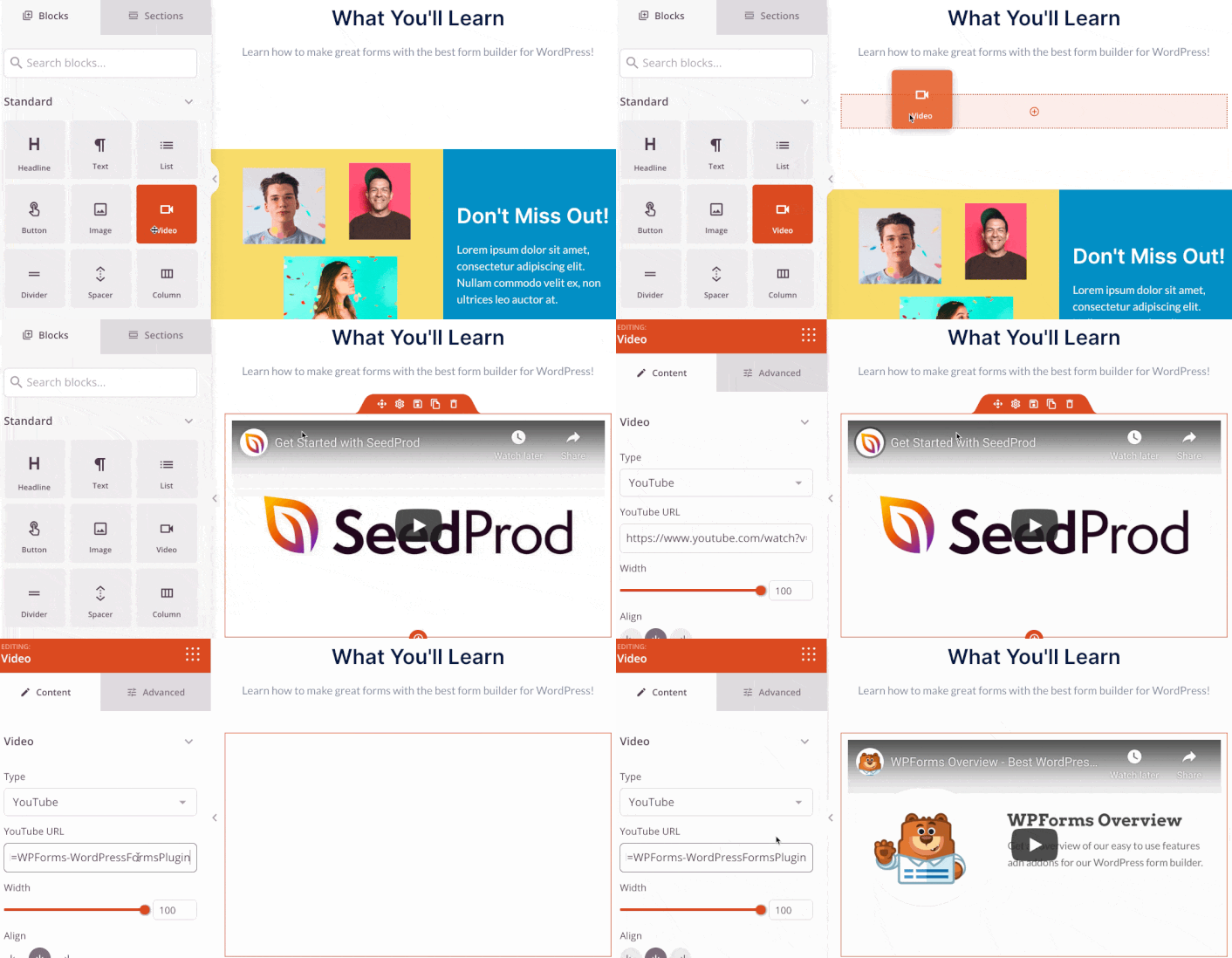
يمكنك إنشاء ترويسة مخصصة بالكامل لصفحة الشكر الخاصة بك في غضون دقائق. يمكنك حتى إضافة عناصر مخصصة لإقناع وتحويل الزوار. على سبيل المثال، يمكنك إنشاء وحدة فيديو وتضمين فيديو يوتيوب لإقناع زوارك بشراء منتجك أو خدمتك.
من السهل جدًا أيضًا إضافة قسم بوصف موجز لمنتجك أو خدمتك. انتقل إلى علامة التبويب الأقسام في المنشئ المرئي وتحت قسم البطل، ستجد العديد من القوالب المعدة مسبقًا التي يمكنك استيرادها بنقرة واحدة.
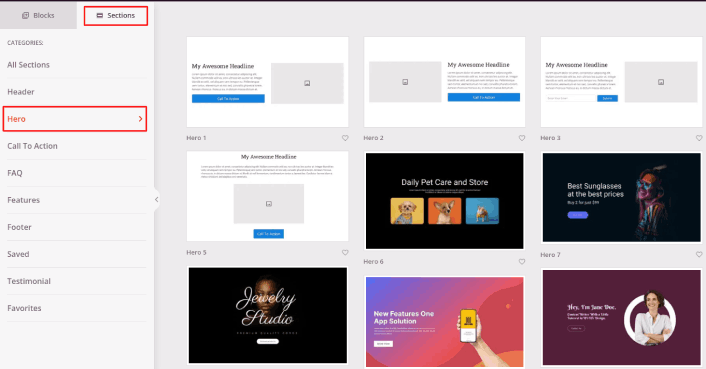
تفضل واختر واحدًا يعجبك.
لا تقلق بشأن الألوان أو المحتوى. يمكنك تعديل كل شيء. ما يجب أن تبحث عنه هو تخطيط يتناسب جيدًا مع قالبك.
يمكنك تخصيص قسم البطل بنفس الطريقة التي فعلناها سابقًا عن طريق اختيار صورة مختلفة وتغيير العنوان والوصف. أثناء قيامك بذلك، أضف زر دعوة إلى اتخاذ إجراء يحث الزوار على الشراء منك.
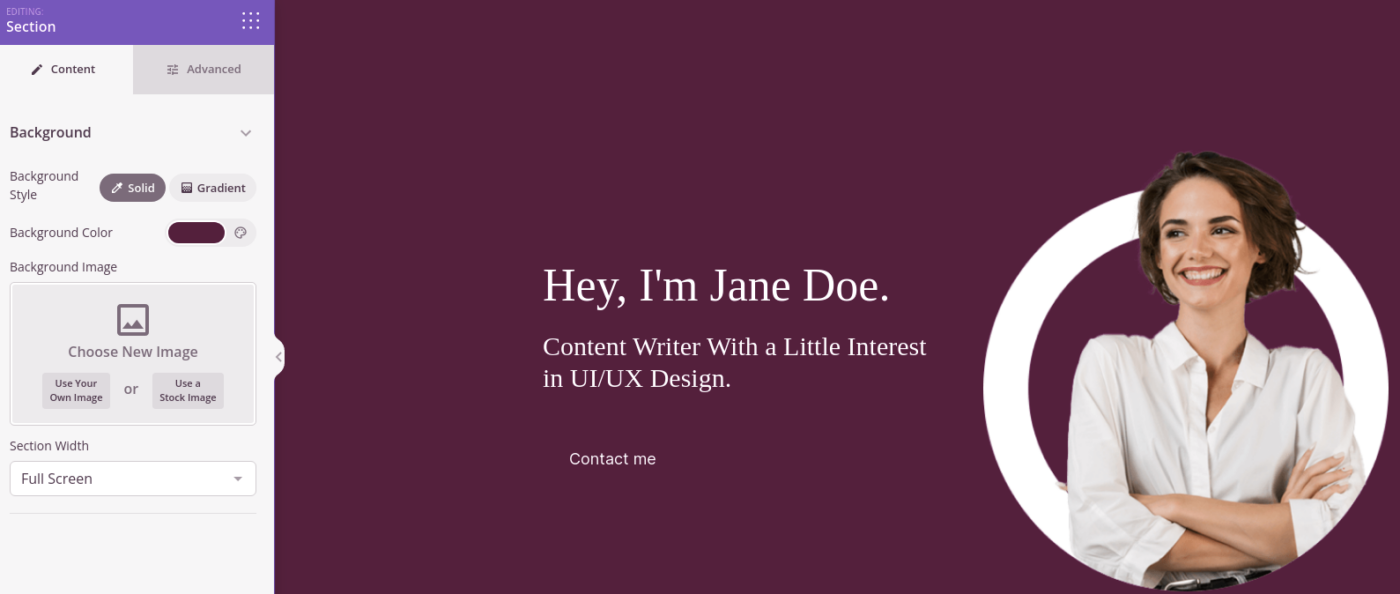
الأمر بسيط للغاية! عندما تنتهي من تخصيص صفحة الشكر الخاصة بك، انقر فوق الزر حفظ. لإضافة منتجات شائعة، اختر كتلة المنتجات الأكثر مبيعًا من قسم WooCommerce واسحبها إلى صفحتك.
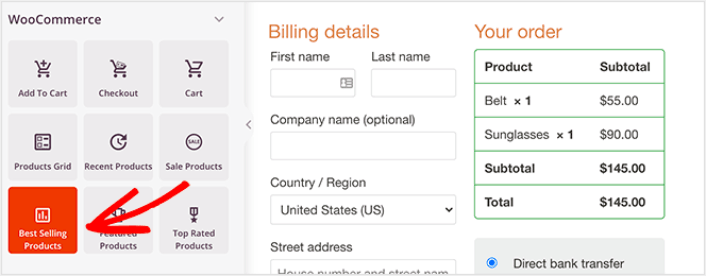
من الجيد في هذه المرحلة سحب كتلة العنوان وتغييرها إلى شيء مثل "المنتجات الشائعة". بهذه الطريقة، يعرف الناس بالضبط ما الذي ينظرون إليه.
يمكنك أيضًا إضافة شهادات لزيادة معدلات التحويل الخاصة بك. ما عليك سوى التوجه إلى الكتل المتقدمة وسحب كتلة الشهادات إلى صفحة الدفع الخاصة بك.
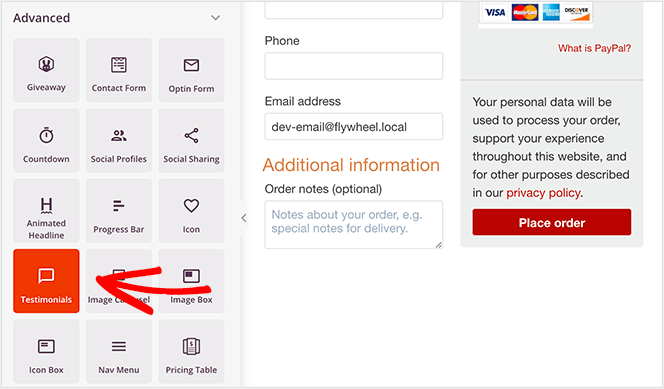
بدلاً من صفحة الدفع الافتراضية لـ WooCommerce، لديك الآن صفحة دفع WordPress عالية التحويل مصممة خصيصًا لجمهورك.
الخطوة رقم 4: تكوين إعدادات صفحتك
بعد الانتهاء من تصميم صفحة الشكر الخاصة بك، انقر فوق علامة التبويب Connect في الجزء العلوي من منشئ الصفحات الخاص بك، وحدد مزود التسويق عبر البريد الإلكتروني لجمع العملاء المحتملين على موقعك.
ملاحظة: هذه الخطوة اختيارية فقط إذا كنت تريد أن يختار عملاؤك خدمة أخرى. لذلك، إذا كنت تحاول بيع خدمة إضافية، يمكنك تخطي ربط خدمة التسويق عبر البريد الإلكتروني.

بعد ذلك، انقر فوق علامة التبويب إعدادات الصفحة في أعلى شاشتك.

هنا، يمكنك إضافة إضافة SEO و إضافة Google Analytics إلى صفحة الشكر الخاصة بك. يمكنك حتى إعداد رموز تتبع مخصصة مثل Facebook Pixel أو Pinterest pixel لتتبع أداء الإعلانات.
الخطوة رقم 5: نشر صفحة الدفع الخاصة بـ WordPress
الآن دعنا ننتقل إلى نشر تصميمك. للقيام بذلك، انقر فوق السهم المنسدل بجوار زر الحفظ وانقر فوق نشر.
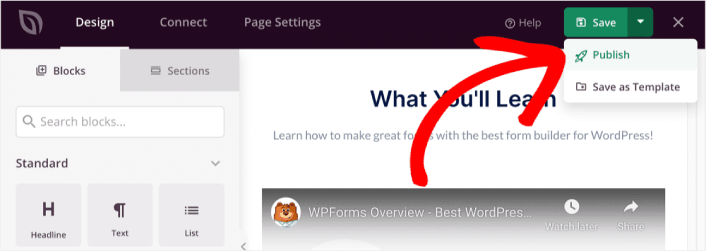
بعد ذلك، قم بتعيين صفحة الدفع الجديدة الخاصة بـ WordPress إلى WooCommerce. يتضمن ذلك تغيير إعدادات WooCommerce الافتراضية وإضافة عنوان URL لصفحتك الجديدة.
لتكوين هذا الإعداد، انتقل إلى WooCommerce » الإعدادات وانقر فوق علامة التبويب المتقدم. ثم بجوار عنوان صفحة الدفع، ابحث عن الصفحة التي أنشأتها للتو.
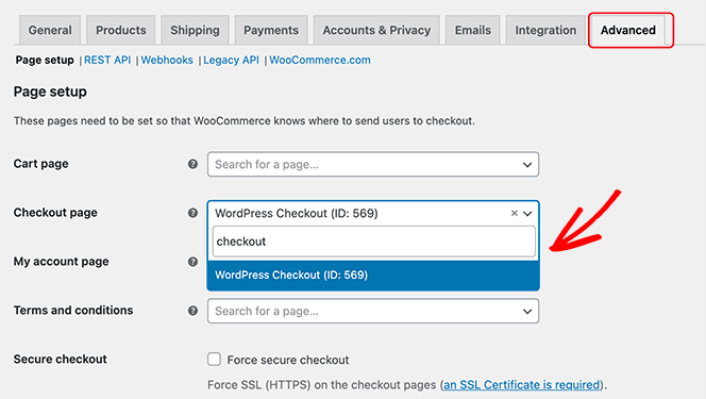
الآن، عندما ينقر الزائر على "المتابعة إلى الدفع"، سينتقل إلى شاشة الدفع الجديدة عالية التحويل التي أنشأتها للتو.
ماذا تفعل بعد بناء صفحة دفع WordPress
الآن بعد أن أصبحت صفحة الشكر الخاصة بك مباشرة، فقد حان الوقت للعمل على حركة المرور والمشاركة والمبيعات. يجب أن تحاول استخدام إشعارات الدفع على موقعك. تعد إشعارات الدفع أداة تسويقية رائعة يمكن أن تساعدك في تنمية عملك.
ألقِ نظرة على هذه الموارد الرائعة وستعرف ما نعنيه:
- 7 استراتيجيات ذكية لزيادة تفاعل العملاء
- هل إشعارات الدفع فعالة؟ 7 إحصائيات + 3 نصائح خبراء
- كيفية إعداد إشعارات الدفع للسلات المتروكة (دليل سهل)
نوصي باستخدام PushEngage لإنشاء حملات إشعارات الدفع الخاصة بك. PushEngage هو البرنامج رقم 1 لإشعارات الدفع في العالم. لذا، إذا لم تكن قد قمت بذلك بالفعل، ابدأ مع PushEngage اليوم!


