
هل تبحث عن طريقة سريعة وسهلة لإنشاء صفحة مبيعات في ووردبريس؟
يعد إنشاء صفحة مبيعات أفضل طريقة لعرض منتجاتك وخدماتك على العملاء المحتملين وجعلهم يرغبون في الشراء. ولكن ماذا لو لم تقم بتصميم صفحة ويب من قبل؟ ماذا لو لم تكن لديك خبرة في البرمجة ولا تعرف كيفية إضافة وظائف مخصصة إلى صفحاتك؟
لحسن الحظ، هناك طريقة سهلة لإنشاء صفحة مبيعات في ووردبريس. في هذه المقالة، سنساعدك على إطلاق صفحة مبيعات في أقل من 15 دقيقة.
هل أنت مستعد؟ دعنا نبدأ.
ما هي صفحة المبيعات ولماذا يجب أن تهتم بها؟
صفحة المبيعات هي صفحة ويب قابلة للتخصيص بالكامل تركز على بيع منتج أو خدمة لزوار موقعك. على عكس موقع وسائط اجتماعية أو سوق مثل أمازون أو إتسي، تركز صفحة المبيعات الخاصة بك على منتج أو خدمة واحدة لبيعها في كل مرة. والأفضل من ذلك، أنها لا تعرض جميع منافسيك في نفس صفحة الويب!
تم تصميم كل صفحة مبيعات لإقناع وتحويل زوار الموقع إلى عملاء يدفعون. اعتمادًا على مقدار الوقت المتاح لديك، ونموذج عملك، ومقدار الأموال التي تتوقع كسبها من المشتركين لديك، يمكنك:
- تقديم خصومات وعروض
- استضافة هبة
- إنشاء دليل مجاني أو قائمة مرجعية كـ مغناطيس للعملاء المحتملين
- قبول التبرعات من المعجبين
وأكثر من ذلك بكثير!
ولكن قبل أن تبدأ، تذكر أن يكون لديك هدف واضح ومحدد جدًا لصفحة الهبوط الخاصة بك. لمجرد أنه يمكنك القيام بالكثير من الأشياء لا يعني أنه يجب عليك القيام بها جميعًا في صفحة واحدة. في كثير من الأحيان، إذا أعطيت زوارك الكثير من الأشياء للنقر عليها، فلن ينقروا على أي شيء على الإطلاق.
ما الذي تحتويه جميع صفحات المبيعات الناجحة؟
الآن بعد أن عرفت ما تفعله صفحة هبوط المبيعات في ووردبريس ولماذا يجب عليك بناء واحدة، فقد حان الوقت لإنشاء مخطط تفصيلي لصفحة الهبوط الخاصة بك. إذا قمت بفحص أي صفحات هبوط ناجحة، ستلاحظ أنها جميعًا تحتوي على بعض العناصر المشتركة الأساسية جدًا:
- العنوان الرئيسي: العنوان الرئيسي هو المكان الذي تجذب فيه انتباه الناس وتجعلهم يرغبون في التمرير لأسفل ومعرفة المزيد عنك.
- الوصف: مباشرة أسفل العنوان الرئيسي، يجب أن يكون لديك وصف لما يجب أن يتوقعه المشاهدون من بقية الصفحة. هذا مكان رائع لإقناع القراء بشراء منتجك أيضًا.
- أحدث الحلقات: بمجرد أن يعرف الناس ما يمكن توقعه من علامتك التجارية، امنحهم لمحة عن برنامجك عن طريق سرد أحدث حلقاتك. نوصي بعرض 3-5 حلقات على الأكثر.
- زر الشراء: تابع بزر شراء حتى يتمكن زوارك من إضافة منتجك مباشرة إلى عربة التسوق. يُعرف هذا بزر الدعوة إلى اتخاذ إجراء (CTA). إنها الطريقة التي تدفع بها زوارك لاتخاذ إجراء على صفحتك. اعتمادًا على هدفك لصفحة الهبوط، سيختلف زر الدعوة إلى اتخاذ إجراء الخاص بك.
- الدليل الاجتماعي: طريقة رائعة لمنح القراء سببًا قويًا للاشتراك هي تقديم دليل اجتماعي. يخبر الدليل الاجتماعي زوارك ببساطة أن هناك أشخاصًا آخرين يتخذون بالفعل نفس الإجراء الذي تريد منهم اتخاذه.
- الاشتراك في النشرة الإخبارية: بمجرد أن تعرض على زوارك العرض الأساسي، يمكنك أيضًا أن تطلب منهم أن يصبحوا مشتركين عبر البريد الإلكتروني. يمكنك أيضًا أن تطلب منهم أن يصبحوا مشتركين في الإشعارات الفورية باستخدام زر النقر للاشتراك. من الأفضل دائمًا إذا قدمت شيئًا ذا قيمة في المقابل.
- أزرار المشاركة الاجتماعية: كلما تحدث المزيد من الأشخاص عنك على وسائل التواصل الاجتماعي، زادت فرصك في زيادة عدد المشتركين لديك بشكل كبير. لذا، ضع أزرار المشاركة الاجتماعية على صفحة الهبوط الخاصة بك لتشجيع الأشخاص على مشاركتها على وسائل التواصل الاجتماعي.
إليك لمحة سريعة عن صفحة المبيعات في ووردبريس التي سنقوم بإنشائها في برنامجنا التعليمي.

تذكر، هذه هي الأجزاء الأساسية فقط لأي صفحة هبوط ناجحة. بالنسبة لصفحتك، يمكنك إضافة العديد من الأقسام الأخرى وإنشاء عروض مخصصة لزيادة تحويلاتك.
كيفية إنشاء صفحة مبيعات في ووردبريس
الآن بعد أن عرفت ما يجب إنشاؤه، فقد حان الوقت لإطلاق صفحة المبيعات الخاصة بك في ووردبريس. نوصي بشدة باستخدام SeedProd لإنشاء صفحات الهبوط الخاصة بك.

SeedProd هو أفضل منشئ صفحات هبوط لووردبريس. إنه مثالي للشركات والمدونين وأصحاب المواقع الذين يتطلعون إلى بناء صفحات هبوط عالية التحويل دون أي مهارات تطوير.
مع SeedPreed، تحصل على قوالب جاهزة لصفحات الهبوط عالية التحويل يمكنك نشرها على الفور. وهذا يشمل قوالب لـ:
- صفحات المبيعات
- صفحات قريباً
- صفحات 404
- صفحات الصيانة
- صفحات الضغط
- صفحات تسجيل الدخول
- صفحات الشكر
- صفحات الندوات عبر الإنترنت
- صفحات الفيديو
وغيرها الكثير!
الخطوة #1: تثبيت وتفعيل SeedProd
أولاً، ستحتاج إلى الحصول على إضافة SeedProd Pro وتفعيلها. إذا لم تكن متأكدًا من كيفية القيام بذلك، فراجع هذه المقالة حول كيفية تثبيت إضافة ووردبريس. بعد ذلك، انتقل إلى SeedProd » Settings في لوحة تحكم ووردبريس الخاصة بك وقم بتفعيل الإصدار الاحترافي:

بعد ذلك، انتقل إلى SeedProd » Pages للحصول على نظرة عامة على لوحة تحكم صفحات الهبوط في SeedProd. هذا هو المكان الذي يمكنك فيه رؤية الأنواع المختلفة من صفحات الهبوط التي يمكنك إنشاؤها باستخدام SeedProd:

ضع في اعتبارك أن هذه كلها صفحات خاصة ذات وظائف معدة مسبقًا وقوالب تصميم. بالنسبة لصفحة هبوط المبيعات، لا تريد استخدام أي من صفحات الهبوط الخاصة هذه. بدلاً من ذلك، ستقوم بإنشاء صفحة هبوط مخصصة.
مرر لأسفل وانقر على زر إضافة صفحة هبوط جديدة للبدء:

الخطوة #2: إنشاء صفحة هبوط مبيعات جديدة
بعد النقر على زر إضافة صفحة هبوط جديدة، سترى مكتبة SeedProd لقوالب صفحات الهبوط. هذه قوالب صفحات هبوط مصممة باحترافية ومتجاوبة بالكامل.
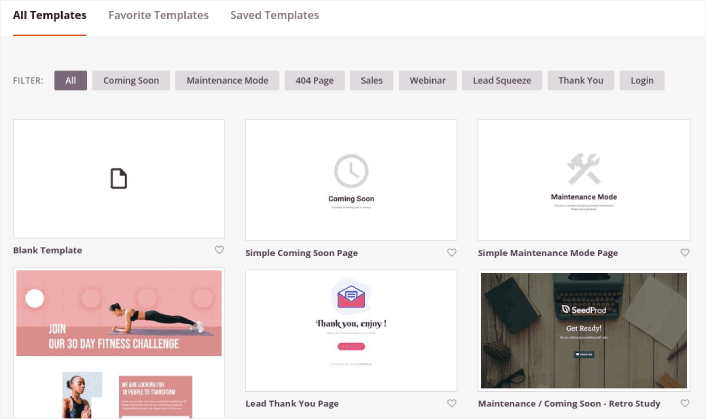
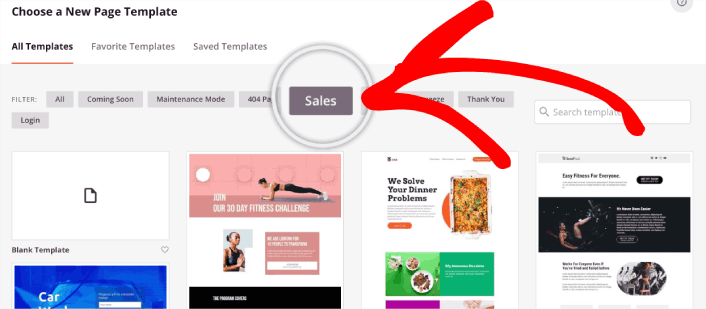
بعد ذلك، يمكنك تحديد أحد هذه القوالب لمساعدتك على البدء. تذكر، القالب هو مجرد نقطة انطلاق. يمكنك تخصيص كل شيء في الصفحة لاحقًا. في الوقت الحالي، ابحث عن قالب تعتقد أنه مناسب. عندما تفتح صفحة القوالب، يمكنك النقر فوق المبيعات لتصفية القائمة:
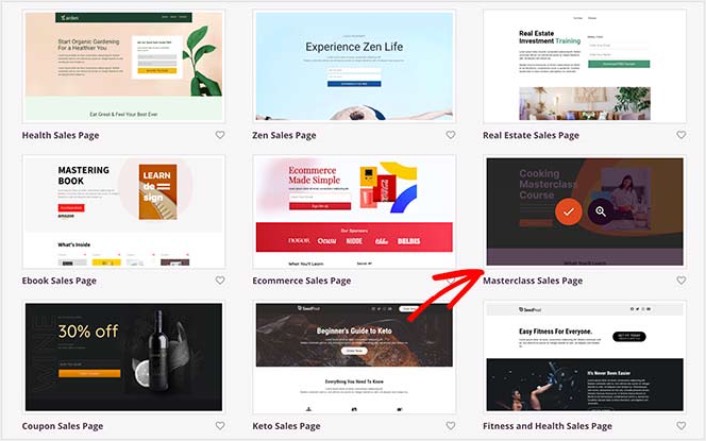
في هذا الدليل، سنختار صفحة المبيعات الرئيسية (Masterclass Sales Page). تفضل وانقر عليها الآن.
بعد ذلك، سنقوم بتخصيص صفحة الهبوط.
الخطوة رقم 3: تخصيص تصميم صفحة الهبوط الخاصة بك
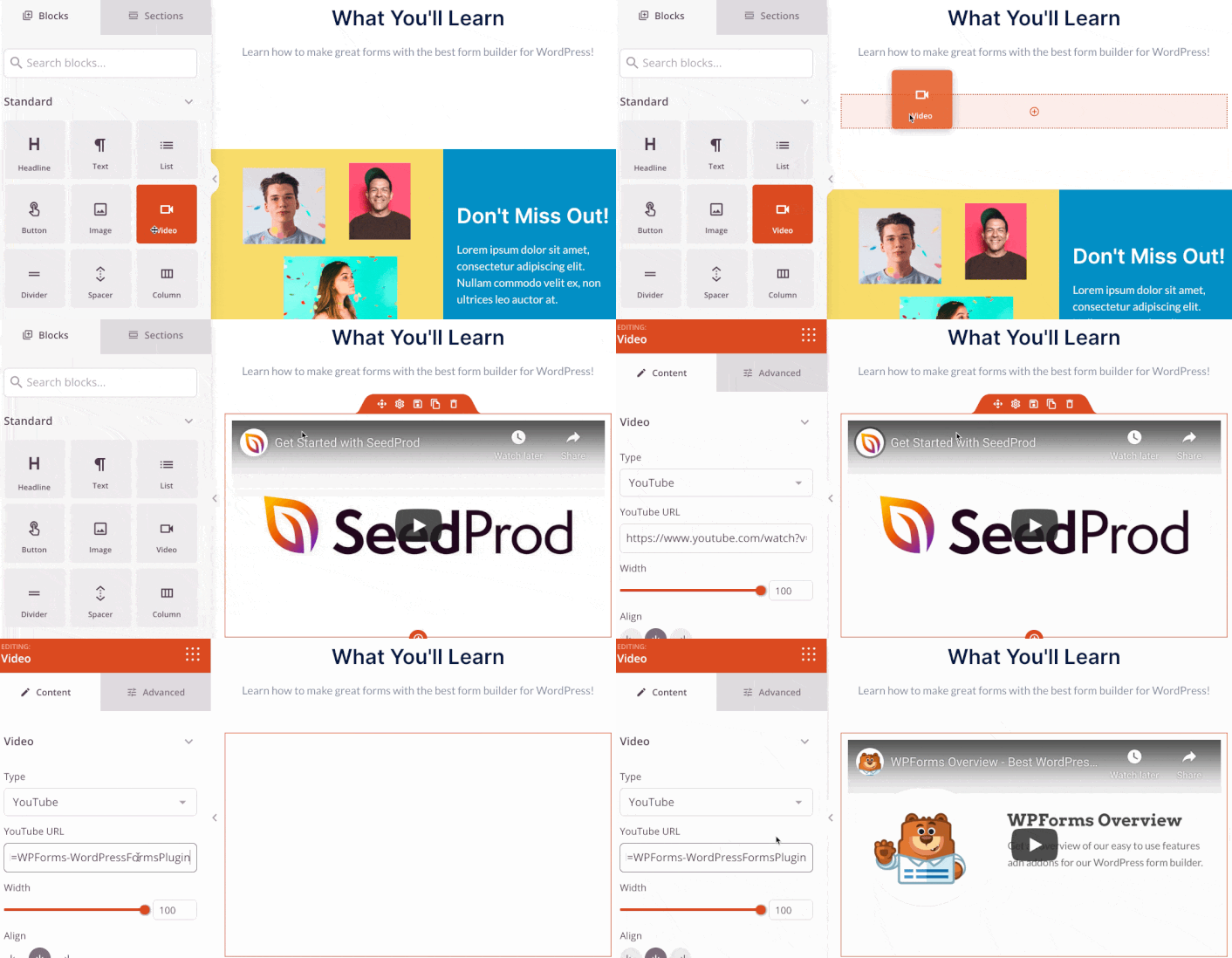
يتيح لك منشئ SeedProd المرئي تخصيص صفحة الهبوط الخاصة بك باستخدام كتل محتوى بالسحب والإفلات.
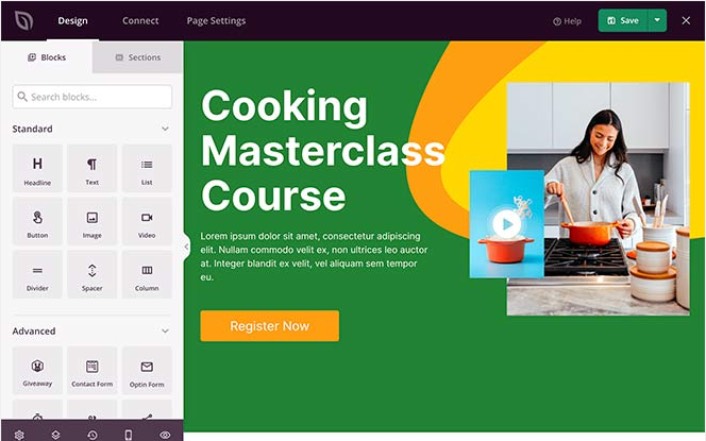
يمكنك إنشاء رأس مخصص بالكامل لصفحة الهبوط الخاصة بك في غضون دقائق. يمكنك حتى إضافة عناصر مخصصة لإقناع حركة المرور الخاصة بك وتحويلها. على سبيل المثال ، يمكنك إنشاء وحدة فيديو وتضمين مقطع فيديو على YouTube لإقناع زوارك بشراء منتجك أو خدمتك.
من السهل جدًا أيضًا إضافة قسم بوصف موجز لمنتجك أو خدمتك. انتقل إلى علامة التبويب الأقسام في المنشئ المرئي وتحت قسم البطل، ستجد العديد من القوالب المعدة مسبقًا التي يمكنك استيرادها بنقرة واحدة.
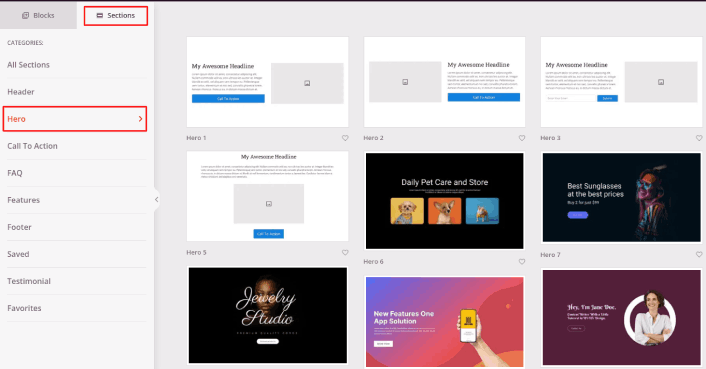
تفضل واختر واحدًا يعجبك.
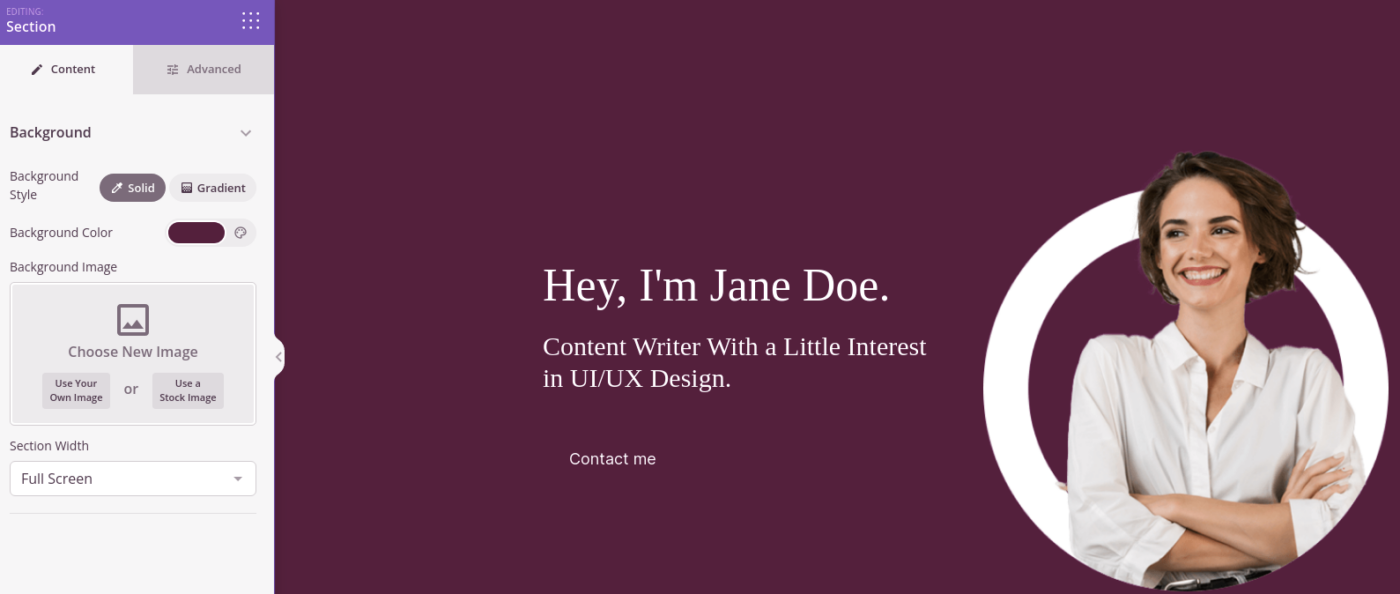
لا تقلق بشأن الألوان أو المحتوى. يمكنك تعديل كل شيء. ما يجب أن تبحث عنه هو تخطيط يتناسب جيدًا مع قالبك.
يمكنك تخصيص قسم البطل بنفس الطريقة التي فعلناها سابقًا عن طريق اختيار صورة مختلفة وتغيير العنوان والوصف. أثناء قيامك بذلك، أضف زر دعوة إلى اتخاذ إجراء يحث الزوار على الشراء منك.
بعد ذلك، من علامة التبويب الأقسام، حدد عنوان الشهادات، واختر تصميمًا يعجبك. وبهذه البساطة، لديك قسم شهادات في صفحة الهبوط الخاصة بك.
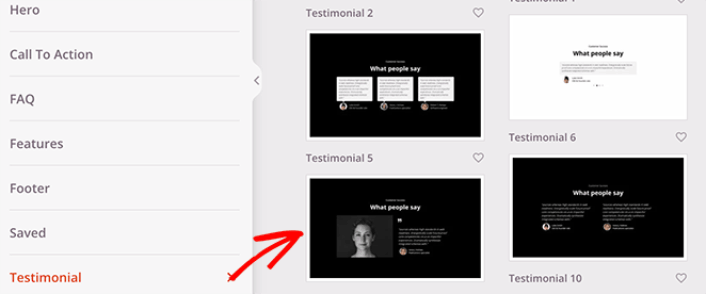
إنه بسيط للغاية!
الخطوة #4: إضافة زر النقر للاشتراك إلى صفحة المبيعات الخاصة بك
يمكنك أيضًا إضافة زر انقر للاشتراك لجمع مشتركين في الإشعارات الفورية. تعد الإشعارات الفورية طريقة رائعة لزيادة حركة المرور المتكررة، والحصول على المزيد من التفاعل، وحتى بيع البضائع الرسمية إذا كان لديك بعض منها.
في SeedProd، قم فقط بسحب وإفلات وحدة HTML المخصصة من الشريط الجانبي.
لقد وضعنا زر الاشتراك مباشرة أسفل نموذج الاشتراك عبر البريد الإلكتروني في الطية الأولى.

ولكن يمكنك إدراج الزر في أي مكان تريده.
لهذا الجزء، تحتاج إلى بعض الخبرة في HTML و CSS. أو، يمكنك نسخ هذا الكود ولصقه في كتلة HTML المخصصة الخاصة بك:
<button onclick="subscribeOnClickButton()" style="border: none; padding-left: 5%; padding-right:5%; text-align: center; display: inline-block; color: blue;">Get Updates via Push Notifications</button>هذا زر قياسي في HTML مع القليل جدًا من التنسيق. الشيء الوحيد المميز هو وظيفة onclick في الكود. هذا يعني بشكل أساسي أنه يمكن لزوارك النقر على الزر للاشتراك في شيء ما. الآن، نحتاج إلى إضافة بعض الأكواد الإضافية للزر للسماح لزوارك بالاشتراك في إشعارات الدفع.
توجه إلى الصفحة الرئيسية لـ PushEngage وانقر على زر البدء:

بعد ذلك، ستحتاج إلى تحديد الخطة المجانية لتجربة PushEngage أو اختيار خطة مدفوعة إذا كنت جادًا بشأن تنمية عملك. تأتي الخطط المدفوعة مع المزيد من خيارات الحملات والقدرة على بناء قوائم مشتركين أكبر.
في لوحة تحكم PushEngage الخاصة بك، انتقل إلى إعدادات الموقع » تفاصيل الموقع وانقر على زر انقر هنا لتعليمات الإعداد. ضمن أي موقع، ستحصل على كود التثبيت الخاص بك:

تحذير: تحتاج إلى نسخ الكود الذي تحصل عليه من لوحة التحكم الخاصة بك. الكود فريد لكل مستخدم PushEngage. لن تتمكن من نسخ الكود الموجود في الصورة وجمع المشتركين في إشعارات الدفع.
بمجرد حصولك على الكود في لوحة تحكم PushEngage الخاصة بك، أضف هذا المقتطف إلى الكود الخاص بك:
<script> window._peq = window._peq || [];</script> <script>
function subscribeOnClickButton(){
window._peq.push(['subscribe',{}.pe,function(res){
if(res.statuscode==1)
{
// Code to return response
console.log(res);
}
}]);
}
</script>
يجب أن يبدو الكود النهائي الخاص بك شيئًا كهذا:
<script src="https://clientcdn.pushengage.com/core/02a6e92667ae2279fcba8932356c1d93.js" async></script>
<script> window._peq = window._peq || [];</script> <script>
function subscribeOnClickButton(){
window._peq.push(['subscribe',{}.pe,function(res){
if(res.statuscode==1)
{
// Code to return response
console.log(res);
}
}]);
}
</script>
ستحتاج إلى إضافة هذا الكود إلى كتلة HTML في صفحة الهبوط الخاصة بك بعد الكود الخاص بالزر. يجب أن يبدو شيئًا كهذا:

لا تتردد في تخصيص الأنماط الخاصة بالزر بأي طريقة تريدها. عندما تنتهي من تخصيص صفحة المبيعات الخاصة بك، تفضل بالضغط على زر "حفظ" (Save).
الخطوة رقم 5: تكوين إعدادات صفحتك
بعد الانتهاء من تصميم صفحة المبيعات الخاصة بك، انقر على علامة التبويب "اتصال" (Connect) في أعلى أداة إنشاء الصفحات الخاصة بك، وحدد مزود التسويق عبر البريد الإلكتروني الخاص بك لجمع العملاء المحتملين على موقعك.

بعد ذلك، انقر فوق علامة التبويب إعدادات الصفحة في أعلى شاشتك.

هنا، يمكنك إضافة مكون إضافي لتحسين محركات البحث (SEO plugin) ومكون إضافي لجوجل أناليتكس (Google Analytics plugin) إلى صفحة المبيعات الخاصة بك. يمكنك حتى إعداد رموز تتبع مخصصة مثل بيكسل فيسبوك أو بيكسل بينتيريست لتتبع أداء الإعلانات.
الخطوة #6: نشر صفحة المبيعات الخاصة بك في ووردبريس
الآن دعنا ننتقل إلى نشر تصميمك. للقيام بذلك، انقر فوق السهم المنسدل بجوار زر الحفظ وانقر فوق نشر.
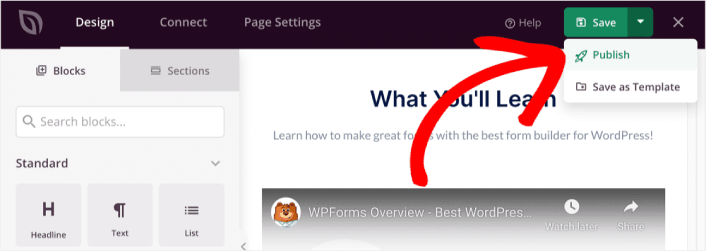
يمكنك بعد ذلك النقر فوق زر عرض الصفحة المباشرة لرؤية كيف تبدو.
تهانينا! لقد نشرت للتو صفحة المبيعات الأولى الخاصة بك.
ماذا تفعل بعد بناء صفحة مبيعات
الآن بعد أن أصبحت صفحة المبيعات الخاصة بك مباشرة، فقد حان الوقت للعمل على حركة المرور والمشاركة والمبيعات. يجب أن تحاول استخدام إشعارات الدفع على موقعك. إشعارات الدفع هي أداة تسويقية رائعة يمكن أن تساعدك في تنمية عملك.
ألقِ نظرة على هذه الموارد الرائعة وستعرف ما نعنيه:
- 7 استراتيجيات ذكية لزيادة تفاعل العملاء
- هل إشعارات الدفع فعالة؟ 7 إحصائيات + 3 نصائح خبراء
- كيفية إعداد إشعارات الدفع للسلات المتروكة (دليل سهل)
نوصي باستخدام PushEngage لإنشاء حملات إشعارات الدفع الخاصة بك. PushEngage هو البرنامج رقم 1 لإشعارات الدفع في العالم. لذا، إذا لم تكن قد قمت بذلك بالفعل، ابدأ مع PushEngage اليوم!


