Notice: There is no legacy documentation available for this item, so you are seeing the current documentation.
The Browse Abandonment campaign fires a push notification when a subscriber visits a product page on your Shopify store but leaves without adding the item to their cart. It targets the gap between interest and intent, reaching shoppers who showed clear interest in a product but needed one more nudge.
This guide shows you how to enable, configure, and optimize your Shopify browse abandonment campaign in PushEngage.
Before You Start
- PushEngage is installed on your Shopify store and your browse abandonment campaign has been created during onboarding.
- This guide assumes you are editing the pre-built campaign. If you need to set it up from scratch, see Enabling Cart and Browse Abandonment Campaigns for Your Shopify Store.
- Browse Abandonment campaigns require a PushEngage Growth plan or above.
How Browse Abandonment Works
When a push subscriber views a product page and leaves your store without adding the product to their cart, PushEngage detects the exit and queues the browse abandonment sequence for that subscriber.
The campaign stops automatically for a subscriber as soon as they add the viewed product to their cart or complete a purchase. They will not receive the notification if they have already taken action.
| Trigger | Campaign fires |
|---|---|
| Subscriber views product page and exits without adding to cart | Yes |
| Subscriber adds product to cart after viewing | No |
| Subscriber completes a purchase | No |
| Subscriber is not a push subscriber | No |
Step 1: Open the Browse Abandonment Campaign
- Log in to your PushEngage dashboard.
- Go to Campaigns » Trigger Campaigns.
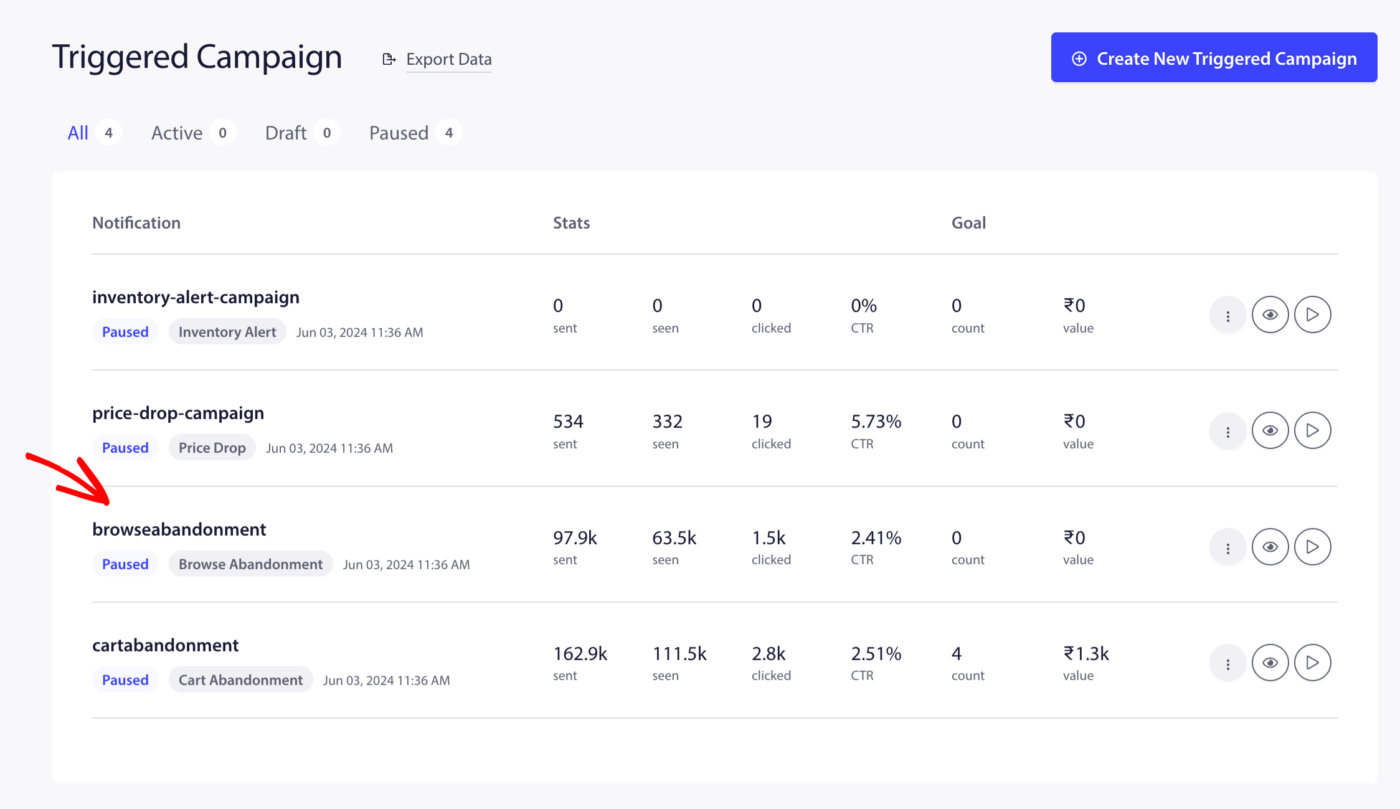
- Find Browse Abandonment and click Edit.
Step 2: Edit the Notification
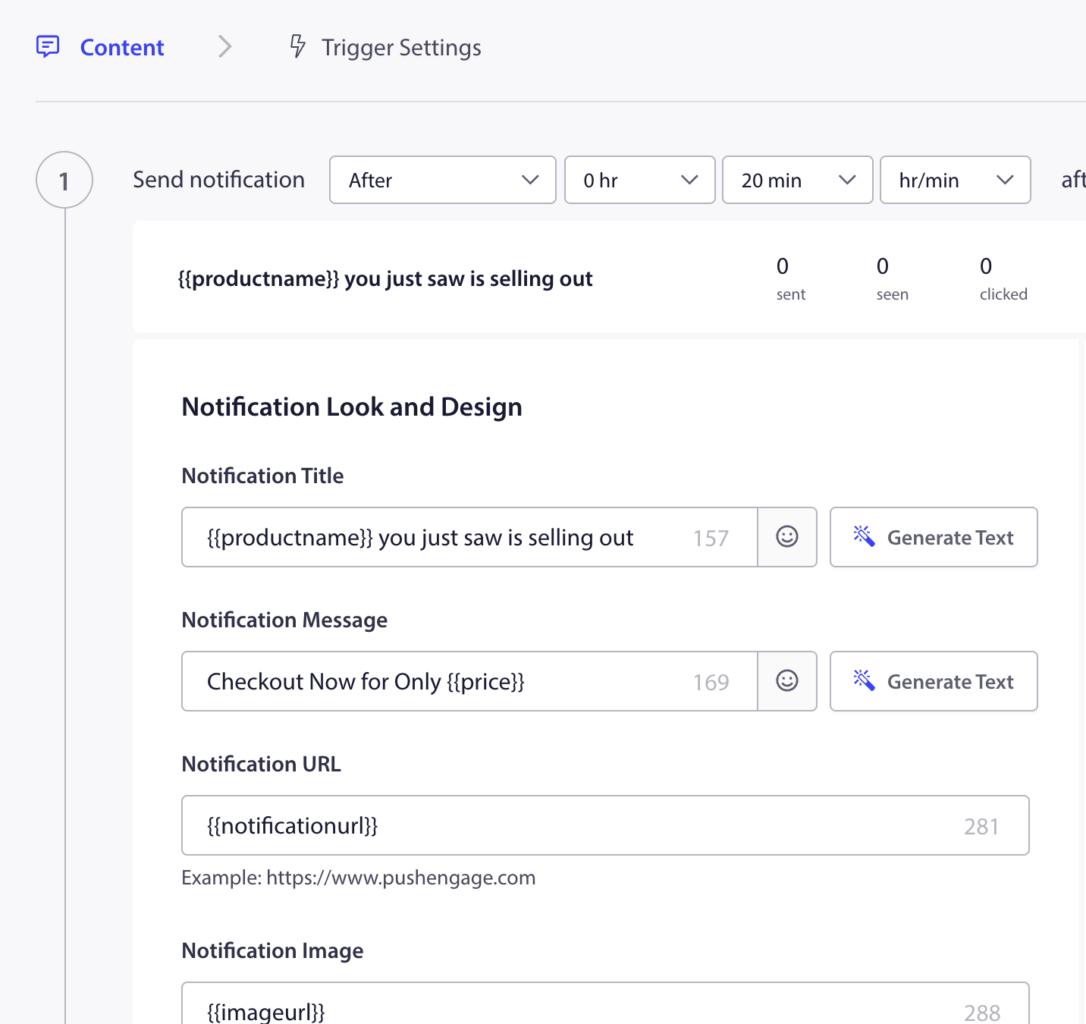
The pre-built campaign contains one notification. Click on it to edit.
Fill in the fields using the available variables to personalise the notification with the product the subscriber viewed.
Available Variables
| Variable | What it inserts |
|---|---|
{productname} | Name of the product the subscriber viewed |
{price} | Listed price of the product |
{notificationurl} | Direct link back to the product detail page |
{imageurl} | Your store logo |
{bigimageurl} | Product image |
Do not remove these variables. They are required for PushEngage to populate each notification with the correct product data from your Shopify store.
Recommended Field Settings
| Field | Recommendation |
|---|---|
| URL | Use {notificationurl} to link back to the product page |
| Image | Use {bigimageurl} to show the product image |
Copy Options
| Option | Title | Message |
|---|---|---|
| 1 | Still thinking about it? | {productname} is waiting for you. Head back and take another look. |
| 2 | You were eyeing this | {productname} is still available. Don’t let it slip away. |
| 3 | Left something behind? | You browsed {productname} recently. It is still in stock at {price}. |
Step 3: Set Notification Duration
Set the expiry so the notification does not stay in the subscriber’s notification center too long after it is no longer relevant.
Recommended setting: 24 hours
Enable Keep notification open until user interaction so the push stays visible until the subscriber actively clicks or dismisses it.
Step 4: Add a Second Notification (Optional)
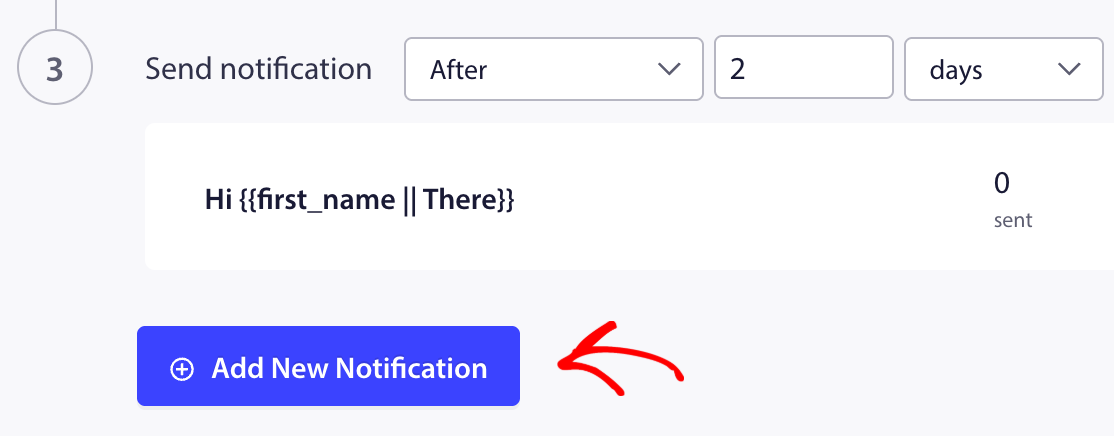
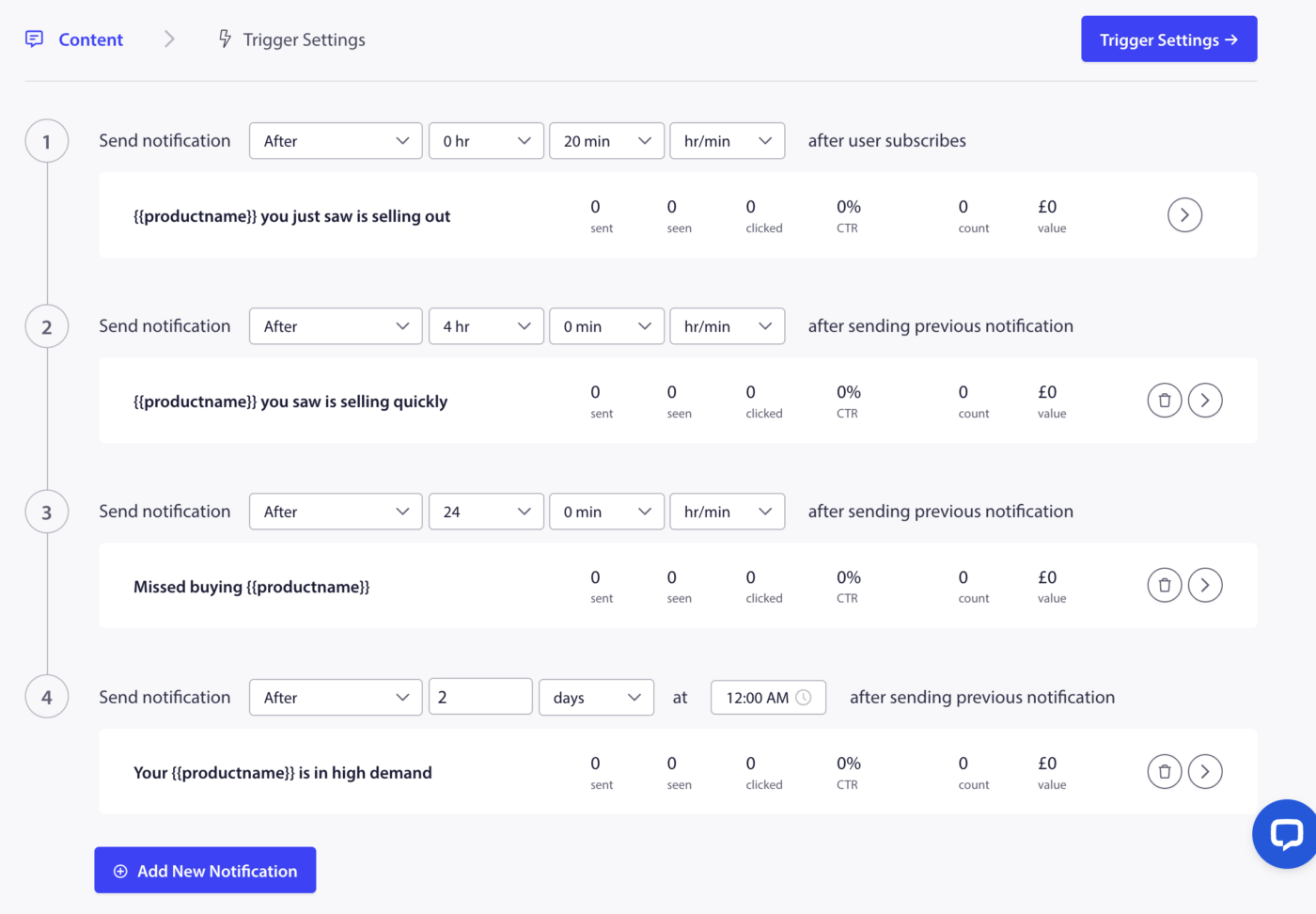
If you want to run a two-step browse abandonment sequence, click Add Notification at the bottom of the campaign editor.
Set the second notification to fire 24 hours after the first.
Copy Options for Push 2
| Option | Title | Message |
|---|---|---|
| 1 | One more look? | {productname} is still available. Grab it before it sells out. |
| 2 | Still interested in {productname}? | Stock is limited. Complete your visit and add it to your cart today. |
| 3 | We saved your spot | {productname} is still here. Come back and see if it is right for you. |
Step 5: Set Frequency Capping
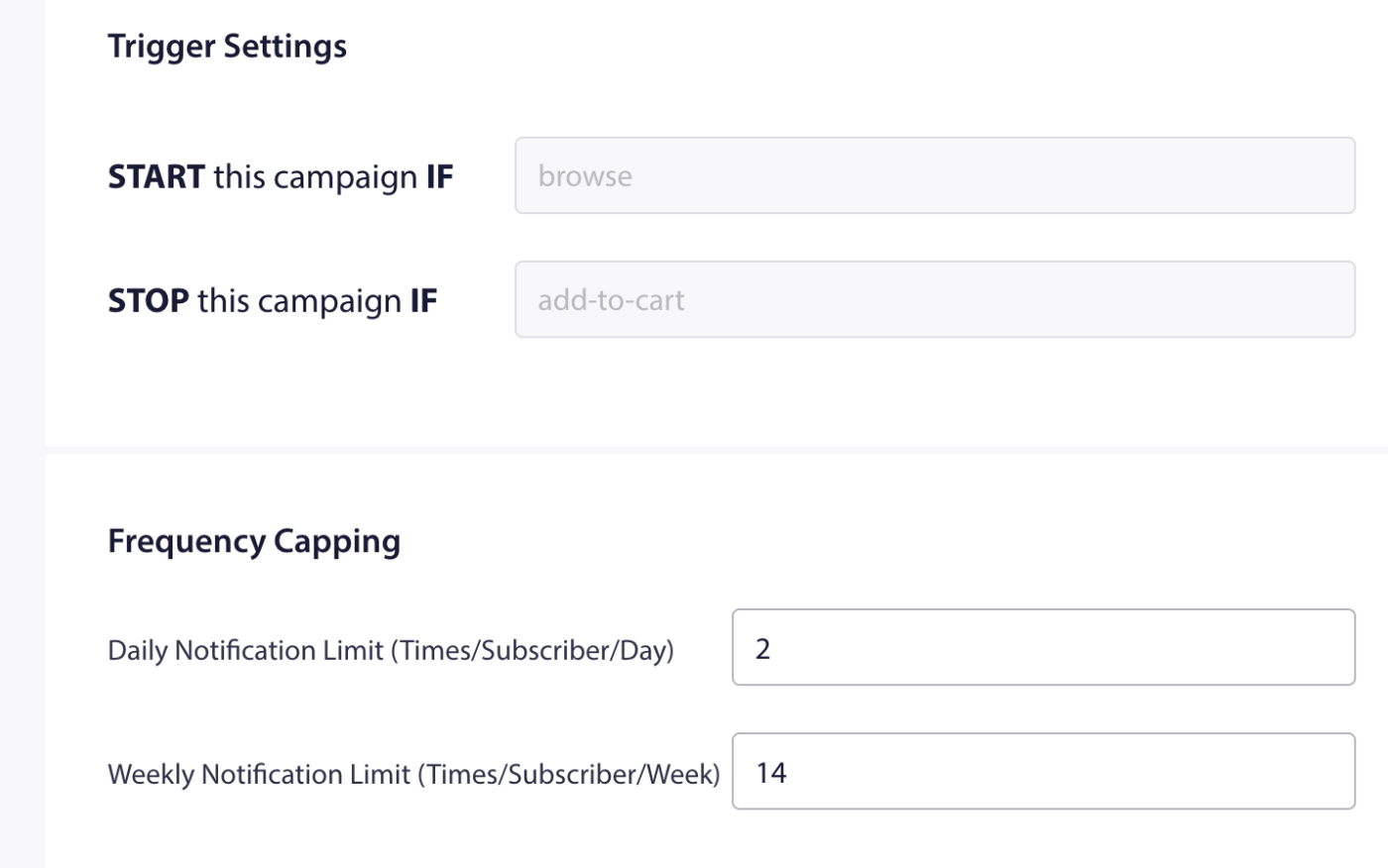
Frequency capping prevents a subscriber who visits multiple product pages from receiving too many browse abandonment notifications.
- Click the Trigger Settings tab in the campaign editor.
- Set the recommended limits:
| Setting | Recommended Value |
|---|---|
| Daily limit | 1 to 2 notifications per subscriber |
| Weekly limit | 5 notifications per subscriber |
Step 6: Activate the Campaign
- Click Save in the campaign editor.
- Return to Campaigns » Trigger Campaigns.
- Click the Play / Resume button next to Browse Abandonment.
Browse Abandonment vs. Cart Abandonment
Both campaigns target shoppers who leave without purchasing, but they fire at different points in the journey.
| Browse Abandonment | Cart Abandonment | |
|---|---|---|
| Trigger | Subscriber views a product page and exits | Subscriber adds a product to cart and exits |
| Intent level | Lower (browsing, comparing) | Higher (has already decided to buy) |
| Stop condition | Product added to cart or purchase made | Purchase completed |
| Recommended tone | Soft reminder, curiosity-led | Urgency-focused, recovery-led |
You can run both campaigns simultaneously. They target different moments in the buying journey and do not overlap.
Tracking Performance
To review how the campaign is performing:
- Go to Campaigns » Trigger Campaigns.
- Click on the Browse Abandonment campaign to expand metrics.
- Review sent, delivered, clicked, and conversion data.
Frequently Asked Questions
What is the difference between browse abandonment and cart abandonment? Browse abandonment triggers when a subscriber views a product page but does not add the product to their cart. Cart abandonment triggers when a subscriber adds a product to their cart but does not complete the purchase. Both campaigns can run at the same time.
Will a subscriber receive both a browse abandonment and a cart abandonment notification for the same product? If a subscriber views a product (triggering browse abandonment) and then adds it to their cart (which stops browse abandonment and triggers cart abandonment), they will only receive the cart abandonment notification for that product.
Can I show different copy for different product categories? Not within a single campaign. The same template applies to all browse abandonment events. For category-specific messaging, you would need separate trigger campaigns for each product type. It will be custom integration on your Shopify Store.
How soon after the subscriber leaves does the notification fire? The notification fires based on the delay you set in the campaign editor. The default is typically a short delay of 15 to 30 minutes after the exit event is detected.
Does browse abandonment work for subscribers on mobile? Yes. PushEngage captures browse activity on desktop and mobile browsers where the subscriber has push notifications enabled.
If you run into any issues, please feel free to contact us by clicking here. Our support team will be able to help you.


