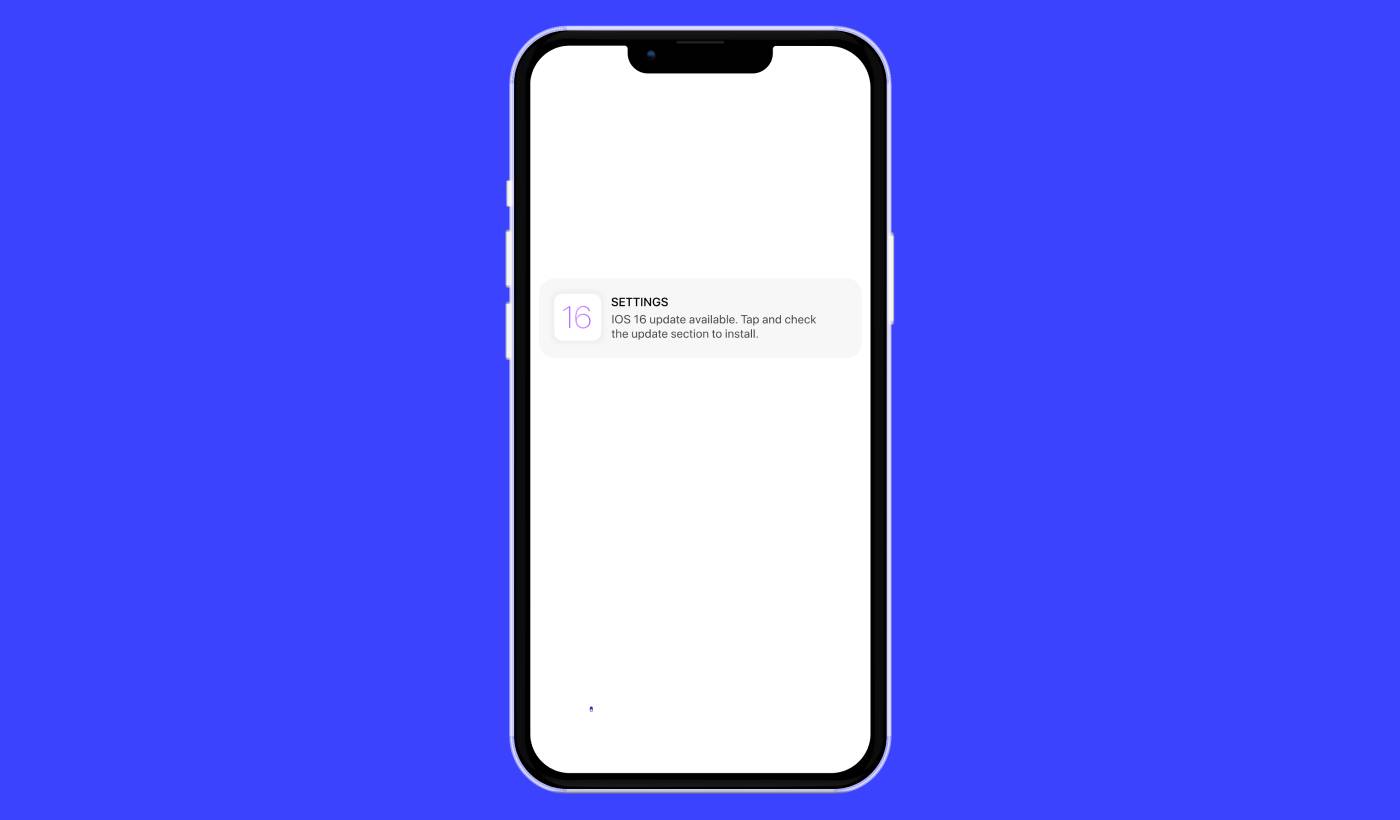
iOSプッシュアラートキャンペーンのシンプルなガイドをお探しですか? iOSプッシュアラートとは、画面に表示される便利な小さなメッセージのことで、適切に使用すればビジネスにとって本当にゲームチェンジャーとなり得ます。
次にこれを想像してみてください。あなたはビジネスオーナーで、ウェブサイトとアプリでフラッシュセールを発売したばかりです。どうすれば顧客をすぐにあなたのサイトに殺到させることができるでしょうか?簡単です、iOSプッシュアラートを送信するだけです。そのように、買い物客はセールに関するタイムリーな通知を受け取り、あなたのウェブサイトとアプリのトラフィックは急上昇します。
しかし、iOSプッシュアラートとは正確には何でしょうか?あなたの個人的なポケットサイズのビルボードと考えてください。デバイスにインストールされているアプリからiOSデバイス(iPhone、iPad)にプッシュされる短いメッセージまたは通知です。
一番良いところは、これらすべてを非常に速く設定できることです!興味深いですよね?さあ、始めましょう。
iOSプッシュアラートとは?
iOSプッシュアラートは、Appleモバイルデバイスに表示される小さなデジタルメモのようなものです。お気に入りのソーシャルメディアプラットフォーム、ニュース配信者、またはオンラインショッピングアプリからのもので、すべてあなたをループ内、エンゲージメント、接続された状態に保つことを目的としています。
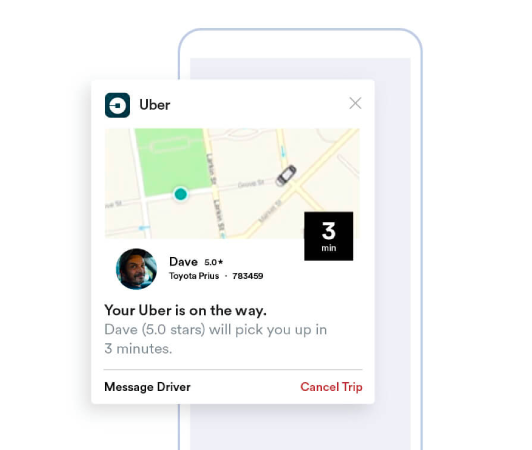
これらのミニメッセージは、Apple Push Notificationサービス(APNs)を介して送信されるiOSデバイスへの優しい肩たたきのようなものです。(ベンダーを選択する準備ができたら、最高のiOSプッシュ通知サービスを比較してください。)あたかもアプリがデバイスにささやきかけ、注意を求めているかのようです。iOSプッシュアラートの注目すべき点は、アプリがアクティブである必要も、使用している必要もないことです。まるで魔法のように、通知はロック画面にさえポップアップ表示され、重要なアップデートやプロンプトを見逃すことがないようにします。
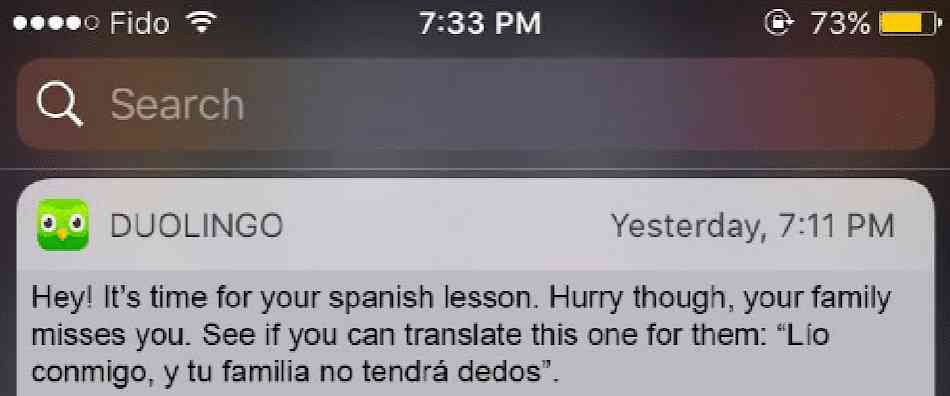
iOSプッシュアラートは、多くのメリットを提供します。まず第一に、それらは最新の情報であなたを常に最新の状態に保つための優れたツールです。現在のセールについて通知するオンラインショッピングアプリからのアラートを想像してみてください。

さらに、貴重な時間を節約できます。銀行アプリが正常なトランザクションを確認するアラートを送信し、手動でログインして確認する必要がなくなることを想像してみてください。これらの実用的なメリットに加えて、iOSプッシュアラートは、アプリをより活気に満ちたインタラクティブにすることで、全体的なアプリ体験を向上させます。
これらの通知のナビゲーションは、PushEngageのようなプラットフォームによってユーザーフレンドリーになっています。洗練された機能を備えたPushEngageは、あなたの興味を引くこれらの短い情報が、タイムリーにあなたに届き、あなたの好みに合わせて合理化されることを保証します。通知の頻度であれ、アラートの種類であれ、PushEngageはあなたの手にコントロールを委ねます。
iOSプッシュアラートとは何か、そしてその仕組みについての基本的な理解を得た上で、さまざまな通知についてさらに詳しく掘り下げ、アプリがユーザーをエンゲージし、コンバージョンさせるためにそれらをどのように活用しているかを解き明かしましょう。
使用できるiOSプッシュアラートキャンペーンの種類
iOS プッシュ通知には、オーディエンスとのエンゲージメントを高めるために使用できる多くの種類があります。これらの異なるタイプを理解することで、その効果を高め、よりパーソナライズされたインタラクティブなユーザーエクスペリエンスを作成できます。
- アプリ内アラート:これらのアラートは、ユーザーがアプリをアクティブに使用しているときに送信できます。たとえば、Eコマースアプリは、ユーザーが関心を持っているアイテムの特別割引に関するアラートを送信できます。PushEngageを使用すると、企業はこれらの関連性の高いタイムリーなメッセージを簡単に送信して、ユーザーエンゲージメントを高めることができます。
- 位置情報ベースの通知:これらのアラートは、ユーザーの地理的位置に基づいて送信されます。小売店やイベントなどのビジネスが、近くのユーザーに限定オファーについて知らせるのに最適です。PushEngageはジオターゲティングを簡単にし、企業がどこにいてもターゲットオーディエンスに効果的にリーチできるようにします。
- 行動ベースのアラート:これらの通知は、アプリでユーザーが取った(または取らなかった)特定の行動に応答して送信されます。たとえば、ユーザーがカートに商品を追加したが購入しなかった場合、行動ベースのアラートがリマインダーとして送信される可能性があります。PushEngageを使用すると、企業はこれらのタイプの通知を正確に管理できます。
- 時間指定通知:これらのプッシュアラートは、事前に決定された時間に送信されるように設定されており、定期的なイベントや通知に使用できます。PushEngageを使用すると、これらの通知を事前にスケジュールできるため、ユーザーは重要な更新やイベントに関する情報を確実に受け取ることができます。
効果的なプッシュアラートキャンペーンには、目標に合った適切なタイプの通知が必要です。したがって、iOSプッシュアラートキャンペーンを使用してビジネスを強化したい場合は、多くの選択肢が用意されており、戦略を最適化してエンゲージメントを最大化できるiOSプッシュ通知サービスが必要です。
iOSプッシュアラートはどのように機能しますか?
iOSプッシュアラートは、iOSデバイス上の特定のアプリがAPNsと通信するときに生成されます。通知が作成されて送信されると、APNsはそれを目的のデバイスにルーティングします。すべてわずか数マイクロ秒で行われます。
それでは、iOSプッシュアラートの世界をさらに深く掘り下げてみましょう。携帯電話を確認すると、お気に入りのニュースアプリから速報に関する通知がすぐに届いたり、お気に入りのショッピングアプリからフラッシュセールに関するアラートが届いたりするのを想像してみてください。これらは、iOSプッシュアラートが機能する瞬間です。これらの通知は、アプリが現在使用されていなくても、デバイスのホーム画面またはロック画面に表示されるようにアプリが送信する小さなメッセージです。
iOSプッシュアラートは、私たちの日常のデジタルインタラクションの重要な部分です。これらは、APNsとして知られるAppleのプッシュ通知サービスによって強化されています。このサービスは、アプリのサーバーからAppleデバイスへの通知の配信を調整します。このプロセスにより、アプリを手動で確認することなく、常に最新情報を把握し、リアルタイムの更新を受け取ることができます。
これらのアラートは情報を提供するだけでなく、時間を節約し、接続を維持します。当社のパートナーである PushEngage を使用すると、企業はユーザーのドーパミンとエンゲージメントレベルを高めるターゲットを絞った iOS プッシュアラートを送信できます。たとえば、PushEngage を利用した通知は、e コマースカートに残されたアイテムをインテリジェントにリマインドしたり、待望の新製品の到着をアラートしたりできます。このように、最適化されたパーソナライズされた通知を提供することで、全体的なユーザーエクスペリエンスを向上させます。
このように考えてみてください。iOS プッシュ通知は、デバイスのドアステップに役立つアップデートを直接提供する、親切なゲートキーパーのようなものです。さらに、その役割は時間の経過とともにますます多様化し、エキサイティングになっています。したがって、PushEngage のような強力なツールを使用することで、企業とユーザーの両方がこれらの洗練されたアラートシステムから大きなメリットを得ることができます。
アプリに iOS プッシュアラートを追加する方法
AIコーディングアシスタントとの連携PushEngage Agent Skillsは、Claude Code、Cursor、およびSKILL.md互換のエージェントにこのSDKの統合とデバッグを教えます。出荷後は、PushEngage MCPサーバーにより、同じアシスタントがキャンペーン(セグメント、送信、A/Bテスト、レポート)を実行できます。Replit、Lovable、またはBoltで構築していますか?オープンソースのvibe-coding kitsには、すぐに使えるデモストア、Flutterスターター、およびPushEngageが事前に接続されたワンプロンプトデモが含まれています。
基本的に、iOS プッシュアラートキャンペーンには 2 つのタイプがあります。
- iOS Web プッシュアラート
- iOS アプリプッシュアラート
ビジネスによっては、Web とアプリの両方のプッシュ通知を送信できる場合があります。そして、両方のタイプのプッシュアラートを送信することを強くお勧めします。ただし、iOS プッシュアラートを作成する前に、プッシュ通知サービスを選択する必要があります。プッシュ通知サービスとは、コーディングなしでプッシュキャンペーンを作成できるソフトウェアです。
PushEngageの使用をお勧めします。

PushEngage は世界No.1のプッシュ通知プラグインです。
プッシュ通知は、ウェブサイトのトラフィックとエンゲージメントを自動で増やすのに役立ちます。オンラインストアを運営している場合は、PushEngageが自動eコマースプッシュ通知の作成を支援することで、売上を伸ばすのにも役立ちます。
無料で開始できますが、ビジネスの成長に真剣に取り組んでいる場合は、有料プランを購入する必要があります。また、プッシュ通知サービスを購入する前に、プッシュ通知のコストに関するこのガイドを確認してください。
PushEngageで得られるものを簡単に見てみましょう。
- コンバージョン率の高い自動キャンペーン
- 複数のターゲティングおよびキャンペーンスケジュールオプション
- 目標追跡と高度な分析
- インテリジェントA/Bテスト
- より多くのトラフィックとコンバージョンを獲得するための、実績のあるプッシュ通知テンプレート
- 専任のサクセスマネージャー
ビジネスのトラフィック、エンゲージメント、売上を伸ばしたいのであれば、PushEngageが断然最良の選択肢であることがわかるでしょう。予算が限られている場合は、プッシュ通知で少しクリエイティブになることもできます。
無料の PushEngage アカウントを作成する方法
PushEngageにアクセスし、今すぐ無料で始める:をクリックしてください。
無料プランで始めることができます。しかし、最も強力なブラウザ通知を探している場合は、ビジネスニーズに基づいて有料プランを選択する必要があります。必要なプランがわかったら、「開始する」をクリックしてPushEngageアカウントを作成してください。
PushEngage のサインアップ
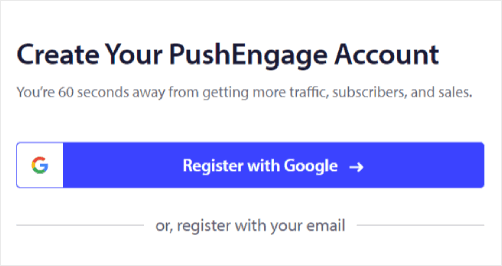
次に、PushEngageアカウントを作成します。メールアドレスまたはGmail IDでサインアップすることから始めます。
次に、アカウントの詳細を入力します。
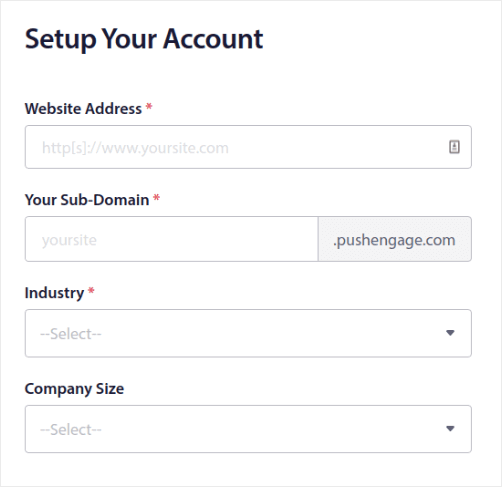
そして、プランを購入するためにクレジットカード情報を追加します。
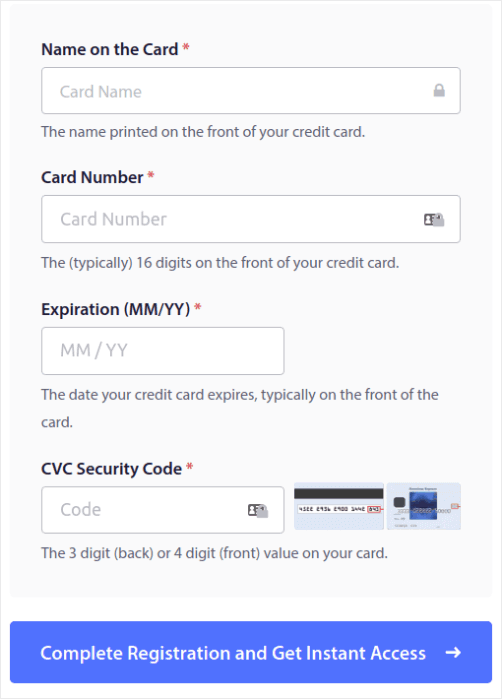
無料アカウントを選択した場合、プランをアップグレードすることを選択するまで、クレジットカードに請求されることはありません。これで、PushEngageダッシュボードにアクセスする準備が整いました。 登録を完了してすぐにアクセスをクリックするだけです。
以前にOneSignalやPushAlertを使用したことがある場合、PushEngageはダッシュボードからよりクリーンなエクスペリエンスを提供することがわかります。OneSignalダッシュボードは高度なキャンペーン向けではありません。そのためには、OneSignalプラグインよりもAPIが必要になります。
Web アプリ iOS プッシュアラートキャンペーンをウェブサイトに追加する方法
まず、ウェブサイトから iOS プッシュアラートを設定しましょう。この背後にある考え方はシンプルです。ウェブサイトを、iOS および iPadOS プッシュ通知を送信できるシンプルな Web アプリに変換します。このアプローチは、Web アプリプッシュ通知の送信に最適です。
ステップ 1: Web プッシュ通知を送信するためにウェブサイトに Web アプリマニフェストを追加する
ウェブアプリマニフェストとは、誰かの携帯電話やコンピューターにインストールされたときに、ウェブサイトのガイドブックのように機能する特別なファイルだと考えてください。JSONという言語で書かれていますが、その部分は心配する必要はありません。
マニフェストファイルには、名前、説明、アイコン、色など、プログレッシブ Web アプリ (PWA) に関する重要な情報が含まれています。そのため、誰かがウェブサイトをホーム画面に追加したり、デバイスにインストールしたりすると、ブラウザはこのマニフェストを使用して、アプリがどのように表示され、動作すべきかを把握します。これにより、PWA プッシュ通知を送信できます。
たとえば、マニフェストは、ホーム画面やアプリドロワーでアプリに使用するアイコンをブラウザに指示するため、見栄えが良く認識しやすくなります。また、アプリの色とテーマを指定して、一貫性があり魅力的な外観を提供します。
さらに、マニフェストには、誰かがアプリを起動したときに開かれるURLが含まれています。このようにして、ブラウザはウェブサイトのどのページまたはセクションを最初に表示するかを知ることができます。
マニフェストファイルの作成は、面倒な作業を代行してくれるオンラインツールで迅速に行うことができます。この無料アプリマニフェストジェネレーターを使用して、数回のクリックとコーディングなしでウェブアプリマニフェストを構築することをお勧めします。
マニフェストが準備できたら、通常は「manifest.json」という名前を付けて、ウェブサイトのルートフォルダーにアップロードします。
要するに、ウェブアプリマニフェストは、人々がデバイスでウェブアプリを使用するときに、見た目と感触をちょうど良くするためのマニュアルのようなものです。ウェブサイト訪問者にとって優れたユーザーエクスペリエンスを作成するための不可欠な部分です。
典型的なマニフェストは、次のようなものになります。
{
	"name": "PushEngage",
	"short_name": "PushEngage",
	"start_url": "/",
	"display": "standalone",
	"theme_color": "#3b43ff",
	"background_color": "#ffffff",
	"icons": [
		{
			"src": "icon/icon-128x128.png",
				"sizes": "128x128",
				"type": "image/png"
		},
		{
			"src": "img/icon-192x192.png",
			"sizes": "192x192",
			"type": "image/png"
		},
		{
			"src": "img/icon-512x512.png",
			"sizes": "512x512",
			"type": "image/png"
		}
 	]
}
マニフェストファイルをウェブサイトサーバーのルートフォルダーに追加したら、ウェブサイトのHTMLヘッドにコードスニペットを追加する必要があります。スニペットは次のようになります。
<link rel="manifest" href="/manifest.json">WordPress を使用していて、このコード スニペットをサイトのヘッダーに追加する方法がわからない場合は、WPCode を使用してマニフェスト ファイルをアップロードできます。これは、WordPress の 最高のコード スニペット プラグインの 1 つです。
ステップ 2: WordPress サイトに PushEngage をインストールする
アカウントの作成は完了しました。したがって、PushEngage ダッシュボードにアクセスして、手順に従ってください。
注意: WordPress サイトを実行していない場合は、他のインストールガイドを確認してください。

サイト設定 » サイト詳細をクリックし、セットアップ手順はこちらをクリックボタンをクリックしてください:

WordPressタブをクリックし、PushEngage WordPressプラグインをインストールボタンをクリックして、ウェブサイトにプラグインをインストールしてください。

クールな点: PushEngage アカウントを作成したときに、すでにウェブサイトを PushEngage アカウントと同期しています。そのため、PushEngage ダッシュボードのインストールリンクをクリックして、PushEngage WordPress プラグインをウェブサイトに自動的にインストールしてください。
ステップ3:WordPressウェブサイトとPushEngageの接続
PushEngage WordPress プラグインのインストールと有効化が完了すると、PushEngage のオンボーディング ウィザードが表示されます。
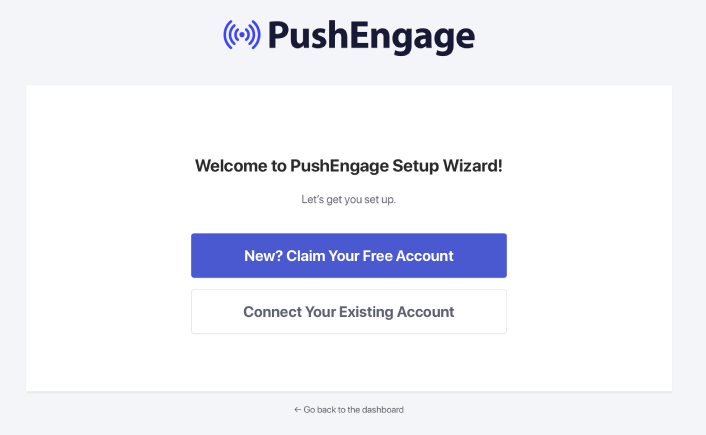
ウィザードは非常にわかりやすいです。新規ユーザーの場合は、新規?無料アカウントを請求をクリックしてください。すでにサインアップ済みの場合、既存のアカウントを接続をクリックしてください。
次に、サインアップ中にサイトを登録した場合、登録済みサイトを接続の下にあるサイトを選択ドロップダウンからサイトを選択できます:
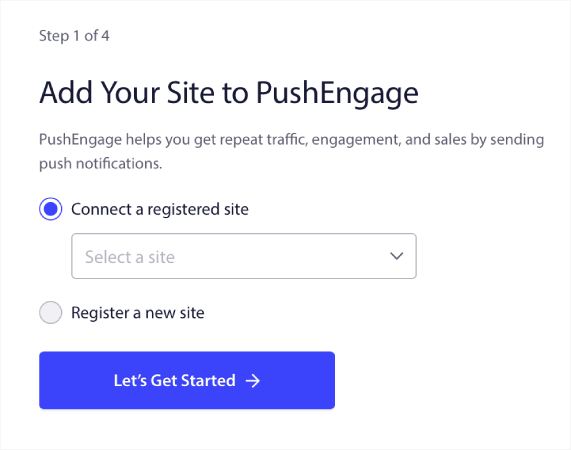
または、 プレミアムプラン以上をお持ちの場合は、新規サイトを登録をクリックして新しいサイトを追加できます。次のステップでは、オンボーディングウィザードが他の 必須のWordPressプラグインをインストールするように促します。
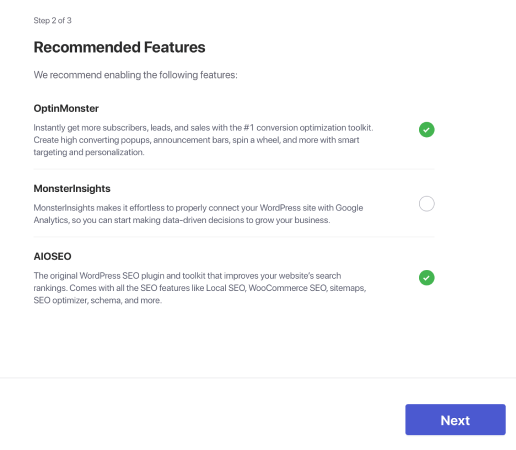
各ステップを正しく実行すると、ウィザードからこの成功メッセージが表示されます。
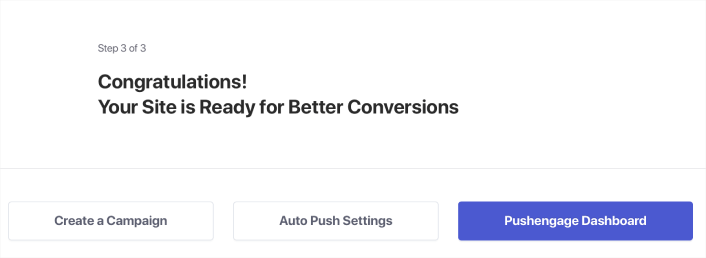
これで、キャンペーンやプッシュ通知ポップアップモーダルを作成する準備が整いました。
ステップ 4: ウェブサイトマニフェストをテストする
それでは、ウェブアプリをテストし、すべてがスムーズに動作していることを確認する手順を説明します。
まず、iPhone または iPad の Safari ブラウザを使用してウェブサイトを開きます。デバイスで iOS 16.4 以降を実行していることを確認してください。ウェブサイトが読み込まれると、上向きの矢印が付いた四角形の 共有 ボタンが表示されます。そのボタンをタップして共有メニューを開きます。
共有メニューで、ホーム画面に追加 というオプションを見つけるはずです。そのオプションをクリックしてください。
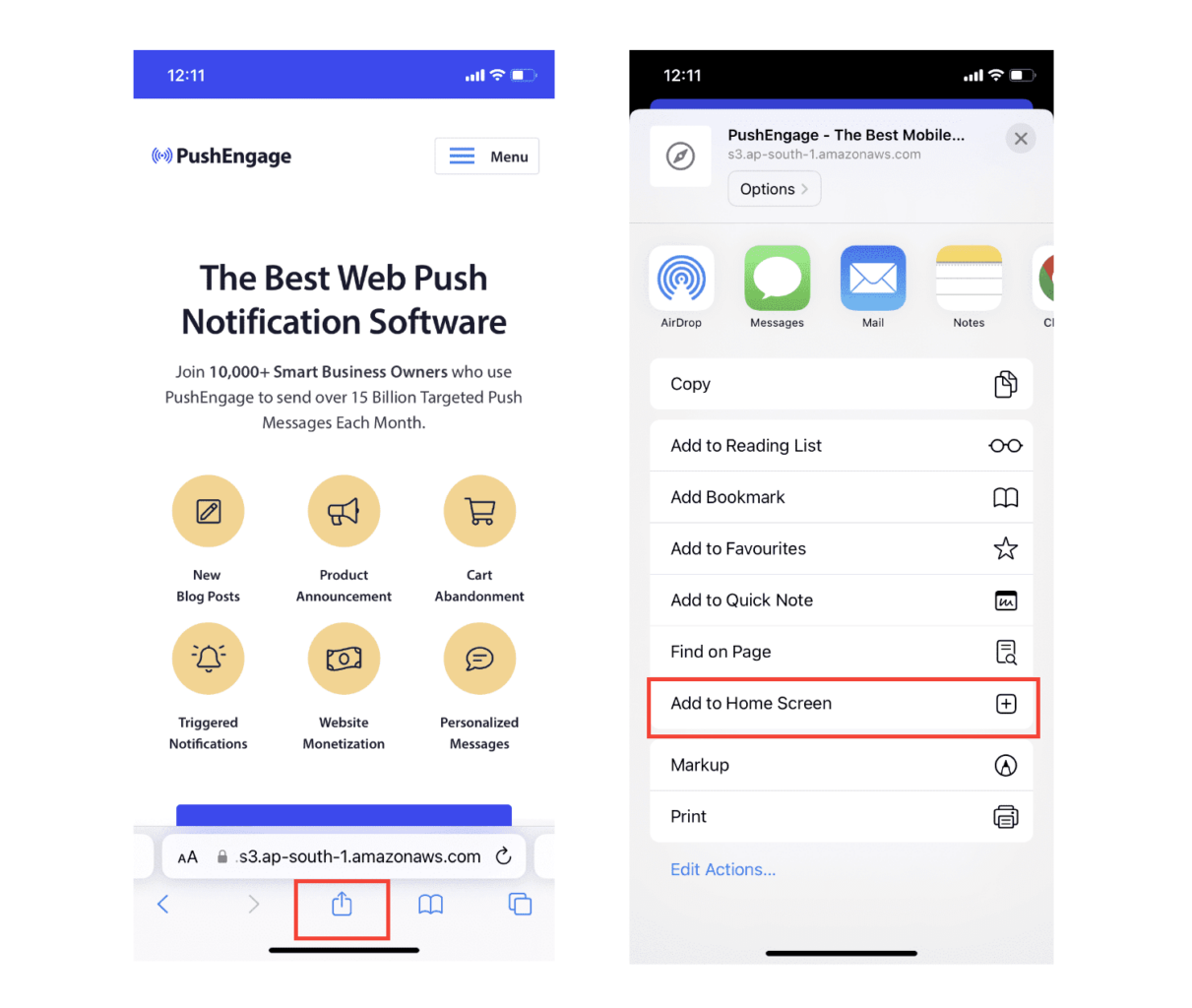
これで、App Store からダウンロードした他のアプリと同様に、ウェブアプリがデバイスの ホーム画面 に保存されます。
すべてが正しく設定されていれば、ホーム画面からアプリを開いても、Safari ブラウザでは開かなくなります。代わりに、iPhone または iPad で通常のアプリを使用しているような感覚になります。
ユーザーがアプリからウェブプッシュ通知を受信できることを知らせるには、画面にバナーを表示できます。このバナーは、アプリを ホーム画面 に追加してウェブプッシュ通知を購読するように促します。これは、ユーザーをアプリに引き付け、重要な更新情報を受け取るための便利な方法です。
したがって、これらの手順に従えば、iOS デバイスのユーザーにスムーズでアプリのようなエクスペリエンスを提供する準備が整います。プッシュ通知のテストに関する完全なチュートリアルについては、iOS ウェブプッシュ通知に関するドキュメントを確認してください。
モバイルアプリに iOS プッシュアラートキャンペーンを追加する方法
ネイティブ iOS アプリからモバイル iOS モバイルアプリプッシュアラートを送信する最も簡単な方法は、PushEngage iOS SDK を使用することです。これまで、アプリプッシュ通知を送信するためにスケルトン SDK を使用する必要がありました。これらの SDK を使用する問題は、非常に基本的なものであることです。
理論的には、それらを使用してあらゆる種類のモバイルアプリプッシュキャンペーンを送信できます。しかし、それには以下を構築する必要があります。
- キャンペーンを管理するためのインターフェース
- キャンペーンパフォーマンスを追跡するための分析スイート
- リッチメディアおよびアプリ内リダイレクトリンク(またはディープリンク)のより良いサポート
- マーケティングチームと開発チームの両方を連携させるプロセス
すべては、単一の成長チャネルを導入するためです。古いツールを使用してモバイルアプリのプッシュ通知を送信することは、面倒で、高価で、リソースを大量に消費し、時間がかかります。そしてもちろん、構築したすべてを開発および管理するには、チームに深いコーディングスキルが必要です。
PushEngageのAndroidおよびiOS SDKを使用すると、同じ信頼性の高いソフトウェアを使用してモバイルアプリプッシュを送信し、優れた配信率を実現できます。しかし、アプリとのカスタム統合を非常に簡単に構築できる、いくつかのレイヤーをその上に構築しました。そして、PushEngageはSDK全体を管理します。そのため、統合の管理に多大な時間とお金を費やす必要さえありません。
あなたがする必要があるのは、構築することだけです!
PushEngageのSDKを使用してモバイルアプリプッシュ通知を送信するようにアプリを設定すると、PushEngageダッシュボードから直接ブロードキャスト通知を送信できます。はい、アプリにコードを追加し、アプリとPushEngage API間のコネクタを開発する必要があります。しかし、それが完了すれば、次のような、あらかじめ構築されたソフトウェアインターフェイスからモバイルアプリプッシュキャンペーンを簡単に作成できます。
- エンゲージメントの高いプッシュキャンペーンタイプ
- コンバージョン率の高い実績のあるキャンペーンテンプレート
- 公開するたびにコンテンツを宣伝するための自動キャンペーン
- 複数のターゲティングおよびキャンペーンスケジュールオプション
- 補完的な成長チャネルとしてのWebプッシュキャンペーン
- データに基づいたパーソナライゼーションを使用したオーディエンス維持率の向上
- 目標追跡と高度な分析
- スマートA/Bテスト
- 専任のサクセスマネージャー
その他多数。PushEngage は、アプリの Android および iOS モバイルプッシュキャンペーンの開発から手間を省きます。
PushEngageでのiOSアプリプッシュ通知の設定方法に関する詳細なステップバイステップガイドを作成しました。すぐにiOSアプリプッシュアラートの送信を開始するには、そちらをご確認ください。
iOSアプリにプッシュ通知を追加する
ここに、PushEngage iOS SDK 1.0を使用した実際の統合を示します。iOS 12以上、Xcode 15以上、PushEngageダッシュボードにアップロードされたAPNsキー(APNs証明書とキーの説明で5分でカバーします)、そして午後一杯の時間が必要です。SDKは2つのモジュールとして出荷されます:アプリターゲット用のPushEngageと通知拡張ターゲット用のPushEngageExtensionです。この配線が完了すると、キャンペーンはダッシュボードに移行し、エンジニアリングチケットではなくなります。
ステップ1:パッケージを追加する
Xcodeで、**File → Add Package Dependencies**に移動し、リポジトリURLを入力するか、CocoaPodsを使用します:
# Swift Package Manager
https://github.com/awesomemotive/pushengage-ios-sdk

# CocoaPods
target 'YourApp' do
  pod 'PushEngage', '~> 1.0.0'
end
target 'YourNotificationServiceExtension' do
  pod 'PushEngageExtension', '~> 1.0.0'
end
ステップ2:App Groupを設定する
App Groupsケーパビリティをアプリターゲットとすべての通知拡張ターゲットに追加し、同じグループIDを使用し、各ターゲットのInfo.plistに宣言します:
<key>PushEngage_App_Group_Key</key>
<string>group.com.yourcompany.yourapp</string>
アプリとその拡張機能は、このコンテナを通じてサブスクライバーステートを共有します。これをスキップするのは、最も一般的な統合ミスです。これがないと、拡張機能は配信ごとに空白で起動します。
ステップ3:初期化と権限の要求
import PushEngage

@main
class AppDelegate: UIResponder, UIApplicationDelegate {
    func application(_ application: UIApplication,
                     didFinishLaunchingWithOptions launchOptions: [UIApplication.LaunchOptionsKey: Any]?) -> Bool {
        PushEngage.setAppID(id: "YOUR_APP_ID")
        PushEngage.setInitialInfo(for: application, with: launchOptions)
        return true
    }
}

// Later, at a value moment — not on first launch:
PushEngage.requestNotificationPermission { granted, error in
    if granted { /* subscribed */ }
}この権限呼び出しをどこに配置するかは、このセクションの他のどの行よりも重要です。iOSはインストールごとに正確に1つのネイティブプロンプトを付与します。権限プライミングガイドでは、それを保護するソフトアスクパターンについて説明しています。
リッチプッシュ:画像、ボタン、サウンド
リッチメディアにはNotification Service Extensionが必要です。これは、各通知をインターセプトして表示前にメディアを添付する小さなターゲットです。Xcodeでターゲットを追加し、PushEngageExtensionをそれにリンクし、2つのライフサイクル呼び出しを転送します:
import PushEngageExtension

class NotificationService: UNNotificationServiceExtension {
    override func didReceive(_ request: UNNotificationRequest,
                             withContentHandler contentHandler: @escaping (UNNotificationContent) -> Void) {
        PushEngageExtension.didReceiveNotificationExtensionRequest(request,
                                                                   bestContentHandler: contentHandler)
    }

    override func serviceExtensionTimeWillExpire() {
        // hand back the best content prepared so far
    }
}
ここから、リッチメディアはダッシュボード機能になります。マーケティングチームはキャンペーンを作成するときに製品画像を添付し、拡張機能がそれをレンダリングします。キャンペーンごとのアプリの変更はありません。
ユーザーを特定し、属性を添付する
// Identify the signed-in user (12 predefined fields supported)
PushEngage.identify(fields: [
    "first_name": "Priya",
    "email": "[email protected]",
    "profile_id": "user-42",
    "city": "Austin"
]) { success, error in }

// Attach custom attributes for segmentation
PushEngage.addSubscriberAttributes([
    "favorite_category": "outerwear",
    "loyalty_tier": "gold"
]) { success, error in }

// On sign-out, clear PII but keep the anonymous subscription
PushEngage.logout(fieldNames: nil) { success, error in }
変更されていないデータで識別呼び出しを繰り返すと、ローカルでショートサーキットされるため、起動ごとに呼び出すのは安全です。属性が流れ始めると、テキサス州のゴールドティアのアウターウェアショッパーのようなセグメントは、データリクエストではなく、ダッシュボードに保存されたオーディエンスになります。
ディープリンク:すべてのタップを正しい画面に着地させる
PushEngage.setNotificationOpenHandler { result in
    // actionID is nil when the SDK already opened the URL itself
    guard let deepLink = result.notificationAction.actionID else { return }
    DispatchQueue.main.async {
        router.navigate(to: deepLink)   // e.g. myapp://cart
    }
}ハンドラーを一度設定し、各キャンペーンが持つディープリンクでルーティングします。マーケターはリンクをキャンペーンフォームに貼り付けます。ハンドラーがナビゲーションを行います。ユニバーサルリンクを含む完全なパターンは、ディープリンクガイドに記載されています。
アプリイベントからキャンペーンをトリガーする
PushEngage.trackEvent(name: "cart_updated",
                      properties: ["cart_value": 89.50, "item_count": 2],
                      profileId: currentUserId,
                      provider: nil, eventType: nil) { _, _ in }
trackEvent コールは、放棄されたカート、完了したオンボーディングステップ、閲覧したカテゴリなど、あらゆるアプリ内行動をキャンペーンのトリガーに変換します。イベントを一度計測すれば、マーケティング担当者はキャンペーンを無期限に反復できます。イベントトリガーキャンペーンガイドには、カート、オンボーディング、ウィンバックの配線が含まれており、セットアップドキュメントには、その後のすべてのダッシュボード画面が記載されています。
キャンペーンをパーソナライズする方法
キャンペーンを作成する前に、セグメントとオーディエンス グループを設定して、パーソナライズされた プッシュ メッセージを送信する必要があります。
プッシュ通知購読者向けのセグメントとオーディエンスグループを作成することで得られるパーソナライゼーションのレベルを超えるものはありません。 PushEngage » オーディエンスにアクセスし、すぐにセグメントとオーディエンスグループの作成を開始してください。
セグメントタブの下で、新しいセグメントを作成したり、既存のセグメントを編集したりできます:
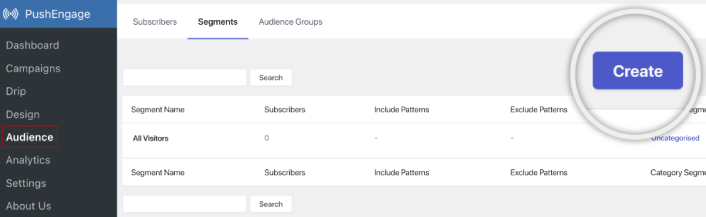
さらに深いパーソナライゼーションが必要な場合は、オーディエンスグループタブでオーディエンスグループを作成してください:
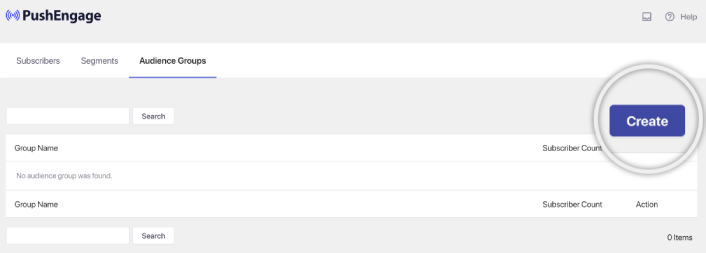
プッシュ通知セグメントとパーソナライズされたプッシュ通知が初めての方は、セグメントの作成方法に関する記事と、高度なオーディエンスグルーピングに関する発表をご覧ください。
最もクールな点は、iOS および iPadOS ユーザーのみの オーディエンス グループを作成することで、ターゲットを絞ったプッシュ キャンペーンを作成できることです。
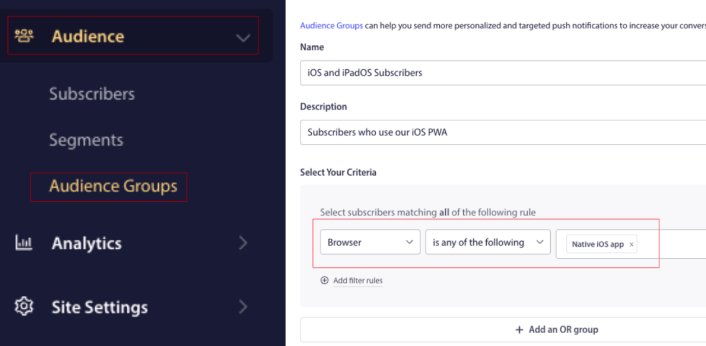
そして、このオーディエンス グループをドリップ キャンペーンやブロードキャストに使用できます。
プッシュ通知ドリップ キャンペーンの作成方法
PushEngage ダッシュボードに移動し、キャンペーン » ドリップ自動応答 に進み、新しいドリップ自動応答を作成 をクリックします。

次に、キャンペーンに名前を付け(「ウェルカムドリップ」のような名前をお勧めします)、コンテンツの下で、「ユーザー登録直後に通知を送信」というオプションを選択します。

この時点で、通知の横にある矢印をクリックして、通知の内容を編集できます。
PushEngageのプレミアムまたはエンタープライズプランをご利用の場合、複数の通知を追加して一連の自動ウェルカムメッセージを作成できます。新しい通知を追加をクリックしてコンテンツを編集するだけです。
完了したら、ドリップ設定をクリックし、ウェルカムキャンペーンをすべての購読者に送信するオプションを選択します。

次に、下にスクロールして独自のUTMパラメータを設定し、プッシュ通知を追跡します。
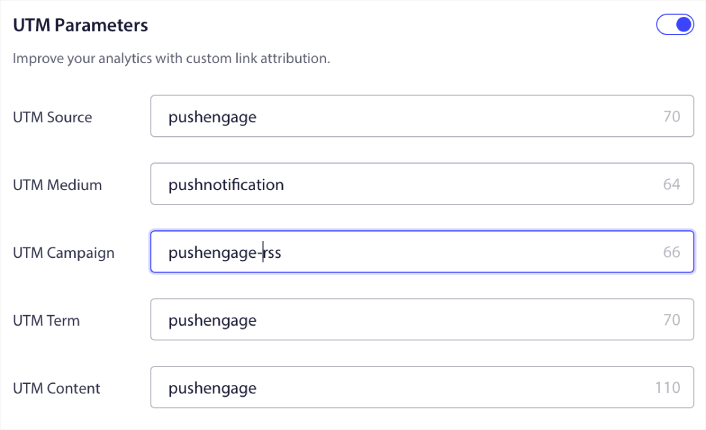
完了したら、上にスクロールして戻り、自動応答を有効にするボタンをクリックします。

これで完了です!
iOSウェブプッシュブロードキャストの送信方法
「PushEngageダッシュボード」にアクセスし、「Campaign » Push Broadcasts」に移動して、「Create a New Push Broadcast」ボタンをクリックします。
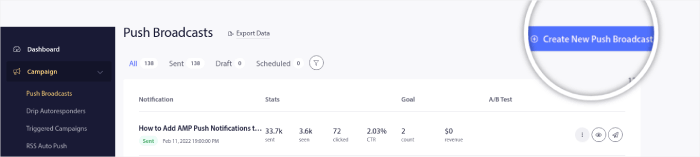
「Content」タブで、プッシュ通知のコンテンツを追加します。
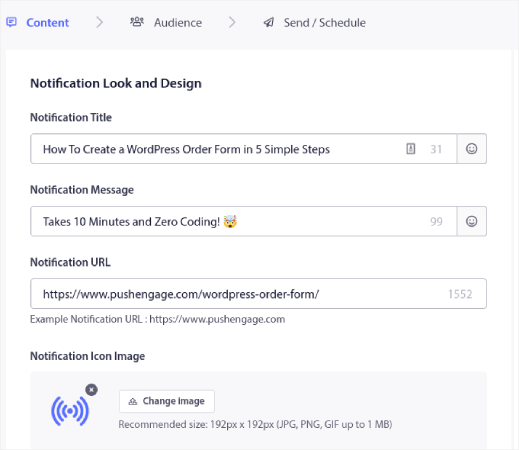
また、クリック率を向上させるためにA/Bテストを設定したり、より多くの表示回数を獲得するためにプッシュブロードキャストをスケジュールしたりすることもできます。いずれの場合も、最良の結果を得るために、プッシュ通知のベストプラクティスを確認してください。
iOSプッシュ通知ポップアップモーダルの作成方法
プッシュ通知ポップアップモーダルとは、ウェブサイト訪問者にメッセージや通知を表示するために、ウェブサイトまたはモバイルアプリのインターフェイスの上に表示される小さなウィンドウのことです。
ポップアップモーダルは、さまざまなイベントによってトリガーされる可能性があります。ページ訪問時、スクロール深度時、さらにはボタンクリックのようなカスタムアクション時にトリガーされるようにポップアップを設定できます。
通常、ポップアップモーダルには、「購読」や「許可」などの行動喚起が表示され、訪問者からプッシュ通知を送信することへの同意を得ます。このチュートリアルに従えば、次のようなポップアップを作成できます。
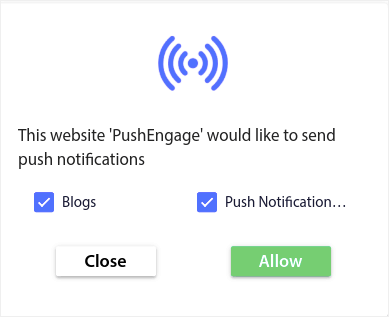
登録者を直接セグメント化できるポップアップモーダルを作成したり、ジオロケーションやブラウザなどのデフォルト属性で登録者を収集するだけの通常のポップアップを作成したりできます。
WordPressダッシュボードに戻ります。PushEngage » デザインに移動します。
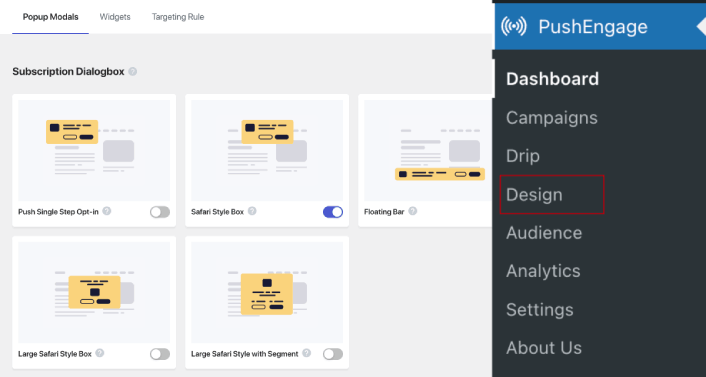
そして、好きなだけ多くのポップアップモーダルを作成できます。もちろん、各ポップアップモーダルの表示オプションの下で、異なる時間にトリガーされるようにすることができます。
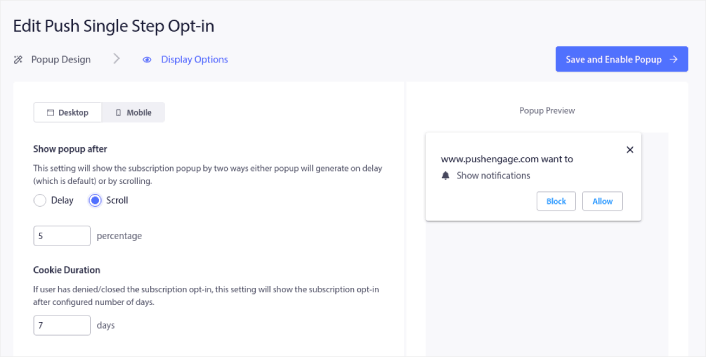
ここでのアイデアは、訪問者に購読する確かな理由を与えることです。そのためのヘルプが必要な場合は、カスタムプッシュ通知オプトインを作成する方法 に関する記事を確認してください。
よりターゲットを絞ったポップアップモーダルを作成したい場合は、ターゲティングルールタブの下にあるターゲティングルールを使用できます。
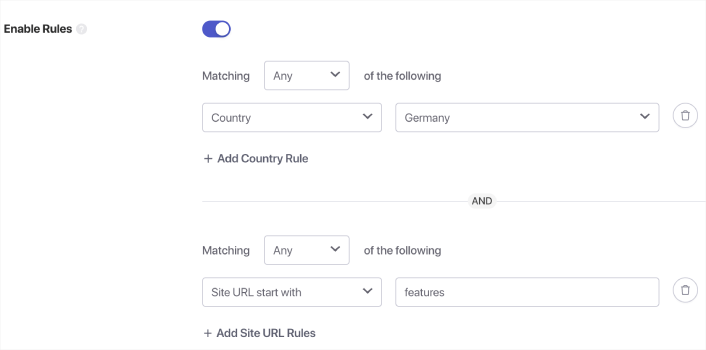
これらはグローバルなターゲティングルールであり、個々のポップアップモーダルのターゲティングルールよりも優先されます。ただし、必要に応じて、それらを編集することで、各モーダルに堅牢なターゲティングルールを作成できます。
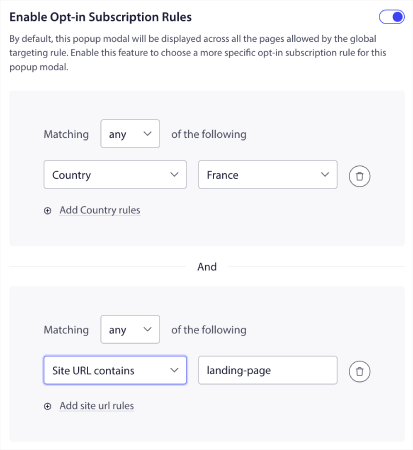
たとえば、さまざまな国の訪問者をターゲットにするために、さまざまな言語でポップアップモーダルを作成できます。
開始するためにクリック率の高いテンプレートが必要な場合は、コンバージョン率の高いプッシュ通知オプトイン に関するこの記事を確認してください。
iOSプッシュアラートを送信する前にやること
ほぼ完了です。
iOSおよびiPadOSのウェブプッシュ通知の送信を開始する前に、ウェブサイトでサブスクリプションのオプトインを設定する必要があります。このオプトインにより、ウェブサイト訪問者をプッシュ通知購読者に転換します。したがって、これは重要な要素です。
インスピレーションが必要な場合は、コンバージョン率の高いプッシュ通知オプトインに関するこの記事を確認できます。オプトインの設定が完了したら、サイトは登録者情報を収集できます。しかし、オプトインが正常に機能していることをどのように確認しますか?
したがって、賢明なのは、ウェルカムプッシュ通知を設定することです。
ヒント: 本格的なプッシュ通知のテストに時間をかけるべきです。これにより、最も一般的な問題がトラブルシューティングされ、後で問題を解決しようと時間を無駄にすることはありません。
iOSプッシュアラートを送信した後にやること
今回は以上です、皆さん!
この記事がお役に立った場合は、ぜひ下記のコメント欄にご記入ください。
プッシュ通知の開始は intimidating に見えるかもしれません。しかし、目標追跡と分析に注意を払っていれば、大丈夫なはずです。さらに重要なのは、プッシュ通知キャンペーンの助けを借りて、より多くの利益を得られることです。開始に役立つクールなリソースをいくつか紹介します。
- リターゲティングプッシュ通知を使用して収益を2倍にする方法
- プッシュ通知の並べ替え方法と、成果の出るキャンペーンの見つけ方
- プッシュ通知購読者リストをクリーンアップする方法(簡単)
- RSSプッシュ通知を自動送信する方法
- プッシュ通知を使用してニュースサイトを宣伝する方法
- クロスセルプッシュ通知を使用して売上を2倍にする方法
- 閲覧放棄プッシュ通知の使用方法(4つのステップ)
プッシュ通知が初めての場合は、PushEngageを試してみてください。戦略をさらに深く理解するには、アプリプッシュマーケティングガイドを読むのが自然な次のステップです。PushEngageは市場でNo.1のプッシュ通知ソフトウェアです。キャンペーンは安全な手に委ねられます。
ですので、まだの場合は、今すぐPushEngageを使い始めましょう!


