Webflowプッシュ通知を追加する簡単な方法をお探しですか?
それは本当に素晴らしいアイデアです。Webflowは、インスタントウェブサイトを作成できる強力なウェブサイトビルダーです。ウェブサイトを作成して、製品やサービスを販売を開始するのは非常に簡単です。
しかし、サイトが公開されたら、どのようにトラフィックを獲得しますか?エンゲージメントをどのように構築しますか?どのようにすれば、より多くの売上を上げることができますか?
そこで、プッシュ通知は、有料広告を実行することなくリピートトラフィックと売上を生成できるため、マーケティングツールとして非常に効果的です。また、最小限の労力でエンゲージメントと売上を向上させる自動キャンペーンを作成することもできます。
しかし、やっかいなのは、Webflowプッシュ通知の追加方法を示す記事がほとんどないことです。
心配しないでください!この記事では、Webflowサイトにプッシュ通知を10分未満で追加する方法をステップバイステップでご紹介します。
さあ、始めましょう。
Webflowプッシュ通知のインストール方法
Webflowサイトにプッシュ通知を追加するのは非常に簡単です。この記事の手順に従ってください。すべての手順に従えば、この記事の終わりまでには、このようなプッシュ通知を送信できるようになります。
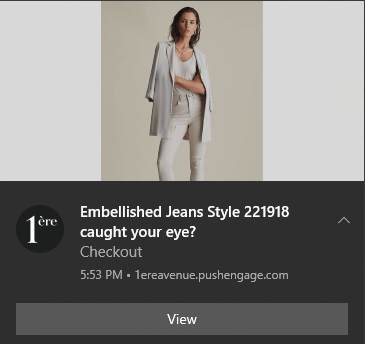
始めましょう!
ステップ1:PushEngageアカウントの設定
PushEngageのホームページにアクセスし、開始するボタンをクリックします。

PushEngageを無料で試すことができます。リピートトラフィックとエンゲージメントが必要な小規模ブログを運営している場合は、おそらくそれで十分でしょう。しかし、売上を真剣に考えている場合は、エンタープライズパッケージを取得して、自動キャンペーンのロックを解除する必要があります。
PushEngageアカウントにサインアップしたら、PushEngageダッシュボードにアクセスし、サイト設定 » サイト詳細に移動してください。

ここでロゴ、サイト名、サイトURLを設定できます。後で全体のセットアップをテストできるように、これらの項目を今すぐ整理することが非常に重要です。
ステップ2:PushEngageからインストールコードを取得する
プッシュ通知をインストールするには、インストールコードを取得する必要があります。サイト設定画面で下にスクロールし、セットアップ手順はこちらボタンをクリックしてください。

次に、どのサイトでもタブをクリックしてください。

そして、Javascriptコードスニペットをコピーします。これはすぐに必要になります。
ステップ3:Webflowプッシュ通知のインストールコードを配置する
Webflowダッシュボードにログインし、サイトビルダーでAを押して追加パネルを開き、埋め込み要素を追加します。
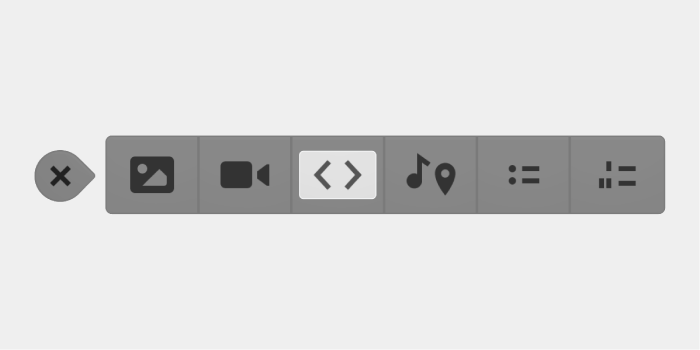
次に、PushEngageダッシュボードから取得したコードスニペットを貼り付けるだけです。通常、Google Analyticsコード、Facebook Pixel、その他のトラッキングコードもここに配置します。完了したら、保存をクリックします。
ステップ4:PushEngageオプトインを設定する
次に、PushEngageダッシュボードに戻ります。Design » Popup Modalsに移動し、希望するオプトインを選択します。
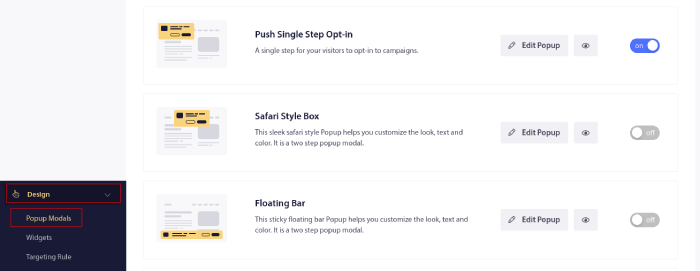
ここでのアイデアは、訪問者に購読する確かな理由を与えることです。そのためのヘルプが必要な場合は、カスタムプッシュ通知オプトインを作成する方法 に関する記事を確認してください。
そして、開始するためのテンプレートが必要な場合は、コンバージョン率の高いプッシュ通知オプトインに関するこの記事を確認してください。
ステップ#5:最初のキャンペーンを作成する
これでWebflowサイトからプッシュ通知を送信できるようになりました。実際のキャンペーンを作成しましょう。
Webflowは、実際には軽々しく扱われる無料のサイトビルダーではありません。カスタムWeb開発のための高度なビルダーです。したがって、ランディングページで製品を販売する可能性が高いでしょう。もしそうなら、ストアのために放棄されたカートのリマインダーを必ず設定してください。
放棄されたカートキャンペーンは、放棄されたカートをコンバージョンさせることで追加の収益を生み出すのに役立ちます。これは、自動パイロットで多くの製品を販売する簡単なリマインダーです。したがって、直接販売をもたらすランディングページをサポートするのに最適なキャンペーンです。
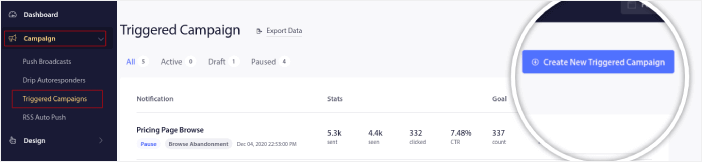
PushEngageダッシュボードにアクセスし、「キャンペーン」>「トリガーキャンペーン」>「新しいトリガーキャンペーンを作成」に移動するだけです。
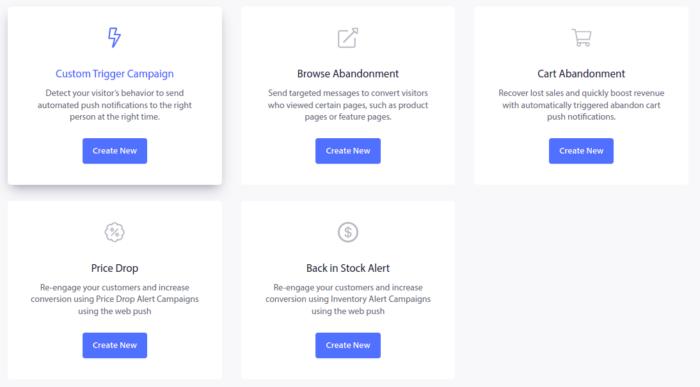
次に、「カート放棄」キャンペーンテンプレートを選択します。
自動マーケティングキャンペーンの作成が初めての場合は、放棄されたカートプッシュ通知キャンペーンの設定方法に関する記事に従うことができます。すべての手順に従えば、次のようなプッシュ通知を設定できます。
そして、念のためお伝えしておきますが、プッシュ通知キャンペーンが効果的であるために、あなたが有名ブランドである必要はありません。実際、PushEngageは中小企業がプッシュ通知を使用して成長するのを支援するために構築されました。
しかし、サイトのマーケティングを開始する前に、プッシュ通知の購読プロセスに問題がないか確認してください。プッシュ通知のテストに関するこの記事をご覧ください。すべてが完璧に機能していれば、完了です!
Webflowプッシュ通知を追加した後、何をすべきか?
今回は以上です、皆さん!
Webflowサイトにプッシュ通知を追加しました。次に、成長を促進するための強力なプッシュ通知キャンペーンを作成しました。すべて、10分未満で完了しました!
他の自動プッシュ通知キャンペーンの作成方法もご覧ください。ほとんどのプッシュキャンペーンはシンプルで効果的です。そのため、サイトに複数のキャンペーンを設定することをお勧めします。以下に、開始するのに最適なキャンペーンをいくつか紹介します。
まだ始めていない場合は、PushEngageを使い始めましょう。PushEngageは世界No.1のプッシュ通知ソフトウェアです。したがって、あなたのキャンペーンは安全な手に委ねられています。


