機能するプッシュ通知アクションボタンを簡単に追加する方法をお探しですか?
最大の課題は、プッシュ通知にボタンを追加することではありません。最も難しいのは、クリックを獲得できるボタンを作成することです。ウェブサイトとは異なり、魅力的なボタンを作成するための文字数に制限はありません。
したがって、ボタンはシンプルで、関連性があり、焦点を絞ったものにする必要があります。
この記事では、複数のプッシュ通知アクションボタンを追加する方法、クリックのために最適化する方法、そしてそれらを使用するためのいくつかのクールな方法を紹介します。そして、はい、実際の例もいくつか紹介します。
さあ、始めましょう。
複数のプッシュ通知アクションボタンを追加する方法
始める前に、プッシュ通知を送信するためにプッシュ通知サービスを選択するのが常に最善です。適切なプッシュ通知サービスを使用すると、ほとんどまたはまったくコードなしで強力なキャンペーンを簡単に作成できます。
Firebase Cloud Messaging(FCM)を使用してプッシュメッセージを送信していた場合は、すぐに切り替える時期です。FCMがあなたにとって最良の選択肢ではない理由をより深く理解するためにこの記事を確認してください。
プッシュ通知を作成および送信するには、PushEngageを使用することをお勧めします。

PushEngageは、世界No.1のプッシュ通知サービスです。
プッシュ通知は、ウェブサイトのトラフィックとエンゲージメントを自動で増やすのに役立ちます。オンラインストアを運営している場合は、PushEngageが自動eコマースプッシュ通知の作成を支援することで、売上を伸ばすのにも役立ちます。
無料で開始できますが、ビジネスの成長に真剣に取り組んでいる場合は、有料プランを購入する必要があります。また、プッシュ通知サービスを購入する前に、プッシュ通知のコストに関するこのガイドを確認してください。
PushEngageで得られるものを簡単に見てみましょう。
- コンバージョン率の高い自動キャンペーン
- 複数のターゲティングおよびキャンペーンスケジュールオプション
- 目標追跡と高度な分析
- スマートA/Bテスト
- 専任のサクセスマネージャー
ビジネスのトラフィック、エンゲージメント、売上を伸ばしたいのであれば、PushEngageが断然最良の選択肢であることがわかるでしょう。予算が限られている場合は、プッシュ通知で少しクリエイティブになることもできます。
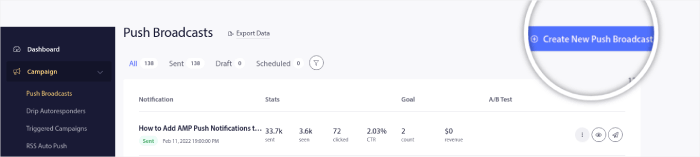
「PushEngageダッシュボード」にアクセスし、「Campaign » Push Broadcasts」に移動して、「Create a New Push Broadcast」ボタンをクリックします。
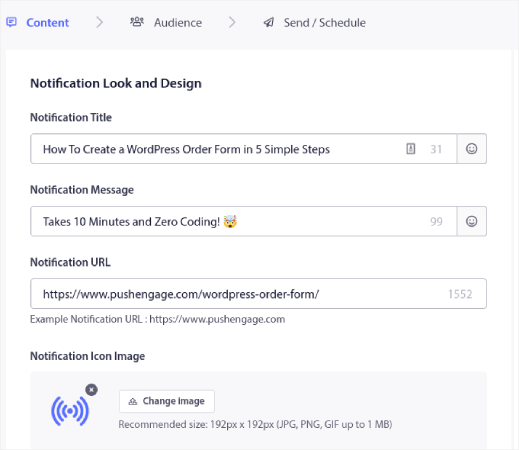
「Content」タブで、プッシュ通知のコンテンツを追加します。
次に、下にスクロールして**マルチアクション通知**を有効にします。
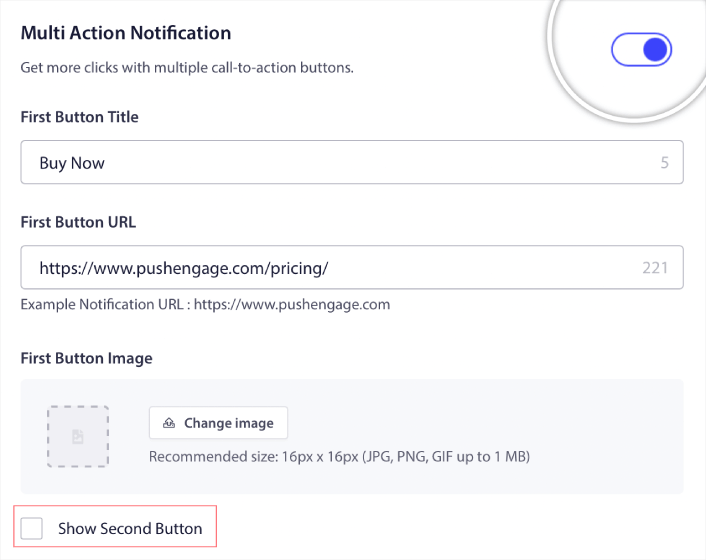
セカンドボタンを表示オプションをクリックして、2番目のプッシュ通知アクションボタンを作成できます。
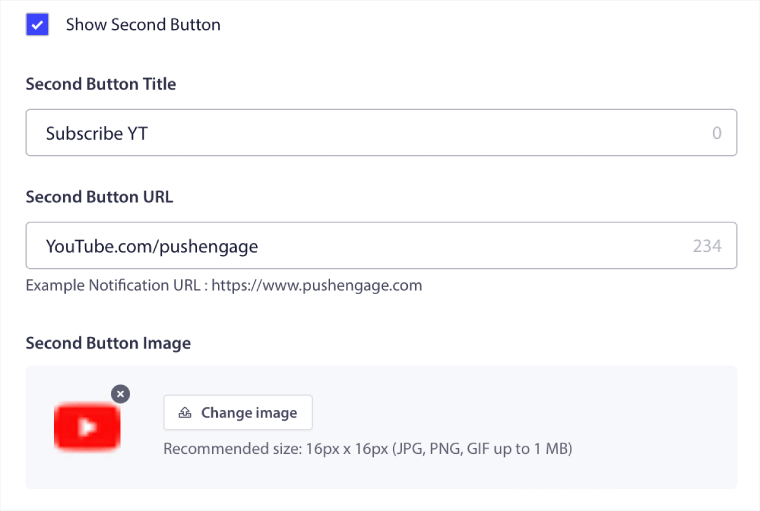
ボタンのラベルには12文字しか使用できないため、魅力的なコピーを書くのが難しい場合があります。
たとえば、プッシュ通知購読者にメールニュースレターやYouTubeチャンネルを購読するように依頼できます。しかし、多くの単語を使用せずに購読するものを知らせるにはどうすればよいでしょうか?クールなハックは、ボタン画像を使用してボタンにコンテキストを追加することです。
最大2つのプッシュ通知アクションボタンしか使用できません。そのため、両方を有効活用する必要があります。通知を送信する前に、プッシュキャンペーンで何を達成したいのかを明確にしてください。より良い結果を得る簡単な方法は、ドリッププッシュ通知を使用することです。
PushEngageでは、ドリップキャンペーン用のプッシュ通知アクションボタンも作成できます。これにより、ターゲットを絞ったプッシュ通知を送信して、的を絞った結果を得ることができます。
それでは、プッシュ通知アクションボタンを使用するクールな方法をいくつか見てみましょう。
プッシュ通知ボタンを使用してトラフィックを増やす方法
ブログ、ニュースサイト、または代理店のサイトを運営している場合、リピートトラフィックは非常に重要です。唯一の問題は、プッシュ通知アクションボタンのクリックを獲得することです。
メールでできるようなパワーワードをボタンのコピーに使用することはできません。
では、どうすればよいでしょうか?
プッシュ通知のアクションボタンを使用してクリックできるオプションを増やすことは、リピートトラフィックを増やす簡単な方法です。たとえば、eコマースサイトを運営している場合、おそらく閲覧放棄キャンペーンを使用するでしょう。1つのボタンで訪問者に購入を完了するように促し、別のボタンでカテゴリページを閲覧するように促すことができます。
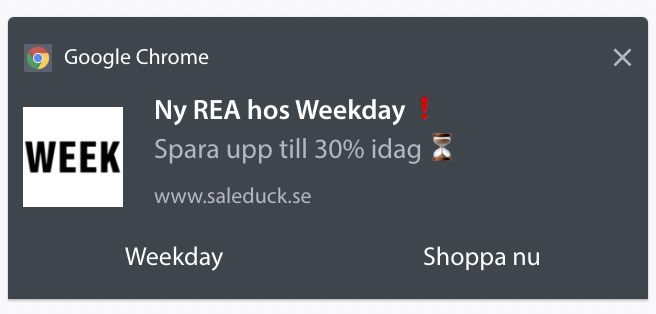
2つのオプションを提供することで、訪問者がサイトをクリックする可能性がはるかに高くなります。
ポップアップにクリックして購読するボタンを追加する方法
プッシュ通知は、ウェブサイトのトラフィックとエンゲージメントを自動で増やすのに役立ちます。オンラインストアを運営している場合は、PushEngageが自動eコマースプッシュ通知の作成を支援することで、売上を伸ばすのにも役立ちます。
無料で開始できますが、ビジネスの成長に真剣に取り組んでいる場合は、有料プランを購入する必要があります。また、プッシュ通知サービスを購入する前に、プッシュ通知のコストに関するこのガイドを確認してください。
PushEngageで得られるものを簡単に見てみましょう。
- コンバージョン率の高い自動キャンペーン
- 複数のターゲティングおよびキャンペーンスケジュールオプション
- 目標追跡と高度な分析
- スマートA/Bテスト
- 専任のサクセスマネージャー
ビジネスのトラフィック、エンゲージメント、売上を伸ばしたいのであれば、PushEngageが断然最良の選択肢であることがわかるでしょう。予算が限られている場合は、プッシュ通知で少しクリエイティブになることもできます。
まず、OptinMonsterのサイドバーからポップアップにHTMLブロックを追加します。
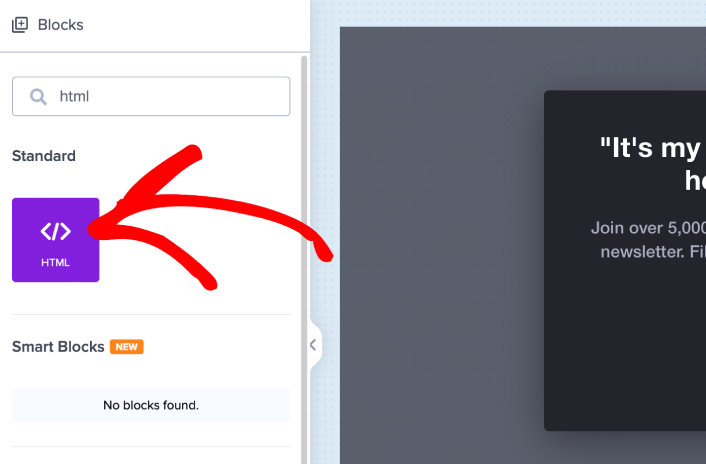
ここで、プッシュ通知購読者を収集するためのコードを追加します。まず、クリック可能なボタンを作成するために、次のコードを貼り付けます。
<button onclick="subscribeOnClickButton()" style="border: none; width: 100%; padding-left: 15%; padding-right:15%; text-align: center; display: inline-block; color: white;">Get Updates via Push Notifications</button>HTMLを追加できる場所にコードを貼り付けます。
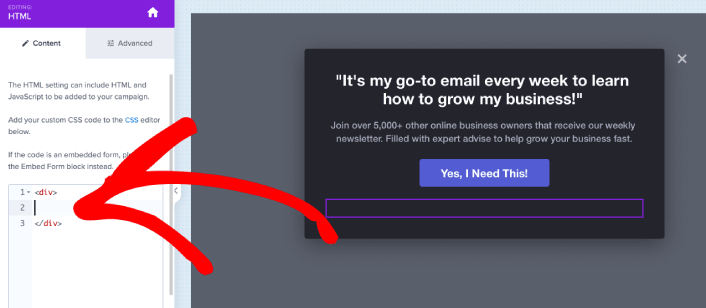
もちろん、スタイルを調整して、より魅力的に見せることもできます。次に、ボタンをクリックしたときにプッシュ通知購読者を収集するようにします。
PushEngageのホームページにアクセスし、開始するボタンをクリックします。

次に、PushEngage を試すために無料プランを選択するか、ビジネスの成長に真剣に取り組んでいる場合は有料プランを選択します。有料プランには、より多くのキャンペーンオプションと、さらに大きな購読者リストを構築する機能が付属しています。
あなたのPushEngageダッシュボードで、サイト設定 »サイト詳細に移動し、セットアップ手順を表示するにはここをクリックボタンをクリックします。「任意のサイト」の下に、インストールコードが表示されます。

警告:ダッシュボードから取得したコードをコピーする必要があります。コードはPushEngageユーザーごとに固有です。画像内のコードをコピーしてプッシュ通知購読者を収集することはできません。
PushEngageダッシュボードにコードが表示されたら、2番目のスクリプトを取得し、追加のコードをいくつか追加します。最終的なコードは次のようになります。
<script src="https://clientcdn.pushengage.com/core/02a6e92667ae2279fcba8932356c1d93.js" async></script>
<script> window._peq = window._peq || [];
function subscribeOnClickButton(){
window._peq.push(['subscribe',{}.pe,function(res){
console.log(res);
}]);
}
</script>
このコードを OptinMonster のHTML ブロックに、ボタンのコードの直後、<div></div> コードブロックの間に挿入すれば完了です!
プッシュ通知ボタンを使用して売上を増やす方法
売上はビジネスを存続させます。そして、プッシュ通知を使用して大量の追加売上を上げることができます。プッシュ通知のアクションボタンを使用して、より多くの売上を上げる方法を見てみましょう。
簡単なカート放棄キャンペーンを考えてみてください。ポイントは、顧客にカート内のものを購入してもらうことです。しかし、直接的なカート放棄キャンペーンを使用する代わりに、パーソナライズされたおすすめ商品を提供して、ストアを再訪してもらうこともできます。新しい商品をカートに追加して、実際に購入する可能性が高いです。
プッシュ通知セグメントを使用すると、非常に簡単に実行できます。そして、これが新しいアイデアのように聞こえる場合、それはそうではありません。何千ものお客様がすでにこのアイデアを使用しています。これはクロスセルと呼ばれます。
クロスセルプッシュ通知は、既存の顧客に販売する可能性が60〜70%高いため、売上を増やすのに役立ちます。PushEngageダッシュボードにアクセスし、Audience » Segmentsに移動してセグメントを作成してください。

特定のカテゴリの商品を訪問した際に、訪問者をセグメント化したいと思うでしょう。
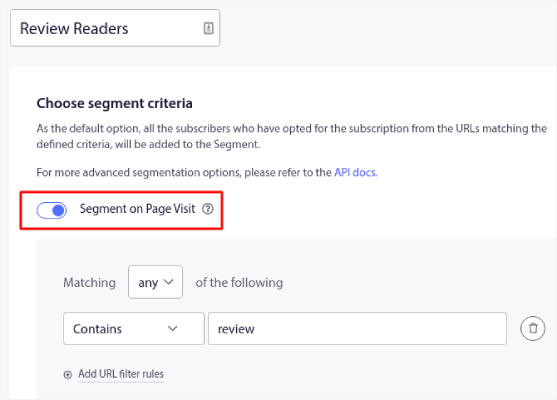
次に、各セグメントに商品をペアリングします。すべての顧客がまったく同じ商品に興味があるわけではありません。各顧客セグメントに興味のある商品を見つけたいと思うでしょう。
それが完了したら、ドリップ自動応答を作成して宣伝します。
PushEngageダッシュボードにアクセスし、Campaign » Drip Autoresponders » Create New Drip Autoresponder に移動します。
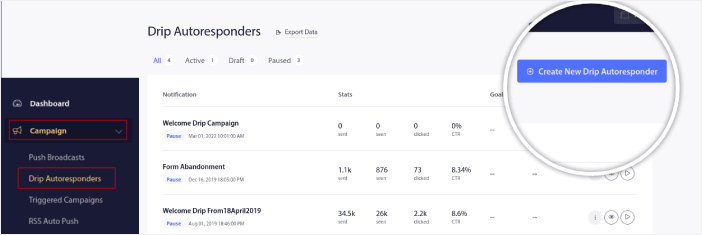
各セグメントに個別のドリップを作成してください。プッシュ通知に慣れていない場合は、素晴らしいキャンペーンのアイデアについては、eコマースプッシュ通知の使用方法に関する記事を確認してください。
プッシュ通知アクションボタンの使用方法を学んだ後に何をすべきか
今回は以上です、皆さん!
サイトのクリックして購読するボタンを作成したら、高度なセグメンテーションルールを確認する必要があります。
詳細なセグメントを作成すると、プッシュ通知を大幅にパーソナライズできます。これは、プッシュ通知キャンペーンからのエンゲージメント、クリック率、および売上の向上を意味します。開始するには、これらの素晴らしいリソースを確認してください。
プッシュ通知を初めて利用する場合は、PushEngageを試してみてください。PushEngageは、どこでも利用できる最も強力で柔軟なプッシュ通知キャンペーンを提供しています。ビジネスの成長に真剣に取り組んでいるなら、 今すぐPushEngageを始めましょう!


