ECサイトの在庫切れ通知を簡単に送信する方法をお探しですか?
ウェブサイトの訪問者があなたの製品を気に入って購入しようとしたが、在庫切れだったとしましょう。在庫が補充されたらすぐに、そのウェブサイトの訪問者に通知を送信する必要があります。これは、在庫切れ通知または在庫アラートとして知られています。
なぜか?簡単です。それは簡単なセールスです。その訪問者はすでにあなたの製品を気に入って購入しようとしました。したがって、彼らが間違いなく興味を持っていることはわかっています。簡単なプッシュ通知は、多くの追加の売上を生み出し、自動操縦でビジネスの収益を増やすことができます。
どのウェブサイトでも在庫切れ通知を簡単に設定できます。しかし、初めて行う場合はかなり混乱する可能性があります。
この記事では、10分以内に在庫切れ通知を設定する方法を説明します。
よろしいですか?
早速始めましょう!
PushEngageを使用して在庫切れ通知を作成する方法
在庫切れ通知の作成に飛び込む前に、知っておくべきことがあります。在庫アラートはかなり高度です。自分でキャンペーンを作成することはできますが、開発者にインストールしてもらう必要があるかもしれません。または、使い慣れている場合は、Googleタグマネージャーを使用してコードスニペットをトリガーできます。
ここでは、PushEngageを使用してサイトの在庫切れ通知を設定します。PushEngageは、世界で最高のプッシュ通知サービスです。
基本的な在庫アラートWebプッシュキャンペーンを作成する方法
PushEngageを使用して、基本的な在庫切れプッシュ通知キャンペーンから始めましょう。後で確認する高度な機能がいくつかあります。今のところ、在庫アラートがどのように機能するかという基本的なことを理解しましょう。
ステップ1:新しい在庫切れアラートを作成する
PushEngageダッシュボードに移動し、Campaign » Triggered Campaignsに移動して、Create New Triggered Campaignをクリックします。

次に、Back In Stock Alertsのテンプレートを選択し、Create Newをクリックします。
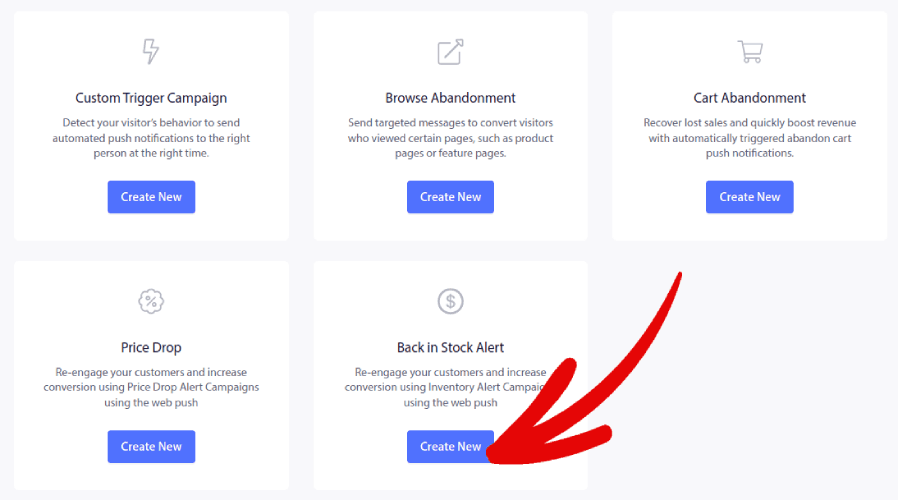
すると、次のようなキャンペーンを作成するための新しい画面が表示されます。
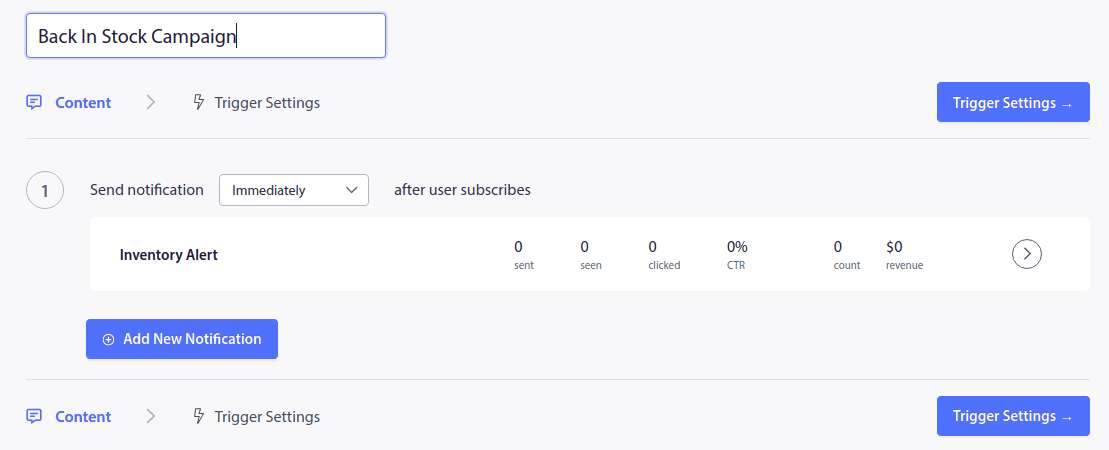
ステップ2:通知を作成する
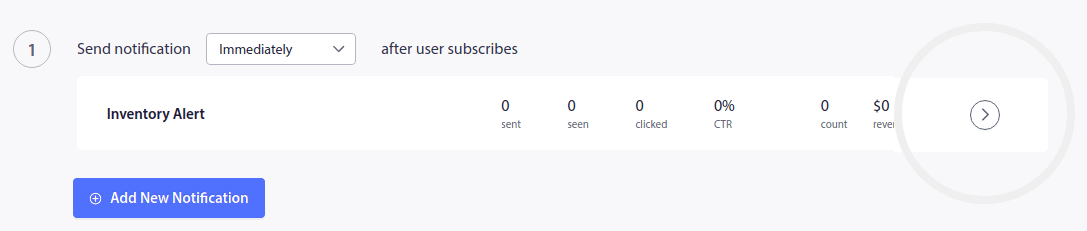
次に、最初の通知を作成するには、通知の横にある矢印をクリックします。
次に、Notification Look and Designの下でプッシュ通知のコピーを編集します。
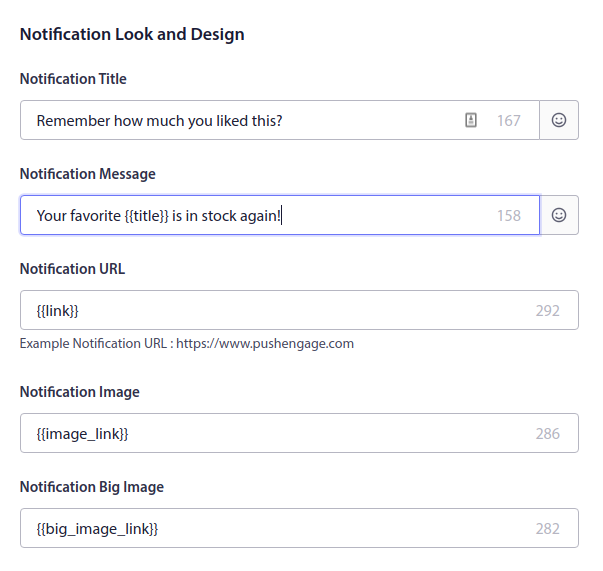
ご覧のとおり、プッシュ通知には{{title}}や{{link}}などのカスタムタグが多数あります。これらのタグは属性と呼ばれます。PushEngage属性については、属性を使用してパーソナライズされたプッシュ通知を送信する方法に関する記事で詳しく説明しています。
簡単に言うと、属性は在庫切れアラートを自動的にパーソナライズするのに役立ちます。これらは、顧客が保存した個人情報や、製品画像、製品名、製品URLなどの製品情報を動的に取得するために使用されます。
これにより、カスタムプッシュ通知を非常に簡単に送信できます。属性の設定については、すぐに詳しく説明します。まず、コールトゥアクションボタンを追加して、最初の通知を完成させましょう。
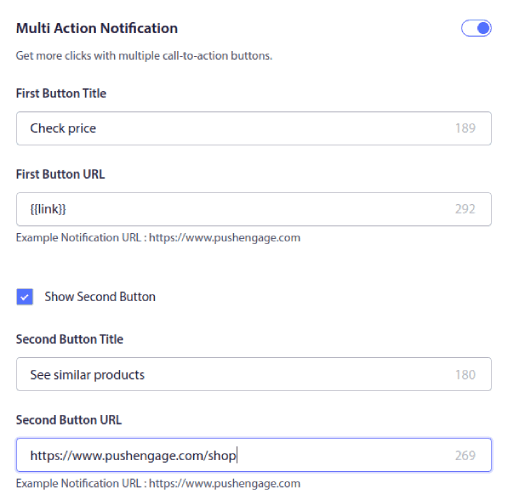
PushEngageを使用すると、さまざまなURLを持つ複数のコールトゥアクション(CTA)ボタンを簡単に作成できます。Show Second Buttonにチェックを入れるだけで、2番目のプッシュ通知CTAを有効にできます。
カスタムのNotification Duration(通知期間)を設定することもできます。
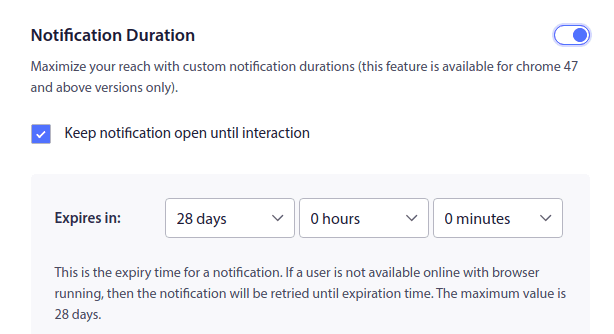
通知期間を設定すると、オファーが期限切れになったときに通知を終了させることができます。通知に有効期限を設定しないと、購読者が通知センターで確認するまで通知が積み重なっていきます。一見すると、これは非常にスパムのように見え、多くの購読者を非常に早く失うことになります。
完了したら、Trigger Settings(トリガー設定)をクリックし、キャンペーンのTrigger Limits(トリガー制限)を設定します。
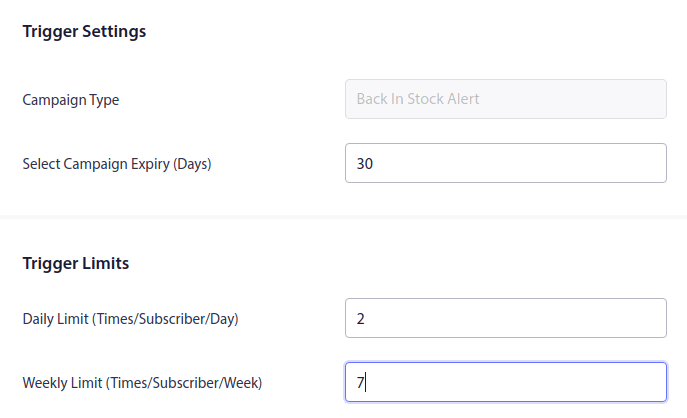
トリガー制限により、購読者にスパムを送信しないようにします。1日の上限を2に設定すると、購読者は1日に最大2件のプッシュ通知を受け取ることができます。
また、UTMパラメータを設定して、プッシュ通知をより効果的に追跡することもできます。

ステップ#3:在庫切れ通知連携コードをコピーする
これでほぼ完了です。
次に、生成されたコードスニペットをコピーする必要があります。右下隅にある「Integration Code」(連携コード)ボタンをクリックします。
次に、コードをコピーします。
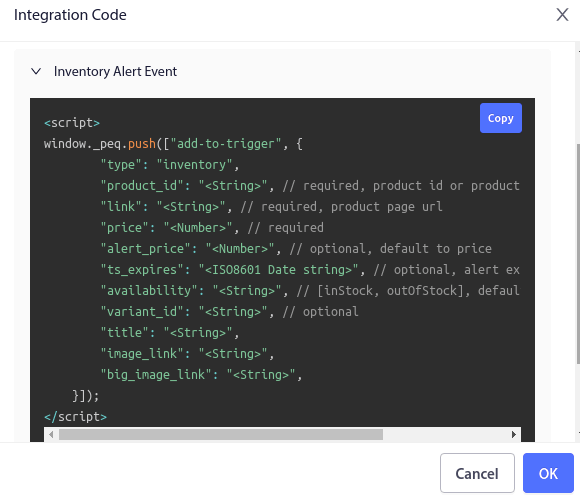
必要に応じて編集します。
ウェブサイトで説明されているように、以下の変数を指定する必要があります。
- Product ID: これは、SKUのような製品の一意の識別子です。
- Link/URL: ウェブサイトに記載されている製品URLを使用する必要があります。
- Price: これは現在の製品価格です(すべての割引が含まれます)。
- Title: タイトルは基本的に製品の名前です。
- Image Link: ブランドのアイデンティティとして表示したい画像のURLを送信する必要があります。通常は、ウェブサイトのロゴまたはファビコンです。
- Alert Price (Optional): アラート価格は、在庫切れ通知をトリガーする割引価格です。
- ts_expires/ Alert Expiry Date (In ISO Format): 通知の有効期限を設定することもできます。この値はデフォルトで28日に設定されています。
- Availability: これはオプションのプロパティで、Inventory Alertではデフォルト値として「Out Of Stock」が使用されます。
- Variant ID: これもオプションです。ただし、同じ製品に複数のバリエーションがある場合は、正確なバリアントIDを設定できます。
- Big Image Link: 製品画像として表示したい画像のURLを送信する必要があります。
注意: すべてのフィールドにはデフォルト値があるため、フィールドを変更しないままにしておくことができます。ただし、必須フィールドの値を置き換える必要があります。たとえば、必須フィールドの値を置き換える必要があります。文字列 プロパティの リンク フィールドを実際の製品URLに置き換える必要があります。他のフィールドについても同様です。価格 および商品ID.
ステップ 4: サイトにインテグレーションコードを追加する
インテグレーションコードについて理解したら、いよいよウェブサイトにインテグレーションコードを追加する段階です。ほとんどの場合、サイトには「在庫切れの場合通知する」というボタンがあります。購読者がそのようなボタンをクリックすると、自動在庫アラートの購読が完了します。
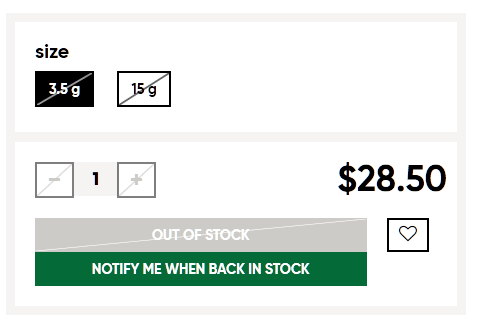
したがって、誰かがあなたの購読ボタンをクリックしたときに、そのコードスニペットを実行したいと思うでしょう。
ステップ 5: トリガーキャンペーンを有効にする
あとは、「トリガーキャンペーンを有効にする」ボタンを押すだけです。
これで完了です!サイトは自動的に在庫切れ通知を送信するようになります。
次は何をしますか?
マーケティングキャンペーンにおける最大の課題の1つは、プロセスの自動化がいかに複雑になるかということです。通常、学習曲線が非常に急で、設定途中で途中で諦めてしまう可能性が高いでしょう。
幸いなことに、プッシュ通知の設定はそれほど複雑ではありません。また、インスピレーションを得るために、実際に機能する自動キャンペーンに関するこの記事をいつでも確認できます。または、次のような他のeコマースプッシュ通知で始めることもできます。
プッシュ通知の旅を始めるには、PushEngageの使用をお勧めします。PushEngageは市場でNo.1のプッシュ通知ソフトウェアであり、PushEngageを使用して強力な自動通知を簡単に作成できます。
まだの場合は、今すぐPushEngageを始めましょう。


