AMP版サイトにプッシュ通知を追加する方法をお探しですか?AMPプッシュ通知の追加は少し技術的な作業になることがあります。しかし、簡単な方法で実装できるようお手伝いします。
AMP(Accelerated Mobile Pages)は、基本的にサイトのモバイル版です。そのため、AMPサイトでウェブプッシュを設定しないと、多くの訪問者がモバイルデバイスでサイトを閲覧するため、多くの購読者を失うことになります。
この記事では、手動で行うよりもはるかに簡単なため、PushEngageを使用してAMPプッシュ通知をインストールします。
さあ、始めましょう。
AMPプッシュ通知のインストール方法
AMPプッシュ通知のインストールは非常に迅速かつ簡単なプロセスです。次の手順に従うだけで、この記事の終わりまでには、次のようなサイトからプッシュキャンペーンを送信できるようになります。

良い感じですよね?早速始めましょう。
ステップ1:PushEngageアカウントの設定
PushEngage のホームページにアクセスし、開始ボタンをクリックします。

PushEngageを試すために無料プランを選択するか、ビジネスの成長に真剣に取り組んでいる場合は有料プランを選択できます。有料プランには、より多くのキャンペーンオプションと、さらに大きな購読者リストを構築する機能が付属しています。
PushEngageアカウントにサインアップしたら、PushEngageダッシュボードにアクセスし、サイト設定 » サイト詳細に移動してください。

ここでロゴ、サイト名、サイトURLを設定できます。後で全体のセットアップをテストできるように、これらの項目を今すぐ整理することが非常に重要です。
ステップ#2:AMPプッシュ通知インストールコードを取得する
AMPサイトにウェブプッシュをインストールするには、インストールコードを取得する必要があります。サイト設定画面で下にスクロールし、セットアップ手順はこちらボタンをクリックします。

AMPタブに移動して、インストール設定を取得します。
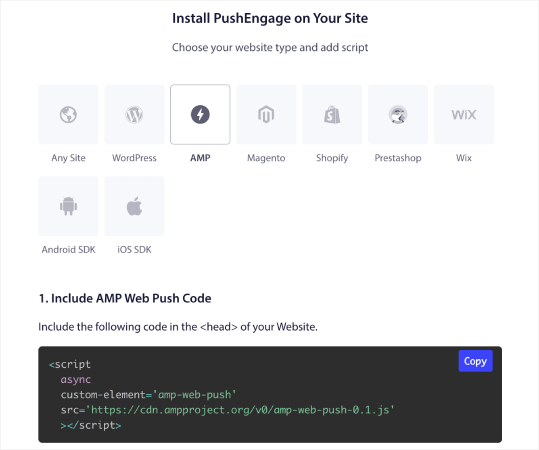
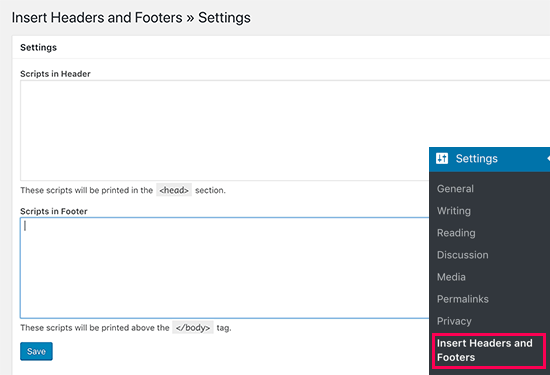
このコードをコピーします。このコードをサイトのHTML<head>に貼り付ける必要があります。AMP版のWordPressサイトを実行している場合は、Insert Headers and Footersプラグインを使用するのが最も簡単な方法です。これは無料のプラグインで、サイトの実際のHTMLにアクセスせずにAMPインストールコードを貼り付けることができます。
ステップ#3:AMPサイトにサービスワーカーをインストールする
次に、サービスワーカーを含むパッケージファイルをダウンロードします。
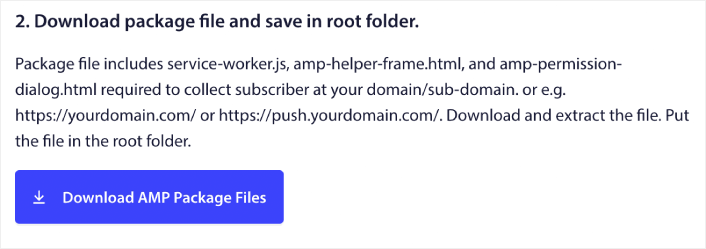
これには以下が含まれます:
- service-worker.js
- amp-helper-frame.html
- amp-permission-dialog.html
パッケージを解凍し、これらのファイルをサーバーのルートフォルダに配置します。この部分は非常に重要です。この手順をスキップすると、サイトはプッシュ購読者を収集できなくなります。
プロのヒント:ルートフォルダが何であるかわからず、そこにファイルをアップロードする方法がわからない場合は、WordPressファイルとディレクトリ構造に関するこの記事を参照してください。初心者向けの非常に簡単なガイドであり、WordPressの仕組みについて多くの洞察を得ることができます。
ステップ#4:AMPプッシュHTMLコードをサイトに追加する
次に、クリックで購読ボタンと、プッシュキャンペーンの購読解除ボタンを有効にするHTMLコードを追加します。
このコードは、アップロードしたサービスワーカーファイルを有効にし、サイトが購読および購読解除ボタンを表示できるようにします。購読者を取得するには、訪問者にプッシュキャンペーンに購読するための簡単な方法を提供する必要があります。購読解除ボタンは、アクティブな購読者がコンテンツに興味がなくなった場合にオプトアウトする方法を提供します。どちらも非常に重要です。
サイトに表示したい場所に「更新を購読する」ボタンを追加します。
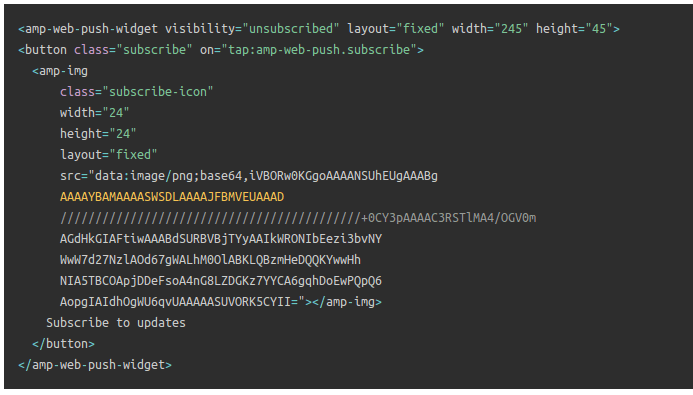
そして、「更新の購読を解除する」ボタンを追加します。
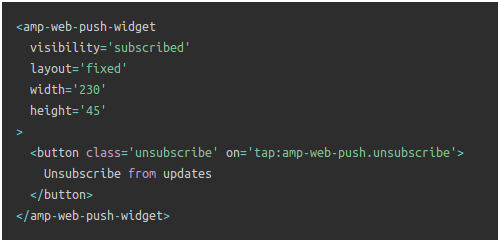
登録解除ボタンは、シンプルな「タップして登録解除」ボタンになります。モバイルとデスクトップデバイスの両方で、サイトの非AMPバージョンに対してより多くのカスタマイズオプションを利用できます。そのため、AMP CSSを<body>セクションに追加することをお勧めします。
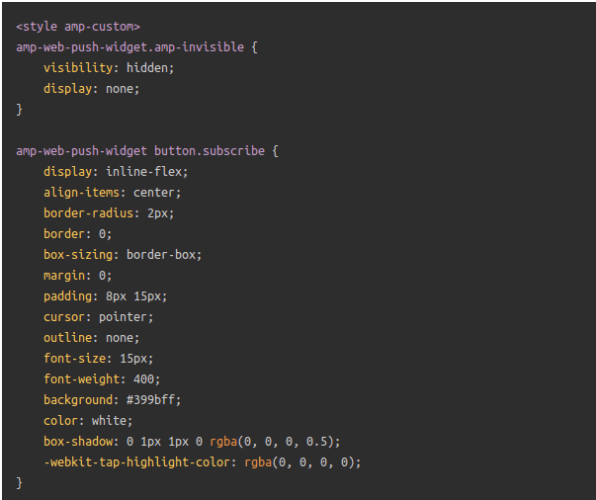
このコードスニペットは、登録ボタンと登録解除ボタンの両方の見た目をカスタマイズするためのものです。これらのスタイルを試したい場合は、ご自由に行ってください。ただし、コードがスタイリングしているAMP HTMLタグは変更しないようにしてください。
これで完了です。
ステップ5:PushEngageオプトインの設定
次に、PushEngageダッシュボードに戻ります。Design » Popup Modalsに移動し、希望するオプトインを選択します。
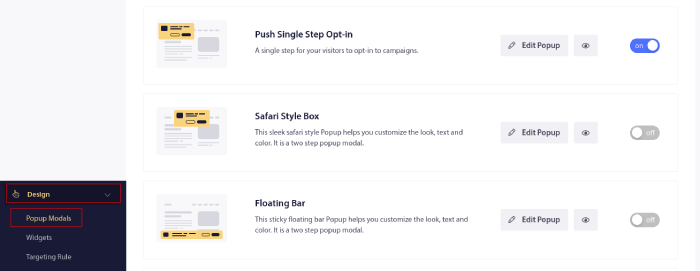
ここでのアイデアは、訪問者に購読する確かな理由を与えることです。そのためのヘルプが必要な場合は、カスタムプッシュ通知オプトインを作成する方法 に関する記事を確認してください。
そして、開始するためのテンプレートが必要な場合は、コンバージョン率の高いプッシュ通知オプトインに関するこの記事を確認してください。
ボーナスステップ:ウェルカムキャンペーンの作成
オプトインの設定が完了すると、サイトは購読者を取得できるようになります。
しかし、プッシュキャンペーンが正常に機能していることをどのように確認しますか?
設定がスムーズに進んだかどうかを確認するために、ウェルカムプッシュ通知を作成することをお勧めします。ウェルカム通知とは、新しい購読者に送信して、購読を確認し、歓迎するためのウェブプッシュ通知です。
PushEngage ダッシュボードに移動し、キャンペーン » ドリップ自動応答 に進み、新しいドリップ自動応答を作成 をクリックします。

次に、キャンペーンに名前を付け(「ウェルカムドリップ」のような名前をお勧めします)、コンテンツの下で、「ユーザー登録直後に通知を送信」というオプションを選択します。

この時点で、通知の横にある矢印をクリックして、通知のコンテンツを編集できます。PushEngageのPremiumまたはEnterpriseプランをお持ちの場合は、複数の通知を追加して自動ウェルカムメッセージのシーケンスを作成できます。Add New Notificationをクリックして、コンテンツを編集するだけです。
完了したら、ドリップ設定をクリックし、ウェルカムキャンペーンをすべての購読者に送信するオプションを選択します。

次に、下にスクロールして独自のUTMパラメータを設定し、プッシュキャンペーンを追跡する:

完了したら、上にスクロールして戻り、自動応答を有効にするボタンをクリックします。

これで完了です!
ウェブサイトにAMPプッシュ通知を正常に設定しました。PushEngageダッシュボードに戻り、プッシュキャンペーンの作成を開始する時間です。
サイトにAMPプッシュ通知を追加した後の対処法
今回は以上です、皆さん!
プッシュキャンペーンが初めての場合は、公開する前に完全なプッシュ通知テストプロセスに従う必要があります。これにより、訪問者が問題に気づいてユーザーエクスペリエンスの低下について不平を言う前に、一般的な問題をトラブルシューティングできます。
また、以下のような自動プッシュ通知キャンペーンもいくつか確認してください。
このいずれかで困った場合は、カスタマーサクセスマネージャーにご連絡いただくことをお勧めします。どのような問題でも喜んでお手伝いさせていただきます。
まだの場合は、PushEngageを試してみてください。PushEngageは世界No.1のプッシュ通知サービスです。したがって、ビジネスの成長を真剣に考えているなら、PushEngageが最適な選択肢です。


このヒントと情報をありがとうございます。非常に理解しやすいです。
良い説明