プッシュ通知アイコンをすばやく追加・編集する方法をお探しですか?
実はとても簡単です。通知アイコンは、あなたが誰であるかを加入者に伝えます。送信するすべてのプッシュ通知に表示されるブランドマークです。そしてそれは、オーディエンスがあなたのブランドを覚えてくれるのに役立つため、プライスレスなものになり得ます。(Androidアプリでは、さらに進んでブランドカラーに合わせて通知の色を変更することもできます。)
送信するすべてのプッシュ通知を記憶に残るものにするためにかかる費用は? 5分未満です。
この記事では、プッシュ通知アイコンの追加と編集方法をご紹介します。先ほども言ったように、とても簡単です。
さあ、始めましょう。
プッシュ通知アイコンを追加する理由
プッシュ通知アイコンは、ユーザーのデバイス上でアプリを表す、小さくて特徴的な画像です。メッセージやアラートの送信元アプリを視覚的に識別するために、プッシュ通知と一緒に表示されます。
このアイコンにより、ユーザーは通知のテキストを読まなくても、どのアプリやウェブサイトが自分に連絡しているのかを素早く認識できます。
プッシュ通知アイコンを追加することは、いくつかの理由から賢明な選択です。
- 認識:群衆の中で見慣れた顔を見るように、私たちはアイコンを瞬時に認識します。アプリが通知を送信すると、アイコンは「やあ、私だよ!」と挨拶する小さな波のように機能します。これにより、ユーザーはどのアプリが自分の注意を引こうとしているのかを素早く識別できます。
- ブランディング:アイコンはアプリの小さな広告塔のようなものです。ブランドアイデンティティの一部です。ユーザーがそれを見るたびに、アプリを思い出します。これにより、アプリを常に意識してもらうことができます。
- ユーザーエクスペリエンス:ユーザーは多くのアプリをインストールしており、混乱しやすい状況です。ユニークなアイコンは、通知をより効率的に管理するのに役立ちます。どの通知を最初に確認したいかを一目で確認できます。
- プロフェッショナリズム:独自の通知アイコンを持つアプリは、より洗練され、プロフェッショナルに見えます。細部まで配慮されていることを示し、全体的なユーザー満足度を向上させることができます。
- 機能性:場合によっては、アイコンが追加情報を示すこともあります。たとえば、メッセージアプリでは、新しいメッセージと不在着信で異なるアイコンが表示されることがあります。これにより、機能性とユーザーの利便性が向上します。
したがって、プッシュ通知アイコンは小さいかもしれませんが、ユーザーがアプリとどのようにやり取りし、どのように認識するかに大きな役割を果たします!
プッシュ通知アイコンの追加方法
プッシュ通知アイコンとは何か、そしてなぜ追加すべきかを理解したところで、コーディングなしで簡単にアイコンを追加する方法を見ていきましょう。
ステップ #1:プッシュ通知サービスを選択する
プッシュ通知は、ウェブサイトから離れた後でもウェブ訪問者とつながるのに役立つマーケティングツールです。プッシュ購読者にターゲットを絞った通知を送信したり、顧客セグメントごとに通知をパーソナライズしたりすることもできます。しかし、どのプッシュ通知サービスを選択すべきでしょうか?
プッシュ通知キャンペーンの送信にはPushEngageの使用をお勧めします。

PushEngage は世界最高のプッシュ通知サービスです。無料版だけでなく、ターゲットを絞ったプッシュメッセージでサイトを離れた訪問者とつながることができます。
PushEngageがプッシュ通知サービスおよびツールとして第一選択肢である理由は次のとおりです。
- 使い方が非常に簡単
- HTTPおよびHTTPSサイトで効果的
- 設定にほとんどまたはまったくコーディングを必要としないビジュアルビルダーが付属しています
- あらゆる種類のサイト向けに、完全に 自動化されたプッシュ通知キャンペーン を簡単に設定できます
- クリック率を高めるためのパーソナライズされたプッシュ通知を送信するための複数のオプションがあります
- カスタム目標追跡、UTMパラメータ、および高度な分析を備えています
そして、これはほんの始まりにすぎません。さらに進む前に、PushEngageの機能の全リストを確認してください。
PushEngageの最も素晴らしい点は、購入決定を下す前に試すことができる、永久無料プランがあることです。
プロのヒント:サービスを購入する前に、プッシュ通知のコスト分析に関する記事を確認してください。
ステップ#2:PushEngageプラグインのインストール
アカウントの作成が完了したら、PushEngageダッシュボードにアクセスして進めてください。

サイト設定 » サイト詳細をクリックし、セットアップ手順はこちらをクリックボタンをクリックしてください。

WordPressタブをクリックし、PushEngage WordPressプラグインをインストールボタンをクリックして、ウェブサイトにプラグインをインストールします。

素晴らしい点: PushEngageアカウントを作成したときに、すでにウェブサイトとPushEngageアカウントを同期しています。したがって、PushEngageダッシュボードのインストールリンクをクリックして、PushEngage WordPressプラグインをウェブサイトに自動的にインストールします。
これで完了です!ウェブ通知WordPressプラグインをウェブサイトに正常に設定しました。WordPress管理パネルにログインする必要はまったくありません。より詳細なガイドについては、WordPressにウェブ通知をインストールする方法に関する記事をご覧ください。
ステップ#3:プッシュ通知アイコンの追加または編集
PushEngageダッシュボードに戻ります。サイト設定 » サイト詳細をクリックし、サイトアイコンのアップロードの下にある画像アップロード機能を使って画像をアップロードしてください。
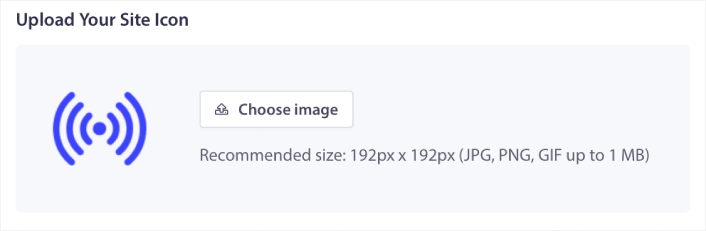
アップロードした画像はプッシュ通知アイコンとして使用されます。最適な結果を得るために、画像の寸法は192px x 192pxに保ち、画像サイズは1MB未満にしてください。JPG、PNG、またはアニメーションブランドマーク用のGIFも使用できます。アイコンがソーシャルネットワークサイトで使用しているブランドマークと一貫していることを確認してください。
後でアイコンを編集する必要がある場合は、ここで編集します。別の画像をアップロードするだけで完了です!
ステップ4:テスト通知を送信して通知アイコンを確認する
プッシュ通知をテストするために、ウェブサイトのウェルカムメッセージを作成することをお勧めします。ウェルカムプッシュ通知は以下のような場合に役立ちます:
- 確認: 新しい購読者が実際にウェブプッシュ通知に購読していることを確認したい場合。
- 再エンゲージメント: ウェルカムキャンペーンは、購読者をサイトに呼び戻すための優れた方法です。
- セール: 新規購読者に割引、無料ギフト、クーポン付きのウェルカムオファーを提供できます。
それでは、ウェルカムプッシュ通知キャンペーンを作成しましょう。PushEngageダッシュボードに移動し、キャンペーン » ドリップ自動応答 » 新規ドリップ自動応答の作成に移動します。
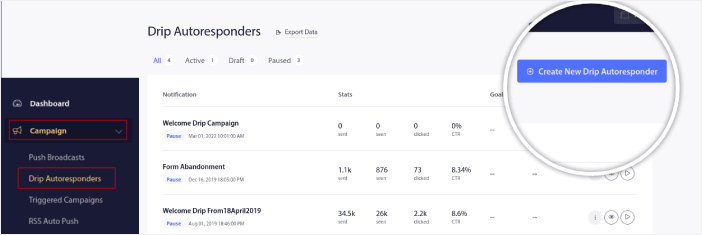
ドリップキャンペーンに、覚えやすい名前を付けます。次に、最初のプッシュ通知が訪問者のプッシュ通知購読直後に送信されるように設定します。

通知を編集して、ウェルカムメッセージのカスタムコンテンツを作成できます。完了したら、新しい通知の追加ボタンをクリックして、シーケンスに通知を追加します。新しい通知を編集し、各通知間のカスタム遅延を設定できます。
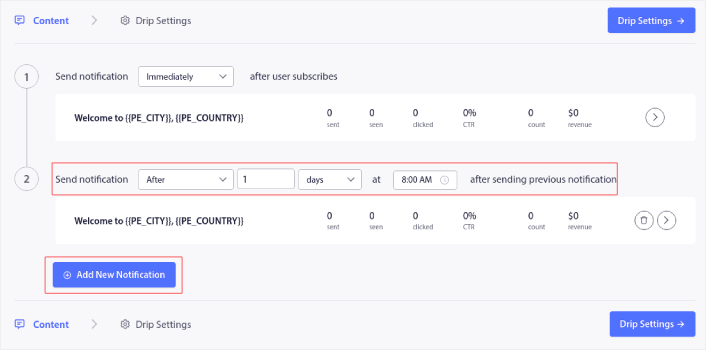
通知はいくつでも追加できますが、5〜7件の通知を含むウェルカムドリップを作成することをお勧めします。
その後、ドリップ設定でオーディエンスを選択します。
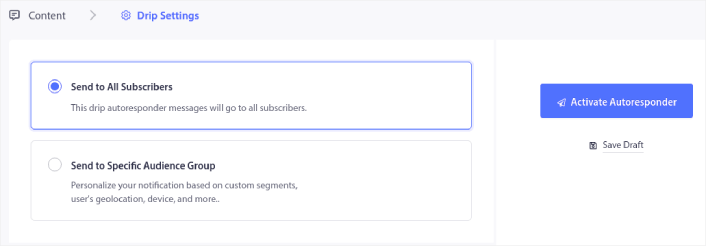
特定のオーディエンスグループに送信オプションを使用すると、セグメントごとに異なるウェルカムドリップを送信できます。これは、プッシュ通知をオプトインする際に訪問者をセグメント化している場合に特に役立ちます。
ターゲティングに満足したら、自動応答を有効にするボタンをクリックします。
これで完了です!
プッシュ通知が正しくインストールされていれば、以下のようなウェルカム通知が表示されるはずです:
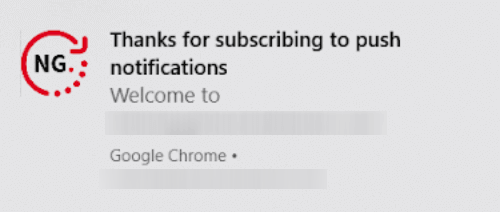
そしてご覧のように、私たちの例では通知アイコンが非常に目立っています!
プッシュ通知が初めての場合は、公開前に本格的なプッシュ通知テストプロセスに従うことをお勧めします。これにより、訪問者が見てユーザーエクスペリエンスの不具合について不満を言う前に、一般的な機能の問題をトラブルシューティングできます。
通知アイコンを追加した後の対処法
プッシュ通知アイコンの追加方法がわかったので、次は独自のキャンペーン作成に取り掛かりましょう。しかし、キャンペーンを開始する前に、まずは素晴らしいプッシュ通知の例をいくつか学ぶべきです。
また、プッシュ通知が初めての場合は、キャンペーンを作成する前にプッシュ通知のベストプラクティスに関する記事を確認してください。私たちが積極的に推奨するベストプラクティスの一部は次のとおりです。
- 好奇心を刺激してクリック率を向上させる
- 各プッシュ通知をパーソナライズする
- リッチメディアで目立つ
- 休眠中のプッシュ購読者を再活性化する
- 顧客に常に情報を提供する
- 可能な限り絵文字を使用する
- 緊急性を演出する
プッシュ通知キャンペーンの作成にはPushEngageの使用をお勧めします。PushEngageは市場でNo.1のプッシュ通知ソフトウェアであり、あなたのキャンペーンは安全な手に委ねられます。
まだの場合は、今すぐPushEngageを始めましょう。


