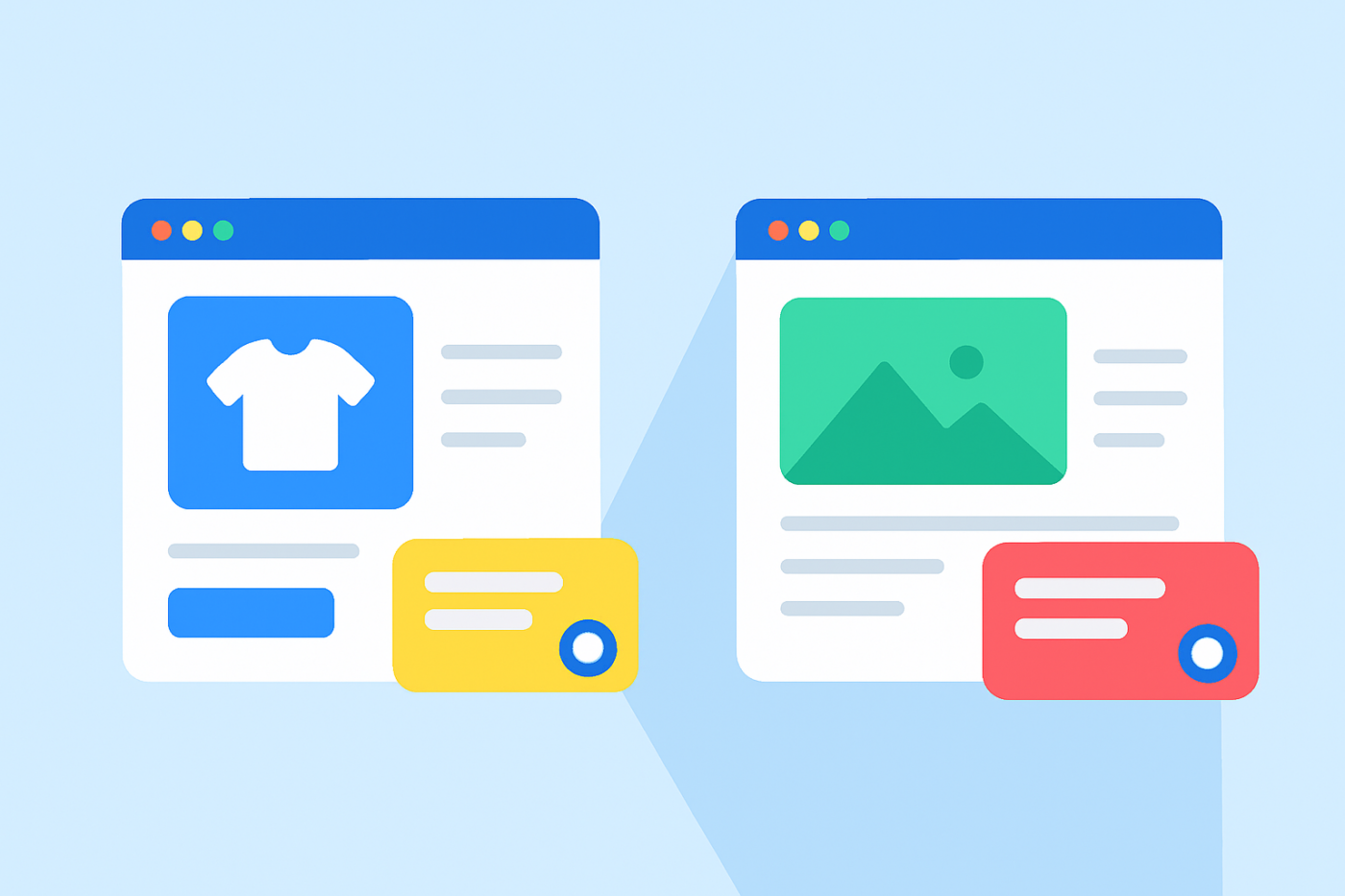
訪問者があなたのウェブサイトにアクセスしたとき、誰もが同じ心境ではありません。製品ページを閲覧している人は購入を検討しています。ブログ記事を読んでいる人は、学んだり、調べたり、単に探索したりしています。
両方の訪問者に同じチャットウィジェットを表示することは、コンバージョンを失い、エージェントを圧倒し、ユーザーの意図を混乱させる最も速い方法の1つです。
PushEngageのWordPressおよびWooCommerce向けの新しいチャットウィジェットを使用すると、ページの種類ごとに異なるウィジェットを作成できます。それぞれに独自のデザイン、メッセージ、チャネル、エージェント、ルールがあります。
このガイドでは、製品ページ用のチャットウィジェットとブログ記事用の別のチャットウィジェットを正確に設定する方法を説明します。
マルチチャネルメッセージを今すぐ送信!
プッシュ通知とWhatsAppメッセージは、リピートトラフィック、エンゲージメント、および売上を自動的に増加させるための非常に効果的で低コストなマーケティングツールです。
すべてのWordPress 用ライブチャットウィジェットがページごとのウィジェットをサポートしているわけではないため、ツールにコミットする前にこの機能を確認してください。
製品ページとブログページで異なるチャットエクスペリエンスが必要な理由
製品ページ = 高い意図、低い忍耐力
誰かが製品ページにいるとき、彼らは購入するか、あるいは離脱するかを検討しています。価格を比較し、在庫を確認し、送料を気にし、品質についてためらっています。
このページでのチャットウィジェットは次の必要があります:
- 即時または高い視認性を持つ
- 営業担当者に接続する
- 安心を提供する
- 摩擦を減らす
- 販売を完了する
チャットを遅らせたり、ソフトなメッセージを使用したりすると、その瞬間を逃します。
ブログページ = 低い意図、高い好奇心
ブログ記事の訪問者はまだ購入する準備ができていません。彼らは学んだり、調べたり、問題提起をしたりしています。
ここのチャットウィジェットは次の必要があります:
- 押し付けがましくなく、役立つ
- 遅延後にトリガーする
- リソースへ誘導する
- メールまたはリードの意図をキャプチャする
- 製品へソフトに誘導する
ここで積極的に販売しようとすると、読者は離れていきます。
チャットを意図に合わせる = より多くのコンバージョン
訪問者の心境に合わせてチャット戦略を調整することは、エンゲージメントを改善し、サポート負荷を軽減し、売上を向上させる最も簡単な方法の1つです。
カスタムチャットウィジェットでできること
PushEngageを使用すると、複数のウィジェットを作成できます。それぞれに独自のものが含まれています:
- デザイン
- チャネル(WhatsApp、ライブチャット、Eメール)
- 担当者の割り当て
- プロアクティブメッセージ
- ターゲティングルール
- 行動トリガー
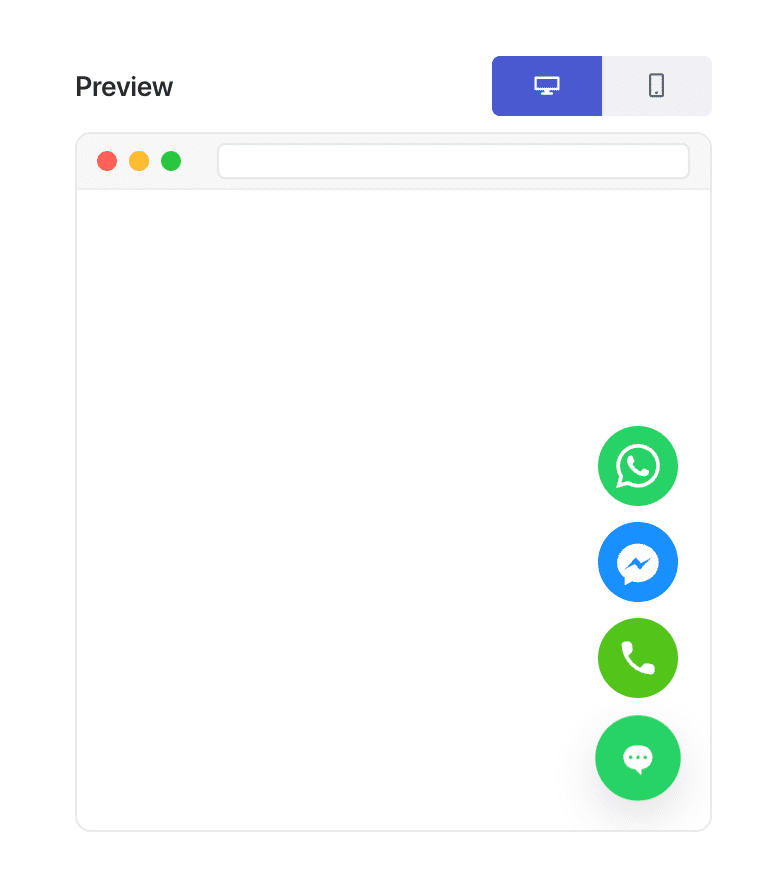
この柔軟性こそが、「ページタイプベースのパーソナライゼーション」を可能にする理由です。
例:製品ページ対ブログページのチャット戦略
製品ページウィジェットのアイデア
これらのメッセージは、閲覧者を顧客に変えます:
- 「注文前に質問がありますか?製品エキスパートにチャットで質問してください。」
- 「配送時間や製品仕様について質問してください。」
- 「適切なバリアントを選択するのに役立ちますか?」
使用する:
- 営業担当者
- WhatsApp + ライブチャット
- クイックトリガー行動(0〜5秒または20〜30%スクロール)
ブログページウィジェットのアイデア
これらのメッセージは、学習環境で自然に感じられます:
- 「このトピックを理解するのに役立ちますか?」
- 「製品のおすすめをお探しですか?お手伝いできます。」
- 「要約やガイドが必要ですか?お気軽にお尋ねください!」
使用する:
- サポート担当者
- オプションのEメールキャプチャ
- 遅延トリガー(40〜60秒または60〜70%スクロール)
PushEngageを使用して異なるチャットウィジェットを設定する方法
これは、PushEngageでWordPress/WooCommerceで使用する正確な構成です。
ステップ1:最初のチャットウィジェットを作成する
- WordPressでは、次のように移動します:PushEngage → チャットウィジェット → 新規ウィジェットを作成
- 名前を付けます:商品ページチャット
- 目立つ色とスタイルを選択します
- WhatsApp +ライブチャットなどのチャネルを追加します
- あなたの営業担当者または製品担当者を割り当てます
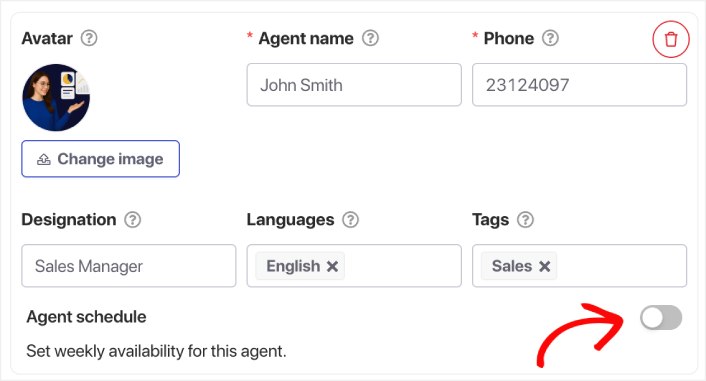
ステップ2:セールス重視のメッセージを追加する
コンテンツ » 外観 » 詳細表示の下で、CTAテキストフィールドまでスクロールし、セールスメッセージを追加します。
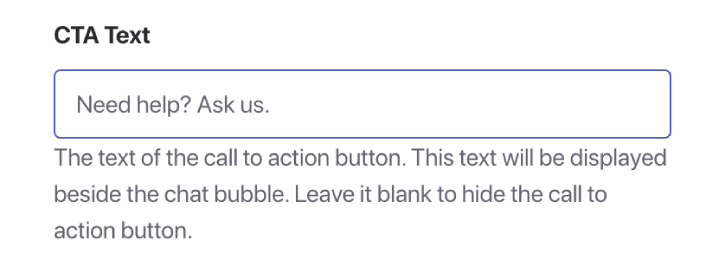
例:
- 「購入前にヘルプが必要ですか?何でも聞いてください。」
- 「サイズやフィット感が不明ですか?お手伝いします。」
- 「商品をより早くお届けします — 方法を尋ねてください!」
このメッセージは行動を促すためのものです。
ステップ3:ウィジェットをWooCommerce商品ページにターゲットする
トリガータブに移動し、表示ルールまでスクロールします。
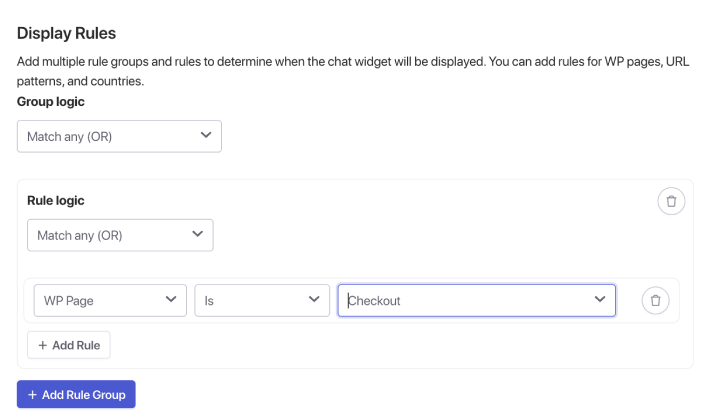
ここで、WPページオプションを使用して、商品、チェックアウトなどのWooCommerceページを見つけることができます。ただし、特定のURLを使用したい場合は、ドロップダウンをクリックして代わりにURLを選択し、それに応じてターゲティングを調整してください。
完了したら、チャットウィジェットを保存してアクティブ化してください。
ブログページのチャットウィジェットの設定も同様です。ブログページのみを対象とする別のウィジェットを作成してください。
推奨される行動ルール
- 45〜60秒後に表示
- または60〜70%スクロール後に表示
- デスクトップのみ(オプション)
これにより、ウィジェットは邪魔ではなく、サポートしているように感じられます。
複数のチャットウィジェットを実行するためのベストプラクティス
1.デザインの一貫性を保つ
ウィジェットがコンテキストによって異なっても、同じブランドのように感じられる必要があります。
2.訪問者を圧倒しない
プロアクティブなポップアップが多すぎないようにしてください。コンテキストに任せましょう。
3. 適切な担当者を割り当てる
商品ページ → 営業
ブログページ → サポートまたは教育スタッフ
4. 月次でアナリティクスを確認する
以下を確認してください:
- トリガーされたセッション
- 平均応答時間
- コンバージョンフロー
- ユーザーが離脱するページ
実際のデータに基づいて微調整してください。
5. モバイルとデスクトップの違いを考慮する
モバイルプレビューは不可欠です。メッセージの長さとトリガーのタイミングを調整してください。
チャットウィジェットの設定後の対応
製品ページとブログ投稿に異なるチャットウィジェットを作成することは、WordPressまたはWooCommerceのエクスペリエンスに加えることができる最もシンプルで最も影響力の大きい改善の1つです。
製品ページには、迅速で販売志向のサポートが必要です。
ブログページには、遅く、サポート的なガイダンスが必要です。
PushEngageを使用すると、これを数分で設定でき、エンゲージメントの向上、コンバージョンの増加、担当者のワークロードの効率化をすぐに実感できます。
- 顧客は常に誰かがオンラインであることを見ます
- 応答時間が短縮されます
- 購入前のコンバージョンが上昇します
- サポートがより迅速かつ信頼性が高く感じられます
- あなたのストアはグローバル対応になったように感じられます
スケジュールが設定されると、チームはより効率的に運営できるようになり、顧客は期待通りのエクスペリエンスを得ることができます。
まだPushEngageでエージェントのプロフィールとスケジュールを設定していない場合は、今がその時です。
納得がいかないですか?マルチチャネルマーケティングキャンペーンに関するこれらのすばらしいリソースをご覧ください。


