WhatsAppはもはや個人的なチャットのためだけのものではありません。世界中に20億人以上のユーザーがいるため、顧客エンゲージメントを大幅に向上させることができる不可欠なビジネスコミュニケーションチャネルとなっています。
このステップバイステップガイドでは、WhatsApp Businessアカウントの作成とPushEngageへの接続方法を説明し、最大限の効果を発揮させます。初期設定から、顧客と効果的にエンゲージするための高度な機能まで、すべてをカバーします。
今すぐWhatsAppメッセージを送信!
WhatsApp Business Automationは、自動パイロットでリピートトラフィック、エンゲージメント、売上を伸ばすのに役立つ、非常に効果的で低コストのマーケティングツールです。
- 前提条件
- ステップ1:WhatsApp Businessアプリのダウンロードとインストール
- ステップ2:ビジネス用電話番号の登録
- ステップ3:ビジネスプロフィール設定
- ステップ4:Meta Businessアカウントの作成
- ステップ5:WhatsAppアクセス トークンの生成
- ステップ6:永続アクセス トークンの生成
- ステップ7:PushEngageとWhatsApp Businessの接続
- ステップ8:ウェブサイトへのWhatsAppチャットウィジェットの追加(オプション)
- ステップ9:WhatsApp自動メッセージの設定(オプション)
- 一般的な問題のトラブルシューティング
- WhatsApp Businessのベストプラクティス
- よくある質問
- 次のステップ
アカウントが有効になったら、次にWhatsAppマーケティングソフトウェアを比較してください。ブロードキャスト、自動化、分析が実際に行われるのはプラットフォームレイヤーです。
前提条件
開始する前に、以下があることを確認してください:
- スマートフォン(AndroidまたはiOS)
- ビジネス用の電話番号(個人の番号とは別に用意することをお勧めします)
- Metaアカウント作成のためのメールアドレス
- ビジネス情報(名称、住所、説明、営業時間)を準備する
ステップ1:WhatsApp Businessアプリのダウンロードとインストール
まず、スマートフォンにWhatsApp Businessアプリをダウンロードする必要があります。
Androidの場合:
- Google Playストアを開く
- 「WhatsApp Business」を検索する
- 「B」ロゴのアプリを探す
- 「インストール」をタップする
- インストールが完了したらアプリを開く
iOSの場合:
- App Storeを開く
- 「WhatsApp Business」を検索する
- 「入手」をタップする
- インストールを完了する
- アプリを開く
ステップ2:ビジネス用電話番号の登録
次に、使用する電話番号を決定するという重要な決断があります。
2つの選択肢があります:
- 既存のWhatsApp番号を使用する:個人アカウントをビジネスに移行し、チャット履歴を保持します。
- 別の番号を使用する:完全に別のビジネスアカウントを作成します(プロフェッショナルな境界線を維持するために推奨)。
登録手順:
- WhatsApp Businessアプリを起動し、利用規約に同意する
- 既存の番号を使用するか新しい番号を使用するかを選択する
- 国コードと完全な電話番号を入力する
- 「次へ」をタップし、SMSで届く認証コードを待つ
- プロンプトが表示されたら6桁のコードを入力する
- コードが届かない場合は、タイマーが終了した後に電話での着信をリクエストする
- 連絡先とメディアへの必要な権限を付与する
ステップ3:ビジネスプロフィール設定
ここで、あなたのビジネスをプロフェッショナルで信頼できるものに見せます:
- ビジネス名を追加する – 公式のビジネス名を使用する
- ビジネスカテゴリを選択する – 小売、サービスなどから選択する
- プロフィール写真をアップロードする – ロゴまたは店舗の外観(高品質)
- 説明を作成する – 簡潔に(最大256文字)、あなたのユニークな点を強調する
- 住所を追加する – 地域のお客様が見つけやすくなる
- 営業時間の設定 – お客様がいつ利用可能かを知ることができるようにする
- ウェブサイトとメールを含める – お客様が連絡できる複数の方法を提供します
この情報はいつでも設定 > ビジネス設定 > プロフィールから編集できます。
ステップ4:Meta Businessアカウントの作成
WhatsAppはMeta(旧Facebook)が所有しているため、すべてのビジネス機能を有効にするにはMetaアカウントが必要です。
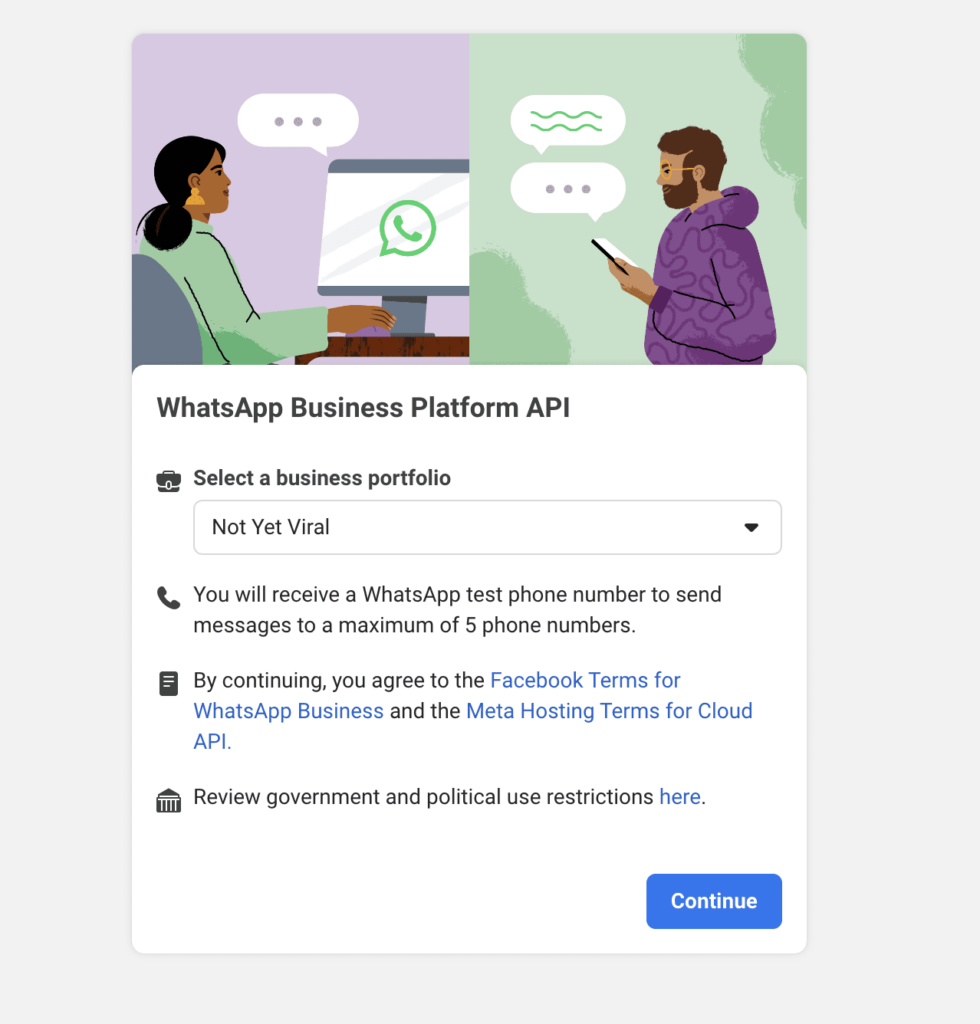
- Meta Business Managerにアクセスしてください
- まだお持ちでない場合は、「アカウントを作成」をクリックしてください
- ビジネスの詳細を入力してください
- メールアドレスを確認してください
- 求められた場合は、ビジネス認証プロセスを完了してください
ステップ5:WhatsAppアクセス トークンの生成
WhatsApp BusinessをPushEngageに接続するには、アクセストークンを生成する必要があります。
- Metaビジネスアカウントでビジネス設定に移動してください
- 左側のメニューで「ユーザー」を探し、「システムユーザー」をクリックしてください
- 「追加」ボタンをクリックしてください
- システムユーザーに名前を付けます(例:「WhatsApp統合」)
- ロールとして「管理者」を選択してください
- 「システムユーザーを作成」をクリックしてください
- 表示されるダイアログボックスで「アセットを割り当てる」をクリックしてください
- アプリ » アプリ名 » フルコントロールを選択してください
- 画面上部の「トークンを生成」をクリックしてください
- ポップアップで、アプリを選択し、有効期限を設定し、権限を選択してください
- 権限には、「whatsapp_business_management」と「whatsapp_business_messaging」を含める必要があります
- 「トークンを生成」をクリックし、すぐにコピーしてください
注意: この初期トークンは一時的なもので、24時間のみ有効です。
ステップ6:永続アクセス トークンの生成
長期的な統合のためには、永続的なトークンが必要です。
- ビジネス マネージャーで、ビジネス設定に移動してください
- 「ユーザー」>「システムユーザー」に移動してください
- 新しいシステムユーザーを作成するには、「追加」をクリックしてください
- このユーザーに名前を付けます(例:「PushEngage WhatsApp統合」)
- ロールとして「管理者」を選択してください
- 「システムユーザーを作成」をクリックしてください
- 「アセットを割り当てる」をクリックし、アプリ » アプリ名 » フルコントロールを選択してください
- 上部にある「トークンを生成」をクリックしてください
- アプリを選択し、利用可能な場合は有効期限を「なし」に設定してください
- 「whatsapp_business_management」および「whatsapp_business_messaging」の権限を含めてください
- このトークンを生成して安全にコピーしてください
ステップ7:PushEngageとWhatsApp Businessの接続
次に、WhatsApp BusinessアカウントをPushEngageに接続します。
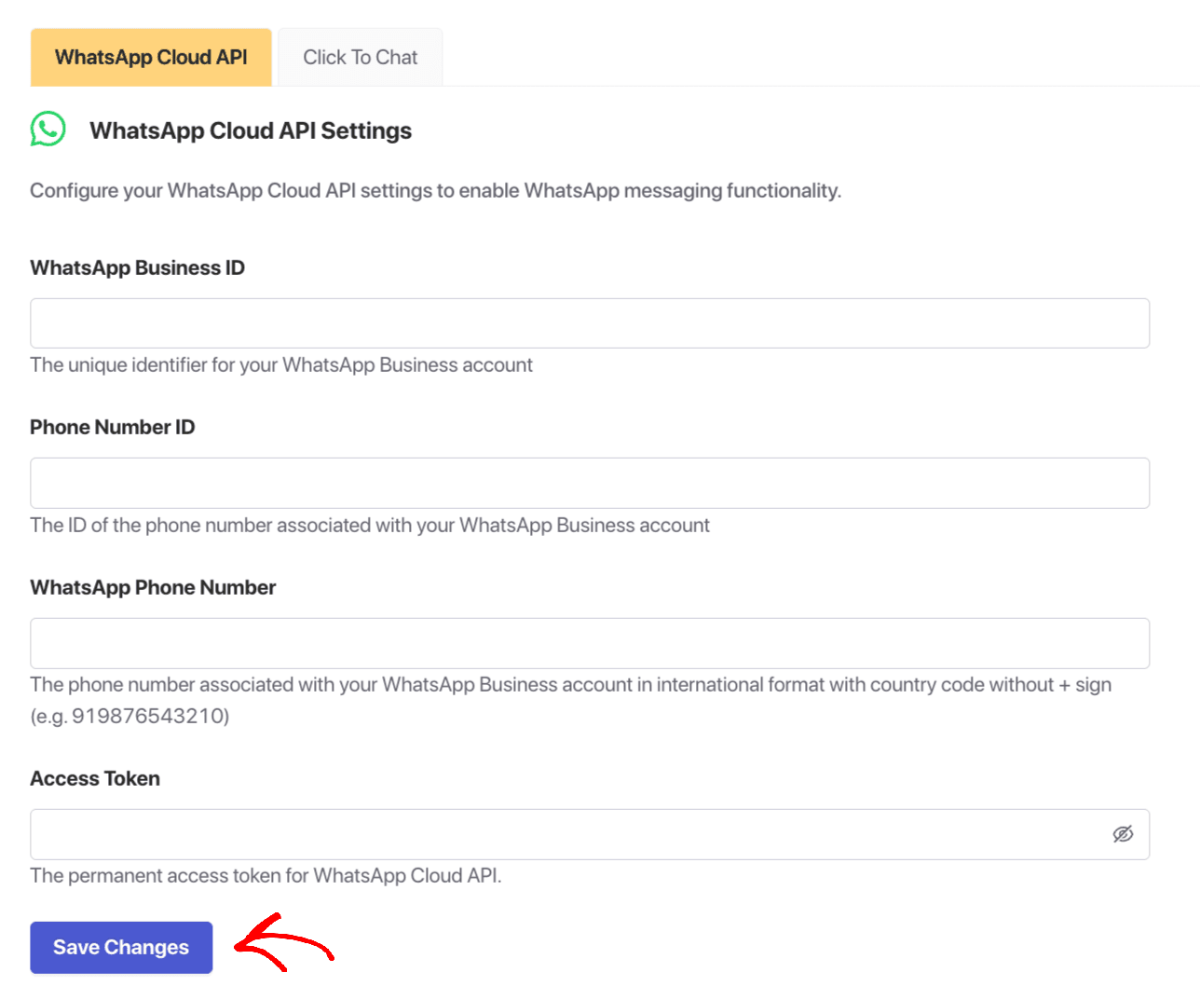
- PushEngageダッシュボードにログインします
- プラグインリストのWhatsAppセクションに移動します
- 「設定タブ」をクリックします
- WhatsApp Cloud API設定の下に、以下を入力する必要があります。
- WhatsAppビジネスアカウントID
- 電話番号ID
- WhatsApp電話番号(国コード付き、ただし+記号なし)
- 永続アクセス トークン(ステップ6から)
- 「変更を保存」をクリックします
重要:Meta開発者アカウントは、これらの詳細を収集するのに役立ちます。WhatsApp電話番号と電話番号IDは異なる識別子であることに注意してください。
ステップ8:ウェブサイトへのWhatsAppチャットウィジェットの追加(オプション)
訪問者がウェブサイトから直接チャットできるようにしたいですか?方法は次のとおりです。
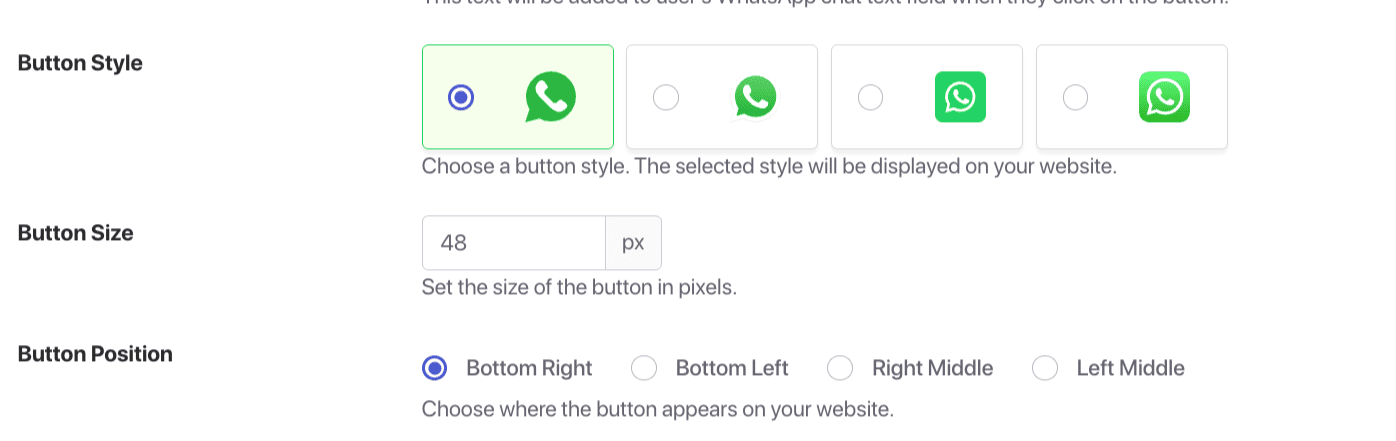
- PushEngageダッシュボードでWhatsAppに移動します
- 設定の下にある「クリックしてチャットタブ」をクリックします
- チェックボックスをクリックして機能を有効にします
- 国コード付きのWhatsApp番号を入力します(+記号なし)(例:919876543210)
- 挨拶メッセージを設定します(例:「こんにちは!今日はどのようなご用件でしょうか?」)
- 利用可能なオプションからボタンのスタイルを選択します
- ボタンのサイズを設定します(48pxは、邪魔にならない程度の視認性におすすめです)
- 配置を選択します(右下、左下、右中央、左中央)
- 画面の端からの適切な間隔を確保するために、オフセット設定を調整します
- チャットウィジェットが他の要素の上に表示されるように、Zインデックスを設定します
- 「変更を保存」をクリックします
ステップ9:WhatsApp自動メッセージの設定(オプション)
自動メッセージで顧客体験を向上させましょう。
- PushEngageダッシュボードでWhatsAppに移動します
- さまざまなシナリオの自動メッセージを設定します
- テンプレートを作成します。
- 新規顧客向けのウェルカムメッセージ
- 注文確認
- 配送状況の更新
- カート放棄リマインダー
- 購入後のフォローアップメッセージ
一般的な問題のトラブルシューティング
慎重に設定しても、いくつかの問題が発生する可能性があります。
電話番号を確認できませんか?
- ネットワーク接続を確認してください
- お使いの電話がSMSまたは通話を受信できることを確認してください
- SMSの代わりに通話をリクエストしてみてください
- 複数回試行した場合は24時間お待ちください
PushEngageとWhatsApp間の接続に問題がありますか?
- すべてのIDとトークンが正しく入力されていることを確認してください
- Meta Business Managerで権限が正しく設定されていることを確認してください
- WhatsApp Businessアカウントがアクティブであることを確認してください
- 問題が解決しない場合は、PushEngageサポートにお問い合わせください
WhatsApp Businessのベストプラクティス
WhatsApp Businessの成果を最大化するためのヒントを以下に示します。
応答時間
- 24時間以内に返信することを目指しましょう
- 営業時間外は不在メッセージを使用してください
- 明確な返信時間の目安を設定してください
メッセージテンプレート
- よくある問い合わせに対するテンプレートを作成してください
- 可能な限りメッセージをパーソナライズしてください
- コミュニケーションは簡潔かつ価値のあるものにしてください
プライバシーとコンプライアンス
- 顧客を追加する前に同意を得てください
- WhatsAppのビジネスポリシーに従ってください
- GDPRなどのプライバシー規制を遵守してください
よくある質問
個人のWhatsAppとWhatsApp Businessを同じ電話で利用できますか?
はい、同じデバイスに両方のアプリをインストールできますが、異なる電話番号を使用する必要があります。
WhatsApp Businessは無料で利用できますか?
WhatsApp Businessアプリは完全に無料でダウンロードして使用できます。WhatsApp Business APIは、プロバイダーによって費用がかかる場合があります。
個人のWhatsAppアカウントをビジネスアカウントに変換できますか?
はい、個人アカウントをビジネスアカウントに移行できますが、同じ電話番号で両方のタイプを使用することはできません。
WhatsApp Businessで認証を受けるにはどうすればよいですか?
WhatsAppには、特定の基準を満たすビジネス向けの認証プロセスがあります。通常、ビジネス情報の確認が含まれ、書類が必要になる場合があります。
同じWhatsApp Businessアカウントを複数人で利用できますか?
マルチデバイス機能を使用すると、最大4台のリンクされたデバイスでWhatsApp Businessを使用できます。より広範なチームコラボレーションには、WhatsApp Business APIが必要です。
WhatsApp Businessは通常のWhatsAppとどう違いますか?
WhatsApp Businessは、ビジネスプロフィール、カタログ、クイック返信、自動メッセージ、分析など、ビジネス専用に設計された追加機能を提供します。
WhatsApp Businessを他のマーケティングツールと連携するにはどうすればよいですか?
PushEngageを使用すると、WhatsApp Businessアカウントを全体的な顧客エンゲージメント戦略に接続し、シームレスなオムニチャネルエクスペリエンスを作成できます。
次のステップ
WhatsApp Businessアカウントの設定は、顧客がすでにいる場所に会いに行くための強力な一歩です。このガイドに従うことで、世界で最も人気のあるメッセージングプラットフォームの1つでプロフェッショナルなビジネスプレゼンスを確立しました。
効果的な顧客エンゲージメントは継続的なプロセスであることを忘れないでください。プロフィールを定期的に更新し、メッセージングを改善し、顧客のニーズに迅速に対応してください。
顧客エンゲージメントを次のレベルに引き上げたいと考えているビジネスにとって、WhatsApp BusinessとPushEngageを統合することで、真のオムニチャネルエクスペリエンスが生まれ、顧客満足度を大幅に向上させ、ビジネスの成長を促進できます。
PushEngageは、市場でナンバーワンの顧客エンゲージメントプラットフォームです。どこから始めればよいかわからない場合は、無料バージョンにサインアップできます。ただし、強力なキャンペーンでビジネスを拡大したい場合は、有料プランのいずれかを選択する必要があります。または、これらの素晴らしいリソースをチェックして開始することもできます。
いずれにしても、待たないでください。 お客様はすでにWhatsAppを使用しています。問題は、あなたはそこで彼らに会いますか?
あなたのビジネスにとって正しいと感じる方法で始めてください。後でもっと洗練されたソリューションにアップグレードできます。重要なのは、WhatsAppで可能になる直接的な顧客関係の構築を開始することです。
お客様は、あなたに連絡しやすくしてくれたことに感謝するでしょう。そして、あなたのビジネスは、より良い顧客コミュニケーションによってもたらされるエンゲージメントとコンバージョンの増加に感謝するでしょう。
- モバイルアプリのプッシュ通知がアプリにとって素晴らしい理由
- 新しいアプリビルダー向けのモバイルアプリエンゲージメント戦略
- どのアプリエンゲージメント指標を確認すべきか
- プッシュ通知とは?エピックな結果のための簡単なガイド
- プッシュ通知のコスト:本当に無料なの?(価格分析)
今回は以上です。


