
Volusionストアにプッシュ通知を追加する簡単な方法をお探しですか?
サイトにプッシュ通知を追加するという正しい決断をされました。自動でトラフィック、エンゲージメント、売上を生み出すeコマースサイト向けの自動プッシュ通知を作成できます。
Volusionはeコマースビジネスを立ち上げるための優れたプラットフォームです。では、プッシュ通知を使ってそれを成長させましょう。
この記事では、5つの簡単なステップでVolusionストアにプッシュ通知をインストールする方法をご紹介します。
プッシュ通知の設定にはPushEngageを使用します。PushEngageは世界No.1のプッシュ通知ソフトウェアです。まだベンダーを選んでいない場合は、今日からPushEngageを使い始めましょう。
しかし、別のベンダーを使用している場合でも心配いりません。どのプッシュ通知ソフトウェアでも、手順はほぼ同じです。
さあ、始めましょう。
Volusionにプッシュ通知をインストールする方法
Volusionストアにプッシュ通知を追加するのは非常に簡単です。この記事に従って進めるだけです。
すべてのステップに従えば、この記事の終わりまでには、このようなプッシュ通知を送信できるようになります。
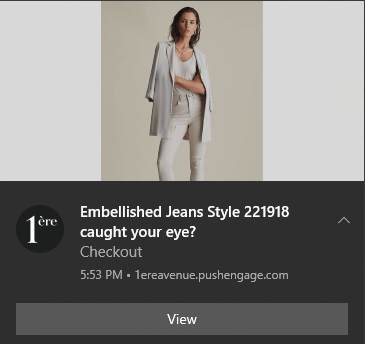
始めましょう。
ステップ1:PushEngageアカウントの設定
PushEngageのホームページにアクセスし、開始するボタンをクリックします。

PushEngageは無料で試すことができます。しかし、ビジネスの成長に真剣に取り組んでいるのであれば、PushEngageが提供する最も強力な機能とキャンペーンをアンロックするために有料プランを選択する必要があります。Volusionはeコマースサイトビルダーなので、自動プッシュ通知キャンペーンに完全にアクセスするには、エンタープライズパッケージを取得するのが理想的です。
PushEngageアカウントにサインアップしたら、PushEngageダッシュボードにアクセスし、設定 » サイト設定 » インストール設定に移動します。
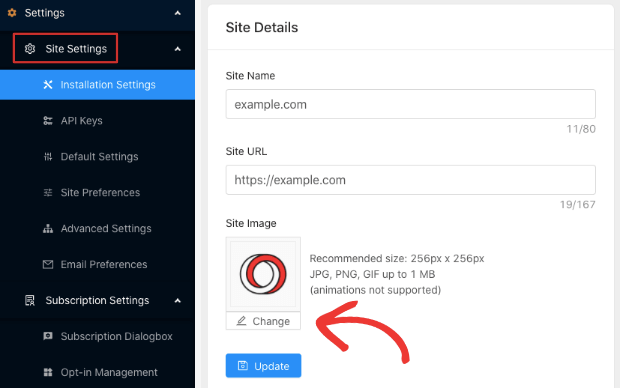
ここでロゴ、サイト名、サイトURLを設定できます。ブランド設定は後で行うこともできます。しかし、正直に言って、今すぐ正しく設定しておけば、後でテストするのがずっと簡単になります。
ステップ2:PushEngageからインストールコードを取得する
Volusionサイトにプッシュ通知を追加する前に、PushEngageダッシュボードからインストールコードを取得する必要があります。
設定 » サイト設定 » インストール設定に移動します。
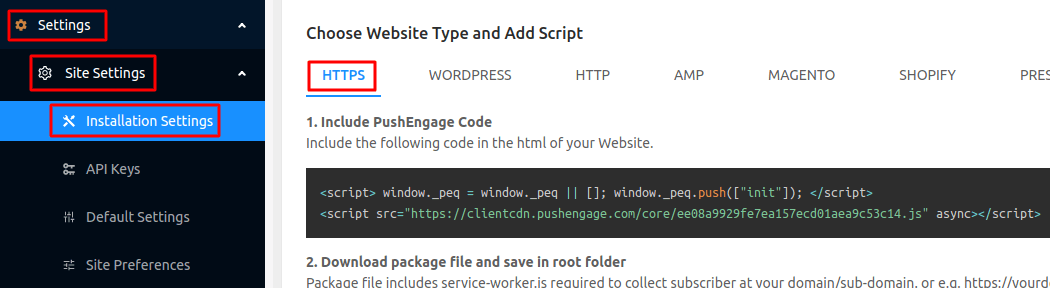
画像はHTTPSサイトのサンプルコードのみを示しています。SSL証明書がインストールされていない場合は、同じ画面のHTTPタブをクリックできます。そして取得するコードはサイト固有のものです。したがって、画像内のコードをコピーしないでください。ご自身のコードを取得してください!
そして、このJavaScriptコードスニペットをコピーする必要があります。すぐに必要になります。
ステップ#3:インストールコードをVolusionサイトに配置する
Volusionサイトで、Design » File Editorに移動します。
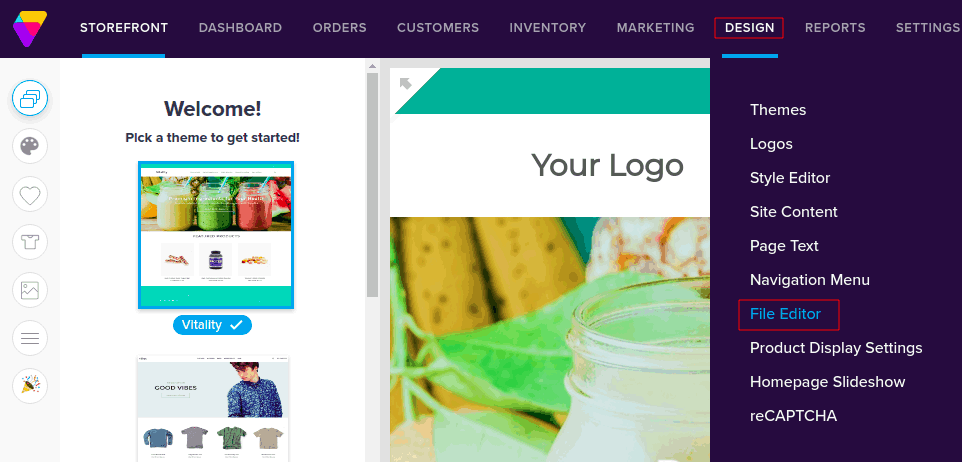
これによりファイルエディタが開き、右側にはShortcutsの下にテーマファイルがリストされたペインが表示されます。
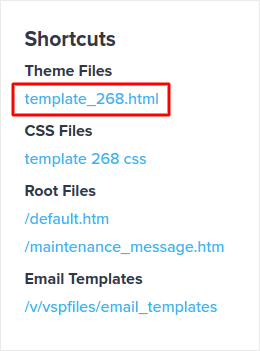
編集するHTMLファイルをクリックし、PushEngage JavaScriptコードスニペットを</head>の直前に挿入します。
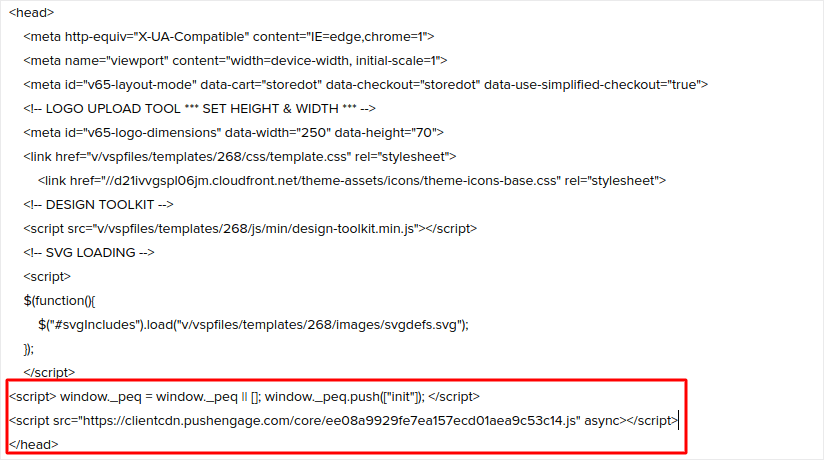
最後に、完了したらSaveをクリックします。
ステップ4:PushEngageオプトインを設定する
次に、PushEngageダッシュボードで、設定 » サブスクリプション設定 » サブスクリプションダイアログボックス » 編集に移動します。
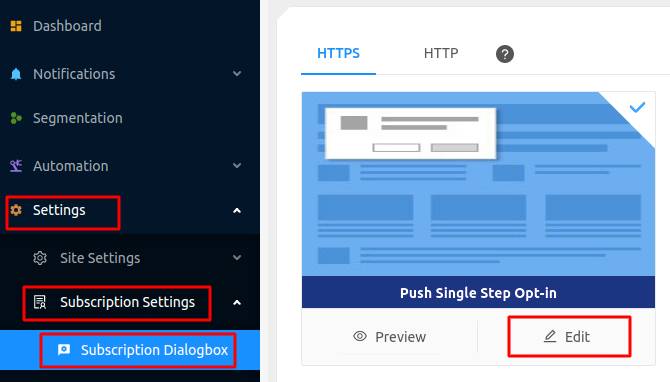
ここでのアイデアは、訪問者に購読する確かな理由を与えることです。そのためのヘルプが必要な場合は、カスタムプッシュ通知オプトインを作成する方法 に関する記事を確認してください。
そして、開始するためのテンプレートが必要な場合は、コンバージョン率の高いプッシュ通知オプトインに関するこの記事を確認してください。
ステップ#5:最初のキャンペーンを作成する
これでVolusionサイトはプッシュ通知を送信できるようになりました。実際のキャンペーンを作成しましょう。
eコマースサイトで作成できる最も優れたキャンペーンの1つは、カート放棄キャンペーンです。カート放棄キャンペーンは、すでに半分完了している販売を回収することで収益を増やすのに役立ちます。
PushEngageダッシュボードにアクセスし、 自動化 » カート放棄 » カート自動応答の作成に移動するだけです。
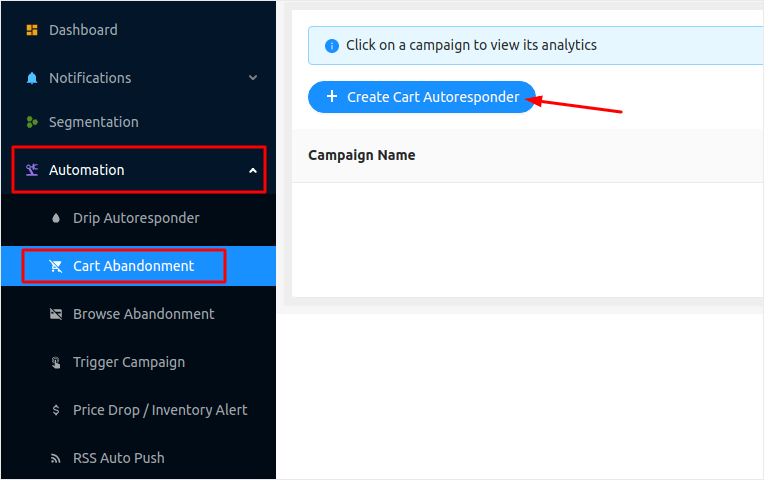
カート放棄キャンペーンの作成方法に関する記事に従って、次のような自動応答を作成して送信できます。
プロのヒント:この機会にプッシュ通知をテストし、キャンペーン内のすべてが正常に機能しているか確認するのも良いでしょう。
まとめ
今回は以上です、皆さん!
この記事を楽しんでいただき、Volusionストアで最初のプッシュ通知キャンペーンを設定できたなら、素晴らしいです!
ストアの価格低下アラートの作成方法も確認してください。
まだ始めていない場合は、PushEngageを使い始めましょう。PushEngageは世界No.1のプッシュ通知ソフトウェアです。したがって、あなたのキャンペーンは安全な手に委ねられています。


