
失われたリードを回復するためにフォーム放棄トラッキングを使用する方法をお探しですか?
フォーム放棄とは、ユーザーがHTMLフォームに入力した後、送信せずに離脱することです。フォームは単一ページフォームでも複数ページフォームでも構いません。複数ページフォームの場合、通常はフォームの最後のページを指します。しかし、ユーザーが最初の数ページに詳細を入力した後、すべてのステップを完了する前にフォームを離脱した場合も、フォーム放棄となります。
この記事では、フォーム放棄プッシュ通知キャンペーンを設定して、失われたリードを自動的に回復する方法をご紹介します。最も良い点は、設定に10分もかからないことです。
さあ、始めましょう。
フォーム放棄トラッキングの仕組み
eコマースサイトにカート放棄の問題があるのと同様に、代理店サイトにもフォーム放棄の問題があります。PushEngageのウェブプッシュ通知の助けを借りて、放棄するユーザーをターゲットにし、連絡フォームを完了するように促すことができます。
PushEngageは世界で最高のプッシュ通知サービスです。そのため、キャンペーンは安全な手元にあります。
フォーム放棄とは何かを見てきたので、フォーム放棄トラッキングがどのように機能するかを理解する時が来ました。放棄されたフォーム回復キャンペーンを作成するための一般的なプロセスを理解するために、シングルステップフォームとマルチステップフォームの両方を確認します。
シングルステップフォーム放棄トラッキングキャンペーン
フォームが存在するページを訪問するとすぐに、「未完了フォーム入力」というセグメントに追加されます。
もちろん、最初にそのセグメントを作成する必要があります。セグメントの条件は、フォームの「送信」ボタンをクリックするまで、フォームを訪問した購読者がURL訪問時に自動的にセグメントに配置されることです。
訪問者がフォームの「送信」ボタンをクリックしない場合、わずかな遅延の後、自動プッシュ通知が送信され、フォーム入力を完了するように求められます。
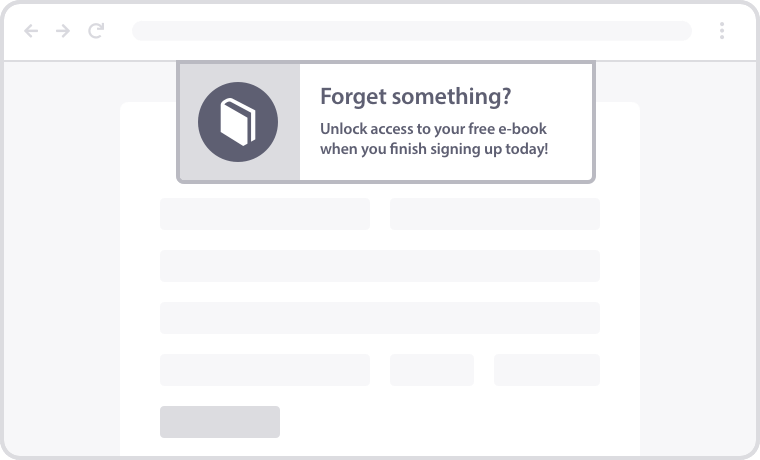
メールの自動返信機能のように、プッシュ通知のシーケンス全体を設定できます。購読者がフォーム入力を完了すると、自動的にセグメントから削除され、それ以上の通知の受信が停止します。
マルチステップフォーム放棄トラッキングキャンペーン
マルチステップフォーム放棄は、シングルステップフォームとほぼ同じように機能します。唯一の違いは、フォームの入力ステップ数に応じて複数のセグメントを作成する必要があることです。
たとえば、3つのパートからなるフォームがある場合、3つのセグメントを作成することになります。
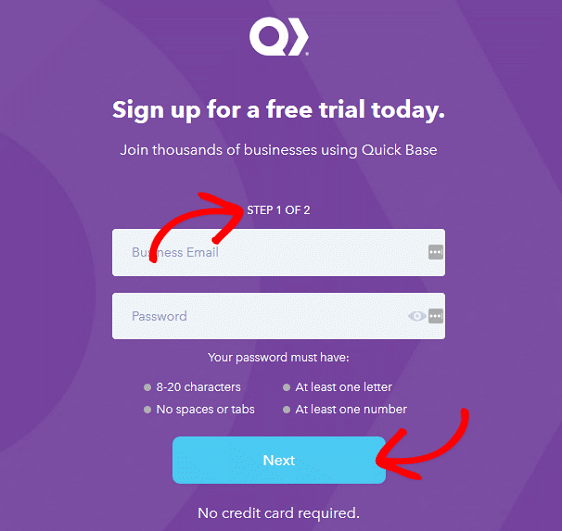
理想的には、各ステップのURLに基づいて、各ステップのセグメントを作成します。訪問者がいずれかのURLでアクションを実行すると、フォーム全体を完了するまで、次のセグメントに自動的に追加されます。唯一手動で行う必要があるアクションは、前のセグメントから購読者を削除することです。
訪問者がどのセグメントにいるかに基づいて、途中で離脱した場合にフォーム入力を完了するように説得するためのドリップキャンペーンを送信します。
フォーム放棄回復キャンペーンの設定方法
最後に、フォーム放棄回収キャンペーンをすばやく作成する方法を見てみましょう。このパートでは、PushEngageを使用してプッシュ通知キャンペーンを設定します。フォーム放棄キャンペーンを作成するには、プレミアムプラン以上が必要です。したがって、このチュートリアルの残りを続行する前に、PushEngageの利用を開始してください。
PushEngageにサインアップしてインストールしたら、PushEngageダッシュボードに移動します。
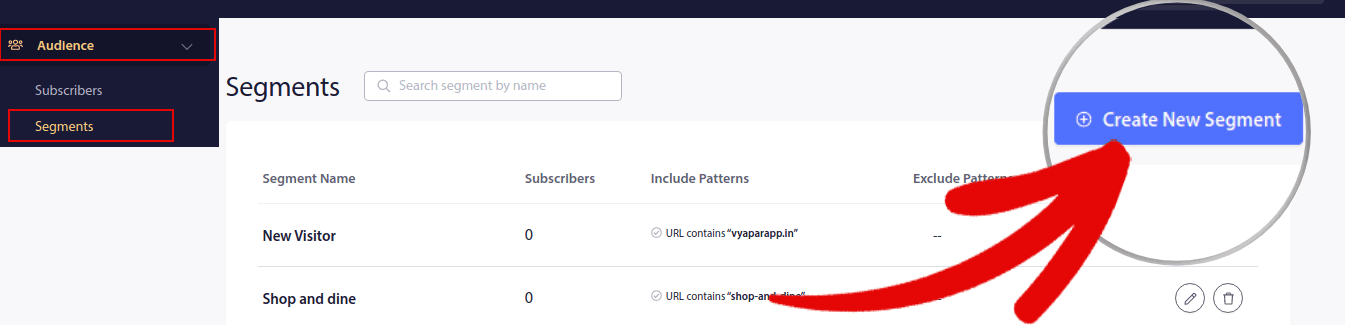
次に、Audience » Segmentsに移動し、Create a New Segmentをクリックします。
次に、セグメントに名前を付け、Segment on Page Visitをクリックし、URL選択設定でExact Matchを選択して、フォームページのURLを貼り付けます。
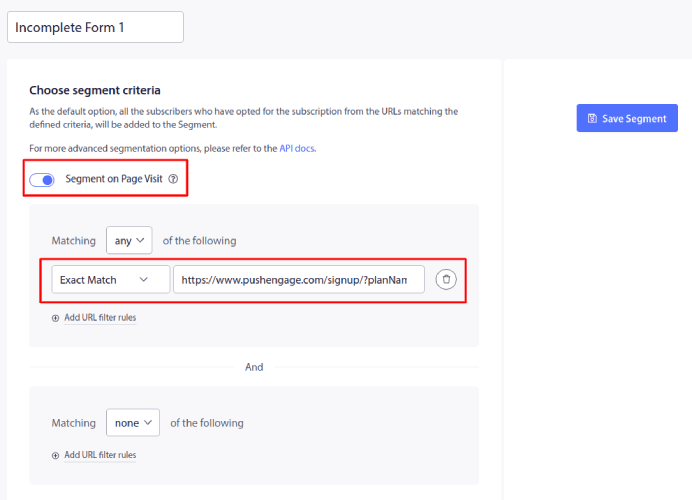
完了したら、Save Segmentをクリックします。
複数の連絡先フォームページがある場合は、各URLのセグメントを作成してください。次に、Campaign » Drip Autorespondersに移動し、Create New Drip Autoresponderをクリックします。

次に、Contentの下でフォーム放棄自動応答を作成します。
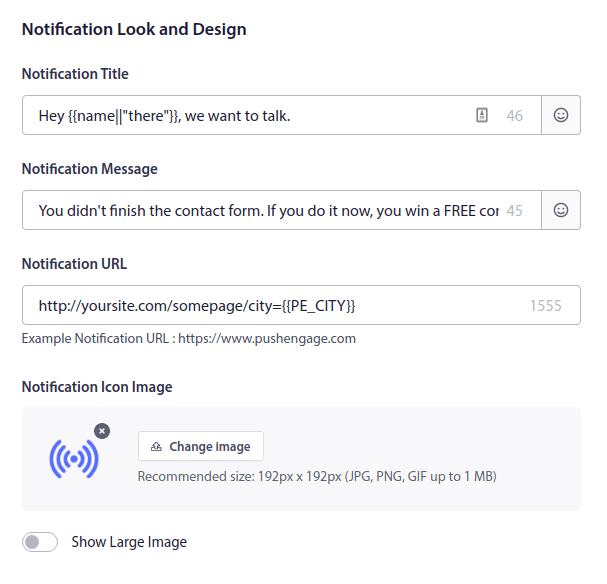
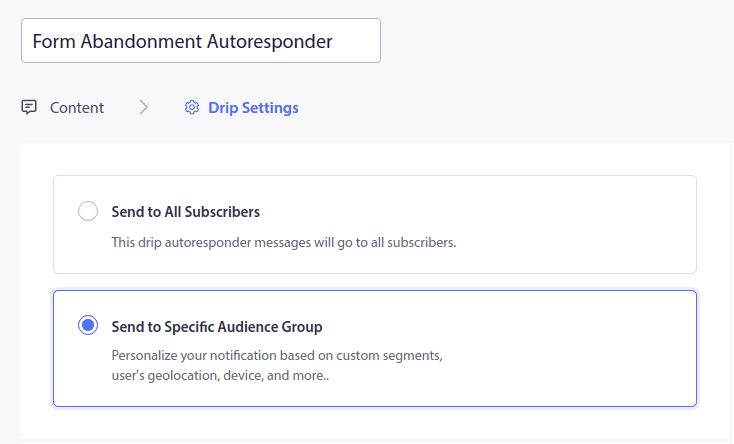
それが完了したら、Drip Settingsに移動し、Send to a Specific Audience Groupを選択します。
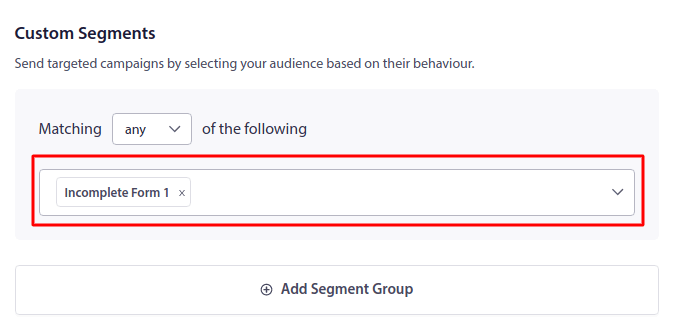
そして、Custom Segmentsの下で、作成したセグメントを選択します。
完了したら、Activate Autoresponderをクリックします。

次に、フォームの各部分のSubmitボタンをクリックしたときに購読者をセグメントから削除するために、PushEngage APIを使用して、購読者をIncomplete Formセグメントから削除する方法を設定する必要があります。
このプロセスを設定するには、フォーム放棄キャンペーンの作成方法に関するドキュメントを確認してください。
これで完了です!
フォーム放棄追跡の設定後にやること
プッシュ通知を始めたばかりの場合は、PushEngageから始めるべきです。PushEngageは世界最高のプッシュ通知ソフトウェアです。フォーム放棄キャンペーンに加えて、さまざまな自動プッシュ通知キャンペーンを設定できます。
これらのキャンペーンも簡単に開始でき、次に確認することもできます。
まだの場合は、今すぐPushEngageを始めましょう。


