
購読時にウェブプッシュ購読者をセグメント化しますか?
購読者を自動的にセグメント化すると、パーソナライズされたプッシュ通知キャンペーンを簡単に送信できます。そうすれば、プッシュ通知のクリック率を向上させ、サイトへのリピートトラフィックを増やすことができます。
しかし、どうすればよいのでしょうか?
この記事では、購読時に購読者をセグメント化するための正確な手順を説明します。
PushEngageを使用してその方法を説明します。PushEngageは世界No.1のプッシュ通知ソフトウェアであり、ダッシュボードから非常に高度なセグメンテーションオプションを利用できます。
さあ、始めましょう。
URLに基づいて購読者をセグメント化する方法
購読者セグメントを作成する最も簡単な方法の1つは、リードが閲覧するコンテンツの種類に基づいてリードを整理することです。
そして、これはPushEngageで設定するのが非常に簡単です。通常、セグメントを作成するにはJavascript APIを使用する必要があります。PushEngageでは、そのオプションも引き続き利用できますが、最も簡単な方法はPushEngageダッシュボードから行うことです。Audience » Segmentsに移動し、Create a New Segmentをクリックします。

そして、閲覧しているURLに基づいて購読者を自動的にセグメント化するルールを作成します。
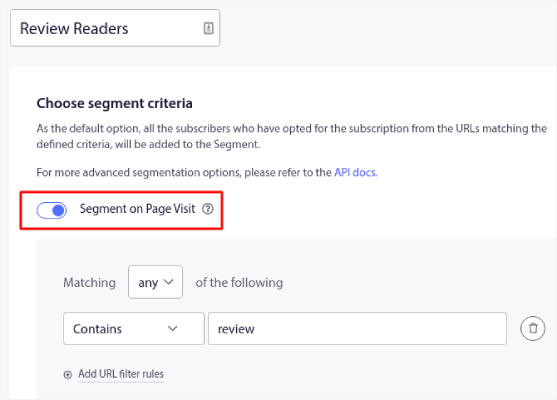
この例では、「Sample Segment」という名前のセグメントを作成しました。これは、サイトのURLに「examples」という単語が含まれている場合に購読者を自動的にセグメント化します。ここでは、好きなキーワードをほぼすべて使用できます。
ルールに満足したら、Createをクリックします。
そして、あっという間に完了です!
プッシュ通知オプトインを使用して購読者をセグメント化する方法
また、プッシュ通知オプトインをカスタマイズすることで、プッシュ通知を購読する際に購読者をセグメント化することもできます。
これは、PushEngageを使用して実行できるユーザーpreference-based segmentation(ユーザーの好みに基づくセグメンテーション)の一種です。User-Driven Segmentation(ユーザー主導のセグメンテーション)と呼ぶこともできます。ここでは、購読者は提供された2つの選択肢のいずれかを選択します。
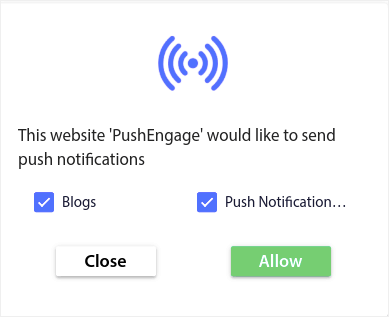
仕組みは次のとおりです。
- ユーザーが購読すると、PushEngageはサブスクリプションデバイスID、ジオロケーション、およびデバイスタイプを取得します。
- この場合、PushEngageは購読時にユーザーの好みも収集し、カスタムセグメントに保存します。
早速始めましょう。
最初の部分は前の方法と同じです。Segmentationに移動し、Create a New Segmentをクリックします。
注:このタイプのセグメンテーションでは、Segment on Page Visitをクリックしないでください。
セグメントを作成したら、Design » Popup Modalsに移動し、新しいLarge Safari Style with Segmentオプトインを作成します。
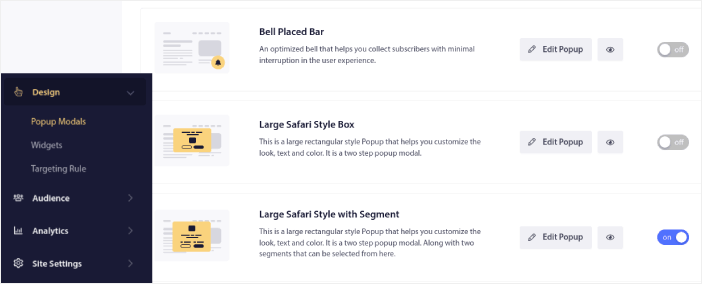
Edit Popupをクリックし、Popup Designタブの下でオプトインをデザインします。
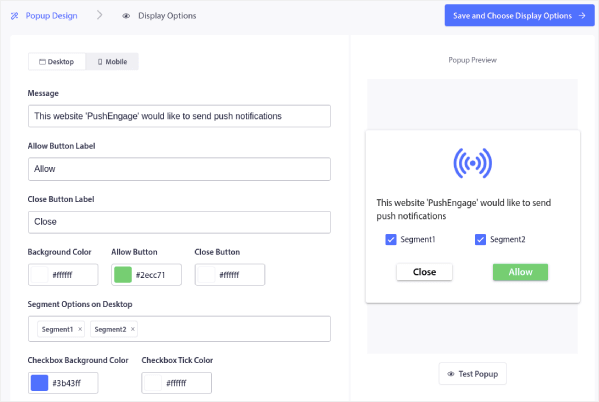
ここでは、コピーからブランドカラーをオプトインに表示させるまで、オプトインに関するほぼすべてのものをカスタマイズできます。Segment Options on Desktopフィールドで、訪問者に購読してもらいたいセグメントを選択できます。
このオプトインの優れた点は、同じ購読者がポップアップから直接複数のセグメントを購読できることです。
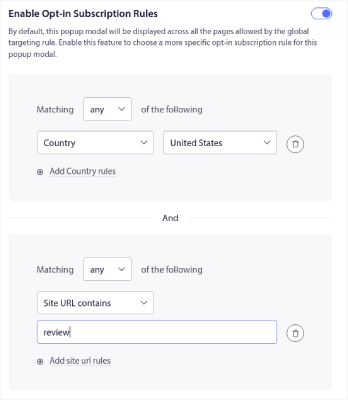
下にスクロールしてEnable Opt-in Subscription Rulesに移動すると、プッシュ通知オプトインを表示するタイミングを設定できます。
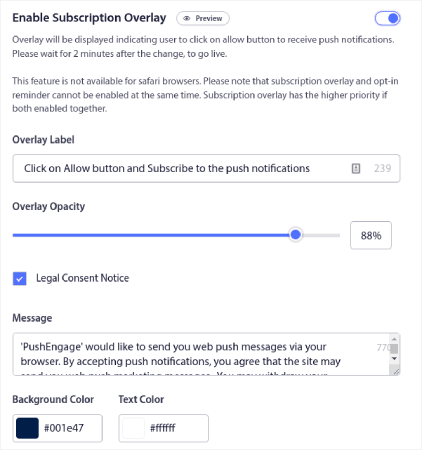
Subscription OverlayとLegal Consent Noticeを作成することもできます。
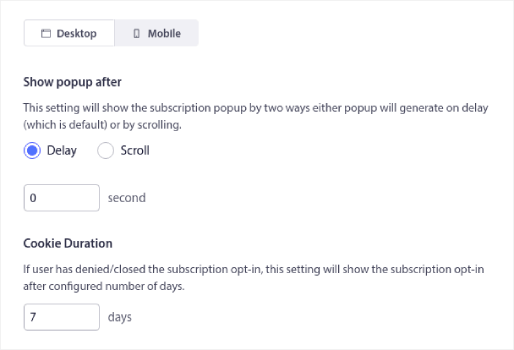
完了したら、保存して表示オプションを選択ボタンをクリックします。そこで、訪問者がターゲットページにアクセスしてから遅延を作成することにより、オプトインが表示されるタイミングを設定できます。
完了したら、保存してポップアップを有効にするをクリックしてください。

これで全部です!コードは一切不要です。すべての手順を正確に実行すれば、サイトでセグメント別のプッシュ通知オプトインが表示されるはずです。
プッシュ通知購読者をセグメント化した後の対処法
今回は以上です、皆さん!
セグメンテーションは優れたプッシュ通知戦略です。 プッシュ通知サービスにサインアップする前に、必ずオーディエンスセグメンテーション機能を確認してください。
ついでに、これらの素晴らしいリソースもチェックしてみてください。
PushEngage の利用をお勧めします。PushEngage は世界No.1のプッシュ通知ソフトウェアであり、すぐに強力なセグメンテーション機能を利用できます。
まだの方は、今日からPushEngageを始めましょう。


非常に役立つ記事でした。PushEngage の設定で、ウェブサイトに記載されている指示を適用します。
ありがとうございます。