X-Cartは、世界で最も人気のあるeコマースサイトビルダーの1つです。X-Cartを使用すると、数秒で本格的なオンラインストアを作成できます。しかし、X-Cartサイトにプッシュ通知を追加するにはどうすればよいでしょうか?
プッシュ通知は、非常にシンプルなプッシュ通知キャンペーンを作成することで、ストアのトラフィック、エンゲージメント、収益を増やすのに役立ちます。最も良い点は、プッシュ通知は非常に手頃な価格で簡単に実行できることです。
この記事では、X-Cartにウェブプッシュ通知を追加する手順をステップバイステップでご紹介します。
PushEngageを使用して行う方法をご紹介します。PushEngageは世界最高のプッシュ通知ソフトウェアであり、プッシュ通知キャンペーンを送信するためにこのソフトウェアを使用することを強くお勧めします。
早速飛び込みましょう。
X-Cartにプッシュ通知をインストールする方法
X-Cartにプッシュ通知をインストールするのは、それほど難しくありません。このチュートリアルで各ステップに従えば、問題なく完了できます。
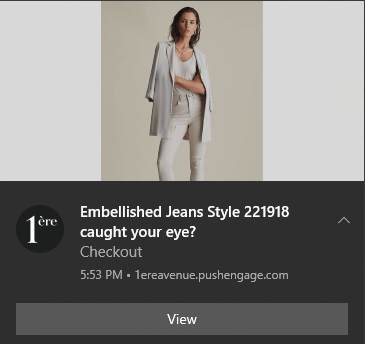
すべてが完了すると、サイトに次のようなウェルカムプッシュ通知が表示されるはずです。
さあ、始めましょう。
ステップ1:PushEngageアカウントの設定
PushEngageのホームページにアクセスし、開始するボタンをクリックします。

PushEngageは無料で試すことができます。しかし、強力な機能をすべて利用するには、有料プランを選択することをお勧めします。X-Cartはeコマースサイトビルダーなので、自動プッシュ通知キャンペーンを完全に利用するには、エンタープライズパッケージを取得するのが理想的です。
PushEngageアカウントにサインアップしたら、PushEngageダッシュボードにアクセスし、設定 » サイト設定 » インストール設定に移動します。
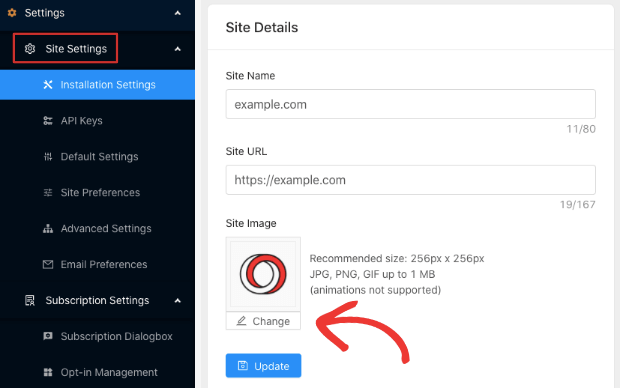
ここでロゴ、サイト名、サイトURLを設定できます。それが完了したら、インストールに進みます。後でプッシュ通知をテストできるように、今すぐこれを正しく完了する必要があります。
ステップ2:PushEngageからインストールコードを取得する
プッシュ通知をインストールするには、PushEngageダッシュボードからインストールコードを取得する必要があります。設定 » サイト設定 » インストール設定に移動します。
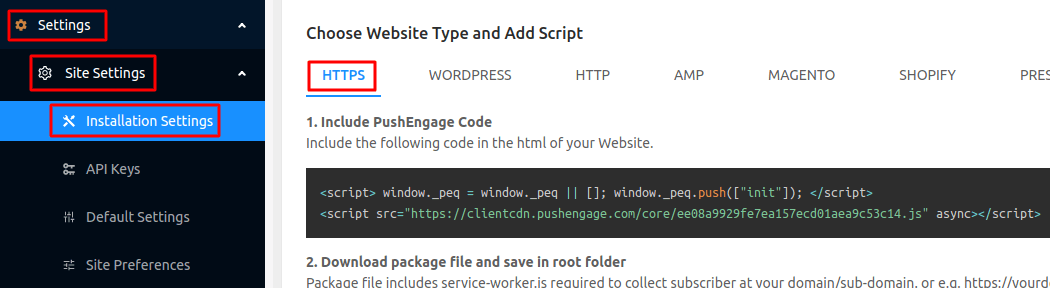
サイトにSSL証明書がインストールされているかどうかに応じて、HTTPタブまたはHTTPSタブのいずれかからインストールコードを取得します。
このJavaScriptコードスニペットをコピーします。すぐに必要になります。
ステップ3:X-Cartサイトにインストールコードを配置する
X-Cartダッシュボードにログインし、Content » Front Pageに移動します。
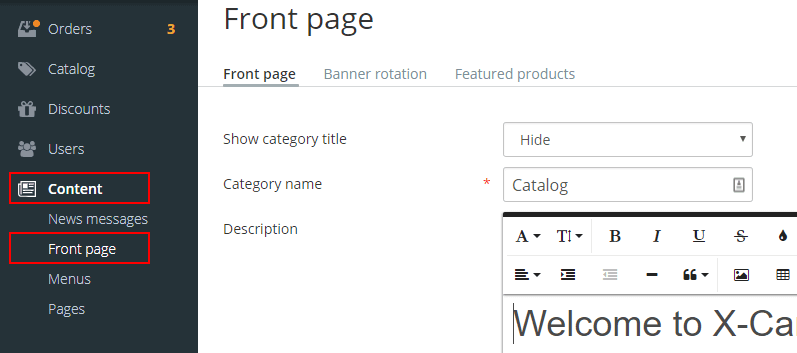
テキストエディタで、Code Viewを選択し、PushEngageダッシュボードから取得したPushEngageインストールコードスニペットを貼り付けます。
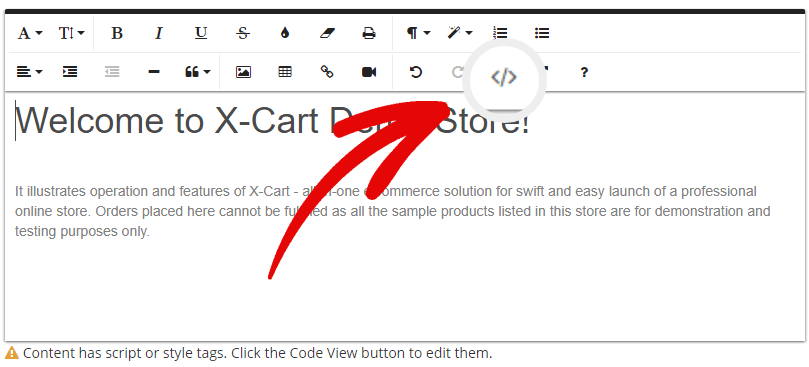
完了したら、Updateをクリックします。これで完了です!
ステップ4:PushEngageオプトインの設定
最後に、PushEngageダッシュボードで、設定 » サブスクリプション設定 » サブスクリプションダイアログボックス » 編集に移動します。
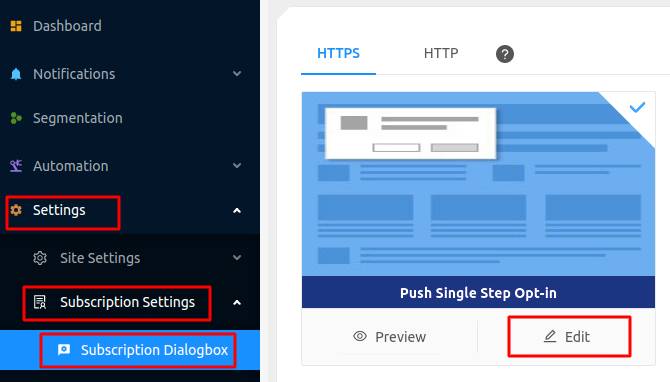
ここで、プッシュ通知のオプトインをカスタマイズできます。これに対処する最善の方法は、他のオプトインと同様に扱うことです。訪問者にサブスクライブする確かな理由を与えたいはずです。そのためのヘルプが必要な場合は、カスタムプッシュ通知オプトインの作成方法に関する記事を確認してください。
そして、開始するためのテンプレートが必要な場合は、コンバージョン率の高いプッシュ通知オプトインに関するこの記事を確認してください。
ステップ5:ウェルカム通知の作成
オプトインの設定が完了したので、正しく設定されているかテストする時間です。
これを実行する最善の方法は、ウェルカム通知を作成し、プッシュ通知を購読してすべてが機能するかどうかを確認することです。ウェルカム通知とは、新規購読者が購読を確認し、歓迎するために送信するプッシュ通知です。
では、どうすればよいでしょうか?
設定 » サイト設定 » インストール設定 にアクセスして、ウェルカムメッセージを設定してください。
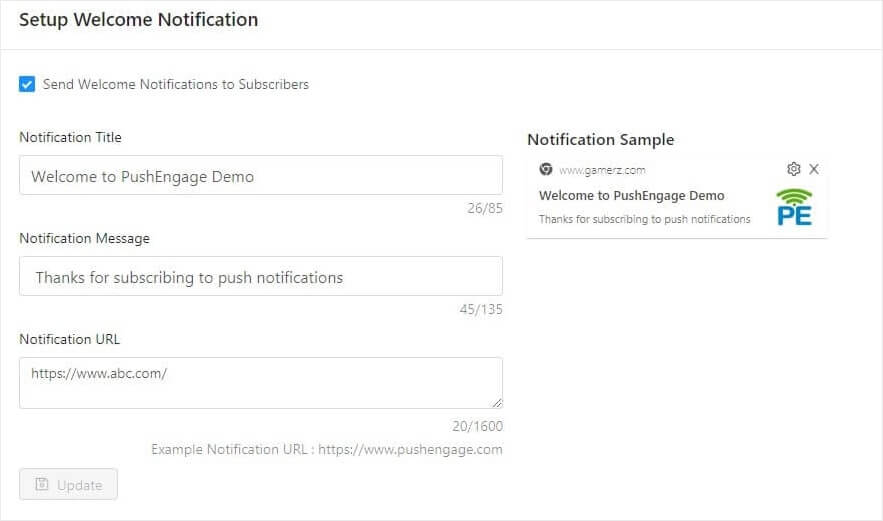
そして、本当にそれだけです。
次に、サイトに戻って自分の通知を購読するだけです。この時点で、プッシュ通知設定の完全なテストを実行することも非常に良い考えです。なぜなら、キャンペーンを作成する準備ができているからです。訪問者が見て、壊れたユーザーエクスペリエンスについて不平を言う前に、一般的な問題をトラブルシューティングするのに役立ちます。
まとめ
今回は以上です、皆さん!
すでにX-Cartサイトにウェブプッシュ通知を追加している場合は、次にプッシュ通知キャンペーンの構築を開始する必要があります。始めるのに良い場所は、インスピレーションを得るために、クリエイティブなプッシュ通知に関する記事を確認することです。
しかし、あなたがマーケティングのプロで、クリエイティブなアイデアの助けを必要としない場合は、自動プッシュ通知キャンペーンに関する記事をご覧ください。これらは、トラフィック、エンゲージメント、収益を自動操縦で増やし続ける、より高度なアイデアです。
PushEngageを使用してキャンペーンを作成することをお勧めします。PushEngageは世界No.1のプッシュ通知ソフトウェアであり、あなたのキャンペーンは安全な手に委ねられます。
ですので、まだの場合は、今すぐPushEngageを使い始めましょう!


