ウェブサイトで複数のポップアップを使用する方法

If you want to show different styles of popups on your website at the same time, you need a different strategy to get people to Opt-in or show segment preferences in some Popups and have a regular Popup on other pages. You can enable multiple popups now with PushEngage.

In this guide, you will explore how effectively you can target your subscribers through multiple popups through Local Targeting Rules.

How to Set up Local Targeting Rule

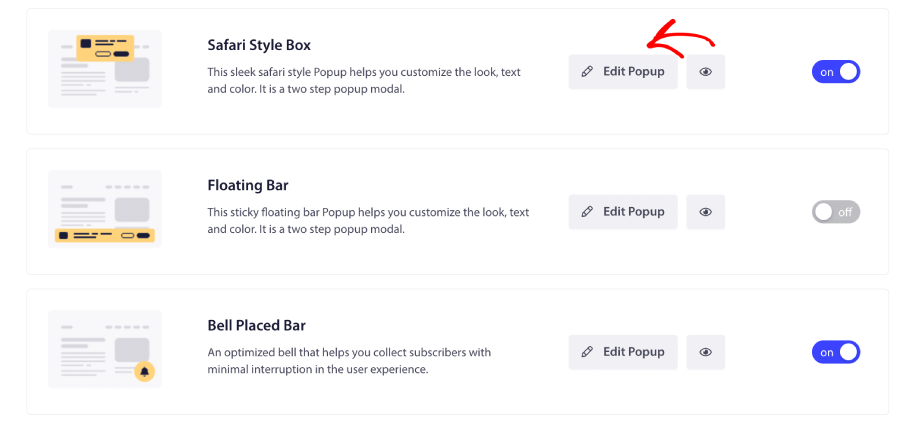
If you wish to use more than one Popup Modal to collect subscribers from your website, then it’s recommended to apply Local Rules when customizing the Popups. This allows you to manage different styles on specific pages or for different countries. To do this, go to “Design” > “Popup Modals,” scroll to the Popup style you want to edit, and click on “Edit Popup” as shared below.

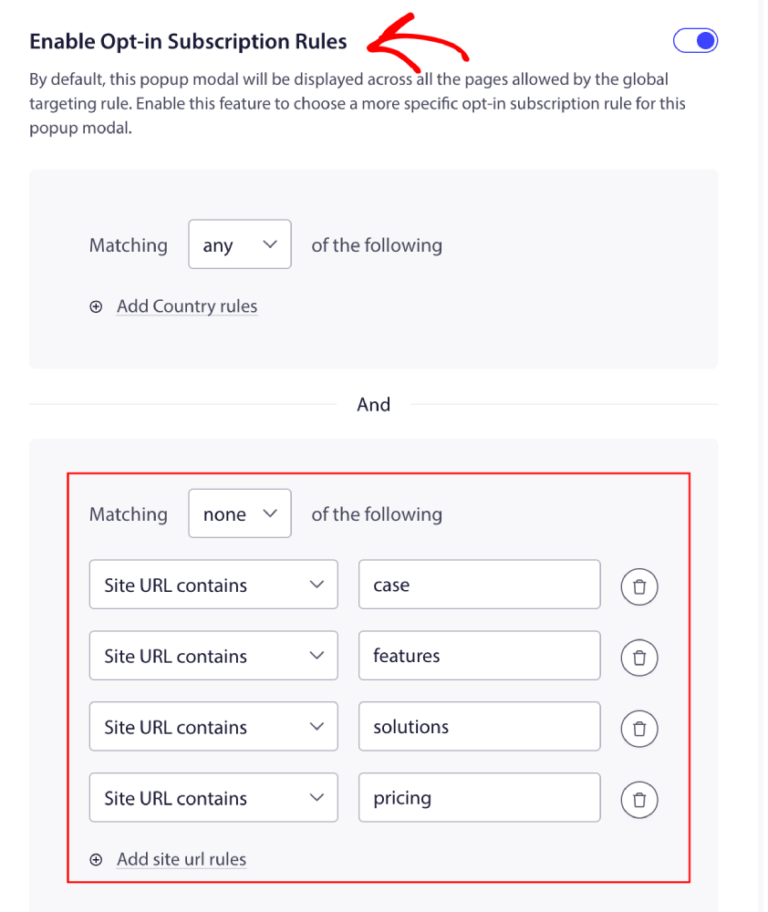
In the next steps you need to scroll down to the “Subscription Opt-in Rules” section and switch the toggle to “On.”

You can now add the rules, click “Save,” and then select your display options.

That’s it! This is how you can manage the targeting rules for the Subscription Popup.

問題が発生した場合は、ここをクリックして お問い合わせ ください。サポートチームがお手伝いします。

最終更新日:2026年3月9日

ウェブサイトを離れた後も訪問者をエンゲージし、維持する

見逃せないプッシュ通知で、すべてのウェブ訪問の価値を高めましょう。

  • 永久無料プラン
  • 簡単なセットアップ
  • 5つ星サポート