コンバージョンにつながるブラックフライデーのプッシュ通知作成に関する詳細なステップバイステップガイドをお探しですか?
確かに、シンプルなプッシュ通知のブロードキャストを送信することはできます。しかし、それは効果があるでしょうか?ホリデーシーズンの売上を伸ばすための、確実なプロセスを考案しました。複数のブランドで何度もテスト済みです。
この記事では、PushEngageのブラックフライデーセール用にプッシュ通知を作成する方法を説明します。そして、あなたも同じことができるようにします。開始に必要なもの、キャンペーンの作成方法、理想的なスケジュールについて確認していきます。
よさそうですね?さあ、始めましょう。
ブラックフライデーのプッシュ通知を開始する前に
プッシュ通知は、ウェブサイトを離れた後でもウェブ訪問者とつながるのに役立つマーケティングツールです。プッシュサブスクライバーにターゲットを絞った通知を送信したり、さまざまな顧客セグメントに合わせて通知をパーソナライズしたりすることもできます。しかし、どのプッシュ通知サービスを選ぶべきでしょうか?
プッシュ通知キャンペーンの送信には、PushEngageの使用をお勧めします。

PushEngage は世界最高のプッシュ通知サービスです。無料版だけでなく、ターゲットを絞ったプッシュメッセージでサイトを離れた訪問者とつながることができます。
PushEngageがプッシュ通知サービスおよびツールとして第一選択肢である理由は次のとおりです。
- 使い方が非常に簡単
- HTTPおよびHTTPSサイトで効果的
- 設定にほとんどまたはまったくコーディングを必要としないビジュアルビルダーが付属しています
- あらゆる種類のサイト向けに、完全に 自動化されたプッシュ通知キャンペーン を簡単に設定できます
- クリック率を高めるためのパーソナライズされたプッシュ通知を送信するための複数のオプションがあります
- カスタム目標追跡、UTMパラメータ、および高度な分析を備えています
これはほんの始まりにすぎません。さらに進む前に、PushEngageの機能の全リストを確認してください。PushEngageの最も素晴らしい点は、購入を決定する前に試すことができる、永久無料プランがあることです。
プロのヒント:サービスを購入する前に、プッシュ通知のコスト分析に関する記事を確認してください。
アカウントの作成が完了したら、PushEngageダッシュボードにアクセスして進めてください。

サイト設定 » サイト詳細をクリックし、セットアップ手順はこちらをクリックボタンをクリックしてください。

WordPressタブをクリックし、PushEngage WordPressプラグインをインストールボタンをクリックして、ウェブサイトにプラグインをインストールします。

素晴らしい点: PushEngageアカウントを作成したときに、すでにウェブサイトとPushEngageアカウントを同期しています。したがって、PushEngageダッシュボードのインストールリンクをクリックして、PushEngage WordPressプラグインをウェブサイトに自動的にインストールします。
これで完了です!ウェブ通知WordPressプラグインをウェブサイトに正常に設定しました。WordPress管理パネルにログインする必要はまったくありません。より詳細なガイドについては、WordPressにウェブ通知をインストールする方法に関する記事を確認してください。
ブラックフライデーのプッシュ通知の作成を開始する前に、開始に役立つこれらのリソースも確認してください。
- ウェブ通知WordPressプラグインをサイトに追加する方法
- プッシュ通知アイコンの追加方法(簡単な方法)
- 即時トラフィックを獲得するための7つのプッシュ通知のベストプラクティス
- プッシュ通知のワンステップオプトインを有効にする方法
- [お知らせ] PushEngageに高度なオーディエンスグルーピングが追加されました
PushEngageをすばやく使い始めるために、これらのリソースを使用することを強くお勧めします。
プッシュ通知キャンペーンの作成方法
PushEngageの基本的な仕組みを理解したところで、キャンペーンを作成しましょう。現在、PushEngageではプッシュブロードキャストのオーディエンスグループ機能のみを提供しています。
したがって、PushEngageダッシュボードでキャンペーン » プッシュブロードキャストに移動して、プッシュ通知を作成してください。

次に、ステップバイステップのプロセスに従って、強力なブラックフライデーセールを作成してください。すべてのステップに従えば、次のような強力なプッシュ通知が作成できるはずです。

ステップ#1:プッシュ通知コンテンツのドラフト作成
プッシュ通知コンテンツには以下が含まれます:
- 通知タイトル
- 通知メッセージ
- リダイレクト先のURL
- 通知用の大きな画像
- コールトゥアクションボタン
- 通知の有効期限制限
まず、通知の基本的なコンテンツから始めましょう:
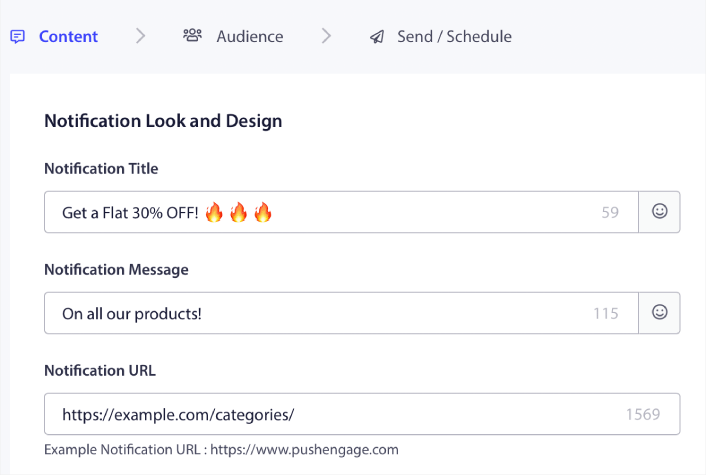
通知タイトルでの絵文字の使用に注意してください。開封率を高めるために、すべてのプッシュ通知のタイトルとメッセージで絵文字を使用することをお勧めします。パフォーマンス向上のために、通知をA/Bテストすることもできます。
ステップ#2:通知に大きな画像を追加する
通知トレイの通知の群れから目立つようにするのは難しいです。そこで、通知を目立たせるには大きな画像が必要です。
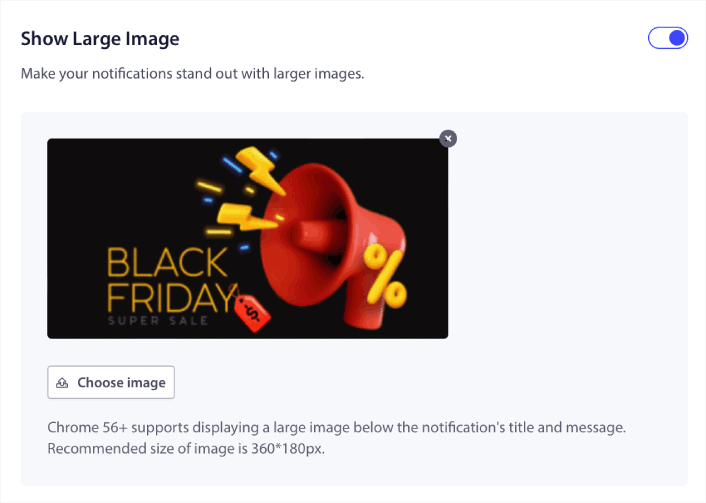
画像にはPNGおよびJPEG形式を使用できます。
ステップ3:クリック率を高めるCTAを追加する
カスタム行動喚起ボタンを使用すると、通知のクリック率が向上することがわかりました。そのため、カスタムCTAを作成するためにマルチアクション通知オプションを使用することを強くお勧めします。
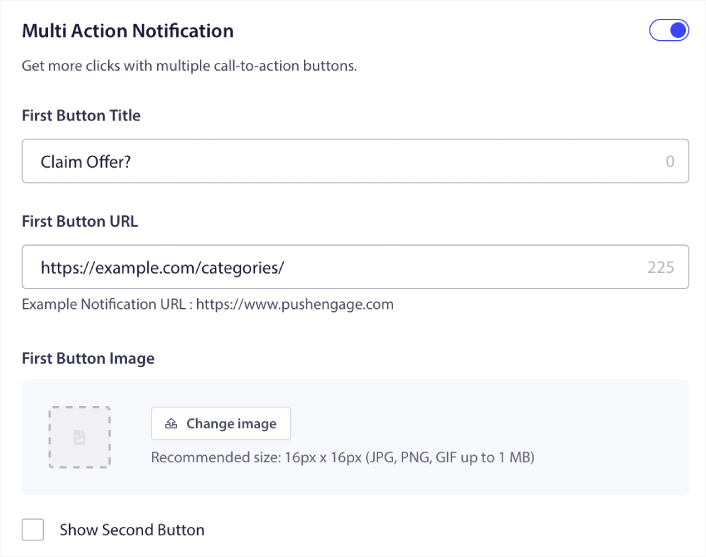
最大2つのCTAを追加できます。必要に応じて、1つまたは2つのCTAでスプリットテストを作成できます。私たちの経験では、1つのアクションにのみ集中していない限り、通常は複数のCTAを使用するのが最善です。
注意したいことの1つは、プッシュ通知の文字数制限です。プッシュ通知のすべてには、購読者のブラウザとデバイスに基づいた文字数制限があります。通知が言葉遣いが多すぎると、正しく表示されません。
ステップ4:通知期間を設定する
通知期間は、プッシュ通知が期限切れになるまでの時間制限です。期限切れ後、購読者に配信されたとしても、購読者は通知を見ることができなくなります。
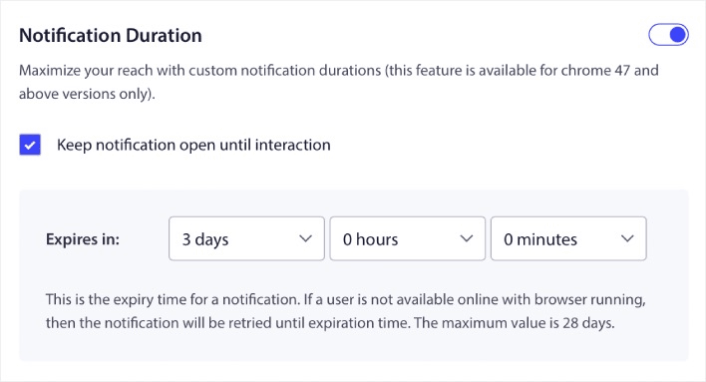
通知期間を設定することは、すべてのセールにとって素晴らしい習慣です。このように、購読者は多くの通知で溢れることはありません。
プロのヒント:フラッシュセールの適切な期間を設定してください。購読者が期限切れのオファーをクリックすると、非常に不満を感じるでしょう。
ステップ5:オーディエンスグループを選択する
コンテンツが準備できたので、通知の適切なオーディエンスを見つける時間です。
すべての購読者に通知を送信する方法
3つの通知で最大のリーチを獲得したいと考えています:
- 早期ブラックフライデーのお知らせ
- ブラックフライデーフラッシュセール
- サイバーマンデーセール
そのため、これらの3つの通知を全員に送信します。「オーディエンス」タブで、「すべての購読者に送信」を選択します。

全員への一斉送信をクリックしなかった購読者を再ターゲティングする方法
すべての購読者に通知を送信しない場合は、オーディエンスグループを作成する必要があります。
オーディエンス » オーディエンスグループに移動し、新しいオーディエンスグループを作成をクリックします。
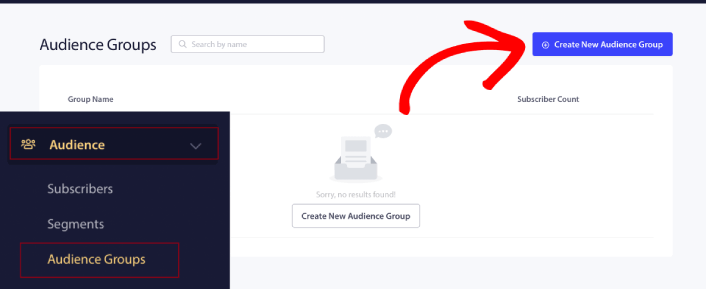
前回の通知をクリックしなかった購読者をターゲットにするには、最後のクリック日時でフィルタリングする必要があります。
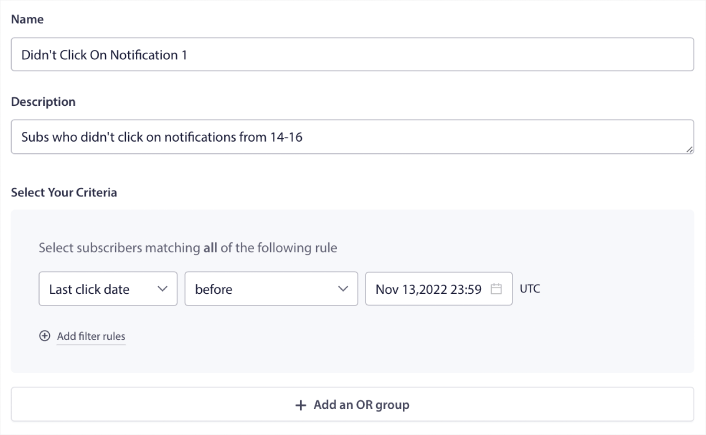
前回の通知を送信した日時より前の「最後のクリック日時」でフィルタリングします。たとえば、11月14日に最後のプッシュ通知を送信した場合、11月13日の深夜より前に通知をクリックした購読者をフィルタリングします。
注意:メールキャンペーンとは異なり、最後の通知のクリック率で実際にフィルタリングすることはできません。最も近い近似値は、日付範囲でのクリックをフィルタリングすることです。
完了したら、「通知を保存」をクリックします。
次に、プッシュ通知の一斉送信に戻り、「オーディエンスグループに送信」を選択します。ドロップダウンからグループを選択します。
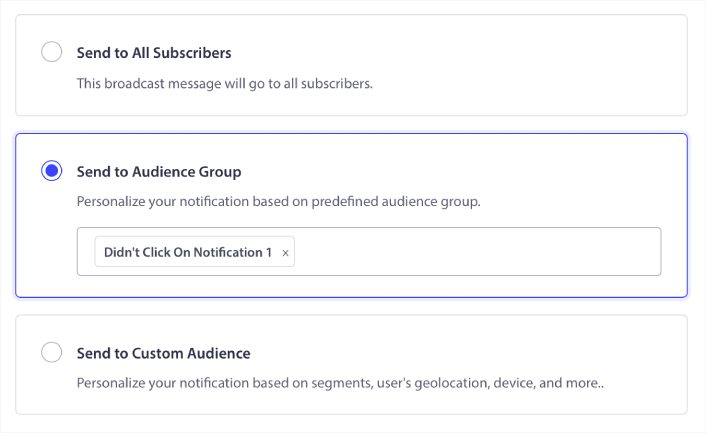
全員への一斉送信をクリックした購読者を再ターゲティングする方法
前回の通知をクリックした購読者をターゲットにしたい場合は、別のオーディエンスグループを作成できます。
前回の通知を送信した日時より「後」であり、次の通知を送信したい日時より「前」の「最後のクリック日時」で購読者をフィルタリングします。
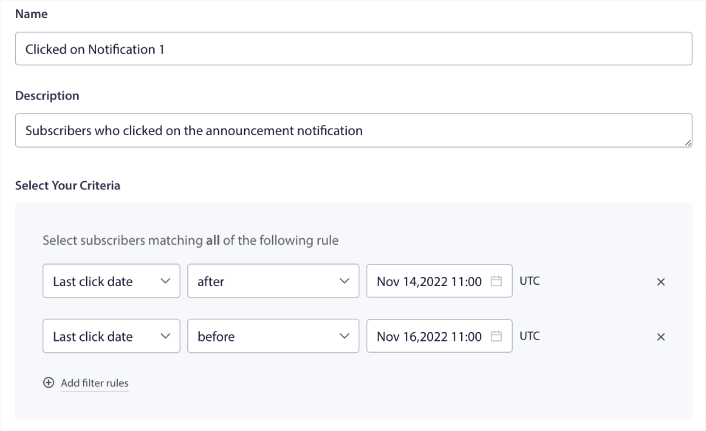
「フィルター条件を追加」をクリックすることで、フィルターに「AND」条件を追加できます。このようなフィルターは、クロスセルプッシュ通知に最適です。
ステップ6:プッシュ通知をスケジュールする
スケジュールタブで、詳細なスケジューリングオプションのために特定の曜日と時間に送信を開始を選択します。
通知は午前11時に送信します。ブラウザプッシュ通知は、実際に通知を送信したときに表示されるため、必要に応じてさらに早く送信することもできます。
デフォルトのタイムゾーン設定がESTではないため、購読者のタイムゾーンで通知を送信オプションを使用しています。
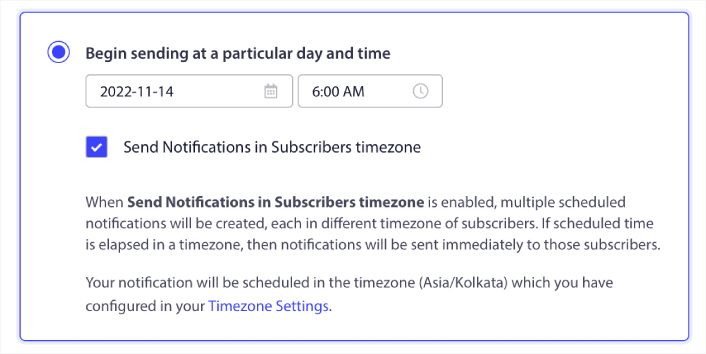
テスト通知ボタンをクリックして通知をテストすることを忘れないでください。完了したら、通知のスケジュールをクリックします。
ブラックフライデーのプッシュ通知の理想的なスケジュールとは
ホリデーキャンペーンに正しいスケジュールも間違ったスケジュールもありません。しかし、私たちは非常に厳格なスケジュールに従っており、それはうまくいっています。
- 早期ブラックフライデーセールのための3つの通知
- ブラックフライデーのための1つの通知
- スモールビジネスサタデーのための1つの通知
- サイバーマンデーのための1つの通知
- サイバーマンデー延長セールのための1つの通知
そして、通知をクリックした購読者、またはクリックしなかった購読者に対してリターゲティングプッシュ通知を行います。それがどのように機能するかお知らせください。それまでの間、これらのリソースを確認してください。
- 好奇心を刺激してプッシュ通知のクリックを増やす方法
- 各プッシュ通知をパーソナライズする方法
- リッチメディアでプッシュ通知を目立たせる方法
- 休眠中のプッシュ購読者を再エンゲージさせる方法
- 顧客に情報を提供するためにプッシュ通知を使用する方法
- クリック率を高めるためにプッシュ通知で絵文字を使用する方法
- 緊急性を醸成してコンバージョンを増やす方法
まだの場合は、今日PushEngageを使い始めましょう。


