Vous n'avez pas besoin de créer des campagnes de diffusion uniquement lorsque vous avez besoin qu'elles soient envoyées. Si vous avez planifié un événement à venir, une promotion ou un contenu que vous souhaitez diffuser à une date/heure ultérieure ou pendant votre absence, vous pouvez le faire en utilisant la fonction de planification. Vos abonnés verront les campagnes telles que vous les avez configurées à la date et à l'heure auxquelles vous les planifiez.
Plage de dates d'abonnement
Avant de commencer
Nous avons trois options de planification :
- Planification régulière
- Planification/Envoi à l'heure du client.
- Planification récurrente.
Vous pouvez vous connecter avec votre compte enregistré et naviguer vers Campagnes » Diffusion push » Contenu.
Vous pouvez ajouter les champs de texte de tous les Titres de notification, Messages de notification et URL de notification et ajouter une image à afficher dans les campagnes.
Remarque : Une notification planifiée peut être modifiée ou supprimée avant l'arrivée de la date et de l'heure prévues. Vous avez besoin d'un plan Business ou supérieur pour planifier les campagnes.
Sous l'option Envoyer/Planifier, vous pouvez planifier l'envoi des notifications plus tard, même lorsque vous êtes en dehors de vos heures de travail ou en vacances. De plus, la planification peut être répétée en définissant les jours de la semaine et l'heure d'envoi.
Sélection du groupe d'audience/Audience personnalisée
L'audience peut être sélectionnée lors de l'envoi des campagnes. Vous pouvez cliquer sur Envoyer à un groupe d'audience spécifique.
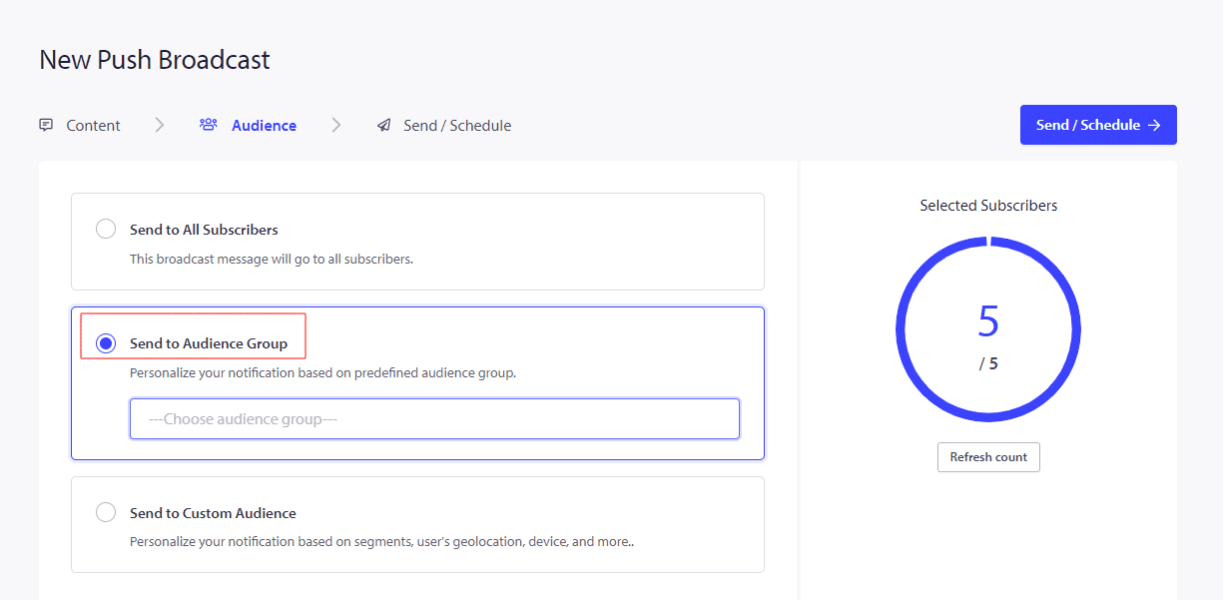
Ici, vous pouvez sélectionner l'une des options mentionnées ci-dessous :
- Plage de dates d'abonnement
- Fuseau horaire de l'abonné
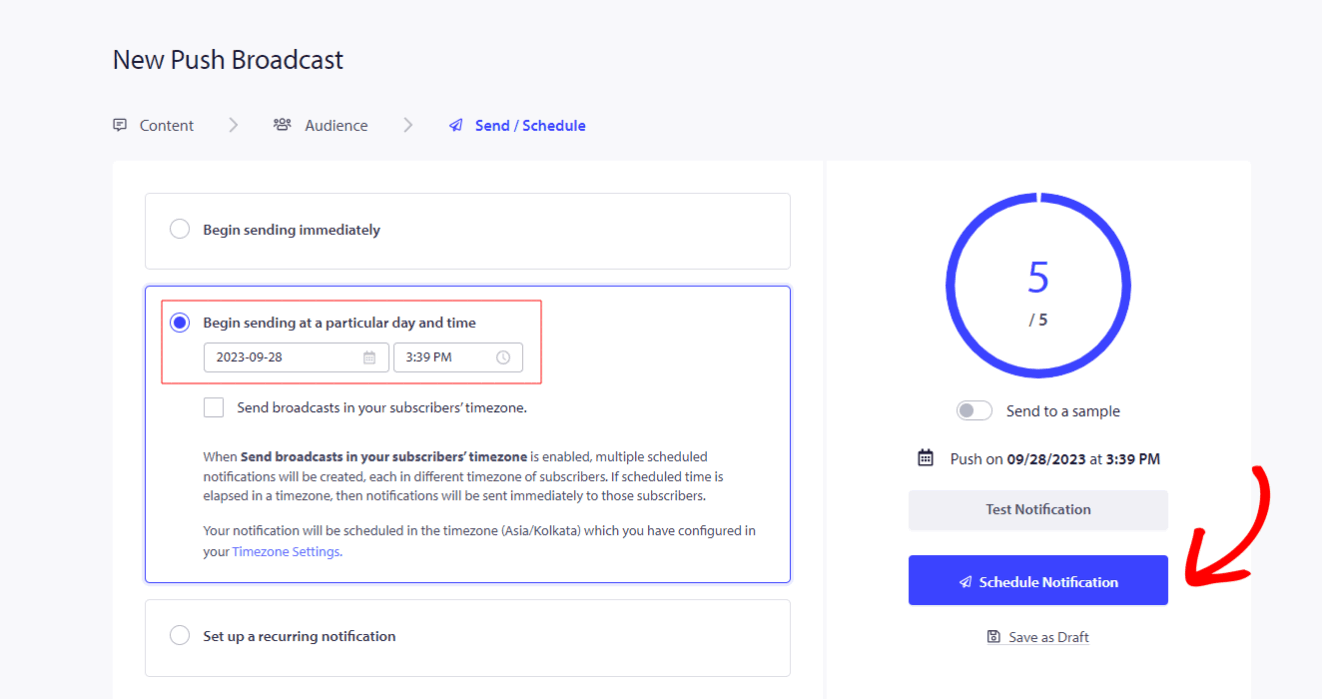
Envoyer/Planifier
Vous aurez toujours la possibilité d'envoyer maintenant ou d'envoyer plus tard. Si vous planifiez pour plus tard, vous pouvez jouer avec les options qui conviennent à vos besoins.
Planification régulière
Planifier un jour et une heure particuliers – C'est ici que vous pouvez planifier une campagne une fois pour une heure et un jour spécifiques, l'heure sera conforme au fuseau horaire ajouté dans vos paramètres de compte pour ce site.
Planification à l'heure du client
Envoyer à l'heure du client est une bonne option pour traiter avec une audience dans plusieurs fuseaux horaires. Lorsque vous choisissez une date et une heure, disons 11h, cela sera planifié selon 11h du client, par exemple, sauf si l'heure est déjà passée. Dans ce cas, cela saute simplement la planification dans ce fuseau horaire. Ce guide vous aide à comprendre toutes les étapes en détail.
Planification récurrente
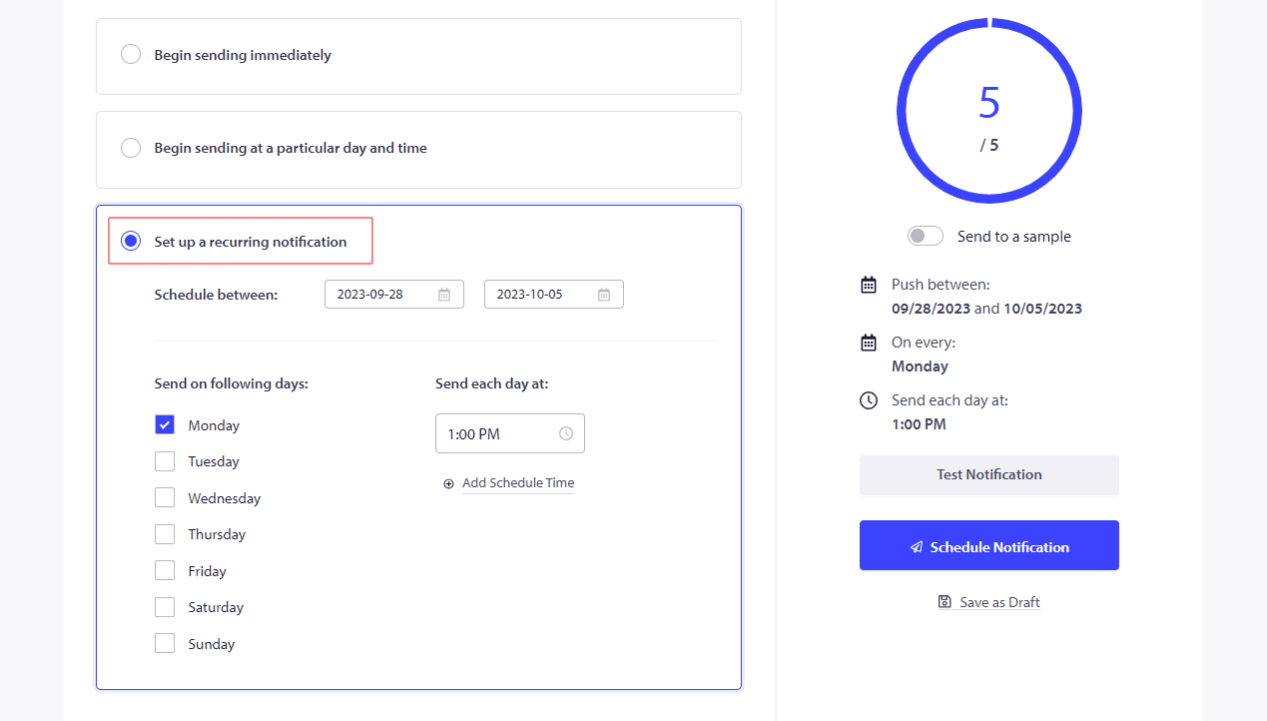
Vous pouvez planifier des notifications répétées les jours de la semaine à une heure particulière. De cette façon, la même campagne sera envoyée à une heure spécifique sans avoir à la planifier chaque jour ou chaque week-end.
Si vous rencontrez des problèmes, n'hésitez pas à nous contacter en cliquant ici. Notre équipe de support pourra vous aider.