Nous vous guiderons dans l'activation des campagnes de réapprovisionnement et d'alerte de baisse de prix dans votre boutique Shopify. Ces alertes permettent à vos clients de recevoir des notifications lorsqu'un produit qui les intéresse est réapprovisionné ou connaît une baisse de prix, contribuant ainsi à stimuler l'engagement et à augmenter les ventes.
Suivez ces étapes simples pour intégrer et personnaliser ces campagnes à l'aide de PushEngage, le tout sans avoir besoin de coder.
Avant de commencer
Voici quelques points à savoir avant de commencer :
- Ce guide suppose que vous possédez déjà l'application PushEngage et une boutique Shopify pour votre site web.
- Notre intégration Shopify nécessite un abonnement PushEngage Automation pour activer nos alertes de baisse de prix et de réapprovisionnement en utilisant notre fonctionnalité de campagne de déclenchement.
Un widget d'alerte initiera les campagnes. Une fois que les visiteurs s'inscrivent aux alertes, ils commenceront à recevoir ces notifications.
Activer les widgets pour s'abonner aux alertes
Vous pouvez naviguer vers Design » Widgets.
Faites ensuite défiler jusqu'au Widget de campagne d'alerte. Vous pouvez l'activer afin que vos abonnés puissent s'inscrire spécifiquement aux campagnes d'alerte de baisse de prix et d'alerte de réapprovisionnement pour les déclencher.
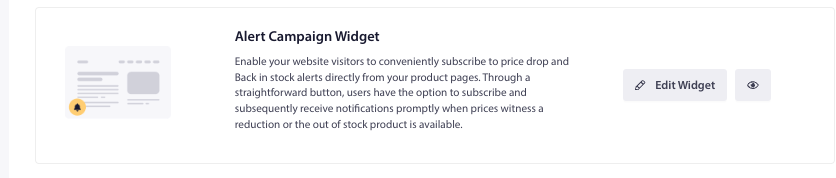
Vous pouvez personnaliser le widget d'alerte avec différents messages, en faisant correspondre les couleurs à votre thème de marque pour le rendre plus attrayant pour les visiteurs afin qu'ils cliquent et s'inscrivent via celui-ci.
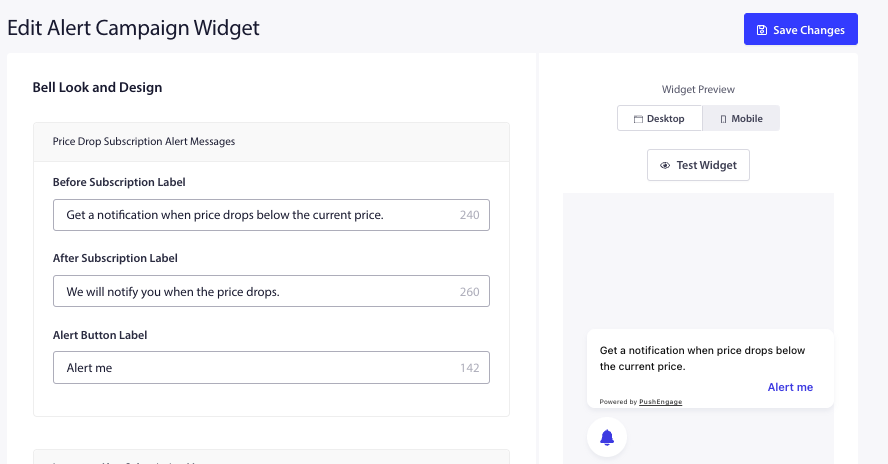
Activation des campagnes d'alerte de baisse de prix et de réapprovisionnement
Connectez-vous à votre compte PushEngage. Depuis le tableau de bord, allez dans Campagnes » Campagnes de déclenchement.
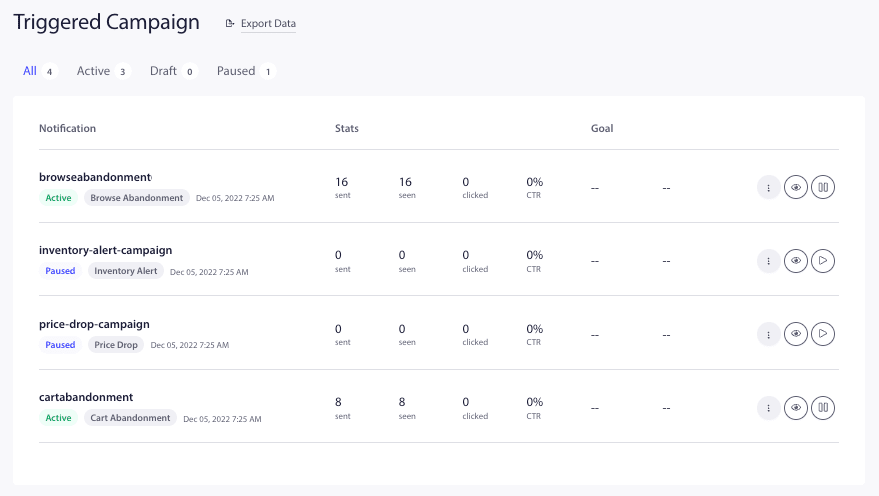
PushEngage s'intègre parfaitement à votre boutique et propose des modèles prêts à l'emploi pour les campagnes d'alerte de baisse de prix et de réapprovisionnement. Ces campagnes s'intègrent directement à votre flux de produits et récupèrent toutes les variables nécessaires.
Vous pouvez cliquer sur le bouton Reprendre le déclenchement.

Vous pouvez également modifier les campagnes déjà créées. Après avoir cliqué sur modifier, vous verrez quelques notifications push ajoutées à la campagne.
Remarque : Veuillez ne pas supprimer les variables pour le nom du produit, le prix, l'image et l'URL afin de garantir que le contenu dynamique soit affiché aux utilisateurs.
Vous pouvez également planifier le flux de campagne pour chaque notification. Vous pouvez ajouter de nouvelles campagnes ou les supprimer.
Optimisation des paramètres des notifications
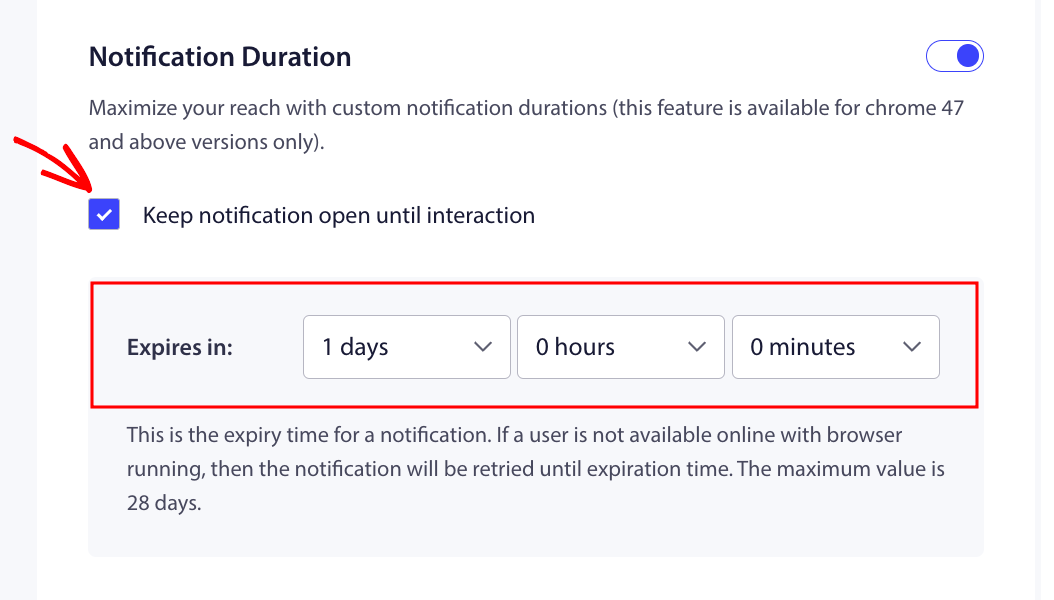
La durée de la notification aidera à définir la durée de la campagne pendant laquelle la campagne est active. La meilleure pratique consiste à la baser sur la prochaine planification. Cela signifie que si la première notification devait être envoyée après 1 jour et la deuxième notification après 2 jours, la durée d'expiration devrait être de 48 heures/2 jours pour la première notification.
Vous devriez également toujours laisser la notification ouverte jusqu'à réaction afin que la campagne ne disparaisse pas de l'écran et reste dans le centre d'action en l'absence d'action de la part de l'abonné.
Définir le plafonnement de la fréquence
C'est un facteur très important pour éviter de spammer les utilisateurs lorsqu'ils ont ajouté plusieurs notifications. Vous pouvez naviguer vers Paramètres de déclenchement.
Vous pouvez ajouter un plafond de notification hebdomadaire et mensuel. Par exemple, si une limite quotidienne est de 2, vous pouvez ajouter une limite hebdomadaire de 14. Cela signifie que le plafond s'applique à chaque abonné/jour.
Suivre les performances des campagnes
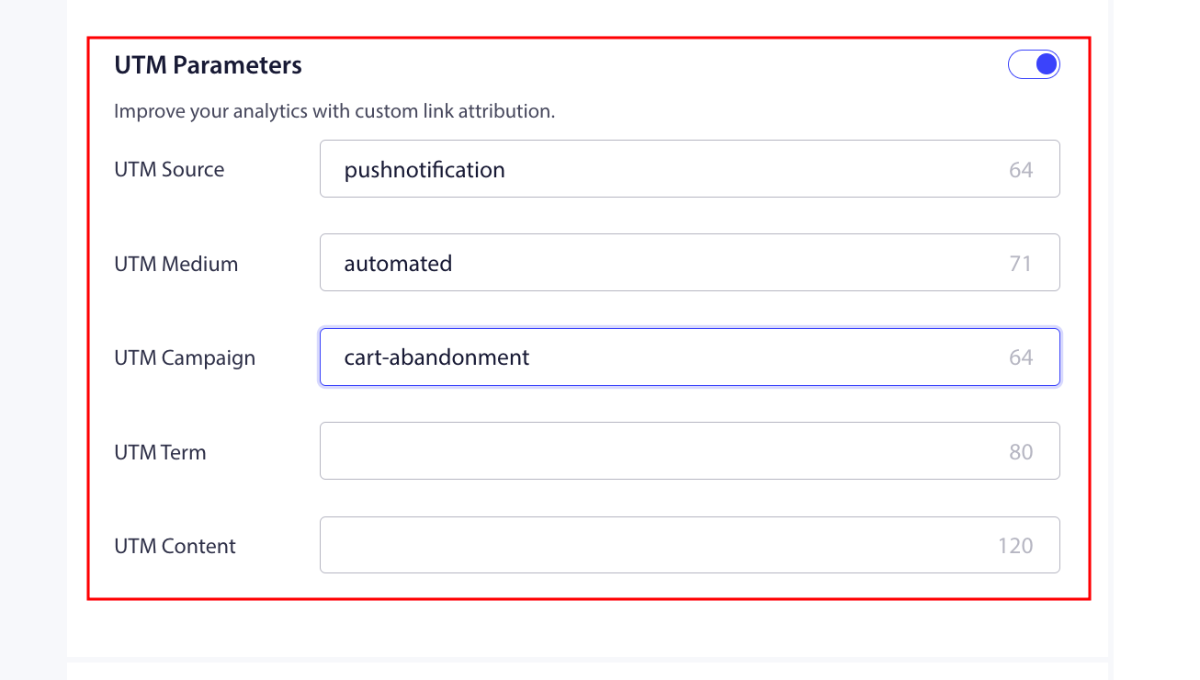
Vous pouvez utiliser les paramètres UTM et le suivi des objectifs pour surveiller les performances de vos campagnes. En dehors de cela, nous pouvons également activer le suivi des objectifs. Voici le guide qui vous aidera à activer le suivi des objectifs.
C'est tout ; vous avez activé les campagnes d'alerte de baisse de prix et de réapprovisionnement pour votre boutique avec PushEngage.
Si jamais vous rencontrez des problèmes, n'hésitez pas à nous contacter en cliquant ici. Notre équipe de support pourra vous aider.