Les acheteurs visitent votre site Web et parcourent vos produits ou services, mais repartent sans entreprendre aucune action ; les campagnes d'abandon de navigation de PushEngage sont conçues pour les réengager. Ces campagnes utilisent des notifications push Web pour ramener les acheteurs, en particulier ceux qui regardent sans acheter, les encourageant à effectuer des actions comme acheter ou s'inscrire.
Avant de commencer
Le parcours commence par les Campagnes de déclenchement, qui sont utiles pour créer des expériences personnalisées avec des modèles comme l'abandon de panier, l'abandon de navigation, la baisse de prix ou les alertes de stock, et pour construire des campagnes basées sur des événements adaptées aux interactions des utilisateurs.
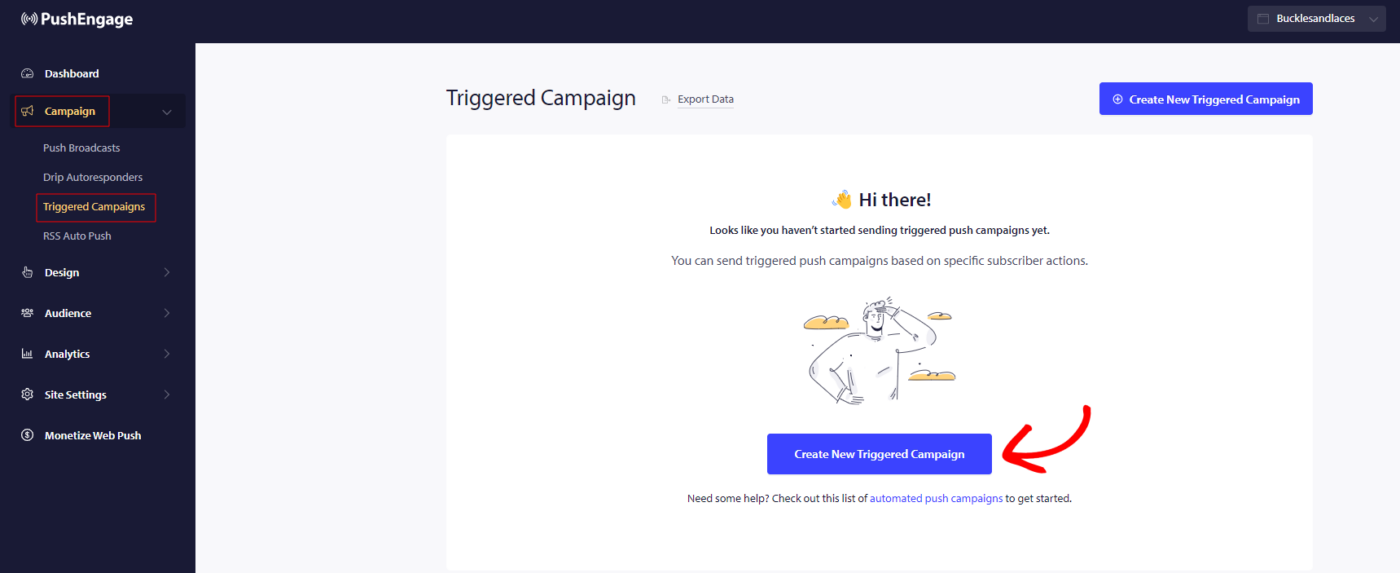
Dans ce guide, vous apprendrez comment configurer les campagnes d'abandon de navigation avec PushEngage.
Vous devez vous connecter à votre tableau de bord et naviguer vers Campagne » Campagnes déclenchées. Sélectionnez Campagne d'abandon de navigation, et cliquez sur Créer.
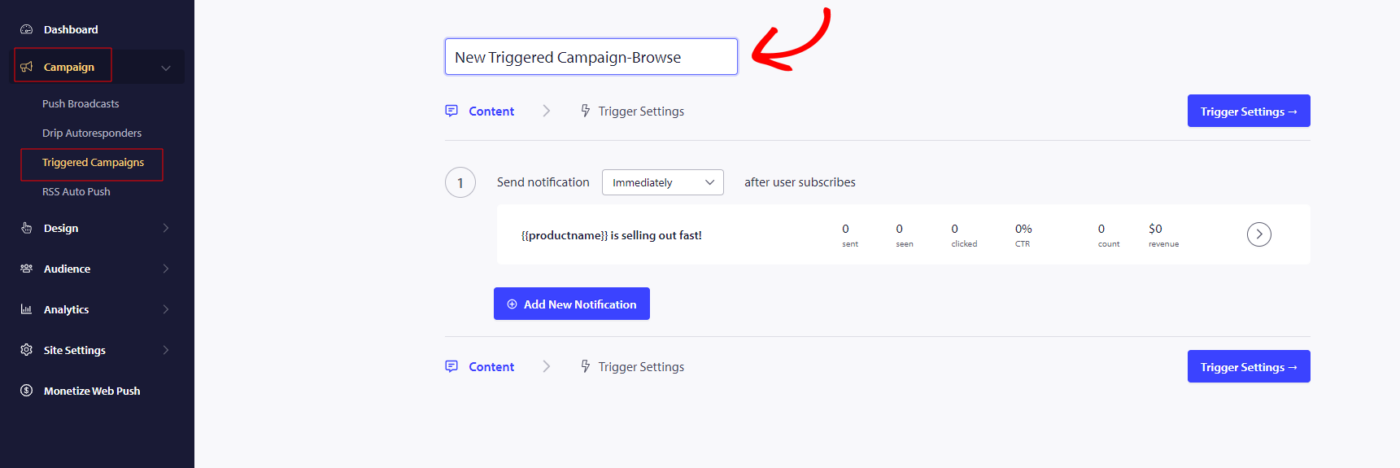
Remarque : Lorsque vous ajoutez un nom de campagne, il restera le même dans votre code. Un nom de campagne correct est donc important car il ne pourra pas être modifié une fois la campagne publiée.
Ici, vous pouvez entrer le Nom de la campagne.
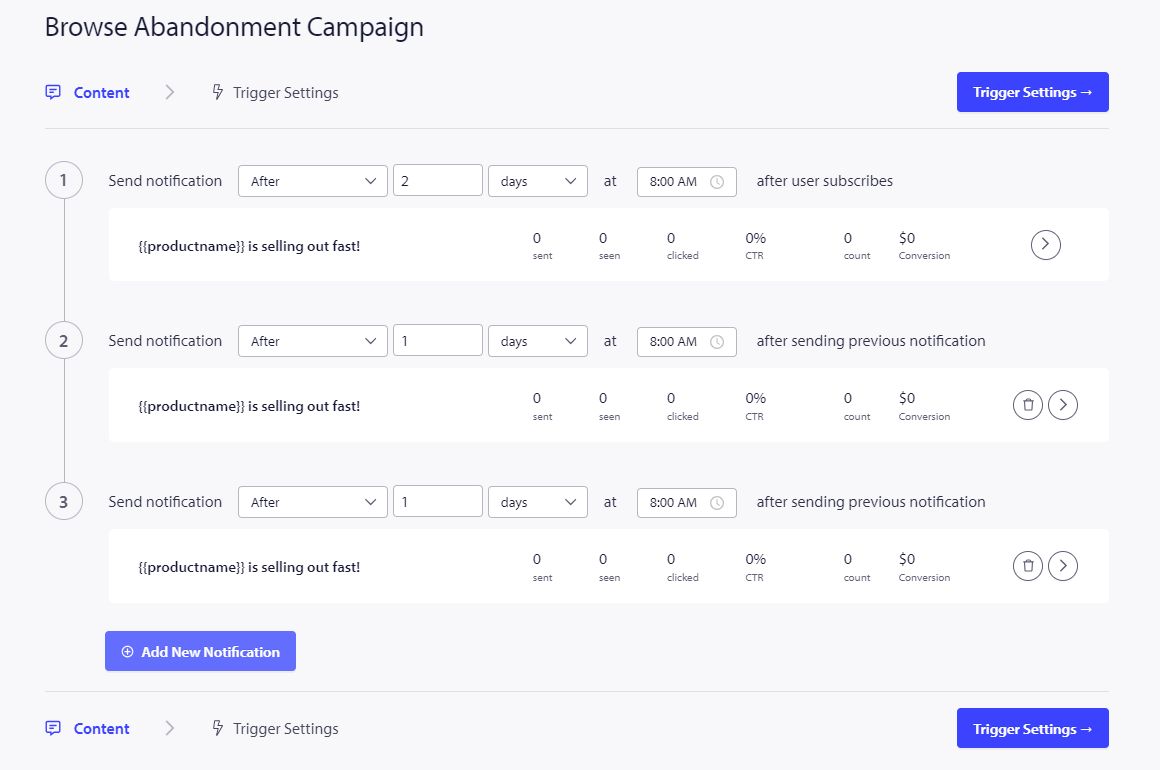
L'étape suivante consiste à configurer la planification du parcours. Vous pouvez choisir parmi les options suivantes : envoyer immédiatement, après un nombre défini d'heures et de minutes, ou à un jour spécifique.
Il n'est généralement pas recommandé de planifier l'envoi immédiat de la campagne. Au lieu de cela, prévoyez un délai d'au moins 15 ou 30 minutes pour la première campagne de la série.
Lors de la configuration d'une série, vous devez avoir au moins trois campagnes. Vous pouvez modifier le message ou le titre, mais assurez-vous de ne pas modifier les variables si vous prévoyez de les utiliser dans la campagne.
Les variables par défaut incluses dans le code de campagne sont {{productname}}, {{price}} et {{notificationurl}}.
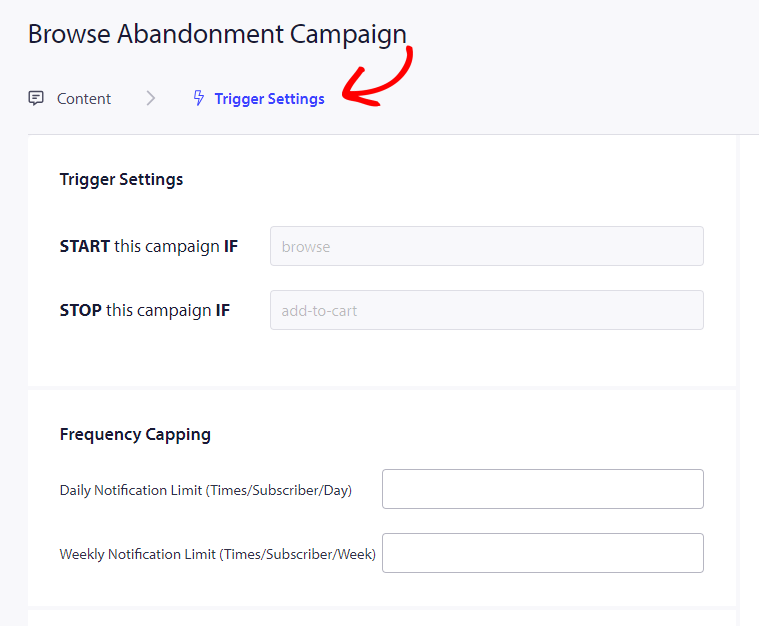
Gestion des paramètres de déclenchement
Une fois que vous avez terminé d'ajouter les détails des notifications, nous passons aux Paramètres de déclenchement.
Dans cette configuration, les déclencheurs sont prédéfinis. La campagne commencera si quelqu'un ajoute un produit à son panier mais ne finalise pas le paiement. S'ils finalisent le paiement, ils ne recevront pas la notification d'abandon de panier. Cependant, gardez à l'esprit que ces événements ne sont que définis ; ils ne fonctionneront pas à moins d'être implémentés sur le site Web.
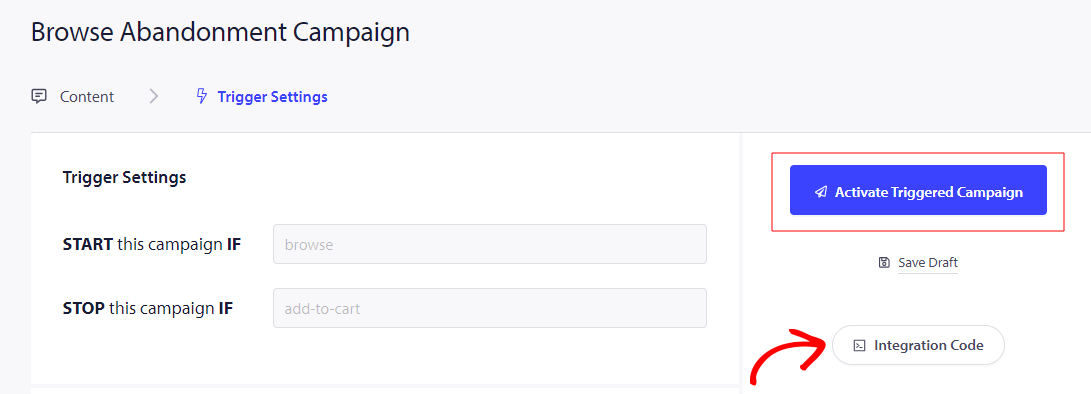
Les déclencheurs ici sont Démarrer la campagne si – navigation et Arrêter la campagne si – ajout au panier
L'étape suivante consiste à établir les limites de déclenchement quotidiennes et hebdomadaires, qui contrôlent le nombre de notifications qu'un abonné peut recevoir chaque jour et chaque semaine. Par exemple, si vous autorisez 2 notifications par jour, cela représente un maximum de 14 notifications par semaine. Cela permet de contrôler la fréquence des notifications.
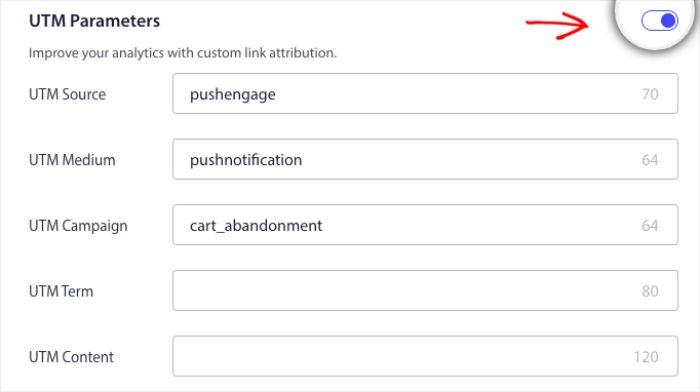
N'oubliez pas que vous pouvez suivre les analyses dans Google Analytics, vous pouvez activer les paramètres UTM, vous permettant de définir des noms spécifiques qui rendent ces campagnes facilement identifiables dans vos rapports.
Ensuite, vous devez cliquer sur le bouton Intégrer le code, copier le code et le partager avec votre équipe de développement. pour l'implémentation.
Comprendre le code et les variables personnalisées
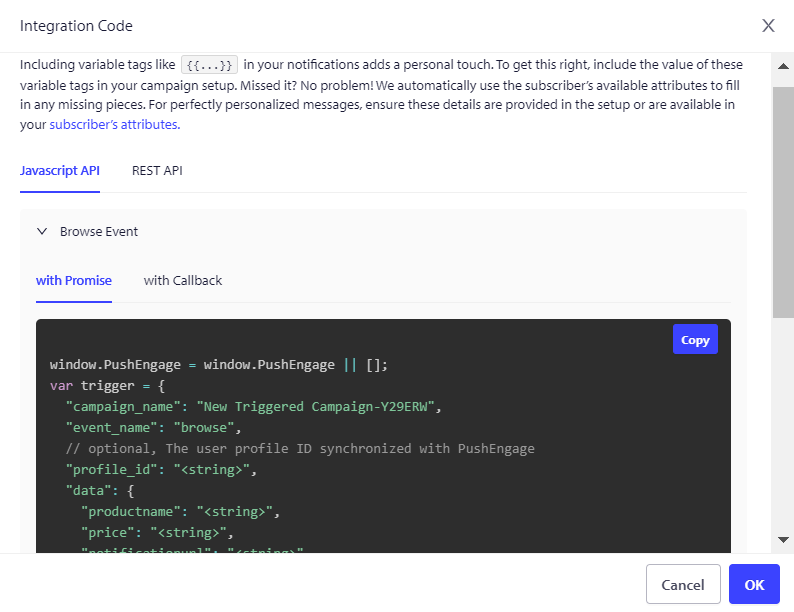
Vous devez ajouter le nom du produit, le prix et l'URL de notification afin qu'ils puissent être transmis dynamiquement avec l'aide de votre équipe produit.
Par exemple, si une personne consulte un téléphone portable, elle reçoit une notification spécifiquement concernant le téléphone portable consulté et repart sans l'ajouter au panier.
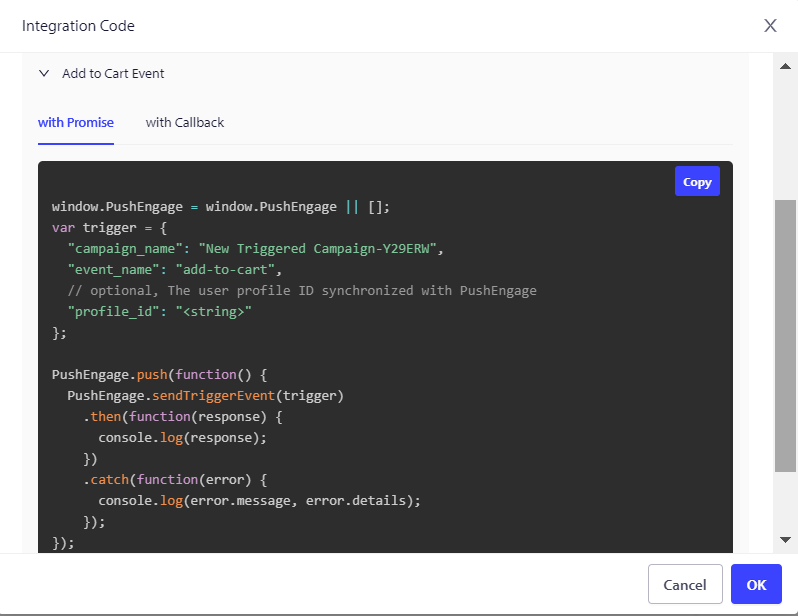
Le code est en deux parties : la première partie est l'événement de début et la seconde partie est l'événement d'arrêt –
1. Événement de navigation
2. Événement d'ajout au panier
Nous proposons également un pixel de suivi d'objectifs qui doit être placé sur l'événement de conversion final pour surveiller et suivre efficacement vos objectifs. Ce pixel joue un rôle crucial pour garantir que toutes les conversions sont enregistrées avec précision, vous permettant ainsi d'évaluer le succès de vos campagnes et d'optimiser vos stratégies en conséquence.
Dépannage de la campagne d'abandon de navigation
- Le nom de la campagne doit être le même dans le code et sur le tableau de bord PushEngage.
- Le code d'installation PushEngage doit être présent là où le code de la campagne d'abandon de panier est présent ; sinon, les notifications ne seront pas exécutées.
- Assurez-vous que la campagne est active sur le tableau de bord après avoir placé le code sur votre site Web.
- Vous devez être un abonné aux notifications push web de votre site Web ; sinon, vous ne pourrez pas tester si vous recevez des campagnes d'abandon de navigation sur votre système.
Si vous rencontrez des problèmes, n'hésitez pas à nous contacter en cliquant ici. Notre équipe d'assistance se fera un plaisir de vous aider.