Notice: There is no legacy documentation available for this item, so you are seeing the current documentation.
Once your WhatsApp Cloud API is connected to PushEngage, you can send automated WhatsApp messages to your Shopify customers — including cart recovery reminders, order status notifications, and promotional campaigns. This guide covers the automated messaging side: what campaigns you can run, how to set them up, and how to use message templates.
Before You Start
- Your WhatsApp Cloud API is connected to PushEngage. If not, complete Setting Up WhatsApp Cloud API to Enable Messaging on Shopify first.
- WhatsApp automated messages use Meta-approved message templates. Template approval from Meta can take a few hours to a few days.
- WhatsApp messaging in PushEngage is available on all paid Shopify plans.
How WhatsApp Automated Messaging Works
WhatsApp automated messaging works differently from push notifications. There are two conversation types:
| Type | Description | Cost |
|---|---|---|
| Utility / Transactional | Order confirmations, shipping updates, refund notifications — messages the customer expects | Charged per conversation by Meta |
| Marketing | Cart recovery, promotions, re-engagement — messages you initiate | Charged per conversation by Meta |
PushEngage handles the delivery and campaign setup. Meta handles the conversation billing and template approval. All messages must use pre-approved templates.
Step 1: Access WhatsApp Campaigns in Shopify
- Log in to your Shopify admin.
- Go to Apps and open PushEngage.
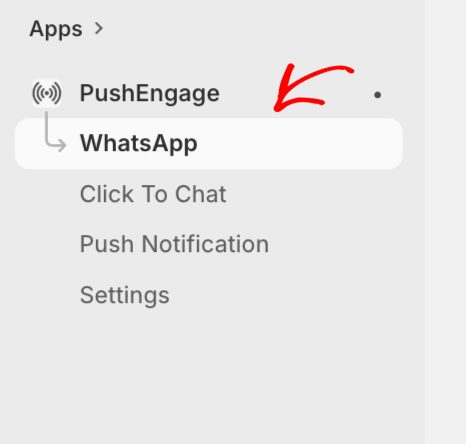
- Navigate to WhatsApp in the PushEngage Shopify app sidebar.
Step 2: Create or Use a Message Template
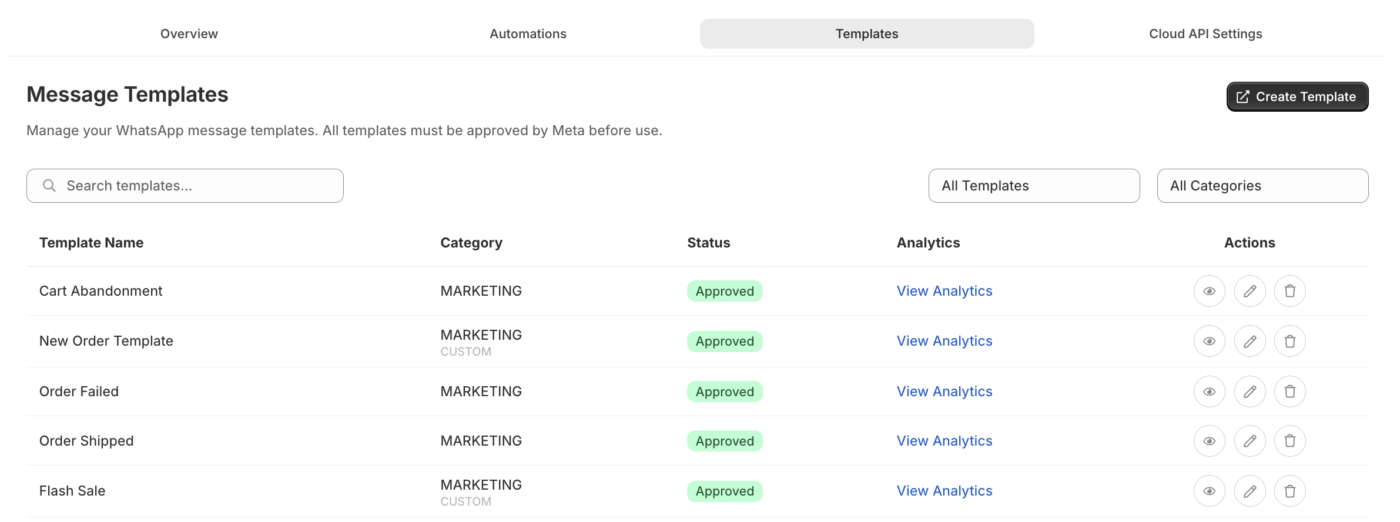
WhatsApp requires pre-approved message templates for all outgoing automated messages. PushEngage provides ready-made templates for common Shopify use cases that you can submit to Meta for approval.
- In the WhatsApp section, go to Message Templates.
- Browse available templates or click Create Template.
- Select the template category: Marketing or Utility.
- Fill in the template name, language, body text, and any variable placeholders.
- Submit for Meta approval.
Common Template Variables for Shopify
| Variable | What it inserts |
|---|---|
{{1}} | Customer first name |
{{2}} | Product name or order ID |
{{3}} | Order total |
{{4}} | Tracking link or store URL |
Template example for cart recovery:
Hi {{1}}, you left {{2}} in your cart. Complete your purchase here: {{4}}
Template example for order confirmation:
Hi {{1}}, your order #{{2}} has been confirmed. Total: {{3}}. Thank you for shopping with us!
Step 3: Set Up Automated Cart Recovery via WhatsApp
Cart recovery via WhatsApp sends a message to customers who abandoned their cart, provided they have opted in to WhatsApp messaging.
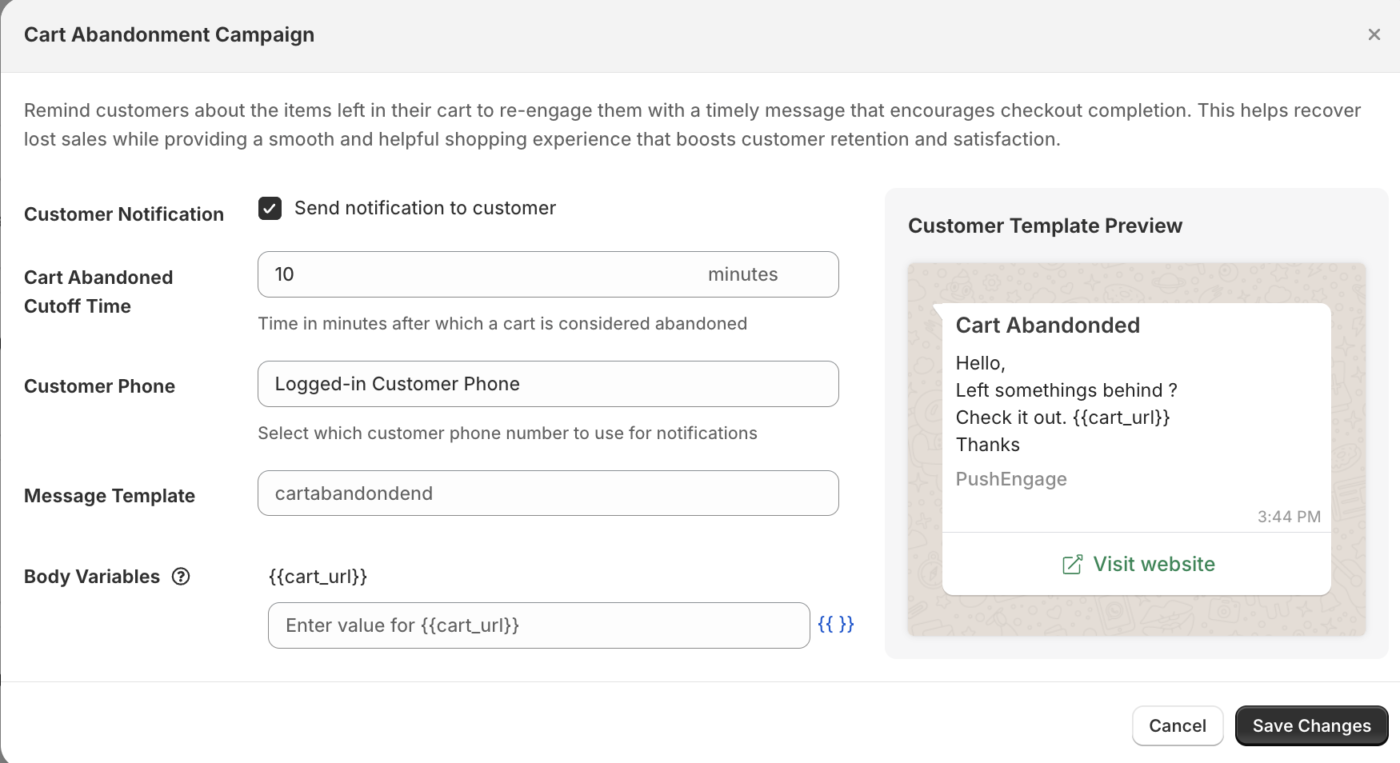
- In the WhatsApp section, go to Automated Campaigns or Cart Recovery.
- Select the cart recovery template you want to use.
- Set the delay: how long after abandonment the message fires (example: 1 hour).
- Enable the campaign.
Note: WhatsApp messages can only be sent to customers who have provided their WhatsApp number and consented to receive messages. PushEngage uses the phone number from the Shopify order record where available.
Step 4: Set Up Order Update Notifications
Order notifications keep customers informed throughout their order lifecycle without relying on email.
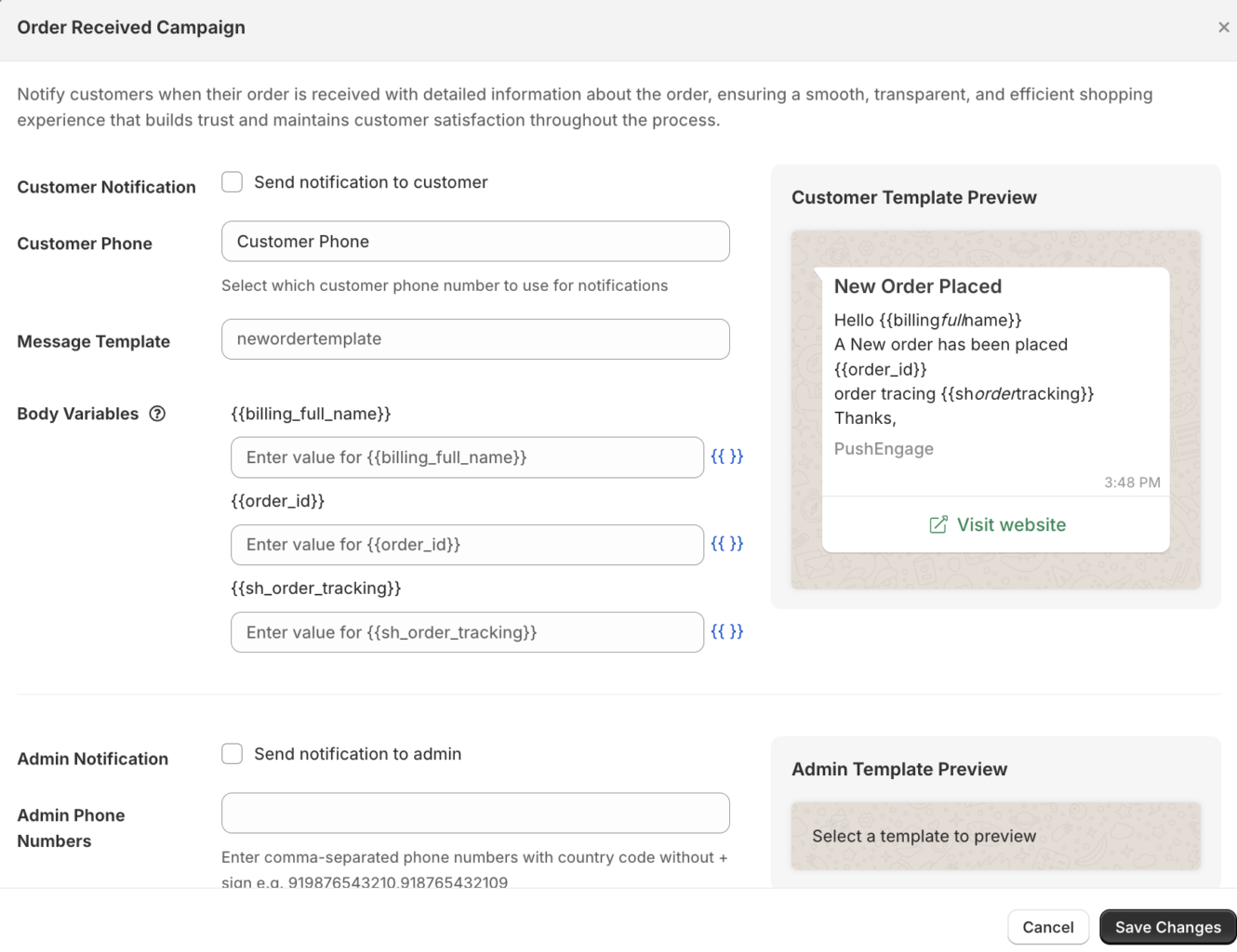
- In the WhatsApp section, go to Order Notifications.
- Enable the notification types you want to send:
| Notification | Trigger |
|---|---|
| Order Confirmed | When a new order is placed |
| Order Shipped | When the order is marked as fulfilled |
| Order Delivered | When the fulfillment status is updated to delivered |
| Refund Issued | When a refund is processed |
- For each notification, select the pre-approved template to use.
- Click Save.
Viewing WhatsApp Analytics
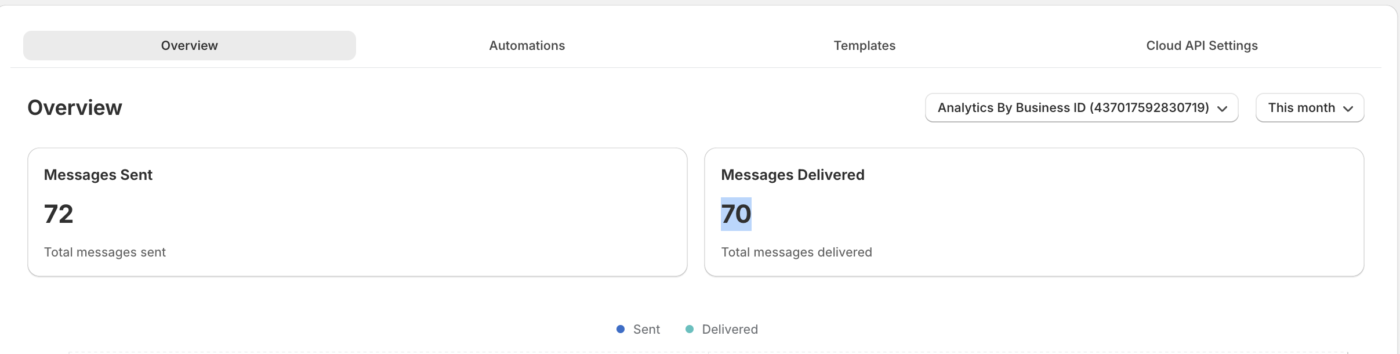
- Go to WhatsApp » Analytics in the PushEngage Shopify app.
- Review metrics including messages sent, delivered, read, and replied.
| Metric | What it means |
|---|---|
| Sent | Messages queued for delivery |
| Delivered | Messages successfully delivered to the customer’s WhatsApp |
| Read | Customer opened the message (WhatsApp read receipts must be enabled) |
| Replied | Customer sent a response |
Frequently Asked Questions
Do customers need to opt in to receive WhatsApp messages? Yes. WhatsApp requires explicit consent from customers to receive marketing messages. Transactional messages (order updates) may be sent to customers who provided their number during checkout under Meta’s utility conversation rules — but you should confirm your specific use case against Meta’s WhatsApp Business Policy.
How long does Meta template approval take? Typically a few hours to 2 business days. Some templates may require revision if they do not meet Meta’s content guidelines.
Are WhatsApp messages free? WhatsApp conversations are billed by Meta per conversation, not per message. The first 1,000 service conversations per month are free. Marketing and utility conversations are charged at rates that vary by country. Check Meta’s pricing page for current rates.
Can I send WhatsApp and push notifications for the same event? Yes. PushEngage supports multichannel campaigns. You can have a cart abandonment push notification sequence running alongside a WhatsApp cart recovery message for the same customer.
If you run into any issues, please feel free to contact us by clicking here. Our support team will be able to help you.


