هل تبحث عن طريقة سهلة لإرسال إشعارات دفع RSS؟
يعد إنشاء المحتوى وإدارة المدونة باستمرار عملاً شاقًا. ولكن إذا كنت تدير عملاً تجاريًا جادًا، فأنت تعلم أن مجرد إنشاء المحتوى لا يكفي. يجب أن تكون قادرًا على الترويج لمحتواك أيضًا.
وتعد إشعارات الدفع طريقة رائعة لاكتساب المشتركين بطريقة فعالة من حيث التكلفة. ما يجعل إشعارات الدفع جيدة جدًا كأداة تسويق هو أنه يمكن أتمتتها بالكامل.
هنا يأتي دور إشعارات دفع RSS.
إذا قمت بإعداد إشعارات دفع RSS بالطريقة الصحيحة، ففي كل مرة تنشر فيها محتوى على موقعك، سيحصل المشتركون تلقائيًا على إشعار دفع يوجههم إلى المحتوى الخاص بك.
وفي هذا المقال، سنوضح لك بالضبط كيفية إعداد الدفع التلقائي لـ RSS على موقعك.
كيفية تمكين إشعارات دفع RSS في أي موقع
يمكنك إعداد إشعارات دفع RSS لأي نوع من مواقع الويب طالما أن لديها موجز RSS. إذا لم تكن متأكدًا مما إذا كان موقعك يحتوي على موجز RSS، فما عليك سوى الانتقال إلى عنوان URL "yoursite.com/rss" للتحقق (استبدل "yoursite" في المثال باسم موقعك الفعلي).
ولإرسال إشعارات دفع RSS، ستحتاج أيضًا إلى موفر إشعارات دفع. في هذا المقال، سنوضح لك كيفية استخدام PushEngage لإرسال إشعارات دفع تلقائية عبر RSS. PushEngage هو #1 برنامج إشعارات الدفع في العالم. لذا، ستكون حملاتك في أيد أمينة.
لنبدأ.
الخطوة # 1: تثبيت PushEngage
توجه إلى الصفحة الرئيسية لـ PushEngage وانقر على زر البدء:

يمكنك اختيار الخطة المجانية لتجربة PushEngage، أو اختيار خطة مدفوعة إذا كنت جادًا في تنمية عملك. تتضمن الخطط المدفوعة خيارات استهداف جمهور أفضل وميزات أتمتة الحملات.
بمجرد التسجيل للحصول على حساب، انتقل إلى لوحة تحكم PushEngage وانتقل إلى إعدادات الموقع » تفاصيل الموقع:

هنا يمكنك تخصيص شكل علامتك التجارية في إشعارات الدفع التي ترسلها. تفضل بضبط شعار وعنوان URL للموقع لإشعارات الدفع الخاصة بك.
سيشاهد مشتركو إشعارات الدفع الخاصة بك اسم الموقع و صورة الموقع و عنوان URL للموقع في إشعاراتك. لذلك، يجب عليك إعداد هذه الأمور الآن حتى تتمكن من اختبار إشعارات الدفع الخاصة بك لاحقًا.
بمجرد الانتهاء من ذلك، ستحتاج إلى الانتقال إلى لوحة تحكم PushEngage والحصول على رمز التثبيت. انقر فوق الزر انقر هنا للحصول على تعليمات الإعداد:

انسخ رمز التثبيت:
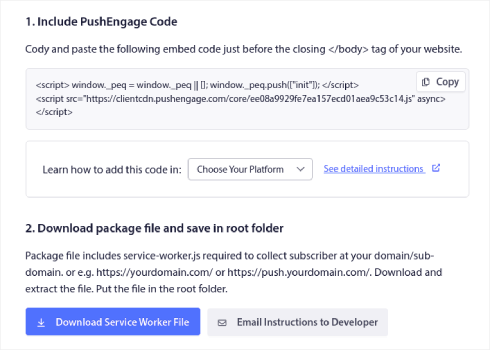
وبعد ذلك، ستحتاج إلى لصق رمز التثبيت في <head> HTML لموقعك. إذا لم تكن متأكدًا من كيفية القيام بذلك، فراجع هذه المقالة حول كيفية تثبيت إشعارات دفع الويب على أي موقع.
أو، إذا كنت تدير موقع WordPress، يمكنك تثبيت برنامج المكون الإضافي لإشعارات الويب. يتولى المكون الإضافي عملية التثبيت بأكملها بنفسه. وأنت جاهز لإعداد حملات إشعارات الدفع الخاصة بك بعد ذلك.
الخطوة # 2: إنشاء حملة إشعارات دفع RSS جديدة
بمجرد تثبيت PushEngage على موقعك، انتقل إلى لوحة تحكم PushEngage وانتقل إلى الحملات » إشعارات RSS التلقائية وانقر على إنشاء حملة جديدة:
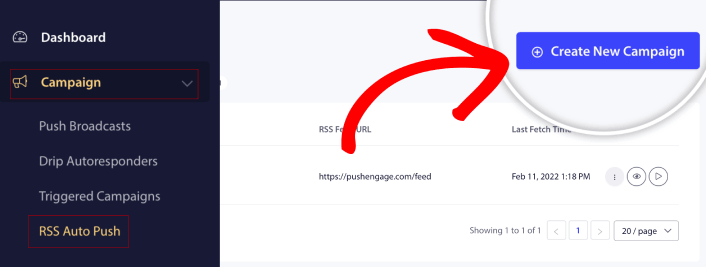
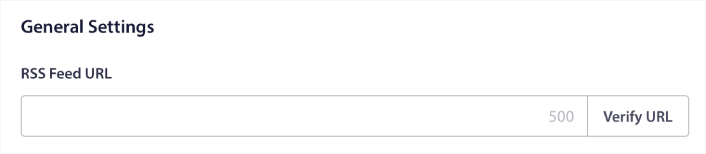
سيؤدي هذا إلى إنشاء حملة إشعارات دفع موجز RSS جديدة تمامًا. يمكنك إعداد حملات موجز RSS متعددة في PushEngage. ابدأ بإعطاء حملتك اسمًا وصفيًا. ثم، الصق عنوان URL لموجز RSS الخاص بك:
الخطوة #3: إعداد إعدادات إشعارات موجز RSS
بعد ذلك، تريد تعيين تردد الحملة:
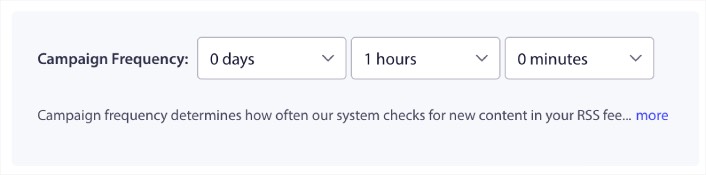
تكرار الحملة هو عدد المرات التي تبحث فيها حملة موجز RSS عن محتوى جديد في مدونتك لإرسال إشعار دفع آلي. الحد الأدنى للقيمة هو 15 دقيقة والحد الأقصى للقيمة هو 7 أيام.
نوصي بالبحث عن محتوى للترويج له مرة كل يومين ما لم تكن وكالة أنباء. بالنسبة لوكالات الأنباء، يجب أن تبقيه عند 15 دقيقة. ضع في اعتبارك أن PushEngage سيبحث فقط عن محتوى جديد بعد إعداد ونشر حملة موجز RSS الخاصة بك.
الخطوة #4: تحديد المنشورات للترويج لها
يمكنك تحديد المنشورات التي تريد الترويج لها. يمكنك الاختيار بين أحدث عنصر فقط أو جميع العناصر. إذا قمت بإعداد إشعارات دفع RSS لاختيار أحدث عنصر فقط، فإن PushEngage يرسل أحدث منشور فقط:
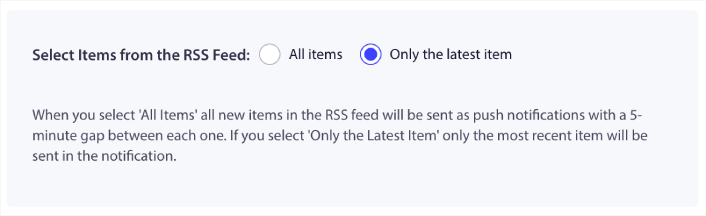
أو، يمكنك تحديد خيار جميع العناصر. في هذه الحالة، ستختار الحملة جميع المنشورات على موقعك وترسل إشعارات دفع لكل منها بفارق 5 دقائق بينها.
الخطوة #5: تعيين أيقونة إشعارات دفع موجز RSS
يحدد رمز إشعار الدفع الخاص بك هوية علامتك التجارية في إشعارات دفع RSS الخاصة بك. نوصي باستخدام علامة علامتك التجارية حتى يعرف المشتركون على الفور أن الإشعار من علامتك التجارية.
الآن، هناك خياران هنا. يمكنك إما تحميل أيقونة الإشعار يدويًا:
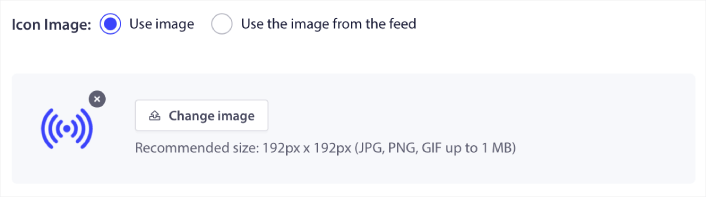
وهذا بسيط جدًا. فقط انقر فوق تغيير الصورة وقم بتحميل أيقونة الإشعار الخاصة بك. أو، يمكنك جلبها من موجز RSS الخاص بك:
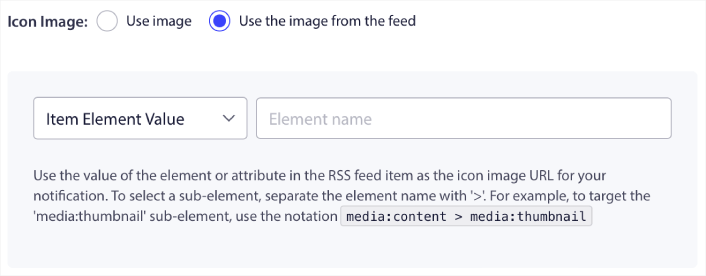
يمكنك إما تحديد عنصر العنصر أو السمة داخل عنصر لتحديد أيقونة الإشعار الخاصة بك ديناميكيًا من الموجز. عادةً، تحتفظ معظم موجزات RSS بأيقونة الموقع داخل عنصر العنصر media:content. وبشكل أكثر تحديدًا، عادةً ما تكون داخل السمة media:thumbnail لعنصر media:content.
لتحديد العنصر، يمكنك تحديد خيار قيمة عنصر العنصر وتعيينها إلى media:content. أو، يمكنك تحديد خيار قيمة سمة العنصر وتعيينها إلى media:content > media:thumbnail.
ملاحظة: نوصي باستخدام هذا الخيار فقط إذا كنت تعرف كيفية قراءة XML. قد لا تحتوي موجزات RSS على أيقونة الموقع في نفس علامات XML مثل مثالنا. لذلك، إذا لم تكن متأكدًا من كيفية جلب أيقونة الإشعار من موجز RSS، فنحن نوصي بتحميلها يدويًا بدلاً من ذلك.
الخطوة #6: تحديد صورة كبيرة لإشعارات موجز RSS
الآن، سنختار الصورة الكبيرة لإشعارات موجز RSS الخاصة بك. مرة أخرى، هناك طريقتان للقيام بذلك. يمكنك السماح لـ PushEngage بالعثور تلقائيًا على الصورة من موجز RSS:

أو، يمكنك يدويًا تحديد الصورة التي تريدها من الموجز:
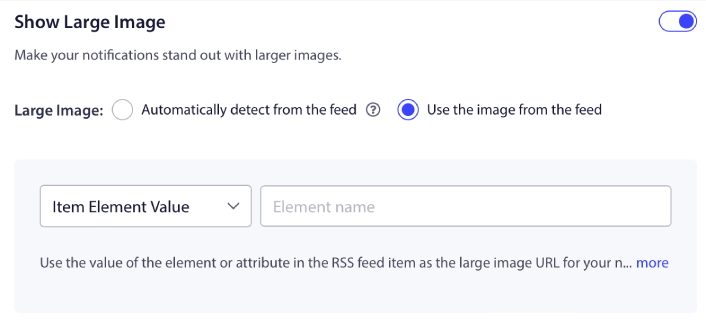
هذا هو نفس تحديد أيقونة الإشعار من موجز RSS بالضبط. يمكنك مرة أخرى، تحديد الصورة من عنصر XML الذي يحتوي عليها أو يمكنك تحديد السمة المحددة التي تحتوي على صورتك المفضلة.
ملاحظة: نوصي فقط بتحديد عنوان URL من موجز RSS الخاص بك إذا كنت تعرف كيفية قراءة XML. إذا لم تكن متأكدًا من كيفية قراءة XML، فمن الأفضل السماح لـ PushEngage بالعثور على أفضل صورة لإشعاراتك.
الخطوة #7: تعيين مدة إشعار الدفع
مدة الإشعار الفوري هي المدة التي يبقى فيها الإشعار في علبة إشعارات مشتركك قبل حذفه تلقائيًا.
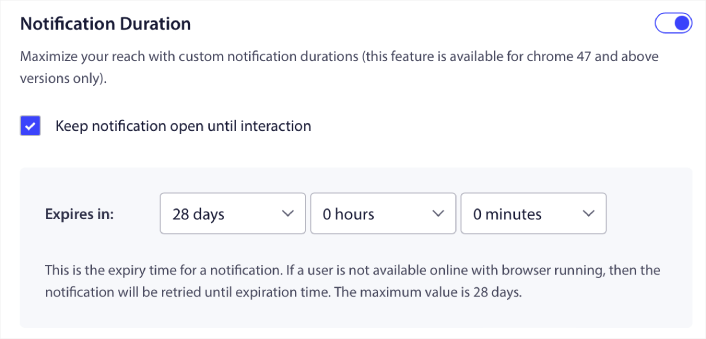
إذا كنت لا ترغب في إرهاق مشتركيك بالكثير من الإشعارات غير المقروءة، فمن الأفضل ترك الإشعارات الفورية تنتهي صلاحيتها في غضون يومين.
على عكس إشعارات البث أو حتى إشعارات الدفع الآلية الأخرى، لا يمكنك جدولة إشعارات الدفع الخاصة بخلاصة RSS حقًا. لذلك، لديك دائمًا خيار إبقاء الإشعار مفتوحًا حتى يتفاعل معه مشتركك، حتى ضمن حد انتهاء الصلاحية.
الخطوة #8: تعيين معلمات UTM
لقد انتهينا تقريبًا. قم بالتمرير لأسفل لتعيين معلمات UTM الخاصة بك لـ تتبع الإشعارات الفورية:
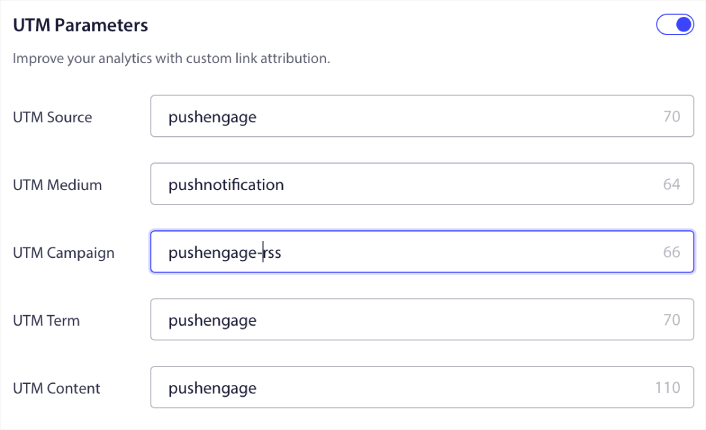
بهذه الطريقة، يمكنك بسهولة تحديد مصدر الزيارات من هذه الإشعارات الفورية في تحليلات جوجل.
الخطوة #9: تحديد مجموعة الجمهور
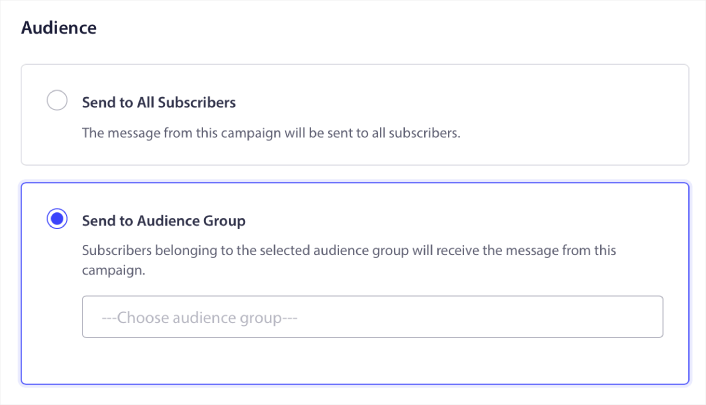
أخيرًا، سنختار مجموعة جمهور لإرسال إشعارات الدفع الخاصة بخلاصة RSS. إما أن ترسل حملة خلاصة RSS إلى جميع مشتركيك، أو يمكنك إنشاء مجموعات جمهور لإرسال إشعارات دفع مخصصة حتى من خلاصة RSS الخاصة بك.
وهذا كل شيء! هذا حقًا كل ما في الأمر.
الآن، في كل مرة تنشر فيها منشورًا جديدًا، سيتلقى أي مشتركين في الإشعارات الفورية في مجموعة الجمهور المحددة تلقائيًا إشعارًا فوريًا حول المحتوى الجديد الخاص بك.
ماذا تفعل بعد إعداد إشعارات دفع RSS
إذا كنت جديدًا في إرسال إشعارات الدفع، فيجب عليك اتباع عملية اختبار إشعارات الدفع كاملة قبل أن تبدأ. سيساعدك هذا في استكشاف المشكلات الشائعة وإصلاحها قبل أن يراها زوارك ويبدأوا في الشكوى من تجربة مستخدم معطلة.
وإذا لم تكن قد قمت بذلك بالفعل، فابدأ بتجربة PushEngage. PushEngage هو #1 خدمة إشعارات الدفع في العالم. لذا، إذا كنت جادًا بشأن تنمية عملك، فيجب عليك الاستثمار في PushEngage.
إشعارات الدفع الخاصة بخلاصة RSS رائعة. ولكن يجب أن تبدأ في إنشاء إشعارات دفع أكثر استهدافًا للحصول على نتائج أفضل. قد يستغرق إنشاء حملات إشعارات دفع مخصصة وقتًا، لكنها تستحق العناء حقًا. تحقق من هذه المقالات قبل أن تقرر:
- كيفية تحويل المشتركين إلى مشترين باستخدام إشعارات الدفع عبر الويب
- أفضل ممارسات إشعارات الدفع
- 21 أفضل أمثلة لرسائل الترحيب بالموقع يمكنك استخدامها
- لماذا تعد إشعارات الدفع الترحيبية مهمة
- كيفية إجراء اختبارات A/B لإشعارات الدفع (أفضل الممارسات)
تساعد الإشعارات الفورية الشركات على النمو في جميع أنحاء العالم. هل ستنتظر حتى يبدأ منافسوك في استخدامها قبل أن تبدأ؟


