
هل تبحث عن طريقة لتحسين البحث عن المنتجات في WooCommerce؟
WooCommerce هي طريقة رائعة لبناء متجر إلكتروني قابل للتطوير. لكن البحث عن المنتجات الخاص بهم مخيب للآمال بصراحة. قد تفوتك فرصة تحقيق الكثير من المبيعات لمجرد البحث الافتراضي عن المنتجات في WooCommerce.
إذن، ماذا يمكنك أن تفعل؟ في هذه المقالة، سنرشدك خلال بعض الطرق البسيطة والسهلة جدًا لتسريع البحث عن منتجات WooCommerce دون استخدام سطر واحد من التعليمات البرمجية. وسنفعل ذلك في 10 دقائق أو أقل.
يبدو جيدًا؟ دعنا نتعمق.
PushEngage هو المكون الإضافي رقم 1 للإشعارات الفورية في العالم. احصل عليه مجانًا!
لماذا تحسين البحث عن المنتجات في WooCommerce؟
يستخدم WooCommerce البحث الافتراضي لـ WordPress مباشرةً. وبينما يأتي WordPress مع الكثير من الميزات الرائعة، فإن ميزة البحث الخاصة بهم ليست مخصصة حقًا لتطبيقات التجارة الإلكترونية.
على سبيل المثال، لا يأخذ في الاعتبار سمات المنتج، ولا يمنحك أي طريقة للتحكم في نتائج البحث الخاصة بك، ولا يجمع أي بيانات بحث، وغير ذلك الكثير. نوصي باستخدام إضافة بحث لمنتجات WooCommerce لتحسين قابلية استخدام محرك البحث الخاص بك.
باستخدام إضافة البحث المناسبة، يمكنك البحث عن النتائج من:
- الحقول المخصصة (بيانات وصفية للمنشور) بما في ذلك حقول ACF
- تفاصيل منتجات التجارة الإلكترونية، والمتغيرات، والسمات
- الفئات، العلامات، التصنيفات المخصصة
- مخرجات الأكواد المختصرة
- المستندات التي تم تحميلها (PDF، .docx، .txt، إلخ)
- محتوى جدول قاعدة البيانات المخصص
وبالطبع، يمكنك أيضًا البحث في عناوين المنشورات ومحتواها أيضًا.
أحد البدائل هو استخدام إضافة بحث منتجات AJAX داخل صفحات المنتجات الخاصة بك. تعمل إضافة بحث AJAX مثل الإكمال التلقائي من أمازون على موقعك. ولكن لماذا تكتفي بذلك عندما يمكنك إنشاء محرك بحث مخصص على موقعك؟
عندما يبحث زائر موقع الويب عن شيء ما داخل موقعك، فإنه يخبرك حرفيًا بما يريده منك بالضبط. لكن معظم أشرطة البحث في ووردبريس لا يمكنها إجراء عمليات بحث عميقة. وهي بالتأكيد لا يمكن أن تساعدك في فهم ما يبحث عنه زوارك.
تحتاج إلى البدء في استخدام إضافة بحث يمكنها مساعدتك في بناء محرك بحث مخصص يخدم زوار موقعك بنتائج بحث سياقية.
نوصي باستخدام SearchWP.
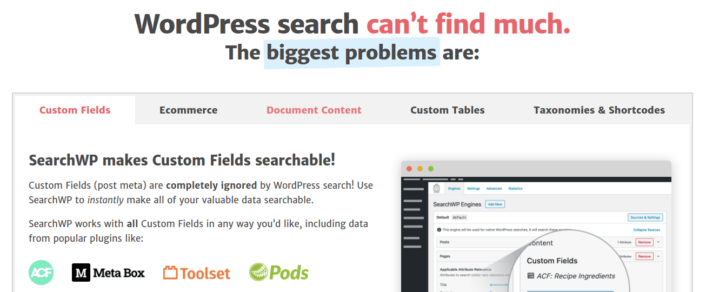
SearchWP هي واحدة من أفضل إضافات البحث لـ WooCommerce التي نعرفها.
تحصل على مجموعة واسعة من الميزات بأسعار معقولة. في الواقع، يقوم SearchWP بكل ما يمكن لجميع الإضافات الأخرى في القائمة القيام به بالإضافة إلى إنشاء فلتر للمنتجات.
الجزء الأكثر روعة هو أن SearchWP يخبرك بالضبط بما يبحث عنه زوار موقعك من خلال الحفاظ على تحليلات مفصلة. لذلك، فإنه يساعدك أيضًا في إنشاء محتوى يفتقر إليه موقعك حاليًا وجذب المزيد من الزيارات والمشاركة والمبيعات على موقعك.
تفضل بقراءة مراجعتنا الكاملة لـ SearchWP وعند الانتهاء، تفضل بتثبيت الإضافة.
كيفية إعداد SearchWP وترقية البحث عن المنتجات في WooCommerce
يعد SearchWP أحد أسهل إضافات البحث في الإعداد والاستخدام. بعد تنزيل تثبيت الإضافة، تحصل على تأكيد للتثبيت:

بعد ذلك، يمكنك التوجه إلى الإعدادات » SearchWP لإعداد إضافتك. ثم انقر فوق خيار قائمة 'الترخيص':
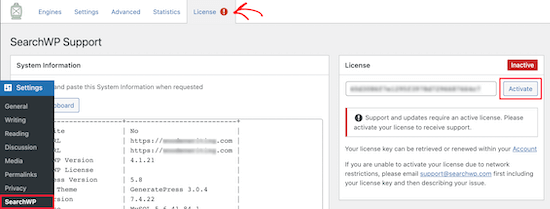
أدخل مفتاح الترخيص الخاص بك في مربع 'الترخيص' وانقر فوق زر 'تفعيل':
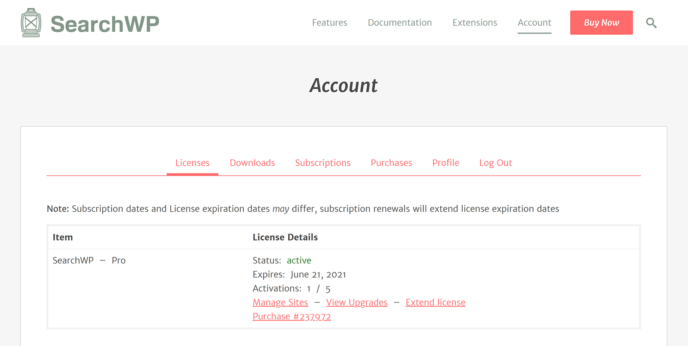
سنتحدث أكثر عن الإعدادات قريبًا. ولكن هذا حرفيًا كل ما تحتاجه للبدء.
مع SearchWP، تحتاج إلى إنشاء محرك بحث على مستوى الموقع قبل أن تتمكن من تخصيص بحثك بشكل أكبر.
توجه إلى الإعدادات » SearchWP » المحركات:
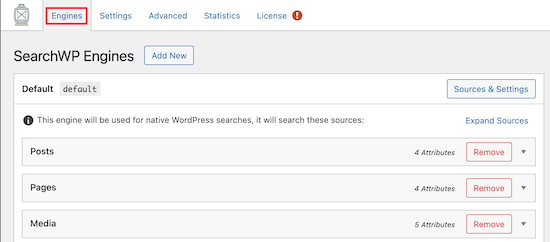
يمكنك ضبط إعدادات محرك البحث الخاص بك عن طريق تضمين أنواع محتوى مختلفة بالنقر فوق قوائمها المنسدلة. ويمكنك التحكم في مقدار الصلة التي يمنحها محرك البحث الخاص بك لكل نوع محتوى باستخدام أشرطة التمرير:
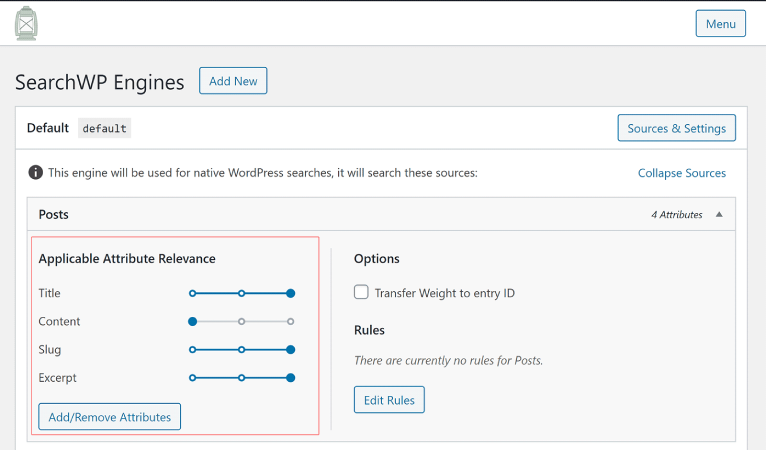
في مثالنا، نقوم بتقييم عنوان المنشور، والاسم المستعار، والملخص أكثر من المحتوى الفعلي من حيث الصلة بنتائج البحث.
بمجرد الانتهاء، اضغط فقط على 'حفظ'.
شيء رائع حقًا بشأن محرك البحث الذي أنشأته للتو هو حقيقة أنه يستخدم تجذير الكلمات الرئيسية بدلاً من مطابقات البحث الدقيقة. ما يعنيه هذا هو أن المستخدمين يمكنهم البحث عن المحتوى الخاص بك بأي طريقة يرغبون بها وسيحصلون على نتائج ذات صلة سياقية حتى لو لم يتضمن المحتوى الخاص بك عبارة البحث الدقيقة!
كيفية تسريع البحث عن المنتجات في WooCommerce
بعد ذلك، دعنا نتحقق مما يمكننا القيام به لتحسين البحث عن المنتجات في WooCommerce.
#1. تقييد البحث عن المنتجات في WooCommerce لمنتجات WooCommerce
بمجرد تثبيت وتفعيل إضافة SearchWP، فإن أول شيء سترغب في القيام به هو تقييد نتائج البحث عن المنتجات لتقتصر على منتجات WooCommerce بدلاً من عرض أي نوع منشور.
للبدء، انقر فوق الزر المصادر والإعدادات ضمن المحركات.
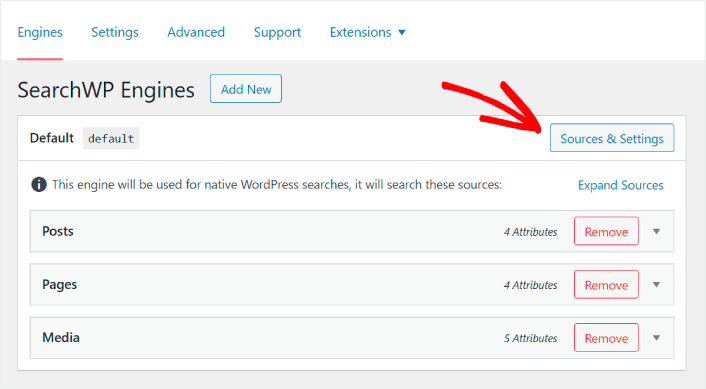
هنا، قم بإلغاء تحديد المربعات بجوار جميع مصادر البحث باستثناء المنتجات.
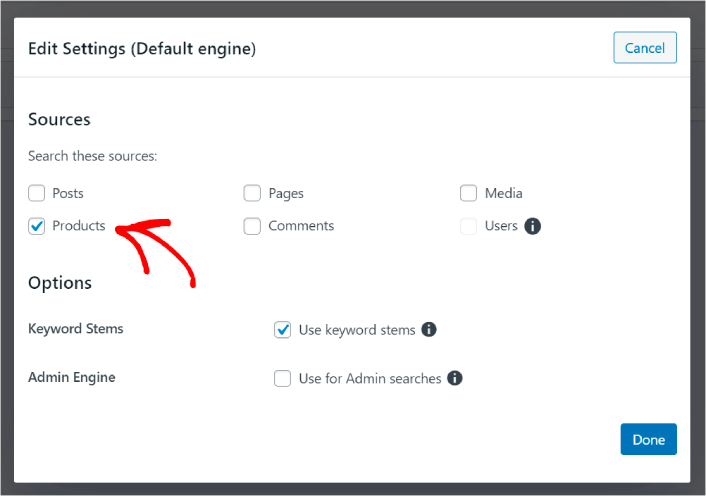
عند الانتهاء، اضغط على زر تم لحفظ التغييرات. وهكذا تكون قد انتهيت!
#2. تمكين البحث حسب سمات المنتج
دعنا أيضًا نجعل سمات المنتجات لجميع منتجات WooCommerce قابلة للبحث. يقوم WooCommerce بتخزين هذه السمات كحقول مخصصة على أي حال. سنجعلها قابلة للبحث فقط.
لقد قمت بالفعل بإعداد محرك بحث للمنتجات. لذلك، يمكنك ببساطة المتابعة من الخطوة الأخيرة. انقر فوق الزر إضافة/إزالة السمات لإضافة حقول مخصصة.
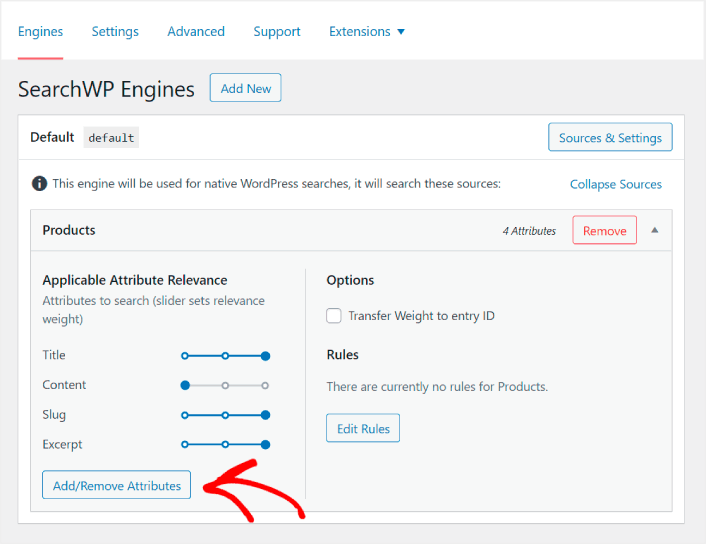
ثم، في القائمة المنسدلة الحقول المخصصة، حدد خيار أي مفتاح بيانات وصفية .
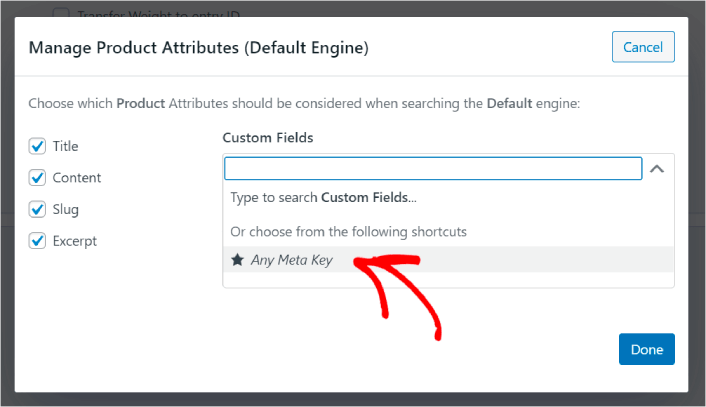
يتيح لك هذا جعل أي حقول مخصصة قابلة للبحث تلقائيًا. والآن، يمكن لمحرك بحث المنتجات الخاص بك البحث حسب الحقول المخصصة مثل سمات المنتج.
#3. تمكين البحث حسب فئة المنتج
لقد رأيت بالفعل كيف تجعل سمات المنتج قابلة للبحث. ولكن ماذا عن الفئات؟ ماذا لو لم يكن عملاؤك يبحثون عن منتج، بل يبحثون عن شيء في فئة معينة؟
الأمر سهل. فقط استمر من النصيحة السابقة. في نفس الشاشة ضمن إدارة سمات المنتج، سترى قائمة منسدلة أخرى بعنوان التصنيفات. فقط حدد فئات المنتج من القائمة.
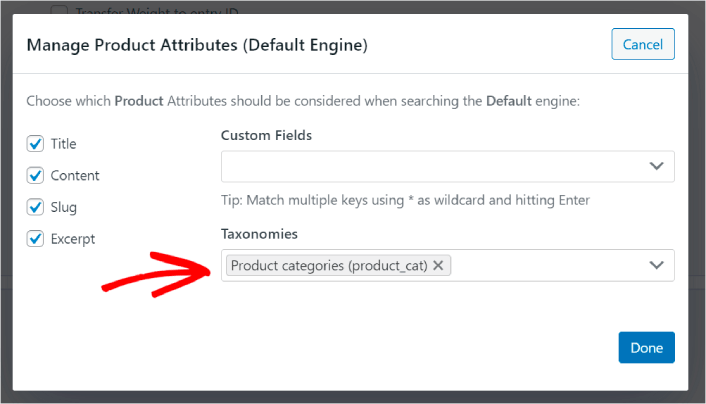
والآن، سيسمح محرك البحث الخاص بك للمستخدمين بالبحث حسب الفئة.
#4. تمكين البحث حسب علامات المنتج
لم تنته بعد. في نفس الشاشة، يمكنك إضافة المزيد من التصنيفات في القائمة المنسدلة التصنيفات. ماذا لو لم يكن عملاؤك يبحثون عن منتج أو فئة عامة؟ ماذا لو لم يعرفوا أنهم يريدون أحذية Air Jordan زرقاء وبيضاء أو حتى أحذية رياضية ولكنهم يبحثون عن أحذية رياضية زرقاء وبيضاء بدلاً من ذلك؟
هذا هو الوقت الذي تحتاج فيه إلى تمكين عمليات البحث عن علامات المنتج.
ضمن التصنيفات، حدد علامات المنتج أيضًا.
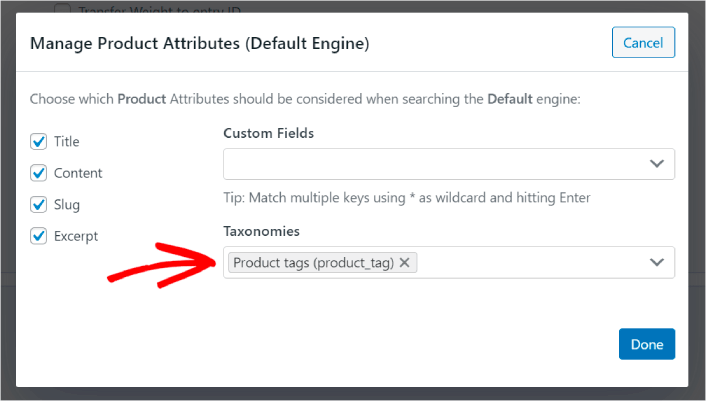
السماح لبحث منتجك في WooCommerce بأخذ علامات المنتج في الاعتبار يمنحه طريقة جديدة تمامًا للبحث عن المنتجات. ناهيك عن أنه يساعد عملاءك أيضًا في العثور على ما يبحثون عنه بشكل أسرع بكثير.
#5. اجعل رموز تعريف المنتجات قابلة للبحث
أخيرًا، سنضيف حقلًا مخصصًا أخيرًا إلى محرك البحث لزيادة قوته. سنسمح أيضًا بعمليات البحث عن رموز تعريف المنتجات. وحدات تعريف المخزون (SKUs) هي طريقة لشركات التجارة الإلكترونية لتحديد المنتجات المختلفة أو حتى المنتجات المتشابهة بسرعة.
في منفذ بيع بالتجزئة، يكون رمز تعريف المنتج عادةً رمزًا شريطيًا. بهذه الطريقة، يمكنك تحديد متغير المنتج وحجمه وسعره ولونه ونوعه والشركة المصنعة بسرعة دون النظر إلى المنتج.
في الغالب، تُستخدم رموز تعريف المنتجات لإدارة المخزون في WooCommerce. ولكنها أيضًا ممارسة شائعة لمواقع الدروب شيبينغ، المنتسبين، ومواقع البيع بالتجزئة لعرض رمز تعريف المنتج الخاص بمنتجاتهم في وصف المنتج.
لذلك، لجعل رموز تعريف المنتجات قابلة للبحث، كل ما عليك فعله هو إضافة حقل مخصص آخر إلى إعدادات سمات المنتج الخاصة بك. فقط اكتب '_sku' وسيتولى SearchWP تلقائيًا الباقي.
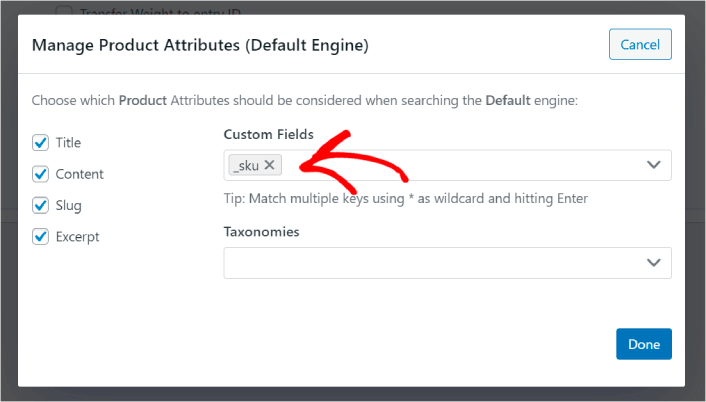
وأنت جاهز للانطلاق!
ماذا تفعل بعد تحسين البحث عن المنتجات في WooCommerce
الآن بعد أن قمت بتحسين البحث عن المنتجات في WooCommerce، فإن جميع منتجاتك جاهزة لتحقيق الربح لك. حان الوقت للتركيز على جلب حركة المرور والمشاركة والمبيعات من المحتوى الخاص بك بعد ذلك.
وإذا كنت تبحث عن طرق جديدة لجذب الزيارات والمشاركة والمبيعات، يمكن أن تكون الإشعارات الفورية مفيدة جدًا لموقعك.
إذا لم تكن مقتنعًا بنسبة 100٪، فيجب عليك الاطلاع على هذه الموارد حول كيفية استخدام الإشعارات الفورية بفعالية:
- 7 استراتيجيات ذكية لزيادة تفاعل العملاء
- هل إشعارات الدفع فعالة؟ 7 إحصائيات + 3 نصائح خبراء
- كيفية إعداد إشعارات الدفع للسلات المتروكة (دليل سهل)
- كيفية إضافة إضافة إشعارات الويب لـ WordPress إلى موقعك
نوصي باستخدام PushEngage لإنشاء حملات إشعارات الدفع الخاصة بك. PushEngage هو البرنامج رقم 1 لإشعارات الدفع في العالم. لذا، إذا لم تكن قد قمت بذلك بالفعل، ابدأ مع PushEngage اليوم!


