
هل تحاول معرفة كيفية بيع العضويات عبر الإنترنت؟
تسمح لك مواقع العضوية بفرض رسوم على المستخدمين للوصول إلى المحتوى المقيد حتى تتمكن من زيادة إيرادات موقعك على الويب بشكل كبير. بمعنى آخر، يمكنك تحقيق الدخل بسهولة من مجتمع وبيع المنتجات والدورات والبضائع لمجتمعك. يمكنك حتى بيع وصول حصري إلى محتوى معين أو وقتك عن طريق إنشاء عضويات للموقع.
ولكن كيف تفعل ذلك؟
في هذه المقالة، سنوضح لك خطوة بخطوة كيفية بيع العضويات دون أي خبرة في البرمجة.
يبدو جيدًا؟ دعنا نتعمق.
PushEngage هو المكون الإضافي رقم 1 للإشعارات الفورية في العالم. احصل عليه مجانًا!
- لماذا يجب عليك بيع العضويات على موقعك؟
- كيفية بيع العضويات من الصفر
- الخطوة #1: احصل على استضافة قوية لبيع العضويات
- الخطوة #2: كيفية بيع العضويات باستخدام إضافة عضوية ووردبريس
- الخطوة #3: كيفية تكوين MemberPress على موقعك
- الخطوة #4: كيفية إعداد طرق الدفع وبيع العضويات عبر الإنترنت
- الخطوة #5: كيفية إنشاء مستويات العضوية
- الخطوة #6: كيفية تعيين مستويات الوصول للعضوية
- الخطوة #7: كيفية بيع العضويات بمحتوى خاص بالأعضاء فقط
- الخطوة #8: كيفية إنشاء صفحة أسعار لبيع العضويات
- الخطوة #9: كيفية إنشاء نموذج تسجيل دخول وتسجيل
- كيفية بيع العضويات بشكل أسرع
- #1. كيفية بيع العضويات باستخدام إشعارات الدفع الترحيبية
- #2. كيفية بيع المزيد من العضويات باستخدام إشعارات الدفع للتخلي عن سلة التسوق
- #3. كيفية الحصول على المزيد من الأعضاء باستخدام إشعارات الدفع للتخلي عن التصفح
- #4. إشعارات الدفع للتجارة الإلكترونية للبيع المتقاطع
- #5. كيفية بيع العضويات باستخدام المبيعات المتكررة
- ماذا تفعل بعد أن تعرف كيفية بيع العضويات
لماذا يجب عليك بيع العضويات على موقعك؟
يتطلب موقع العضوية من الزوار تسجيل الدخول أو التسجيل للوصول إلى صفحات أو مشاركات أو ميزات معينة. هذا يجعله خيارًا رائعًا للشركات أو المنظمات أو الأفراد الذين يرغبون في الاحتفاظ بمعلومات أو محتوى معين خاصًا ومتاحًا للأعضاء فقط.
إذًا، لماذا يجب عليك إنشاء موقع عضوية ووردبريس؟ حسنًا، إليك بعض الأسباب الوجيهة:
- حماية المعلومات الحساسة: إذا كانت لديك معلومات لا تريد أن يراها أي شخص، فيمكن لموقع عضوية ووردبريس الحفاظ على أمان هذه المعلومات. فقط الأشخاص الذين سجلوا وسجلوا الدخول يمكنهم الوصول إليها.
- بناء مجتمع: من خلال وجود موقع عضوية، يمكنك إنشاء شعور بالمجتمع بين أعضائك. سيكونون قادرين على التواصل مع بعضهم البعض ومشاركة المعلومات أو الأفكار.
- تقديم محتوى حصري: يمكن لمواقع العضوية تقديم محتوى أو موارد حصرية متاحة للأعضاء فقط. يمكن أن يكون هذا أي شيء من منشورات مدونة مميزة، أو خصومات خاصة، أو وصول مبكر إلى منتجات جديدة.
- فرض رسوم وصول: إذا كانت لديك معلومات أو موارد قيمة، يمكنك فرض رسوم عضوية على الأشخاص للوصول إليها. يمكن أن يكون هذا طريقة رائعة لتوليد دخل لعملك أو مؤسستك.
- خيارات إدارة سهلة: يجعل ووردبريس من السهل إدارة موقع عضويتك. يمكنك إضافة وإزالة الأعضاء، والتحكم في من يمكنه رؤية أي محتوى، وحتى إرسال رسائل بريد إلكتروني إلى جميع أعضائك ببضع نقرات فقط.
إذًا، هذه مجرد أسباب قليلة لبيع العضويات لمحتواك الحصري.
سواء كنت تتطلع إلى حماية المعلومات الحساسة، أو بناء مجتمع، أو تقديم محتوى حصري، أو تحقيق دخل إضافي، أو مجرد جعل موقعك الإلكتروني أسهل في الإدارة، فإن موقع عضوية ووردبريس يمكن أن يساعدك في تحقيق ذلك!
كيفية بيع العضويات من الصفر
الخبر السار هو أن بيع العضويات على ووردبريس سهل للغاية حتى بدون أي برمجة. كل ما تحتاجه هو إضافة عضوية ووردبريس لاستيراد ميزات قوية إلى موقعك مباشرة. سنتحدث عن هذا بمزيد من التفصيل قريبًا. ولكن قبل أن نفكر في كيفية بيع العضويات، دعنا نبني موقع عضوية.
الخطوة #1: احصل على استضافة قوية لبيع العضويات
قبل أن تبدأ في بناء موقع عضوية ووردبريس ، تحتاج إلى خدمة استضافة ووردبريس موثوقة. نوصي باستخدام Bluehost لإنشاء موقع ووردبريس الخاص بك.
Bluehost هي واحدة من أكثر خدمات استضافة ووردبريس شيوعًا. وهي موصى بها رسميًا من قبل كل من ووردبريس و WooCommerce كخدمة استضافة ووردبريس. الجزء الجميل هو أنه يمكنك الحصول على استضافة مشتركة لتشغيل موقع ووردبريس، وهو أمر بأسعار معقولة جدًا.
بمرور الوقت، ومع نمو موقعك، يمكنك أيضًا الترقية إلى خطة أعلى لاستيعاب نموك. ونعم، تحصل على شهادة SSL واسم نطاق لمدة عام كجزء من خطة الاستضافة الخاصة بك مع Bluehost.
لا داعي للقلق بشأن بطء موقعك الإلكتروني لمجرد حدوث طفرة في حركة المرور. وتأتي أي خطة استضافة ووردبريس مع Bluehost مع تثبيت مذهل بنقرة واحدة لووردبريس.
إذا لم تقم ببناء موقع ووردبريس من قبل ، فتحقق من هذا البرنامج التعليمي حول كيفية بناء موقع ووردبريس من البداية.
مرة أخرى، ضع في اعتبارك أن هذه هي تكلفة إعداد موقعك فقط. ستحتاج إلى إنفاق المزيد من المال لتوسيع وظائف متجرك باستخدام السمات والإضافات.
علاوة على ذلك، تبدأ الأسعار من 2.75 دولار فقط شهريًا.
- السرعة: 689 مللي ثانية
- وقت التشغيل: 99.99٪
- دعم العملاء: 4/5
الخطوة #2: كيفية بيع العضويات باستخدام إضافة عضوية ووردبريس
تقوم إضافات عضوية ووردبريس بتحويل موقع ووردبريس عادي إلى موقع عضو ببساطة عن طريق النقر على بضعة أزرار. لا تحتاج إلى كتابة أي كود في موقعك. لذلك، فإنها ستقلل من الوقت اللازم لإطلاق موقعك المخصص للأعضاء فقط.
ناهيك عن أنك تحصل على كل الدعم الذي تحتاجه من مطوري الإضافة. بعبارات بسيطة، لن تحتاج إلى فريق تطوير لصيانة موقعك نيابة عنك.
إذا كنت تتساءل عن كيفية بيع العضويات بأقل قدر من البرمجة، فنحن نوصي باستخدام MemberPress.
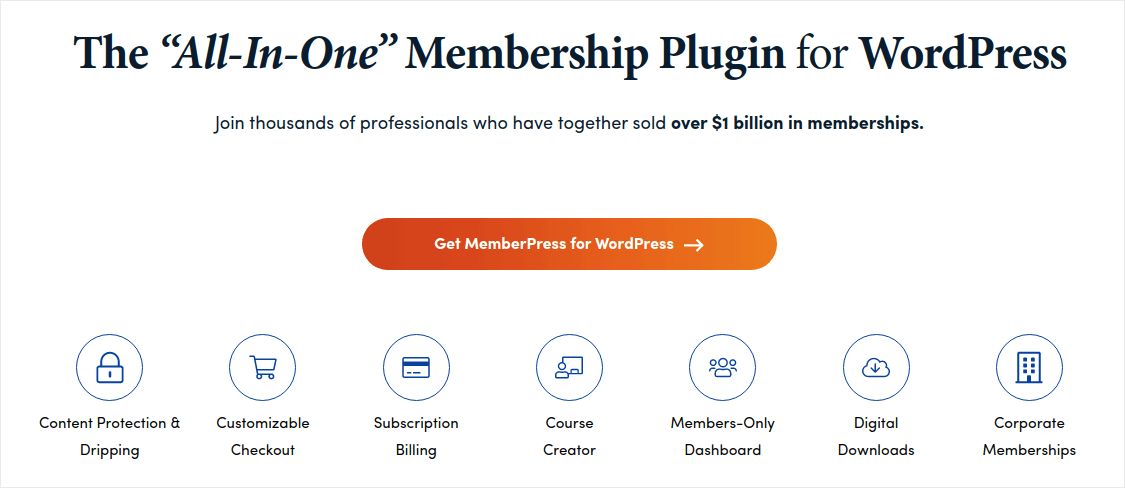
MemberPress هي واحدة من أسهل إضافات مواقع العضوية على ووردبريس استخدامًا. كما أنها تأتي مع مجموعة كاملة من الميزات الرائعة لمساعدتك في تنمية مجتمع أعضائك وتحقيق الدخل منه.
للبدء، كل ما عليك فعله هو:
- تثبيت الإضافة
- تكوين بوابة الدفع الخاصة بك
- إنشاء مستويات عضوية مختلفة
- إضافة مزايا لكل مستوى عضوية
- إضافة بعض المنتجات
وأنت جاهز للانطلاق! بعد ذلك، الأمر مجرد مسألة دعوة الأشخاص للانضمام إلى برنامج عضويتك.
يمكنك تقييد الوصول إلى صفحات مختلفة، وأنواع منشورات، وعلامات، وفئات بناءً على مستويات عضوية مخصصة. أفضل جزء هو أنك تحصل على منشئ دورات تدريبية أيضًا. لذلك، إذا كنت تفكر في إنشاء دورات تدريبية لأعضائك، يمكنك القيام بذلك دون تثبيت أي إضافة أخرى.
انقر هنا للبدء مع MemberPress.
الخطوة #3: كيفية تكوين MemberPress على موقعك
إعداد MemberPress سهل للغاية. إذا لم تستخدم إضافات ووردبريس من قبل، فراجع هذا البرنامج التعليمي حول كيفية تثبيت إضافة ووردبريس. بمجرد الانتهاء من تثبيت الإضافة، توجه إلى لوحة تحكم ووردبريس الخاصة بك وانتقل إلى MemberPress » Settings.
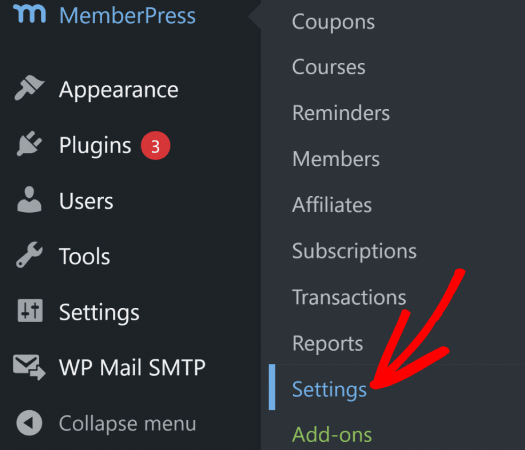
سيأخذك هذا إلى إعدادات License، حيث يمكنك إدخال مفتاح ترخيص MemberPress الخاص بك.
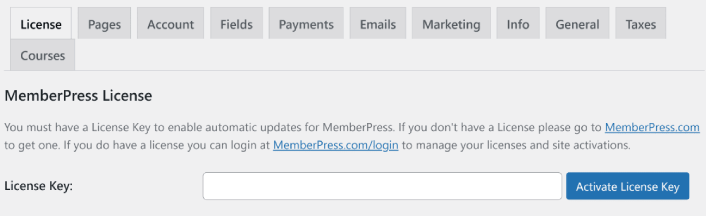
الصق مفتاح الترخيص الخاص بك واضغط على زر Activate License Key. ستحصل الآن على وصول كامل إلى جميع ميزات MemberPress لبيع العضويات.
الخطوة #4: كيفية إعداد طرق الدفع وبيع العضويات عبر الإنترنت
لكي يعمل أي موقع عضو، تحتاج إلى قبول ومعالجة المدفوعات للسماح بالوصول إلى المحتوى المميز الخاص بك. لذلك، سنقوم بإعداد خيارات الدفع لمشتركي موقعك بعد ذلك.
لإضافة طريقة دفع، قم بزيارة صفحة Settings في MemberPress. انقر فوق علامة التبويب Payments وانقر فوق Add Payment Method.
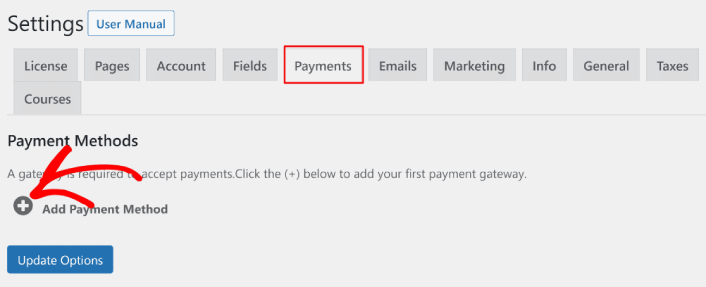
يتيح لك MemberPress قبول المدفوعات باستخدام Stripe، و PayPal، و Authorize.net. نوصي باستخدام WP Simple Pay لقبول مدفوعات Stripe على موقعك.
WP Simple Pay هو بالضبط ما يبدو عليه. إنه يجعل المدفوعات عبر الإنترنت بسيطة على موقع ووردبريس الخاص بك. إنه سهل الاستخدام، وموثوق للغاية، ويتطلب صفر ترميز للإعداد.
أفضل جزء؟ يساعدك WP Simple Pay على التركيز على إنشاء المنتجات وبيعها دون الحاجة إلى القلق بشأن قبول المدفوعات من جميع أنحاء العالم.
يتم تخزين جميع معلومات العملاء والمدفوعات في حساب Stripe الخاص بك، وليس على موقع ووردبريس الخاص بك. نتيجة لذلك، لن تؤدي الإضافة إلى إبطاء موقعك مثل البدائل الأخرى. يوفر WP Simple Pay أبسط طريقة لإضافة مدفوعات Stripe إلى موقع ووردبريس الخاص بك.
إذا لم تكن متأكدًا مما إذا كان هو إضافة Stripe المناسبة لك، فراجع مراجعتنا لـ WP Simple Pay.
الخطوة #5: كيفية إنشاء مستويات العضوية
بمجرد الانتهاء من إعداد بوابة الدفع على موقعك، تابع وأنشئ مستويات عضوية لأعضائك. إذا كنت مقدم بث مباشر، أو إذا كنت قد شاهدت مقدمي بث مباشر على Twitch أو YouTube من قبل، فربما تعرف كيف تعمل عضويات Patreon و YouTube.
تحتاج إلى إنشاء مستويات أو فئات مختلفة من العضوية بنقاط سعر مختلفة. يجب أن يكون لكل مستوى امتيازات مختلفة لأعضائك. إذا كنت مقدم بث مباشر على Twitch أو YouTube، فإن معرفة كيفية بيع العضويات على WordPress أفضل بكثير من عضويات Patreon أو YouTube لأنك تحصل على مزيد من التحكم في المحتوى والأرباح الخاصة بك.
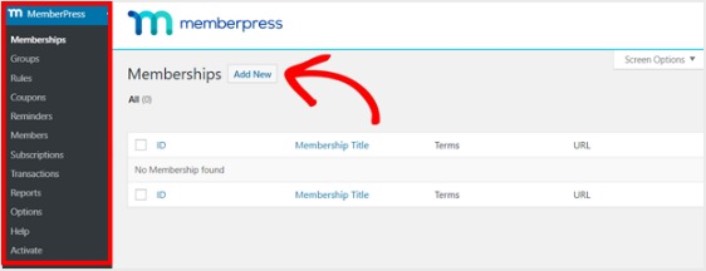
توجه إلى MemberPress » Memberships وانقر على Add New لإنشاء فئات عضويتك.
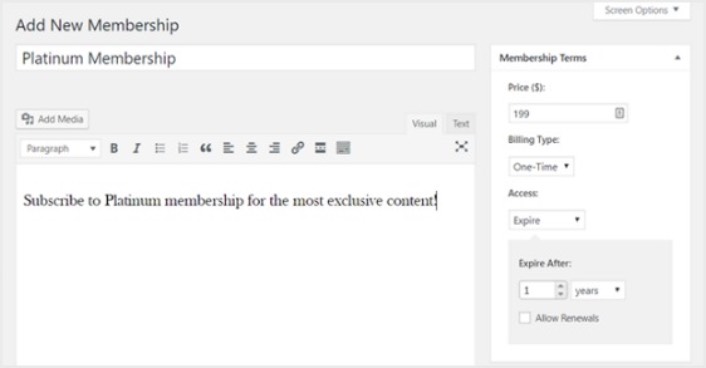
بعد ذلك، أدخل عنوانًا ووصفًا لمستوى عضويتك في المحرر. ثم، قم بتعيين السعر ونوع الفوترة ووقت الوصول من قسم Membership Terms على اليمين.
بعد ذلك، سترغب في التمرير لأسفل إلى قسم Membership Options لتخصيصه بالطريقة التي تريدها. ولا تنس النقر على علامات التبويب الأخرى لتكوين Permissions و Price Box أيضًا.
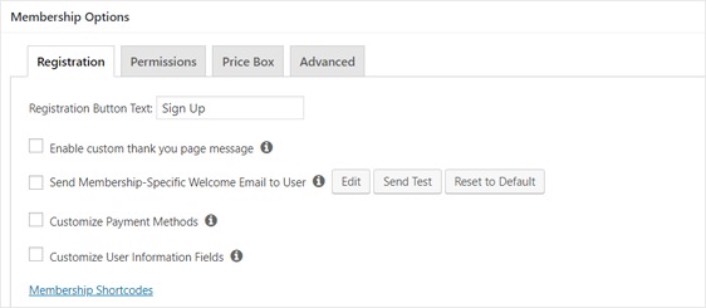
ثم، ببساطة انشر فئات عضويتك.
الخطوة #6: كيفية تعيين مستويات الوصول للعضوية
لا ينبغي لكل عضو الحصول على حق الوصول إلى كل شيء إذا كان لديك مستويات عضوية متعددة. لذلك، ستحتاج إلى تقييد الوصول على موقع العضوية الخاص بك. انتقل إلى MemberPress » Rules وانقر على Add New.
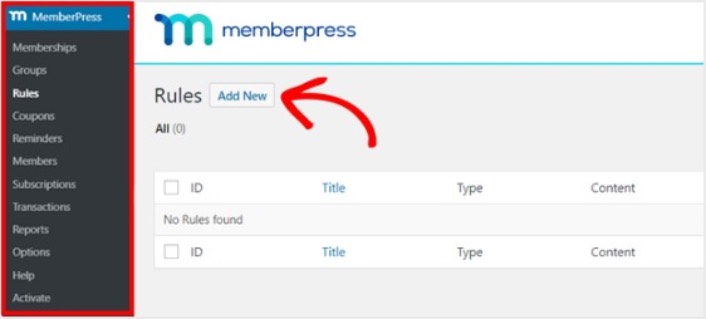
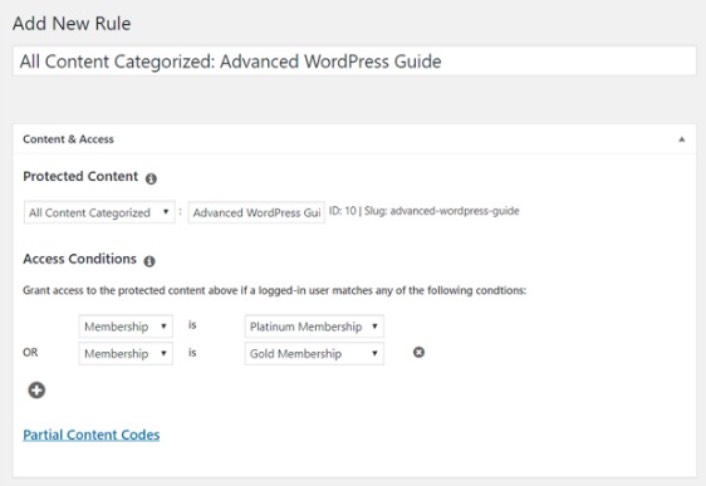
يمكنك تحديد كل المحتوى ضمن فئة معينة ليكون متاحًا فقط للمستخدمين الذين لديهم أغلى خطتين للعضوية. في هذا المثال، حددنا فئة Advanced WordPress Guide.
بعد ذلك، توجه إلى إعدادات Drip/Expiration.
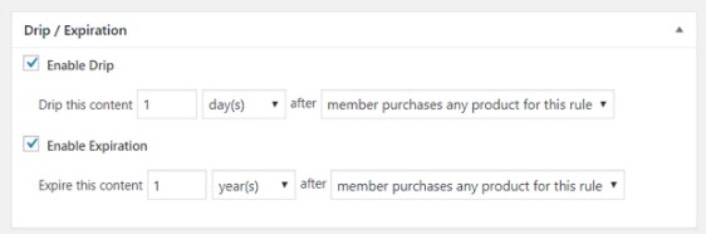
إذا اخترت تمكين خيار Drip، فسيسمح لك هذا بإصدار المحتوى تدريجيًا. يتيح لك خيار Expiration اختيار الوقت الذي لم يعد فيه المحتوى متاحًا.
الخطوة #7: كيفية بيع العضويات بمحتوى خاص بالأعضاء فقط
بعد ذلك، تريد تحميل المحتوى لأعضائك الذين يدفعون. ستحتاج أيضًا إلى تقييد الوصول إليه بناءً على مستويات العضوية. يمكنك إضافة محتوى باستخدام منشور أو صفحة. لذلك في هذا المثال، سنقوم بإنشاء محتوى للربط بقاعدة الوصول التي أنشأناها في الخطوة الأخيرة.
أنشئ منشورًا جديدًا وأضف المحتوى الذي تريده إليه. بعد ذلك، حدد فئة Advanced WordPress Guide.
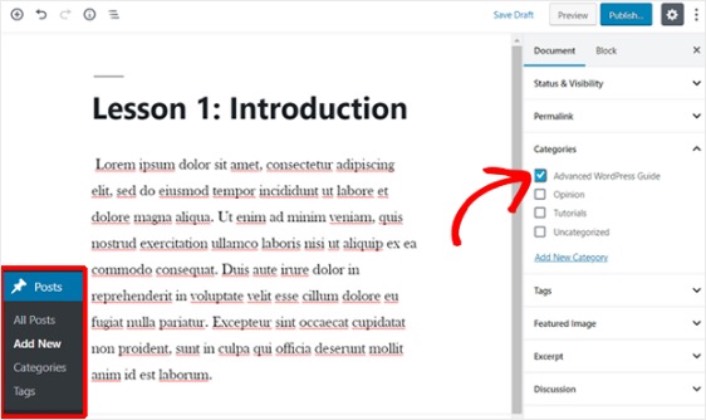
بعد ذلك، قم بالتمرير لأسفل إلى قسم MemberPress Unauthorized Access.
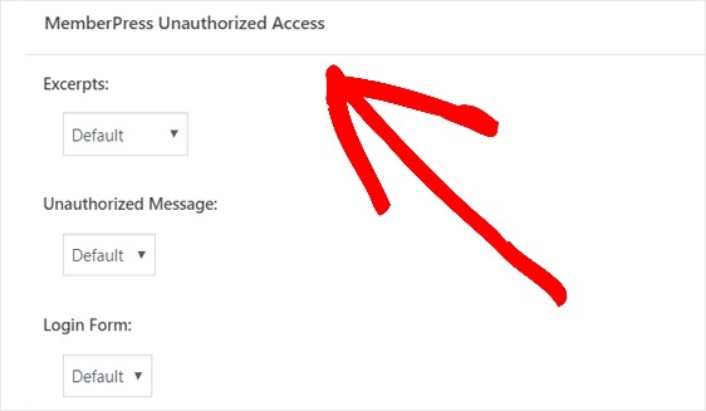
هنا يمكنك إعداد مقدار المحتوى المخصص للأعضاء فقط والذي يمكن لغير الأعضاء رؤيته. وعندما يتم تكوين كل شيء بالطريقة التي تريدها، انشر صفحتك. بعد ذلك، يمكنك التوجه إلى **المقالات » كل المقالات** لرؤية أي محتوى مقيد الوصول لمستويات عضوية معينة.
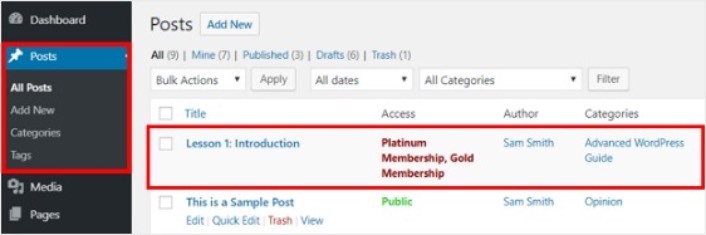
يمكنك حتى إنشاء دورات تدريبية كاملة عبر الإنترنت باستخدام MemberPress. ولكن كل هذا يتعلق بإنشاء محتوى للبيع. كيف تبيع العضويات عبر الإنترنت؟ هذا هو التالي.
الخطوة #8: كيفية إنشاء صفحة أسعار لبيع العضويات
لقد وصلنا تقريبًا إلى النهاية. بحلول الآن، لديك مستويات عضوية ومحتوى مميز لكل مستوى. بعد ذلك، ستحتاج إلى إنشاء صفحة تسعير لعضوياتك.
اذهب إلى **MemberPress » المجموعات** وانقر على زر **إضافة جديد**.
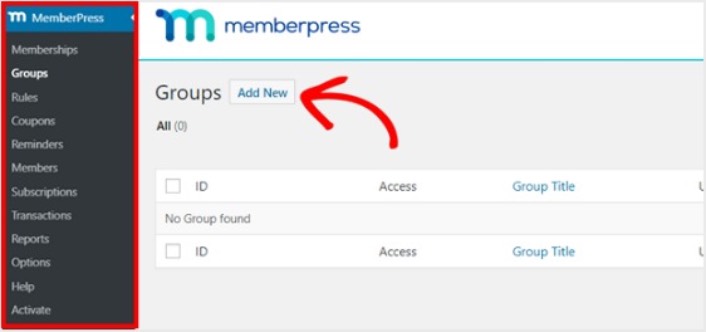
سمّ مجموعتك شيئًا مثل **خطط التسعير** حتى يعرف الناس ما تدور حوله الصفحة. بعد ذلك، قم بالتمرير لأسفل إلى قسم **خيارات المجموعة**. هنا، يمكنك إضافة العضويات التي تريد عرضها في صفحة التسعير الخاصة بك.
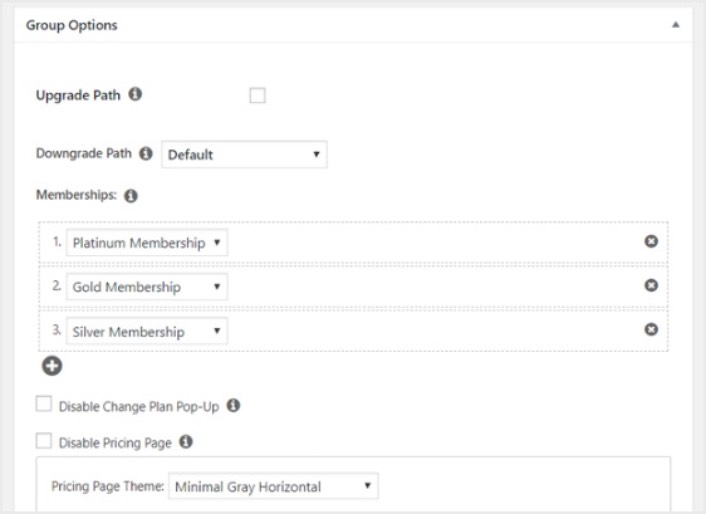
**نصيحة احترافية:** يمكنك أيضًا تغيير سمة صفحة التسعير في هذه الصفحة. نوصي باستخدام SeedProd لبناء سمات وصفحات مخصصة في ووردبريس.
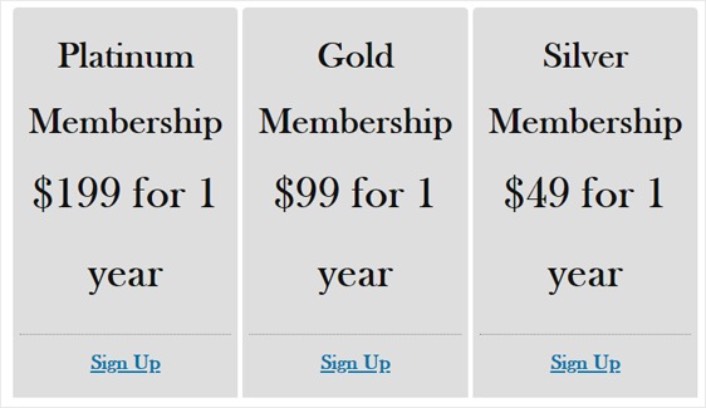
انشر هذه الصفحة عندما تكون جاهزًا، وقم بمعاينتها للتحقق منها. إذا اتبعت كل خطوة، فيجب أن تبدو شيئًا كهذا:
الآن، تحتاج إلى التأكد من أن موقع أعضاء ووردبريس الخاص بك يعيد توجيه المستخدمين غير المصرح لهم إلى صفحة التسعير. انسخ عنوان URL لصفحة التسعير الخاصة بك وانتقل إلى **MemberPress » الخيارات** وقم بالتمرير لأسفل إلى قسم **الوصول غير المصرح به**.
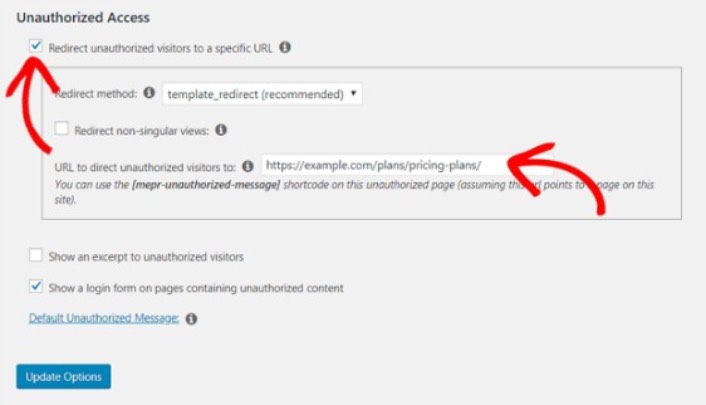
حدد مربع الاختيار بجوار **إعادة توجيه الزوار غير المصرح لهم إلى عنوان URL محدد** والصق عنوان URL لصفحة التسعير الخاصة بك. أخيرًا، انقر على **تحديث الخيارات** لحفظ التغييرات.
الخطوة #9: كيفية إنشاء نموذج تسجيل دخول وتسجيل
تحتاج إلى منح المستخدمين المسجلين لديك طريقة لتسجيل الدخول والوصول إلى محتواهم. وتحتاج أيضًا إلى إنشاء نموذج لقبول أعضاء جدد.
أبسط طريقة للقيام بذلك هي استخدام أداة تسجيل الدخول الخاصة بـ MemberPress. لدى MemberPress بالفعل وحدة تسجيل دخول ونموذج تسجيل يمكن استيرادها ببساطة دون أي ترميز مخصص.
انتقل إلى **المظهر » الأدوات** في لوحة تحكم ووردبريس الخاصة بك واسحب أداة تسجيل الدخول الخاصة بـ MemberPress إلى منطقة جاهزة للأدوات على موقعك.
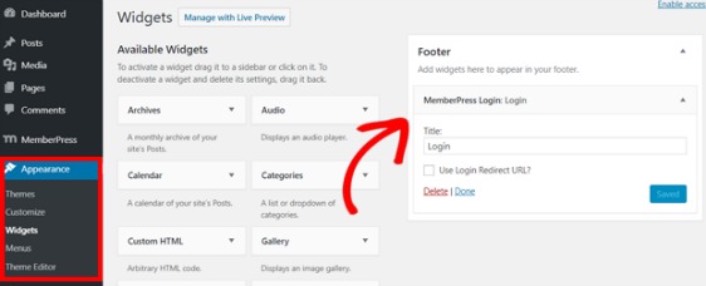
يوضح المثال أننا نضيفها إلى التذييل. ولكن يمكنك أيضًا إضافتها إلى الشريط الجانبي إذا أردت.
أخيرًا، تحتاج إلى الإعلان عن صفحة خطط التسعير الخاصة بك عن طريق إضافتها إلى قائمة تنقل الموقع. انتقل إلى **المظهر » القوائم** وأنشئ قائمة جديدة أو اختر قائمة موجودة. ثم، حدد **خطط التسعير** من اليسار ضمن المجموعات وانقر على زر **إضافة إلى القائمة**.
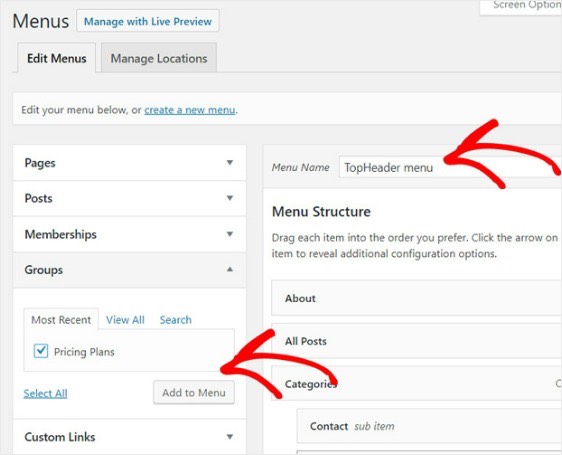
وهذا كل شيء! لقد أنشأت بنجاح موقعًا للأعضاء. الآن، حان الوقت لمعرفة كيفية بيع العضويات بشكل أسرع.
كيفية بيع العضويات بشكل أسرع
يجب أن تفكر في استخدام الإشعارات الفورية مع إضافة العضوية الخاصة بك. تأتي معظم إضافات العضوية مع حملات بريد إلكتروني آلية لإشراك الأعضاء والاحتفاظ بهم. لكننا نوصي باستخدام الإشعارات الفورية لزيادة حركة المرور والمشاركة والمبيعات على عضوياتك جنبًا إلى جنب مع حملات البريد الإلكتروني الخاصة بك.
دعنا نتحقق من كيفية بيع العضويات بشكل أسرع باستخدام الحملات الفورية.
PushEngage هو البرنامج رقم 1 لإشعارات الدفع في العالم. ومن السهل جدًا إعداد إشعارات الترحيب باستخدام PushEngage. يمكنك الاطلاع على القائمة الكاملة للميزات في مراجعتنا لـ PushEngage. أو، يمكنك أيضًا إلقاء نظرة على أفضل خدمات إشعارات الدفع في العالم واختيار الخدمة المناسبة لك.
أو، يمكنك ببساطة البدء فورًا باستخدام PushEngage.
#1. كيفية بيع العضويات باستخدام إشعارات الدفع الترحيبية
سواء كان لديك متجر جديد أو متجر قائم، فإن رسائل الترحيب عبر الموقع الإلكتروني ضرورية للغاية.
- التأكيد: تريد التأكد من أن مشتركك الجديد قد اشترك بالفعل في إشعارات الدفع الخاصة بك على الويب.
- إعادة المشاركة: حملات الترحيب هي طريقة رائعة لجذب المشتركين للعودة إلى موقعك.
- المبيعات: يمكنك منح المشتركين الجدد عرض ترحيبي بخصومات وهدايا مجانية وكوبونات.
لنقم بإنشاء حملة إشعارات دفع ترحيبية الآن. توجه إلى لوحة تحكم PushEngage الخاصة بك وانتقل إلى الحملات » الردود الآلية المتسلسلة » إنشاء رد آلي متسلسل جديد:
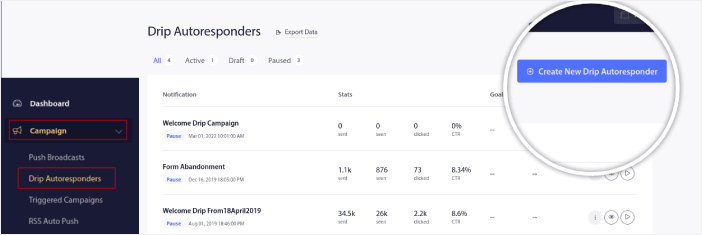
امنح حملتك المتسلسلة اسمًا يمكنك تذكره بسهولة. ثم، اضبط أول إشعار دفع ليتم إرساله فور اشتراك الزائر في إشعارات الدفع الخاصة بك.

يمكنك تعديل الإشعار لإنشاء محتوى مخصص لرسالة الترحيب الخاصة بك. عند الانتهاء، انقر فوق الزر إضافة إشعار جديد لإضافة المزيد من الإشعارات إلى التسلسل. يمكنك تعديل الإشعارات الجديدة وتعيين تأخير مخصص بين كل إشعار.
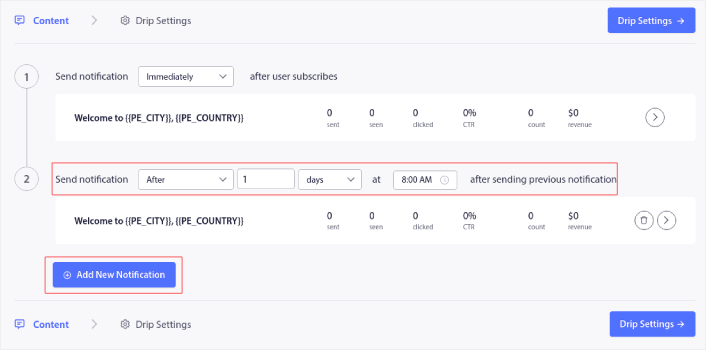
يمكنك إضافة أكبر عدد تريده من الإشعارات، ولكننا نوصي بإنشاء تسلسل ترحيبي يتكون من 5-7 إشعارات.
بعد ذلك، حدد جمهورك في إعدادات التسلسل:
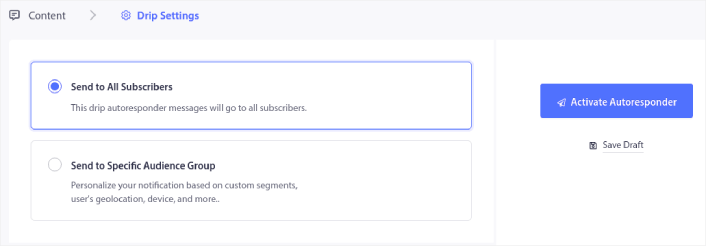
يمكنك إرسال تسلسلات ترحيبية مختلفة لشرائح مختلفة باستخدام خيار الإرسال إلى مجموعة جمهور محددة. هذا مفيد بشكل خاص عندما تقوم بتقسيم الزوار عند اختيارهم لإشعارات الدفع. عندما تكون راضيًا عن استهدافك، انقر فوق الزر تفعيل الرد الآلي. وهكذا تكون قد انتهيت!
#2. كيفية بيع المزيد من العضويات باستخدام إشعارات الدفع للتخلي عن سلة التسوق
تخلي عربة التسوق هو عندما يضيف عميل محتمل منتجًا إلى عربة التسوق ولا يكمل عملية الدفع. بعبارة أخرى، يتخلون عن منتجاتك لسبب ما ويواصلون ببساطة.
يمكن أن يكون تخلي عربة التسوق عبر الإنترنت بسبب مشكلة كبيرة في واجهة المستخدم أو نقص الثقة، أو حتى بعض الرسوم المخفية. إذا كنت تدير متجرًا جديدًا، فيجب عليك الاطلاع على مقالتنا حول كيفية تقليل تخلي عربة التسوق.
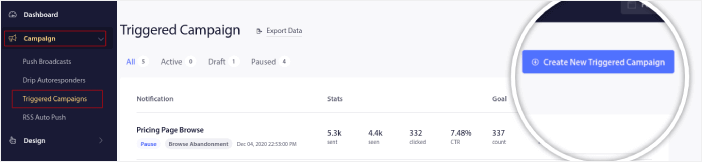
الآن، حان الوقت لإنشاء حملة التخلي عن عربة التسوق الخاصة بك. توجه إلى الحملات » الحملات المشغلة وانقر فوق إنشاء حملة مشغلة جديدة:
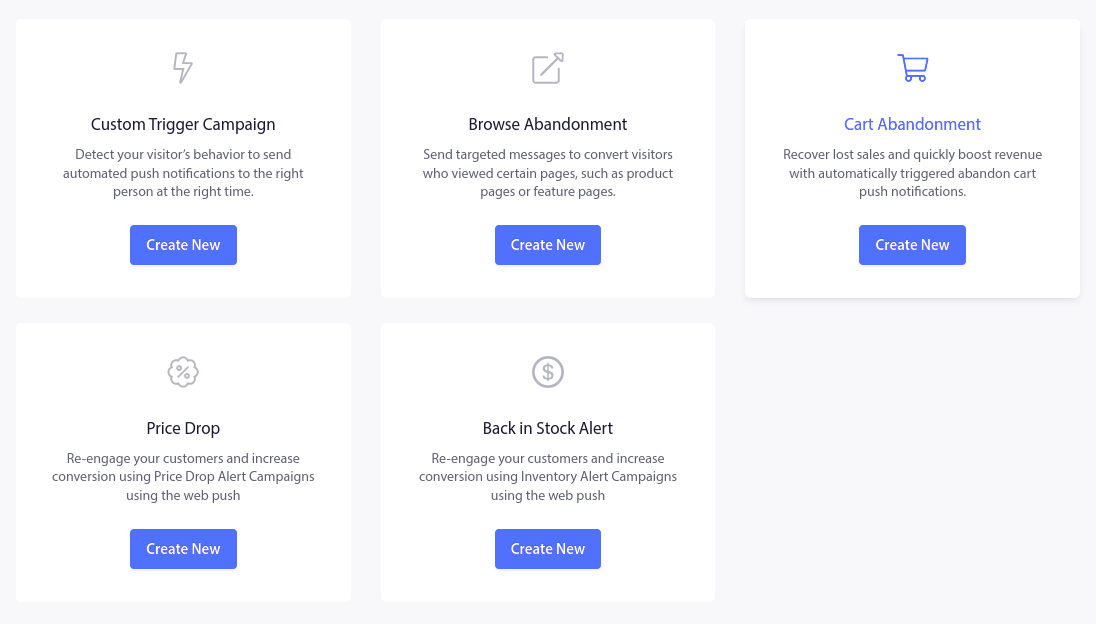
بعد ذلك، من قوالب الحملات، حدد التخلي عن عربة التسوق وانقر فوق إنشاء جديد:
إذا كنت بحاجة إلى برنامج تعليمي مفصل حول إنشاء حملة تخلي عن عربة التسوق، فراجع هذه المقالة حول كيفية إعداد إشعارات دفع التخلي عن عربة التسوق.
#3. كيفية الحصول على المزيد من الأعضاء باستخدام إشعارات الدفع للتخلي عن التصفح
إشعار التخلي عن التصفح هو إشعار دفع آلي يتم إرساله عندما يقرر شخص يتصفح موقعك مغادرته دون اتخاذ أي إجراء. يمكن أن يؤدي إرسال تذكير للزائر بأنه كان مهتمًا بشيء ما على موقعك إلى زيادة معدلات التحويل بشكل كبير.
تُستخدم حملات التخلي عن التصفح بشكل شائع من قبل مواقع التجارة الإلكترونية. ولكن هذا لا يعني أن بوابة السفر أو موقع إخباري (أو أي موقع ويب، في الواقع) لا يمكنه استخدامها.
ينتهي إشعار التخلي عن التصفح عندما يضيف زائرك شيئًا إلى سلة التسوق الخاصة به. بعد ذلك، يتولى إشعار التخلي عن سلة التسوق مهمة تحويلهم إلى عملاء يدفعون.
هنا تأتي حملات التخلي عن التصفح. باستخدام أمثلة البريد الإلكتروني للتخلي عن التصفح في هذه المقالة، يمكنك الاستهداف والإقناع والتحويل:
- العملاء الذين أضافوا منتجًا إلى قائمة الرغبات، ولكن ليس إلى سلة التسوق الخاصة بهم
- العملاء الذين شاهدوا منتجًا أكثر من مرة
- العملاء الذين تصفحوا أكثر من 3 منتجات في نفس الفئة
- العملاء الذين بحثوا في الموقع عن منتج معين
- العملاء الذين بقوا في صفحة منتج لمدة 3 دقائق على الأقل ولم يشتروا
توجه إلى لوحة تحكم PushEngage الخاصة بك وانتقل إلى الحملات » الحملات المشغلة. ثم انقر فوق إنشاء مستجيب تلقائي جديد للتصفح:
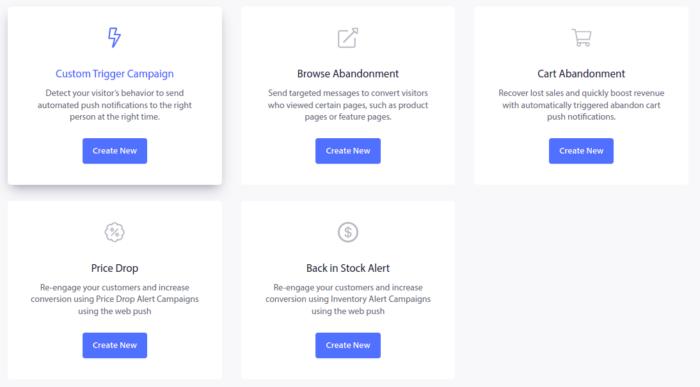
وبعد ذلك، حدد نوع حملة التخلي عن التصفح من قائمة أنواع الحملات وانقر فوق إنشاء جديد:
حتى الآن، يجب أن تكون قادرًا على رؤية لوحة إعداد الحملة. قم بإنشاء حملتك ضمن المحتوى:
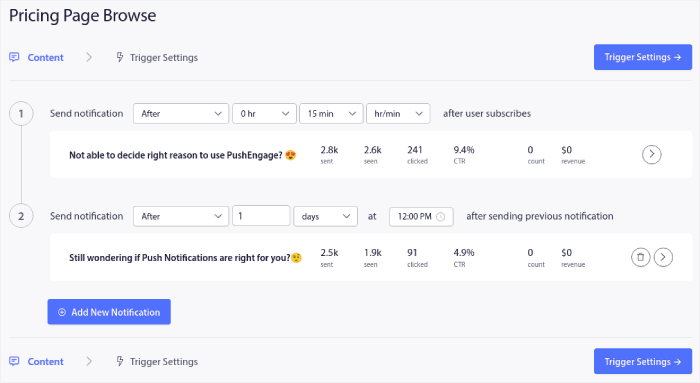
معظم هذا واضح ومباشر. قم بتسمية حملتك وأنشئ سلسلة من إشعارات الدفع للتخلي عن التصفح. عند الانتهاء، انقر فوق إعدادات المشغل.
حان الوقت لإعداد مشغل التخلي عن التصفح:
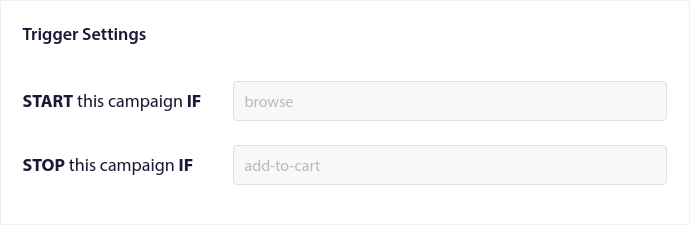
هذه هي القيم الافتراضية لقالب حملة التخلي عن التصفح. لذلك، لا تحتاج إلى تغيير أي شيء هنا.
يمكنك تعيين حدود المشغل بناءً على عدد المرات التي تريد فيها إرسال إشعارات الدفع:
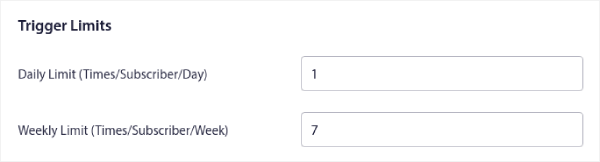
ويمكنك أيضًا إعداد معلمات UTM هنا:
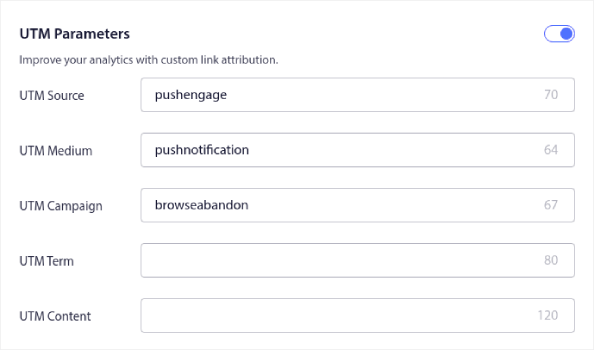
وتمكين تتبع الأهداف أيضًا:
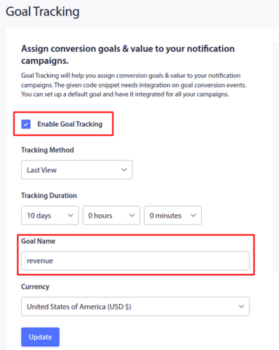
إذا كنت جديدًا في تحليلات إشعارات الدفع، فراجع دليلنا لتتبع الأهداف لإشعارات الدفع.
#4. إشعارات الدفع للتجارة الإلكترونية للبيع المتقاطع
البيع المتقاطع هو بيع منتجات ذات صلة أو مكملة للعميل. إنها واحدة من أكثر طرق التسويق فعالية. يمكنك بسهولة زيادة متوسط قيمة طلبك (AOV) باستخدام حملات البيع المتقاطع.
وفقًا لأمازون، تأتي 35٪ من مبيعاتها من البيع المتقاطع. إشعارات البيع المتقاطع هي حملات تقوم ببيع المنتجات بشكل متقاطع تلقائيًا لعملائك. تساعدك إشعارات البيع المتقاطع على زيادة المبيعات حيث من المرجح أن تبيع لعميل حالي بنسبة 60-70٪.
من السهل جدًا أيضًا إعداد حملة بيع متقاطع لموقع التجارة الإلكترونية الخاص بك باستخدام الإشعارات.
- قم بإنشاء شرائح بناءً على فئات المنتجات وأضف عميلاً إلى الشريحة ذات الصلة عند إجراء عملية شراء
- حدد المنتجات للترويج المتقاطع تحت كل شريحة
- أنشئ إشعارًا متسلسلًا لكل شريحة وأرسل المنتج أو قائمة المنتجات ذات الصلة للترويج المتقاطع
الأمر بهذه البساطة.
ارجع إلى لوحة تحكم PushEngage الخاصة بك وانتقل إلى الجمهور » الشرائح وقم بإنشاء الشرائح الخاصة بك:

ستحتاج إلى تقسيم زوارك عندما يزورون منتجًا في فئة معينة:
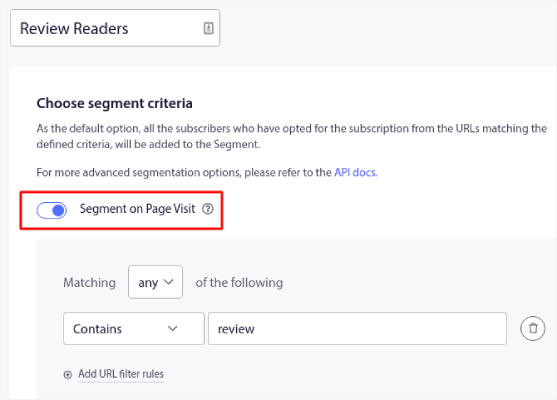
بعد ذلك، ابحث عن منتج لبيعه بشكل إضافي لكل شريحة وأنشئ ردًا آليًا متسلسلًا للترويج له.
#5. كيفية بيع العضويات باستخدام المبيعات المتكررة
يمكنك جدولة الإشعارات لتتكرر كل أسبوع. أو كل بضعة أيام. يستخدم العديد من عملاء PushEngage الجدولة المتكررة ويحبون هذه الميزة تمامًا. لقد أحدثت فرقًا كبيرًا بشكل خاص لمواقع التجارة الإلكترونية.
لماذا قد تستخدم الجدولة المتكررة؟
تخيل أن لديك تخفيضات أسبوعية لسوق السلع المستعملة. أو تخفيضات نهاية الأسبوع. أو تخفيضات لتصفية المخزون. أو حتى تخفيضات سريعة شهرية.
هذه أحداث مباشرة تستمر في التكرار بانتظام.
هل تريد حقًا إنشاء إشعار دفع مختلف كل أسبوع؟ خاصة إذا كنت تعلم مسبقًا أن هذه التخفيضات ستكون جزءًا كبيرًا من استراتيجية التسويق الخاصة بك؟
أم تفضل إنشاء الإشعار مرة واحدة وجدولته ليتم إرساله كل أسبوع في وقت محدد؟
هذا بالضبط ما يمكن أن تفعله إشعارات الدفع المتكررة لك. إنها الطريقة المثلى لتوفير الكثير من الوقت والطاقة. بدلاً من إضاعة الوقت في إشعارات جديدة، يمكنك ببساطة الاستمرار في تحسين الحملة الحالية.
كما أنه من السهل جدًا القيام بذلك. ما عليك سوى التوجه إلى لوحة تحكم PushEngage وإنشاء بث ضمن بث الدفع:
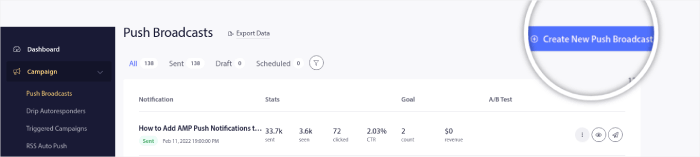
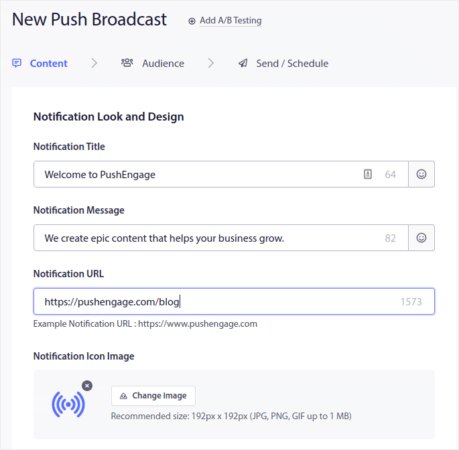
بعد ذلك، أنشئ إشعار دفع جديدًا لإرساله. قم بتخصيص المحتوى ضمن علامة التبويب المحتوى:
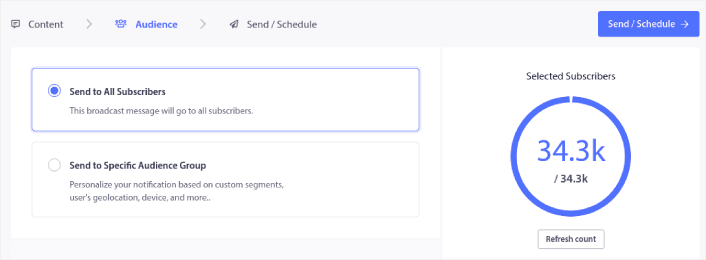
بعد ذلك، حدد جمهورك ضمن الجمهور:
وأخيرًا، ضمن إرسال/جدولة، يمكنك جدولة الإشعار كإشعار دفع متكرر:
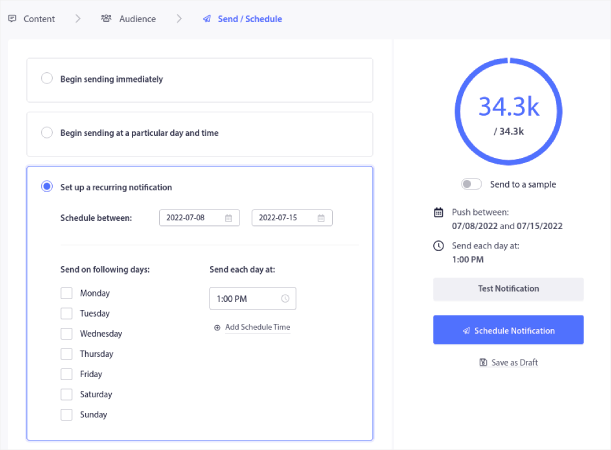
يمكنك بسهولة إنشاء أي جدول تريده لإشعارات الدفع الخاصة بك بما في ذلك الأيام والتواريخ والأوقات المخصصة.
ماذا تفعل بعد أن تعرف كيفية بيع العضويات
الآن بعد أن عرفت كيفية بيع العضويات، يجب أن تبدأ مباشرة في تنمية عملك.
هل تعلم أن إشعارات الدفع تأتي مع الكثير من الحملات الآلية أيضًا؟ ألقِ نظرة على بعض الحملات التي يمكن أن تساعدك في تنمية عضوياتك بسرعة:
- حملات التنقيط والاستجابات التلقائية لإشعارات الدفع عبر الويب
- 5 فوائد لاستخدام حملة إشعارات دفع للعربات المتروكة
- كيفية تحويل المشتركين إلى مشترين باستخدام إشعارات الدفع عبر الويب
- كيفية إضافة إضافة إشعارات الويب لـ WordPress إلى موقعك
وإذا كنت قد بدأت للتو في استخدام إشعارات الدفع، فنحن نوصي باستخدام PushEngage. PushEngage هو برنامج إشعارات الدفع رقم 1 في العالم. لذا، ستكون حملاتك في أيدٍ أمينة.


