مرحباً، يا مستخدمي Engagelings.
أخبار مثيرة: لقد أضفنا للتو ترقية رئيسية لإشعارات دفع RSS على PushEngage.
لقد أطلقنا حملات دفع تلقائي لـ RSS منذ فترة وأصبحت شائعة للغاية. ولكن، كانت هناك قيود على ما يمكنك فعله بإشعارات RSS. لذلك، أضفنا المزيد من الميزات القوية لحملات موجز RSS الخاصة بنا.
إليك نظرة سريعة على أبرز الميزات:
- إنشاء موجز RSS متعدد
- بدء/إيقاف مؤقت/حذف إشعارات دفع RSS الخاصة بك في أي وقت تريده
- إضافة صورة كبيرة لموجزات RSS الخاصة بك
- تحديد الصورة الكبيرة ديناميكيًا لموجز RSS الخاص بك لإشعارات الدفع
- تعيين أيقونة إشعار ديناميكيًا من موجز RSS أو تحميل أيقونة علامتك التجارية
- الترويج تلقائيًا لأحدث محتوى لديك عن طريق كشط موجز RSS على فترات تحددها
- تحديد مجموعة الجمهور التي تريد استهدافها لتحسين التخصيص
- إضافة قواعد انتهاء صلاحية الإشعارات
- تعيين معلمات UTM مخصصة
- الحصول على تحليلات مفصلة للحملة لكل حملة موجز RSS
لقد جعلنا استخدامه سهلاً للغاية أيضًا. لقد بذلنا الكثير من العمل في هذا التحديث ونعتقد أنك ستحبه. إنه أيضًا تحديث رئيسي، لذا هناك الكثير مما يجب استكشافه.
دعنا نتعمق.
لماذا ترسل إشعارات دفع RSS؟
يعد إنشاء المحتوى وإدارة المدونة باستمرار عملاً شاقًا. ولكن إذا كنت تدير عملاً تجاريًا جادًا، فأنت تعلم أن مجرد إنشاء المحتوى لا يكفي. يجب أن تكون قادرًا على الترويج لمحتواك أيضًا.
وتعد إشعارات الدفع طريقة رائعة لاكتساب المشتركين بطريقة فعالة من حيث التكلفة. ما يجعل إشعارات الدفع جيدة جدًا كأداة تسويق هو أنه يمكن أتمتتها بالكامل.
هنا يأتي دور إشعارات دفع RSS.
إذا قمت بإعداد إشعارات دفع RSS بالطريقة الصحيحة، ففي كل مرة تنشر فيها محتوى على موقعك، سيحصل المشتركون تلقائيًا على إشعار دفع يوجههم إلى المحتوى الخاص بك.
لكن لا تخطئ. لا تزال إشعارات دفع RSS أقل تخصيصًا من حملات إشعارات الدفع الآلية الأخرى. لذلك، نوصي باستخدام مزيج من الحملات المختلفة لزيادة نموك إلى أقصى حد. على سبيل المثال، تحتاج إلى تمكين إشعارات دفع التجارة الإلكترونية إذا كنت تدير موقعًا للتجارة الإلكترونية.
إنشاء إشعارات موجز RSS متعددة
بمجرد تثبيت PushEngage على موقعك، توجه إلى لوحة تحكم PushEngage وانتقل إلى الحملات » دفع RSS تلقائي وانقر على إنشاء حملة جديدة:
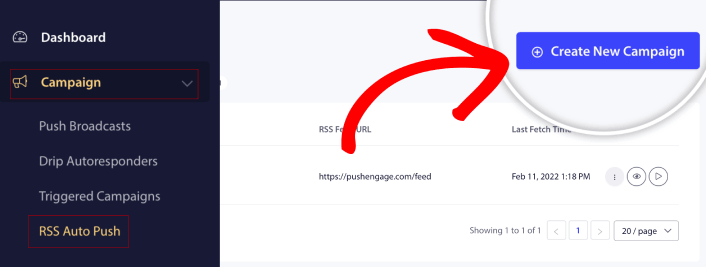
مع هذه الترقية الجديدة، يمكنك الآن إنشاء وإرسال إشعارات موجز RSS متعددة لـ شرائح و مجموعات جمهور مختلفة. موقعك لا يحتوي على موجز RSS واحد فقط. يمكنك إنشاء موجزات RSS لكل فئة محتوى على موقعك.
ويستغرق الأمر القليل جدًا من الوقت للقيام بذلك. ولكن إنشاء موجزات متعددة يسمح لك بإرسال إشعارات دفع RSS أكثر تخصيصًا.
لنفترض أن لديك ثلاث مجموعات جمهور تهتم فقط بالسيارات الخارقة والدراجات والشاحنات على التوالي. يمكنك بسهولة إنشاء عناوين URL مختلفة لموجزات RSS لكل فئة وإرسال إشعارات دفع لمشتركيك حول المحتوى الذي يهتمون به بالفعل.
النتيجة؟ سترى زيادة في تفاعل موقعك حتى مع حملة دفع تلقائي بسيطة لـ RSS!
بدء حملة RSS الخاصة بك وإيقافها مؤقتًا وحذفها في أي وقت
كانت المشكلة الأكبر مع حملات RSS، حتى حملات RSS عبر البريد الإلكتروني، هي الجدولة. من الصعب للغاية التحكم في عدد المشاركات التي ترسلها. وكان من الصعب حتى إيقاف حملاتك مؤقتًا.
حتى الآن!
مع PushEngage، يمكنك بسهولة بدء أو إيقاف مؤقت أو حذف أي حملة موجز RSS في أي وقت. هذه ميزة مفيدة للغاية إذا كنت تدير حملات متعددة.
لنفترض أنك تدير حملة إشعارات دفع خاصة بـ Black Friday. يجب أن يركز المشتركون لديك فقط على عروضك الترويجية. ولكن في الوقت نفسه، لا يمكنك التوقف عن نشر محتوى جديد حتى انتهاء موسم العطلات. هذا هو الوقت المناسب لإيقاف حملات موجز RSS مؤقتًا.
نظرًا لأنه يمكنك تشغيل حملات RSS متعددة الآن، يمكنك حتى الاستمرار في إرسال المحتوى المنتظم إلى المشتركين الذين لا تستهدفهم بعروضك الترويجية.
خيارات سهلة لتخصيص الصور
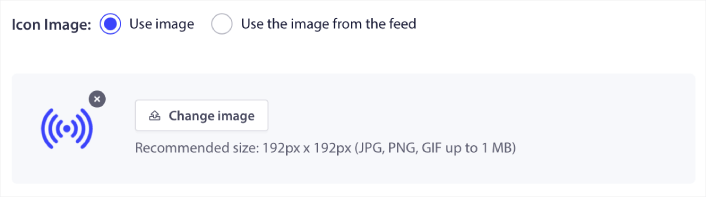
يمكنك تخصيص كل من أيقونة الإشعار والصورة الكبيرة للإشعار مباشرة من موجز RSS الخاص بك. بالنسبة لأيقونة الإشعار، يمكنك إما تحميل الأيقونة يدويًا:
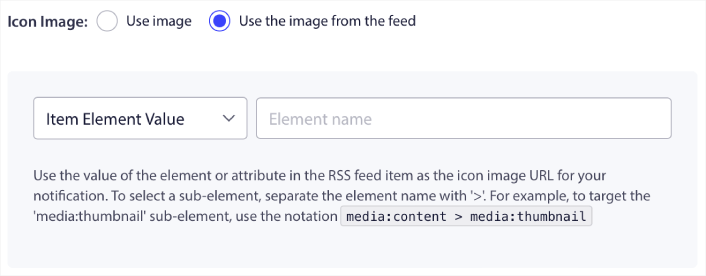
أو، يمكنك إعداد نمط لـ PushEngage لكشط أيقونة الإشعار ديناميكيًا من موجز RSS الخاص بك:
بالمثل، يمكنك إما السماح لـ PushEngage بالعثور تلقائيًا على الصورة الكبيرة لمنشوراتك:

أو، يمكنك تخصيص نوع الصورة الكبيرة التي تريدها عن طريق جلبها من موجز RSS الخاص بك:
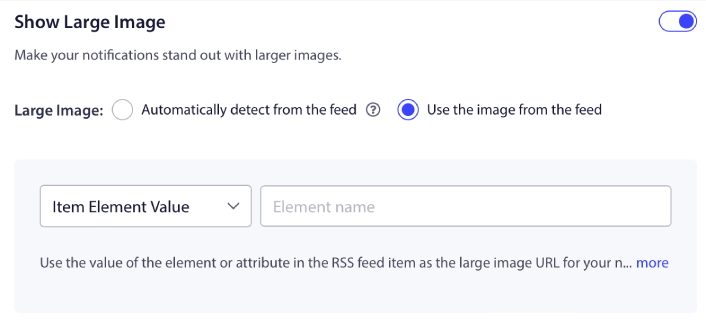
تنبيه: استخدم خيارات كشط الصور المتقدمة فقط إذا كنت قادرًا على قراءة XML في موجز RSS. إذا لم تكن مرتاحًا مع XML، يجب عليك السماح لـ PushEngage بتحديد الصورة الكبيرة لإشعارك بنفسه ويجب عليك تحميل أيقونة الإشعار يدويًا.
تعيين تردد إشعارات RSS
يمكنك أيضًا تعيين تردد الحملة لكل حملة RSS:
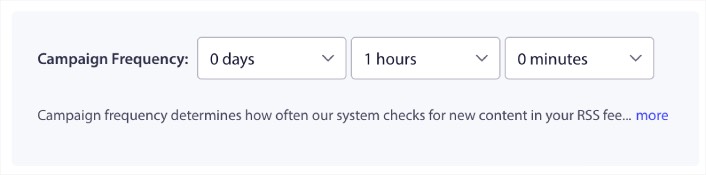
تكرار الحملة هو عدد المرات التي تبحث فيها حملة موجز RSS عن محتوى جديد في مدونتك لإرسال إشعار دفع آلي. الحد الأدنى للقيمة هو 15 دقيقة والحد الأقصى للقيمة هو 7 أيام.
نوصي بالبحث عن محتوى للترويج له مرة كل يومين ما لم تكن وكالة أنباء. بالنسبة لوكالات الأنباء، يجب أن تبقيه عند 15 دقيقة. ضع في اعتبارك أن PushEngage سيبحث فقط عن محتوى جديد بعد إعداد ونشر حملة موجز RSS الخاصة بك.
تعيين مدة إشعار الدفع
مدة الإشعار الفوري هي المدة التي يبقى فيها الإشعار في علبة إشعارات مشتركك قبل حذفه تلقائيًا.
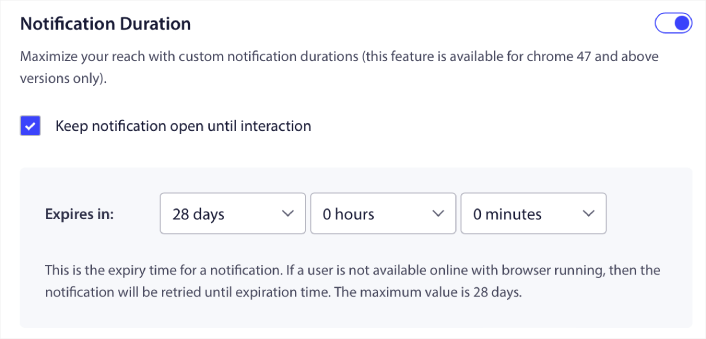
إذا كنت لا ترغب في إرهاق مشتركيك بالكثير من الإشعارات غير المقروءة، فمن الأفضل ترك الإشعارات الفورية تنتهي صلاحيتها في غضون يومين.
على عكس الإشعارات المذاعة أو حتى إشعارات الدفع الآلية الأخرى، لا يمكنك جدولة إشعارات دفع RSS حسب المنطقة الزمنية أو وقت إرسال محدد. لذلك، لديك دائمًا خيار إبقاء الإشعار مفتوحًا حتى يتفاعل معه مشتركك، حتى ضمن الحد الزمني للانتهاء.
تعيين معلمات UTM لتتبع إشعاراتك
يمكنك أيضًا إعداد معلمات UTM لـ تتبع إشعارات الدفع:
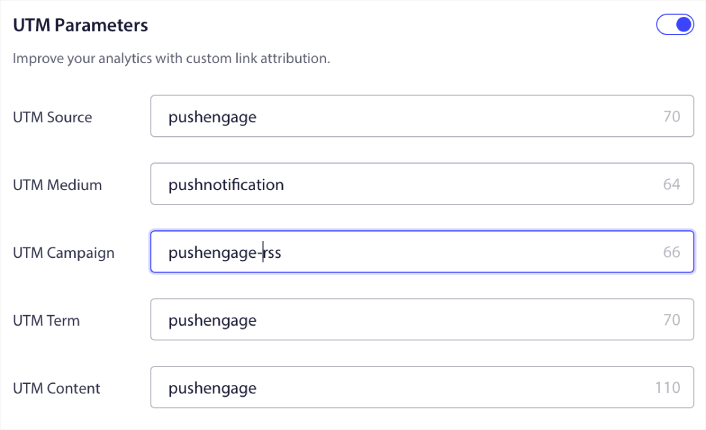
بهذه الطريقة، يمكنك بسهولة تحديد مصدر الزيارات من إشعارات الدفع هذه في Google Analytics. بالطبع، يمكنك أيضًا الحصول على تحليلات مفصلة لحملتك بأكملها مباشرة من لوحة تحكم PushEngage الخاصة بك.
استهداف مجموعة جمهور محددة
أكبر ترقية لإشعارات دفع RSS هي خيارك لتحديد مجموعة جمهور لإرسال إشعارات مستهدفة. يمكنك إما إرسال حملة موجز RSS إلى جميع المشتركين لديك، أو يمكنك إنشاء مجموعات جمهور لإرسال إشعارات دفع مخصصة حتى من موجز RSS الخاص بك.
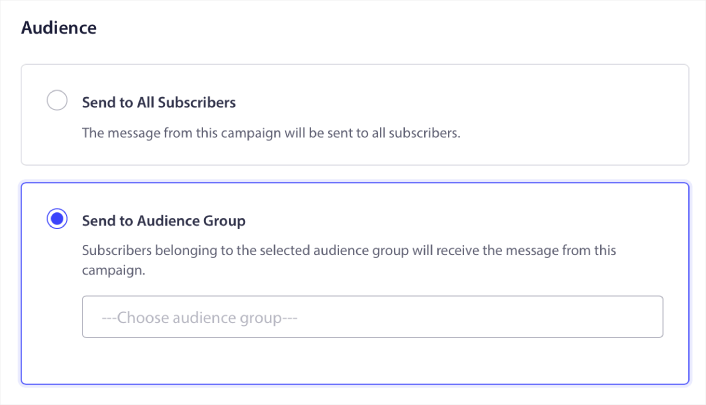
الآن، لا يزال بإمكانك إرسال إشعارات دفع آلية عن طريق إعدادها مرة واحدة. ولكنها أفضل لأنك تستطيع اختيار نوع المحتوى الذي تريد الترويج له لجماهير محددة.
ماذا أيضًا؟
نحن نعلم أن تنمية الأعمال التجارية عمل شاق. في PushEngage، نسعى دائمًا لتحسين منتجنا وتجربتك. لقد أطلقنا هذه الميزة الجديدة لمساعدتك في الحصول على قيمة أكبر من اشتراكك في PushEngage.
شكرًا جزيلاً لك على قراءة هذا الإعلان.
إذا كانت لديك أي أسئلة، فإن فريق نجاح العملاء لدينا هنا للمساعدة. ابدأ محادثة على الدردشة المباشرة أو تحقق من صفحة الاتصال الخاصة بنا.
وشكراً لاستخدامك PushEngage. سواء كنت تستخدم الإصدار المجاني أو الإصدار المؤسسي، فأنت مهم بنفس القدر بالنسبة لنا. تم تصميم ميزات الدفع التلقائي الجديدة لموجز RSS لمساعدتك على النجاح ونتمنى لك كل التوفيق.
أخبرنا برأيك في التعليقات أدناه وإذا لم تكن قد قمت بذلك بالفعل، ابدأ باستخدام PushEngage اليوم!


