Hvis e-mailåbningsrater falder, og dine sociale opslag bliver begravet, kan det være tid til at prøve noget andet. En web push-notifikationskampagne kan være lige, hvad du har brug for.
Web push er hurtigt, direkte og vises lige, når din abonnent er online. Ingen indbakke. Ingen algoritme. Bare en hurtig besked, der bringer folk tilbage til dit websted, når det betyder mest.
I denne guide vil jeg vise dig, hvordan du opsætter din første web push-notifikationskampagne ved hjælp af PushEngage. Det er nemmere, end du tror, og du vil se, hvordan selv en simpel kampagne kan give reelle resultater.
Lyder det godt? Lad os bare dykke lige ned i det.
Send Web Push-notifikationer i dag!
Push-notifikationer er et supereffektivt, billigt marketingværktøj, der hjælper dig med at øge din gentagne trafik, engagement og salg automatisk.
Hvorfor Web Push Virker (Selv Når Andre Kanaler Ikke Gør)
Web push-notifikationer skærer igennem støjen på en måde, som e-mail og sociale medier bare ikke kan.
- Du behøver ikke et telefonnummer eller en e-mailadresse for at udvide din liste
- Beskeder vises, mens din abonnent aktivt browser
- Du kan automatisere alt - fra genopretning af indkøbskurve til produktlanceringer
- Det fungerer på tværs af enheder og browsere (ingen app påkrævet)
Det er som at have din egen private trafikkanal... en der rent faktisk bliver bemærket. Tænk over det... hvornår var sidste gang, du ignorerede en browsernotifikation, der dukkede op med dit navn, en saftig overskrift og en opfordring til handling, du gik op i?
⚡ Øjeblikkelig synlighed: I modsætning til e-mails, der ligger ulæste i dagevis, rammer push-notifikationer øjeblikkeligt. Lige på brugerens skærm. Desktop, mobil, det er lige meget. Du venter ikke på, at de åbner en indbakke. Du dukker op præcis, når det betyder noget.
🧠 Ingen hukommelse påkrævet: Brugere behøver ikke at huske dit websted. Eller dit produkt. Eller endda deres login.
Når de abonnerer, kan du genaktivere dem når som helst - ingen formularer, ingen friktion, ingen besvær. Det er som at have en hurtig bane direkte ind i deres opmærksomhedsspændvidde.
📈 Vanvittigt højt engagement: Web push CTR'er er ofte 2-3 gange højere end e-mail. Hvorfor? Fordi det er kort. Uventet. Og indbygget i den måde, folk browser på. Plus, ingen er indbakke drukner i push-notifikationer (endnu). Så du skiller dig ud.
💸 Du ejer kanalen: Ingen algoritmer. Ingen budgivning. Ingen sociale feed-snyd. Push-abonnenter er dine. Du bestemmer, hvad de ser, og hvornår. Det er dit publikum, ikke lejet fra Meta eller Google.
🧪 Perfekt til test: Har du brug for at vide, om en overskrift virker? Om folk holder af en ny funktion? Push er det hurtigste A/B-testværktøj, du ikke vidste, du havde. Send en overskriftsvariation. Se, hvilken der får flest klik. Lær hurtigt. Bevæg dig hurtigere.
Web push er den sjældne kanal, der er billig, højkonverterende og brutalt effektiv, når den bruges rigtigt.
Og det bedste... det tager under 10 minutter at lancere din første kampagne.
Lad os bygge en.
Den korte version: web push-notifikationer når abonnenter på deres skærm i det øjeblik, du trykker send, uden indbakke, algoritme eller app-installation imellem.
En oversigt over typer af web push-notifikationskampagner
I bredeste forstand er der 3 typer af web push-notifikationskampagner:
- Broadcast-notifikationer
- Drip web push-notifikationskampagner
- Udløste web push-notifikationskampagner
Broadcasts er push-notifikationer, som du sender ud som én enkelt notifikation. Du kan planlægge dem, men de vil kun blive sendt én gang. Udløste kampagner involverer opsætning af en push-notifikation, definering af en udløser til at aktivere den og et workflow til at styre dens planlægning. Automatiserede dryp-notifikationer er en serie af notifikationer, der sendes automatisk på bestemte tidspunkter eller når bestemte betingelser er opfyldt.
Til alle formål ligner udløste kampagner og automatiserede dryp-kampagner hinanden udefra. Den afgørende forskel er, at udløste kampagner er langt mere fleksible og tilpasselige. Hvis du tager i betragtning, at push-notifikationer koster langt mindre end de fleste andre kanaler, giver det perfekt mening at bruge en kombination af alle tre til at vækste din virksomhed.
Hvis du er ny inden for push-notifikationer, anbefaler vi kraftigt, at du starter din rejse ved at bruge prøvede skabeloner.
NOTE: De fleste udløste kampagner kræver en vis udviklingserfaring. Du skal bruge en API for at få mest muligt ud af udløste notifikationer. Der er dog nogle udløste notifikationer, som du kan sende direkte fra hylden. Hvis du er nysgerrig, kan du læse vores artikel om eCommerce push-notifikationer for at få en bedre idé.
Den bedste service til at sende en web push-notifikationskampagne
Lad os starte med at sige, at de fleste af de "gratis push-notifikationstjenester" derude faktisk er gratis prøveversioner. Nogle af de udbydere, vi har listet her, er prøvesoftware, mens andre har en gratis plan, som du kan vælge.
Der er nogle andre freemium-muligheder, såsom Firebase Cloud Messaging (FCM), men det er slet ikke en god mulighed. Du kan læse mere om, hvorfor FCM ikke kan konkurrere med en tjenesteudbyder som PushEngage. Men for nu, tag vores ord for det og spring videre til de bedre muligheder.
Vi anbefaler at bruge PushEngage.

PushEngage er verdens førende plugin til push-notifikationer.
Push-notifikationer hjælper dig med at øge din webtrafik og dit engagement automatisk. Og hvis du driver en onlinebutik, hjælper PushEngage dig også med at øge dit salg ved at hjælpe dig med at oprette automatiserede e-handels-push-notifikationer.
Du kan komme i gang gratis, men hvis du er seriøs omkring at vækste din forretning, bør du købe en betalt plan. Før du køber en push-notifikationstjeneste, bør du også se denne guide til priser på push-notifikationer.
Her er et hurtigt overblik over, hvad du får med PushEngage:
- Højtkonverterende automatiserede kampagner
- Flere målretnings- og kampagneplanlægningsmuligheder
- Målsporing og avanceret analyse
- Smart A/B-test
- Skabeloner til push-kampagner
- Kraftfulde segmenteringsmuligheder
- En dedikeret succesmanager
Og dette er kun lige begyndelsen. Tjek PushEngages fulde liste over funktioner, før du går videre.
Men den mest attraktive del af PushEngage er, at du kan komme i gang med en evigt gratis plan. Og du kan bruge den til rent faktisk at vækste din forretning ved hjælp af flere tilpasningsmuligheder.
Du vil se, at PushEngage uden tvivl er det bedste valg, hvis du vil opbygge trafik, engagement og salg for din virksomhed. Og hvis du har et stramt budget, kan du altid være lidt kreativ med dine push-notifikationer.
BEMÆRK: Hvis du driver et WordPress-site, bør du installere og aktivere PushEngage WordPress-plugin.
Gratisversionen tillader op til 200 abonnenter og 30 livstidsnotifikationer. Det er godt nok til at få din virksomhed til et punkt, hvor du nemt har råd til de betalte planer. De starter fra 9 USD/måned det første år (1.000 abonnenter, faktureret årligt) og skalerer med dit abonnentantal; 100.000 abonnenter er Premium-planen, og de aktuelle tal er på prissiden.

Og bare rolig, hvis du absolut intet ved om kodning. Du kan installere PushEngage ved hjælp af en af de mange installationsvejledninger til enhver hjemmeside og CMS.
Pushengages AI-drevne optimering hjælper dig med at skrive bedre titler og beskeder, hvilket fører til øget engagement og kampagnesucces. Har du nogensinde ønsket, at dine push-notifikationer ville skrive sig selv? Nu kan de!
Med al sandsynlighed kan du reducere oprettelsestiden for kampagner for push-udsendelser, drypkampagner og automatiserede udløserkampagner med op til 50%, samtidig med at kvaliteten af din copywriting forbedres.
PushEngage AI bruger højtydende kampagner som referencepunkt for al copywriting og vil altid som standard følge bedste praksis.
Og det bedste er, at det virker for web push, native Android-notifikationer, native iOS-notifikationer, Flutter-notifikationer og React Native-notifikationer fra det samme dashboard!
Du kan bruge AI-tekstgenerering til enhver kampagnetype. Til dette eksempel bruger jeg en push-broadcast til at demonstrere mulighederne. Men hvis du vil se dens fulde potentiale i aktion, se denne video!
Opret en ny kampagne eller vælg en fra Skabeloner. Du kan derefter klikke på knappen Generer tekst.
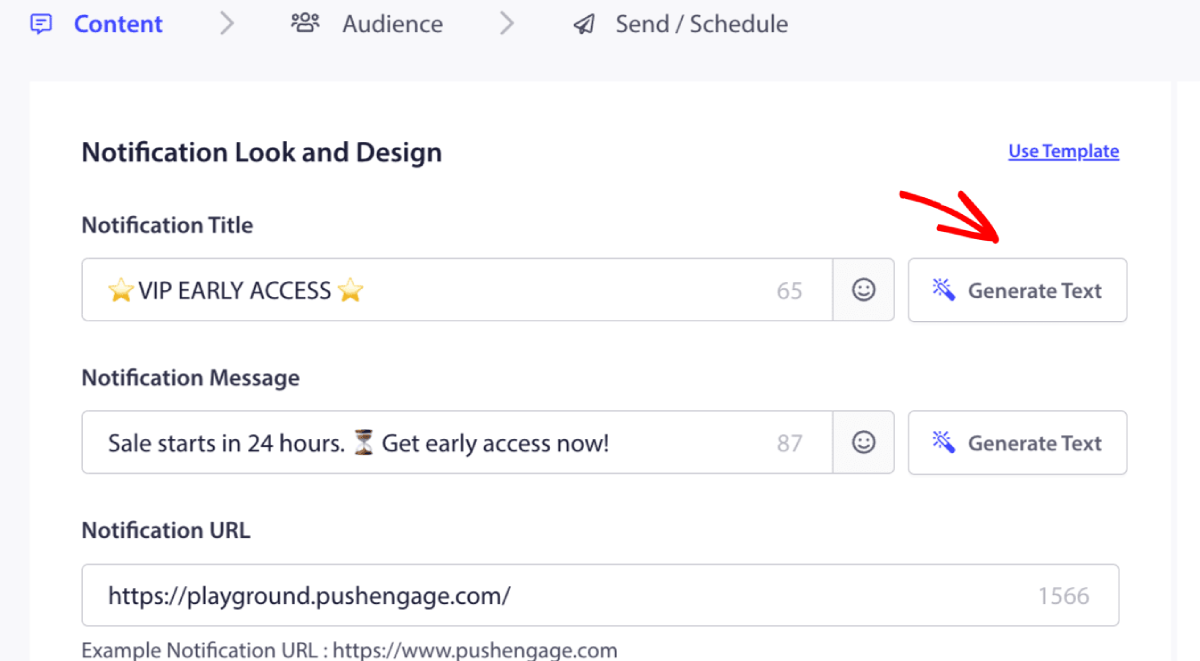
Det åbner et lille vindue til titlen og beskeden for web push-notifikationskampagnen. Du kan starte med at tilføje nøgleord, der fungerer som en prompt for AI'en. Prompten kan være så detaljeret, som du ønsker.
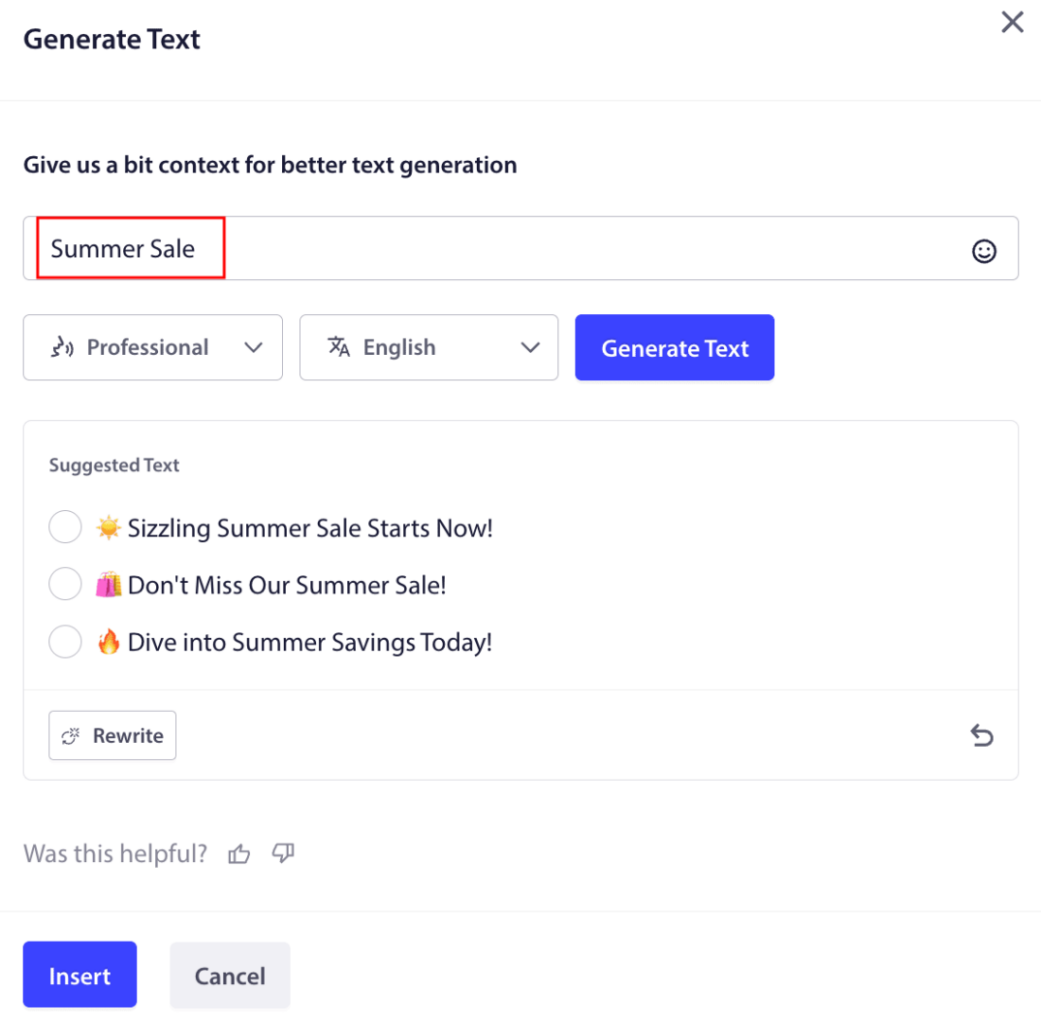
Du kan også indstille tonen for titlen eller beskeden til web push-notifikationskampagnen. Tonen i samtalen er meget vigtig for at bestemme den type kampagne, der vil blive oprettet. Sørg for, at den resonerer med din brandstil.
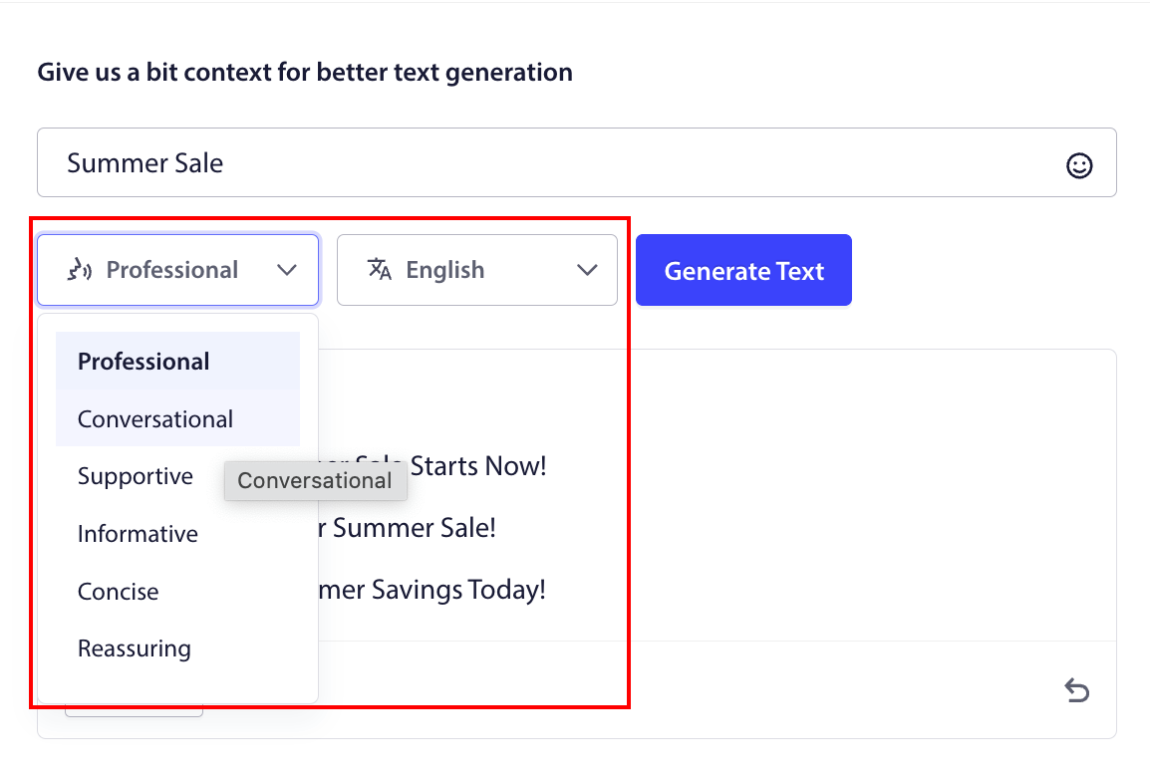
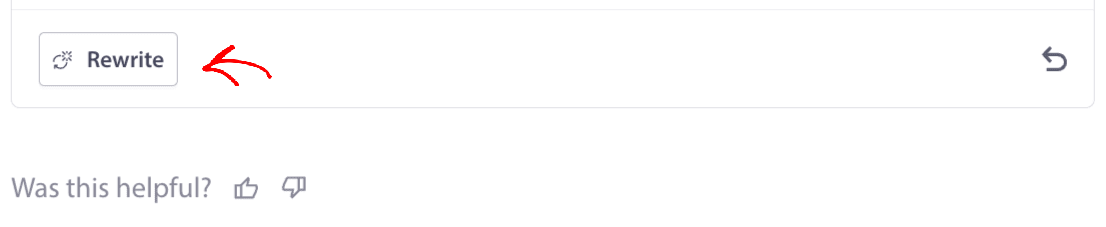
Når det er indstillet, kan du klikke på knappen Generer tekst. Ikke tilfreds med den genererede tekst? Klik blot på knappen Omskriv!
Du kan faktisk udforme tekst på ETHVERT SPROG!
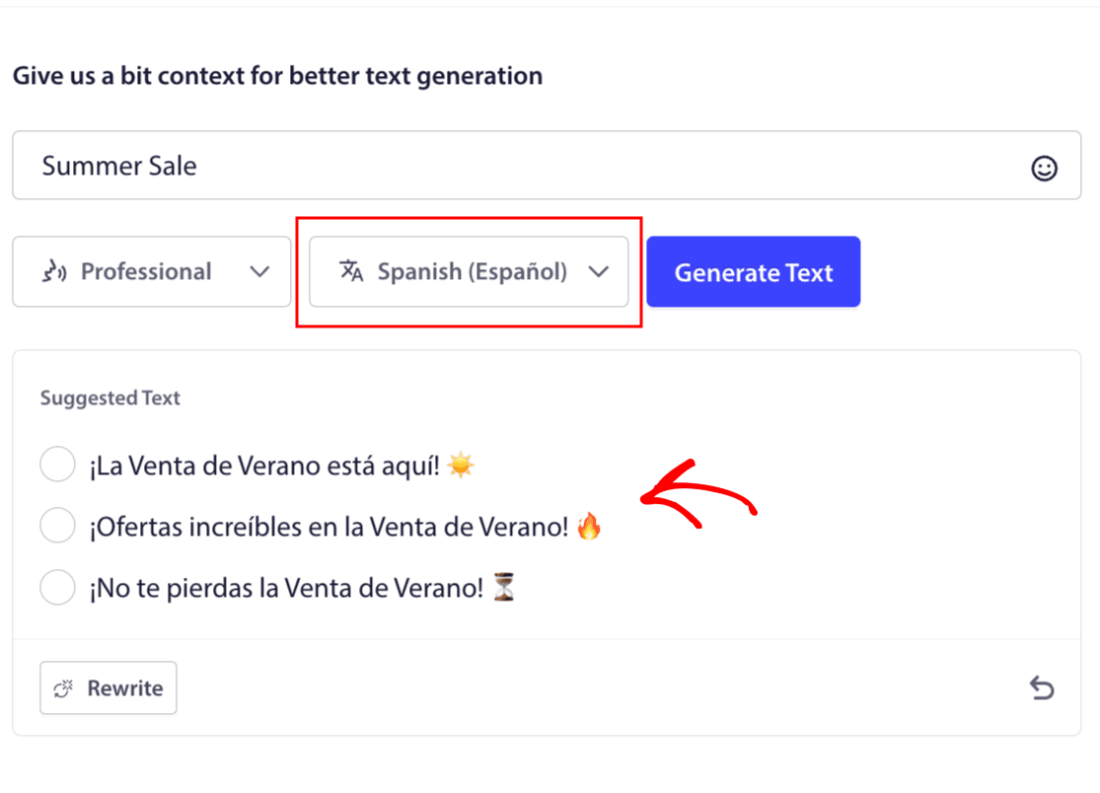
Dette niveau af indbygget flersproget understøttelse findes simpelthen ikke i anden push-notifikationssoftware. Og bare rolig, oversættelserne er helt rigtige! Så du kan sende geospecifikke kampagner meget nemt nu. Vælg den rigtige Målgruppe, vælg sproget, og lad vores AI gøre sit magiske.
Sådan sender du en web push-notifikationskampagne
Nu hvor du ved, hvad en web push-notifikationskampagne er, og hvilken service du har brug for til at sende dem, er det tid til at se på, hvordan du sender forskellige notifikationer.
Her er, hvordan web push-kampagner ser ud i praksis:
🛒 E-handel:
- Velkomstrabat: "Tak for din tilmelding! Her er 10% rabat."
- Prisfaldsadvarsel: "Jakken du kunne lide? Den er endelig på udsalg."
- Produkt-drops: “Nye varer er lige landet. Vær den første til at shoppe.”
📚 Udgivere & Bloggere:
- Nyhedsmeddelelse: “Gå ikke glip af ugens gennemgang af [Emne].”
- Ugentlig oversigt: “Din fredags-læseliste er her.”
- Lead magnet levering: “Her er din gratis guide. Lad os vide, hvad du synes.”
💼 SaaS & Værktøjer:
- Funktionsopdateringer: “Vi har lige lanceret noget nyt. Prøv det gratis.”
- Prøveperiode påmindelser: “Din gratis prøveperiode slutter i morgen.”
- Afbrydere: “Tænker du stadig over det? Her er 20% rabat for at prøve os.”
Start småt. Stjæl disse. Tilpas dem til din tone. Færdig.
Til praktiske formål taler vi ikke om brugerdefinerede udløste kampagner, som du kan oprette ved hjælp af en API-tjeneste her. Hvis du er mere interesseret i brugerdefinerede notifikationer, bør du tjekke vores dokumentation.
#1. Velkomstkampagne for Web Push-notifikationer
En velkomstkampagne for web push-notifikationer er en simpel push-notifikation, der er beregnet til at byde enhver ny abonnent velkommen.
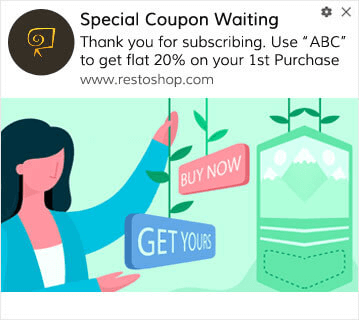
Du kan også sende et tilbud eller en gave for at abonnere på dine push-notifikationer. Dette er ret almindeligt hos mange af vores kunder. Du kan bruge dine velkomst-push-notifikationer til at:
- Dele en velkomstkupon
- Tilbyde premium-funktioner
- Sende gratis levering
- Tilbyde gratis gaver
- Onboard din abonnent med en gennemgang
Lad os nu opsætte din første velkomst-push-notifikation ved hjælp af PushEngage.
Her er, hvordan du aktiverer velkomstnotifikationer i PushEngage. Gå til PushEngage-dashboardet og gå til Kampagne » Drip Autoresponders og klik på Opret ny Drip Autoresponder:

Navngiv derefter din kampagne (vi foreslår noget som "Velkomst Drip"), og under Content, vælg muligheden "Send notification immediately after user subscribes“:

På dette tidspunkt kan du klikke på pilen ud for notifikationen for at redigere indholdet af din notifikation. Hvis du har en Premium- eller Enterprise-plan med PushEngage, vil du kunne tilføje mere end én notifikation for at oprette en sekvens af automatiserede velkomstbeskeder. Klik blot på Tilføj ny notifikation og rediger indholdet.
Når du er færdig, skal du klikke på Drip Settings og vælge muligheden for at sende din velkomstkampagne til alle abonnenter:

Rul derefter ned for at indstille dine egne UTM-parametre for at spore push-notifikationerne:

Og når du er færdig, rul op igen og klik på knappen Activate Autoresponder:

Nu ved du, hvorfor det er vigtigt at opsætte en velkomstkampagne for push-notifikationer. Du ved også, hvordan du opsætter den. Gå videre og aktiver velkomst-push-notifikationer for at genengagere nye abonnenter, eller tjek denne artikel om velkomstbeskeder på websteder for inspiration.
#2. Kampagne for Web Push-notifikationer for forladte indkøbskurve
Shoppingkurv-forladelse sker, når en potentiel kunde tilføjer et produkt til indkøbskurven og ikke fuldfører checkout-processen.
Din opgave er at reducere forladte indkøbskurve så meget som muligt.
En måde at genvinde dit tabte salg på er at bruge en kampagne for web push-notifikationer for forladte indkøbskurve. Kampagner til genfinding af forladte indkøbskurve målretter abonnenter med en forladt indkøbskurv og sender dem opfølgninger, påmindelser, tilbud, kuponer og rabatter.
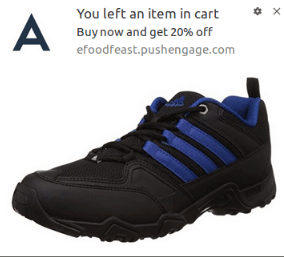
Det er en simpel idé: Få så mange mennesker som muligt til at købe noget.
Push-notifikationer for forladte indkøbskurve har en meget reel indvirkning på din bundlinje. For eksempel får WickedWeasel $2.000 – $4.000 om ugen i ekstra salg fra deres push-kampagne for forladte indkøbskurve.
Lad os nu gå i gang med at opsætte din allerførste kampagne for forladte indkøbskurve med PushEngage.
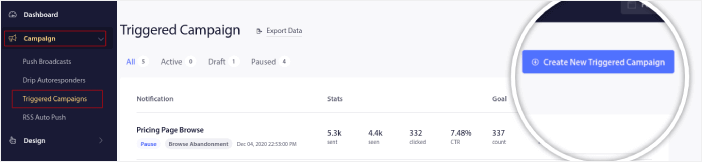
Gå til PushEngage-dashboardet og gå til Kampagne » Udløste kampagner, og klik på Opret ny udløst kampagne:
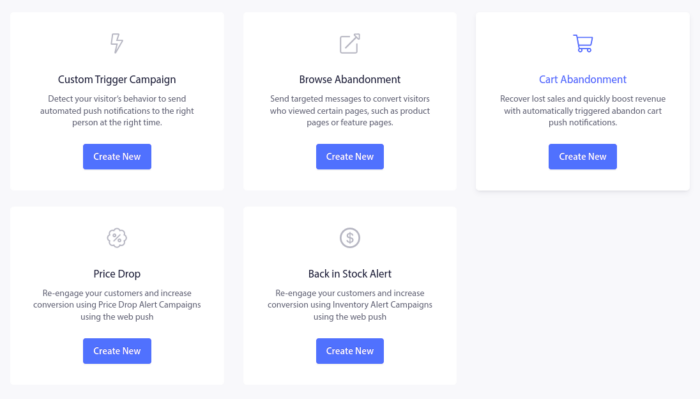
Vælg derefter skabelonen Indkøbskurv forladt og klik på Opret ny:
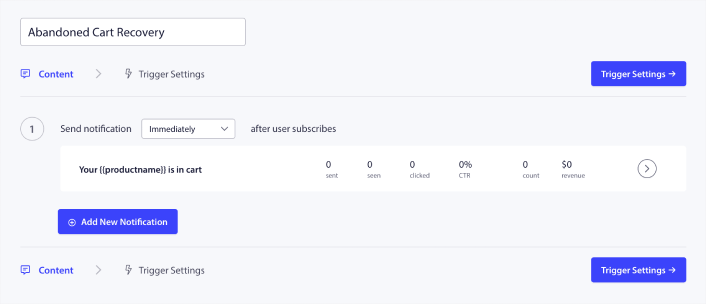
Og du kan begynde at udarbejde en autoresponder for forladte indkøbskurve. Under fanen Indhold kan du oprette en række push-notifikationer:
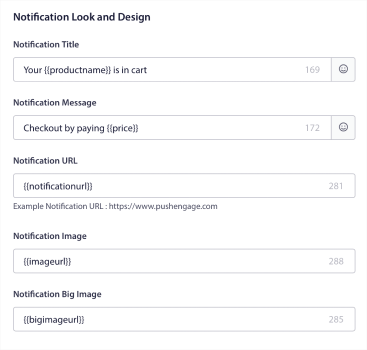
For at redigere en notifikation skal du blot klikke på pilen ved siden af den, og du kan tilpasse push-notifikationen:
For en mere detaljeret vejledning, tjek denne artikel om hvordan man opsætter push-notifikationer for forladte indkøbskurve.
#3. Kampagner for Web Push-notifikationer for forladt browsing
Gennemse forladte er præcis, hvad det lyder som. Det er, når en besøgende på et websted gennemser dit websted og pludselig beslutter sig for at gå væk. Disse hændelser er også kendt som funnel abandonment af andre leverandører.
Gennemse forladte er en meget almindelig forekomst i næsten alle brancher.
Og det er virkelig svært at reducere eller kontrollere, fordi der ikke er nogen måde at incitamentere en tilfældig bruger til at blive på dit websted. Det er her, kampagner for gennemse forladte er så kraftfulde.
Her er et eksempel på push-notifikationer for gennemse forladte for en udgiver:
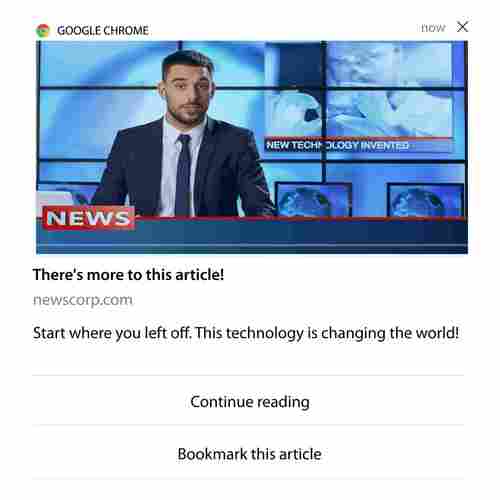
Det imponerende ved PushEngage er, at du kan opsætte kampagner for stort set enhver branche. Så du kan sende push-notifikationer om forladte indkøbskurve til SaaS- og rejsewebsteder.
Så hvordan opsætter du kampagner for forladte indkøbskurve?
Med forladte indkøbskurve er der en meget klar parameter til at sende dine push-notifikationer. For forladte indkøbskurve kan du overveje parametre som:
- Tilføjede produktet til Ønskeliste
- Kiggede på det samme produkt mere end X gange
- Gennemset mere end X produkter i samme kategori
- Søgt på siden efter et specifikt produkt
- Blev på siden i mindst X minutter før afvisning
Idéen bag denne kampagne for en e-handelside er at få abonnenten til at tilføje produktet til deres indkøbskurv. For udgivere kan det være et klik eller en download på artiklen, de læste.
Gå igen til PushEngage-dashboardet og gå til Kampagne » Udløste kampagner for at oprette en ny udløst kampagne:

Opret derefter en ny kampagne for forladte browsing-besøg ved at klikke på knappen Opret ny:
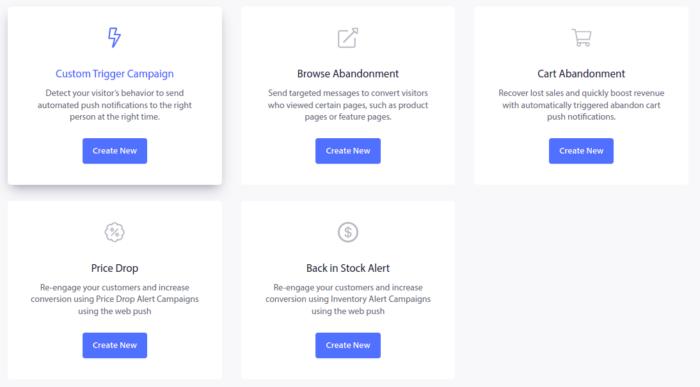
Dernæst kan du opsætte hele din sekvens af push-meddelelser sammen med en forsinkelse mellem hver meddelelse:
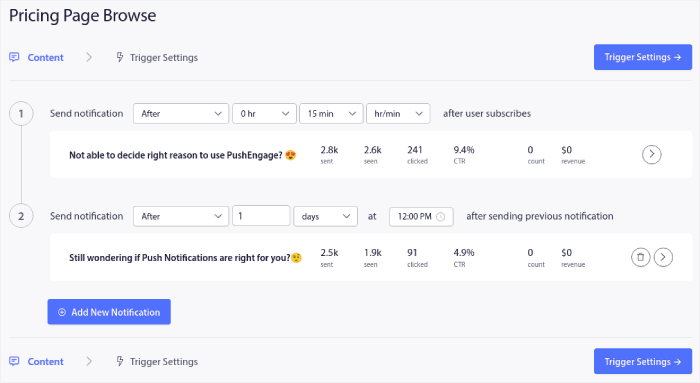
Hvis du er ny inden for push-meddelelser, bør du læse vores artikel om bedste praksis for push-meddelelser. Når du er tilfreds med dit push-meddelelsesindhold, skal du klikke på Udløserindstillinger. Du vil se, at betingelserne for en kampagne for forladte browsing-besøg er forudkonfigureret i sekvensen.
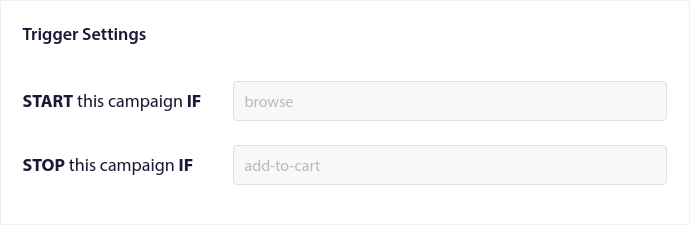
Klik på knappen Integrationskode for at få den kodestykke, du skal bruge for at indlejre kampagnen for forladte browsing-besøg på dit websted.
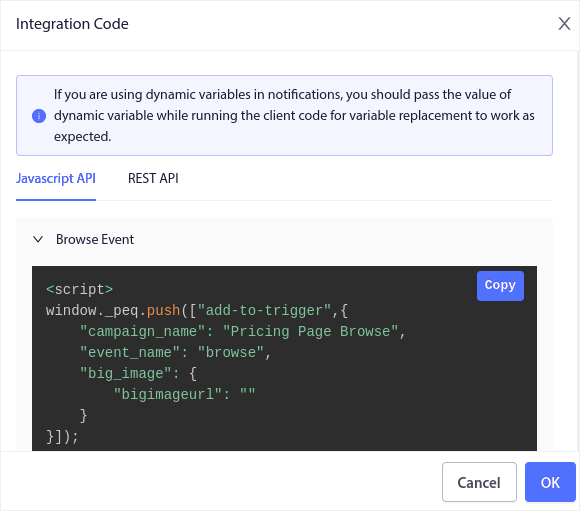
Kopier derefter koden og indsæt den på dit websted. Du vil indsætte koden i HTML-<head>-sektionen af den side, du vil spore. Klik til sidst på knappen Aktivér udløst kampagne:
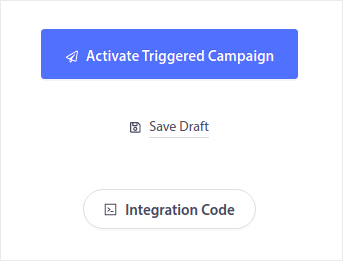
Og du er færdig!
#4. Kampagne for Web Push-notifikationer via RSS-feed
RSS Auto Push giver dig mulighed for at automatisere dine notifikationer via RSS.
PushEngage tjekker hvert 10. minut for et nyt indlæg tilføjet til dit RSS-feed. Hvis et nyt indlæg findes, konverterer PushEngage det til en push-notifikation og sender det ud til alle dine abonnenter. Det bedste er, at det sker helt automatisk.
RSS Feed-kampagner er perfekte til udgivere og nyhedssider:
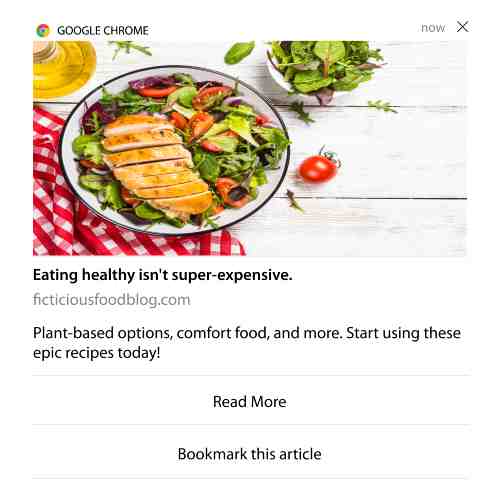
Hvis du er en stor udgiver og udgiver mere end 1 indlæg hver 30. minut, holder PushEngage en forsinkelse på 5 minutter mellem 2 indlægsnotifikationer.
Før vi går videre, bør du tjekke denne artikel om hvordan man bruger RSS-feeds for flere episke tips og tricks.
Lad os nu opsætte en kampagne for web push-notifikationer via RSS-feed på PushEngage.
Opret en ny kampagne for web push-notifikationer via RSS
Når du har installeret PushEngage på dit websted, skal du gå til dit PushEngage-dashboard og gå til Kampagne » RSS Auto Push og klikke på Opret ny kampagne:
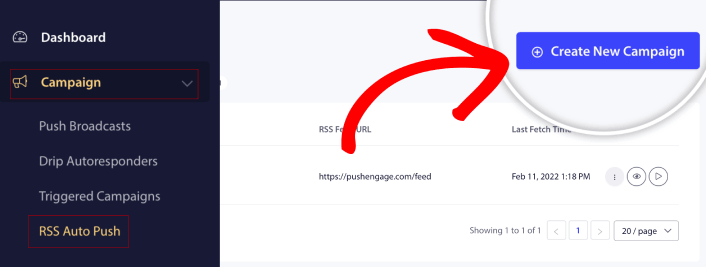
Dette vil oprette en helt ny kampagne for web push-notifikationer via RSS. Du kan opsætte flere RSS-feed-kampagner i PushEngage. Start med at give din kampagne et beskrivende navn. Indsæt derefter URL'en til dit RSS-feed:
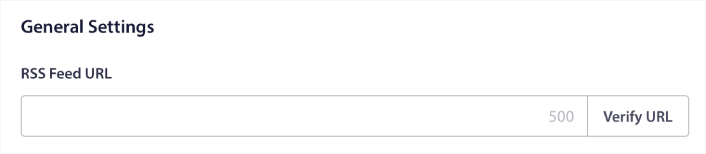
Opsæt RSS-notifikationsindstillinger
Dernæst vil du indstille Kampagnefrekvens:
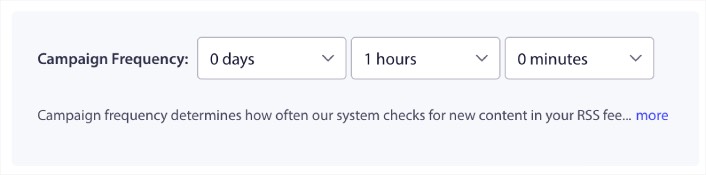
Kampagnefrekvens er, hvor ofte RSS-feedets web push-notifikationskampagne leder efter nyt indhold på din blog for at sende en automatiseret push-notifikation. Minimumsværdien er 15 minutter, og maksimumværdien er 7 dage.
Vi anbefaler at lede efter indhold at promovere hver anden dag, medmindre du er et nyhedsbureau. For nyhedsbureauer bør du holde det på 15 minutter. Husk, at PushEngage kun vil lede efter nyt indhold, efter du har opsat og udgivet din RSS-feedkampagne.
Vælg indlæg, der skal promoveres
Du kan vælge, hvilke indlæg der skal promoveres. Du kan vælge mellem Kun det seneste element eller Alle elementer. Hvis du konfigurerer RSS-push-notifikationerne til kun at vælge det seneste element, sender PushEngage kun det seneste indlæg:
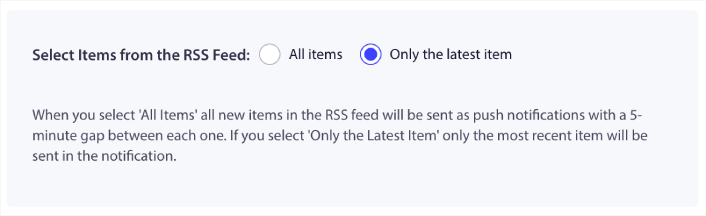
Eller du kan vælge indstillingen Alle elementer. I dette tilfælde vil kampagnen vælge alle indlæg på dit websted og sende en web push-notifikationskampagne for hver med et mellemrum på 5 minutter imellem dem.
Indstil et ikon til RSS-push-notifikationer
Dit push-notifikationsikon fastlægger din brandidentitet i dine RSS-push-notifikationer. Vi anbefaler at bruge dit varemærke, så dine abonnenter øjeblikkeligt ved, at notifikationen er fra dit brand.
Nu er der to muligheder her. Du kan enten uploade notifikationsikonet manuelt:
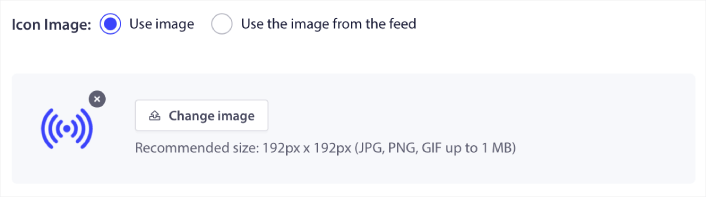
Og det er virkelig enkelt at gøre. Klik blot på Skift billede og upload dit notifikationsikon. Eller du kan hente det fra dit RSS-feed:
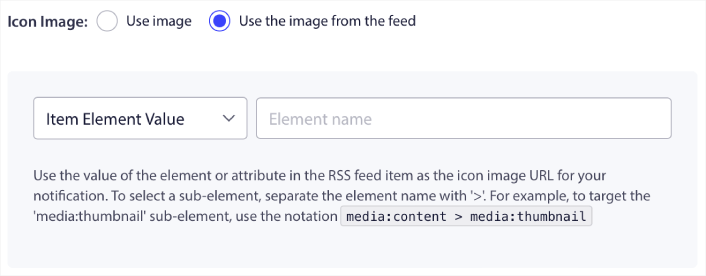
Du kan enten vælge elementet eller attributten inde i et element for dynamisk at vælge dit notifikationsikon fra feedet. Typisk vil de fleste RSS-feeds indeholde webstedets ikon inde i media:content elementet. Endnu mere specifikt er det normalt inde i media:thumbnail attributten af media:content elementet.
For at målrette elementet kan du vælge indstillingen Elementværdi og indstille den til media:content. Eller du kan vælge indstillingen Elementattributværdi og indstille den til media:content > media:thumbnail.
BEMÆRK: Vi anbefaler kun at bruge denne indstilling, hvis du ved, hvordan man læser XML. RSS-feeds indeholder muligvis ikke webstedets ikon i de samme XML-tags som vores eksempel. Så hvis du er usikker på, hvordan du henter notifikationsikonet fra RSS-feedet, anbefaler vi at uploade det manuelt i stedet.
Vælg stort billede til RSS-feed-notifikationer
Nu skal vi vælge det store billede til dine RSS-feed web push-notifikationer. Igen er der to måder at gøre dette på. Du kan lade PushEngage automatisk finde billedet fra RSS-feedet:

Eller du kan manuelt vælge, hvilket billede du vil have fra feedet:
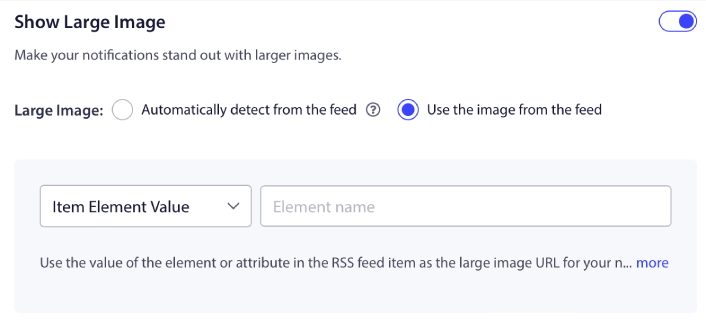
Dette er præcis det samme som at vælge notifikationsikonet fra RSS-feedet. Du kan igen vælge billedet fra XML-elementet, der indeholder det, eller du kan vælge det specifikke attribut, der indeholder dit foretrukne billede.
BEMÆRK: Vi anbefaler kun at vælge en URL fra dit RSS-feed, hvis du ved, hvordan man læser XML. Hvis du er usikker på, hvordan man læser XML, er det bedre at lade PushEngage finde det bedste billede til dine notifikationer.
Indstil varigheden af web push-notifikationskampagnen
Varigheden af web push-notifikationskampagnen er, hvor længe notifikationen forbliver i din abonnents notifikationsbakke, før den automatisk slettes.
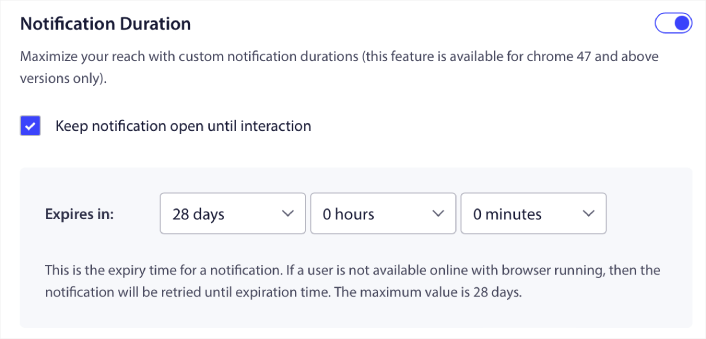
Hvis du ikke vil overvælde dine abonnenter med en masse ulæste notifikationer, er det sandsynligvis bedst at lade push-notifikationerne udløbe om et par dage.
I modsætning til udsendelsesmeddelelser eller endda andre automatiserede web push-meddelelser, kan du ikke rigtig planlægge RSS push-meddelelser. Så du har altid mulighed for at holde meddelelsen åben, indtil din abonnent interagerer med den, selv inden for udløbsgrænsen.
Angiv UTM-parametre
Vi er næsten færdige. Rul ned for at indstille dine egne UTM-parametre til sporing af push-notifikationerne:
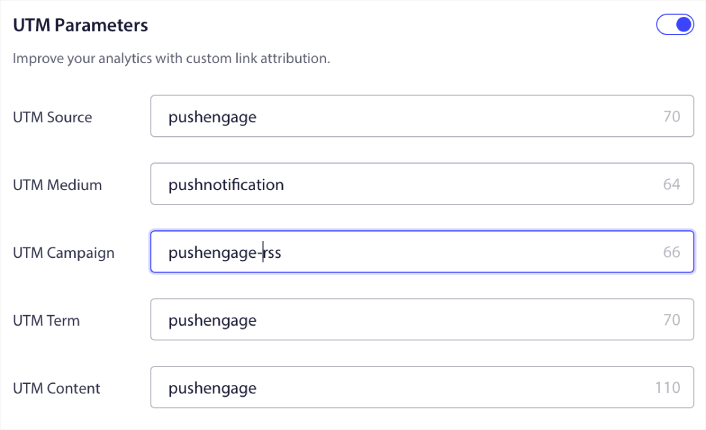
På denne måde kan du nemt tilskrive din trafik fra disse push-notifikationer i Google Analytics.
Vælg målgruppe
Til sidst vælger vi en Målgruppe til at sende din RSS web push-meddelelseskampagne. Du kan enten sende RSS-feedkampagnen til alle dine abonnenter, eller du kan oprette Målgrupper for at sende personaliserede push-meddelelser selv fra dit RSS-feed.
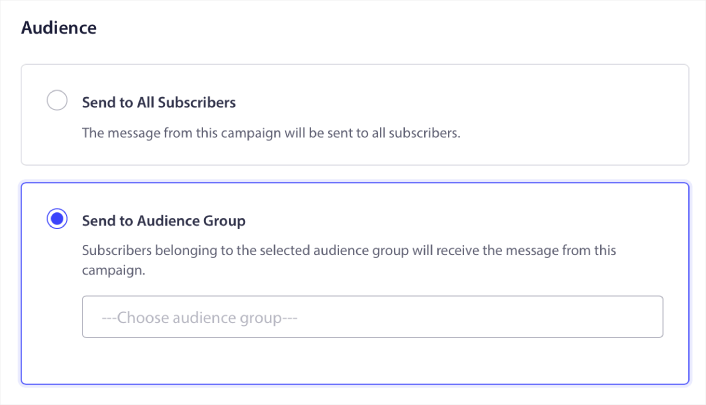
Og det er det! Det er virkelig alt, hvad der er at sige om det.
Nu, hver gang du udgiver et nyt indlæg, vil alle push-notifikationsabonnenter i den valgte målgruppe automatisk modtage en push-notifikation om dit nye indhold.
Det var det! Du er klar. Hver gang du udgiver et nyt indlæg, vil det automatisk blive sendt til alle dine abonnenter.
#5. Automatiserede genaktiveringsmeddelelser
Du kan opsætte automatiserede genaktiveringskampagner for abonnenter, der ikke har interageret med dit indhold i et stykke tid.
Men hvorfor ville du gøre det i første omgang?
Hvad med dette:
- Omkostningen ved at anskaffe nye kunder er 5 gange højere end omkostningen ved at fastholde eksisterende kunder
- Det er nemt at målrette og remarketing til et kendt publikum, hvis personlige præferencer vi allerede forstår.
- På lang sigt giver engagerede kunder mere forretning til virksomheden end nogen, der knap nok forbinder sig med dit brand.
Ofertia var i stand til at øge deres tilbagevendende brugere med 39% ved hjælp af push-notifikationer, der tilbyder personlige tilbud. De er ikke de eneste. Du kan bruge dette til en e-handelswebshop med stor effekt:
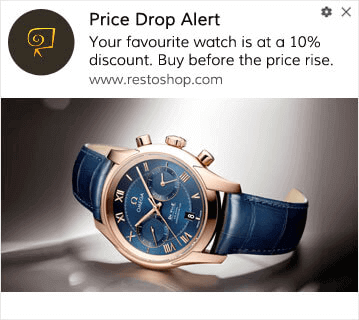
Der er mange måder at genaktivere dine abonnenter på.
Forestil dig dette:
- En bruger besøger dit websted. Ser en subtil opt-in. Klikker på “Tillad.”
- Får øjeblikkeligt en velkomstmeddelelse med en rabat eller næste skridt.
- Forlader dit websted…
- Senere samme dag ser de en påmindelse: “Tænker du stadig over det?”
- De klikker, kommer tilbage og køber.
Det er en grundlæggende push-funnel — og du behøvede ikke løfte en finger, når den først var live.
Forestil dig nu at tilføje segmentering og automatiserede kampagner. Det er her, det bliver sjovt. Ved at bruge dynamiske segmenter kan du finde ud af en masse om dine abonnenter og sende dem personligt indhold, som de vil elske.
I dit PushEngage-dashboard skal du gå til Segmentering og oprette et nyt segment:

Dette giver dig mulighed for at oprette segmenter baseret på adfærd og browsingmønstre. Du kan faktisk opsætte en sekvens af OG/ELLER-operationer, der bestemmer, hvornår bestemte segmenter modtager automatiserede push-meddelelser.
Du kan endda segmentere dine brugere, når de abonnerer på push-meddelelser. Gå til Design » Popup-modaler og vælg Stor Safari-stil med segment.
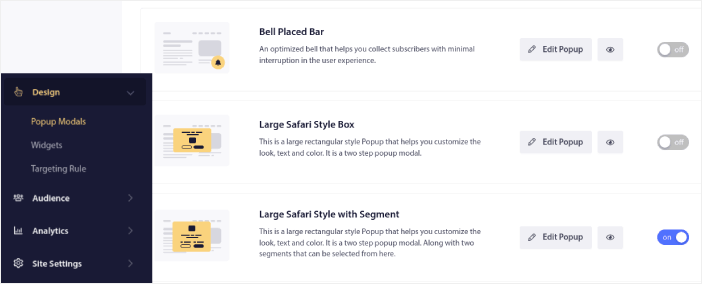
Hvis du har brug for endnu flere måder at segmentere dine brugere på, kan du oprette brugerdefinerede segmenter baseret på brugerhandlinger ved hjælp af PushEngage Javascript API.
#6. Sidebesøg Web Push-meddelelseskampagne
Sidebesøgsudløsere er en udvidelse af push-notifikationssegmenter. Alt, du skal gøre, er at oprette et segment, når en webbesøgende browser en URL med en bestemt frase eller et bestemt mønster.
Derefter går du bare til Målgruppe » Segmenter og indstiller din målgruppe til et specifikt segment:
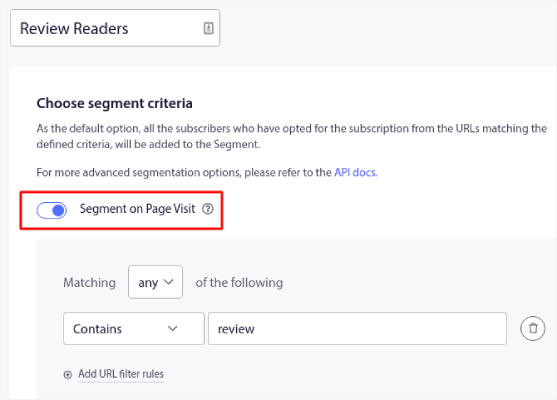
Dette giver dig mulighed for at oprette virkelig personlige og automatiserede push-notifikationer.
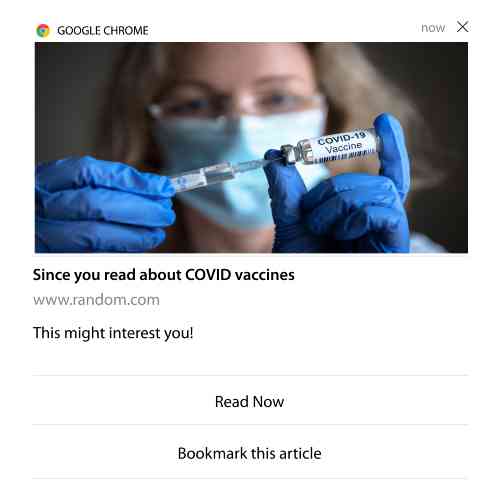
Og det bedste er, at du kan oprette brugerdefinerede segmenter i PushEngage på et par minutter.
#7. Automatiserede push-meddelelser fra klik
Du kan ikke oprette push-notifikationer, der udløses, når dine abonnenter klikker på en leveret notifikation ved hjælp af PushEngage.
Men der er en meget smart løsning.
Du kan oprette et segment baseret på den URL, som en bestemt meddelelse fører til. Hver gang nogen lander på denne URL, bliver de tilføjet til segmentet, og du kan bruge dette segment til at sende målrettede meddelelser.
Push-notifikationskampagner er i bund og grund en udvidelse af den standardmæssige målgruppesegmentering for drypkampagner.
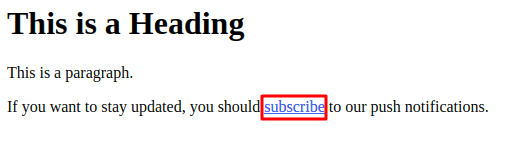
Se denne vejledning om hvordan man opretter en klik-til-abonner-knap.
#8. Gentagende automatiserede push-notifikationer
Forestil dig, at du har…
- Et ugentligt udsalg for et loppemarked;
- Eller et weekendudsalg;
- Eller et lageroprydningsudsalg;
- Eller et månedligt flash-udsalg.
Hvor upraktisk ville det være at skulle oprette push-notifikationer for hver begivenhed manuelt?
Heldigvis kan du indstille gentagende notifikationer med PushEngage.
Gentag notifikationer er planlagte og automatiserede push-notifikationer for en tilbagevendende begivenhed. Du kan opsætte dem én gang, angive en tidsplan, og du er færdig.
Det er blot én af de måder, hvorpå MyDeal bruger push-notifikationer. Sørg for at læse hele casestudiet!
Gå til Kampagne og tilføj en automatiseret notifikation i dit PushEngage-dashboard. Rul derefter ned til planlægningssektionen og gå til fanen Send/Planlæg:
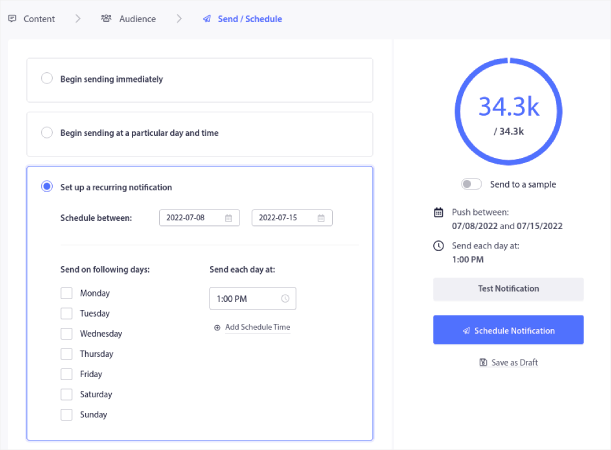
Bare indstil tidspunktet, og du er færdig!
#9. Abonnent Tidszone Notifikationer
Abonnentens tidszone-meddelelser er præcis, hvad de lyder som. Du sender automatiserede push-meddelelser til dine abonnenter i deres tidszone.
Hvorfor er dette så stor en sag?
Abonnent tidszone notifikationer har højere åbningsrater. Typisk leveres enhver push-notifikation, selvom din abonnent er offline. Disse notifikationer hober sig op og bliver ignoreret, når din abonnent endelig kommer online.
På den anden side vil en web push-meddelelseskampagne baseret på abonnentens tidszone blive leveret, når du VED, at din abonnent mest sandsynligt er online.
Pro-tip: Brug A/B-test til at finde det perfekte tidspunkt at sende dine abonnenter en push-notifikation.
Abonnent tidszone notifikationer føles meget mere personlige. Og hvis du er smart omkring det, kan du kombinere det med geolokaliseringsdata for at personliggøre dine notifikationer endnu mere. Dette er præcis hvad Phooto gjorde, da de brugte lokale sprog til at skyrocket deres åbningsrater.
Lad os opsætte abonnent tidszone notifikationer i PushEngage nu.
Når du opretter en ny notifikation, skal du gå til planlægningsmulighederne og klikke på afkrydsningsfeltet, der siger Send Notifikationer i Abonnent Tidszone:
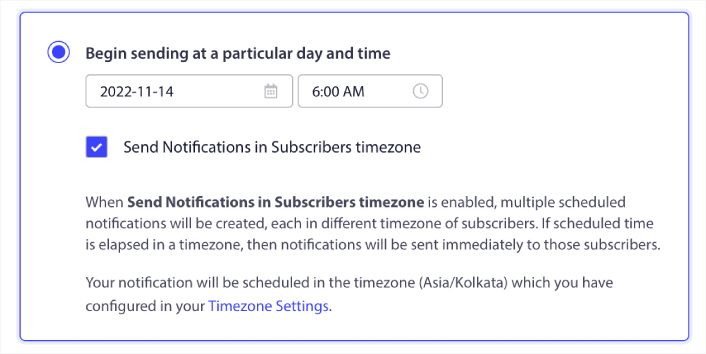
Det er alt! Du bliver nødt til at gøre det samme for dine drypkampagner, men resultaterne er indsatsen værd at klikke på én knap for hver kampagne.
Start med 1–2 beskeder om ugen. Øg gradvist, når du ser, hvad der virker.
Her er en simpel kadence at starte med:
- Uge 1: Velkomstbesked + 1 produkt- eller indholds-push
- Uge 2: Påmindelse eller rabatopfølgning
- Uge 3: Nyt produktlancering, blogindlæg eller fremhævning af funktion
Hvis brugerne holder op med at klikke, trækker du dig tilbage. Hvis de fortsætter med at klikke? Fordobler du indsatsen.
Pro-tip: De sidste to taktikker handlede om planlægning af push-notifikationer. Men disse to er ikke de eneste måder at planlægge automatiserede push-notifikationer på. Tjek vores artikel om hvordan man planlægger push-notifikationer for flere episke tricks.
#10. E-mail Opt-In Notifikationer
E-mailmarkedsføring har længe været den bedste måde at generere og pleje leads på. Det bedste ved automatiserede push-meddelelser er, at du kan generere flere e-mailabonnenter ved hjælp af dem.
Det er virkelig nemt at sætte op, og at bruge en kombination af e-mail- og web push-meddelelseskampagner er langt mere effektivt end at bruge den ene eller den anden.
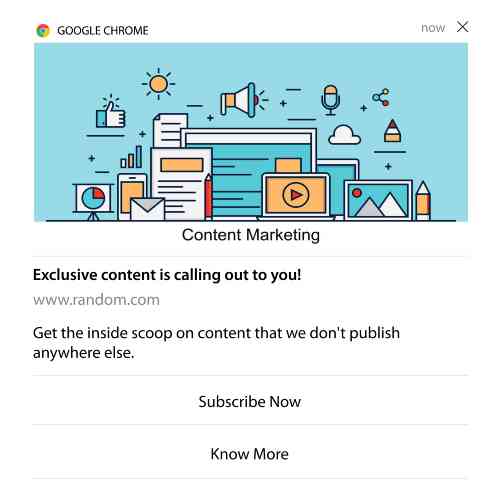
Alt, du skal gøre, er at sende en udløser-notifikation, der beder brugeren om at tilmelde sig e-mail-notifikationer.
Opret blot en brugerdefineret call to action (CTA) -knap, og indsæt et abonnementslink som knap-URL. Det er alt, hvad du behøver. Hvis du er usikker på, hvordan du får en abonnementsknap, skal du bare følge med.
I enhver meddelelse kan du rulle ned og slå knapper med flere handlinger til:
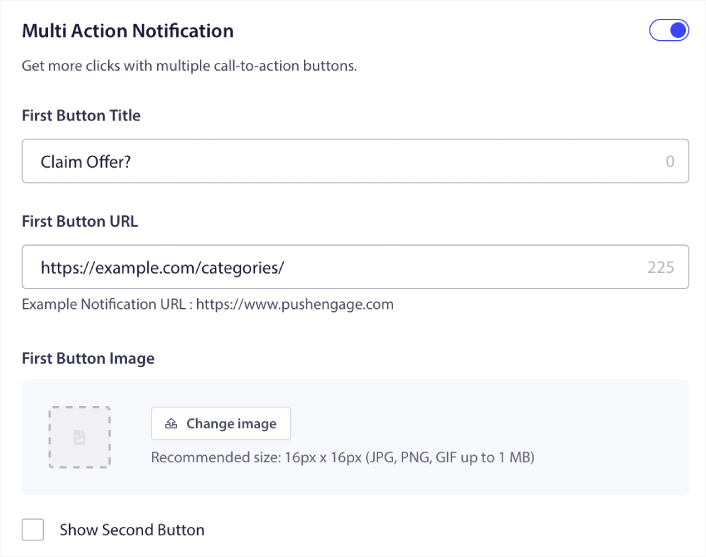
URL'en skal være et link til en e-mailtilmeldingsformular. Du kan oprette en ved hjælp af stort set enhver e-mailtjenesteudbyder som Drip. Alt, du skal gøre, er at klikke på delingsmulighederne for tilmeldingsformularen og kopiere den URL. Indsæt den derefter i knap-URL'en for din push-notifikation.
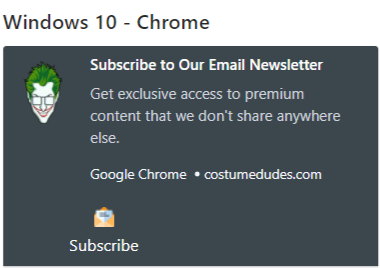
Se vores vejledning om knapper med flere handlinger for flere detaljer. Du kan endda tilføje et e-mailikon til din knap for at gøre det superklart, at du beder dine brugere om at abonnere på dine e-mail-meddelelser:
Pro-tip: Du kan bruge den samme idé til at udvide din YouTube-kanal også. Tilføj blot '?sub_confirmation=1' til slutningen af din kanal-URL, og indsæt den i din push-notifikationsknap-URL.
Hver gang nogen klikker på abonnementsknappen på din push-notifikation, vil de blive omdirigeret til din YouTube-kanal og blive bedt om at abonnere på den.
Segmenteringsidéer, du kan stjæle
Segmenter er en rigtig god måde at sende målrettede push-kampagner på. Og det bør være en stor del af din push-meddelelsesmarkedsføringsstrategi. Men hvordan kommer du i gang? Hvilke slags segmenter skal du oprette?
Til at starte med bør du ikke fokusere på kun at oprette én type segment. Vi vil guide dig gennem de forskellige typer segmentering, som vi har fundet er de mest effektive.
Her er et par høj-impact segmenter, der er værd at opsætte:
- Engagerede shoppere: Folk, der har klikket på 2+ meddelelser i den sidste uge
- Forladte indkøbskurve: Folk, der har besøgt et produkt, men ikke købt
- Kategori-fans: Brugere, der bliver ved med at tjekke én produktkategori (f.eks. “Sneakerheads”)
- Geo-målrettet: Skræddersy beskeder baseret på land eller by
Jo mere specifik du er, jo flere klik vil du tjene. Hvis du er en avanceret marketingmedarbejder, bør du oprette segmenter, som du ville gøre for en e-mailkampagne med forskellige segmenteringsmodeller:
- Geografiske segmenter
- Adfærdsmæssige segmenter
- Lejlighedsbaserede segmenter
- Kulturelle segmenter
- Demografiske segmenter
- Psykografiske segmenter
Dynamiske segmenter lader dig tale med abonnenter som rigtige mennesker... ikke bare trafikstatistikker.
Og hvis du vil personliggøre din kommunikation yderligere, kan du bruge målgruppegrupper.
Sådan opretter du en målgruppe for push-notifikationer
For at komme i gang skal du gå til dit PushEngage dashboard og gå til Audience » Audience Groups og klikke på knappen Create New Audience Group:
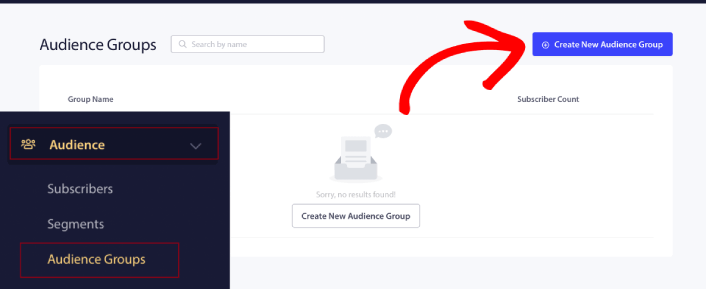
Før du kan bruge dine målgruppegrupper til at sende målrettede push-udsendelser, skal du oprette en målgruppegruppe med regler for at oprette den gruppe. Du kan starte med et navn og en beskrivelse af din målgruppegruppe.
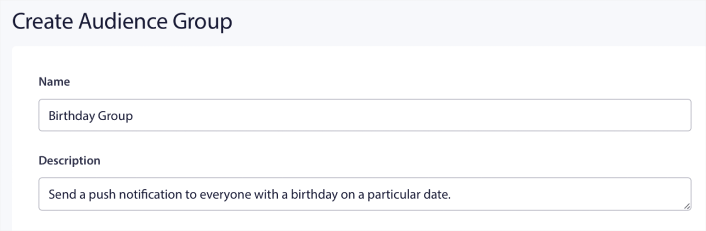
Opret et udvælgelseskriterium
Opret derefter et udvælgelseskriterium for at filtrere og målrette den rigtige målgruppe:
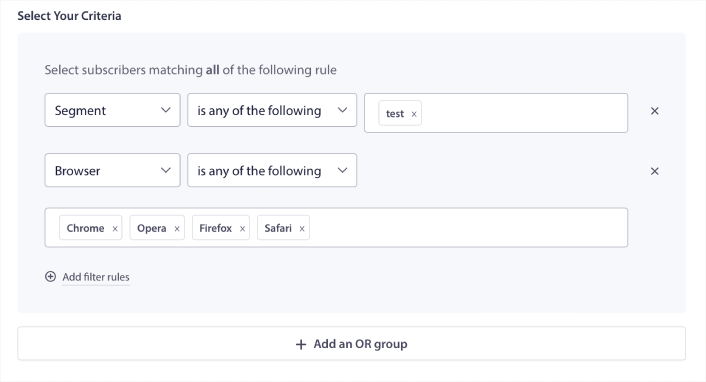
Du kan klikke på Add filter rules for at vælge abonnenter, der matcher ALLE filterreglerne, eller du kan klikke på Add an OR group for at oprette et filter, hvor abonnenterne opfylder mindst ét af udvælgelseskriterierne.
Brugeradfærd er den mest grundlæggende måde at målrette dine push-notifikationsabonnenter på. Som vi sagde før, grupperer abonnentsegmenter normalt besøgende, der kan lide at browse lignende indhold. Men selv inden for den gruppe af abonnenter, der elsker det samme indhold, er der små personaliseringer, du kan foretage.
Endnu mere relevant er, at du kan samle flere abonnentsegmenter for at sende dem en fælles, relevant besked.
Filtrer efter abonnentsegment
Hvis du ikke allerede har gjort det, bør du begynde at segmentere dine push-notifikationsabonnenter med det samme. Ellers vil dette filter simpelthen ikke fungere. Men hvis du allerede har segmenter, kan du vælge flere segmenter som grundlag for din målgruppegruppe.

Derefter kan du tilføje andre filtre for at forbedre din målretning.
Filtrer efter abonnentattribut
Mens attributter mest er til dryp-push-notifikationer, kan du også bruge dem til push-udsendelser. Nu er push-notifikationsattributter mest nyttige for e-handelswebsteder. Men du kan også bruge dem til at sende personlige push-notifikationer, hvis du har et Customer Relationship Management (CRM) -værktøj.
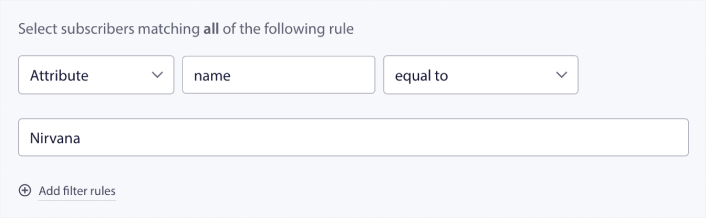
Attributter kan indeholde personlige oplysninger som abonnentnavne, fødselsdato, enhver anden information, du ville gemme i din CRM til personlige marketingkampagner.
Filtrer efter abonnentens enhed og browser
I mange tilfælde er det afgørende at vide, hvordan dine abonnenter modtager dine beskeder.
Der er en virkelig god historie om Michael Jackson. Hver gang han indspillede en sang, lyttede han til den på en radio. Ikke i sit milliondyre lydstudie i top lydkvalitet, men på en billig radio, som de fleste af hans publikum ville gøre senere. Hvis han kunne lide, hvordan sangen lød, selv på den billigste enhed på markedet, ville han godkende udgivelsen af sangen.
Ikke underligt, at Billie Jean gik Platin 29 gange!
For dine push-notifikationer er det ikke anderledes.
Filtrer efter abonnentbrowser
Forskellige browsere har forskellige tegngrænser for push-notifikationer. Så når du sender en push-udsendelse, skal du være opmærksom på disse grænser. Det smarte er, at du kan gemme forskellige målgruppegrupper for at retargete forskellige browsere. Du behøver ikke oprette segmenter hver gang.
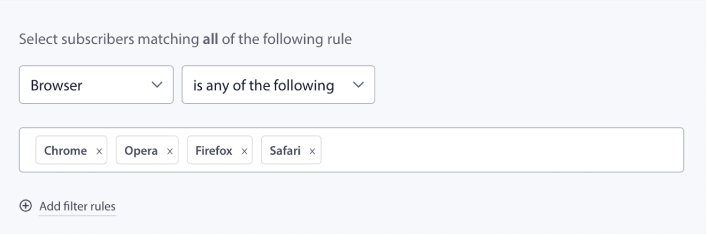
Filtrer efter abonnentenhed
Der er forskel på typerne af rich push-notifikationer, du kan sende til iOS-, Android- og Windows-enheder. Så ikke alle kampagner, du sender ud, vil se ens ud på alle enheder. Faktisk vil mange typer push-notifikationer slet ikke blive vist på alle enheder. Forskellige enheder har også forskellige skærmstørrelser. Så du vil måske optimere, hvordan dine push-notifikationer ser ud, før du sender dem.
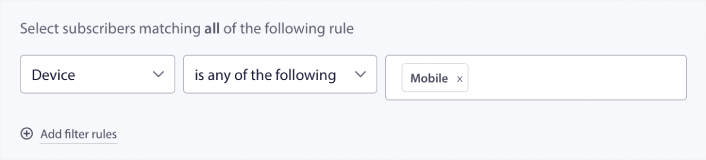
Men nu hvor du kan filtrere din målgruppe efter deres enhed, burde det ikke være et problem længere.
Sådan filtrerer du efter geolokation
Du kan også filtrere efter geolokation for at personliggøre dine kampagner yderligere. Filteret giver dig mulighed for at vælge en målgruppe efter land, by og stat:
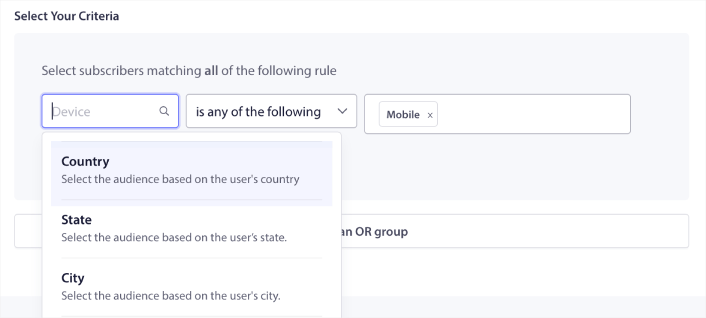
Phooto brugte geolocation til at sende push-notifikationer på lokale sprog. Og det hjalp dem med hurtigt at øge deres engagementrater. Læs hele case study.
Sådan filtrerer du efter engagementmetrikker
En af de bedste ting ved målgruppegrupper er, at det kan hjælpe dig med at oprette genmålretningskampagner ved hjælp af push-notifikationer. Du kan filtrere din målgruppe efter:
- Abonnementsdato
- Sidste sendingsdato
- Sidste klikdato
- Sidste visningsdato
Brug af disse metrikker kan hjælpe dig med at genmålrette abonnenter med lave engagementrater eller sælge til abonnenter med høje engagementrater.
Eller du kan filtrere målgruppen efter:
- Samlet antal afsendelser
- Samlet antal visninger
- Samlet antal klik
Disse tal kan hjælpe dig med at finde abonnenter, der får færrest beskeder fra dig, så du kan finde bedre måder at personliggøre notifikationer på. Du kan også finde de abonnenter, der interagerer mest med dine push-notifikationer.
Pro Tip: Kombiner to eller flere filtre for at finde de bedste måder at genengagere dine abonnenter på. For eksempel vil abonnenter med et højt Total View Count og højt Total Click Count give dig abonnenter, der har engageret sig med dig i et stykke tid. Dette er loyale abonnenter, der fortjener en belønning.
Sådan filtrerer du efter identifikatorer
Identifikatorer er, hvordan PushEngage identificerer dine abonnenter. Da PushEngage er GDPR-kompatibel som standard, gemmer vores software aldrig personligt identificerbare data for nogen af dine abonnenter. I stedet tildeler vi hver abonnent et profil-ID og en abonnenthash.
Husk, at du primært vil bruge profil-id'er og abonnenthashes som en del af avancerede kampagner. Med andre ord skal du bruge PushEngage API til at oprette brugerdefinerede kampagner, der bruger disse identifikatorer.
Identifikatorer er fantastiske til at sende transaktionelle push-meddelelser som denne:
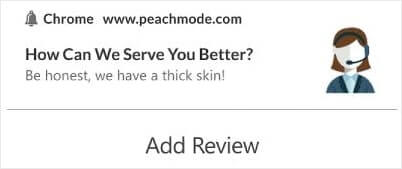
De er gode til brugerdefinerede eCommerce push-notifikationer. Så vi anbefaler ikke rigtig at bruge dem til andet end at teste push-udsendelser fra dashboardet.
Hvad du skal gøre, efter du har sat web push-notifikationskampagner op
Lancering af en web push-notifikationskampagne garanterer ikke succes. Som med ethvert marketingværktøj skal du teste og forbedre dine budskaber og dine segmenter.
Far ikke vild i detaljerne. Fokuser på tre tal:
- Klikrate (CTR): Engagerer folk sig?
- Opt-in rate: Virker din prompt?
- Afmeldinger: Sender du for meget?
Bonus, hvis du sporer omsætning pr. afsendelse — men selv uden det giver CTR og opt-in rate dig en hurtig feedback-loop. Desværre kan du ikke A/B-teste automatiserede notifikationer direkte. Men disse ressourcer vil hjælpe dig med at komme godt i gang:
- Sådan installeres et WordPress-plugin til webmeddelelser på dit websted
- Sådan udføres A/B-test af push-meddelelser (bedste praksis)
- 7 bedste praksisser for push-meddelelser for at få øjeblikkelig trafik
- 21 bedste WordPress-plugins til e-handel i 2022 (gratis og betalte)
- 7 bedste WordPress-nyhedsplugins i 2022 (sammenlignet)
PushEngage kommer også med sin rimelige andel af integrationer. Du kan endda opsætte nogle brugerdefinerede triggere ved hjælp af Zapier. Dette er ret avancerede kampagner, og vi anbefaler kun at sætte dem op, når du er fortrolig med vores andre indbyggede automatiseringer.
Du bør også vide, at PushEngage Javascript API er meget fleksibel, og du kan opsætte brugerdefinerede triggere for stort set enhver handling på dit website.
Når du har gennemgået alle disse ressourcer, vil du indse, at PushEngage er den #1 push-notifikationssoftware på markedet.
Så hvis du ikke allerede har gjort det, kom i gang med PushEngage i dag!


