Hvad er web push-notifikationer? Bare rolig, vi fortæller dig alt om det. Men først, forestil dig dette...
Forestil dig at få gratis trafik på autopilot, hver gang du udgiver et nyt blogindlæg uden de tidskrævende SEO-kampagner. Hvis du driver et WordPress-websted, ved du allerede, hvor meget arbejde det er at promovere dit indhold og få læsere til at vende tilbage til dit indhold.
Den gode nyhed er, at der er en ubesværet måde at generere gentagne besøgende på autopilot:
- Selv hvis... du lige er startet, og din fankreds stadig er lille;
- Selv hvis... du driver en e-handelsbutik med hundredvis af kampagner hver måned;
- Selv hvis... du har en mega-blog, der allerede genererer en masse SEO-trafik;
Svaret er:
WordPress web push-notifikationer!
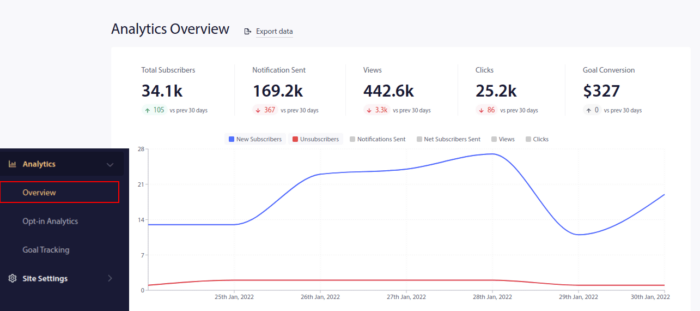
I denne artikel vil vi vise dig, hvordan du får gentagne besøgende øjeblikkeligt, hver gang du udgiver:
Den bedste del?
Det er helt gratis, og du behøver ikke vente på, at søgemaskinerne begynder at sende dig trafik.
Lad os dykke lige ned i det.
Hvad er Web Push-notifikationer?
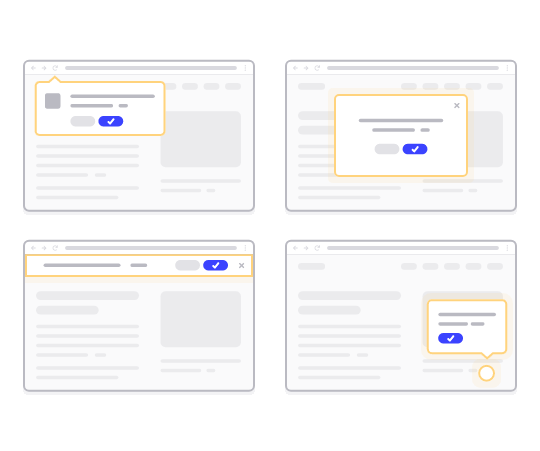
En push-kampagne er en kort, klikbar pop-up-besked, der vises på en abonnents enhed og omdirigerer abonnenten til dit indhold med et enkelt klik:
Det bedste er, at notifikationerne dukker op, selvom abonnenten ikke bruger en browser. Det er som en e-mail-udsendelse, men med en browser push-kampagne behøver dine abonnenter ikke at bruge en app for at se din besked.
Kort sagt: WordPress web push-notifikationer er en enkel måde at sende et klikbart link til dit indhold til alle, der har tilmeldt sig.
Med push-kampagne drypsekvenser har dit publikum nu ingen undskyldning for at ignorere dig. Og i modsætning til sociale medier-websteder er der ingen algoritme, der begrænser din rækkevidde for at få dig til at betale for annoncer.
Det sejeste ved browser push-kampagner er, at du kan bruge dem til at supplere dine lead magnets og e-mail-tilmeldingsformularer!
Pro Tip: Hvis du endnu ikke bruger lead magnets, bør du begynde at oprette lead magnets med OptinMonster for at øge dine konverteringer.
Vi anbefaler at bruge PushEngage til at komme i gang med web push og mobil push gratis. Hver gang du udgiver et blogindlæg, sender PushEngage automatisk en push-udsendelse til alle dine abonnenter.
I næste afsnit viser vi dig præcis, hvordan du sætter det op på 15 minutter eller mindre.
Sådan installeres web push-notifikationer på dit websted
PushEngage er et af de bedste push-notifikations-plugins til WordPress. Du når øjeblikkeligt op til 200 abonnenter med kun gratis-niveauet. Hvis din blog vokser til mere end 200 abonnenter, kan du hurtigt skalere ved at opgradere din plan.
Lad os nu begynde at udvide dit publikum med browser push-notifikationer gratis.
Trin #1: Opret en gratis PushEngage-konto
Gå til PushEngage og klik på Kom i gang gratis:
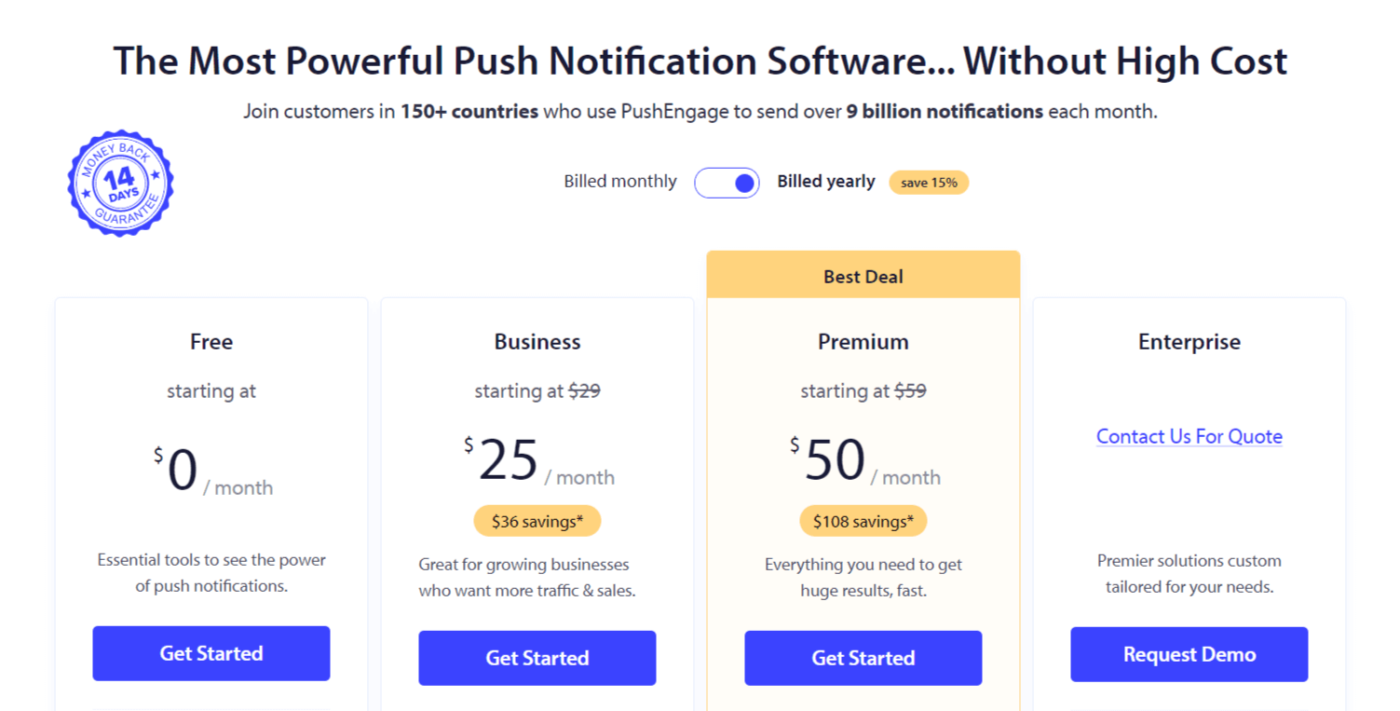
Vælg gratisplanen eller den, der passer bedst til dine behov:
Trin #2: Tilmeld dig PushEngage
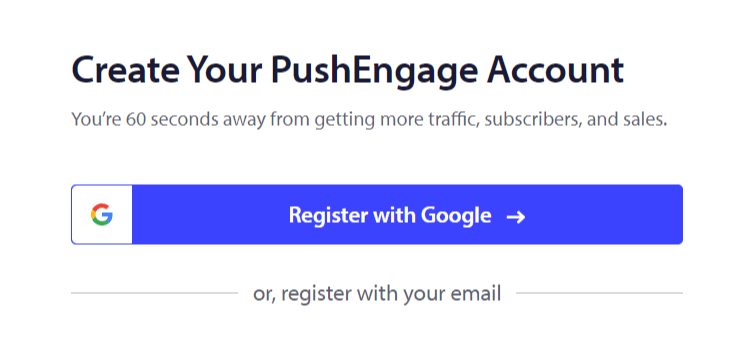
Tilmeld dig plugin'et med dine brugeroplysninger eller dit Gmail-id:
Og følg blot instruktionerne og færdiggør opsætningen af din konto for at tilføje en web push-notifikations-app til dit websted.
Trin #3: Installer WordPress-pluginnet til web push-notifikationer
BEMÆRK: Hvis dit websted ikke er bygget med WordPress, kan du installere web push-notifikationer ved hjælp af andre metoder. Vi dækker ikke disse metoder i denne artikel, men tjek vores installationsguide, hvis du er interesseret.
Når du har tilmeldt dig, bliver du ført til PushEngage-dashboardet:

Gå til Sideindstillinger » Sideoplysninger:

Klik på knappen Klik her for opsætningsinstruktioner :

Klik derefter på knappen Installer WordPress Plugin:

Hvis du allerede har indstillet din hjemmesides URL, installeres PushEngage automatisk på din side.
Trin #4: Forbind dit WordPress-websted til web push-tjenesten
Når du er færdig med at installere og aktivere PushEngage WordPress-pluginet, vil du se PushEngage-guiden:
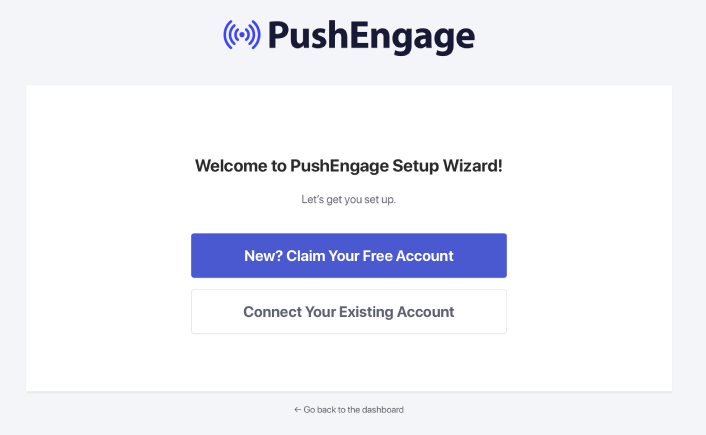
Guiden er ret ligetil. Hvis du er ny bruger, skal du klikke på Ny? Gør krav på din gratis konto. Og hvis du allerede har tilmeldt dig, skal du klikke på Forbind din eksisterende konto.
Dernæst kan du vælge din side fra rullemenuen Vælg en side under Forbind en registreret side, hvis du allerede har registreret en side under tilmelding:
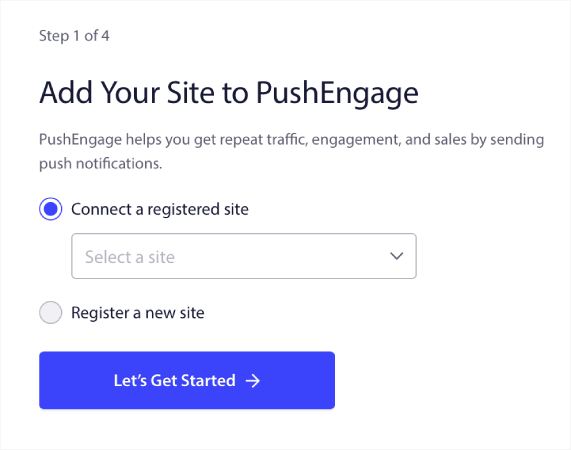
Eller du kan klikke på Registrer en ny side for at tilføje en ny side, hvis du har en Premium prisplan eller højere. I næste trin vil guiden bede dig om at installere andre nødvendige WordPress-plugins.
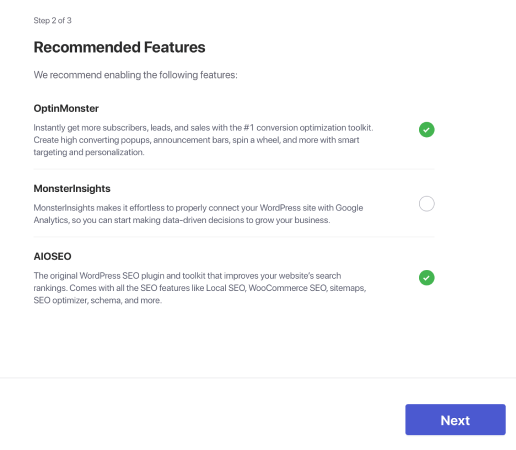
Hvis du fulgte hvert trin korrekt, vil du se denne succesmeddelelse fra guiden:
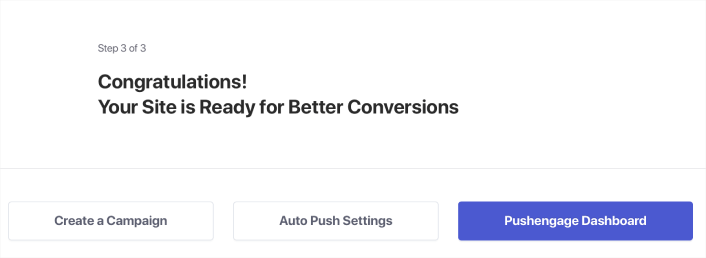
Du er nu klar til at oprette kampagner og push-underretningspop op-modaler.
Hvordan fungerer web push-notifikationer?
Lad os blive lidt tekniske nu og udforske, hvordan web push-notifikationer fungerer.
Den forenklede version er, at hver gang en ny besøgende kommer ind på dit websted, bliver de bedt om at blive en web push-abonnent.
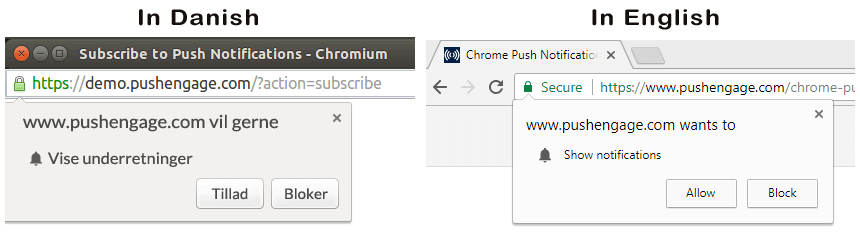
Alt dette varetages af en Javascript-fil kaldet service worker. Service workerens job er at hjælpe med at oprette web push-tilmeldinger for at indsamle push-abonnenter. Dette gælder ikke kun for websteder, men også for progressive web-apps (PWA'er). Det er dog anderledes for Android app push og iOS app push-notifikationer. Mobile push-notifikationer kræver typisk en push API som PushEngage Mobile SDK'er.
Derefter bruger du en web push-notifikationstjeneste som PushEngage til at oprette og planlægge de notifikationer, du vil sende ud til dine abonnenter. Du kan vælge enten at sende den til alle abonnenter på din liste eller til specifikke segmenter af dine abonnenter.
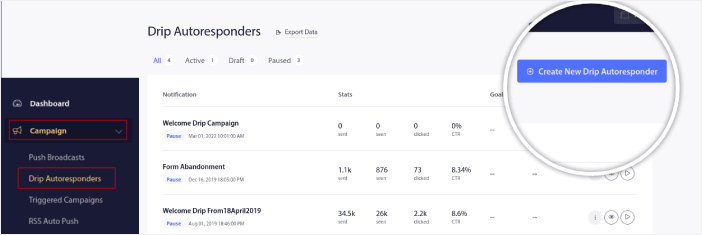
Du vil gerne starte med at oprette en Drip Autoresponder:
Endelig modtager dine abonnenter dine notifikationer, når deres enhed kommer online og udfører den foreslåede handling.
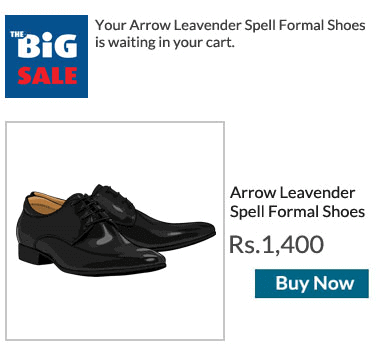
Alt dette er helt sandt, men det er kun en lille del af det, der sker i baggrunden. Lad os derfor se på de tekniske detaljer. Men først, hvis du ikke allerede har gjort det, kom i gang med PushEngage i dag.
Først og fremmest har PushEngage servere, der forbinder til dine abonnenters enheder og sender dem dine push-notifikationer. Disse servere gemmer ingen personlige oplysninger såsom navn eller e-mailadresse på nogen abonnent.
Så hvad gemmer disse servere?
For PushEngage og vores servere er dine abonnenter et unikt hash-nummer genereret baseret på din abonnents enhed og browser. Desuden kan serveren også gemme dine abonnenters geolokation.
Du vil ikke have direkte adgang til disse servere. Du kan kun bruge PushEngage Dashboard til at oprette, optimere og administrere push-notifikationskampagner.
Med andre ord er PushEngage din serviceudbyder. Det betyder, at du ikke behøver at vide noget om kodning eller hvordan man vedligeholder de originale servere. Vi tager os af alt det for dig. Alt, du skal bekymre dig om, er at opsætte dine kampagner og tjene penge!
Nogle andre populære browser push-tjenester inkluderer:
- Firebase Cloud Messaging
- Amazon Simple Notification Service
- Airship
- Leanplum Inc.
- Pushwoosh Inc.
Hvis du ikke er sikker på, hvilken tjeneste der er den rigtige for dig, så start med at se på, hvor meget push-notifikationer koster.
Nu undrer du dig sikkert over, hvordan personlige push-kampagner fungerer, hvis serverne kun gemmer et hash-nummer og ingen personlige detaljer. Virkeligheden er, at du kan gemme nok kundedata ved hjælp af segmenter uden nogensinde at skulle identificere dine abonnenter. Du kan også oprette fuldt tilpassede kampagner og gemme enhver form for brugerdata, du ønsker. Det er her, web push API'en kommer ind i billedet. For dig ville det være PushEngage Javascript API.
Du kan bruge denne API og forbinde den til enhver anden CRM eller database, du måtte have. Dette giver dig mulighed for at bruge dine abonnenters personlige oplysninger til at sende dem personlige push-notifikationer.
Du kan også bruge PushEngage API til at sende avancerede kampagner såsom kampagner for forladte indkøbskurve.
Hvad er de forskellige dele af enhver web push-meddelelse?
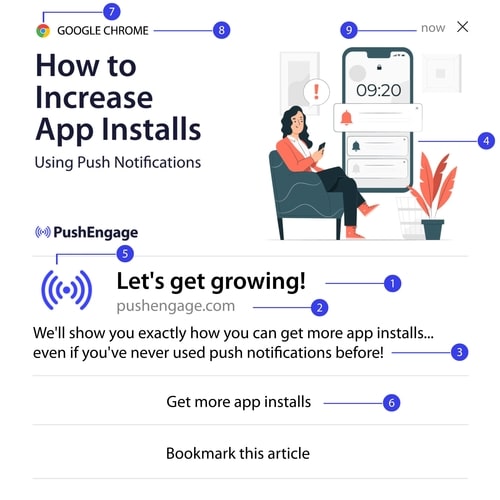
Nu hvor vi forstår, hvordan push-meddelelser teknisk fungerer, lad os se på de forskellige dele af en push-meddelelse, som du kan tilpasse (eller ikke kan):
Tjek også nogle eksempler på web push-meddelelser for et klarere billede.
#1. Push-notifikationstitel
Titlen er den mest fremtrædende tekst på push-notifikationen. Den er begrænset til 60-80 tegn for klar synlighed. Formålet med denne titel er at fange abonnentens opmærksomhed. Så det er vigtigt at have hele titlen tydeligt synlig.
Se vores guide til copywriting af push-notifikationer for at skabe fantastiske titler, som dine abonnenter vil elske.
#2. Domænet
Domænet på en push-meddelelse er blot URL'en på dit websted. Du kan heller ikke ændre dette. Men i modsætning til browserikonet skal dit domæne være tydeligt synligt, da det bidrager til din brandgenkendelse.
Nu er der en mulighed for dig til at gemme push-notifikationsdata på et underdomæne af PushEngage. Hvis du bruger underdomænet, vil denne del af push-notifikationen vise URL'en på et PushEngage-underdomæne i stedet for dit brand.
Vi anbefaler ikke at bruge denne mulighed, da den kan sænke din brandværdi.
#3. Push-meddelelsindhold
Notifikationsindholdet indeholder den største del af tekst i hele notifikationen. Den er begrænset til 120-150 tegn for synlighed ligesom titlen. Selvom du kan arbejde med flere tegn, anbefaler vi at holde det kort og præcist.
Typisk tjener denne del som en måde at tilbyde mere kontekst om titlen eller at fuldføre et tilbud. Spild ikke tid på at bruge en opfordring til handling i selve teksten. Med web push kan du tilføje knapper med opfordring til handling.
Pro Tip: Du kan bruge regionale sprog til at få dine push-notifikationer til at føles mere personlige. Læs denne casestudie om hvordan Phooto brugte lokale sprog i push-notifikationer for at øge deres engagement.
#4. Stort billede til notifikation
Det store billede er festens midtpunkt og det første, du ser i enhver notifikation. Det er typisk et 360×180 billede, der tjener som den mest attraktive del af en push-notifikation.
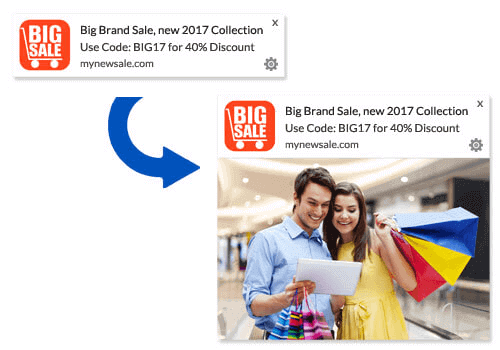
Notifikationsbilledet er også helt valgfrit. Du kan vælge ikke at bruge et, hvis du vil. Brug af et notifikationsbillede kan få din push-notifikation til at føles som en reklame. Dette kan medføre, at notifikationen bliver ignoreret af mange abonnenter.
Men hvis du gør det rigtigt, kan billeder forbedre CTR (klikrater) med op til 62 %. Læs vores undersøgelse om effekten af billeder i push-notifikationer efter branche.
Hvis du er usikker på, om du skal bruge et stort billede, foreslår vi A/B-test af notifikationen med og uden billedet.
#5. Push-notifikationsikon
Push-meddelelsesikonet er som webstedsikonet på dit websted, men for dine push-kampagner. Det er et billede, der er 192×192 eller større for at repræsentere din virksomhed. Typisk vil dette være dit webstedsikon, og du kan kun indstille dette én gang for alle dine push-meddelelser.
Pro Tip: Hvis du omdøber til enhver tid, skal du huske også at ændre push-notifikationsikonet i PushEngage. Husk også, at du ikke kan bruge animerede billeder til dit ikon. Så GIF'er vil ikke fungere her.
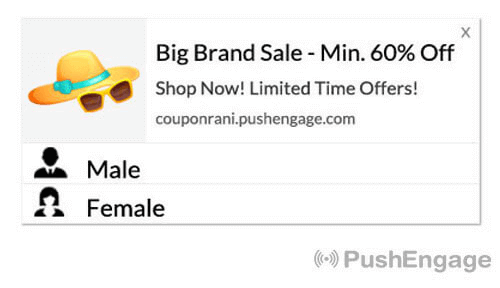
#6. Knapper til opfordring til handling
Hver push-notifikation understøtter op til 2 knapper. Vi anbefaler at bruge tilpassede call-to-action-knapper til dine kampagner. Du kan endda tilføje separate URL'er og knapikoner for hver CTA.
Se denne liste over web push-notifikationstricks for nogle gode CTA-idéer.
#7. Browserikon
Den mindste del af push-notifikationen er browserikonet, der angiver, hvilken browser din abonnent i øjeblikket bruger. Det er en af de mest oversete dele, fordi du ikke kan ændre dette på nogen måde, og for det meste vil en abonnent heller ikke bemærke browserikonet.
#8. Browseretiketten
Browseretiketten er blot tekstversionen af et browserikon. Ligesom ikonet kan du ikke ændre browsernavnets etiket.
#9. Tidsstempel
Tidsstemplet er en enkel måde for dine abonnenter at vide, hvornår beskeden blev modtaget. Det er systemgenereret, og du kan heller ikke ændre dette.
Forskellige typer af tilmeldinger til push-meddelelser
Enhver push-kampagne starter med samtykke. Det er en udvidelse af Seth Godins idé om permission marketing. Ideen er meget enkel: før du sender dine webbesøgende noget indhold, som de måske eller måske ikke ønsker at se, bed om tilladelse.
Processen med at få tilladelse til at sende push-kampagner kaldes "at tilmelde sig". Så før du kan sende en push-meddelelseskampagne, skal du først have dine webstedsbesøgende til at tilmelde sig og abonnere på dine meddelelser.
Hvis du er indholdsskaber på YouTube, er du allerede bekendt med, hvordan abonnenter fungerer. Den eneste forskel er, at du ikke ejer listen over dine YouTube-abonnenter, og du kan ikke kontrollere de notifikationer, du sender dem.
Med PushEngage ejer du den liste, fordi disse oplysninger gemmes på dit domæne. Nu er der to typer tilmeldinger, du kan bruge til dit websted baseret på tilmeldingsprocessen:
- Enkel tilmelding
- Dobbelt tilmelding
Den primære forskel mellem dem er meget klar. Enkelte tilmeldinger beder kun om tilladelse til at sende meddelelser én gang. Dobbelte tilmeldinger beder hver abonnent om at bekræfte deres beslutning. Så hvilken skal du vælge?
Vi har observeret, at enkelte tilmeldinger kan få op til 150 % flere abonnenter end dobbelte tilmeldinger. Tjek vores artikel om hvordan du øger dine tilmeldingsrater, hvis du kæmper med dette.
Fra et juridisk synspunkt kræver GDPR, at du kun har en enkelt tilmelding. Men med dobbelt tilmeldinger får du langt bedre engagement, fordi dine abonnenter rent faktisk ønsker mere af dit indhold. Med hensyn til rene tilmeldingsantal er enkelttrins tilmeldinger dog langt mere effektive.
Et andet punkt at overveje er, at du SKAL installere et SSL-certifikat på din hjemmeside for at kunne bruge enkelt tilmeldinger. Men du kan installere totrins tilmeldinger selv uden en sikker hjemmeside.
Så hvis du har et SSL-certifikat installeret, skal du bruge enkelt tilmeldinger. Hvis ikke, så læs denne artikel om hvordan du installerer et SSL-certifikat på WordPress-hjemmesider.
Forbedre engagementraten for push-notifikationer ved at personalisere
Før du opretter en kampagne, bør du opsætte segmenter og målgrupper for at sende personlige push-beskeder.
Intet slår niveauet af personalisering, du kan opnå ved at oprette segmenter og målgruppegrupper til dine push-notifikationsabonnenter. Gå til PushEngage » Audience og begynd at oprette segmenter og målgruppegrupper med det samme.
Under fanen Segments kan du oprette nye segmenter eller redigere eksisterende:
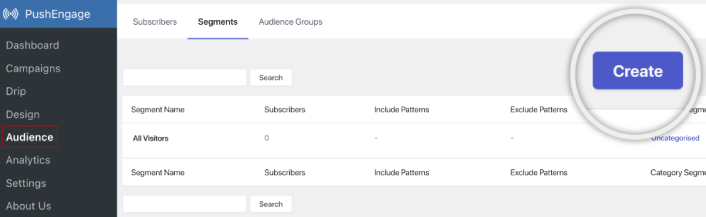
Og hvis du har brug for endnu dybere personalisering, skal du oprette en målgruppegruppe under fanen Audience Groups:
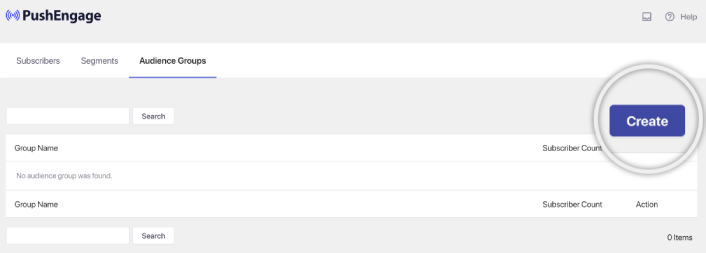
Hvis du er ny inden for push-meddelelsessegmenter og personaliserede push-meddelelser, bør du tjekke vores artikel om hvordan man opretter segmenter og hvordan man bruger målgruppegruppering til at målrette brugeradfærd.
Opret målrettede web push-meddelelser for bedre engagement
Gå til PushEngage dashboard og gå til Campaign » Drip Autoresponders og klik på Create New Drip Autoresponder:

Navngiv derefter din kampagne (vi foreslår noget som "Velkomst Drip"), og under Content, vælg muligheden "Send notification immediately after user subscribes“:

På dette tidspunkt kan du klikke på pilen ved siden af notifikationen for at redigere indholdet af din notifikation.
Hvis du har en Premium- eller Enterprise-plan med PushEngage, vil du kunne tilføje mere end én meddelelse for at oprette en sekvens af automatiserede velkomstbeskeder. Klik blot på Tilføj ny meddelelse og rediger indholdet. Når du er færdig, skal du klikke på Drip-indstillinger og vælge muligheden for at sende din velkomstkampagne til alle abonnenter:

Rul derefter ned for at indstille dine egne UTM-parametre for at spore push-notifikationerne:

Og når du er færdig, rul op igen og klik på knappen Activate Autoresponder:

Og du er færdig!
Sådan sender du web push-udsendelser
Gå til dit PushEngage dashboard og gå til Campaign » Push Broadcasts og klik på knappen Create a New Push Broadcast:
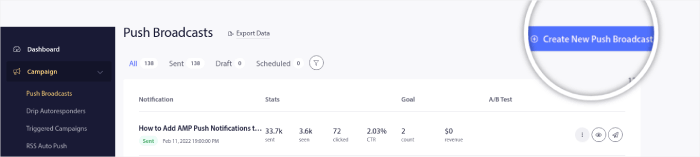
Under fanen Content, tilføj dit push-notifikationsindhold:
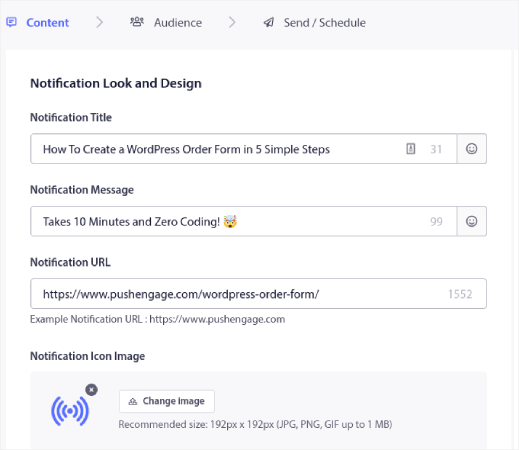
Og du kan opsætte en A/B-test for at øge dine klikrater, eller du kan planlægge dine push-udsendelser for at få flere visninger. I begge tilfælde bør du tjekke vores bedste praksis for push-notifikationer for de bedste resultater.
Sådan opretter du engagerende web push-popup-modaler
En push-notifikations-popup-modal er et lille vindue, der vises oven på en hjemmeside eller en mobilapps grænseflade for at vise en besked eller notifikation til hjemmesidens besøgende. Popup-modalen kan udløses af forskellige begivenheder. Du kan opsætte popups, der udløses ved sidebesøg, ved scroll-dybde og endda ved brugerdefinerede handlinger som f.eks. at klikke på en knap.
Normalt vil du se en opfordring til handling på popup-modalen, som f.eks. "Tilmeld dig" eller "Tillad", for at få samtykke fra besøgende til at sende dem push-udsendelser eller dryp-kampagner. Hvis du følger denne vejledning, kan du oprette en popup som denne:
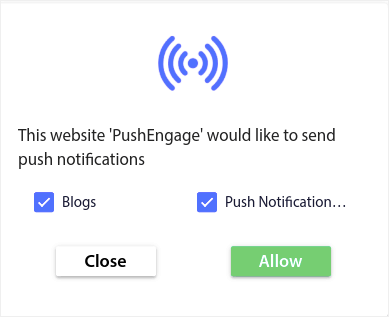
Du kan oprette popup-modalvinduer, der kan segmentere abonnenter direkte, eller oprette almindelige popups, der blot indsamler abonnenter med standardattributter som geolokation og browser.
Gå tilbage til dit WordPress-dashboard. Gå til PushEngage » Design:
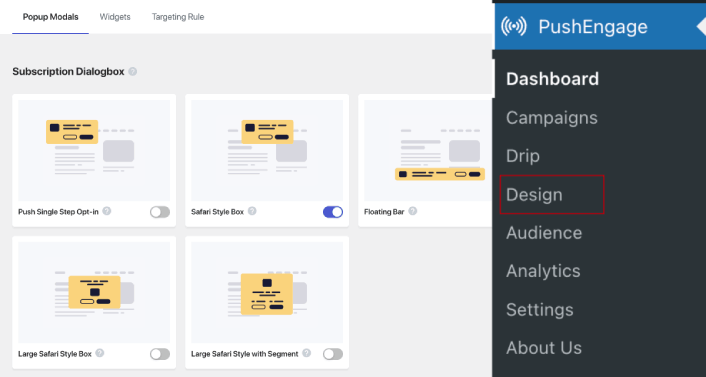
Og du kan opsætte så mange popup-modalvinduer, som du ønsker. Selvfølgelig kan du sørge for, at de udløses på forskellige tidspunkter under Visningsindstillinger for hvert popup-modalvindue.
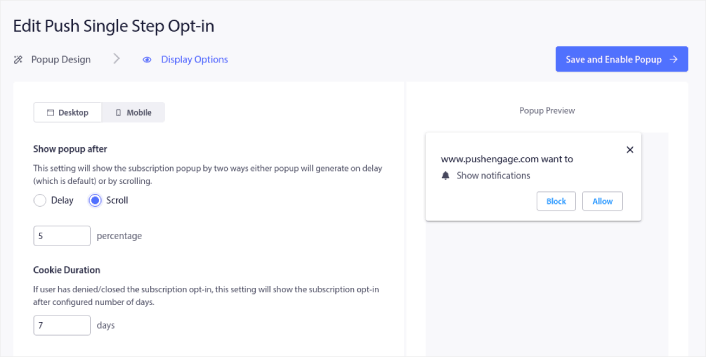
Idéen her er at give dine besøgende en solid grund til at abonnere. Hvis du har brug for hjælp til det, kan du se vores artikel om hvordan man opretter en brugerdefineret push-notifikations-opt-in.
Og hvis du vil oprette mere målrettede popup-modalvinduer, kan du bruge målretningsreglerne under fanen Målretningsregel :
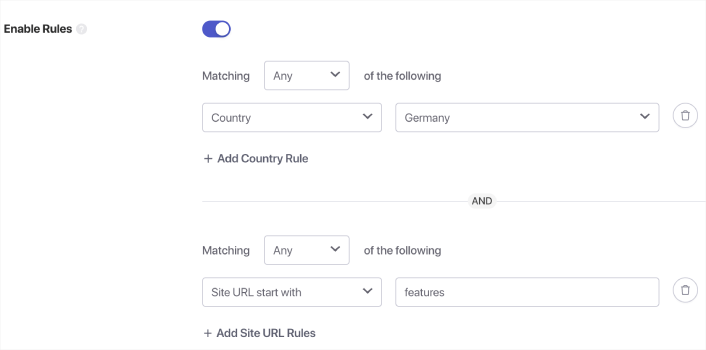
Dette er globale målretningsregler og vil have præference frem for målretningsregler for individuelle popup-modalvinduer. Men hvis du ønsker det, kan du oprette robuste målretningsregler for hvert modalvindue ved at redigere dem.
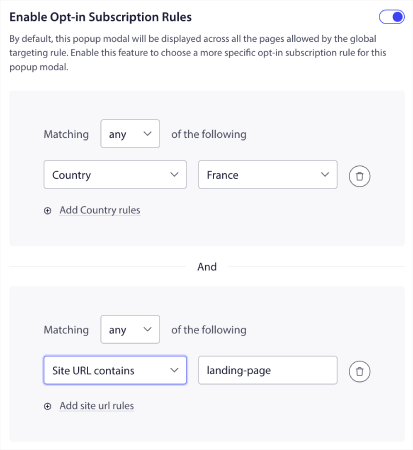
For eksempel kan du oprette popup-modalvinduer på forskellige sprog for at målrette besøgende fra forskellige lande.
Og hvis du gerne vil have nogle skabeloner med en høj klikrate til at komme i gang, bør du se denne artikel om konverteringsdygtige push-notifikations-opt-ins.
Hvad du skal gøre, før du sender målrettede web push-notifikationer
Du er næsten færdig. Før du begynder at sende push-udsendelser eller dryp-kampagner, skal du opsætte en abonnements-opt-in for din hjemmeside. Din opt-in vil konvertere webbesøgende til push-notifikationsabonnenter. Så dette er et kritisk element. Hvis du har brug for inspiration, kan du tjekke denne artikel om højt konverterende push-notifikations-opt-ins. Når du er færdig med at opsætte opt-in, kan dit websted indsamle abonnenter. Men hvordan ved du overhovedet, at din opt-in fungerer korrekt?
Så det fornuftige er at opsætte en velkomst-push-notifikation.
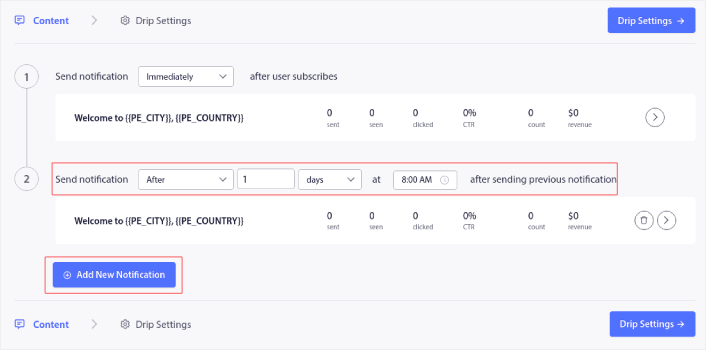
Pro-tip: Du bør bruge noget tid på en fuldskala test af dine push-notifikationer. Dette vil fejlfinde de mest almindelige problemer, og du vil ikke spilde din tid på at forsøge at løse problemer senere. Du har også brug for en ordentlig brugerengagementstrategi eller en push-kampagnestrategi, før du lancerer en masse kampagner.
Hvad du skal gøre nu, hvor du ved, hvad web push-notifikationer er
Nu hvor du ved, hvad web push-notifikationer er, er det tid til at opsætte dine egne push-kampagner.
Hvis du lige er begyndt med web push, kan du se, hvordan du opretter din første velkomstbesked ved hjælp af PushEngage. En velkomstbesked er god til genengagement og tilbagevendende besøgende på din hjemmeside.
Også, hvis du allerede er begyndt at bruge web push, indser vi, at det kan være svært at finde på kampagneidéer. Jo længere du bruger en trafik kilde, jo sværere bliver det at finde på nye idéer. Tjek nogle push-kampagneidéer, som vores kunder allerede bruger. Du får måske lige den inspiration, du har brug for!
At komme i gang med segmentering kan virke skræmmende. Men hvis du holder øje med målsporing og analyse, skal det nok gå. Endnu vigtigere er det, at du vil tjene meget mere profit med hjælp fra push-notifikationskampagner. Her er et par gode ressourcer til at komme i gang:
- Sådan bruges retargeting push-notifikationer til at fordoble din omsætning
- Sådan sorteres dine push-notifikationer og finder vindende kampagner
- Sådan renses push-notifikationsabonnentlister (nemt)
- Sådan sendes RSS push-notifikationer automatisk
- Sådan bruges push-notifikationer til at promovere en nyhedsside
- Sådan bruges cross-selling push-notifikationer til at fordoble dit salg
- Sådan bruges browse abandonment push-notifikationer (4 trin)
Hvis du har en e-handels hjemmeside, så tjek indkøbskurv-forladelses-kampagner næste gang. Hvis ikke, så send din første dryp-push-kampagne ud. Dette er nogle af de højest konverterende kampagner for de fleste af vores kunder.
Og hvis du ikke allerede har gjort det, kom i gang med PushEngage i dag!


Tak for at dele god information. Meget fin artikel, den hjælper mig meget med, hvordan jeg bruger Push-notifikationer på min blog.
Dette er en god information, du har delt. Da jeg er ny inden for blogging, kan det helt sikkert gøre en forskel. Tusind tak
kan jeg sende web push-notifikationer, når en bruger besøger et specifikt websted? f.eks. mit websted sælger sokker; når en bruger, der har tilmeldt sig web push, besøger amazon, udløser jeg en web push-notifikation til dem. jeg tror ikke, men tænkte, at jeg lige ville tjekke.
også jeg troede, at et websted skal være https for at aktivere web push-notifikationer. kan jeg stadig aktivere web push-notifikationer på et http-websted ved at oprette en https-side?
IOS understøtter ikke web push-notifikationer. Ret mig venligst, hvis jeg tager fejl
Ja, det er korrekt. iOS understøtter stadig ikke web push-notifikationer.
Opdatering, september 2026: svaret ovenfor var korrekt i april 2020 og er ikke længere sandt. Siden iOS 16.4 (marts 2023) understøtter Safari på iPhone og iPad web push for websteder, som brugeren har føjet til Hjem-skærmen som en webapp. Opsætningsguide: Opsætning af web push-notifikationer til iOS og iPadOS.
Har gjort alt, men stadig får jeg ikke disse ting til min bloggers blog.
Kan du sende en mail til [email protected] eller via live chat? Teamet vil hjælpe dig med at løse problemet.
du er faktisk en rigtig god webmaster. Webstedets indlæsningshastighed er fantastisk.
Det føles lidt som om, du laver et eller andet unikt
trick. Desuden er indholdet mesterværk. du har udført et vidunderligt stykke arbejde med dette emne!