Leder du efter en enkel måde at tilføje push-notifikationer til webapps, der kan hjælpe dig med at vækste din forretning?
Opsætning af push-notifikationer til webapps kan være lidt tricky. Der er altid en vis konflikt med afsendelse af web push-notifikationer. Normalt er det største problem leveringsraterne. Du kan tilføje web push til din webapp på mange måder. Men hvordan sender du web push-notifikationer, der rent faktisk bliver leveret fra din webapp?
Bare rolig! I denne artikel vil vi vise dig trin for trin, hvordan du kan sende push-notifikationer til webapps med pålidelige leveringsrater på under 10 minutter.
Lad os dykke ned.
Sådan Installeres Push-notifikationer til Webapps
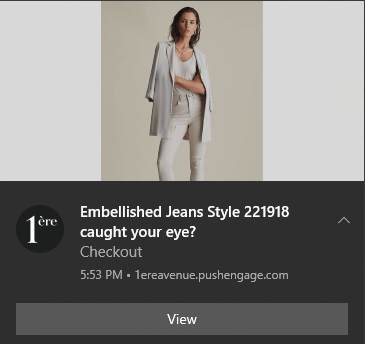
Det er ret simpelt at tilføje push-notifikationer til en webapp. Følg blot trinene i denne artikel. Hvis du følger hvert trin, bør du ved slutningen af denne artikel kunne sende push-notifikationer som denne:
Den største udfordring er, at al web push-notifikationssoftware bruger en Javascript-fil kaldet service_worker.js. Service worker hjælper dig med at indsamle abonnenter på push-notifikationer via popup-modaler. Men alle webapps har allerede en service worker-fil, der tjener et andet formål. Og på et tidspunkt kan din webapp kun bruge én service worker.
Med simple ord forvirrer web push-tjenester din webapp. Så nogle gange vil den indsamle abonnenter på push-notifikationer og nogle gange vil den ikke. Nogle gange kan du sende notifikationer og nogle gange kan du ikke. Du kan endda ende med at sende push-beskeder til hele din abonnentliste og kun få dem leveret til få abonnenter.
Selvfølgelig kommer webapp-byggere som Mendix med deres eget push-notifikationssystem. Men hvad hvis du vil migrere til en anden push-notifikationstjeneste? Hvad hvis du ønsker mere fleksibilitet og kontrol over dine push-notifikationskampagner?
Vi anbefaler at bruge PushEngage til at sende push-notifikationer til webapps. PushEngage er den #1 push-notifikationssoftware i verden. Så du ved, at dine kampagner er i sikre hænder.
Lad os komme i gang.
Trin #1: Opsæt din PushEngage-konto
Gå til PushEngage hjemmeside og klik på knappen Kom i gang :

Du kan prøve PushEngage gratis. Hvis du driver en lille blog, der har brug for gentagen trafik og engagement, er det sandsynligvis godt nok. Men hvis du er seriøs omkring salg, bør du få Enterprise-pakken og låse op for de automatiserede kampagner.
Når du har tilmeldt dig din PushEngage-konto, skal du gå til dit PushEngage-dashboard og gå til Sideindstillinger » Sideoplysninger:

Du kan indstille dit logo, sidenavn og side-URL her. Det er virkelig vigtigt at få styr på disse ting lige nu, så du kan teste hele din opsætning senere.
Trin #2: Hent installationskoden fra PushEngage
For at installere push-notifikationer skal du have en installationskode. På din Sideindstillinger-skærm skal du rulle ned og klikke på knappen Klik her for opsætningsinstruktioner:

Klik derefter på fanen Enhver side:

Du kan bruge Javascript-koden til at begynde at sende push-notifikationer.
Trin #3: Tilføj Service Worker-koden til Push-notifikationer til Webapps
Den mest tricky del af processen er endelig her. I PushEngage-dashboardet under Opsætningsinstruktioner vil du også se en mulighed for at downloade service worker-filen.
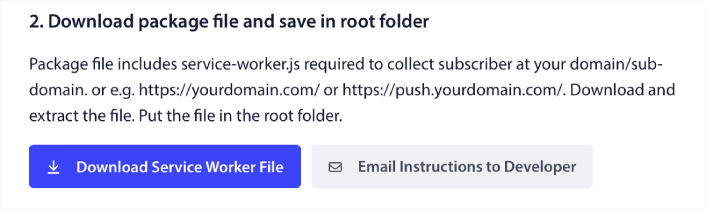
VIGTIGT: Som standard kræver en webapp ikke en service worker-fil. Alt hvad du behøver for at omdanne et hvilket som helst websted til en webapp er en manifestfil. Så hvis din webapp ikke har en service worker-fil, kan du simpelthen tilføje PushEngage-service worker til rodmappen på dit websted eller din webapp.
Men hvis din webapp allerede har en service worker på plads, så upload IKKE direkte PushEngage service worker-filen som den er. Åbn PushEngage service worker i en teksteditor som Notesblok, og kopier koden i PushEngage service worker-filen. Find derefter service worker-filen til din webapp, og tilføj simpelthen PushEngage service worker-koden til filen.
Hvis du forsømmer dette trin, vil du ikke kunne indsamle push-notifikationsabonnenter.
Trin #4: Konfigurer PushEngage Opt-In
Gå nu tilbage til dit PushEngage-dashboard. Gå til Design » Popup Modals og vælg den optin, du ønsker:
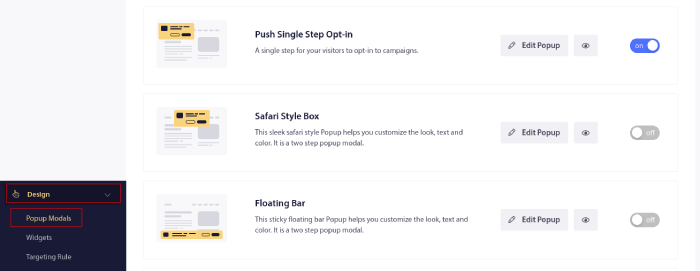
Idéen her er at give dine besøgende en solid grund til at abonnere. Hvis du har brug for hjælp til det, kan du se vores artikel om hvordan man opretter en brugerdefineret push-notifikations-opt-in.
Og hvis du ønsker nogle skabeloner til at komme i gang, bør du tjekke denne artikel om konverteringsdygtige push-notifikations-opt-ins.
Trin #5: Opret din første kampagne
Nu hvor din webapp kan sende push-notifikationer, bør du oprette en faktisk kampagne.
En kampagne for forladt indkøbskurv hjælper med at generere ekstra indtægter ved at konvertere forladte indkøbskurve. Det er en simpel påmindelse, der sælger mange produkter automatisk. Så det er en god kampagne til at understøtte enhver landingsside, der giver direkte salg.
Gå blot til dit PushEngage dashboard og gå til Kampagner » Udløste Kampagner » Opret En Ny Udløst Kampagne:
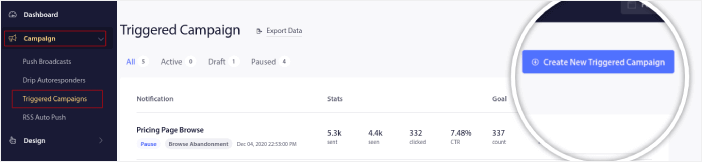
Og vælg derefter skabelonen Kurv Forladt kampagne:
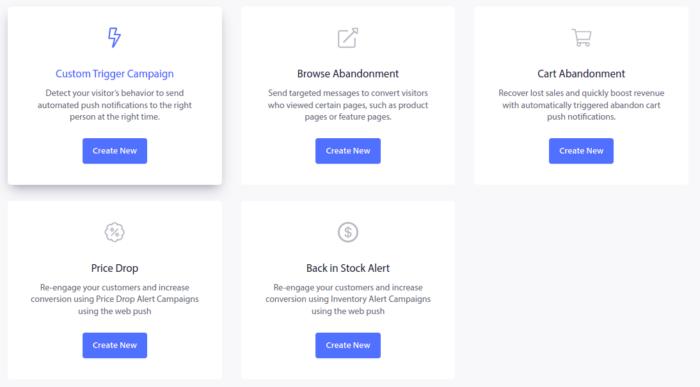
Hvis du er ny til at oprette automatiserede marketingkampagner, kan du blot følge vores artikel om hvordan man opsætter en push-notifikationskampagne for forladt indkøbskurv. Følg hvert trin, og du kan opsætte push-notifikationer som denne:
Og bare for en sikkerheds skyld, du behøver ikke at være et kendt mærke for, at dine push-notifikationskampagner er effektive. Faktisk blev PushEngage bygget til at hjælpe små virksomheder med at vokse ved hjælp af push-notifikationer.
Men før du begynder at markedsføre dit websted, bør du rette eventuelle problemer med din push-notifikationsabonnementsproces. Se denne artikel om test af dine push-notifikationer. Hvis alt fungerer perfekt, er du færdig!
Hvad skal man gøre efter tilføjelse af Web App Push-notifikationer?
Det var alt for denne gang, folkens!
Du kan nu sende web app push-notifikationer. Indtil nu har du også oprettet en kraftfuld web push-notifikationskampagne for at øge din vækst. Alt dette på mindre end 10 minutter!
Se, hvordan du også opretter andre automatiserede push-notifikationskampagner. De fleste push-kampagner er enkle og effektive. Så vi anbefaler at opsætte flere kampagner til dit websted. Her er et par gode til at starte med:
- Sådan sendes RSS push-notifikationer automatisk
- Sådan opsætter du push-notifikationer for forladte indkøbskurve ved hjælp af GTM
- Sådan planlægger du push-meddelelser på den nemme måde [5-min. guide]
Og hvis du ikke allerede har gjort det, kom i gang med PushEngage. PushEngage er den #1 push-meddelelsessoftware i verden. Så dine kampagner er i sikre hænder.
Kør det fra din AI-assistent: alt i denne vejledning — opbygning af segmentet, planlægning af kampagnen, hentning af resultaterne — fungerer via PushEngage MCP-serveren. Tilslut Claude (eller enhver MCP-kompatibel assistent) til din PushEngage-konto én gang, beskriv derefter kampagnen, og lad den foretage klikkene. Se afsendelse af push-meddelelser fra din AI-assistent for et arbejdet eksempel.


