
Leder du efter en måde at oprette push-meddelelsesknapper og indsamle abonnenter på push-meddelelser?
Vi forstår det. Nogle gange er det meget mere bekvemt at have lidt fleksibilitet i den måde, du udvider dine abonnenter på.
Bare rolig. Vi har dig dækket.
I denne artikel vil vi vise dig trin for trin, hvordan du opretter dine egne push-meddelelsesknapper.
Klar? Lad os dykke ned.
Sådan opretter du push-meddelelsesknapper i WordPress
Før du opretter push-meddelelsesknapper i WordPress, skal du oprette en landingsside for at indsamle push-abonnenter. Vi anbefaler kraftigt at bruge SeedProd til at oprette dine landingssider.

SeedProd er den bedste WordPress-landingssidebygger. Den er perfekt til virksomheder, bloggere og webstedsejere, der ønsker at opbygge højkonverterende landingssider uden nogen udviklingsfærdigheder.
Med SeedProd får du forudbyggede skabeloner til landingssider med høj konvertering, som du kan udgive med det samme. Dette inkluderer skabeloner til:
- Salgsider
- Kommer snart-sider
- 404-sider
- Vedligeholdelsessider
- Squeeze-sider
- Takkesider
- Webinar-sider
- Video-sider
Og meget mere!
Trin #1: Installer og aktiver SeedProd
Først vil du have SeedProd Pro-pluginnet og aktivere det. Hvis du ikke er sikker på, hvordan du gør det, kan du se denne artikel om hvordan man installerer et WordPress-plugin. Gå derefter til SeedProd » Indstillinger på dit WordPress-dashboard og aktiver Pro-versionen:

Gå derefter til SeedProd » Sider for et overblik over SeedProds landingsside-dashboard. Her kan du se de forskellige typer landingssider, du kan oprette ved hjælp af SeedProd:

Husk, at dette er specielle sider med forudbyggede funktioner og designtemplates. Til en landingsside vil du ikke bruge NOGEN af disse specielle landingssider. I stedet vil du oprette en brugerdefineret landingsside.
Rul længere ned og klik på knappen Tilføj ny landingsside for at komme i gang:

Trin #2: Opret en ny landingsside til push-meddelelsesknapper
Efter at have klikket på knappen Tilføj ny landingsside, vil du se SeedProd's bibliotek af landingsside-skabeloner. Disse er professionelt designede landingsside-skabeloner, der er fuldt responsive.
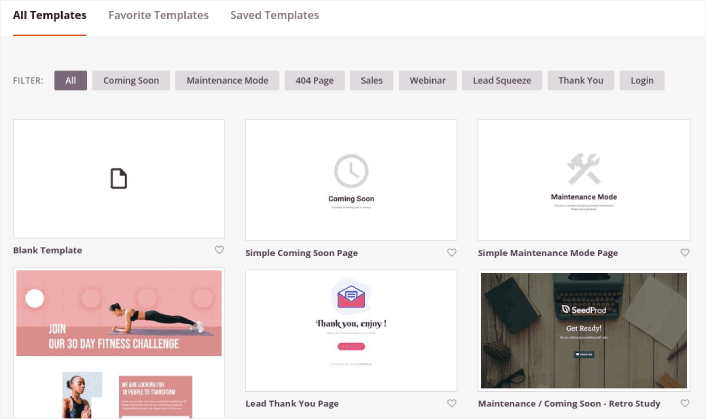
Dernæst kan du vælge en af disse skabeloner til at hjælpe dig i gang.
Husk, at skabelonen kun er et udgangspunkt. Du kan tilpasse alt på siden senere. Find for nu en skabelon, du synes passer. Når skabelonsiden åbnes, kan du klikke på Squeeze Page for at filtrere listen:
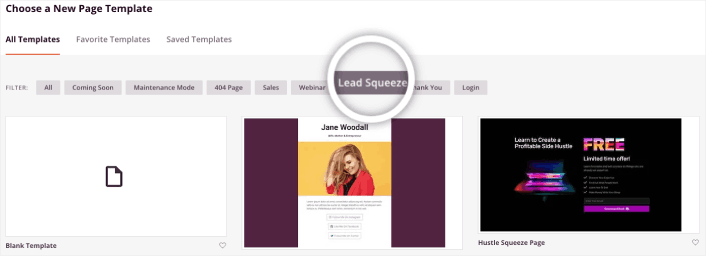
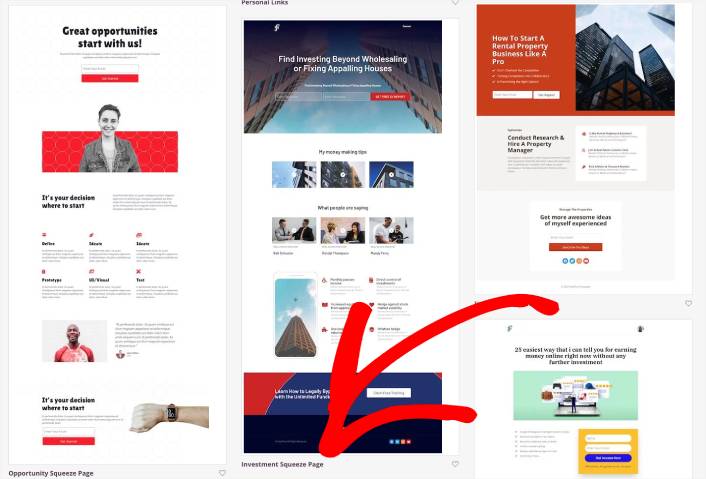
Til denne guide vælger vi Investment Squeeze Page.
En squeeze page har kun ét formål. Det er at “klemme” dig lige nok til at få din e-mailadresse. Kender du nogen inden for investering og personlig økonomi? Ja, de kan helt sikkert klemme!
Gå videre og klik på den nu.
Derefter vil vi tilpasse landingssiden.
Trin #3: Tilpas dit landingsside-design
SeedProd's visuelle builder giver dig mulighed for at tilpasse din landingsside ved hjælp af træk-og-slip indholdsblokke.
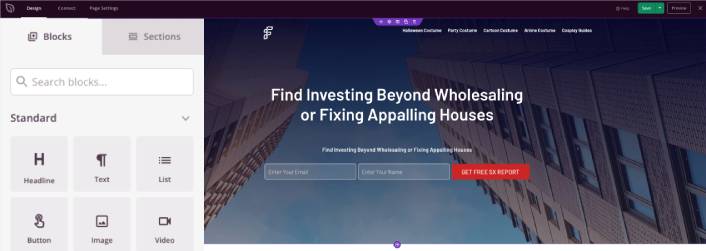
Du kan oprette en fuldt tilpasset header til din landingsside på få minutter. Du kan endda tilføje brugerdefinerede elementer for at overbevise og konvertere din trafik. For eksempel kan du oprette et videomodul og indlejre en YouTube-video for at overbevise dine besøgende om at købe dit produkt eller din service.
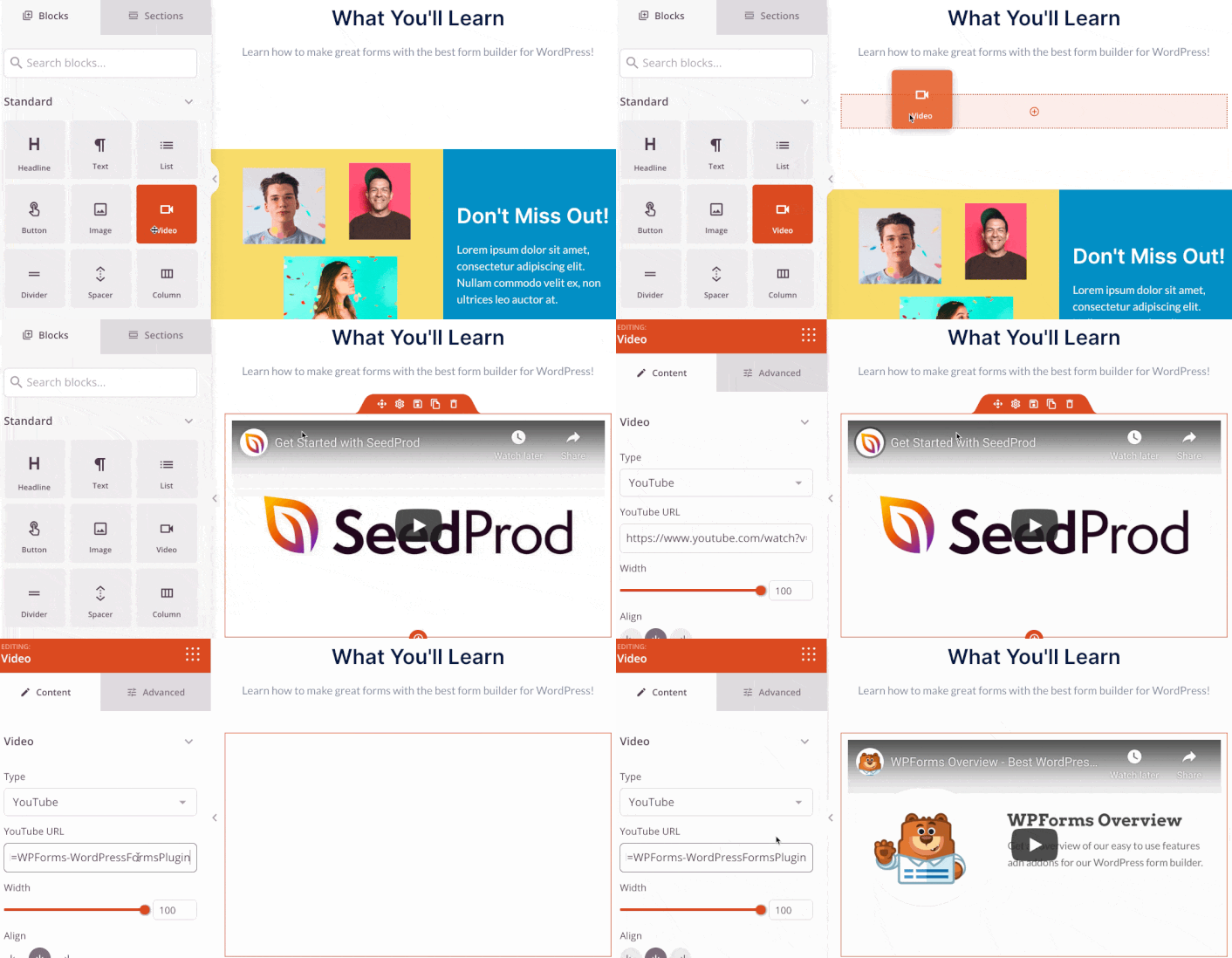
Det er også super nemt at tilføje en sektion med en kort beskrivelse af dit produkt eller din service. Gå til fanen Sektioner i den visuelle builder, og under sektionen Hero finder du flere forudbyggede skabeloner, som du kan importere med et enkelt klik.
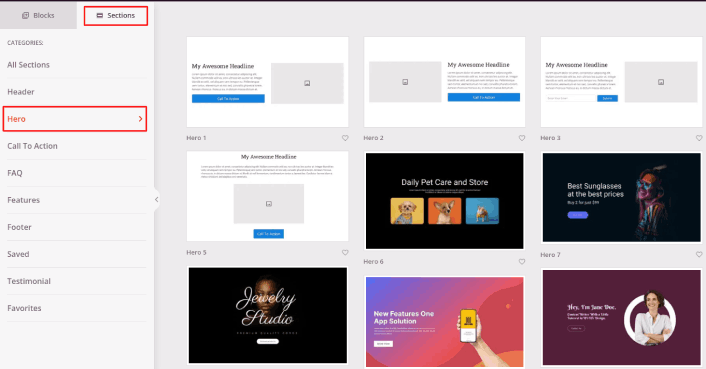
Vælg en, du kan lide.
Bare rolig omkring farverne eller indholdet. Du kan redigere det hele. Det, du skal kigge efter, er et layout, der passer godt til din skabelon.
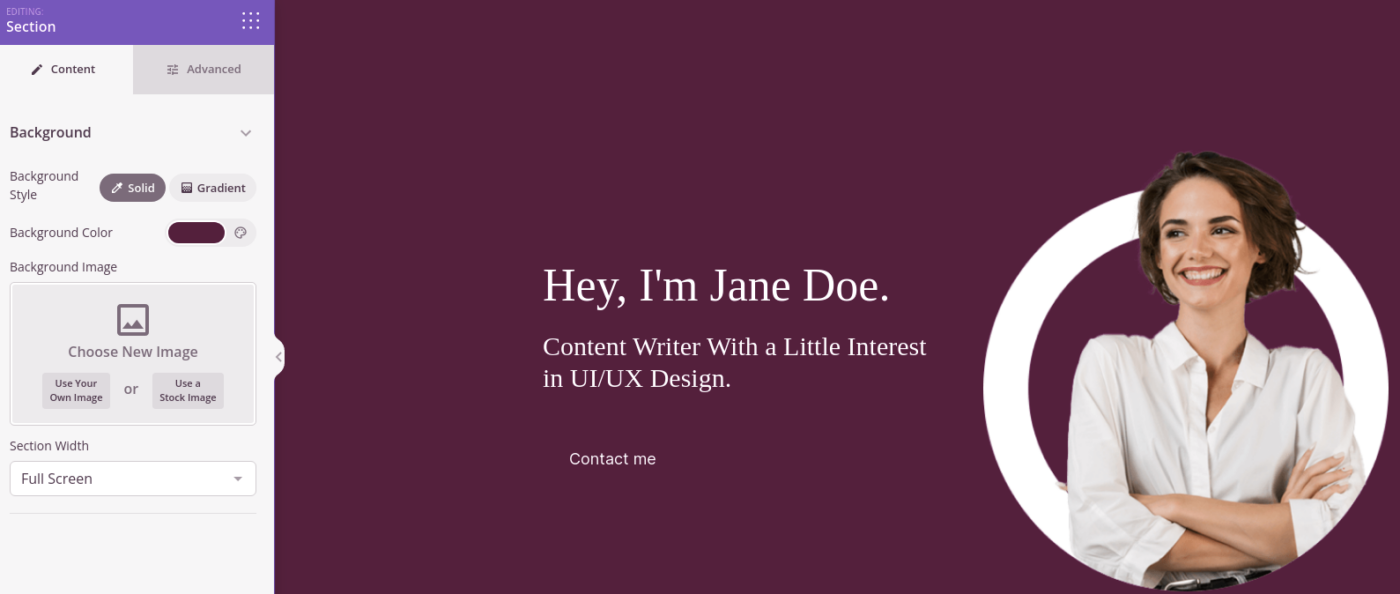
Du kan tilpasse hero-sektionen på samme måde, som vi gjorde tidligere, ved at vælge et andet billede og ændre overskriften og beskrivelsen. Mens du er i gang, kan du tilføje en call-to-action-knap, der opfordrer besøgende til at købe fra dig.
Dernæst, fra fanen Sektioner, vælg overskriften Testimonial, og vælg et design, du kan lide. Og lige sådan har du en testimonials-sektion på din landingsside.
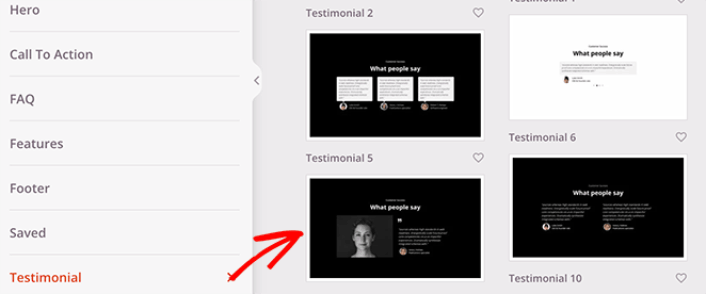
Det er så simpelt!
Trin #4: Tilføj push-meddelelsesknapper til din landingsside
Du kan også tilføje en klik for at abonnere-knap for at indsamle push-notifikationsabonnenter. Push-notifikationer er en god måde at øge din gentagne trafik på, få mere engagement og endda sælge officielle merchandise, hvis du har noget.
I SeedProd skal du blot trække og slippe modulet Brugerdefineret HTML fra sidebjælken.
Vi har placeret abonnementsknappen lige under e-mail-tilmeldingsformularen i den øverste del.
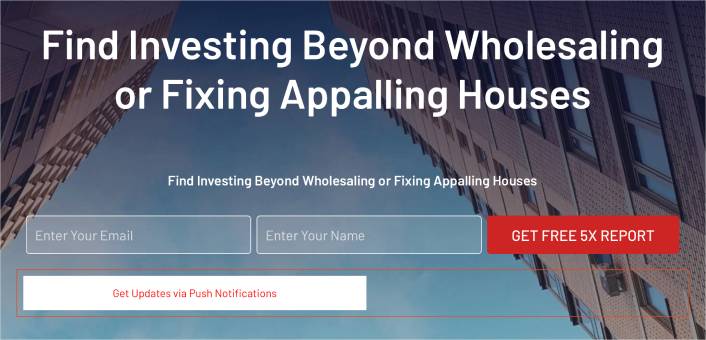
Men du kan indsætte knappen hvor som helst du vil.
Til denne del skal du have lidt erfaring med HTML og CSS. Eller du kan kopiere denne kode og indsætte den i din Brugerdefineret HTML-blok:
<button onclick="subscribeOnClickButton()" style="border: none; padding-left: 5%; padding-right:5%; text-align: center; display: inline-block; color: blue;">Get Updates via Push Notifications</button>Det er en standardknap i HTML med meget lidt styling. Det eneste smarte er onclick-funktionen i koden. Det betyder grundlæggende, at dine besøgende kan klikke på knappen for at abonnere på noget. Nu skal vi give knappen lidt ekstra kode for at give dine besøgende mulighed for at abonnere på push-notifikationer.
Gå til PushEngage hjemmeside og klik på knappen Kom i gang :

PushEngage er verdens førende plugin til push-notifikationer.
Push-notifikationer hjælper dig med at øge din webtrafik og dit engagement automatisk. Og hvis du driver en onlinebutik, hjælper PushEngage dig også med at øge dit salg ved at hjælpe dig med at oprette automatiserede e-handels-push-notifikationer.
Du kan komme i gang gratis, men hvis du er seriøs omkring at vækste din forretning, bør du købe en betalt plan. Før du køber en push-notifikationstjeneste, bør du også se denne guide til priser på push-notifikationer.
Her er et hurtigt overblik over, hvad du får med PushEngage:
- Højtkonverterende automatiserede kampagner
- Flere målretnings- og kampagneplanlægningsmuligheder
- Målsporing og avanceret analyse
- Smart A/B-test
- Skabeloner til push-kampagner
- Kraftfulde segmenteringsmuligheder
- En dedikeret succesmanager
Du vil se, at PushEngage uden tvivl er det bedste valg, hvis du vil opbygge trafik, engagement og salg for din virksomhed. Og hvis du har et stramt budget, kan du altid være lidt kreativ med dine push-notifikationer.
BEMÆRK: Hvis du driver et WordPress-site, bør du installere og aktivere PushEngage WordPress-plugin.
Vælg derefter gratisplanen for at prøve PushEngage, eller vælg en betalt plan, hvis du er seriøs omkring at udvide din virksomhed. De betalte planer kommer med flere kampagnemuligheder og muligheden for at opbygge endnu større abonnentlister.
På dit PushEngage dashboard skal du gå til Sideindstillinger » Sideoplysninger og klikke på knappen Klik her for opsætningsinstruktioner. Under Enhver side får du din installationskode:

ADVARSEL: Du skal kopiere den kode, du får fra dit dashboard. Koden er unik for hver PushEngage-bruger. Du kan ikke kopiere koden på billedet og indsamle push-notifikationsabonnenter.
Når du har koden i dit PushEngage-dashboard, skal du tilføje dette uddrag til din kode:
<script> window._peq = window._peq || [];</script> <script>
function subscribeOnClickButton(){
window._peq.push(['subscribe',{}.pe,function(res){
if(res.statuscode==1)
{
// Code to return response
console.log(res);
}
}]);
}
</script>
Din endelige kode skal se nogenlunde sådan ud:
<script src="https://clientcdn.pushengage.com/core/02a6e92667ae2279fcba8932356c1d93.js" async></script>
<script> window._peq = window._peq || [];</script> <script>
function subscribeOnClickButton(){
window._peq.push(['subscribe',{}.pe,function(res){
if(res.statuscode==1)
{
// Code to return response
console.log(res);
}
}]);
}
</script>
Du vil gerne tilføje denne kode til HTML-blokken på din landingsside efter koden til knappen. Det skal se nogenlunde sådan ud:

Du er velkommen til at tilpasse stilarterne for knappen, som du vil. Når du er færdig med at tilpasse din landingsside, skal du blot trykke på Gem-knappen.
Trin #4: Konfigurer dine sideindstillinger
Når du er færdig med at designe din landingsside, skal du klikke på fanen Connect øverst i din sidebygger og vælge din e-mailmarketingsudbyder for at indsamle leads på dit websted.

Klik derefter på fanen Sideindstillinger øverst på din skærm.

Her kan du tilføje et SEO-plugin og et Google Analytics-plugin til din landingsside. Du kan endda opsætte brugerdefinerede sporingskoder som en Facebook Pixel eller en Pinterest Pixel til at spore annoncepræstation.
Trin #5: Udgiv din landingsside i WordPress
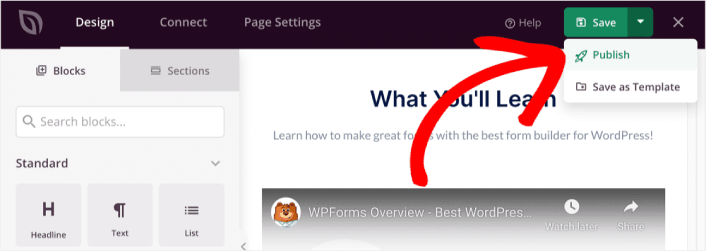
Lad os nu gå videre og udgive dit design. For at gøre dette skal du klikke på dropdown-pilen ud for gem-knappen og klikke på Udgiv.
Du kan derefter klikke på knappen Se live side for at se, hvordan den ser ud.
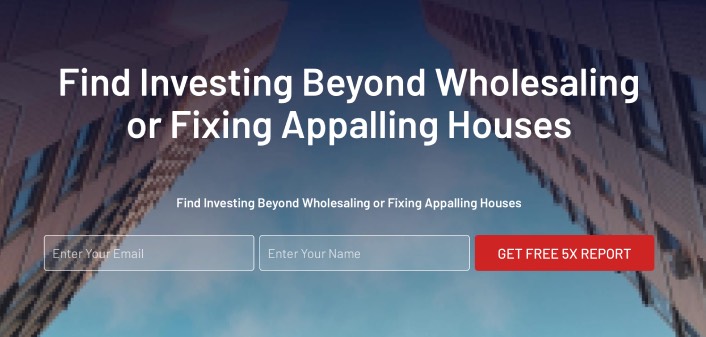
Tillykke! Du har netop udgivet din allerførste landingsside.
Hvad du skal gøre, efter du har tilføjet push-meddelelsesknapper til dit websted
Nu hvor din landingsside er live, er det tid til at arbejde på din trafik, engagement og salg. Du bør prøve at bruge push-meddelelser på dit websted. Push-meddelelser er et godt marketingværktøj, der kan hjælpe dig med at vækste din forretning.
Tag et kig på disse episke ressourcer, og du vil vide, hvad vi mener:
- 7 Smarte Strategier til at Øge Kundeengagement
- Er Push-notifikationer Effektive? 7 Statistikker + 3 Eksperttips
- Sådan opsættes push-meddelelser om forladte indkøbskurve (nem vejledning)
Vi anbefaler at bruge PushEngage til at oprette dine push-notifikationskampagner. PushEngage er den #1 push-notifikationssoftware i verden. Så hvis du ikke allerede har gjort det, så kom i gang med PushEngage i dag!


