
Leder du efter en måde at tjekke din WordPress-analyse på uden at skulle lære kompliceret ?
I denne artikel vil vi vise dig, hvordan du opsætter Google Analytics til dit WordPress-site på den rigtige måde:
- Selvom… du aldrig har gjort det før
- Selvom… du har forsøgt at opsætte Google Analytics og fejlet
- Selvom… du har installeret Google Analytics, men rapporterne var for komplicerede at bruge
Og vi vil hjælpe dig med at gøre det på en måde, der virker hver gang. Så hvis du driver flere WordPress-sites, vil denne artikel spare dig for MASSER af tid.
Lad os dykke lige ned i det.
Hvorfor du har brug for WordPress-analyse
WordPress giver dig mulighed for at oprette stort set enhver type hjemmeside, du ønsker.
Og hvis du driver en hjemmeside, der tjener mere end blot som en hobby, vil du gerne øge din trafik, engagement og salg så hurtigt som muligt. Det er her, Google Analytics kan hjælpe.
Google Analytics er den bedste måde at få kraftfuld indsigt i dit websted. Du kan få episk WordPress-analyse ved blot at integrere Google Analytics i dit WordPress-websted. De målinger, du vil fokusere på, vil være forskellige for forskellige websteder afhængigt af, hvordan webstedet tjener dig penge.
Hvis du er blogger eller affiliate marketer, vil du gerne vide:
- Hvordan opdager folk dit site?
- Hvilken slags indhold kan de bedst lide?
- Hvilke affiliate-tilbud får flest klik?
Og hvis du driver et forretningssite, der genererer leads til din service, vil du gerne vide:
- Hvordan lærer folk om din virksomhed?
- Hvilken procentdel af din trafik konverterer til leads ved at udfylde en forespørgselsformular?
- Hvilke af dine tjenester er mest populære?
Selvfølgelig vil de vigtigste metrics for et eCommerce-site også ændre sig lidt.
Under alle omstændigheder vil du gerne opsætte Google Analytics til dit WordPress-websted. For at få WordPress-analyse til dit websted og spore dine besøgendes adfærd, skal du installere sporingskoden.
Lad os se på, hvordan du opsætter WordPress-analyse på den rigtige måde.
Sådan opsætter du Google Analytics for at se WordPress-analyse
Før du kan få WordPress-analyse, skal du først opsætte Google Analytics og tilføje Google Analytics-sporingskoden til dit websted. Lad os bryde hele processen ned i enkle trin.
Trin #1: Log ind på din Google Analytics-konto
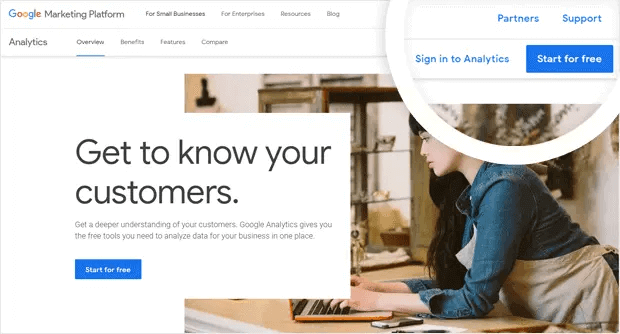
For at komme i gang skal du åbne Google Analytics-webstedet og klikke på knappen Start gratis i øverste højre hjørne af siden:
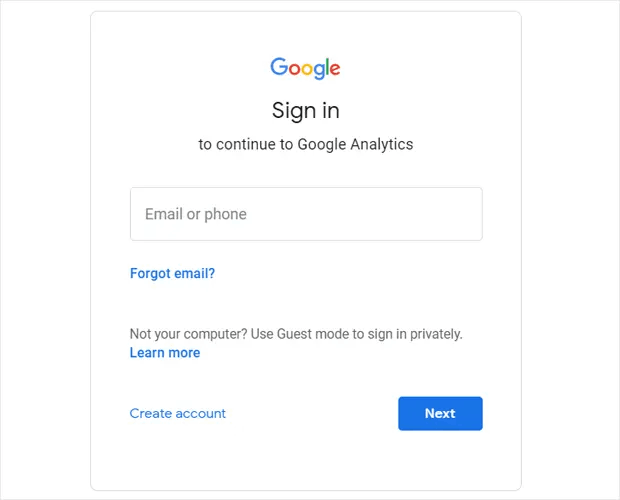
Og derefter, log ind med din Google-konto:
Trin #2: Opsæt din Google Analytics-konto
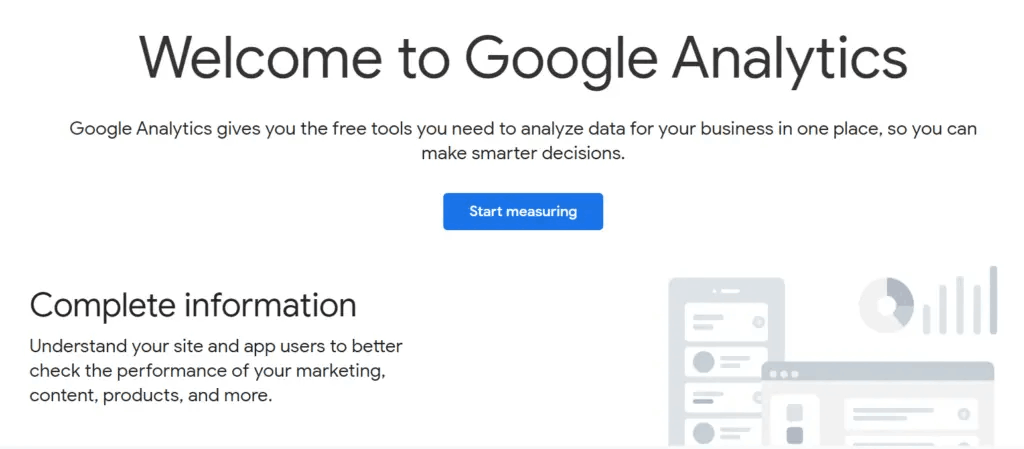
Når du logger ind med din Google-konto, vil du se en mellemliggende side, der hjælper dig med at oprette din Google Analytics-konto. Du ser kun dette første gang, du logger ind på din Google Analytics-konto. Klik på Start måling:
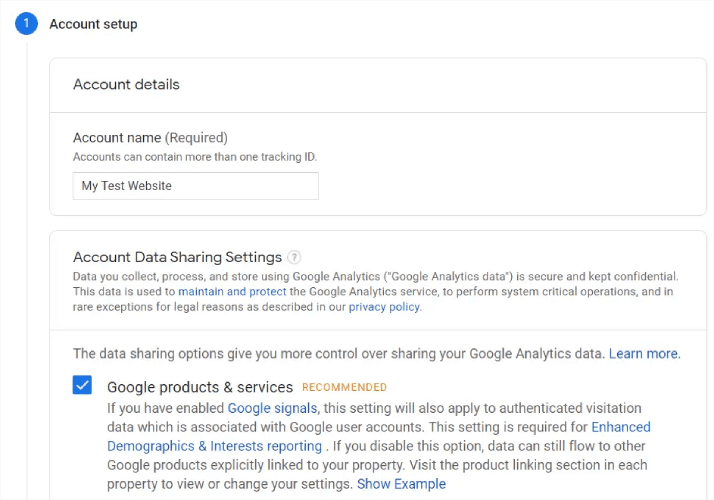
Udfyld dine grundlæggende kontooplysninger, og sørg for at dele dine data ved at klikke på afkrydsningsfelterne, før du trykker på Næste:
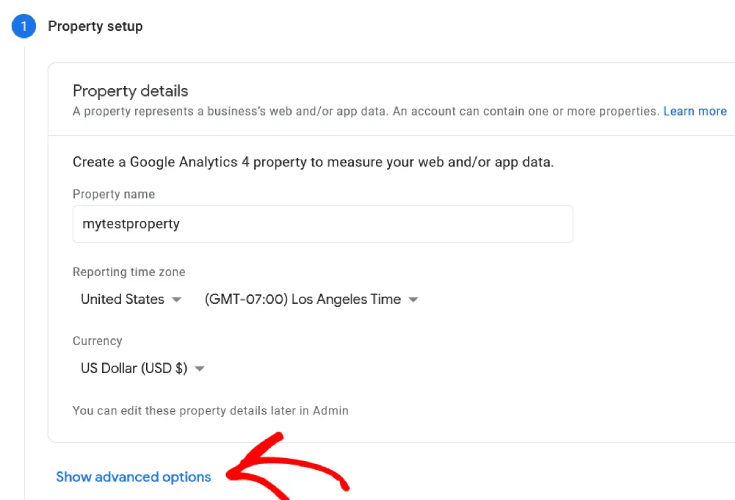
Dernæst skal du udfylde dine ejendomsoplysninger. Dette inkluderer normalt et websteds- eller appnavn, en rapporteringstidszone og din foretrukne valuta. Når du er færdig, skal du klikke på Avancerede indstillinger:
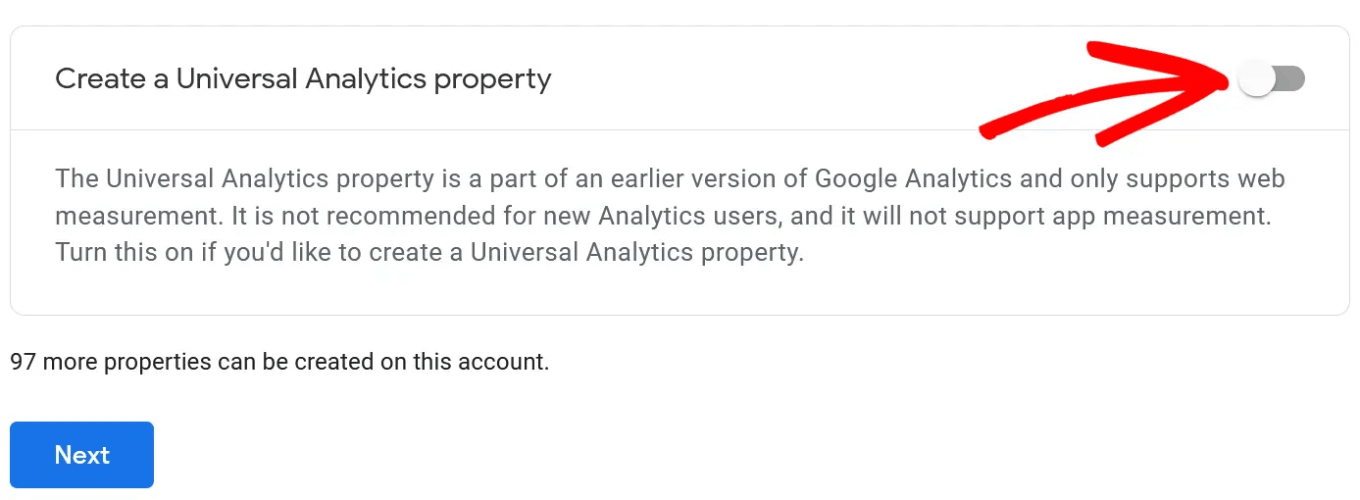
Og aktiver indstillingen Opret en Universal Analytics-ejendom:
Indtast derefter URL'en på dit websted, og sørg for at vælge indstillingen Opret kun en Universal Analytics-ejendom .
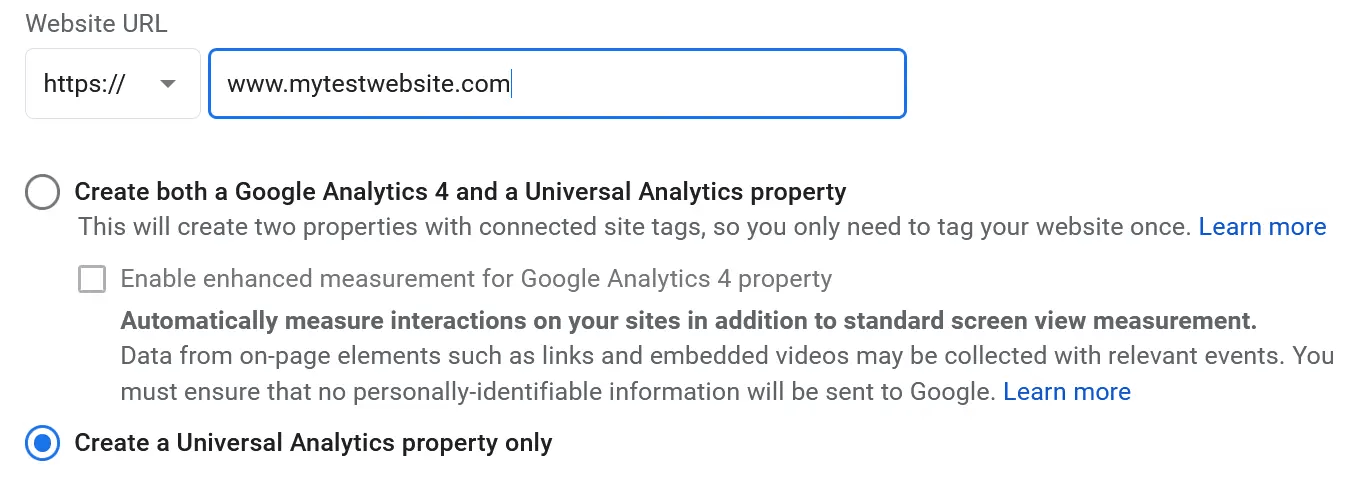
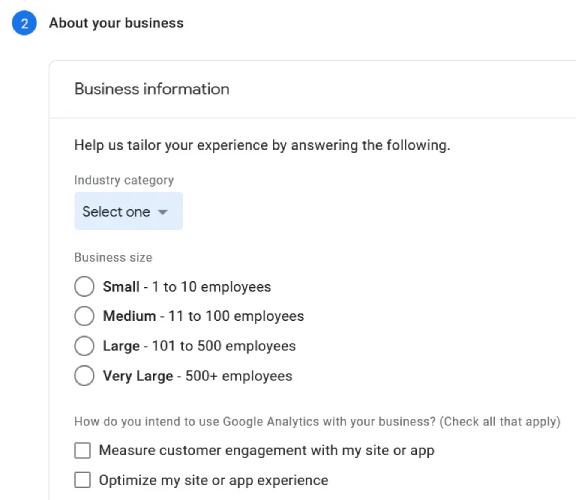
Aktivering af Universal Analytics sikrer, at du kan bruge andre sporingsplatforme og måle din annonceydelse nøjagtigt. Derefter skal du angive dine virksomhedsoplysninger:
Når det er gjort, er du næsten klar til at begynde at bruge Google Analytics. Da Google Analytics accepterer og indsamler brugerdata via dit websted, skal du acceptere deres GDPR-overensstemmelseserklæring og servicevilkår.
Og det er det! Du er færdig. Hvis du fulgte hvert trin nøjagtigt, bliver du omdirigeret til en side med din Google Analytics-sporingskode og -id:
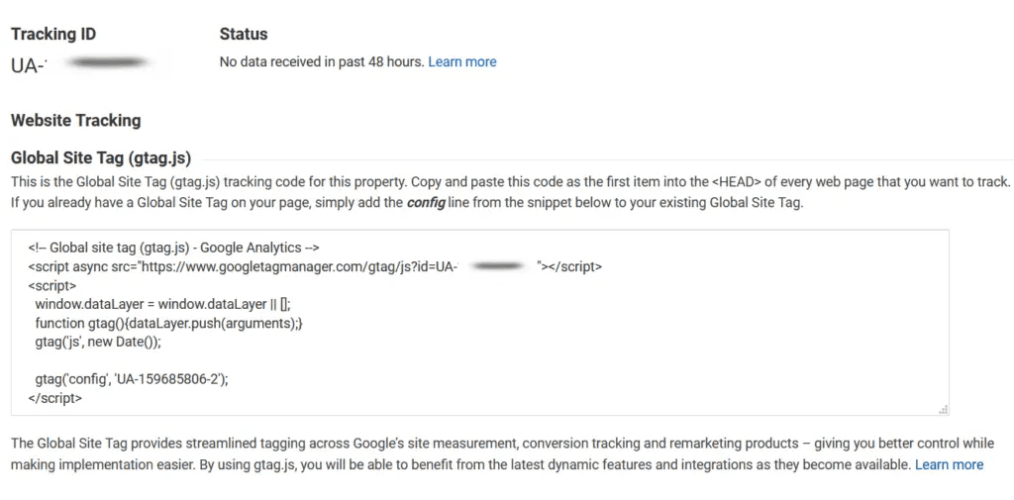
Nu er du klar til at installere sporingskoden på dit websted og begynde at få WordPress-analyse.
Sådan bruger du Google Analytics til at få WordPress-analyse
For at installere et WordPress-analysedashbord skal du kopiere din sporingskode og indsætte den i din websides HTML <head>-sektion. Eller du kan simpelthen bruge et Google Analytics-plugin til at få det gjort uden at bruge nogen kode.
Hvis du ikke har nogen erfaring med WordPress-udvikling, anbefaler vi kraftigt at bruge et af de bedste Google Analytics-plugins i stedet for at forsøge at opsætte alt manuelt.
Trin #1: Vælg et WordPress-analyseplugin
MonsterInsights er det #1 WordPress-analyseplugin. Vi har selv brugt pluginnet og anbefaler kraftigt at bruge MonsterInsights til at få WordPress-analyse.
Brug af MonsterInsights gør det super nemt at installere Google Analytics på et WordPress-websted. Desuden får du en masse seje funktioner, der giver dig mulighed for at få kraftfuld indsigt direkte inde i dit WordPress-dashboard.
Her er et hurtigt overblik over, hvad MonsterInsights kan gøre for dig:
- Google Analytics-sporing uden kode
- Kompatibel med enhver version af Google Analytics
- Rapporter til at finde top-performende indhold
- Detaljerede publikumsindsigter
- E-handelsanalyse
- Formular tilmeldingsanalyse
- Yderligere indsigter fra brugerdefinerede dimensioner
- Sporing af klik på affiliate-links
- GDPR-overholdelse
- Premium-integrationer
Hvis du har brug for at se nærmere på funktionerne, bør du virkelig tjekke vores anmeldelse af MonsterInsights.
Trin #2: Installer MonsterInsights-pluginnet
Fortsæt og installer og aktiver WordPress-pluginnet nu. Hvis du ikke er sikker på, hvordan du gør det, kan du se denne guide om installation af WordPress-plugins. Når det er gjort, skal du bruge opsætningsguiden til at komme i gang.
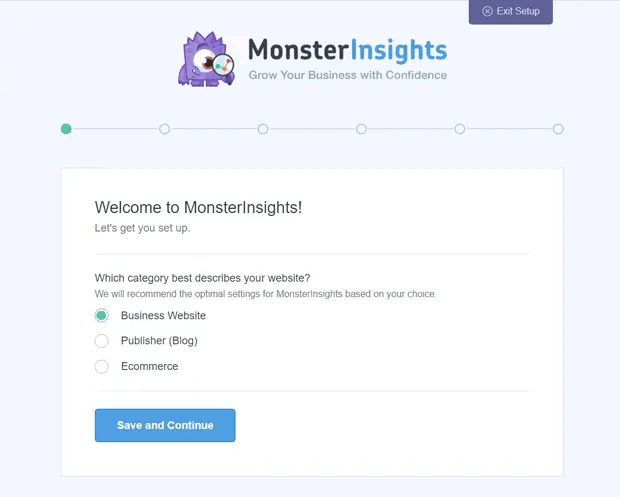
Begynd med at vælge din virksomhedskategori:
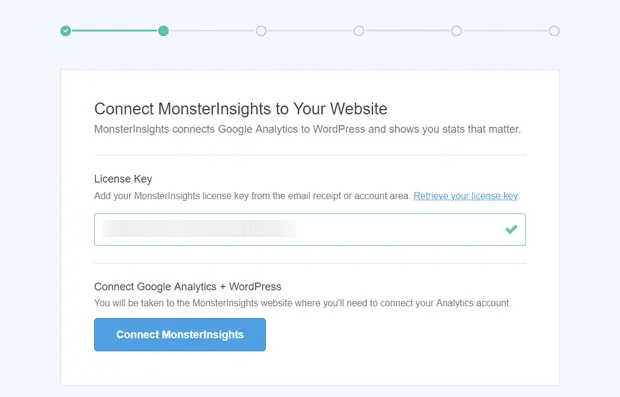
Forbind derefter din MonsterInsights-konto til dit websted ved at indtaste din licensnøgle:
Trin #3: Forbind din Google Analytics-konto med MonsterInsights
Efter aktivering af pluginnet vil du se en mulighed for at forbinde din Google Analytics med din MonsterInsights-konto. Log ind med den rigtige Google-konto for at fortsætte godkendelsen:
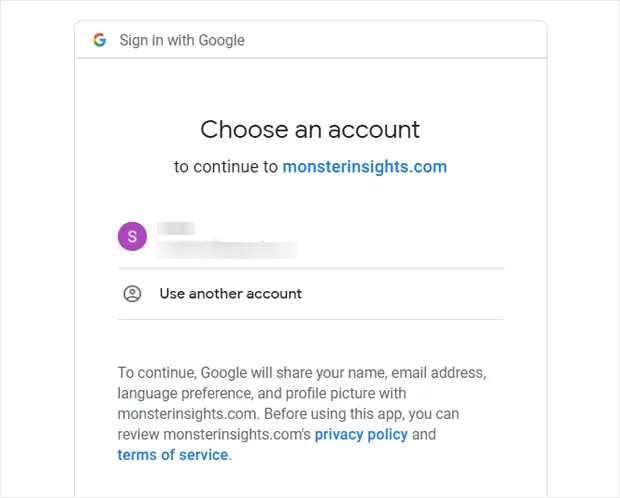
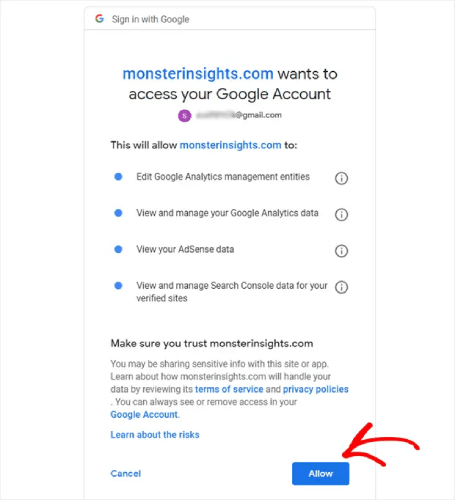
MonsterInsights vil bede om de korrekte tilladelser for at få adgang til din Google Analytics-konto. Klik på Tillad:
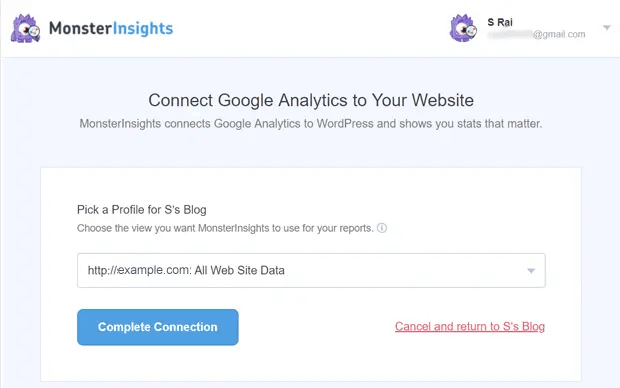
Hvis alt gik godt, vil du kunne vælge den Google Analytics-ejendom, der skal forbindes til MonsterInsights. Vælg den rigtige, og tryk på Gennemfør forbindelse:
Trin #4: Konfigurer MonsterInsights-pluginindstillingerne
Nu har MonsterInsights den korrekte adgang til din Google Analytics-konto og vil begynde at anbefale de optimale indstillinger for dig.
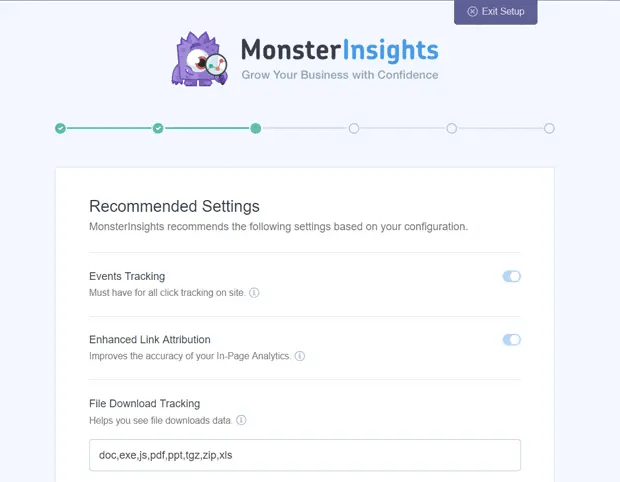
Disse vil for det meste omfatte:
- Begivenhedssporing
- Forbedret linkattribution
- Filoverførselssporing
- Sporing af affiliate-links
- Adgang til MonsterInsights' rapporter
- Automatiske plugin-opdateringer
Når du har gennemgået og konfigureret disse indstillinger, vil MonsterInsights anbefale, at du også installerer nogle addons:
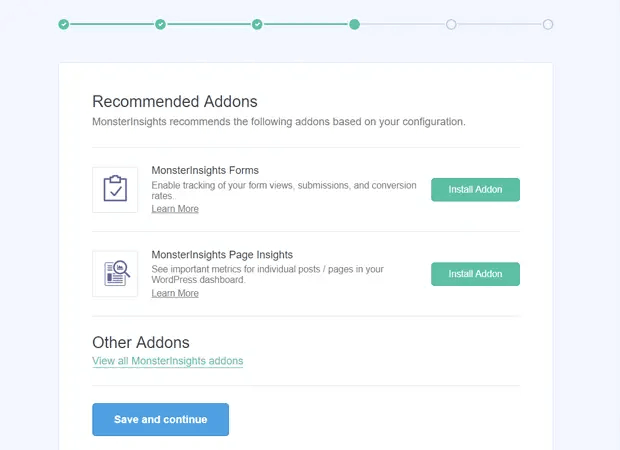
Og efter du har klikket på Gem og fortsæt, vil MonsterInsights anbefale installation af WPForms:
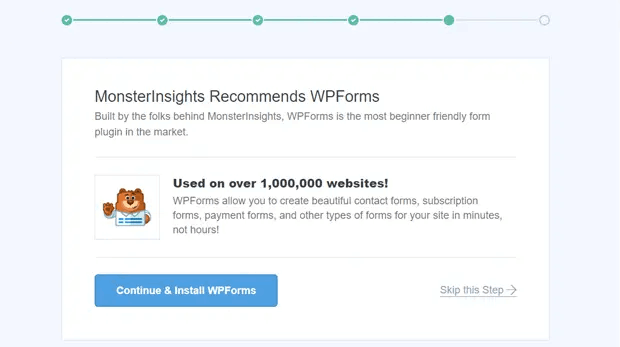
WPForms er den førende plugin til formularer i WordPress. Den kan hjælpe dig med at oprette kraftfulde formularer til din WordPress-side, uanset hvilken type virksomhed du driver. Vi anbefaler også at bruge WPForms.
Men for at vende tilbage til WordPress-analyse, er du færdig med opsætningen. Klik på Afslut opsætning & Afslut guide:
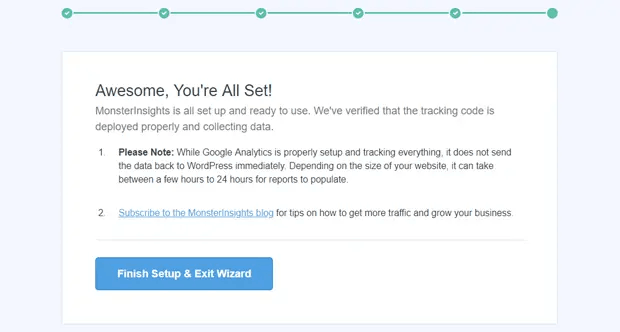
Og om 24 timer vil Google Analytics begynde at indsamle din sides trafikdata, og du vil kunne se den i dine rapporter.
Sådan ser du WordPress-analyserapporter i dit dashboard
Som vi nævnte før, giver MonsterInsights dig mulighed for at se dine Google Analytics-rapporter direkte inde i dit WordPress-dashboard:
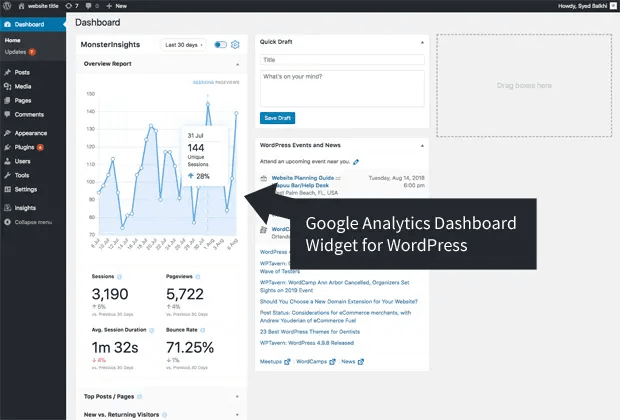
For at se de fulde rapporter skal du besøge Indsigt » Rapporter fra dit WordPress-dashboard. Der vil du se Oversigtsrapporten:
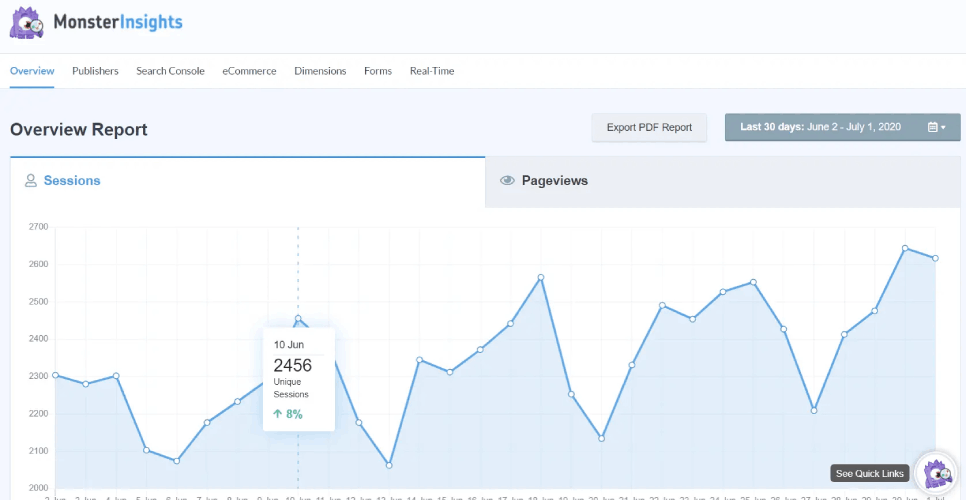
Selvfølgelig kan du også se de andre rapporter, hvis du har dem sat op. Hvis ikke, så tjek denne artikel om hvordan man opretter og bruger brugerdefinerede Google Analytics-rapporter.
Nogle af de metrics, du kan se fra dit dashboard, inkluderer:
- Top landingssider: Hvad er det mest populære indhold på din side?
- Link- og knapkliksporing: Hvilke links og knapper får flest klik?
- Søgeordsrapport: Hvilke søgetermer bruger folk, når de finder dit indhold?
- Formularindsendelsesrapport: Hvilke formularer får flest visninger og konverteringer?
Og meget mere!
Hvad du skal gøre, efter du har fået WordPress-analyse til dit websted
Det var alt for denne gang, folkens!
Hvis du lige er kommet i gang med WordPress-analyse, har du taget det første skridt til at øge din sides trafik, engagement og salg ved hjælp af datadrevne indsigter. Dernæst vil du finde måder at øge disse metrics på din side. Et godt sted at starte er at bruge push-notifikationer.
Push-notifikationer kan tjene som virkelig kraftfulde marketingværktøjer for enhver type virksomhed.
Tror du os ikke? Tjek disse fantastiske ressourcer:
- Sådan installeres webnotifikationer i WordPress
- Sådan opsætter du WordPress-formularsporing i Google Analytics
- Sådan giver du abonnenter besked om nye WordPress-indlæg
- Bedste WordPress Push Notification Plugins (Sammenlignet)
- Sådan bruger du push-notifikationer på WordPress uden et plugin
Vi anbefaler at bruge PushEngage til dine push-notifikationskampagner. PushEngage er den førende software til push-notifikationer i verden. Du kan oprette automatiserede push-notifikationskampagner, der tjener penge for dig, mens du sover. Og alt det fra et simpelt, intuitivt dashboard.
Så hvis du ikke allerede har gjort det, kom i gang med PushEngage i dag!


