
Leder du efter en måde at forbedre din produktsøgning i WooCommerce på?
WooCommerce er en fantastisk måde at bygge en skalerbar online butik på. Men deres produktsøgning er ærligt talt undervældende. Du kan gå glip af en masse salg bare på grund af standard produktsøgningen i WooCommerce.
Så hvad kan du gøre? I denne artikel vil vi guide dig igennem nogle meget enkle, nemme måder at forstærke WooCommerce produktsøgningen på uden at bruge en eneste linje kode. Og vi vil gøre det på 10 minutter eller mindre.
Lyder godt? Lad os dykke ned.
PushEngage er det #1 push-notifikationsplugin i verden. Få det gratis!
Hvorfor forbedre din produktsøgning i WooCommerce?
WooCommerce bruger standard WordPress-søgning lige ud af boksen. Og mens WordPress kommer med en masse gode funktioner, er deres søgefunktion ikke rigtig beregnet til e-handelsapplikationer.
For eksempel tager den ikke højde for produktegenskaber, giver dig ingen måde at styre dine søgeresultater på, indsamler ingen søgedata og meget mere. Vi anbefaler at bruge et WooCommerce produktsøgningsplugin til at forbedre din søgemaskines brugervenlighed.
Med det rigtige søgeplugin kan du søge resultater fra:
- Brugerdefinerede felter (post metadata) inklusive ACF-felter
- E-handels produktdetaljer, variationer og attributter
- Kategorier, tags, brugerdefinerede taksonomier
- Shortcode-udgange
- Uploadede dokumenter (PDF, .docx, .txt osv.)
- Brugerdefinerede database tabelindhold
Og selvfølgelig kan du også søge i posttitler og indhold.
Et alternativ ville være at bruge et AJAX-produktsøgning-plugin inde i dine produktsider. Et AJAX-søgeplugin fungerer som Amazons autoudfyldning på dit websted. Men hvorfor nøjes med det, når du kan oprette en brugerdefineret søgemaskine på dit websted?
Når en besøgende søger efter noget på dit websted, fortæller de dig bogstaveligt talt præcis, hvad de vil have fra dig. Men de fleste WordPress-søgefelt kan simpelthen ikke køre dybe søgninger. Og de kan helt sikkert ikke hjælpe dig med at forstå, hvad dine besøgende søger efter.
Du skal begynde at bruge et søgeplugin, der kan hjælpe dig med at bygge en brugerdefineret søgemaskine, der leverer kontekstuelle søgeresultater til dine webstedsbesøgende.
Vi anbefaler at bruge SearchWP.
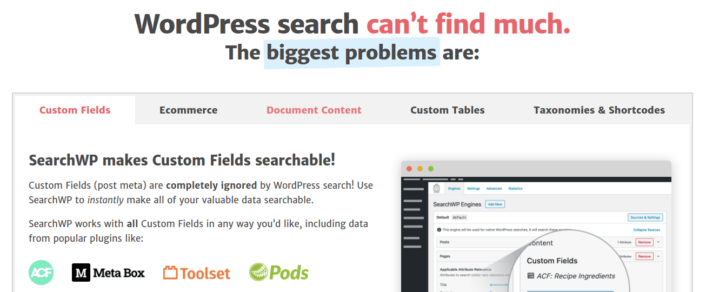
SearchWP er et af de bedste WooCommerce søgeplugins, vi kender.
Du får et stort udvalg af funktioner til en overkommelig pris. Faktisk gør SearchWP alt, hvad alle de andre plugins på listen kan, udover at oprette et produktfilter.
Det fedeste er, at SearchWP fortæller dig præcis, hvad dine webstedsbesøgende leder efter ved at vedligeholde detaljerede analyser. Så det hjælper dig også med at oprette indhold, som dit websted mangler i øjeblikket, og få mere trafik, engagement og salg på dit websted.
Læs vores fulde anmeldelse af SearchWP, og når du er færdig, skal du gå videre og installere pluginnet.
Sådan opsætter du SearchWP og opgraderer din produktsøgning i WooCommerce
SearchWP er langt et af de nemmeste søgeplugins at opsætte og bruge. Efter du har downloadet og installeret pluginnet, får du en installationsbekræftelse:

Derefter kan du gå til Indstillinger » SearchWP for at opsætte dit plugin. Og klik derefter på menupunktet 'Licens':
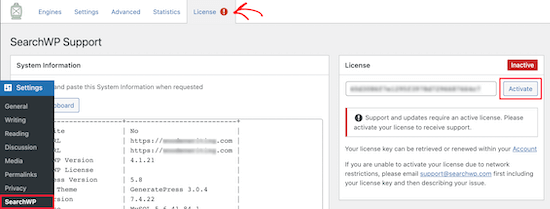
Indtast din licensnøgle i feltet 'Licens' og klik på knappen 'Aktivér':
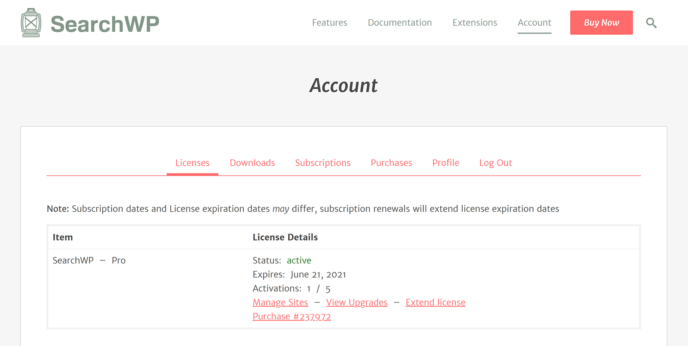
Vi vil tale mere om indstillingerne snart. Men det er bogstaveligt talt alt, hvad du behøver at gøre for at komme i gang.
Med SearchWP skal du oprette en webstedsomfattende søgemaskine, før du kan tilpasse din søgning yderligere.
Gå til Indstillinger » SearchWP » Søgemaskiner:
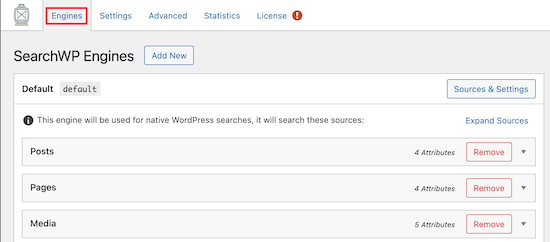
Du kan justere dine søgemaskineindstillinger ved at inkludere forskellige indholdstyper ved at klikke på deres rullemenuer. Og du kan styre, hvor meget relevans din søgemaskine tildeler hver indholdstype ved hjælp af skyderen:
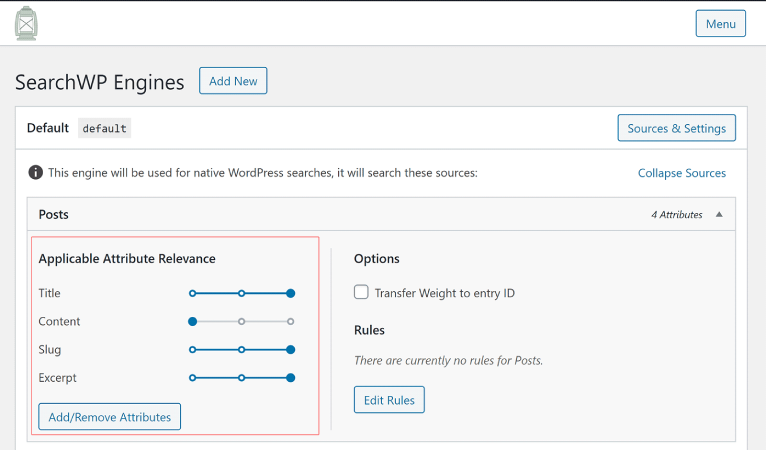
I vores eksempel værdsætter vi Posttitel, Slug og Uddrag højere end selve indholdet med hensyn til relevans for søgeresultater.
Når du er færdig, skal du blot trykke på ‘Gem‘.
En virkelig sej ting ved søgemaskinen, du lige har oprettet, er det faktum, at den bruger nøgleordsstamning frem for eksakte søgetræffere. Hvad dette betyder er, at dine brugere kan søge efter dit indhold på enhver måde, de ønsker, og de vil få kontekstuelt relevante resultater, selvom dit indhold ikke indeholder den eksakte søgefrase!
Sådan forstærker du produktsøgningen i WooCommerce
Lad os nu se på, hvad vi kan gøre for at forbedre produktsøgningen i WooCommerce.
#1. Begræns produktsøgningen i WooCommerce til WooCommerce-produkter
Når du har installeret og aktiveret SearchWP-pluginnet, er det første, du vil gøre, at begrænse produktsøgeresultaterne til kun at omfatte WooCommerce-produkter i stedet for at vise enhver posttype.
For at komme i gang skal du klikke på knappen Kilder & Indstillinger under Motorer.
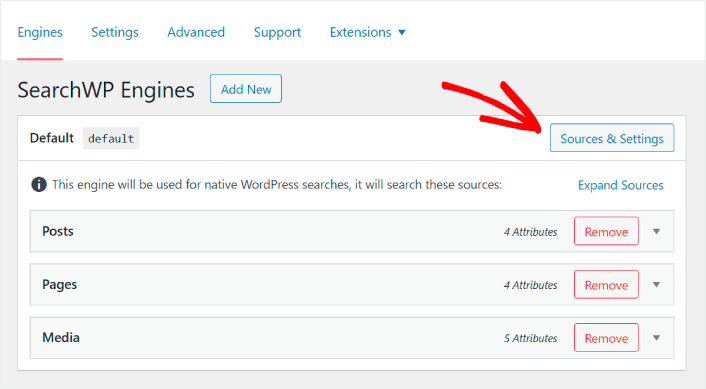
Her skal du fjerne markeringen i afkrydsningsfelterne ud for alle søgekilder undtagen Produkter.
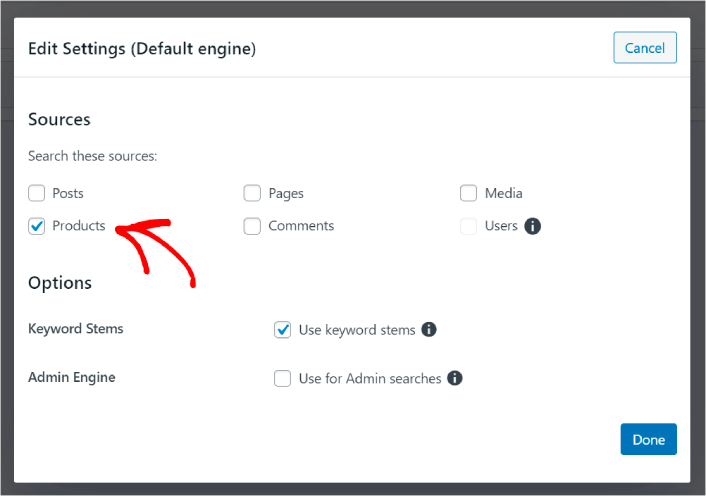
Når du er færdig, skal du trykke på knappen Udført for at gemme ændringerne. Og du er færdig!
#2. Aktiver søgning efter produktegenskaber
Lad os også gøre produktegenskaber for alle WooCommerce-produkter søgbare. WooCommerce gemmer alligevel disse egenskaber som brugerdefinerede felter. Vi vil bare gøre dem søgbare.
Du har allerede opsat en søgemaskine til produkter. Så du kan blot fortsætte fra det sidste trin. Klik på knappen Tilføj/Fjern attributter for at tilføje brugerdefinerede felter.
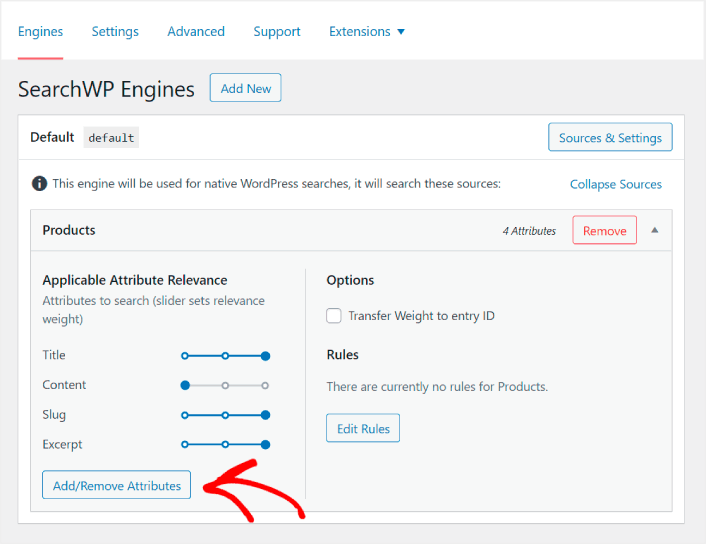
Vælg derefter i rullemenuen Brugerdefinerede felter indstillingen Nøgle til brugerdefineret felt .
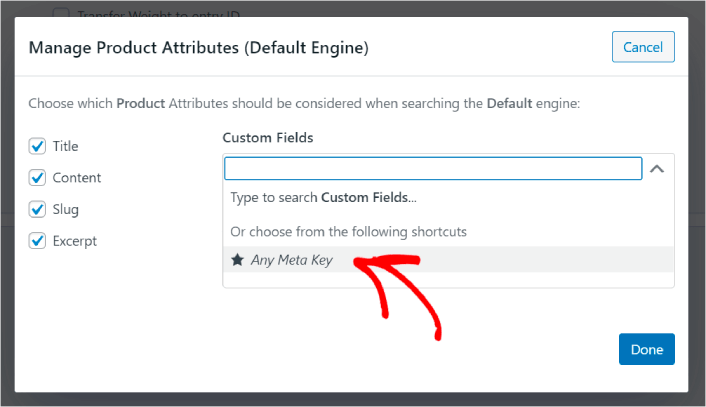
Dette giver dig mulighed for automatisk at gøre brugerdefinerede felter søgbare. Og nu kan din produktsøgemaskine søge efter brugerdefinerede felter som produktegenskaber.
#3. Aktiver søgning efter produktkategori
Du har allerede set, hvordan du gør produktegenskaber søgbare. Men hvad med kategorier? Hvad hvis dine kunder ikke søger efter et produkt, men leder efter noget i en bestemt kategori?
Det er nemt. Fortsæt blot fra det forrige tip. På samme skærm under Administrer produktegenskaber ser du en anden rullemenu med etiketten Taksonomier. Vælg blot Produktkategorier fra listen.
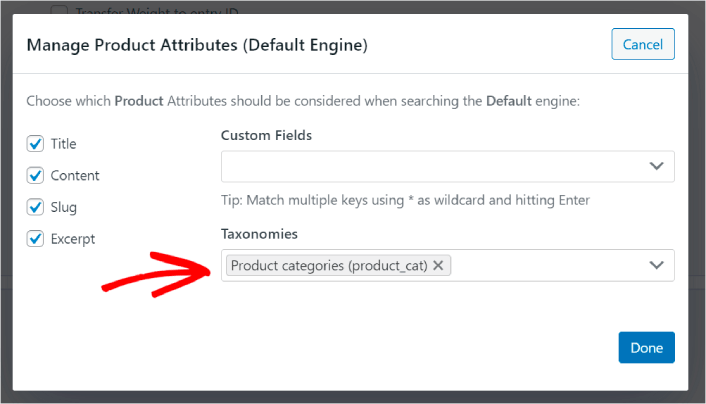
Og nu vil din søgemaskine give brugerne mulighed for at søge efter kategori.
#4. Aktiver søgning efter produktmærker
Du er ikke færdig endnu. På samme skærm kan du tilføje endnu flere taksonomier i rullemenuen Taksonomier. Hvad hvis dine kunder ikke leder efter et produkt eller en overordnet kategori? Hvad hvis de ikke ved, at de vil have blå og hvide Air Jordans eller endda sneakers, men i stedet leder efter blå og hvide sneakers?
Det er da, du skal aktivere søgninger efter produktmærker.
Under Taksonomier skal du også vælge Produktmærker.
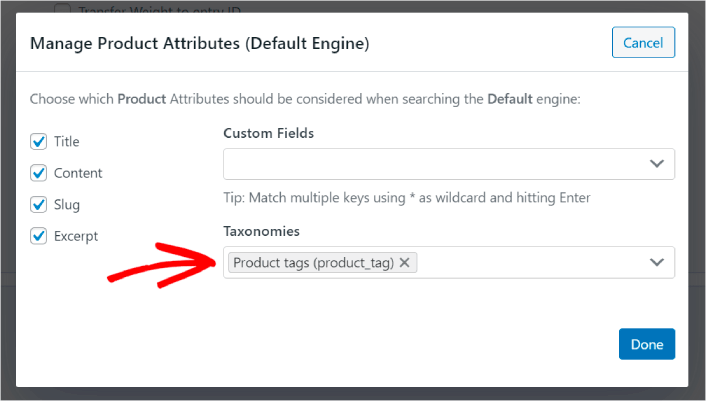
At lade din produktsøgning i WooCommerce også tage højde for produktmærker giver den en helt ny måde at søge efter produkter på. Ikke at nævne, det hjælper også dine kunder med at finde det, de leder efter, meget hurtigere.
#5. Gør produkt-SKU'er søgbare
Endelig vil vi tilføje et sidste brugerdefineret felt til søgemaskinen for at supercharge den. Vi vil også tillade søgninger efter produkt-SKU'er. Stock Keeping Units (SKU'er) er en måde for e-handelsvirksomheder hurtigt at identificere forskellige produkter eller endda lignende produkter.
I en detailforretning er SKU'en normalt en stregkode. På denne måde identificerer du hurtigt produktvarianten, størrelsen, prisen, farven, typen og producenten uden overhovedet at se på produktet.
Mest bruges SKU'er til lagerstyring i WooCommerce. Men det er også almindelig praksis for dropshipping, affiliate og detailwebsteder at vise SKU'en for deres produkter i produktbeskrivelsen.
Så for at gøre produkt-SKU'er søgbare, alt hvad du behøver at gøre er at tilføje et andet Brugerdefineret felt til dine Produktegenskaber-indstillinger. Skriv blot ' _sku', og SearchWP vil automatisk tage sig af resten.
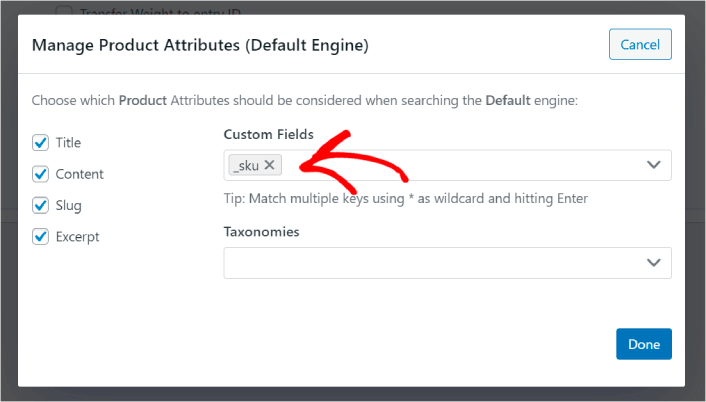
Og du er klar til at gå!
Hvad skal du gøre efter at have forbedret produktsøgningen i WooCommerce
Nu hvor du har forbedret produktsøgningen i WooCommerce, er alle dine produkter klar til at tjene dig penge. Det er tid til at fokusere på at bringe trafik, engagement og salg fra dit indhold næste gang.
Og hvis du leder efter nye måder at få trafik, engagement og salg på, kan push-notifikationer være super nyttige for dit websted.
Hvis du ikke er 100% overbevist, bør du tjekke disse ressourcer om, hvordan du effektivt bruger push-notifikationer:
- 7 Smarte Strategier til at Øge Kundeengagement
- Er Push-notifikationer Effektive? 7 Statistikker + 3 Eksperttips
- Sådan opsættes push-meddelelser om forladte indkøbskurve (nem vejledning)
- Sådan tilføjer du et Web Notifications WordPress-plugin til dit websted
Vi anbefaler at bruge PushEngage til at oprette dine push-notifikationskampagner. PushEngage er den #1 push-notifikationssoftware i verden. Så hvis du ikke allerede har gjort det, så kom i gang med PushEngage i dag!


