
Leder du efter en hurtig og nem måde at bruge dynamisk segmentering til push-kampagner på?
Det er den værste følelse i verden, når du får push-notifikationer, der simpelthen ikke er relevante for dig. Forestil dig, at du lige har købt et Spotify-abonnement og stadig fik push-notifikationer fra Spotify om at opgradere til deres Premium-plan. Det ville være rigtig irriterende, ikke?
Her er chokket: Dette sker meget oftere, end du måske tror. Og ikke kun med små virksomheder.
Hvad der skete i det tilfælde, var, at Spotify glemte at fjerne dig fra segmentet 'gratis brugere' og flytte dig ind i deres segment 'betalende brugere'. Selvfølgelig kan det være en reel plage at gøre det manuelt. Så du er nødt til at bruge dynamisk segmentering til din virksomhed, så du ikke gør det samme ved dine abonnenter.
Heldigvis er der en nem måde at dynamisk segmentere push-abonnenter på. I denne artikel vil vi hjælpe dig med at gøre det på mindre end 15 minutter.
Er du klar? Lad os dykke ned.
Hvorfor bruge dynamisk segmentering til push-kampagner?
Dynamisk segmentering er en super smart måde at sende beskeder til folk via apps og web push-notifikationer.
I stedet for at sende den samme besked til alle, kan du bruge dynamisk segmentering til at sende beskeder, der passer til hver persons interesser og handlinger. Det er som at have en samtale, der kun handler om, hvad du kan lide, og hvad du laver!
Her er grunden til, at det er fantastisk:
- Det er personligt: Forestil dig at få en besked, der kun er til dig, og som handler om ting, du virkelig kan lide. Dynamisk segmentering gør beskeder specielle for hver person, hvilket er meget mere spændende.
- Det giver mening: Har du nogensinde fået en besked, der føles tilfældig? Med dynamisk segmentering matcher beskeder det, du laver lige nu. Så hvis du kiggede på sko, kunne du få en besked om sko – ikke noget helt andet.
- Ting lige nu: Det er som at have en samtale, der ved, hvad du laver lige nu. Hvis du lagde noget i din online indkøbskurv, men ikke købte det, kan dynamisk segmentering minde dig om det senere.
- Vækker din interesse: Når beskeder føles som om, de kun er til dig, er du mere tilbøjelig til at læse dem og endda klikke på dem. Det er som at få en besked fra en ven – du vil gerne se, hvad de siger!
- Prøv nye ting: Forestil dig, hvis en besked fortalte dig om noget, du måske virkelig ville kunne lide, baseret på hvad du har gjort før. Dynamisk segmentering hjælper dig med at opdage seje ting, du måske ikke selv ville have fundet.
- Ingen irriterende ting: Har du nogensinde følt dig irriteret over for mange beskeder? Med dynamisk segmentering får du kun beskeder, når de er vigtige for dig. Så, ikke flere irriterende notifikationer!
- Finder dig, hvor du er: Hvis der sker noget sejt i nærheden af dig, kan dynamisk segmentering fortælle dig om det. Som en pop-up koncert eller en lækker foodtruck – ting, du ikke ville gå glip af!
- Hjælper dig med at købe mere: Hvis du køber noget, kan dynamisk segmentering foreslå noget andet, der passer til det. Ligesom hvis du fik en ny telefon, kunne den foreslå et sejt cover til at beskytte den.
- Holder dig glad: Når beskeder føles som om, de kun er til dig, er du mere tilbøjelig til at nyde at bruge appen. Det er som at have en hjælpsom ven, der ved, hvad du kan lide.
Så dynamisk segmentering er som magi til at sende beskeder. Det gør dem specielle, nyttige og lige til dig. Og det er super nemt at gøre med push-kampagner.
Sådan segmenteres push-abonnenter dynamisk
Nu hvor du ved, hvad dynamisk segmentering er, og hvorfor du bør gøre det, lad os komme i gang med, hvordan du kan få det gjort. Før du kommer i gang, skal du huske, at dynamisk segmentering for push-abonnenter kun virker, hvis du har push-abonnenter.
Hvis du ikke allerede indsamler push-abonnenter, skal du stoppe med at gå glip af det lige nu. Vi anbefaler, at du bruger PushEngage til at begynde at indsamle push-abonnenter lige nu.

PushEngage er verdens førende plugin til push-notifikationer.
Push-notifikationer hjælper dig med at øge din webtrafik og dit engagement automatisk. Og hvis du driver en onlinebutik, hjælper PushEngage dig også med at øge dit salg ved at hjælpe dig med at oprette automatiserede e-handels-push-notifikationer.
Du kan komme i gang gratis, men hvis du er seriøs omkring at vækste din forretning, bør du købe en betalt plan. Før du køber en push-notifikationstjeneste, bør du også se denne guide til priser på push-notifikationer.
Her er et hurtigt overblik over, hvad du får med PushEngage:
- Højtkonverterende automatiserede kampagner
- Flere målretnings- og kampagneplanlægningsmuligheder
- Målsporing og avanceret analyse
- Intelligent A/B-test
- En dedikeret succesmanager
Du vil se, at PushEngage uden tvivl er det bedste valg, hvis du vil opbygge trafik, engagement og salg for din virksomhed. Og hvis du har et stramt budget, kan du altid være lidt kreativ med dine push-notifikationer.
Og meget mere!
Trin #1: Installer og aktiver PushEngage
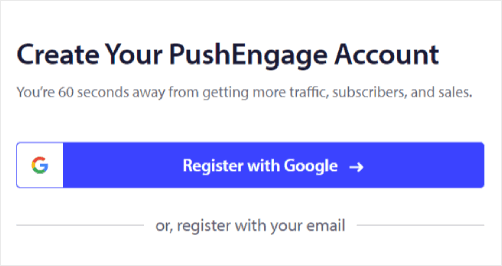
Nu er det tid til at oprette din PushEngage-konto. Start med at tilmelde dig med en e-mailadresse eller et Gmail-id:
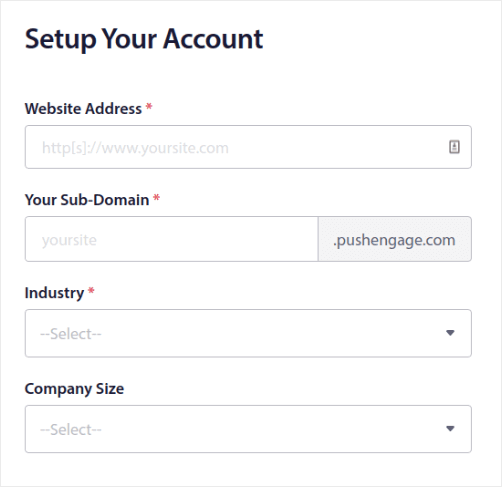
Udfyld derefter dine kontooplysninger:
Og tilføj dine kreditkortoplysninger for at købe din plan:
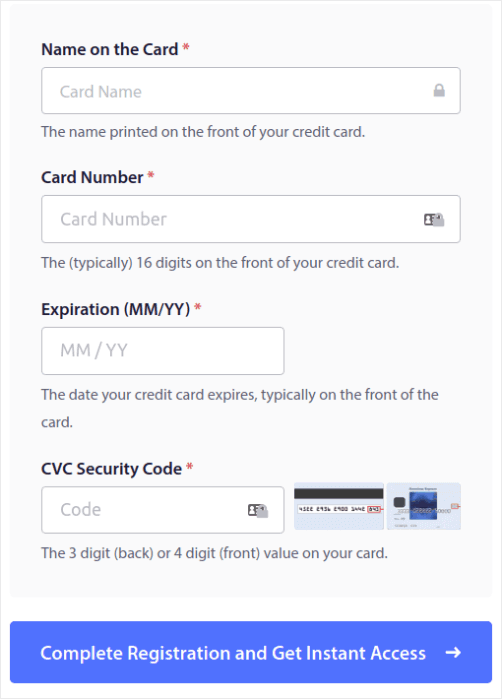
Hvis du valgte gratis kontoen, vil dit kreditkort aldrig blive opkrævet penge, før du vælger at opgradere din plan. Og nu er du klar til at få adgang til dit PushEngage-dashboard. Klik blot på Gennemfør registrering og få øjeblikkelig adgang.
Hvis du har brugt OneSignal eller PushAlert før, vil du se, at PushEngage giver dig en meget renere oplevelse fra dashboardet. OneSignal-dashboardet er ikke beregnet til avancerede kampagner. Til det skal du bruge API'en mere end OneSignal-pluginet.
Trin #2: Installer WordPress-pluginnet til webenoter
BEMÆRK: Hvis du ikke kører en WordPress-side, bør du tjekke vores installationsvejledninger for at komme i gang. Og hvis du kører en WordPress-side, installer et WordPress-plugin til webenoter.
Du er færdig med at oprette din konto. Så gå til PushEngage-dashboardet og følg med:

Klik på Sideindstillinger » Sideoplysninger og klik på knappen Klik her for opsætningsinstruktioner:

Klik på fanen WordPress og klik på knappen Installer PushEngage WordPress Plugin for at installere pluginet på din hjemmeside.

Her er den fede del: Da du oprettede din PushEngage-konto, synkroniserede du allerede din hjemmeside med din PushEngage-konto. Så klik på installationslinket i PushEngage-dashboardet for automatisk at installere PushEngage WordPress-pluginet på din hjemmeside.
Trin #3: Forbind din WordPress-hjemmeside med PushEngage
Når du er færdig med at installere og aktivere PushEngage WordPress-pluginet, vil du se PushEngage-guiden:
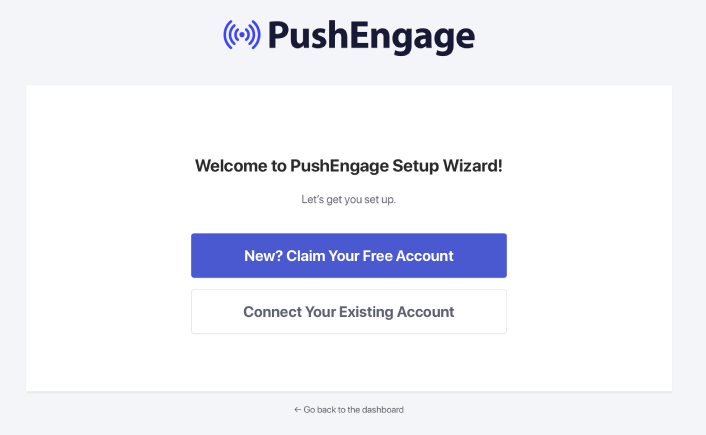
Guiden er ret ligetil. Hvis du er ny bruger, skal du klikke på Ny? Gør krav på din gratis konto. Og hvis du allerede har tilmeldt dig, skal du klikke på Forbind din eksisterende konto.
Dernæst kan du vælge din side fra rullemenuen Vælg en side under Forbind en registreret side, hvis du allerede har registreret en side under tilmelding:
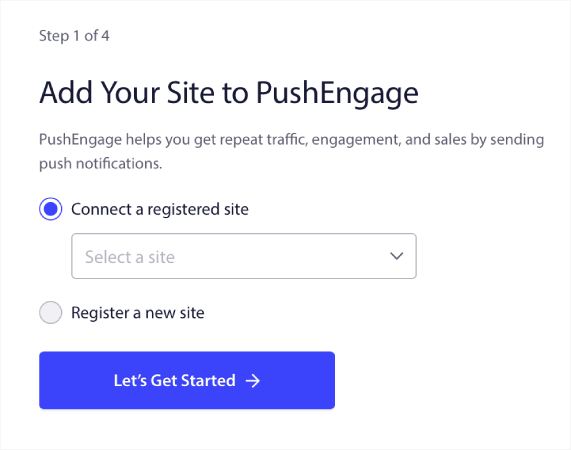
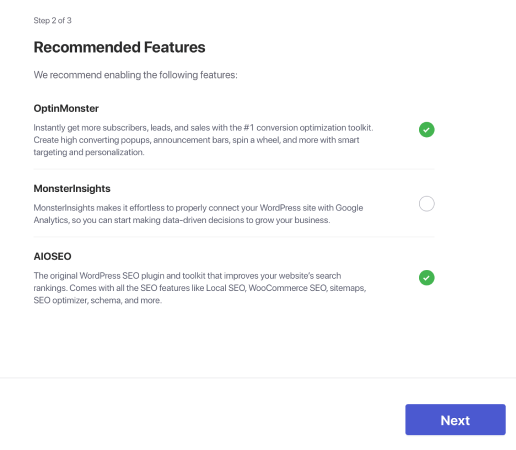
Eller du kan klikke på Registrer en ny side for at tilføje en ny side, hvis du har en Premium prisplan eller højere. I næste trin vil guiden bede dig om at installere andre nødvendige WordPress-plugins.
Du vil se denne succesmeddelelse fra guiden, hvis du fulgte alle trin korrekt:
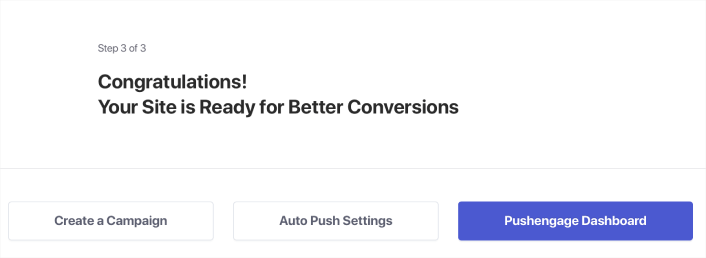
Du er nu klar til at oprette kampagner og push-underretningspop op-modaler.
Trin #4: Opret et dynamisk segment til dine push-kampagner
Før du opretter en kampagne, bør du opsætte segmenter og målgruppegrupper for at sende personlige push-beskeder.
Intet slår niveauet af personalisering, du kan opnå ved at oprette segmenter og målgruppegrupper til dine push-notifikationsabonnenter. Gå til PushEngage » Audience og begynd at oprette segmenter og målgruppegrupper med det samme.
Under fanen Segments kan du oprette nye segmenter eller redigere eksisterende:
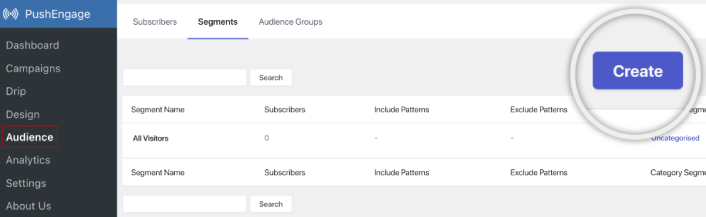
Sørg for at oprette et nyt segment og give det det navn, du ønsker. I vores eksempel går vi med "Seneste konverteringer" som navn til vores segment. Du kan navngive det, hvad du vil.
BEMÆRK: Før du tilføjer den dynamiske segmenteringskode på din landingsside, skal du oprette et segment med samme navn som det i din kode. Hvis navnene ikke stemmer overens, vil den kodestykke ikke fungere.
Trin #5: Tilføj den dynamiske segmenteringskode til din takkeside
Hvis din hjemmeside endnu ikke har en takkeside, så gå videre og opret en. På din takkeside skal du tilføje en HTML-blok. Tilføj derefter denne kode til din HTML-blok:
<script>
var days = 15;
window._peq.push(["add-to-dynamic-segment", "Recent Conversions", days]);
</script>
Du kan bruge den dynamiske segmenteringskodestykke til at tilføje abonnenter, der landede på takkesiden, til et segment kaldet "Seneste konverteringer". Det sejeste er, at hver abonnent kun forbliver der i 15 dage.
Se på denne del af koden, der siger:
var days =15;Den ene linje bestemmer, hvor længe dine abonnenter vil være i det segment, når de besøger den side. Hvis du redigerer den linje, kan du indstille den til et hvilket som helst brugerdefineret dagsinterval, du ønsker. Og når det dagsinterval er ovre, fjernes dine abonnenter automatisk fra det segment og sendes til et segment af alle abonnenter. Hvis de også er abonneret på andre segmenter, forbliver det uændret.
Se nu på denne del af koden, der siger:
window._peq.push(["add-to-dynamic-segment", "Recent Conversions", days]);Her kan du ændre navnet på dit segment. Du skal blot erstatte "Seneste konverteringer" med navnet på dit segment.
Du kan også oprette dynamiske segmenter til ENHVER landingsside, du ønsker. Så det er ikke sådan, at du kun kan sende e-handels push-notifikationer som denne:
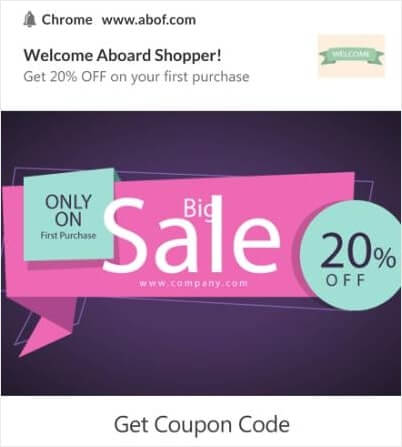
Tænk på almindelige konverteringer på ethvert websted. Du kan prøve at sende en gratis e-bog til et dynamisk segment:
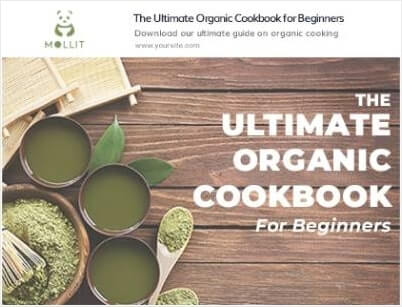
Eller endda sende affiliate-tilbud til et specifikt segment:
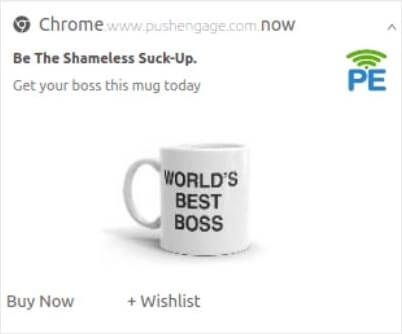
Send webinarinvitationer:
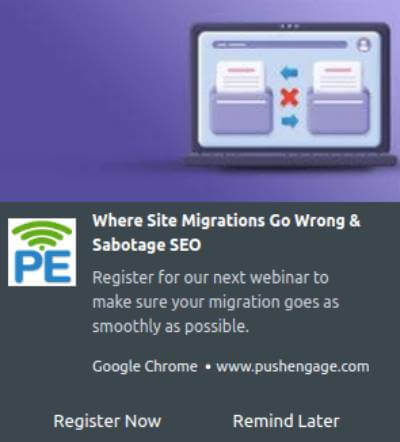
Og send endda indholdsanbefalinger:
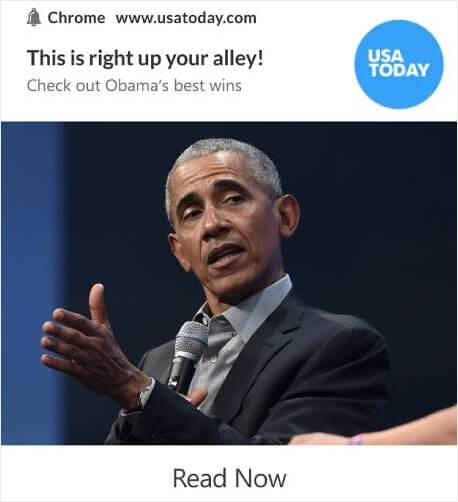
De næste par dele af denne artikel handler om at få mest muligt ud af dine dynamiske segmenter. Men hvis du har brug for inspiration til dine push-kampagner, kan du se denne liste over push-notifikationseksempler.
Sådan opretter du en målrettet push-notifikationskampagne
Gå til PushEngage dashboard og gå til Campaign » Drip Autoresponders og klik på Create New Drip Autoresponder:

Navngiv derefter din kampagne (vi foreslår noget som "Velkomst Drip"), og under Content, vælg muligheden "Send notification immediately after user subscribes“:

På dette tidspunkt kan du klikke på pilen ved siden af notifikationen for at redigere indholdet af din notifikation.
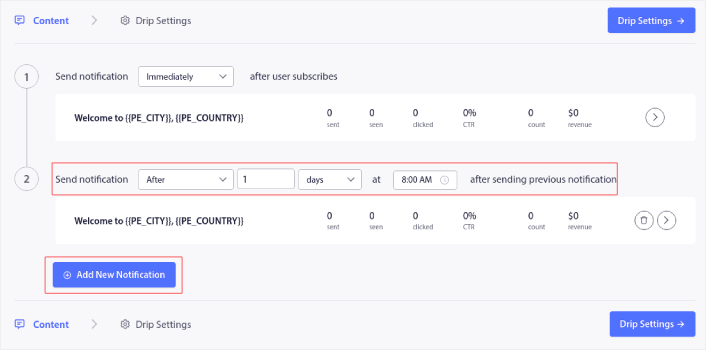
Hvis du har en Premium- eller Enterprise-plan med PushEngage, vil du kunne tilføje mere end én notifikation for at oprette en sekvens af automatiserede velkomstbeskeder. Klik blot på Add New Notification og rediger indholdet.
Når du er færdig, skal du klikke på Drip Settings og vælge muligheden for at sende din velkomstkampagne til alle abonnenter:

Rul derefter ned for at indstille dine egne UTM-parametre for at spore push-notifikationerne:

Og når du er færdig, rul op igen og klik på knappen Activate Autoresponder:

Og du er færdig!
Sådan sender du en målrettet push-notifikationsudsendelse
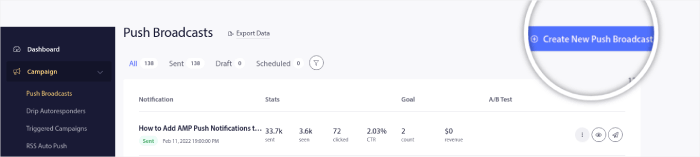
Gå til dit PushEngage dashboard og gå til Campaign » Push Broadcasts og klik på knappen Create a New Push Broadcast:
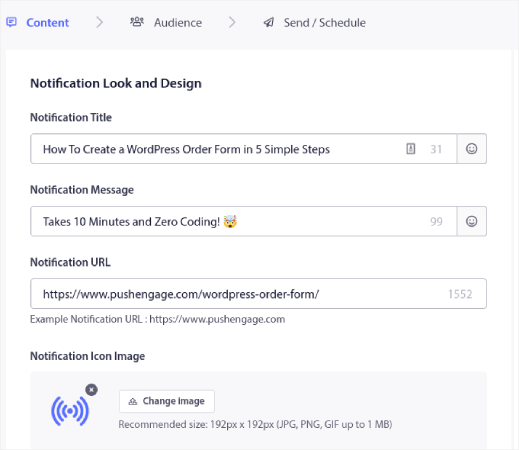
Under fanen Content, tilføj dit push-notifikationsindhold:
Og du kan opsætte en A/B-test for at øge dine klikrater, eller du kan planlægge dine push-udsendelser for at få flere visninger. I begge tilfælde bør du tjekke vores bedste praksis for push-notifikationer for de bedste resultater.
Sådan opretter du popup-modalvinduer til push-notifikationer
En push-notifikations popup-modal er et lille vindue, der vises oven på en hjemmeside eller mobilapp-grænseflade for at vise en besked eller notifikation til hjemmesidebesøgende.
Popup-modellen kan udløses af forskellige begivenheder. Du kan opsætte popups, der udløses ved sidebesøg, ved scroll-dybde og endda ved brugerdefinerede handlinger som f.eks. klik på knap.
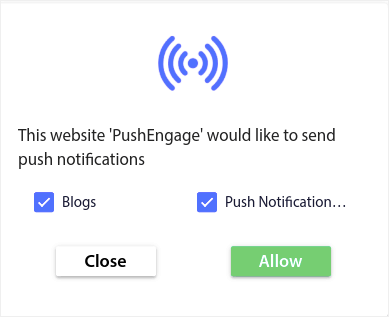
Normalt vil du se en opfordring til handling på popup-modellen, såsom "Abonner" eller "Tillad" for at få samtykke fra besøgende til at sende dem push-notifikationer. Hvis du følger denne vejledning, kan du oprette en popup som denne:
Du kan oprette popup-modalvinduer, der kan segmentere abonnenter direkte, eller oprette almindelige popups, der blot indsamler abonnenter med standardattributter som geolokation og browser.
Gå tilbage til dit WordPress-dashboard. Gå til PushEngage » Design:
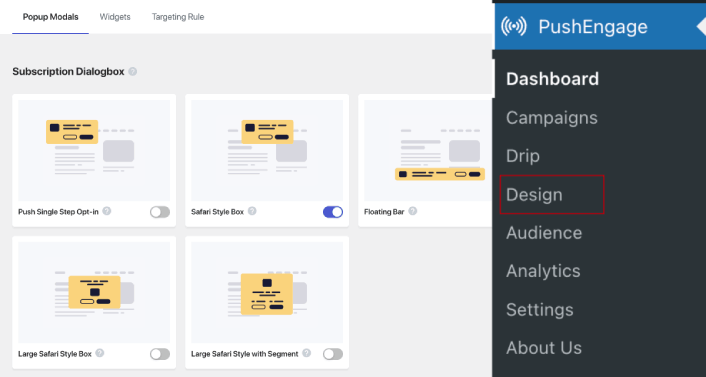
Og du kan opsætte så mange popup-modalvinduer, som du ønsker. Selvfølgelig kan du sørge for, at de udløses på forskellige tidspunkter under Visningsindstillinger for hvert popup-modalvindue.
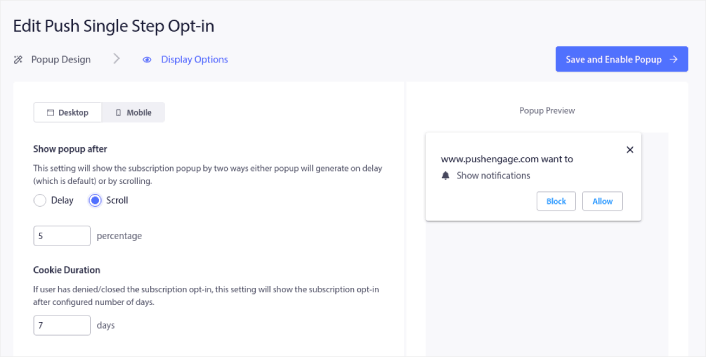
Idéen her er at give dine besøgende en solid grund til at abonnere. Hvis du har brug for hjælp til det, kan du se vores artikel om hvordan man opretter en brugerdefineret push-notifikations-opt-in.
Og hvis du vil oprette mere målrettede popup-modalvinduer, kan du bruge målretningsreglerne under fanen Målretningsregel :
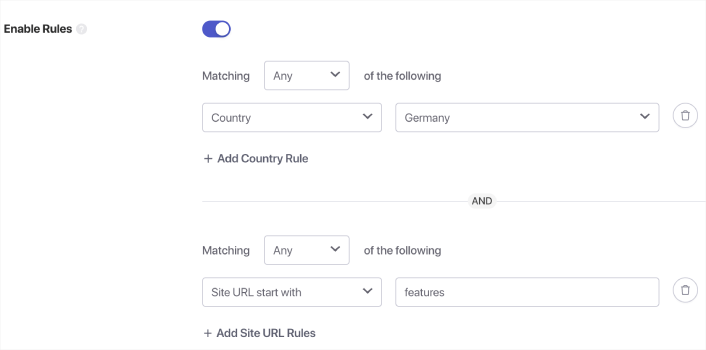
Dette er globale målretningsregler og vil have præference frem for målretningsregler for individuelle popup-modalvinduer. Men hvis du ønsker det, kan du oprette robuste målretningsregler for hvert modalvindue ved at redigere dem.
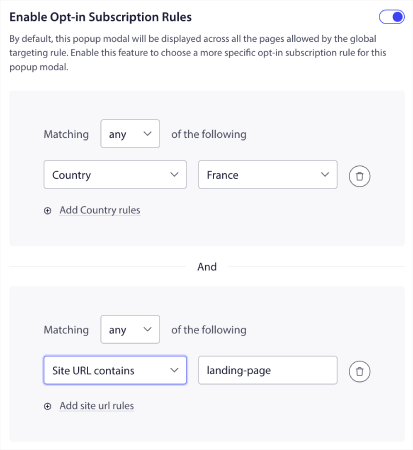
For eksempel kan du oprette popup-modalvinduer på forskellige sprog for at målrette besøgende fra forskellige lande.
Og hvis du gerne vil have nogle skabeloner med en høj klikrate til at komme i gang, bør du se denne artikel om konverteringsdygtige push-notifikations-opt-ins.
Hvad du skal gøre, før du bruger dynamisk segmentering
Du er næsten færdig.
Før du begynder at sende push-notifikationer, skal du opsætte en abonnements-opt-in for dit websted. Din opt-in vil konvertere webbesøgende til push-notifikationsabonnenter. Så dette er et kritisk element.
Hvis du har brug for inspiration, kan du se denne artikel om konverteringsdygtige push-notifikations-opt-ins. Når du er færdig med at opsætte opt-in, kan dit websted indsamle abonnenter. Men hvordan ved du overhovedet, at din opt-in fungerer korrekt?
Og selv før du begynder at bruge dynamisk segmentering til push-kampagner, bør du opsætte andre push-kampagner, der er kendt for at engagere og konvertere.
Så det fornuftige er at opsætte en velkomst-push-notifikation.
Pro-tip: Du bør bruge noget tid på en fuldskala test af dine push-notifikationer. Dette vil fejlfinde de mest almindelige problemer, og du spilder ikke din tid på at forsøge at løse problemer senere.
Hvad du skal gøre, efter du bruger dynamisk segmentering
Det var alt for denne gang, folkens!
Hvis du fandt denne artikel nyttig, så sørg for at efterlade en kommentar nedenfor.
At komme i gang med målrettede push-notifikationer kan virke skræmmende. Men hvis du holder øje med målsporing og analyse, skal det nok gå. Endnu vigtigere, du vil tjene meget mere profit med hjælp fra push-notifikationskampagner. Her er et par seje ressourcer til at komme i gang:
- Sådan bruges retargeting push-notifikationer til at fordoble din omsætning
- Sådan sorteres dine push-notifikationer og finder vindende kampagner
- Sådan renses push-notifikationsabonnentlister (nemt)
- Sådan sendes RSS push-notifikationer automatisk
- Sådan bruges push-notifikationer til at promovere en nyhedsside
- Sådan bruges cross-selling push-notifikationer til at fordoble dit salg
- Sådan bruges browse abandonment push-notifikationer (4 trin)
Hvis du er ny til push-notifikationer, bør du prøve PushEngage. PushEngage er den #1 push-notifikationssoftware på markedet. Og dine kampagner vil være i sikre hænder.
Så hvis du ikke allerede har gjort det, kom i gang med PushEngage i dag!


