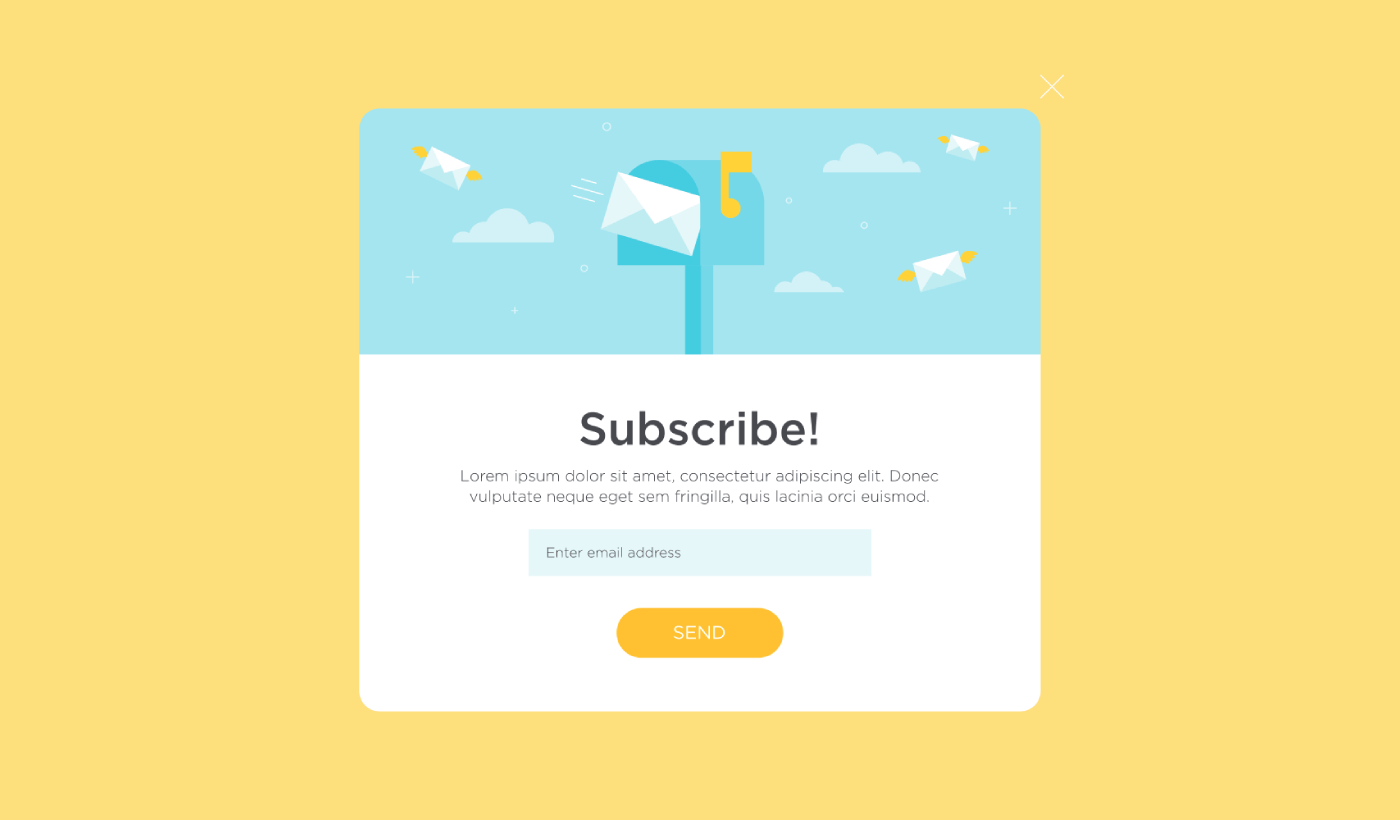
Leder du efter en måde at oprette en lightbox-popup til dit websted?
En lightbox-popup kan være utroligt effektiv til at indsamle kundeemner. De er designet til at overbevise og konvertere.
Men at skulle kode en fra bunden er en reel plage. For det første skal du kende nok HTML, CSS og Javascript til at oprette popup'en sammen med udløserregler for, hvornår den skal vises. Derefter skal du oprette en manuel integration med din e-mail-tjenesteudbyder. Og endelig skal du håndtere eventuelle privatlivs- og sikkerhedsproblemer.
Gode nyheder: der er en meget enklere måde.
I denne artikel vil vi vise dig, hvordan du starter en lightbox-popup uden kodning på mindre end 10 minutter.
Lad os dykke ned.
Hvad er en Lightbox-popup?
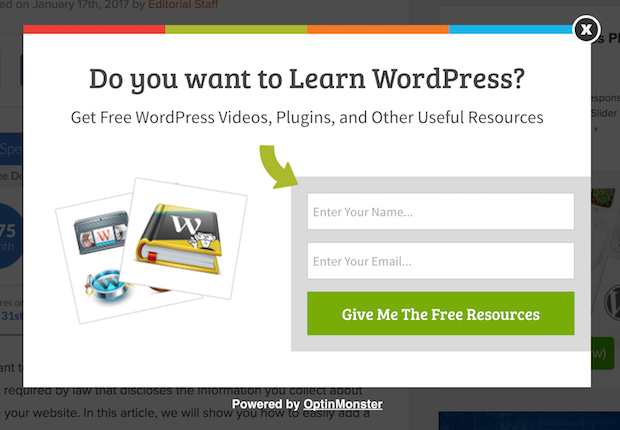
En lightbox-popup er en tilmeldingsformular, der popper op med en filmisk effekt. Når en lightbox popper op, slører den resten af webstedet i baggrunden. På denne måde er dit fulde fokus på popup'en.
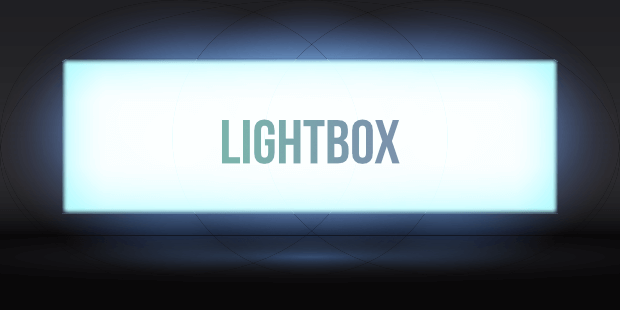
Oprindeligt kommer konceptet med lightboxes fra udendørs reklamer:
Og så tænkte nogle udviklere, at dette var en rigtig cool effekt, og de oprettede et Javascript-bibliotek for at genskabe den samme effekt på webaktiver. Senere kom ideen om at bruge lightbox-popups i spil.
Hvorfor Lightbox-popups virker
Lightbox-popups indsamler flere e-mails end en traditionel e-mail-tilmeldingsformular.
Men hvorfor virker de?
Lad os tage et hurtigt kig på hovedårsagerne til, at lightbox-popups virker så godt.
#1. Lightbox-popups har en klar opfordring til handling
De fleste mennesker tror, at det er en god ting at give deres kunder mange muligheder.
Men det er ikke rigtigt sandt.
Hvis du leder efter direkte konverteringer, ønsker du en enkelt, klar opfordring til handling, som dit publikum kan fokusere på. På denne måde fjerner du alle distraktioner fra brugerens sind. Og lightbox-popups gør et godt stykke arbejde med at fremhæve dit kerneudbud og få folk til at fokusere på din opfordring til handling.
Så naturligvis er konverteringsraterne ret gode.
#2. Lightbox-popups er umulige at ignorere
Lightbox-popups fylder hele skærmen og slører alt andet. Så det er praktisk talt umuligt at ignorere dem.
Dette er især sandt, hvis de er animerede:
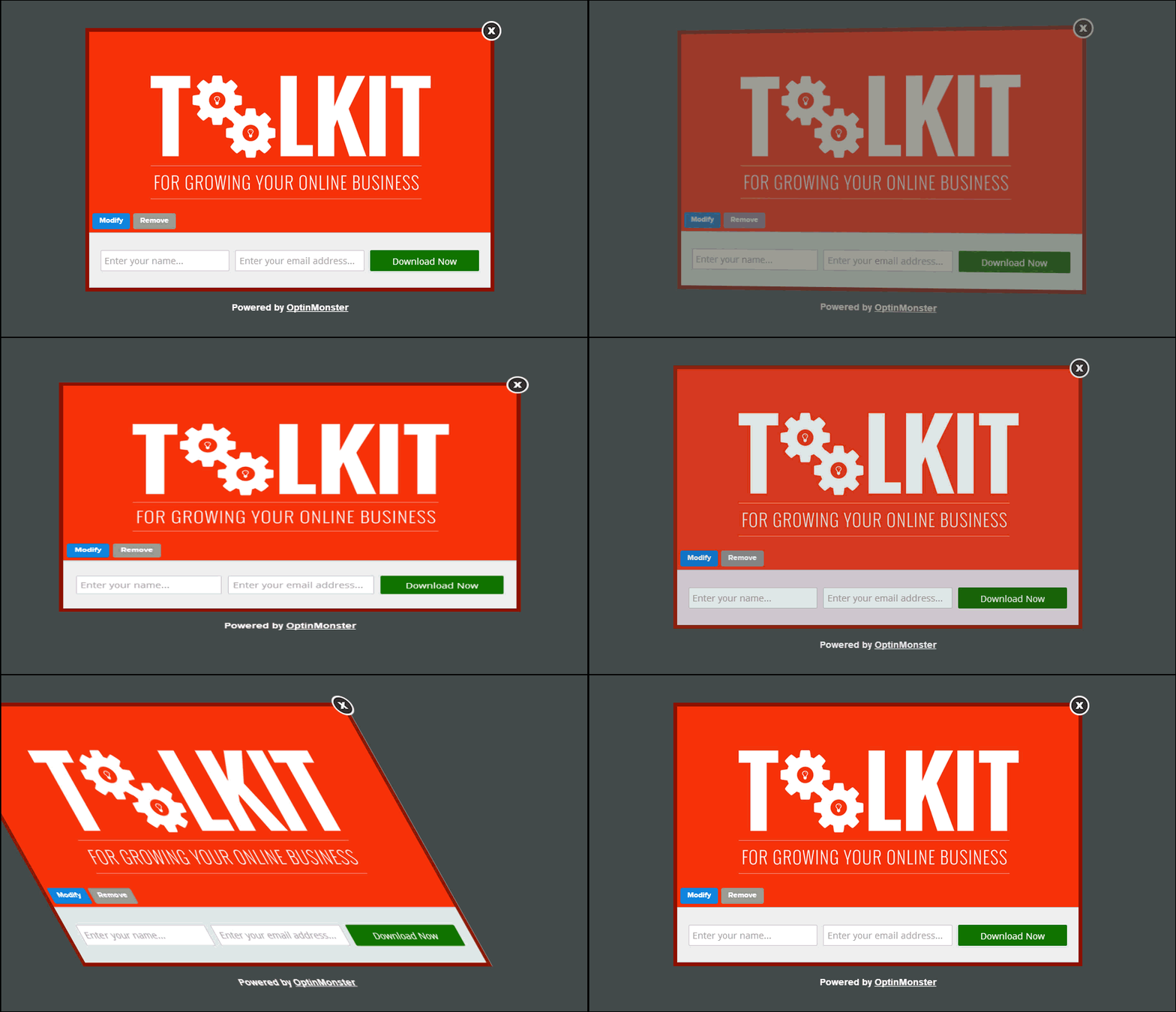
Selvfølgelig skal du sikre dig, at dine popups ikke er påtrængende. Og det kan du gøre ved at tilpasse, hvornår forskellige popups udløses på dit websted. Så længe dit publikum ikke bliver irriteret over afbrydelsen, kan du meget nemt overbevise og konvertere dem.
#3. Lightbox-popups har personlige udløsere
Du bør ikke vise det samme tilbud til alle dine webbesøgende. Hvis du driver en e-handelsbutik, har du brug for meget forskellige tilbud til nye og tilbagevendende kunder.
For en ny kunde kan du udløse en velkomstkampagne:
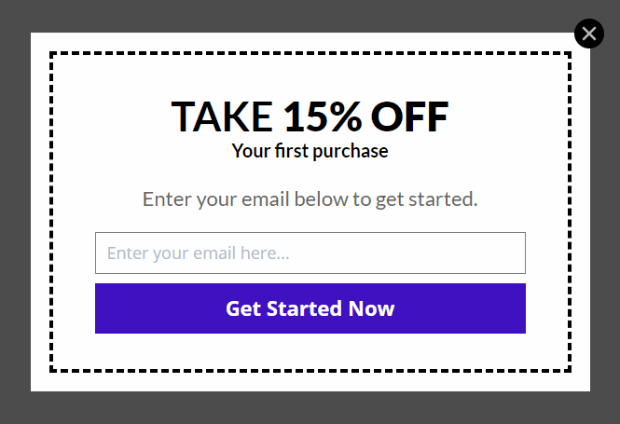
Men for en tilbagevendende kunde vil du måske sende dem et andet tilbud:
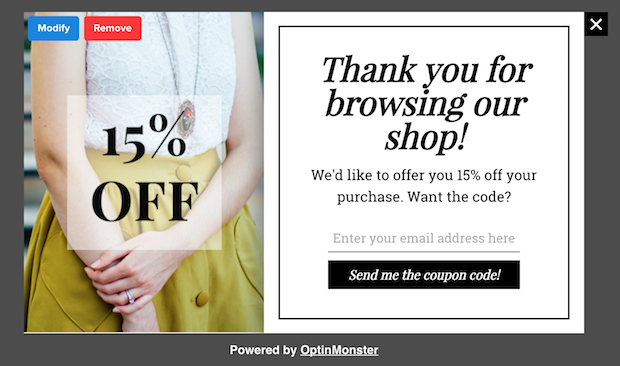
Bemærk, hvordan rabatbeløbene for begge tilbud er præcis de samme. Men måden, tilbuddet er formuleret på, er drastisk anderledes. Og dette er super vigtigt, fordi lightbox-popups er bygget til teatralske effekter. Så en mere personlig tilgang vil helt sikkert give dig meget bedre resultater.
Du kan endda personliggøre tilbuddet baseret på din brugers indholdspræferencer. Hvis de læser en artikel om aftensmadsopskrifter, giver det mere mening at vise dem et tilbud relateret til aftensmadsopskrifter i stedet for at vise dem et tilbud på biler.
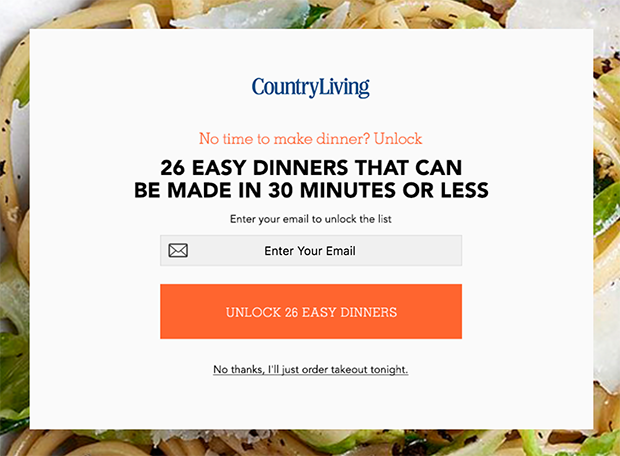
#4. Lightbox-popups kan indsamle besøgende, der forlader siden
Lightboxes er blot en metode til at vise din popup. Så der er virkelig intet, der forhindrer dig i at tilpasse udløseren i det omfang, du ønsker. Vi anbefaler at oprette lightbox popups med exit-intent.
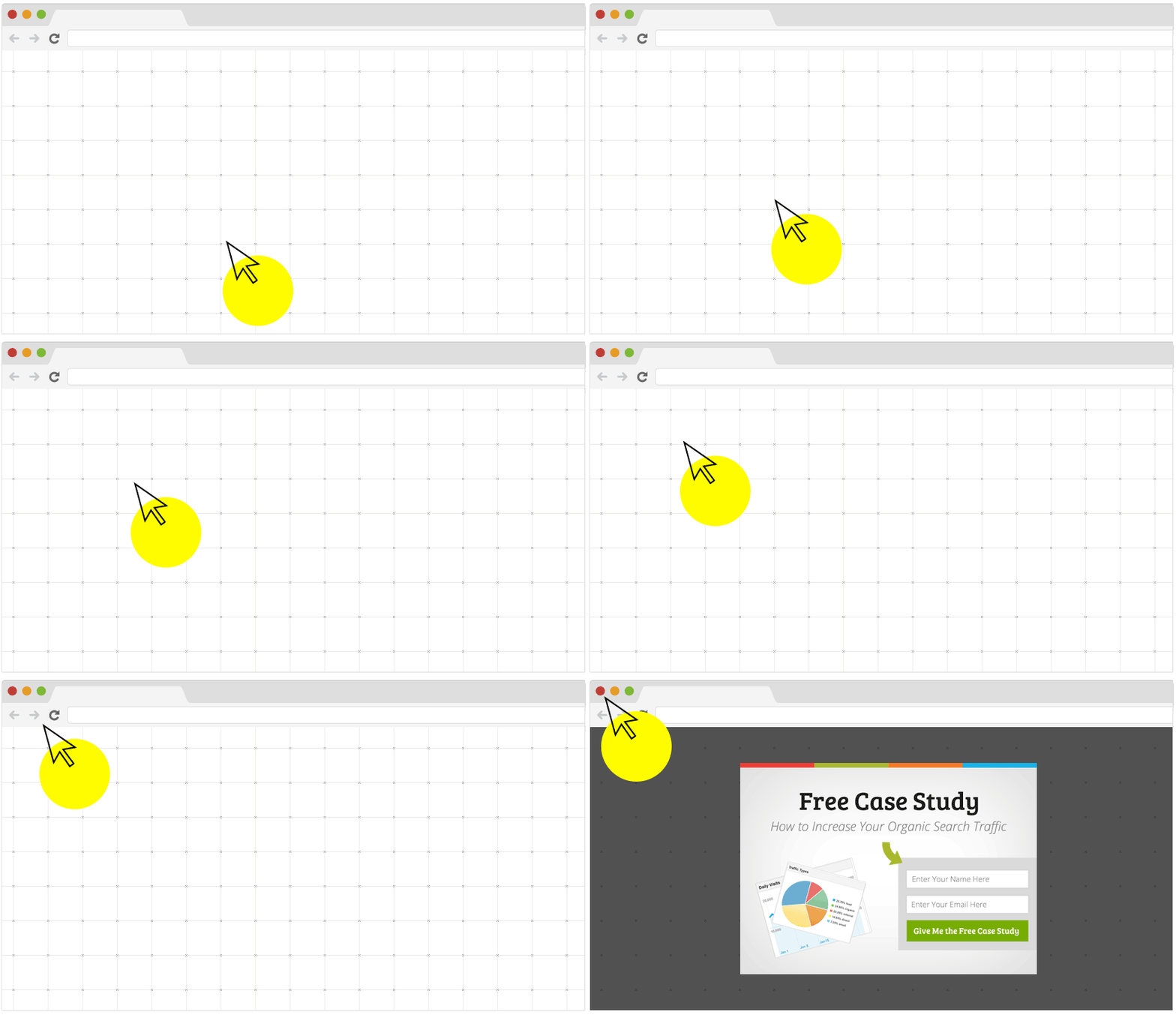
Exit-intent popups udløses, når dine besøgende forsøger at forlade dit website. Som et resultat bevarer du et stort antal besøgende, som ellers ville have forladt dit websted. Så hvis du lider af afbrudte besøg, bør du helt sikkert oprette en lightbox popup med exit-intent.
Sådan opretter du en Lightbox Popup
Nu hvor du forstår, hvad en lightbox popup er, og hvorfor du vil oprette en, hvordan opretter du en lightbox popup? Vi anbefaler at bruge OptinMonster til at oprette dine popups.
OptinMonster er konverteringsværktøjskassen #1 i verden, og vi har brugt den selv. OptinMonster gør det super nemt at oprette kraftfulde popups, der konverterer. Og du behøver aldrig at bruge nogen kode overhovedet.
Vi har endda skrevet en fuld anmeldelse af OptinMonster.
Du kan tjekke den ud, eller komme i gang med din kampagne lige nu. Alt du skal gøre er at tilmelde dig OptinMonster og følge med i resten af denne artikel.
Trin #1: Opret en kampagne
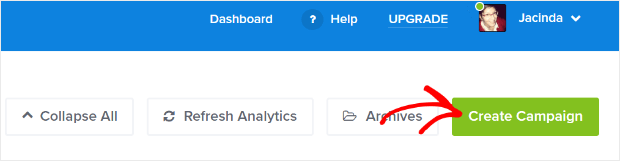
Gå til dit OptinMonster-dashboard og tryk på Opret-knappen:
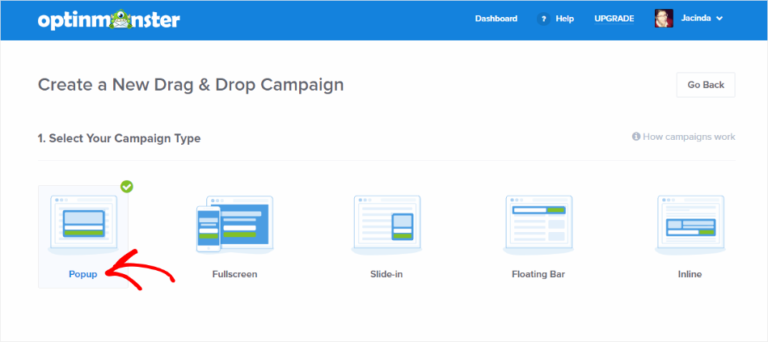
Vælg kampagnetypen Lightbox Popup:
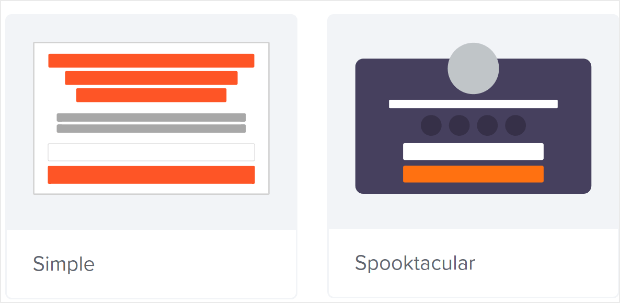
Vælg derefter en kampagneskabelon. Du kan vælge enhver skabelon, du vil, men vi går med kampagnetypen Simpel til denne vejledning.
Giv nu din kampagne et navn. Husk, at dette kampagnenavn er til dig, og du vil sandsynligvis oprette en hel masse af disse popups med forskellige målretningsmuligheder. Så giv kampagnen et meningsfuldt navn, ellers bliver du virkelig forvirret senere.
Afhængigt af din plan kan du også bruge OptinMonster på flere websteder. Vælg derfor også det websted, hvor du vil vise din kampagne.
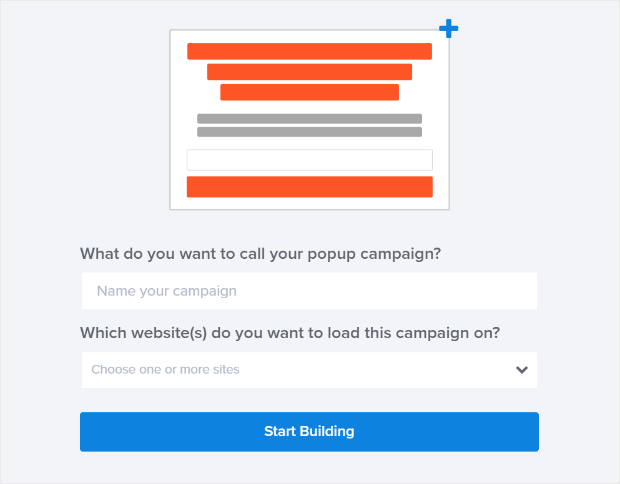
Tryk på Start Byggeri når du er færdig.
Trin #2: Rediger din Lightbox Popup
Med OptinMonster får du en visuel drag-and-drop popup-bygger. Når du er færdig med at oprette din kampagne, vil du kunne redigere selv de mindste detaljer om din popup. Start med at redigere din popup-overskrift:
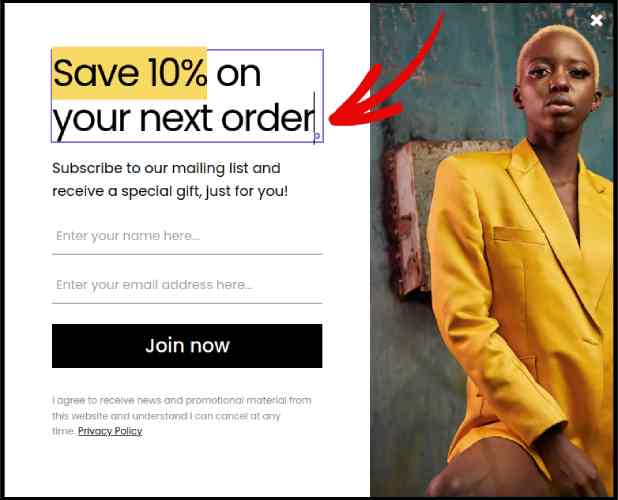
Den mest fantastiske del her er, at du bare klikker på den tekst, du vil redigere, og ændrer den inline. Der er ingen grund til at udfylde en formular eller redigere HTML-kode i popup'en.
Og juster derefter din knaptekst og udseende for at skabe en klar opfordring til handling:
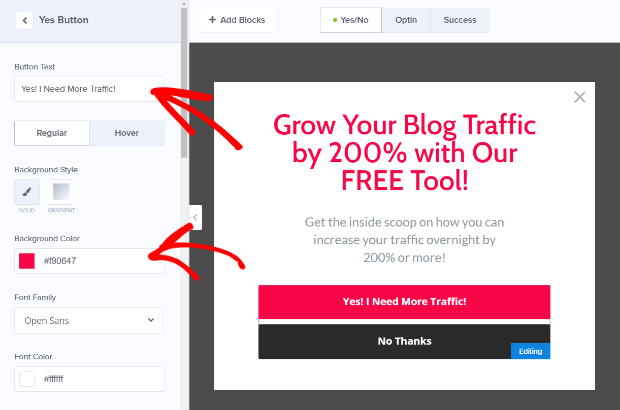
Når du er tilfreds med din popups udseende, kan du gå videre til mere avancerede indstillinger.
Trin #3: Indstil visningsregler
Visningsregler er beregnet til at definere, hvornår din kampagne vises på dit websted, og hvem der ser den.
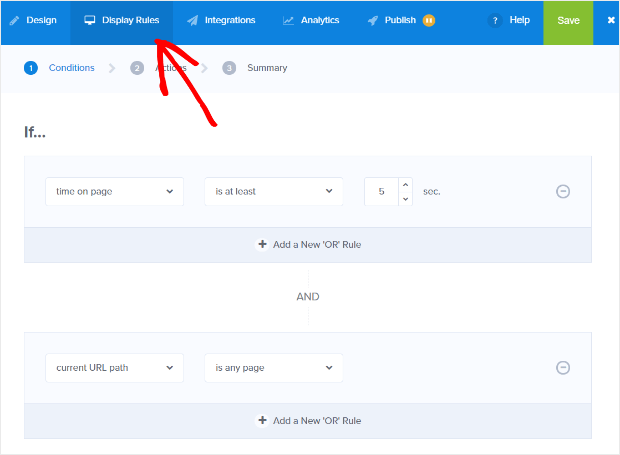
Vores anbefaling er, at du ændrer udløserbetingelsen til exit-intent:
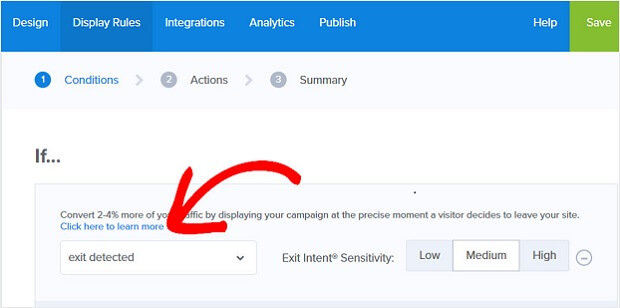
Klik Næste trin for at vælge Handling. Her anbefaler vi, at du indstiller Vis kampagnevisning til Optin View, indstiller vis med MonsterEffect til en hvilken som helst indgangsanimation, du kan lide, og afspil lydeffekt til en hvilken som helst lydeffekt for din popup.
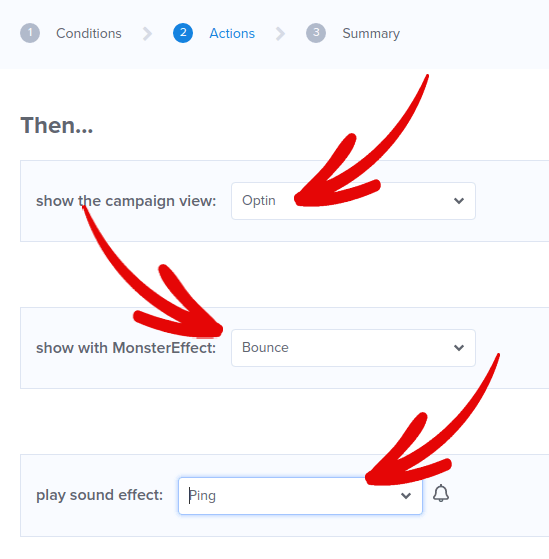
Klik derefter på knappen Næste trin. Du kan se det fulde omfang af dine indstillinger i fanen Oversigt.
Trin #4: Opsæt din e-mailintegration
Det næste trin er at opsætte din e-mailintegration. Klik på Tilføj ny integration fra fanen Integrationer og vælg din e-mailudbyder:
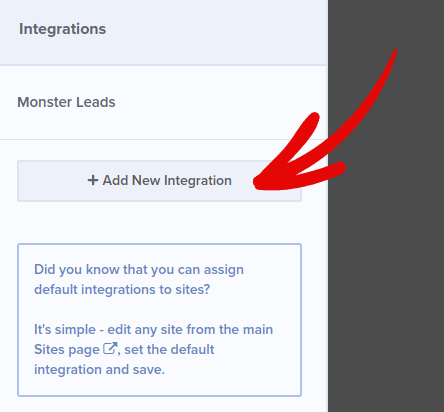
Vi anbefaler at bruge Drip til din e-mailmarkedsføring, hvis du ikke allerede har en e-mailudbyder.
Trin #5: Udgiv din Lightbox Popup
Når du opretter en ny kampagne, er den pauset som standard.
Gå til fanen Udgiv fra topmenuen for at se Udgivelsesindstillinger. Indstil derefter status til Udgiv og vælg webstedsplatformen:
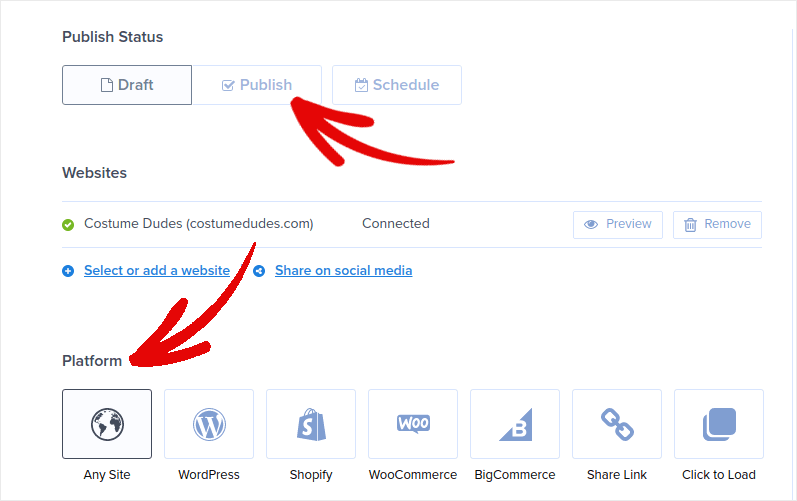
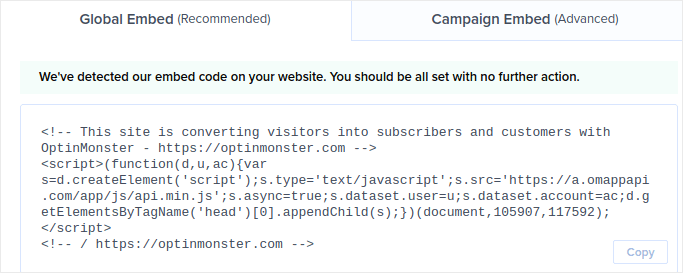
Hvis du kører et WordPress-websted, håndterer OptinMonster-pluginet resten af opsætningen automatisk. Det er det samme for Shopify og BigCommerce. For ethvert andet websted skal du klikke på Ethvert websted og indsætte embed-koden i dit websteds hoved:
Og du er færdig!
BONUS: Indsaml push-notifikationsabonnenter fra din popup
Push-notifikationer hjælper dig med at øge din webtrafik og engagement automatisk. Web push-notifikationer er en effektiv måde at bringe brugere tilbage, der måske har forladt deres session eller forladt websitet. Det hjælper med at gen-engagere brugere ved at underrette dem om nyt indhold, tilbud eller begivenheder.
Push-notifikationer inkluderer også klare og handlingsrettede beskeder og knapper med opfordring til handling, der opfordrer brugerne til at udføre specifikke handlinger, såsom at læse en artikel, gennemføre et køb eller deltage i en begivenhed.
Du kan skræddersy push-notifikationer baseret på brugernes præferencer, adfærd og interesser for at sikre, at beskederne er relevante og værdifulde for hver bruger. Brugere skal acceptere at modtage web push-notifikationer. Dette sikrer, at beskederne ikke opfattes som spam, og at de sendes med brugernes tilladelse.
Det sejeste er, at du kan indsamle push-notifikationsabonnenter fra din e-mail popup. Så hvis dine webstedsbesøgende ikke ønsker at give deres e-mail-id, kan du stadig få dem til at abonnere ved hjælp af web push-notifikationer.
Og det er det, vi skal arbejde på.
Trin #1: Vælg en Push-notifikationstjeneste
Vi anbefaler at bruge PushEngage til at sende web push-notifikationer.

Her er et hurtigt overblik over, hvad du får med PushEngage:
- Højtkonverterende automatiserede kampagner
- Flere målretningsmuligheder og planlægning af kampagner
- Målsporing og avanceret analyse
- Smart A/B-test
- En dedikeret succesmanager
Du kan komme i gang gratis, men hvis du er seriøs omkring at vækste din forretning, bør du købe en betalt plan. Før du køber en push-notifikationstjeneste, bør du også se denne guide til priser på push-notifikationer.
Og hvis du driver en online butik, hjælper PushEngage dig også med at øge dit salg ved at hjælpe dig med at oprette automatiserede e-handels push notifikationer.
Du vil se, at PushEngage uden tvivl er det bedste valg, hvis du vil opbygge trafik, engagement og salg for din virksomhed. Og hvis du har et stramt budget, kan du altid være lidt kreativ med dine push-notifikationer.
Trin #2: Tilføj en HTML-blok til din popup
Tilføj først en HTML-blok til din popup fra sidepanelet i OptinMonster.
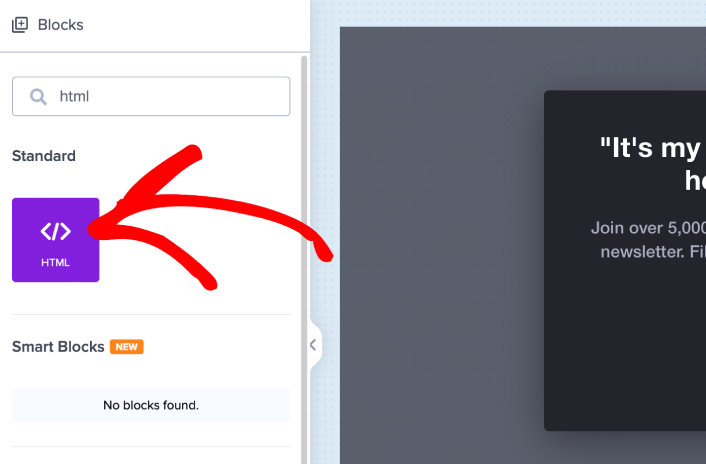
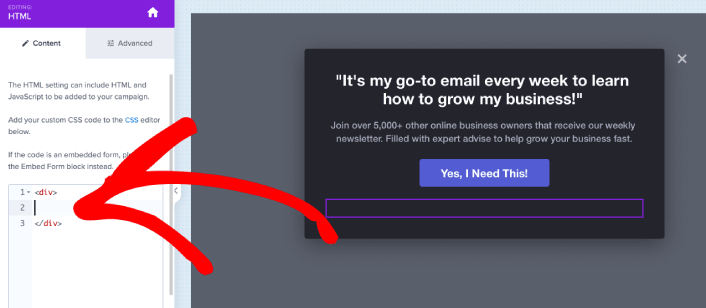
Her er, hvor vi skal tilføje koden til at indsamle push-notifikationsabonnenter. Indsæt først følgende kode for at oprette en klikbar knap:
<button onclick="subscribeOnClickButton()" style="border: none; width: 100%; padding-left: 15%; padding-right:15%; text-align: center; display: inline-block; color: white;">Get Updates via Push Notifications Instead</button>Indsæt koden, hvor der står, at du kan tilføje HTML:
På dette tidspunkt bør du se en ny knap i din popup, der siger "Få opdateringer via push-notifikationer i stedet" lige under e-mail-abonnementsknappen:
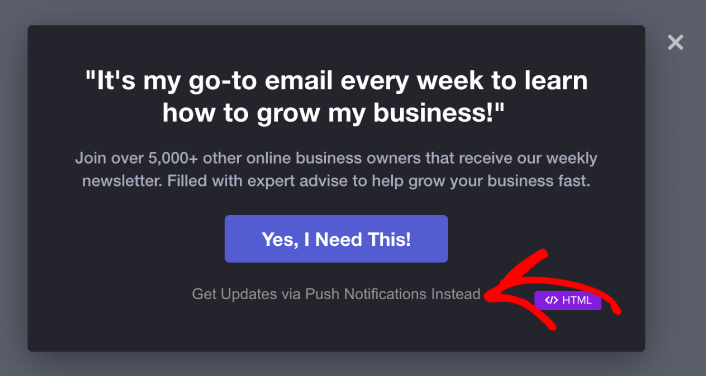
Selvfølgelig kan du lege med stilarterne for at gøre den mere tiltalende. Dernæst vil vi få knappen til at indsamle push-notifikationsabonnenter, når der klikkes på den.
Trin #3: Hent abonnementskode fra PushEngage
Gå til PushEngage hjemmeside og klik på knappen Kom i gang :

Vælg derefter gratisplanen for at prøve PushEngage, eller vælg en betalt plan, hvis du er seriøs omkring at udvide din virksomhed. De betalte planer kommer med flere kampagnemuligheder og muligheden for at opbygge endnu større abonnentlister.
På dit PushEngage dashboard skal du gå til Sideindstillinger » Sideoplysninger og klikke på knappen Klik her for opsætningsinstruktioner. Under Enhver side får du din installationskode:

ADVARSEL: Du skal kopiere den kode, du får fra dit dashboard. Koden er unik for hver PushEngage-bruger. Du kan ikke kopiere koden på billedet og indsamle push-notifikationsabonnenter.
Når du har koden i dit PushEngage-dashboard, skal du tage det andet script og tilføje lidt ekstra kode til det. Din endelige kode skal se nogenlunde sådan ud:
<script src="https://clientcdn.pushengage.com/core/02a6e92667ae2279fcba8932356c1d93.js" async></script>
<script> window._peq = window._peq || [];
function subscribeOnClickButton(){
window._peq.push(['subscribe',{}.pe,function(res){
console.log(res);
}]);
}
</script>
Trin #4: Tilføj din abonnementskode til HTML-blokken i din popup
Tilføj denne kode til HTML-blokken i OptinMonster, og du er færdig!
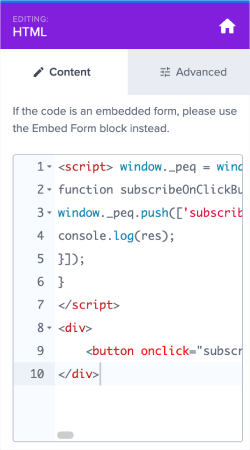
Når du er færdig, skal du blot trykke på knapperne Gem og Udgiv.
Hvis du tjekker din hjemmeside ud, bør du nu se lightbox-popuppen, der indsamler både e-mail- og push-abonnenter:
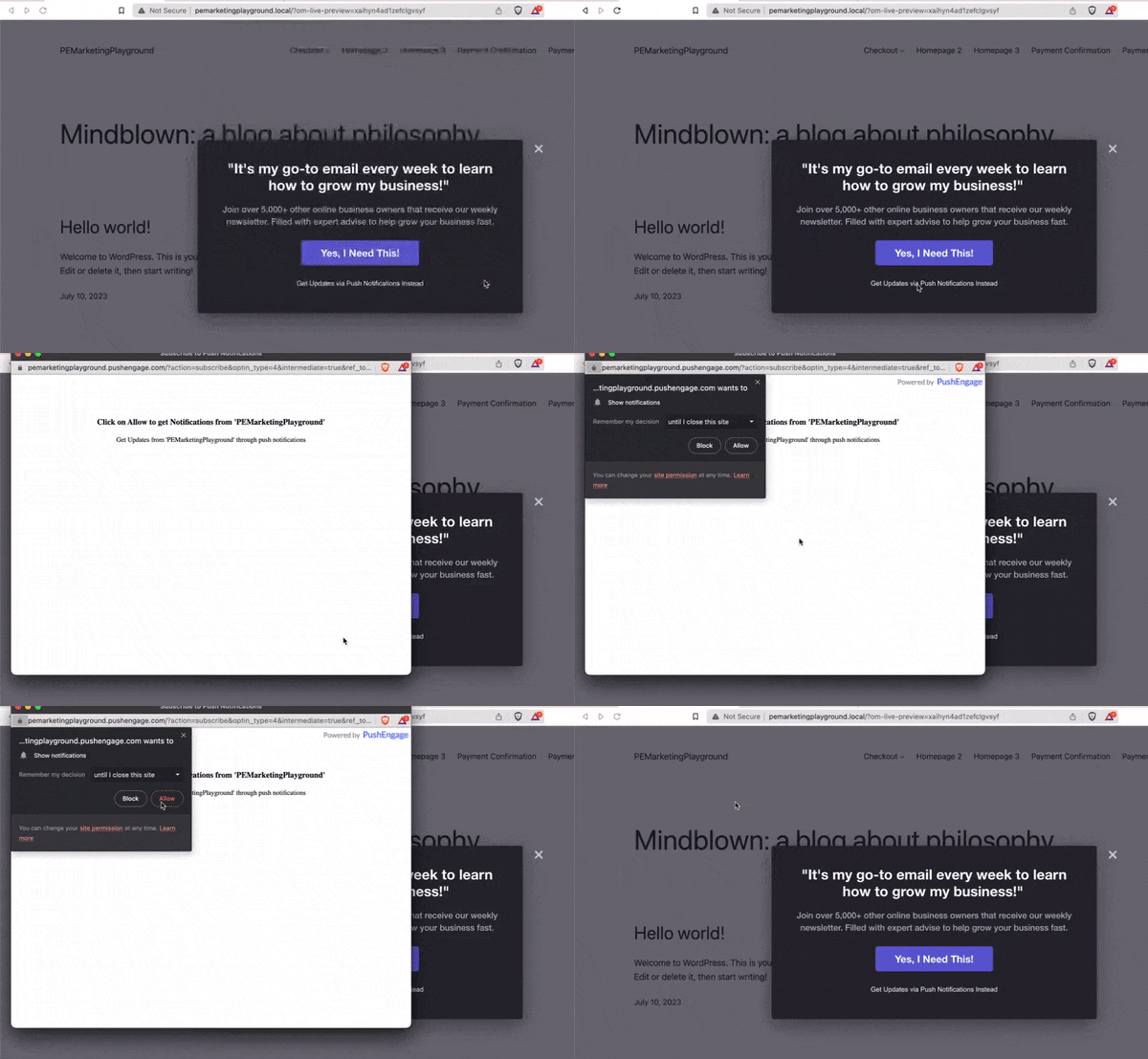
Og lige som det, indsamler du push-abonnenter fra din popup. Push-notifikationer kommer med deres egne popup-modaler. Men de er lidt svære at tilpasse. Så du kan oprette smukke popups ved hjælp af OptinMonster og derefter bruge dem som dine push-notifikations-popups.
Hvad du skal gøre, efter du har oprettet en lightbox-popup
Det var alt for denne gang, folkens!
Lad os vide, om denne artikel hjalp. Oprettelse af popups på dit websted kan hjælpe dig med at konvertere din trafik til e-mail-abonnenter og ægte forretningsleads. Og vi anbefaler kraftigt, at du begynder at oprette lightbox-popups med det samme.
Og hvis du leder efter en overkommelig måde at øge din trafik på, anbefaler vi at bruge push-notifikationer. Push-notifikationer kan hjælpe dig med at tiltrække mere gentagen trafik og engagement på webstedet. Du kan også oprette automatiserede push-notifikationskampagner, der genererer salg.
Ikke overbevist? Tjek disse ressourcer:
- 7 Smarte Strategier til at Øge Kundeengagement
- Er Push-notifikationer Effektive? 7 Statistikker + 3 Eksperttips
- Sådan opsættes push-meddelelser om forladte indkøbskurve (nem vejledning)
Vi anbefaler at bruge PushEngage til at oprette dine push-notifikationskampagner. PushEngage er den #1 push-notifikationssoftware i verden. Så hvis du ikke allerede har gjort det, kom i gang med PushEngage i dag!


