Vil du have dine push-notifikationer til at se lige så godt ud, som de performer? Tilpasning af Android-notifikationsfarven er en hurtig gevinst, der hjælper dit brand med at skille sig ud, hver gang du når din målgruppe, især på mobil. Det er en af de små detaljer, der har stor indflydelse på alle dine engagementindsatser.
Det bedste? Det tager kun et par minutter at sætte op.
I denne hurtige guide viser vi dig, hvordan du ændrer Android-notifikationsfarven for din app med blot et par enkle trin.
Lad os komme i gang.
Send Android Mobile App Push Notification Kampagner Nu!
Push-notifikationer er et supereffektivt, billigt marketingværktøj, der hjælper dig med at øge din gentagne trafik, engagement og salg automatisk.
Hvorfor tilføje en brugerdefineret Android-notifikationsfarve til apps
Selvfølgelig! Lad os bryde det ned i enklere vendinger:
Forestil dig din app som en karakter i en historie. Tænk nu på, hvordan du vil have folk til at genkende den karakter i en menneskemængde. Det er her, brugerdefinerede Android-notifikationsfarver kommer til nytte!
- Brandlook: Når din apps notifikationer matcher dens farver, er det som at klæde din karakter på i deres signaturoutfit. Det gør dem øjeblikkeligt genkendelige, hvilket opbygger tillid og loyalitet hos brugerne.
- Skil dig ud: I en verden fuld af notifikationer skal dine skille sig ud. Brugerdefinerede farver hjælper dine beskeder med at fange øjet og sikrer, at brugerne bemærker dem midt i havet af opdateringer.
- Gør brugerne glade: Folk elsker, når ting føles som om, de er lavet specielt til dem. At lade brugerne vælge notifikationsfarver giver dem en følelse af kontrol og personalisering. Glade brugere betyder mere engagement med din app.
- Hjælp alle: Ikke alle ser farver ens. Ved at tilbyde forskellige farvemuligheder sikrer du, at alle nemt kan se og forstå dine notifikationer, uanset hvordan de ser verden.
- Send en besked: Farver kan sige meget uden ord. For eksempel kan en beroligende blå signalere noget informativt, mens en dristig rød kan betyde, at der kræves en presserende handling. Det er som om, dine notifikationer taler et sprog, alle forstår.
- Vær på forkant: I en overfyldt app-butik tæller enhver lille detalje. At tilbyde brugerdefinerede notifikationsfarver viser, at du er opmærksom på, hvad brugerne ønsker. Det hjælper din app med at skinne klarere end resten.
Så ved at tilføje brugerdefinerede notifikationsfarver til din Android-app, gør du den ikke bare pænere. Du skaber en stærkere forbindelse med brugerne, gør din app lettere at få øje på og giver den den ekstra fordel i den konkurrenceprægede app-verden. Desuden er det nemmere at sætte op, end du tror, og det kan gøre en stor forskel i, hvordan folk interagerer med din app.
Sådan tilføjer du en brugerdefineret Android Push-notifikationsfarve
Integrerer du med en AI-kodningsassistent? Open source PushEngage Agent Skills lærer Claude Code, Cursor og enhver SKILL.md-kompatibel agent at integrere og debugge dette SDK. Og når du sender, lader PushEngage MCP-serveren den samme assistent køre dine kampagner — segmenter, afsendelser, A/B-tests og rapporter. Bygger du i Replit, Lovable eller Bolt? Open source vibe-coding kits inkluderer en færdiglavet demo-butik, en Flutter-starter og demoer med ét prompt med PushEngage forudkonfigureret.
Nu hvor vi forstår, hvad en Android-notifikationsfarve betyder for dine apps, og hvorfor du bør tilføje den, lad os se på, hvordan du nemt kan tilføje den uden nogen kodning overhovedet.
Trin #1: Vælg en Android App Push-notifikationstjeneste
Push-notifikationer er et marketingværktøj, der hjælper dig med at forbinde med webbesøgende, selv efter de har forladt dit website. Du kan sende målrettede notifikationer til dine push-abonnenter og endda personliggøre dine notifikationer til forskellige kundesegmenter. Men hvilken Android push-notifikationstjeneste skal du vælge?
Vi anbefaler at bruge PushEngage til at sende push-notifikationskampagner.

PushEngage er den bedste push-notifikationstjeneste i verden. Og vi taler ikke kun om gratisversionen. Den giver dig mulighed for at forbinde med besøgende, efter de har forladt dit websted, med målrettede push-beskeder.
PushEngage er vores førstevalg til push-notifikationstjenester og -værktøjer, fordi den er:
- Super nem at bruge
- Har en visuel kampagnebygger med forudbyggede skabeloner, der kræver lidt eller ingen kodning at sætte op
- Nem at opsætte fuldt automatiserede push-notifikationskampagner for enhver form for hjemmeside
- Fuldstændig udstyret med Android- og iOS SDK'er til hurtigt at udvikle, implementere, analysere og administrere app-push-kampagner
- Bygget med flere muligheder for at sende personaliserede push-notifikationer for højere klikrater
- Udstyret med brugerdefineret målsporing, UTM-parametre og avanceret analyse
- Få kraftfulde push-notifikations A/B-test muligheder
Og dette er kun en lille del af mulighederne. Tjek PushEngages fulde liste over funktioner, før du går videre. Det mest utrolige ved PushEngage er, at den har en evigt gratis plan, som du kan prøve, før du træffer en købsbeslutning.
Pro Tip: Læs vores artikel om analyse af push-notifikationsomkostninger, før du køber nogen service.
Trin #2: Konfigurer PushEngage Android App Push-notifikationer
Lige indtil nu har du været nødt til at bruge skelet-SDK'er til at sende app-push-notifikationer. Problemet med at bruge disse SDK'er er, at de er ret basale.
Teoretisk set kan du sende enhver form for mobilapp-push-kampagner med dem. Men så skal du også bygge:
- En grænseflade til at administrere dine kampagner
- En analyse-suite til at spore dine kampagners ydeevne
- Bedre understøttelse af rich media og omdirigeringslinks i appen (eller deep links)
- Processer til at koordinere både marketing- og udviklingsteams
Alt for at introducere en enkelt kanal til vækst. Brug af de gamle værktøjer til at sende push-meddelelser til mobilapps er besværligt, dyrt, ressourcekrævende og tidskrævende. Og selvfølgelig kræver det dybe kodningsfærdigheder i dit team at udvikle og administrere alt, hvad du bygger.
Med det nye PushEngage Android SDK kan du sende mobilapp-push ved hjælp af den samme pålidelige software for gode leveringsrater. Men vi har bygget flere lag ovenpå, der gør det super nemt at bygge brugerdefinerede integrationer med din app. Og PushEngage administrerer hele SDK'en. Så du behøver ikke engang at bruge en masse tid og penge på at administrere dine integrationer.
Alt du skal gøre er at bygge!
Du kan sende broadcast-notifikationer direkte fra dit PushEngage-dashboard når du har sat din app op til at sende push-notifikationer til mobilapps ved hjælp af PushEngages SDK. Ja, du skal stadig tilføje kode til din app og udvikle forbindelserne mellem din app og PushEngage API'en. Men når det er gjort, kan du nemt oprette push-kampagner til mobilapps fra en færdigbygget softwaregrænseflade, der også kommer med:
- Meget engagerende push-kampagnetyper
- Beviste kampagneskabeloner med høje konverteringsrater
- Automatiserede kampagner til at promovere dit indhold, når du udgiver
- Flere målretnings- og kampagneplanlægningsmuligheder
- Web-push-kampagner som en supplerende vækstkanal
- Øget publikumsfastholdelse ved hjælp af databaseret personalisering
- Målsporing og avanceret analyse
- Smart A/B-test
- En dedikeret succesmanager
Og meget mere. Vi har lige fjernet besværet med at udvikle Android mobil push-kampagner til din app.
Trin #3: Tilføj eller rediger din Android-notifikationsfarve
Du kan nemt indstille en brugerdefineret farve til push-notifikationer på Android-mobilapps. Gå tilbage til dit PushEngage-dashboard og gå til Kampagne » Udsendelser og klik på Opret en ny push-udsendelse.
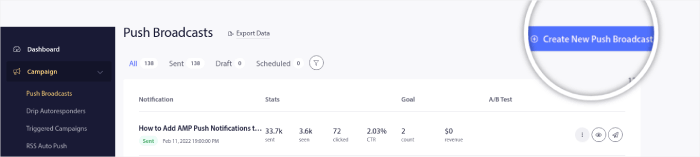
Under Android-indstillinger, gå til Acentfarve:
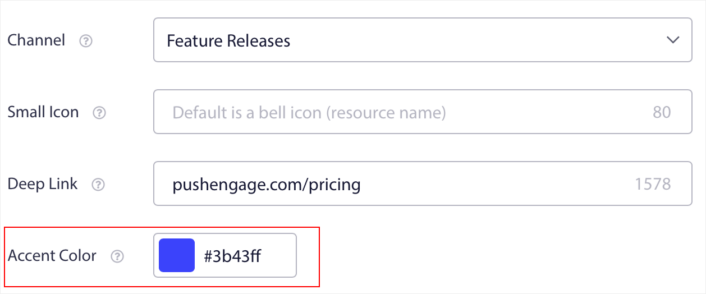
Du kan bruge RGB- eller Hex-koden til enhver accentfarve, du ønsker. Hver gang du sender en notifikation, vil Android-notifikationsfarven, du vælger her, blive vist i teksten til call to action-knapperne og det lille ikon.
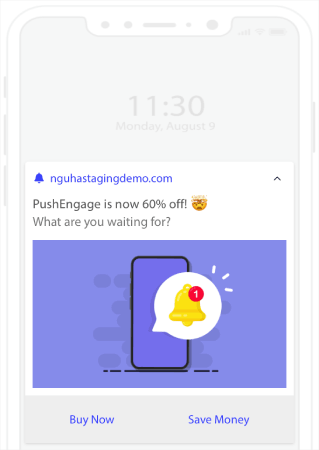
Med andre ord kan du nemt bevare dine branddesignretningslinjer, når du sender Android push-notifikationer. Og alt dette fra en brugervenlig grænseflade, som du aldrig behøver at administrere!
Og det fedeste er, at selv vores gratis brugere får adgang til nogle gratis skabeloner. Selvfølgelig kan du altid opgradere din PushEngage
Lad os oprette en velkomst push-notifikationskampagne nu. Gå til dit PushEngage dashboard og gå til Kampagne »
Hvad skal du gøre, efter du har tilføjet en Android-notifikationsfarve
Nu hvor du ved, hvordan du tilføjer en Android-notifikationsfarve, er det tid til at begynde at oprette dine egne kampagner. Men før du kommer i gang med kampagnerne, bør du først studere nogle gode eksempler på push-notifikationer.
Og hvis du er ny til push-notifikationer, bør du tjekke vores artikel om bedste praksis for push-notifikationer, før du begynder at oprette kampagner. Nogle af de bedste praksisser, som vi aktivt anbefaler, inkluderer:
- Boost klik med nysgerrighed
- Personliggør hver push-notifikation
- Skil dig ud med rigt medieindhold
- Genaktiver inaktive push-abonnenter
- Hold kunderne informeret
- Brug emojis, hvor du kan
- Skab en følelse af hastværk
Vi anbefaler at bruge PushEngage til at oprette dine push-notifikationskampagner. PushEngage er den førende push-notifikationssoftware på markedet, og dine kampagner vil være i sikre hænder.
Så hvis du ikke allerede har gjort det, så kom i gang med PushEngage i dag.


